YouTube Channel Name Change: What Happens to Search, URL and Verification
 CreatorPlaybook Team
- 04 Nov, 2026
You are rebranding. The new name is ready, the change looks like a two-minute job in Studio — then a doubt stops you: will subscribers still find you, will your links break, and will the grey verification tick disappear?
A name change is simple to do and hard to undo cleanly, because the name is tied to three things at once: how people find you, what your channel URL is, and whether YouTube still shows you as verified.
What You Will Learn
- The difference between your channel name, your handle and your Google Account name
- How to change the name in Studio without breaking anything
- The twice-in-14-days limit on names and handles
- Why a name change removes your verification badge, and a handle change does not
- What happens to search, your URL, subscribers and watch hours
- How to announce the rename so your audience follows you
Step 1 — Name, handle and Google Account name are three different things
What to do: Before you change anything, work out which of the three names you actually want to change.
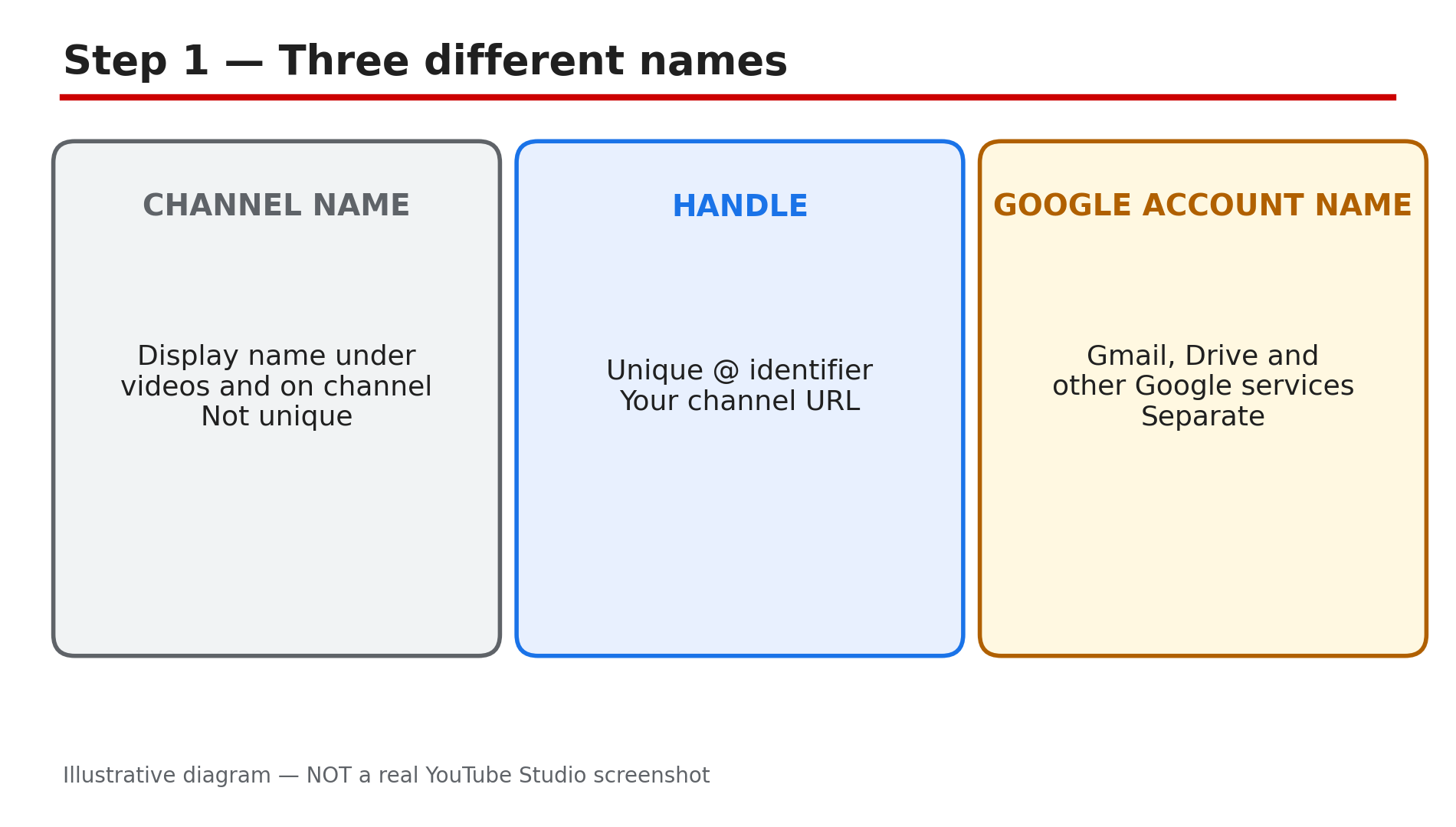
How: Your channel name is the display name under your videos and on your channel page. Several channels can share the same name — it is not unique. Your handle is the unique @ identifier that forms your channel URL, youtube.com/@handle, and shows in comments, mentions, Live Chat and Shorts. Your Google Account name is a third, separate thing: it is the name Gmail, Drive and other Google services show, and changing your YouTube channel name does not change it. YouTube’s Help page, “Manage your YouTube channel’s profile”, states this plainly: a channel name and picture change is visible only on YouTube, while your Google Account name stays as it is.
Example: A creator called “Tech With Arjun” wants to become “Arjun Builds” — only the name needs to change, so the handle can stay.
Common mistake: Renaming the Google Account instead of the channel, then wondering why the channel page still shows the old name.
Illustrative diagram of the three different names a YouTube channel has.
Step 2 — Change the name in Studio, then click Publish
What to do: Make the change on a computer in YouTube Studio, and do not skip the Publish step.
How: Sign in to YouTube Studio, go to Customization in the left menu, then Profile. Type the new channel name, then click Publish. On the YouTube app you can do it from your channel page by tapping Edit next to your name; in the Studio app, tap your profile picture, tap Edit, then Edit next to your name. YouTube says the new name may take a few days to update and display across YouTube, so do not panic if the old name still shows on some videos or in search on day one.
Example: A gaming channel renames on a Monday and the new name shows everywhere by Friday.
Common mistake: Typing the new name, closing the tab, and assuming it saved — without Publish, nothing changes.
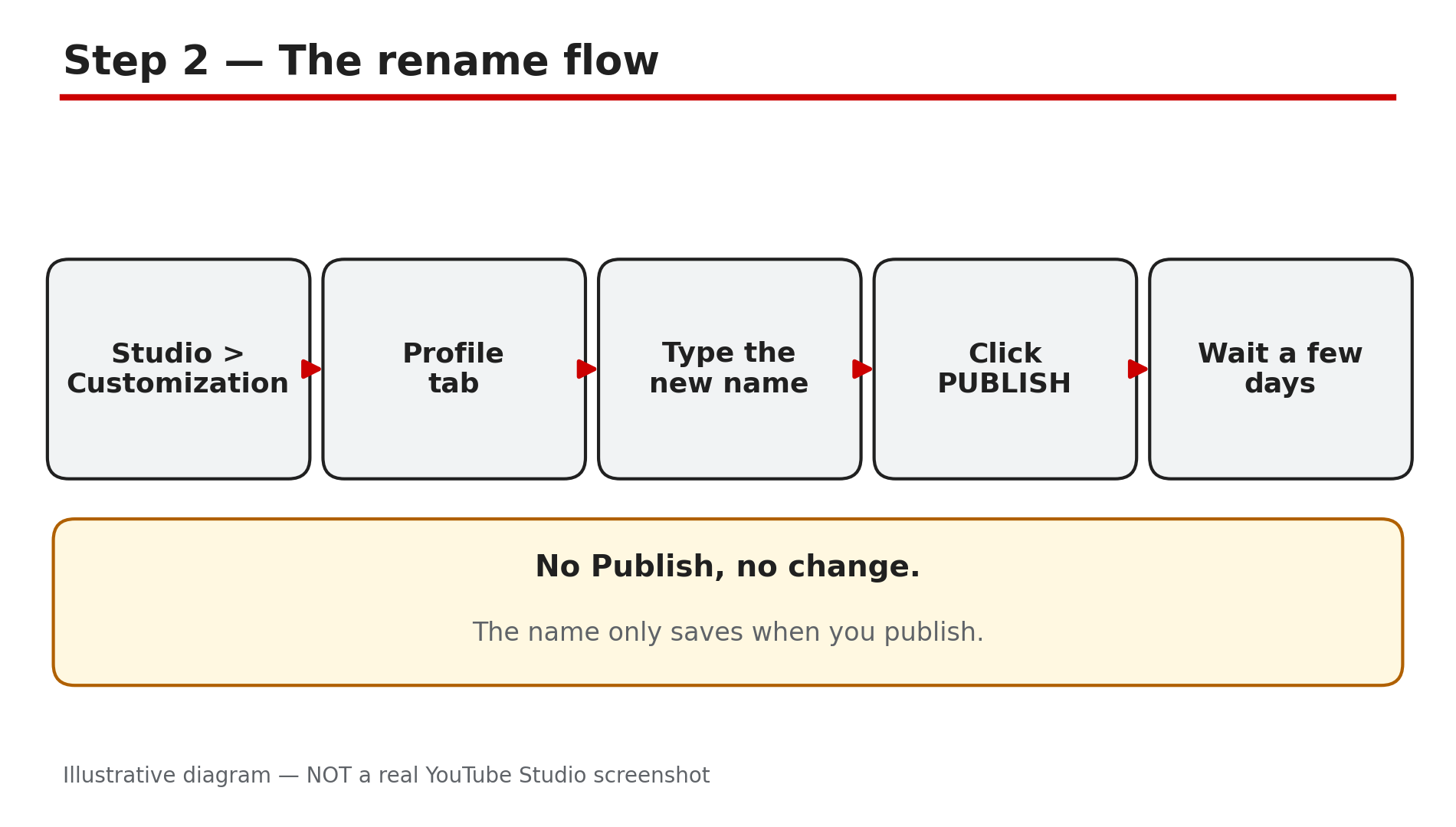
Illustrative diagram of the steps to change a channel name in YouTube Studio.
Step 3 — You only get two changes in 14 days
What to do: Treat every rename as one of two precious slots, and plan the name before you spend one.
How: YouTube’s Help page is explicit: you can change your channel name twice within a 14-day period. The same limit applies separately to your handle — two handle changes in 14 days. A typo fix uses one of the two slots, and there is no setting or support request that lifts the window. If you burn both changes on experiments, you are stuck with the second name until the window resets, even if you hate it. Decide the name offline, check it in search, say it out loud, and only then spend a slot.
Example: A creator renames to “Daily Tech Hindi”, realises a day later the spelling looks wrong, and fixes it.
Common mistake: Testing two or three names live to see which one “feels right”.
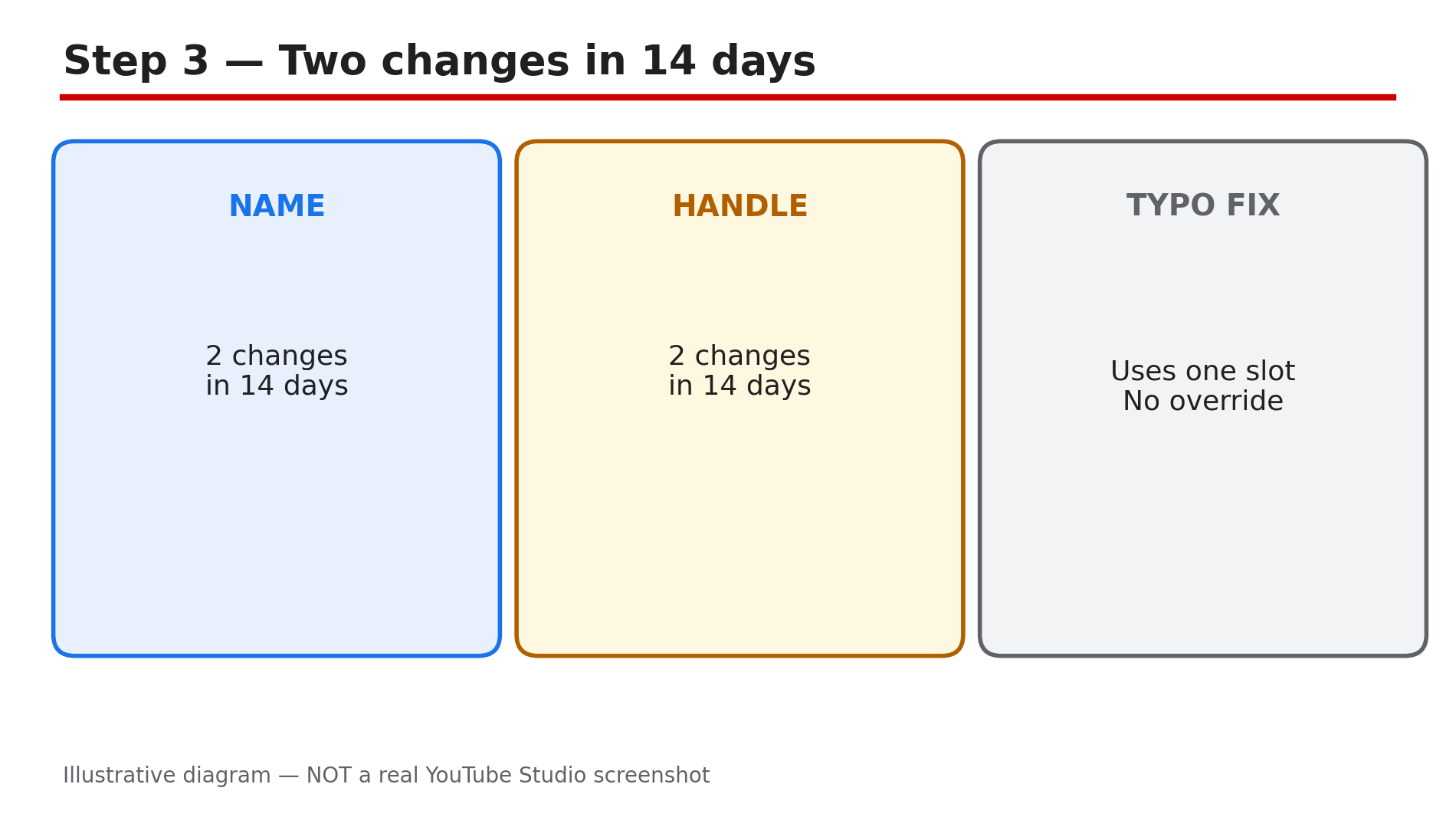
Illustrative diagram of YouTube’s twice-in-14-days limit on names and handles.
Step 4 — A name change removes your verification badge
What to do: If your channel has the grey verification tick, settle the name before you apply for verification — or be ready to reapply after the rename.
How: YouTube’s Help page states it directly: changing your channel name will remove your verification badge. The renamed channel is no longer verified and you will need to reapply, still needing 100,000 subscribers, 2-Step Verification on the Google account, and a complete public channel. Changing only the handle does not remove the badge — YouTube’s verification page says a verified channel stays verified unless you change the channel name. Reapplication can take several weeks, and YouTube does not promise the badge comes back. Our separate guide on losing the verification badge walks through the reapplication steps.
Example: A verified education channel with 240,000 subscribers renames for a rebrand.
Common mistake: Renaming a verified channel a week before a brand deal, and losing the tick that proves the channel is the real one.
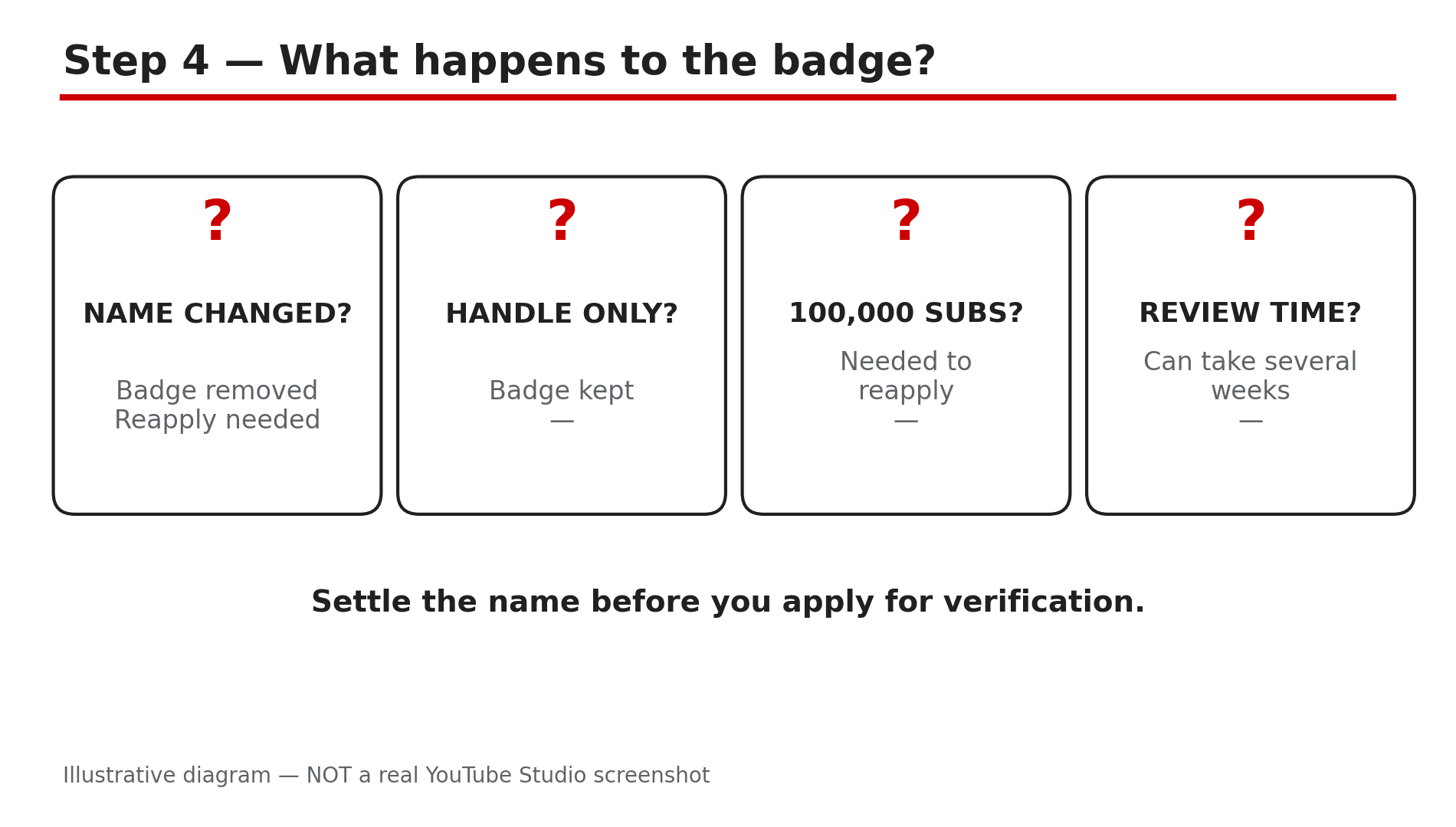
Illustrative diagram of how a name change affects the verification badge.
Step 5 — What changes for search, URLs and subscribers
What to do: Check the three things viewers actually use to reach you, and update them in the right order.
How: Your subscribers, videos and watch hours are untouched by a rename — nothing is lost. Video URLs never change, because they use video IDs, not your name. Your channel ID never changes either. What does change is the handle URL if you change the handle: YouTube holds your old handle for 14 days and both URLs work in that window, then the old handle may be taken by someone else — so update links on your website, social profiles and email signature within those two weeks. Legacy custom URLs continue to work. Search is the slow part: the new name needs a recrawl before Google Search shows it consistently. Do not claim a rename hurts search ranking — YouTube publishes no such rule, and the dip people report is usually the recrawl delay, not a penalty.
Example: A creator changes both name and handle, then updates the link in their Instagram bio and video descriptions within the week.
Common mistake: Changing the handle and forgetting the links on a business card, a merch page or an old video description.
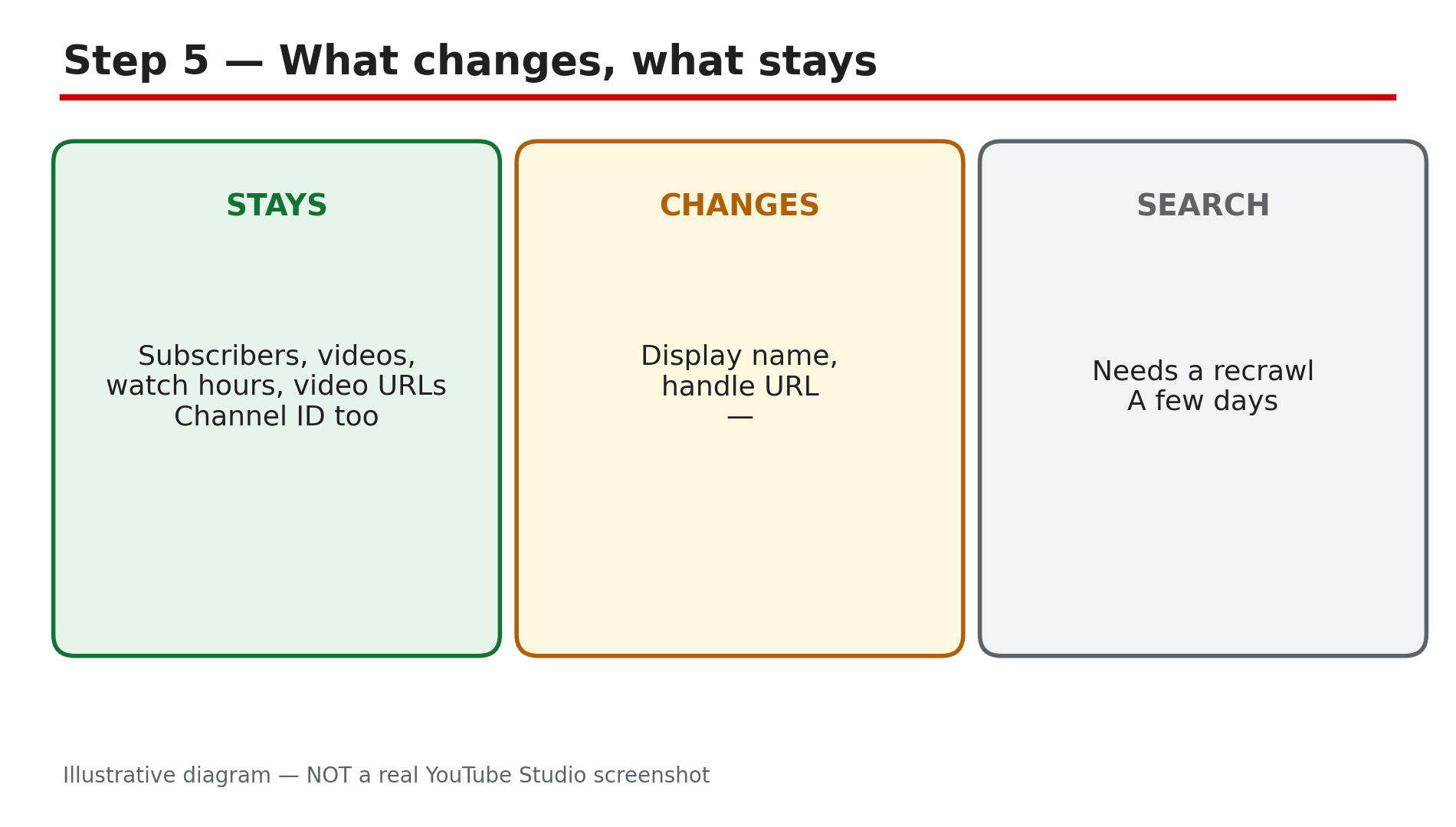
Illustrative diagram comparing what a rename changes with what it leaves alone.
Step 6 — Announce the rename so your audience follows you
What to do: Tell your viewers before and after the change, in the places they already look.
How: Post a Community post the day before the rename, explaining the new name and that nothing else is changing. Put the new name in the first line of your next video’s title or description so search and browse pick it up fast. Update the channel description, the banner text if it carries the name, and the About section on the same day. If you also changed the handle, pin a comment on your newest video with the new youtube.com/@handle link. Then leave the name alone for at least a month — renaming twice in a fortnight is exactly the confusion the 14-day limit is designed to prevent.
Example: A cooking channel renames from “Rasoi Daily” to “Rasoi With Meera” and posts a 40-second Short explaining the change.
Common mistake: Renaming silently and letting viewers think the channel was sold or hacked.
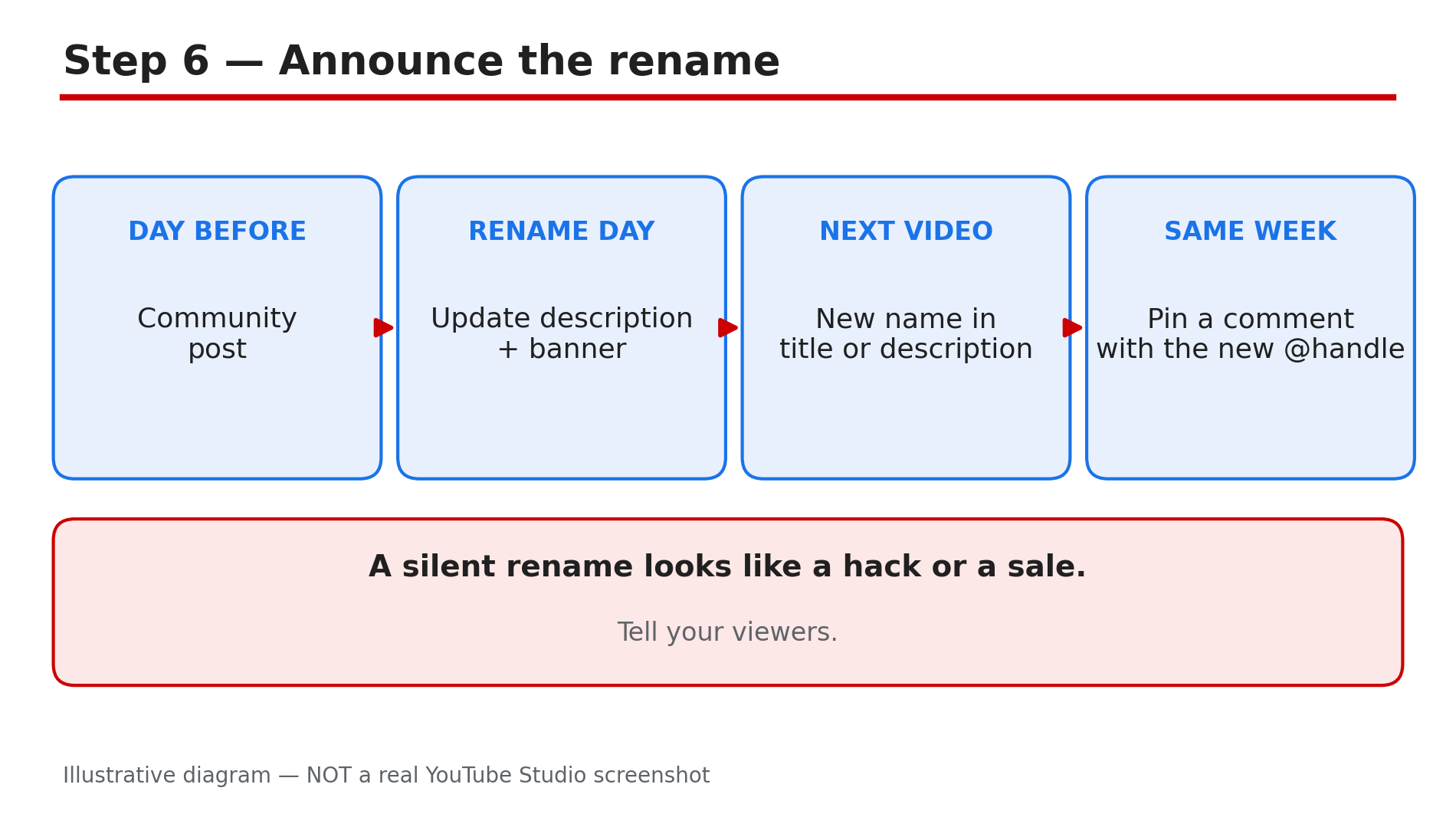
Illustrative diagram of how to announce a channel rename to your audience.
Checklist — Before You Change Your Channel Name
- ☐ I know whether I am changing the name, the handle, or both
- ☐ I have not used a name or handle change in the last 14 days
- ☐ The new name follows the Community Guidelines
- ☐ I checked the new name in YouTube search first
- ☐ I know a name change removes my verification badge, and I am ready to reapply
- ☐ I have a plan to update my links within the 14-day handle hold
- ☐ I will click Publish in Studio and wait a few days for the name to show everywhere
- ☐ I will announce the rename with a Community post and a pinned comment
FAQs
1. How many times can I change my YouTube channel name?
Twice within a 14-day period, per YouTube’s Help page.
2. Does changing my channel name remove the verification badge?
Yes — a name change removes the badge and the renamed channel must reapply.
3. Will I lose subscribers or watch hours if I rename?
No — subscribers, videos and watch hours are untouched by a rename.
4. How long does the new name take to show everywhere?
YouTube says it may take a few days for the new name to update and display across YouTube.
5. What happens to my old handle after I change it?
YouTube holds it for 14 days, and both the old and new handle URLs work in that window.
Sources
- YouTube Help — “Manage your YouTube channel’s profile” (official page, confirmed in search results 4 Nov 2026): https://support.google.com/youtube/answer/2657964?hl=en&co=GENIE.Platform%3DDesktop
- CreatorPlaybook — “YouTube Verification Badge Lost or Removed: Why It Happened and How to Get It Back”: </blog/youtube-verification-badge-lost-or>
- CreatorPlaybook — “YouTube Verification Explained: Phone Verification vs Advanced Features vs Grey Badge”: </blog/youtube-verification-explained-phone>