Showing Posts From
Youtube studio
 CreatorPlaybook Team
- 13 Nov, 2026
YouTube Studio Edits Not Saving? Title, Description and Tags Reverting — Fix It
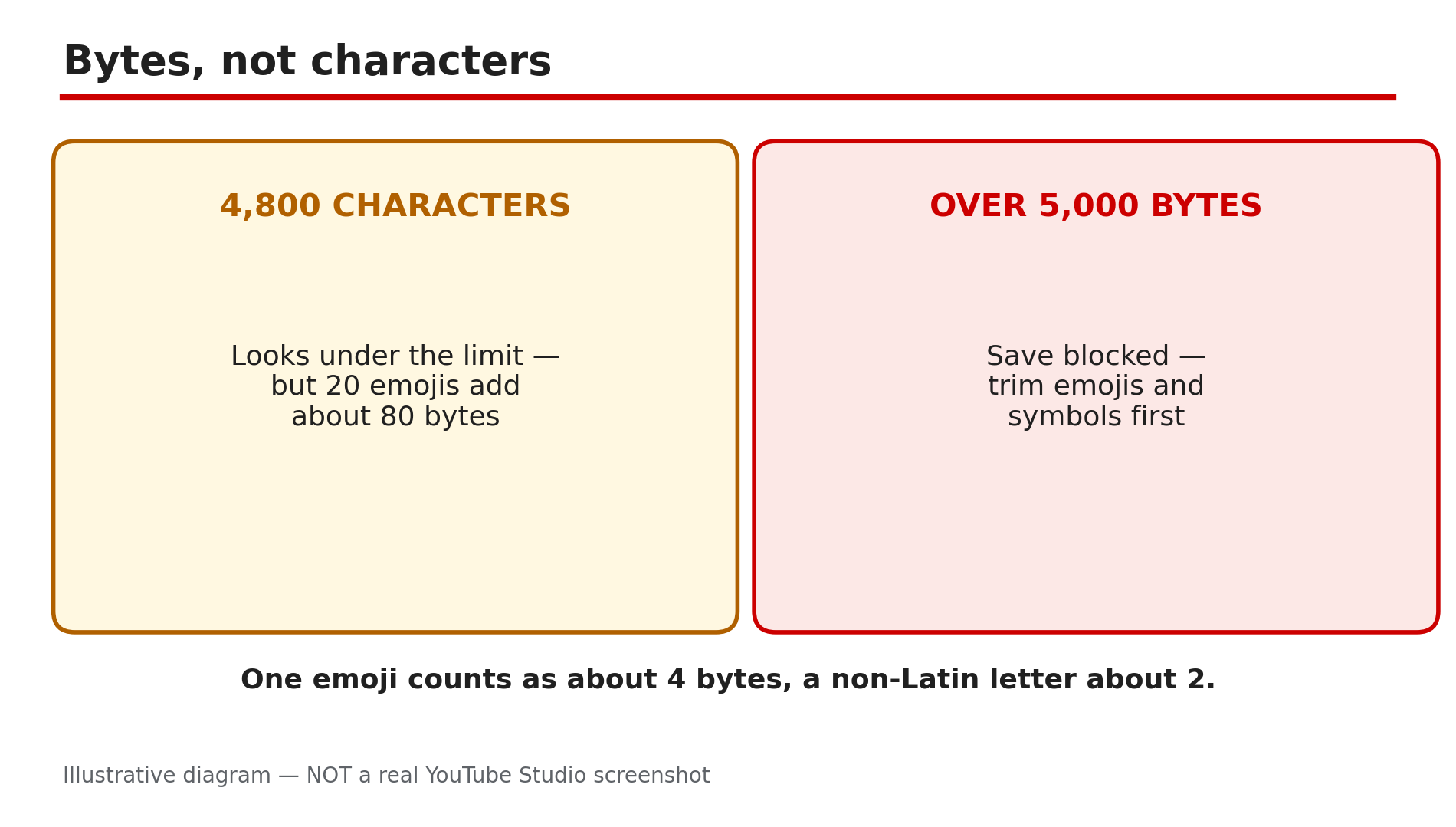
You edit a video's title or description, click Save, and an hour later the old text is back — or Save never lights up at all. Most of the time something in your text trips a rule YouTube enforces quietly, or you are editing from the one place that cannot do the job properly. Note: there is no single official Help page for "edits not saving", so claims from third-party guides are labelled as reported. What You Will LearnWhy YouTube counts descriptions in bytes, not characters Which two characters YouTube rejects, and how they sneak in from Word or Docs The 500-character tags limit, duplicate phrases, and the 60-hashtag rule Why Save stays greyed out, and what wakes it up Why the Studio mobile app loses edits, and why desktop is the fix How the wrong account, role, extension, or scheduling tool can undo your saveStep 1 — Count bytes, not characters: the description limit is 5,000 bytes What to do: Measure your description in bytes before blaming Studio. How: As reported by third-party guides, YouTube's description limit is 5,000 characters, but it is enforced as 5,000 bytes: an emoji takes about 4 bytes, a non-Latin letter about 2. Count roughly by hand: every emoji counts as four. Trim emoji chains and repeated symbols first, then try saving again. Example: A creator writes a 4,700-character description with twenty emojis. Studio refuses to save. She removes most of the emojis, and the same description saves immediately. Common mistake: Counting characters in a word processor and concluding you are under the limit. Your word processor counts letters; YouTube counts bytes.Illustrative diagram: why a description under 5,000 characters can still be over the byte limit. Step 2 — Strip the banned characters: remove every < and > and re-paste through plain text What to do: Delete every < and > from your description, then re-paste it through a plain-text editor. How: As reported by third-party guides, YouTube flat-out rejects the < and > characters in descriptions — that is HTML-tag territory, and Studio refuses to save text containing them. They almost always sneak in from pasting: Word, Google Docs, a webpage, or an old draft. Paste your description into Notepad or TextEdit, copy it back out, and paste that clean version into Studio. Then type any remaining symbols by hand, and leave < and > out entirely. Example: A creator copies a description from Google Docs, where a template used < and > around a placeholder. Studio refuses to save, with no explanation. She pastes it through Notepad, and the save works on the first try. Common mistake: Editing the same pasted text over and over in Studio. Invisible formatting survives every edit inside Studio — only plain text strips it out.Illustrative diagram: the angle bracket characters YouTube rejects in descriptions, and the plain-text fix. Step 3 — Fix the tags field: 500 characters total, no repeated phrases, and the 60-hashtag rule What to do: Shorten the tags list to fit 500 characters, remove duplicate phrases, and keep hashtags under 60. How: As reported, all the tags on a video share a 500-character budget, and the commas between tags count toward it. If your list runs over 500, Studio may reject the save with an "Invalid tags" error. Tags are also rejected when the same keyword phrase repeats: YouTube's Help guidance warns against excessive or repetitive tagging, so repeating one phrase three ways can trip the check. Keep 5 to 10 short, distinct phrases. Hashtags are a separate rule, and this one is official: YouTube's Help page on hashtags says that if a video or playlist has more than 60 hashtags, YouTube will ignore each hashtag on that content, and over-tagging may remove the video from uploads or search. Example: A creator pastes 40 tags into the field and gets "Invalid tags". She counts: 612 characters, and the phrase "gaming setup" appears four times. She cuts it to eight distinct tags, and the save goes through. Common mistake: Filling all 500 characters because the space is there. YouTube's Help page says tags play a minimal role in discovery — the title, thumbnail and description matter far more — so a long tag list buys you nothing and risks the save.Illustrative diagram: how the 500-character tags budget decides whether tags save. Step 4 — Wake up the greyed-out Save button: no change detected, or the video is still processing What to do: Make a small real change and wait for processing to finish before concluding that Save is broken. How: As reported by third-party guides, Studio keeps the Save button disabled when it detects no changes, and while the video is still processing. It is easy to trigger: retype the exact same title, and Save stays grey because nothing changed. Type one small change — add a word, then remove it — and watch the button activate. If the video is still uploading or processing, some fields stay locked until it finishes. Finish the upload first, wait for the processing indicator to clear, and then edit the description. Example: A creator opens a video's Details to fix a typo, but the typo is already fixed in the current text. Save stays grey. She adds a word, Save lights up, she removes it, and saves the real edit. Common mistake: Clicking a greyed-out Save button harder, or refreshing the page and retyping everything. A grey Save button means Studio sees no change — give it one, or wait for processing.Illustrative diagram: the two reasons the Save button stays greyed out in YouTube Studio. Step 5 — Redo the edit on desktop: the Studio mobile app has documented description problems What to do: If you edited on the Studio mobile app, redo the same edit in a desktop browser at studio.youtube.com — and do not trust the app for descriptions. How: As reported by third-party guides, the YouTube Studio mobile app has a documented description problem: in 2026, creators reported descriptions vanishing after uploads and edits, and the forum advice was to edit on studio.youtube.com in a desktop browser — if it works there, the app was the problem. YouTube itself ran a "Blank video descriptions on Mobile Devices" fix notice in mid-2026, as reported. Open a desktop browser, go to Studio, open the video's Details, make the edit, and click Save. Example: A creator updates a description on the Studio app while commuting. That evening the description is blank. She retypes it on her laptop, saves, and the description stays put. Common mistake: Repeating the same edit in the app three times and concluding YouTube is broken. If it fails in the app and works on desktop, the app was the problem.Illustrative diagram: why description edits should be redone in desktop Studio, not the mobile app. Step 6 — Check the account, the role, and the tools that can overwrite your edit What to do: Confirm the right channel and role, then check extensions, VPNs and scheduling tools. How: First, the account: as reported, only the Owner, Manager and Editor roles can edit video details. If someone invited you to a channel, check your role before retyping anything. Also check the channel switcher: with more than one channel, you can easily edit the wrong one. Second, the tools: if you stream or schedule through another app, it may apply its own global metadata and overwrite what you typed. Third, the browser: an extension, a VPN or a DNS setting can interfere with Studio's save requests, as reported, so try the edit in an incognito window with extensions off. Example: A creator's description keeps reverting every night. Her scheduling tool applies a global description template on publish, overwriting her manual edit. She turns off the template override, and the description finally stays. Common mistake: Rewriting the description yet again without asking what else touches the video. If an edit reverts on a schedule, something automated is doing it.Illustrative diagram: three things that can undo a Studio edit after you save. Checklist — Fix Studio edits that will not save☐ Description under 5,000 bytes, emojis counted as 4 each ☐ Removed every < and >, re-pasted through plain text ☐ Tags under 500 characters, no repeated phrases ☐ Hashtags under 60, all relevant to the video ☐ Made a small real change so the Save button activates ☐ Waited for upload and processing to finish before editing ☐ Redid the edit in a desktop browser, not the Studio mobile app ☐ Right channel, right role, no tool overwriting the editFAQs 1. My description keeps reverting after I save it. What is overwriting it? Usually one of two things, as reported: a streaming or scheduling app is overwriting the description with its own metadata, or you edited on the Studio mobile app and the edit never committed. Re-save on desktop Studio. 2. Why is the Save button greyed out in YouTube Studio? As reported, Save stays grey when Studio detects no changes, or while the video is still processing. Type a small change; if it is mid-processing, finish the upload first. 3. What does "Invalid tags" mean? As reported, the tags list is usually over 500 characters, commas included, or the same phrase repeats. Shorten it to a few distinct phrases and try again. 4. How many hashtags can I use in a description? YouTube's Help page says that over 60 hashtags, it will ignore each hashtag, and over-tagging may remove the video from search. Keep a few relevant ones — the first three show above the title. 5. I edited on the Studio app and the description vanished. Is it gone? The text may never have been saved, as reported by creators in 2026. Retype it in a desktop browser at studio.youtube.com, save, and reload to confirm. SourcesYouTube Help — "Find playlists & videos using hashtags" (official page, opened live 13 Nov 2026): https://support.google.com/youtube/answer/6390658?hl=en Format Studio — "Why Your YouTube Description Won't Save (5 Fixes)" (third-party guide, opened live 13 Nov 2026; the byte limit, banned characters, mobile-app reports and greyed-out Save causes in this post come from it, presented as reported): https://www.formatstudio.site/blog/why-youtube-description-wont-save.html CreatorPlaybook — "YouTube Upload Defaults: Save Time and Avoid Mistakes" (internal link, URL copied from the plan file): </blog/youtube-upload-defaults-save-time-and>