Showing Posts From
Shorts
 CreatorPlaybook Team
- 28 Oct, 2026
YouTube Short Stuck at 0 Views? 6 Checks for Format, Restrictions, and Upload Spacing
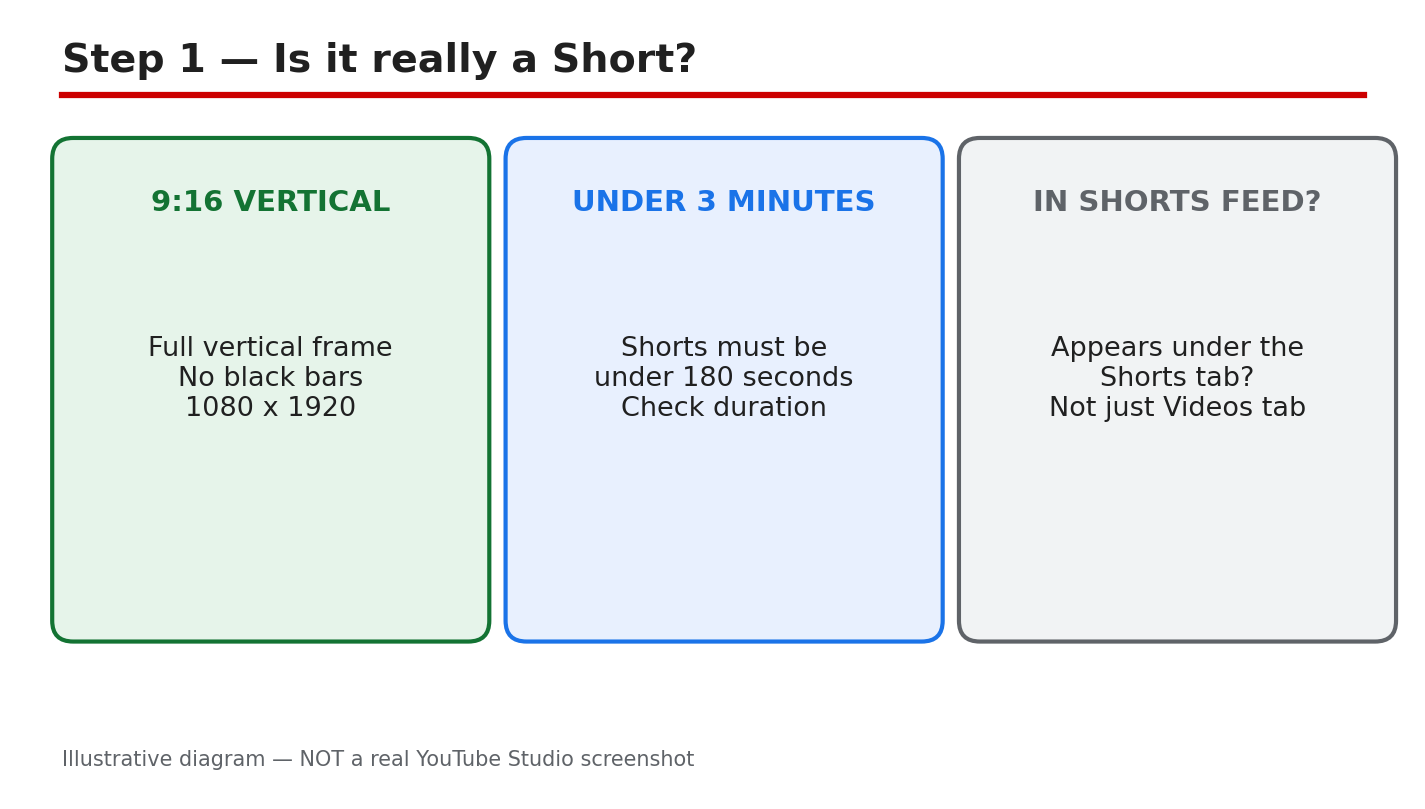
A Short stuck at 0 views feels different from a long video with low views. A Short lives or dies in the vertical feed, and the first checks are not about the idea — they are about whether the file is a Short at all, whether anything is restricting it, and whether it was given a fair chance. This guide works through six checks in order, from format to restrictions to upload spacing, so you fix the real cause instead of deleting and re-uploading the same file and hoping. One thing to say plainly first: there is no Studio page that confirms a Short is being suppressed because of the October 1 original-content change. YouTube announced a recommendation change that gives more reach to original content in Shorts, but it provided no Studio indicator, threshold, or status that labels a single Short as suppressed. So do not spend your time hunting for a suppression badge that does not exist. Check what Studio actually shows — the format, the Restrictions column, the visibility — and fix what you can see. What You Will LearnHow to confirm a video is really a Short: vertical format, under 180 seconds, listed under the Shorts tab. Where to check restrictions, claims, strikes, and visibility in YouTube Studio. Why new channels should space Shorts out and judge a Short only after 24–48 hours. The four 0-view checks: format, claimed audio, duplicate clip, and age restriction or Made for Kids. Why deleting and re-uploading the identical file blindly does not help — and what to do instead.Step 1 — Confirm It Is Really a Short What to do. Open the video in YouTube Studio and check three things: the shape, the length, and where it appears. A Short must be vertical or square, up to three minutes long, and it should appear under the Shorts tab in Studio. If any of the three fails, the video is treated as a regular video, not a Short, and it will not enter the Shorts feed. Studio menu path. YouTube Studio > Content > click the video > check the format and duration shown, then Content > Shorts tab to confirm it is listed there. Example. A 45-second clip exported at 1080 x 1920 (9:16) appears under the Shorts tab. The same clip exported at 1920 x 1080 (16:9) with black bars does not — it is a regular video, however short it is. Common mistake. Uploading a landscape video with black bars top and bottom and calling it a Short. The frame must actually be vertical or square; bars do not count. Re-export the clip in 9:16 and upload it again as a new file only after the other checks below are done. Diagram 1: The three Shorts format checks — 9:16 vertical, under 180 seconds, and listed under the Shorts tab. Illustrative diagram/mock-up, NOT a real YouTube Studio screenshot.Step 2 — Check the Restrictions Column What to do. In Studio, open the Content list and look at the Restrictions column for the Short. That column flags copyright issues, and it is also where you spot whether a video has a claim or a strike. Then open the video's details and confirm the Visibility is set to Public. A Short set to Private or Unlisted cannot gather views in the feed, and a restriction can hold it at 0. Studio menu path. YouTube Studio > Content > find the Short > read the Restrictions column > click the video > Visibility: Public. Example. A Short using a popular song shows a copyright claim in the Restrictions column. The claim does not always block the video, but a claim that blocks or mutes the audio in some regions can leave the Short with no reach. Checking the column first tells you whether audio is the problem before you change anything else. Common mistake. Assuming the Short is Public because it was uploaded that way. Check it again — scheduled, unlisted, and private uploads are easy to confuse, and a Short left Unlisted after a scheduled publish will sit at 0 views with no error message. Diagram 2: The Restrictions column check — Studio, Content, Restrictions column, claim or strike, and Visibility Public. Illustrative diagram/mock-up, NOT a real YouTube Studio screenshot.Step 3 — Space Your Uploads on a New Channel What to do. If your channel is new, publish Shorts one at a time with hours between them, and judge each Short only after 24–48 hours. A brand-new channel has no watch history for YouTube to learn from, so early Shorts often start slowly. Spacing uploads gives each Short its own first day in the feed instead of making them compete with each other. Studio menu path. YouTube Studio > Content > check the publish dates and times of your recent Shorts; plan the next upload at least several hours after the last one, or the next day. Example. A new channel publishes one Short on Monday morning and one on Tuesday morning. Both get their first 24 hours alone. The same channel publishing ten Shorts in one hour on Monday sees most of them stall, because no single Short gets a clean test. Common mistake. Uploading a backlog of ten Shorts in one sitting to “catch up,” then concluding the channel is broken when none of them move. The burst, not the content, is the likely cause — spread the same videos out instead. Diagram 3: A spaced upload example — one Short per day across a week, compared with many Shorts published in one hour. Illustrative diagram/mock-up, NOT a real YouTube Studio screenshot.Step 4 — Run the four 0-view checks What to do: Work through four checks in order: (1) format — confirm Step 1 again on the uploaded file, not on the project file in your editor; (2) claimed audio — check whether the music in the Short is claimed by someone else; (3) duplicate clip — ask whether this exact clip is already posted elsewhere unchanged; (4) audience settings — check age restriction and the Made for Kids setting. Studio menu path: YouTube Studio > Content > Restrictions column, then click the video and open Details > Show more to check the Audience setting. The Restrictions column is where a copyright claim, an age restriction, or a Made for Kids setting shows up for that video. Example: A creator uploads a Short with a trending song. The Restrictions column shows a copyright claim on the audio. The fix is not to delete and re-upload the same file. It is to replace the claimed audio with original audio in a new test upload, as described in Step 5. Common mistake: Re-uploading the identical clip because “everyone posts this clip.” A clip that duplicates content already on YouTube, with nothing original added, can sit at 0 views and can also cause reused-content trouble later. Add your own recording, commentary, or edit before you test again. Diagram 4 — Illustrative diagram: the four 0-view checks. This is an illustrative diagram/mock-up, NOT a real YouTube Studio screenshot.Step 5 — Do not delete and re-upload the identical file blindly What to do: Fix the problem you found in Steps 1–4 first, then run ONE fresh test. Change the file itself: re-export in vertical format, replace claimed audio with original audio, add your own recording or commentary to a borrowed clip, or correct the audience setting. Then upload that fixed version as a new Short, spaced out as described in Step 3. Studio menu path: YouTube Studio > Content > Restrictions column on the new upload, and check Visibility: Public. Compare the new upload's Restrictions and Visibility entries with the old one, and write down the view count after 24–48 hours for each. Example: A Short with claimed audio is fixed by swapping in original audio. The creator uploads the fixed version once, the next morning, and waits 48 hours before judging it — instead of deleting and re-uploading the same claimed-audio file three times in one evening. Common mistake: Deleting a 0-view Short and re-uploading the identical file, again and again, hoping for a different result. The file has not changed, so the checks in Steps 1–4 give the same answer — and a burst of identical uploads looks like spam. Fix first, test once, then judge. Diagram 5 — Illustrative diagram: fix first, then one fresh test. This is an illustrative diagram/mock-up, NOT a real YouTube Studio screenshot. Step 6 — Follow a spaced retest plan What to do: Run one spaced test over seven days. Day 1: upload ONE fixed Short, using the fix from Step 5. Days 2–3: upload nothing new; let the first test run. Day 4: check the view count after 24–48 hours and write it down. Day 5: if the first test is still at 0, upload ONE more fixed Short with a different fix from Step 4. Day 7: compare the two tests and keep the version that moved. Studio menu path: YouTube Studio > Content, filter to Shorts and sort by date to see each test upload; then open Studio > Analytics > Content to check Shorts views for each video. Record the numbers in a notebook or a simple sheet so you compare facts, not feelings. Example: A creator uploads a fixed Short on Monday morning. On Wednesday it shows 12 views. The next Monday, a second fixed Short with original audio is uploaded the same spaced way, and by Wednesday it shows 40 views. The spaced plan made the comparison possible. Common mistake: Judging a Short after two hours and uploading five more the same day. New Shorts can take time to enter the feed, and a same-day burst hides which fix, if any, worked. Wait the full 24–48 hours before you judge each test. Diagram 6 — Illustrative diagram: the spaced retest plan. This is an illustrative diagram/mock-up, NOT a real YouTube Studio screenshot.Quick checklistConfirmed the file is vertical or square, under 180 seconds, and appears under the Shorts tab. Checked Studio > Content > Restrictions column: no claim, strike, or age restriction, and Visibility is Public. Spaced uploads: one at a time, hours apart, and judged only after 24–48 hours. Ran the four 0-view checks: format, claimed audio, duplicate clip, and Made for Kids / age restriction. Fixed the problem first, then ran one fresh test — did not delete and re-upload the identical file. Followed the 7-day spaced retest plan and wrote down the numbers.Frequently asked questions Why is my Short still at 0 views after a few hours? New Shorts can take time to enter the feed, so judge only after 24–48 hours. If it is still at 0 after that, work through the format and Restrictions checks in Steps 1, 2, and 4. Did the October 1 original-content change suppress my Short? There is no Studio page that confirms suppression by the October 1 original-content change for a specific video. Check the concrete items in this guide — format, restrictions, claims, and spacing — instead of assuming a penalty. Should I delete my Short and upload it again? Not the identical file. Fix the problem first — format, audio, duplicate clip, or audience setting — and then upload one fresh test, spaced out as described in Step 5. How long should I wait before I judge a test? Wait 24–48 hours for each test upload, and run the spaced plan in Step 6 over seven days so each fix gets a fair comparison. Sources — Check It Yourself Only official YouTube Help pages, opened and checked for this post:Create YouTube Shorts — YouTube Help Understand three-minute YouTube Shorts — YouTube Help Manage restrictions on your content — YouTube Studio Help Change video privacy settings — YouTube Help Get started with YouTube Analytics — YouTube HelpRelated reading, specific to Shorts views dropping after upload: YouTube Shorts Views Dropped? How to Check What Changed. No video is embedded in this post. No official YouTube Creators or Creator Insider video matching this exact topic was verified, so none was embedded rather than guessing at a link.
- CreatorPlaybook Team
- 28 Oct, 2026
YouTube Shorts Views Dropped? How to Check If the October 1, 2026 Original Content Update Affected Your Channel
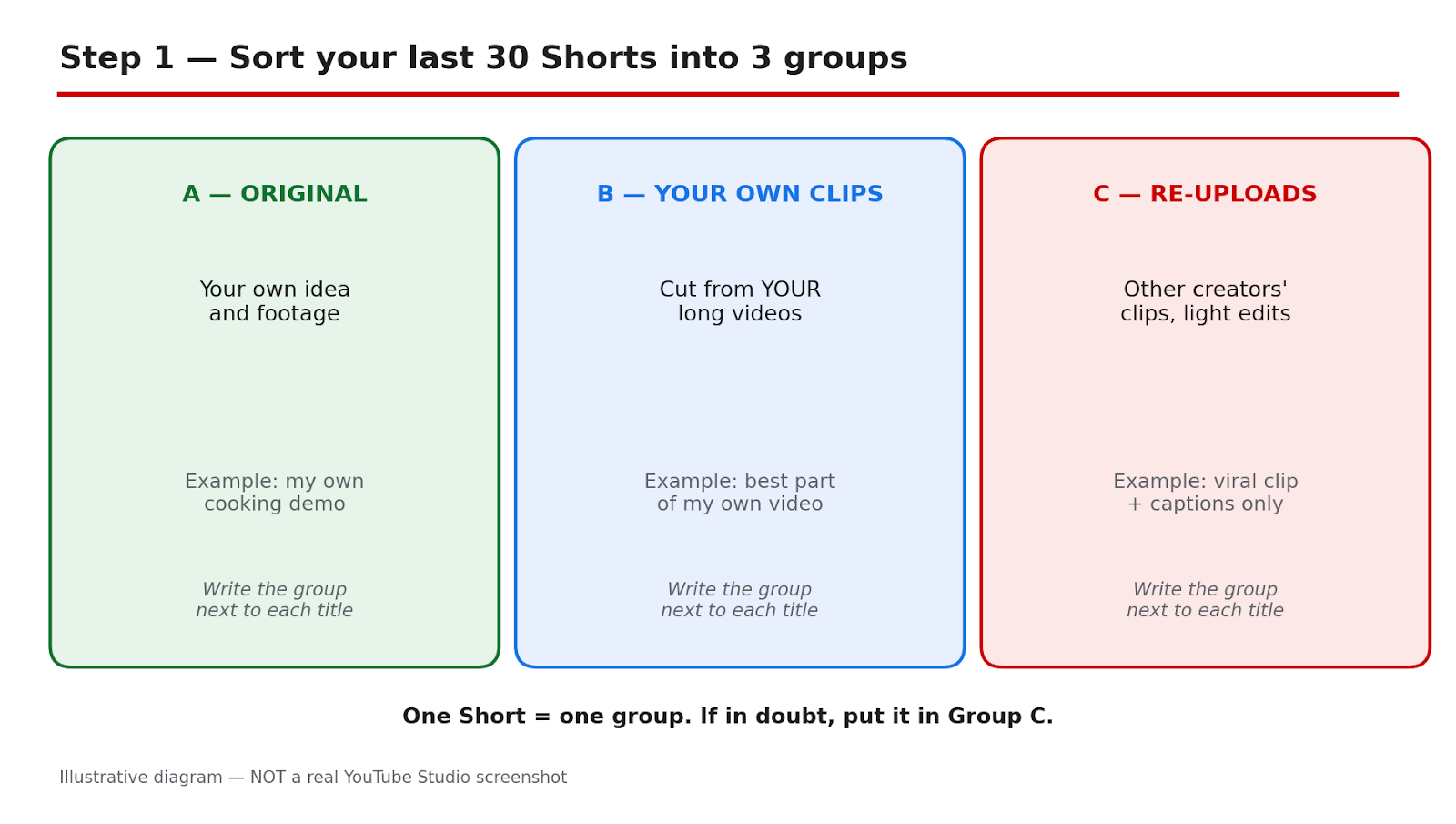
Your Shorts views have fallen. Did something happen to your channel, or only to one kind of video? A channel-wide fall and a fall in only re-uploaded Shorts are not the same problem. This diagnosis tutorial separates the two with numbers from YouTube Studio, rules out other causes, and tests a change without guessing or deleting videos. On 1 October 2026, YouTube Creator Liaison Rene Ritchie announced in a Creator Insider video that Shorts recommendations would further prioritise original content and reduce the reach of channels that primarily aggregate or re-upload other creators' videos without significant changes. That is a recommendation change, not a ban and not a new monetisation rule. Monetisation still follows the separate reused-content policy. For what changed, read the background explainer first, then work through the checks in order. YouTube gave no start date, no threshold for how much original work is enough, no Studio indicator for reduced reach, and no re-evaluation timeline. This guide states those gaps plainly and invents no date, percentage, or recovery period. What You Will LearnWhat the 1 October 2026 announcement changed, and what counts as original. How to classify your last 30 Shorts and compare median Shorts feed views by group. How to rule out claims, strikes, restrictions, posting changes, and seasonality. How to keep reach, monetisation, and copyright separate. How to fix the mix, test six original Shorts, and re-evaluate.Step 1: Classify Your Last 30 Shorts Into Groups What to do: Before you open Analytics, classify your last 30 Shorts. You need the mix first: the announcement was about channels that primarily aggregate or re-upload without significant changes, not one borrowed clip in an otherwise original channel. How to do it in YouTube Studio: Open YouTube Studio and go to Content, then filter to Shorts. Work from the most recent 30. In a spreadsheet, record title, date, group, and Shorts feed views: A, fully original; B, clips from your own long videos; C, re-uploads or other creators' clips with light changes; D, template or AI-narrated borrowed clips. Example: A cooking channel finds 8 in A, 6 in B, 11 in C, and 5 in D. Sixteen of 30 Shorts were borrowed clips or templates. Common mistake: Do not classify by intention. A Short you spent an hour captioning is still group C if the picture and idea came from another creator.Illustrative diagram made to explain Step 1. This is a mock-up, NOT a real screenshot of YouTube Studio or any creator's channel. Step 2: Compare Equal Windows With the Median, Not the Average What to do: Compare two equal windows around 1 October, using median Shorts feed views per Short and engaged views, not the average or the public count. One viral Short can lift an average and hide a fall in the typical Short. How to do it in YouTube Studio: In YouTube Studio, go to Analytics, then Content. Filter to Shorts and open Advanced mode. Use the 28 days before 1 October and the 28 days from 1 October, keeping them exactly equal. Record the median, the number of Shorts, and the dates. Example: An average falls from 9,400 to 6,100, but one Short with 92,000 views pulls up the first window. The median falls from 3,800 to 3,100. Common mistake: Do not compare a 28-day window with a 7-day window, or use the public count, which mixes traffic sources. Isolate Shorts feed views.Illustrative diagram made to explain Step 2. This is a mock-up, NOT a real screenshot of YouTube Studio or any creator's channel. Step 3: Compare Each Group Separately What to do: Repeat the comparison for each group separately. A channel-wide drop alone proves nothing. The pattern pointing toward this update is: group C (and D) falls, while A and B hold steady. If all groups fall similarly, the cause is more likely channel-wide. How to do it in YouTube Studio: In YouTube Studio, go to Analytics, then Content, filter to Shorts, and use Advanced mode, as in Step 2. Calculate the median for each group in each window. Keep the groups fixed from Step 1. Example: Group A moves from 4,200 to 4,050 and B from 3,900 to 3,850. Group C moves from 3,600 to 1,900 and D from 2,800 to 1,400. That split fits the announcement, but does not prove the cause alone. Common mistake: Do not move a Short to another group after seeing its views. If you reclassify, recalculate both windows.Illustrative diagram made to explain Step 3. This is a mock-up, NOT a real screenshot of YouTube Studio or any creator's channel. Step 4: Rule Out Other Causes Before Blaming the Update What to do: Rule out other causes before blaming the update. A claim, a strike, an age restriction, a posting change, a title or thumbnail change, or a cooling topic can cause the same fall. How to do it in YouTube Studio: In YouTube Studio, go to Content, then Restrictions, and check the affected videos one by one for a claim or strike. Check age restriction, visibility, and title or thumbnail changes. Then compare posting frequency and spacing, and check seasonality for the topic. Example: A travel channel finds three borrowed clips received claims and posting stopped for 11 days. It fixes the claims, restores posting, and repeats the comparison. Common mistake: Do not check only the channel total in Restrictions, or only one video. Claims act on individual videos.Illustrative diagram made to explain Step 4. This is a mock-up, NOT a real screenshot of YouTube Studio or any creator's channel. Step 5: Keep Reach, Monetisation, and Copyright Separate What to do: Keep reach, monetisation, and copyright separate. Fewer feed views with no notice is reach. A monetisation status change is the reused-content policy. A named claim or strike is copyright. How to do it in YouTube Studio: In YouTube Studio, go to Analytics, then Content, and confirm the fall is in Shorts feed views, with no notice. Check monetisation status separately and read the reason for any change. Then check Content, then Restrictions, for a named claim or strike. Example: A channel has fewer views on borrowed Shorts, one compilation marked as reused content, and one claim. It keeps three separate notes and actions. Common mistake: Do not call it a ban, demonetisation, or shadowban from views alone, with no notice. Those are different actions.Illustrative diagram made to explain Step 5. This is a mock-up, NOT a real screenshot of YouTube Studio or any creator's channel. Step 6: Fix the Mix Slowly, Test Original Shorts, and Re-Evaluate What to do: Change the mix slowly over four weeks. Stop bulk templates. Replace description voice-overs with a point of view: why the clip matters, what most people miss, or what you would do differently. Description-only voice-overs, minor edits, and one template on many clips do not count. Add commentary to any borrowed clip you keep, and share other videos through the Posts tab. How to do it in YouTube Studio: Write the point of view in one sentence before recording. In weeks two to four, move one in three new Shorts from group C to group A each week. Publish six original Shorts on one topic, on your normal schedule. In Analytics, then Content, filter to Shorts, use Advanced mode, and record the median after 7 and 28 days. Re-evaluate: If original Shorts recover and re-uploads stay low, keep the new mix. If all groups stay low, return to Step 4. Do NOT delete your back catalogue on a guess: deleting cannot be undone, and YouTube gave no re-evaluation timeline. Example: A fitness channel stops its template, films original demonstrations, and shifts one in three Shorts each week. After 28 days, its test median is close to its old group A median. Common mistake: Do not replace a descriptive voice-over with a longer one. If the clip were removed, would your Short still teach, warn, or entertain on its own?Illustrative diagram made to explain Step 6. This is a mock-up, NOT a real screenshot of YouTube Studio or any creator's channel. Checklist Before You Change AnythingLast 30 Shorts classified into A, B, C, and D, with title, date, group, and Shorts feed views. Two equal 28-day windows compared, using median Shorts feed views and engaged views. Group medians compared side by side, with the number of Shorts in each group. Restrictions, age restriction, posting, titles, thumbnails, and seasonality checked, video by video. Reach, monetisation, and copyright named separately, with any notice recorded. Six original test Shorts planned, with 7-day and 28-day checks booked. No deletion planned.Frequently Asked Questions 1. Did YouTube ban re-uploads on 1 October 2026? No. It was a recommendation change, not a ban or a new monetisation rule. Channels that primarily aggregate or re-upload without significant changes were described as likely to see less Shorts feed reach. 2. Does a voice-over make a borrowed clip original? Not on its own. A voice-over that only describes what is on screen does not count. Commentary, analysis, storytelling, unique editing, or a clear point of view do. 3. How much original work is enough? YouTube did not state a threshold, and this guide does not invent one. Ask: if the clip were removed, would your Short still teach, warn, or entertain on its own? 4. Can I check in YouTube Studio whether this update affected my channel? No. YouTube gave no Studio indicator for reduced reach. Compare medians by group over equal windows and rule out other causes; that can point toward the update, but cannot prove a hidden label. 5. Should I delete my old re-uploaded Shorts? Do not delete your back catalogue on a guess. Deleting cannot be undone, and YouTube has not said old re-uploads count against a channel after it changes. No re-evaluation timeline was given, and no recovery is guaranteed. Sources — Check It YourselfYouTube channel monetization policies — YouTube Help. This page was opened and checked live. It states that content should be original and authentic, and that borrowed content must be changed significantly to make it your own.No official TeamYouTube Help Community post or official Creator Insider video dated 1 October 2026 could be verified live, so none is linked here. No official embed was verified, so no video is embedded.

- CreatorPlaybook Team
- 27 Oct, 2026
How to Make a YouTube Shorts Series: Seasons, Episodes, and Custom Thumbnails Explained
Many Shorts work alone, but some ideas only work in order. A recipe, a story, a challenge, or a lesson can lose its meaning when a viewer sees part three first. On 23 September 2026, at its Made on YouTube event, YouTube announced Shorts Series, a way to organize Shorts into TV-style seasons and episodes, with custom thumbnails and sequential playback. TechCrunch reported that the feature was rolling out to creators in the YouTube Partner Program across web, mobile, and connected TVs. That rollout detail matters: do not assume every creator can see it in Studio today. A Shorts Series is not the same as a playlist. A playlist is a collection you can add videos to in any order, and viewers often arrive in the middle. A Series is built for order. It presents a show with seasons and episodes, a clear starting point, and episodes that play one after another. This guide explains how a Series differs from a playlist, how to plan one, and how to check whether the feature is available to you yet. Related guides: How to Make a YouTube Thumbnail That Gets Clicks and YouTube Shorts Monetization and RPM Explained. For how recommendations treat Shorts, see How the YouTube Algorithm Works in 2026. What You Will LearnWhat a YouTube Shorts Series is, and how it was announced How a Series differs from a playlist in structure and viewing How to choose a series idea that truly needs episodes in order How to plan a season and episode arc that keeps viewers watching How to name episodes clearly and make custom thumbnails How to set episode order and promote episode one and the next episodeStep 1: Choose a Series Idea That Needs Episodes in Order What to do: Choose a series idea that needs episodes in order, not a set of unrelated Shorts. A good Series has a promise that grows over time. The viewer should feel that missing an episode means missing a step, a clue, or a result. If any episode works just as well alone and in any order, the idea may be better as a playlist or as separate Shorts. How to do it in simple steps:Write the full result or ending of the series in one sentence. List the steps, clues, or events that must happen before that ending. Check that each step depends on the one before it, not only on the same topic. Reject ideas that are only a theme, such as random tips with no order or progress.Practical example: A creator plans a five-part series called "My First 30 Days Learning to Edit." Episode one is the setup, episode two is the first project, episode three is the mistake, episode four is the fix, and episode five is the finished video. A viewer who starts at episode four will miss the mistake that makes the fix meaningful, so the order matters. Common mistake to avoid: Turning a loose collection of tips into a Series just because the feature is new. Viewers expect a story or a sequence, and a random order will disappoint them. A playlist is often the better home for tips that stand alone, because viewers can dip in and out without losing the thread. Illustrative image: Choose an idea where the order itself is part of the value. This is an illustrative image, not a screenshot of a channel or another creator's work. Step 2: Plan the Season and Episode Arc What to do: Plan the season and episode arc before you film episode one. A season is a complete run with a beginning, a middle, and an ending. An episode is one short step in that run. Plan the arc on one page, so each episode has a job: introduce, complicate, teach, test, or resolve. A clear arc stops you from repeating the same Short five times. How to do it in simple steps:Decide how many episodes the first season will have, and keep it small, such as four to six. Give each episode one job and one clear outcome for the viewer. Write the last line of each episode, so the next episode has a reason to start. Leave room for a second season only if the first season ends cleanly.Practical example: A cooking creator plans a season called "Five Breakfasts, One Pan." Episode one teaches the pan and the base recipe. Episode two adds a new ingredient and a timing rule. Episode three fixes a common burning mistake. Episode four shows a faster version. Episode five is a viewer-style challenge with the same pan. Each episode builds skill, and the final episode proves it. Common mistake to avoid: Planning only episode one and hoping the rest will appear. Without an arc, episode three often repeats episode one, and viewers stop following. Another mistake is planning too many episodes before you know if viewers want a second one. Finish a short season well, then decide. Illustrative image: Plan the whole season arc before you film the first episode. This is an illustrative image, not a screenshot of a channel or another creator's work. Step 3: Name Episodes Clearly So Viewers Know the Order What to do: Name episodes clearly, so viewers know where they are and what comes next. Episode titles should carry the series name, the episode number, and the specific step or event. A viewer scrolling quickly should be able to tell episode two from episode four without opening the video. Clear names also help you, because they force you to keep each episode focused. How to do it in simple steps:Use one series name for every episode, written the same way each time. Add the episode number at the start or end of the title, in the same place every time. Add the specific step, such as the skill, the place, or the result for that episode. Check the full season list together, and remove any title that could fit two episodes.Practical example: Instead of five titles like "Amazing Tip," "You Must See This," and "Part 3," a creator uses "Learn to Edit: Ep 1 - Set Up Your Project," "Learn to Edit: Ep 2 - Your First Cut," and "Learn to Edit: Ep 3 - Fix the Jump Cut." A new viewer can see the order, the topic, and the next step in seconds. Common mistake to avoid: Using only "Part 1," "Part 2," and "Part 3" with no other information. Parts tell viewers the order, but not the reason to watch. Another mistake is changing the series name halfway through, which breaks the sense that the episodes belong together. Illustrative image: Clear episode names show the order and the step at a glance. This is an illustrative image, not a screenshot of a channel or another creator's work. Step 4: Make Custom Thumbnails for the Series and Each Episode What to do: Make custom thumbnails that work as a set and as single episodes. Shorts Series was announced with custom thumbnails, which help viewers recognize a show and choose the right episode. Your series artwork should stay consistent, while each episode thumbnail should show what is different about that episode. Think of a book cover and chapter headings: the family resemblance matters, and so does the difference. How to do it in simple steps:Choose one layout, one font, and two or three colors for the whole series. Keep the series name or a short series mark in the same place on every thumbnail. Change the main image and the short episode words for each episode, to show its step. Check all thumbnails together at phone size, and make sure episode order is easy to follow.Practical example: A travel creator uses the same bold frame and series name on every episode, but episode one shows a map, episode two shows a train, and episode three shows a mountain view. The thumbnails look like one show, and each one still promises a different place. A viewer can spot the series in a feed and pick the episode they missed. Common mistake to avoid: Using the same thumbnail for every episode, or using completely different styles with no link between them. Identical thumbnails hide the order, and unrelated thumbnails hide the series. Also avoid small text that cannot be read on a phone; use two to four large words, as in the thumbnail guide linked above. Illustrative image: Keep the series look consistent, and change the image and words for each episode. This is an illustrative image, not a screenshot of a channel or another creator's work. Step 5: Set the Episode Order and Check Sequential Playback What to do: Set the episode order carefully, and check how the series plays from start to finish. Sequential playback is the main benefit of a Series: viewers can watch a selection of Shorts as a continuous story, rather than scrolling from one stand-alone clip to the next, as TechCrunch described the announcement. If the order is wrong, that benefit becomes confusion. Check the order before you promote the series. How to do it in simple steps:List the episodes in story order, from the first step to the final result. Watch the first ten seconds of each episode in that order, and check that each one follows the last. Fix any episode that repeats the previous ending or assumes knowledge from a later episode. Check the series on a phone and, if you can, on a larger screen, because Series were announced for web, mobile, and TV.Practical example: A creator sets a four-episode series in order, then watches it as a viewer would. Episode two starts with "As I said in the last video" but the previous episode ended with a different point, so the creator re-records the opening line. That small fix makes the sequence feel planned, instead of four separate Shorts placed in a list. Common mistake to avoid: Adding episodes in upload order without checking story order, or adding a later episode first because it got more views. Views do not show order. Another mistake is leaving a gap: if episode three is missing or private, viewers hit a dead end and may leave the series entirely. Illustrative image: Check the episode order as a viewer would, from episode one to the end. This is an illustrative image, not a screenshot of a channel or another creator's work. Step 6: Promote Episode One and Build Next-Episode Hooks What to do: Promote episode one as the entry point, and build next-episode hooks into every episode. A Series grows when new viewers start at the beginning and existing viewers keep going. Episode one should promise the whole season in a few seconds. Every other episode should end with a clear reason to watch the next one, not a vague "stay tuned." How to do it in simple steps:Share episode one first, with the series name and the final result in the caption or title. End each episode with the next step in one sentence, such as the problem the next episode solves. Add the series name and episode number to community posts, descriptions, and end screens where you can. After the season ends, share a short recap that links back to episode one for new viewers.Practical example: A fitness creator ends episode two with, "Next, we fix the one mistake that makes this move hurt your back." Viewers who care about that problem have a reason to continue, and viewers who do not can stop without confusion. The creator also pins a comment on episode one that lists the full season, so late viewers can find the start. Common mistake to avoid: Promoting only the newest episode, which may be episode four, to a new audience. New viewers arrive in the middle and leave because they missed the setup. Also avoid hooks that promise a surprise with no topic; a hook should name the next step, so the right viewers stay. Illustrative image: Promote episode one, and end each episode with a clear reason to watch the next. This is an illustrative image, not a screenshot of a channel or another creator's work. Checklist for a YouTube Shorts SeriesThe idea needs order: each episode depends on the one before it The season arc is planned, with a beginning, middle, and ending Episode titles show the series name, number, and specific step Custom thumbnails look like one series, with a different image per episode Episode order is checked by watching the sequence in order Episode one is promoted as the starting point Each episode ends with a clear next-episode hookFrequently Asked Questions What is a YouTube Shorts Series? It is a way to organize Shorts into TV-style seasons and episodes, with custom thumbnails and sequential playback. It was announced at Made on YouTube on 23 September 2026, and reported as rolling out to creators in the YouTube Partner Program across web, mobile, and connected TVs. How is a Series different from a playlist? A playlist is a collection that viewers can enter at any point, and the order is often flexible. A Series is built for order, with a season arc, episode numbers, and episodes that play as a continuous story. Use a playlist for stand-alone videos on a theme, and a Series for a story or sequence that loses meaning out of order. Is Shorts Series available to all creators today? Do not assume so. The announcement coverage described a rollout to creators in the YouTube Partner Program. If you do not see the Series option in Studio, check Studio on desktop and in the app, look for a series or seasons option when you upload or organize Shorts, and check YouTube's official help pages for current eligibility. Plan the series now, and set it up when the option appears for your account. Do I need custom thumbnails for a Series? Custom thumbnails were part of the announcement, and they help viewers recognize the series and choose episodes. Keep the series design consistent, and change the image and short words for each episode. Even if you cannot set a Series thumbnail yet, the same design habit will help your Shorts look like a planned show. Can a Series work on TV as well as on a phone? Yes, according to the announcement coverage, Series were described for web, mobile, and connected TVs. That is why thumbnails and episode titles should be clear at both phone size and TV size. Test the series list on a larger screen if you can, and avoid tiny text that only works on one device. A Shorts Series is a promise of order. If you plan the arc, name the episodes clearly, and make the sequence easy to follow, you give viewers a reason to watch the next episode instead of scrolling away.

- CreatorPlaybook Team
- 27 Oct, 2026
YouTube Shorts Original Content Update: What Changed on 1 October 2026 and What Creators Should Do
On 1 October 2026, YouTube updated its Shorts recommendation system to give more reach to original content and less reach to channels that mainly aggregate or re-upload other creators' work without significant changes. This was a recommendation change, not a new ban and not a new monetization rule. Re-sharing and remixing were not banned. The change affects how Shorts are recommended, so creators who add real value have a better chance to grow, while channels built mainly on other people's clips are more likely to see less distribution in the Shorts feed. That distinction matters for beginners. You do not need expensive equipment or a large team to meet this standard. You need your own voice, your own structure, and your own reason for the viewer to watch your version. A small change to someone else's clip, a ready-made template, or simply describing what is already on screen does not count as a significant change. Original commentary, unique editing, educational value, and storytelling do. This guide explains the update in plain language and gives you a practical audit you can finish today. Related guide: How to Protect Your Channel from Strikes, Copyright and Reused Content. For the wider recommendation system, see also How the YouTube Algorithm Works in 2026. Official source: YouTube channel monetization policies What You Will LearnWhat YouTube said on 1 October 2026, in its own recommendation terms What counts as real value, and what does not count as a significant change How to audit your existing Shorts quickly and honestly How to add original commentary on camera or with a voiceover How to rebuild edits with your own structure and story How to keep proof of your original work for the futureStep 1: Understand What Changed, and What Did Not Change What to do: Learn the update as a recommendation change, not as a ban. YouTube said it was updating its recommendation systems to further prioritize original content and reduce the reach of content re-uploaded from other creators without adding anything of your own. Social Media Today reported that wording on 1 October 2026, linking to YouTube's support pages. Channels identified as primarily aggregating or re-uploading other creators' videos without significant changes will likely see less distribution within the Shorts feed. How to do it in simple steps:Read the update as being about distribution in the Shorts feed, not about deleting your channel. Note the key phrase: primarily aggregating or re-uploading without significant changes. Separate this update from monetization rules and copyright strikes, which are different systems. Tell yourself the test clearly: would this Short still be useful if the original clip were removed?Practical example: A creator posts ten Shorts a week, each one a short clip from another channel with a new caption and a filter. After the update, those Shorts may reach fewer new viewers, because the main value came from the other creator. The same creator could keep the topic, film a 40-second reaction with their own opinion, and add a clear lesson. That version has a stronger claim to original value. Common mistake to avoid: Calling every change a ban, or telling viewers that re-uploading is now illegal. That creates fear and confusion. The reported wording is about recommendation and distribution, and re-sharing and quoting can still add to a discussion when you add your own voice. Illustrative image: Start by understanding the recommendation change before you change your workflow. This is an illustrative image, not a screenshot of a channel or another creator's work. Step 2: Audit Your Existing Shorts Honestly What to do: Audit your existing Shorts before you post more. Open your last 20 Shorts and score each one for original value. You are looking for a pattern, not one bad video. If most of your Shorts depend on other people's footage, music, or ideas with only small changes, that pattern is the risk. A short, honest audit now is cheaper than weeks of low reach later. How to do it in simple steps:List your last 20 Shorts in a simple sheet, with the title and the main source of the material. Mark each one as original, mixed, or mainly re-uploaded, using the definitions in Step 1. Note what you added: commentary, teaching, a new edit, a story, or nothing new. Decide for each mixed or re-uploaded Short whether to keep it, remake it, or leave it and move on.Practical example: A beginner finds that 14 of 20 Shorts are clips from other videos with captions added. Only six include the creator's face, voice, or a clear lesson. The creator does not delete everything at once. They keep the six strong Shorts as models, remake the best four topics in their own voice, and plan only original-first Shorts for the next two weeks. Common mistake to avoid: Auditing only views and likes. A re-uploaded clip can get views for a short time and still be weak on original value. Judge the work you added, not only the result. Also avoid deleting old Shorts in a panic; focus on what you publish next and remake only what is worth remaking. Illustrative image: Review your last Shorts and score the original value you added. This is an illustrative image, not a screenshot of a channel or another creator's work. Step 3: Add Original Commentary on Camera or With a Voiceover What to do: Add original commentary that only you can give. Commentary means your judgment, your experience, or your explanation, not a summary of what the viewer can already see. Speak on camera if you can, or record a clear voiceover if you prefer not to show your face. Your voice should change what the viewer understands, not only fill silence. How to do it in simple steps:Write one clear point before you record, in one sentence, such as the mistake to avoid or the result to expect. Record your commentary in your own words, with one example from your own experience. Put the commentary at the start, so the viewer hears your value in the first three seconds. Remove any section where you only describe the clip, and replace it with a reason, a warning, or a next step.Practical example: A creator uses a 10-second clip of a cooking mistake. Instead of saying, "Look, the pan is hot," they say, "I made this same mistake last month, and the fix is to dry the pan first, because water makes the oil spit." The clip is the same, but the commentary adds experience, a cause, and a fix that the viewer could not get from the clip alone. Common mistake to avoid: Adding commentary that only narrates the screen, such as "Here he runs, then he jumps." That is describing, not adding value. Also avoid reading a generic script that could fit any video. If your words would work over a completely different clip, they are probably not specific enough. Illustrative image: Your commentary should add judgment and experience, not just describe the picture. This is an illustrative image, not a screenshot of a channel or another creator's work. Step 4: Rebuild the Edit With Your Own Structure What to do: Rebuild the edit so the structure is yours. Unique editing is one of the examples YouTube gave for adding value, along with original commentary and educational value. A unique edit is not a new filter or a faster cut of the same sequence. It is a new order, a new focus, and a new reason for each cut. Start from your point, not from the original clip's order. How to do it in simple steps:Write your hook, your main point, and your ending before you open the editor. Choose only the clips that prove your point, and cut everything that does not serve it. Add your own text, graphics, or examples to mark the steps, in your own order. Watch the Short without sound and without the original context, and check that it still makes sense.Practical example: A creator finds a popular 60-second tutorial. Instead of reposting it with captions, they rebuild it as three clear steps: the wrong way, the fix, and the result. They film their own hands doing the fix, add on-screen labels in their own words, and end with a one-line checklist. The topic is similar, but the structure, examples, and evidence are theirs. Common mistake to avoid: Relying on a template, a trending effect, or a speed change as your main change. Templates can help with presentation, but they do not by themselves add commentary, teaching, or storytelling. If you remove the template and nothing original remains, the edit is not yet a significant change. Illustrative image: Build the edit around your own hook, steps, and ending. This is an illustrative image, not a screenshot of a channel or another creator's work. Step 5: Add Context and a Story Only You Can Give What to do: Add context and a story only you can give. Storytelling was named in the reported YouTube wording as a way to add real value when you use clips from another creator. Context answers the questions the clip alone does not answer: why does this matter, what happened before, what should the viewer do next, and what did you learn? A short story can do that work in 20 seconds if it is specific. How to do it in simple steps:Choose one specific detail from your own experience, such as a time, a place, a cost, or a result. Explain the situation in one sentence, the decision in one sentence, and the result in one sentence. Connect the story to the clip, so the clip illustrates your point instead of replacing it. End with a clear takeaway the viewer can use, even if they never see the original video.Practical example: A creator shares a clip about a small business mistake. They add: "I spent 200 rupees on the wrong cable last year, returned it twice, and now I check the connector photo before I buy." That short story gives the clip a personal cost, a lesson, and a check the viewer can copy. Without the story, the clip is only someone else's anecdote. Common mistake to avoid: Adding a vague personal claim, such as "This happened to me too," with no detail, no decision, and no lesson. Vague stories do not add value, because any creator could say them. Also avoid making the story longer than the lesson; the story should serve the point, not replace it. Illustrative image: A specific story with a decision and a result adds value a clip alone cannot give. This is an illustrative image, not a screenshot of a channel or another creator's work. Step 6: Keep Proof of Your Original Work and Publish Original First What to do: Keep proof of your original work, and make original-first Shorts your default. Proof does not guarantee reach, but it helps you learn, reuse, and defend your work. Keep your scripts, your raw recordings, your project files, and your notes in one folder for each Short. Then publish a simple rule for yourself: if a Short has no original commentary, teaching, edit, or story, do not publish it until you add one. How to do it in simple steps:Create one folder per Short, with the script, raw clips, project file, and final export. Save the source and permission details for any clip you did not film, in the same folder. Write a one-line note for each Short: what original value did I add? Review that note before publishing, and add the missing value before you post.Practical example: A creator keeps a folder called "Short 42 - cable check" with a phone recording, a short script, and the edited project. Weeks later, when a viewer asks how the tip was tested, the creator can answer from the script and re-film a follow-up in minutes. The folder also makes it easy to turn the Short into a longer video, a community post, or a new episode. Common mistake to avoid: Keeping only the final exported file and no notes. If you cannot show what you added, you cannot repeat what worked. Another mistake is publishing first and planning to add value later. In a feed that rewards original content, the first version is the version most viewers will judge. Illustrative image: Keep scripts, raw clips, and notes so your original work can be reused and checked. This is an illustrative image, not a screenshot of a channel or another creator's work. Checklist for Original Shorts After the October 2026 UpdateThe Short is built around my own commentary, teaching, edit, or story The first three seconds show my value, not only someone else's clip Minor edits, templates, and screen description alone are not the main change Any borrowed clip has a clear purpose and adds to my point The story or example is specific, with a decision and a result Script, raw clips, and notes are saved in one folder The Short still makes sense without the original videoFrequently Asked Questions Is re-uploading now banned on YouTube Shorts? No, based on the reported wording. The 1 October 2026 update was described as a change to recommendation systems. Re-sharing and quoting were still described as relevant formats, but creators were told to add their own voice or a distinct point of view instead of only re-sharing other people's work. Does this update change Shorts monetization? Do not treat this as a new monetization rule. The reported update was about recommendation and distribution in the Shorts feed. Monetization, copyright, and strikes are separate topics, and the related guide linked at the top of this post covers strikes, copyright, and reused content in more detail. What counts as a significant change? YouTube's reported examples were original commentary, educational value, unique editing, and storytelling. A significant change should add something the viewer could not get from the original clip alone. A filter, a template, a speed change, or describing what is on screen, on its own, does not meet that test in this guide. Can I still use clips from other creators? You can use clips as part of a larger original piece, but the clip should not be the whole value. Add your own commentary, teaching, or story, and make sure you also respect copyright and permission rules. If the clip is the main attraction and you added almost nothing, remake the idea in your own words and footage. Should I delete my old re-uploaded Shorts? Do not delete in a panic. Audit first, as in Step 2. Keep strong original Shorts, remake the topics that are worth remaking, and focus your next Shorts on original-first work. Deleting everything at once can remove useful data about what your audience liked, without fixing the pattern in future posts. The safest habit after this update is simple: start with your own point, prove it with your own voice or your own footage, and use other clips only to support that point. Original value is not about being perfect. It is about being the reason the viewer watches your version.

- CreatorPlaybook Team
- 25 Oct, 2026
YouTube Shorts Monetization and RPM Explained
Shorts can bring millions of views, yet earn far less per view than long videos, and that gap confuses many creators. Shorts monetization works differently: instead of ads placed on each video, revenue comes from a shared pool, based on views, music use, and other factors, and the amount per thousand views, known as RPM, is usually much lower for Shorts than for long videos. Understanding that system helps you set realistic expectations, and helps you use Shorts for what they do best: discovery, audience growth, and indirect income. This guide explains YouTube Shorts monetization and RPM in plain language. It covers how Shorts revenue is calculated, why RPM varies by topic, country, and music, what eligibility means, and how to increase Shorts income without chasing views alone. It also covers other ways Shorts can earn, such as affiliate links, sponsorships, and driving viewers to long videos, where RPM is often higher. Related guides: How to Repurpose One Video into Shorts, Reels and Posts, Monetization Beyond AdSense: Affiliate, Sponsorship, Membership, and How to Read and Use the YouTube Studio App. Official source: YouTube Shorts monetization policies What You Will LearnHow Shorts monetization actually works What RPM means, and why Shorts RPM is lower What affects your Shorts RPM How to check Shorts revenue in YouTube Studio How to increase Shorts income realistically How Shorts can earn indirectly, beyond ad revenueStep 1: Understand How Shorts Revenue Is Shared What to do: Understand that Shorts ad revenue is pooled and shared, rather than paid per video in the same way as long videos. Advertisers pay for ads shown between Shorts in the feed, that revenue goes into a creator pool, and creators receive a share based on their eligible Shorts views, after music licensing costs where applicable. This is why Shorts income does not follow a simple "views times a fixed rate" formula, and why two creators with similar views can earn different amounts. How to do it in simple steps:Check your monetization status and Shorts eligibility in YouTube Studio. Learn the current revenue-share terms in YouTube's official help pages, as terms can change. Separate Shorts revenue from long-video revenue in your reports. Do not compare Shorts income directly with long-video income, view for view.Practical example: A creator with one million Shorts views earns a modest amount from the Shorts pool, while a long video with 100,000 views earns more, because long videos carry direct ads and longer watch time. The Shorts still help, by bringing new viewers to the long videos that earn more. Common mistake to avoid: Expecting Shorts to pay like long videos, and then feeling that Shorts are "broken" when they do not. Shorts are a discovery format with a different revenue model, and judging them only by direct ad income misses their main value. Illustrative image: Shorts revenue comes from a shared pool, not direct ads per video. This is an illustrative image, not a screenshot of your channel or another creator's work. Step 2: Learn What RPM Means, and What It Does Not Mean What to do: Learn that RPM, revenue per mille, means revenue per 1,000 views, and that it is an average, not a guaranteed rate. For Shorts, RPM is usually much lower than for long videos, often measured in cents rather than dollars per 1,000 views, depending on topic, audience, and other factors. RPM also varies over time, so a single month's RPM does not predict next month's income. Use RPM to compare your own performance over time, not to predict exact earnings from a future view count. How to do it in simple steps:Find Shorts RPM in YouTube Studio, separated from long-video RPM. Compare your Shorts RPM month to month, not with other creators' screenshots. Note that RPM is revenue after YouTube's share, where applicable, not gross ad spend. Use RPM for planning, not for promises: it changes with audience and season.Practical example: A creator's Shorts RPM is 0.08 dollars per 1,000 views in one month, and 0.12 dollars the next, because audience countries and topics changed slightly. Both are normal for Shorts, and neither means the creator did something wrong in the lower month. Common mistake to avoid: Sharing or believing a single screenshot of a high RPM as a promise for all Shorts. RPM depends on many factors, and a high RPM in one niche, country, or month does not apply to every channel. Illustrative image: RPM is an average that varies; use it to track trends, not to predict exact pay. This is an illustrative image, not a screenshot of your channel or another creator's work. Step 3: Know What Raises or Lowers Your Shorts RPM What to do: Know the main factors that affect Shorts RPM: audience country, topic, viewer age and purchasing power, advertiser demand, season, and music licensing. Topics that attract advertisers, such as finance, technology, and education, often have higher RPM than broad entertainment, because advertisers pay more to reach those audiences. Audience country matters too, because advertising rates differ by market. Music can also affect revenue, because licensed music costs are shared, so original or licensed audio choices matter. How to do it in simple steps:Check which countries your Shorts viewers come from, in analytics. Note which topics have higher RPM in your own reports, over several months. Use original or properly licensed audio, and understand music costs where applicable. Do not chase a high-RPM topic you do not understand, simply for RPM.Practical example: A creator finds that tutorials for beginners in English-speaking countries have a higher Shorts RPM than general entertainment Shorts, but the entertainment Shorts bring more new subscribers. They keep both, using entertainment Shorts for growth and tutorials for revenue and depth. Common mistake to avoid: Switching your whole channel to a high-RPM topic you dislike, and then struggling to make videos viewers trust. A slightly lower RPM on a topic you can sustain beats a high RPM on a topic you quit after a month. Illustrative image: Topic, audience, season, and music all affect Shorts RPM. This is an illustrative image, not a screenshot of your channel or another creator's work. Step 4: Check Shorts Revenue Correctly in YouTube Studio What to do: Check Shorts revenue separately from long-video revenue, and over a full month, not after a single viral day. In YouTube Studio, filter by Shorts, look at views, estimated revenue, and RPM together, and note which Shorts earned the most, not only which got the most views. A Short with fewer views but a higher-value audience can earn more than a viral Short with a broad, low-value audience, and that distinction helps you plan future Shorts. How to do it in simple steps:Open revenue reports in YouTube Studio, filtered to Shorts. Compare views, revenue, and RPM for your top ten Shorts. Note the topic and audience of high-earning Shorts, not only high-view Shorts. Review monthly, not daily, because Shorts revenue can lag views.Practical example: A creator's most-viewed Short earned little, because its audience was broad and young, while a tutorial Short with half the views earned more, because its audience matched advertisers better. The creator makes more tutorial Shorts, without stopping entertainment Shorts entirely. Common mistake to avoid: Judging a Short's value only by views, or checking revenue hours after posting and concluding it earned nothing. Shorts revenue builds over days and weeks, and needs a monthly view to be judged fairly. Illustrative image: Check Shorts revenue separately, over a full month. This is an illustrative image, not a screenshot of your channel or another creator's work. Step 5: Increase Shorts Income Without Chasing Views Alone What to do: Increase Shorts income by improving the factors you can control: watch time and completion, audience fit, and links to higher-earning content. Shorts that viewers watch to the end, that attract your target audience, and that lead to long videos, memberships, or affiliate clicks, earn more in total than Shorts that merely get views and swipes. Focus on a clear hook, a complete point, and a next step, rather than on tricks to inflate view counts. How to do it in simple steps:Hook viewers in the first second, with a clear benefit or question. Deliver one complete point, so viewers watch to the end. Link to a related long video, product, or series where relevant. Publish consistently, so the feed learns who likes your Shorts.Practical example: A creator improves Shorts hooks and endings, and adds a link to a related long tutorial. Shorts views stay similar, but completion rises, long-video views rise, and total channel income rises, even though Shorts RPM itself changes little. Common mistake to avoid: Using misleading hooks, clickbait, or loop tricks to inflate views, while viewers swipe away quickly. Low completion harms distribution, and misleading Shorts damage trust, which is worth more than a small RPM gain. Illustrative image: Completion, audience fit, and links matter more than views alone. This is an illustrative image, not a screenshot of your channel or another creator's work. Step 6: Earn From Shorts Indirectly, Through Long Videos and Other Routes What to do: Treat Shorts as part of a larger income system, not as the whole system. Shorts can bring subscribers to long videos, where RPM is higher, drive affiliate clicks for products shown in the Short, attract small sponsorships, and build an audience for memberships or courses. Measure Shorts success by total channel growth and income, not only by Shorts ad revenue, and plan Shorts that naturally lead to those other routes. How to do it in simple steps:Link each Short to a related long video, where a longer explanation exists. Add affiliate links for products shown, with clear disclosure. Use Shorts to test topics, then expand popular ones into long videos. Track subscribers and long-video views that follow Shorts, where data allows.Practical example: A Short about a budget microphone brings few dollars directly, but it brings 200 new subscribers, and those subscribers watch long tutorials that earn far more over time. The Short's real value was audience growth, not its direct ad revenue. Common mistake to avoid: Judging Shorts only by direct ad revenue, and stopping Shorts because the RPM looks low. A Short that brings subscribers, long-video views, or affiliate sales can be far more valuable than its direct revenue suggests. Illustrative image: Shorts earn indirectly, through subscribers and long videos. This is an illustrative image, not a screenshot of your channel or another creator's work. Checklist for YouTube Shorts Monetization and RPMShorts monetization and revenue-share terms checked in official help pages Shorts revenue checked separately from long-video revenue RPM understood as an average, not a guaranteed rate Topic, audience, and music factors noted Top-earning Shorts identified, not only top-viewed Shorts Hooks, completion, and links improved Indirect income tracked: subscribers, long videos, affiliatesFrequently Asked Questions Why is Shorts RPM so much lower than long-video RPM? Because Shorts use a pooled revenue model, with ads between videos rather than on each video, and because Shorts are short, with less watch time per view. Long videos carry direct ads and longer attention, which advertisers pay more for. Can I increase my Shorts RPM directly? Only indirectly, by attracting a higher-value audience, choosing topics advertisers value, improving completion, and using licensed audio wisely. There is no setting that simply raises RPM, and chasing RPM alone can harm your channel. Do views from all countries pay the same? No. Advertising rates differ by country, audience, and season, so the same number of views can earn different amounts depending on where viewers are and what advertisers pay in those markets. Should I stop making Shorts if RPM is low? Not necessarily. Judge Shorts by total value: discovery, subscribers, long-video views, and indirect income, not only by direct ad revenue. If Shorts bring no growth or income at all, then reconsider the format or topics. How often should I check Shorts revenue? Monthly is enough for most creators. Daily checks create stress without enough data, and Shorts revenue can lag views, so a monthly review gives a fairer picture. Shorts monetization is not about earning a fortune per view, but about understanding a different revenue model and using Shorts wisely within it. Let Shorts discover, let long videos earn, and judge Shorts by the whole channel they help build.

- CreatorPlaybook Team
- 25 Oct, 2026
Shorts and Long Videos Together: Best Mix Strategy for 2026
Shorts and long videos can work together, but only if they have different jobs. Shorts bring discovery: quick, eye-catching moments that reach new viewers who have never seen your channel. Long videos bring depth: teaching, trust, and watch time that turn a casual viewer into a subscriber. When creators treat Shorts as tiny long videos, or long videos as stretched Shorts, both formats suffer. When each format does its own job, and links to the other, the channel grows faster than either format alone. This guide explains the best mix strategy for Shorts and long videos in 2026. It covers how to decide your ratio, how to turn one long video into several Shorts without spamming viewers, how to link formats so viewers move from Shorts to long videos, and how to measure whether the mix is actually working. The exact ratio matters less than the system: one strong long video, a few purposeful Shorts, and a clear path between them. Related guides: How to Repurpose One Video into Shorts, Reels and Posts, How to Read and Use the YouTube Studio App, and How to Make Educational Videos That Rank. What You Will LearnWhat Shorts and long videos each do best How to choose a mix ratio for your schedule How to plan one long video and its Shorts together How to link Shorts to long videos without annoying viewers How to judge Shorts and long videos with different metrics How to adjust the mix each monthStep 1: Give Each Format a Different Job What to do: Decide, in one sentence each, what Shorts do for your channel and what long videos do. For most creators, Shorts do discovery and curiosity: a surprising tip, a quick before-and-after, or a question that makes a viewer want the full answer. Long videos do teaching and trust: a complete tutorial, a detailed explanation, or a story that viewers finish and remember. When the jobs are clear, planning becomes easier, because you no longer ask Shorts to teach everything, or long videos to go viral in seconds. How to do it in simple steps:Write one job for Shorts, such as "reach new viewers with one useful tip." Write one job for long videos, such as "teach a complete skill and earn subscribers." Check every idea against those jobs before filming. If an idea fits neither job, save it for another format, or drop it.Practical example: A lighting creator uses Shorts to show one quick trick, such as moving a lamp to remove shadows, and long videos to teach a complete budget lighting setup. Shorts viewers who want the full setup click through, and long-video viewers who want quick tips enjoy the Shorts, without either format repeating the other. Common mistake to avoid: Posting the same content as a Short and as a long video, with no difference in depth or purpose. Viewers who see both feel they have already watched it, and neither version performs well. Illustrative image: Shorts discover, long videos teach; give each format its own job. This is an illustrative image, not a screenshot of your channel or another creator's work. Step 2: Choose a Mix You Can Sustain Every Week What to do: Choose a weekly mix based on your real time, not on another creator's schedule. A common, sustainable mix for beginners is one long video a week and two or three Shorts drawn from it, or one long video every two weeks with Shorts in between. The key is consistency: a mix you can keep for months beats a heroic week of daily Shorts followed by silence. Start small, measure for a month, and only then add more Shorts or more long videos. How to do it in simple steps:Count your available hours for filming and editing each week. Choose one long-video slot and two or three Shorts slots. Put them on a calendar, with filming and editing days separate. Keep the mix for four weeks before changing it.Practical example: A creator with a full-time job publishes one tutorial every Sunday and three Shorts on Tuesday, Thursday, and Saturday, all cut from the same tutorial. The schedule is busy but repeatable, and viewers learn when to expect each format. Common mistake to avoid: Copying a full-time creator's mix of daily Shorts and several long videos a week, then burning out in a month. Your mix must fit your life, or it will not last long enough to work. Illustrative image: Choose a weekly mix you can keep for months, not weeks. This is an illustrative image, not a screenshot of your channel or another creator's work. Step 3: Plan the Long Video and Its Shorts Together What to do: Plan Shorts while you plan the long video, not as an afterthought. When you outline a long tutorial, mark two or three moments that work alone: a surprising result, a common mistake, a quick tip, or a before-and-after. Film those moments in vertical format as well, or plan to crop and reframe them, and record a short, self-contained introduction for each Short, so it makes sense without the long video. How to do it in simple steps:Outline the long video, then highlight two or three standalone moments. Write a 15 to 40 second script for each Short, with its own hook. Film vertical versions of those moments during the same session. Edit Shorts immediately, while the long video is fresh in your mind.Practical example: A tutorial on budget lighting includes a Short on window light, a Short on a common lamp mistake, and a Short showing a before-and-after. Each Short stands alone, but each also points to the full tutorial for viewers who want the complete setup. Common mistake to avoid: Cutting random 60-second slices from a long video and posting them as Shorts, with no hook, no context, and no ending. A slice is not a Short; a Short needs its own beginning, point, and ending. Illustrative image: Plan Shorts during the long-video outline, not afterwards. This is an illustrative image, not a screenshot of your channel or another creator's work. Step 4: Link Shorts to Long Videos With a Clear Next Step What to do: Help interested Shorts viewers find the long video, without forcing every Short to be an advertisement. Use YouTube's related-video linking where available, mention the full tutorial briefly at the end of a Short, add it in the description or pinned comment, and use a playlist that groups the Shorts and the long video together. The goal is a path, not a push: viewers who want more can find it in one tap, and viewers who only want Shorts can keep watching Shorts happily. How to do it in simple steps:Link the long video in the Short's description and pinned comment. End the Short with one sentence, such as "Full setup in the long video." Group the long video and its Shorts in a playlist. Use end screens and cards in the long video to point to related Shorts.Practical example: A Short ends with, "That was window light only. The full budget setup, with lamp and ring light, is linked below." Viewers who are curious click through, while others simply enjoy the tip and move on, without feeling sold to. Common mistake to avoid: Spending half of every Short promoting the long video, or posting Shorts that only make sense after watching the long video. A Short must satisfy viewers on its own, or they will not trust the link to more. Illustrative image: Link Shorts to long videos with one clear next step. This is an illustrative image, not a screenshot of your channel or another creator's work. Step 5: Judge Each Format by Its Own Metrics What to do: Judge Shorts and long videos differently, because they succeed in different ways. For Shorts, look at views, swipe-away rate, and whether viewers watch to the end, plus how many new viewers discover your channel. For long videos, look at watch time, average view duration, retention, and subscribers gained. Do not judge a long video by Shorts views, or a Short by long-video watch time, and do not delete a format because its numbers look smaller in the other format's terms. How to do it in simple steps:Check Shorts for swipe-away and completion, not only views. Check long videos for retention and subscribers gained. Note which Shorts bring viewers to long videos, where that data is available. Compare each format with its own past performance, not with the other format.Practical example: A creator's Shorts get many views but few subscribers, while long videos get fewer views but most subscribers. They do not stop Shorts; they improve Shorts hooks and links, so discovery turns into subscribers through long videos. Common mistake to avoid: Deleting Shorts because they do not bring subscribers directly, or deleting long videos because Shorts get more views. Each format plays a different role, and removing one weakens the other. Illustrative image: Judge Shorts and long videos by their own metrics. This is an illustrative image, not a screenshot of your channel or another creator's work. Step 6: Review the Mix Monthly and Adjust One Thing What to do: Once a month, review the mix and change only one thing at a time: the ratio, the Shorts hooks, the linking, or the long-video topics. A monthly review prevents both panic and drift. If Shorts bring discovery but few long-video views, improve links and hooks. If long videos perform well but Shorts are ignored, improve Shorts titles and first seconds. Small, tested changes beat constant overhauls, which make it impossible to know what worked. How to do it in simple steps:Write down last month's long videos, Shorts, views, and subscribers gained. Note which Shorts led to long-video views, and which did not. Choose one change for next month, such as stronger Shorts hooks. Keep everything else the same, so the change can be judged fairly.Practical example: A monthly review shows Shorts hooks are weak: viewers swipe away in two seconds. The creator changes only the first second of each Short, keeping the same ratio and topics, and swipe-away improves the next month. The cause is clear, because only one thing changed. Common mistake to avoid: Changing the ratio, topics, hooks, and posting times all at once after a slow week. When everything changes, you learn nothing, and the next slow week starts another random overhaul. Illustrative image: Review the mix monthly, and change one thing at a time. This is an illustrative image, not a screenshot of your channel or another creator's work. Checklist for a Shorts and Long Video MixDifferent job written for Shorts and for long videos Sustainable weekly mix on a calendar Long video and its Shorts planned together Each Short self-contained, with its own hook Clear link from Shorts to the long video Each format judged by its own metrics Monthly review with one change at a timeFrequently Asked Questions How many Shorts should I post per long video? Two or three is a good starting point for most creators. It gives discovery without overwhelming viewers or turning your channel into only Shorts. Adjust after a month of data, not after a single week. Do Shorts hurt long videos? Not usually, if they are linked well and have their own purpose. Problems arise when Shorts replace long videos entirely, or when every Short is a random clip with no path to deeper content. Should Shorts and long videos have the same audience? They can overlap, but Shorts often reach new viewers first. Use Shorts to introduce a topic, and long videos to serve viewers who want the full answer, including new subscribers. Can I reuse a long video as Shorts? Yes, if you re-edit it as a self-contained Short with its own hook and ending, rather than posting a raw slice. Add a link to the full video for viewers who want more. What if my Shorts get views but no subscribers? Improve the path to long videos: stronger hooks, a clear link, a related playlist, and long videos that deliver on the Short's promise. Discovery alone is useful, but it needs a next step to become growth. Shorts and long videos are partners, not competitors. Let Shorts discover, let long videos teach, link them clearly, and adjust the mix slowly based on what your own numbers show.
- CreatorPlaybook Team
- 25 Oct, 2026
How to Repurpose One Video into Shorts, Reels and Posts
One good video should not live only once. When you repurpose one video into Shorts, Reels, and written posts, you reach people who prefer different formats, fill your content calendar without filming every day, and give a strong idea several chances to find its audience. Repurposing is not copying the same clip everywhere. It is reshaping one idea so it works in each place. Related guides: Lighting Setup on a Budget for YouTube Videos, How to Script a YouTube Video, and How to Edit Videos in CapCut for Beginners. What You Will LearnHow to choose one video worth repurposing How to find five to seven short clips inside a long video How to adapt clips for Shorts, Reels, and other platforms How to turn video points into text posts and carousels How to schedule repurposed content without spamming viewers How to measure which versions actually workStep 1: Start With a Video That Has Clear, Separate Points What to do: Choose a long video built from clear points, examples, or steps. A video with one long story and no natural breaks is hard to cut, while a tutorial with five tips gives you five ready-made short videos. How to do it in simple steps:Pick a video that already performed reasonably well or answered a common question. Write down its main points, one per line, as you watch it again. Mark the time where each point starts and ends. Choose points that make sense alone, without needing the whole video.Practical example: A creator's ten-minute lighting guide has sections on window light, key light, and fill light. Each section becomes a separate short, and the full guide remains the place viewers go for detail. Common mistake to avoid: Repurposing a video that only works as a whole. If a clip needs three minutes of context, it will confuse short-form viewers instead of attracting them. Illustrative image: A video with clear sections is easiest to repurpose. This is an illustrative image, not a screenshot of your channel or another creator's work. Step 2: Cut Short Clips With a Beginning, Middle, and End What to do: Cut each point into a short video that stands alone. Every clip should open with a hook, deliver one clear idea, and end with a reason to watch more or follow. How to do it in simple steps:Start the clip at the hook or the surprising result, not at the introduction. Keep one idea per clip, usually between 20 and 60 seconds. Add captions, because many viewers watch without sound. End with a simple next step, such as watching the full video.Practical example: A 45-second clip opens with, "Your face is dark because the window is behind you," then shows the fix in 20 seconds and points viewers to the full lighting guide. Common mistake to avoid: Cutting a clip in the middle of a sentence or idea. A clip that feels unfinished makes viewers scroll away, even if the original video was good. Illustrative image: Each short clip should make sense on its own. This is an illustrative image, not a screenshot of your channel or another creator's work. Step 3: Adapt Each Clip for Shorts and Reels What to do: Adapt, do not just re-upload. Shorts and Reels reward vertical video, fast pacing, large text, and a strong first second, so reshape the same idea for each format. How to do it in simple steps:Reformat the clip to vertical, and keep important text away from the edges. Use a different hook or caption for each platform, so followers do not see identical posts. Remove platform watermarks before cross-posting. Keep the core message the same, but change the opening line and the call to action.Practical example: The same lighting tip becomes a YouTube Short with a text hook, and a Reel with a question in the caption and a slower, more visual opening. Both point back to the long video. Common mistake to avoid: Posting the exact same file, caption, and hashtags everywhere on the same day. It looks lazy, and followers who see it twice have no reason to engage the second time. Illustrative image: Adapt the format for each platform instead of re-uploading the same file. This is an illustrative image, not a screenshot of your channel or another creator's work. Step 4: Turn the Same Points Into Written Posts What to do: Turn each main point into a short written post, a checklist, or a carousel. Written posts reach people who search or scroll text, and they are easy to save and share. How to do it in simple steps:Take one point and write it as a problem, a fix, and a result. Add a simple example that was not in the video, so the post adds value. Turn a list of steps into a checklist image or carousel. End with a question that invites comments, not just likes.Practical example: The fill-light section becomes a post titled "One cheap lamp fixed my dark videos," with three steps and a photo-style illustration, plus a link to the full guide. Common mistake to avoid: Copying your video transcript as a post. Transcripts read slowly and repeat spoken fillers; a post should be tight, scannable, and written for reading. Illustrative image: A good written post rewrites the idea for readers, not just copies the transcript. This is an illustrative image, not a screenshot of your channel or another creator's work. Step 5: Build a Simple Repurposing Schedule What to do: Spread repurposed pieces over one to two weeks. Spacing them out gives each piece a fair chance, avoids overwhelming followers, and keeps your channel active between long videos. How to do it in simple steps:Publish the long video first, so shorts and posts have somewhere to point. Release one or two shorts in the first week, and a written post in the second. Space similar clips at least a day apart on the same platform. Keep a simple tracker: original video, clip, platform, date, and result.Practical example: A creator publishes a tutorial on Monday, a Short on Tuesday, a Reel on Thursday, a checklist post the next Monday, and a second Short the following week, all from one recording session. Common mistake to avoid: Publishing five clips from the same video in one day. Even good content feels repetitive when it floods a feed, and later clips get ignored. Illustrative image: Spacing repurposed pieces out gives each one a fair chance. This is an illustrative image, not a screenshot of your channel or another creator's work. Step 6: Check Results and Repurpose the Winners Again What to do: After two weeks, look at which clips and posts performed best, then make a second version of the winners. Repurposing works best as a loop, not a one-time task. How to do it in simple steps:Compare views, watch time, saves, and comments, not just likes. Note which hook, format, and platform worked best for each idea. Remake the top clip with a new hook or example after a month. Retire ideas that performed poorly everywhere, and try a different angle.Practical example: A window-light clip gets three times the views of other clips. The creator makes a follow-up short with a before-and-after demo, and it becomes the channel's most-shared video. Common mistake to avoid: Judging a clip after only a few hours. Short-form content can grow over days, so wait, compare fairly, and then decide what to remake. Illustrative image: Let the results tell you which ideas deserve a second version. This is an illustrative image, not a screenshot of your channel or another creator's work. Checklist for Repurposing One VideoOriginal video chosen for its clear, separate points Five to seven standalone clips identified Each clip has a hook, one idea, and a next step Clips adapted for vertical Shorts and Reels At least one written post or checklist created Pieces scheduled across one to two weeks and results reviewedFrequently Asked Questions Will repurposing hurt my channel? No, if each version is adapted and spaced out. Platforms and audiences differ, and most viewers will see only one version. How many shorts can I make from one video? Usually three to seven good ones. Quality matters more than quantity; one clear clip beats five confusing ones. Should I post the same clip on YouTube and Instagram? Yes, but adapt the caption, hook, and format, and remove watermarks. Treat each platform as a different audience. Can I repurpose old videos? Yes. Old videos with useful, evergreen points are often the best candidates, especially if you update the hook or example. Does repurposing replace new videos? No. It extends a good video's life and fills gaps, but new ideas are still needed to grow a channel over time. Film once, then reshape the idea with care. One strong video, cut well and shared in the right formats, can work for you for weeks.