YouTube Verification Badge Lost or Removed? Why It Happens and How to Get It Back
 CreatorPlaybook Team
- 02 Nov, 2026
You open your channel page and the grey tick next to your name is gone. No email, no strike, no warning — just a missing badge. For most creators, the cause is simple and the fix is a reapplication. But a badge can also disappear for a serious reason, and knowing which one decides what you do next.
YouTube’s own Help page, “Verification badges on channels”, opened live for this post, lists exactly what removes a badge and what does not. This guide walks through the causes, the reapplication steps, and the mistakes that delay the badge coming back.
What You Will Learn
- What the verification badge is — and what it is not
- The eligibility rules: 100,000 subscribers, 2-step verification, complete profile
- Why a channel name change removes the badge, and a handle change does not
- The other reasons YouTube can revoke a badge
- How to reapply, step by step, in Studio
- What to do while you wait, and the mistakes that slow it down
Step 1 — Understand what the badge is — and is not
What to do: Learn what a verification tick actually means, so you do not overreact or underreact when it disappears.
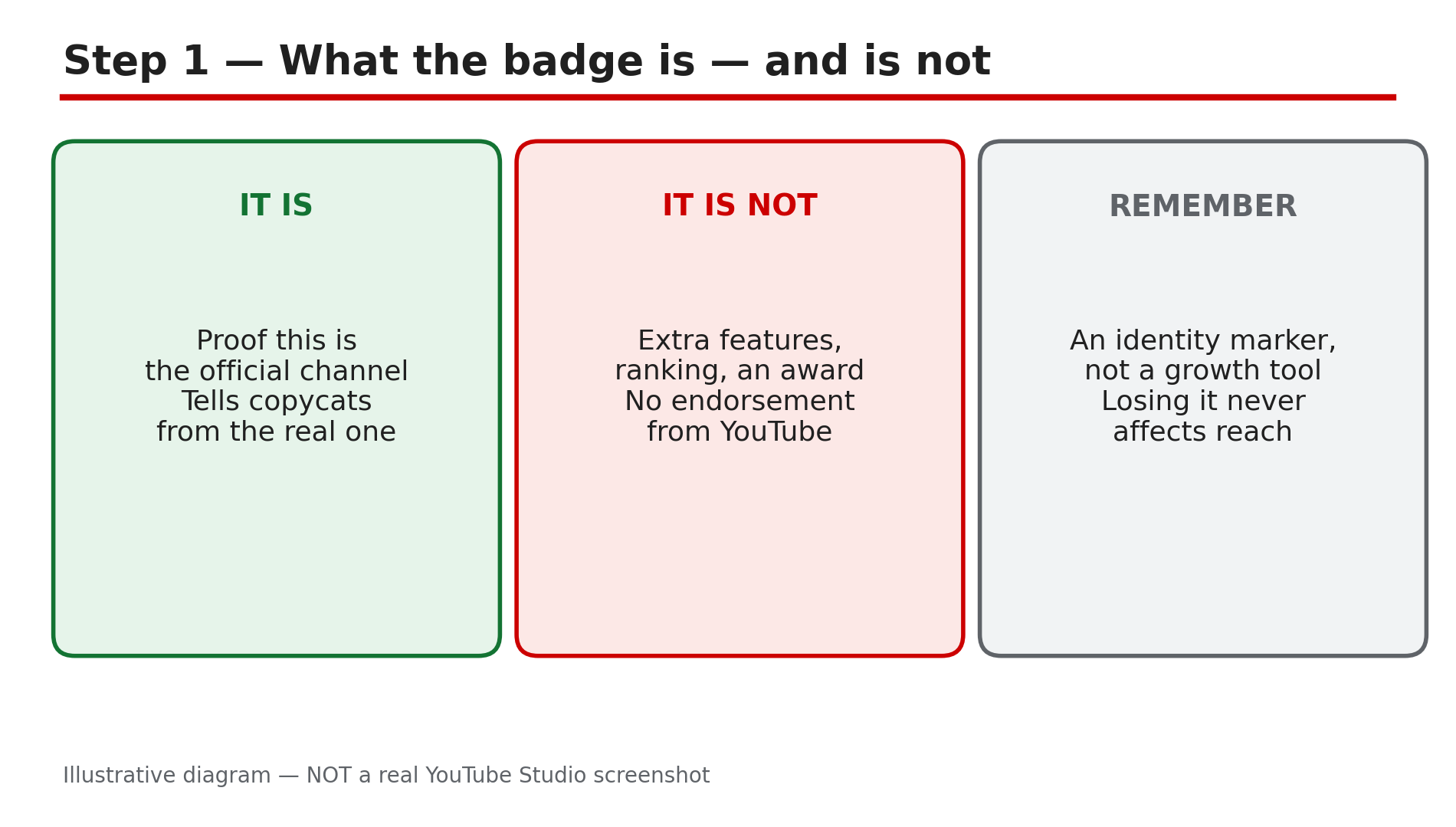
How: YouTube’s Help page says that when you see a verification check mark next to a channel’s name, it means YouTube has verified that channel. It is the official channel of a creator, artist, company or public figure, and it helps viewers tell the official channel apart from other channels with similar names. Verified channels do not get extra features on YouTube, and the badge does not represent an award, a milestone or an endorsement. It is an identity marker, nothing more.
Example: A channel with 200,000 subscribers loses its badge after a rebrand. Its videos, subscribers, watch hours and monetisation are untouched.
Common mistake: Treating the badge as a ranking or monetisation tool and panicking about views when it disappears. The badge never affected reach.
Illustrative diagram of what the verification badge means and what it does not mean.
Step 2 — Check whether you still meet the eligibility rules
What to do: Confirm the three eligibility requirements before you reapply, so the application is not rejected on a technicality.
How: YouTube’s Help page lists three requirements to submit a verification request: you must have 100,000 subscribers; your Google Account must have 2-step verification turned on; and you must have a complete profile, including a banner image, profile picture, description and at least one public video. Only the channel owners or the managers of a channel can submit the application. YouTube may also proactively verify channels with fewer than 100,000 subscribers that are well known outside of YouTube.
Example: A creator rebrands and reapplies, but the form is missing. The cause is a banner image removed during the rebrand — the profile is no longer complete.
Common mistake: Applying from the wrong Google Account, or from a Brand Account manager login that is not the channel owner. Sign in with the account that owns the channel.
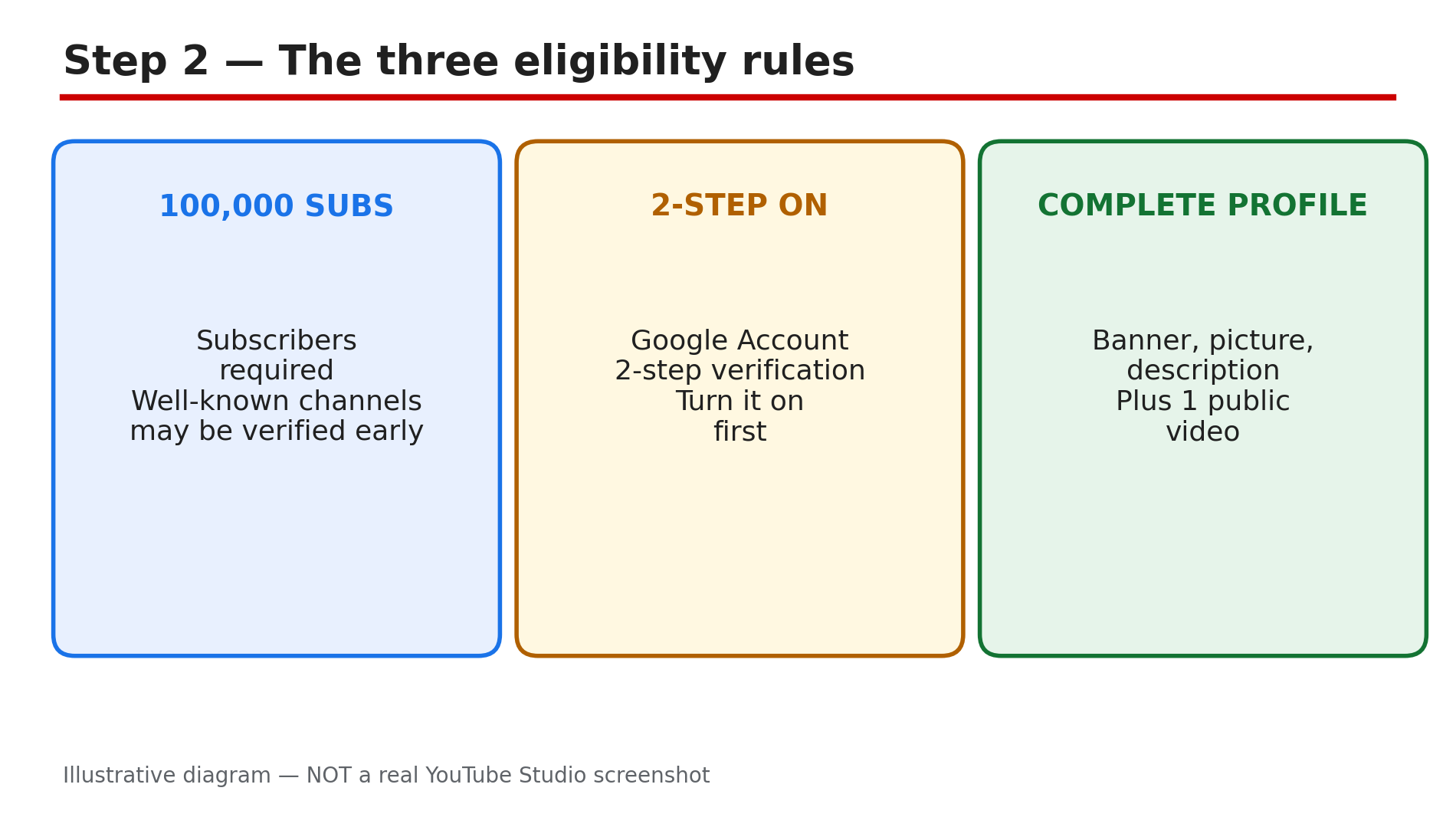
Illustrative diagram of the three requirements for channel verification.
Step 3 — The most common cause: you changed the channel name
What to do: Check whether a name change is what removed the badge — it is the cause in most cases.
How: YouTube’s Help page states it directly: if your channel is verified, it will stay verified unless you change your channel name. If you change your channel name, the renamed channel will not be verified, and you will need to reapply. This is by design: the badge verifies a specific name, and a new name needs a new check. Changing your channel’s handle does not remove your badge — the handle is a separate identifier. Note the related limit: the channel name and the handle can each be changed only twice in 14 days, as reported.
Example: A channel called “Tech With Rahul” rebrands to “Rahul Tech Lab”. The badge disappears the same day — only the name moved.
Common mistake: Changing the name twice in a week — once for the rebrand and once to fix a spelling error. Plan the final name before you change it, and change it once.
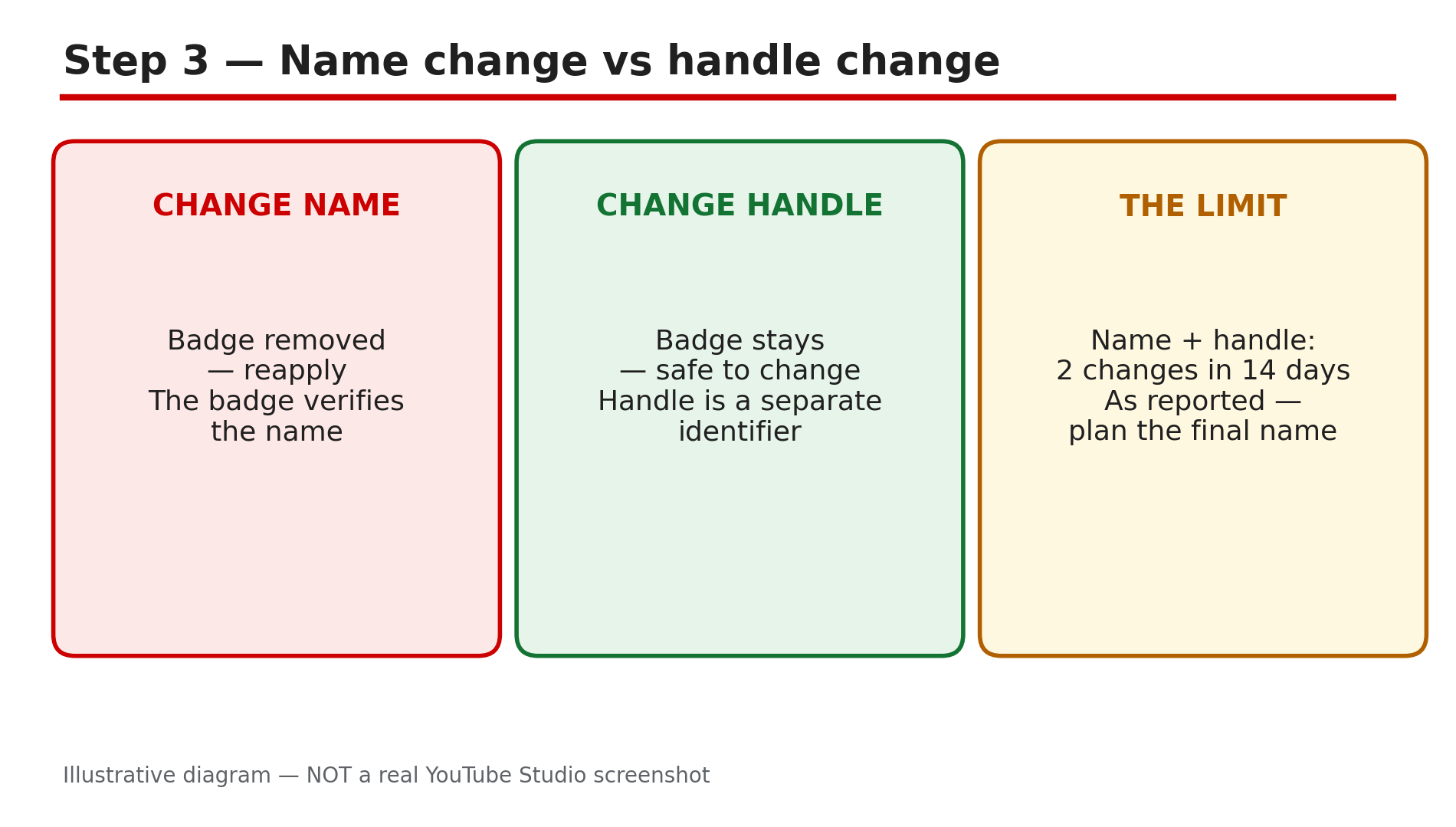
Illustrative diagram comparing a channel name change with a handle change.
Step 4 — The other reasons a badge can be removed
What to do: Rule out the serious causes before you reapply, because reapplying does not fix them.
How: YouTube’s Help page says it reserves the right to revoke verification or terminate channels that violate the Community Guidelines or the YouTube Terms of Service. A badge can also be lost if the channel is found to be impersonating another creator or brand — YouTube says it will not verify channels that try to impersonate someone else. A badge is also not permanent if the channel stops meeting the eligibility rules, for example by deleting the only public video or removing the banner.
Example: A creator’s badge disappears the same week a Community Guidelines strike arrives. The strike is the cause, not a name change.
Common mistake: Reapplying immediately after a revocation without fixing the underlying violation. Check Studio for strikes, warnings and impersonation notices first.
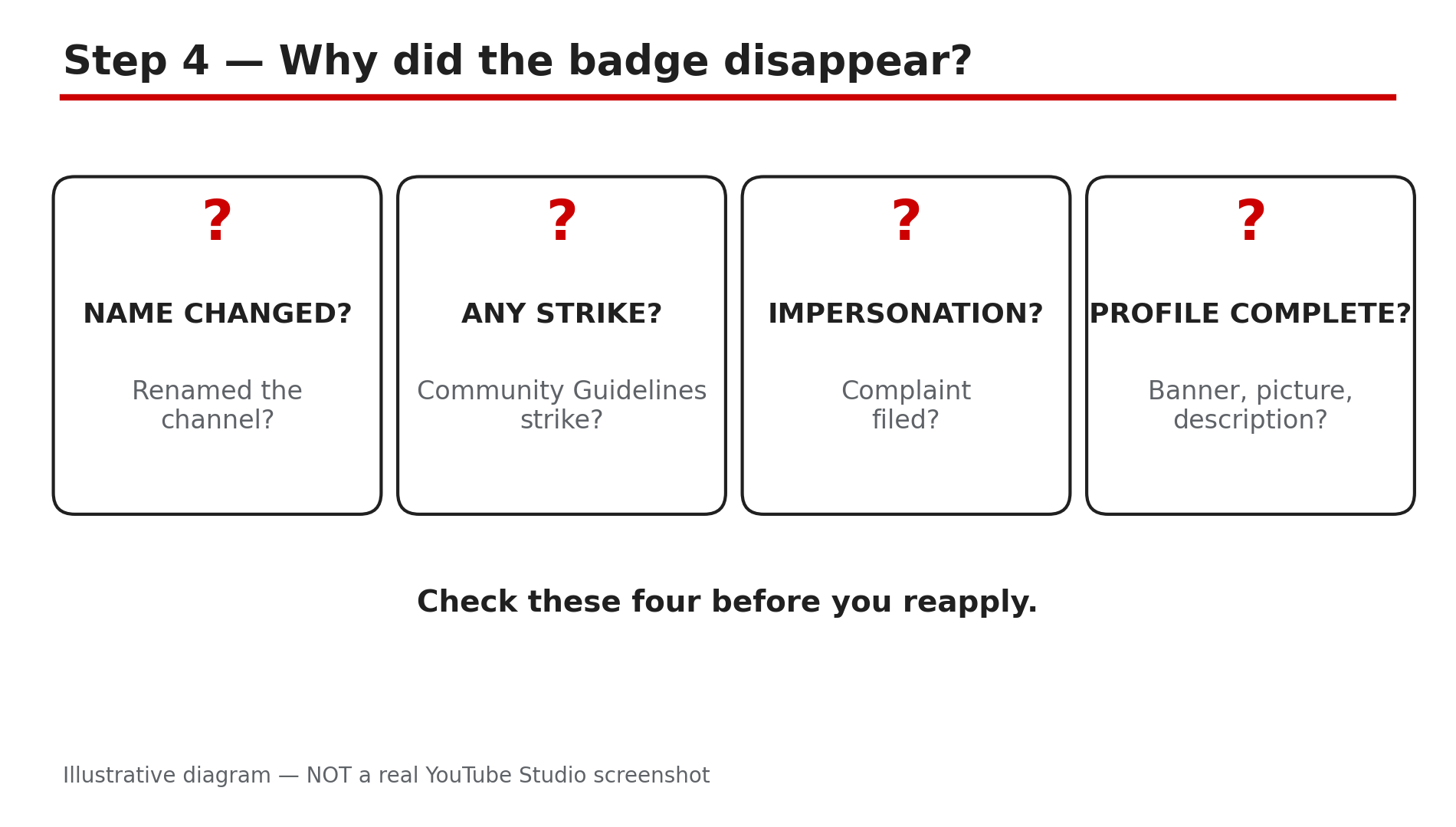
Illustrative diagram of the four checks for a missing verification badge.
Step 5 — Reapply for the badge, step by step
What to do: Submit a fresh verification application in Studio under the current channel name.
How: YouTube’s Help page gives the route. Sign in to YouTube Studio on a computer. Click Settings, then Channel, then Verified badge. If the Verified badge tab does not appear, you are not eligible based on the 100,000-subscriber requirement. Click Apply. If you have 100,000 subscribers but are missing 2-step verification or a complete profile, you will see the option to turn on 2-step verification or edit your profile instead. After you apply, YouTube reviews the channel. Guides report that the review can take several weeks — as reported, not a YouTube promise.
Example: A rebranded channel with 150,000 subscribers, 2-step verification on, and a complete profile applies on a Monday. The badge returns once the review confirms the new name.
Common mistake: Applying, then changing the name again while the review is running. Do not touch the name, handle or profile until the review is done.
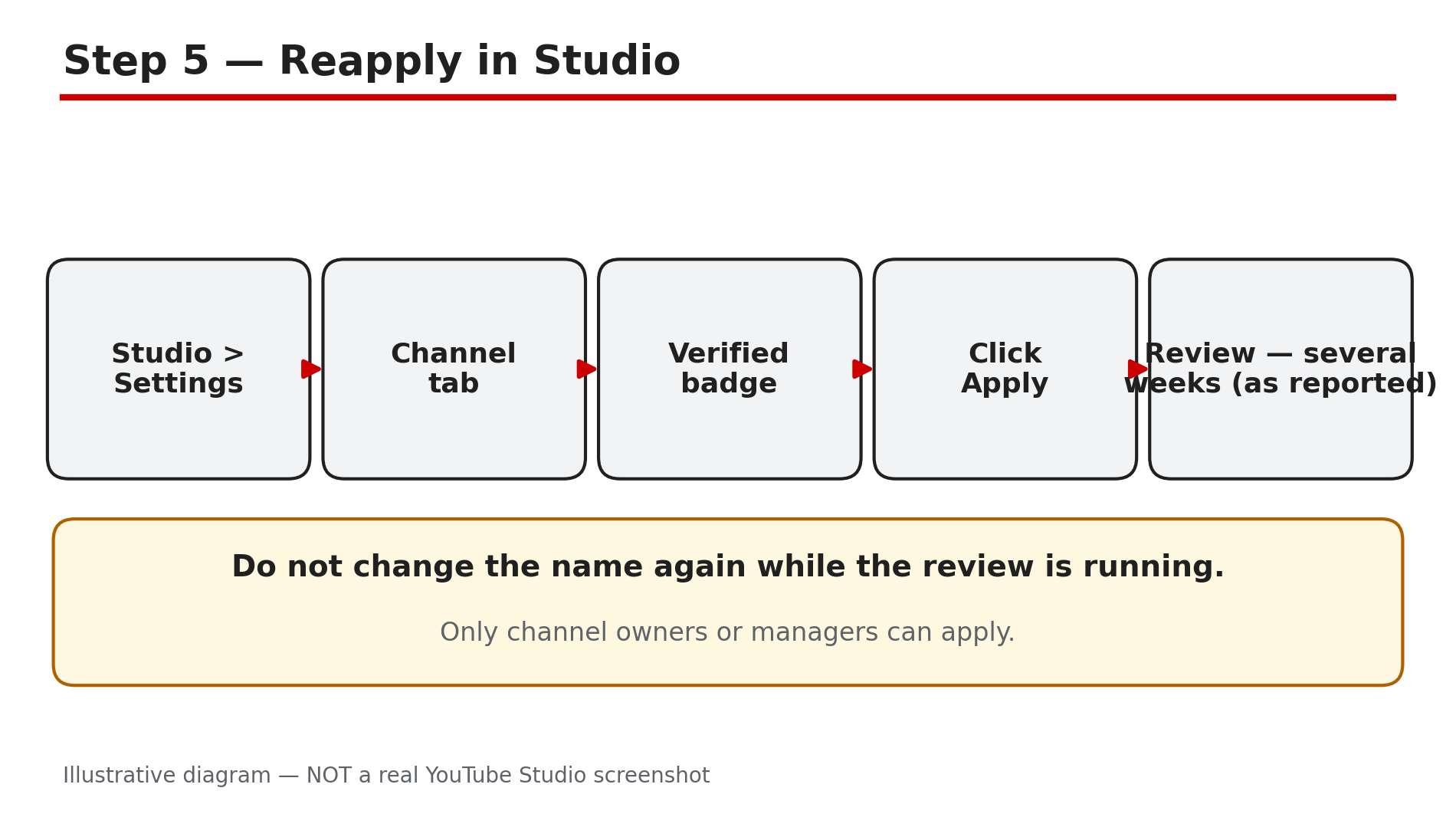
Illustrative diagram of the steps to reapply for channel verification.
Step 6 — Protect the badge once it is back
What to do: Build habits that keep the badge, and a backup plan for the day a copycat appears.
How: First, treat the channel name as permanent: plan any rebrand carefully, change the name once, and reapply for verification the same day. Second, keep the profile complete at all times — banner, picture, description and at least one public video. Third, keep 2-step verification on. Fourth, remember that a handle change is safe: you can change it without losing the badge, and the old handle is held for 14 days. Fifth, if someone impersonates your channel, report it to YouTube.
Example: A creator plans a rebrand three weeks ahead, picks the final name, changes it once, and reapplies for verification the same day.
Common mistake: Rebranding on impulse and changing the name, handle and banner all at once. Change one thing at a time, and verify the badge after each step.
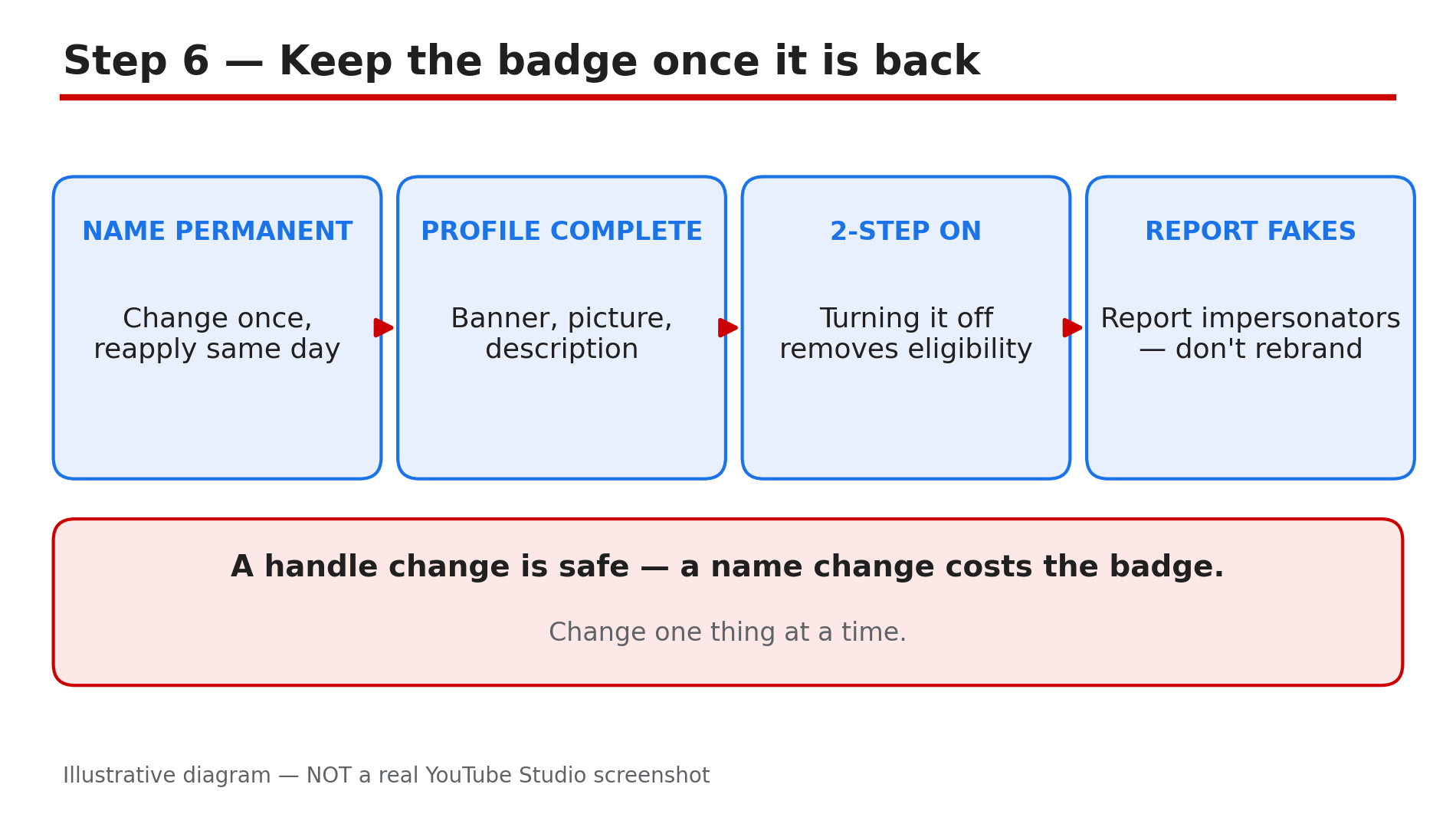
Illustrative diagram of the habits that protect a verification badge.
Checklist — Before You Publish
- ☐ I know the badge is an identity marker, not a ranking tool
- ☐ I checked the three eligibility rules
- ☐ I know whether a name change removed the badge
- ☐ I checked Studio for strikes, warnings or impersonation notices
- ☐ I did not change the name again during a review
- ☐ I applied in Studio: Settings, Channel, Verified badge, Apply
- ☐ I kept the channel public with a complete profile while waiting
- ☐ I reported any impersonator instead of rebranding to escape it
FAQs
1. Why did my YouTube verification badge disappear?
The most common reason is a channel name change — YouTube’s Help page says a renamed channel is no longer verified and must reapply. Other reasons include revocation for Community Guidelines or Terms of Service violations, impersonation, or no longer meeting the eligibility rules.
2. Does changing my handle remove the verification badge?
No. YouTube’s Help page says changing your channel’s handle will not remove your verification badge. Only a channel name change removes it. That is why a handle update is the safer change when you need a new @username.
3. How do I get my verification badge back?
Reapply in YouTube Studio on a computer: Settings, then Channel, then Verified badge, then Apply. You need 100,000 subscribers, 2-step verification turned on, and a complete profile. YouTube reviews the application and may ask for more information.
4. How long does verification take?
YouTube does not give a fixed time on its Help page. Guides report the review can take several weeks — present that as reported. If you recently reached 100,000 subscribers or turned on 2-step verification, YouTube says its systems can take a few days to update before the application form even appears.
5. Does losing the badge affect my views or earnings?
No. YouTube’s Help page says verified channels do not get extra features, and the badge does not represent an award or endorsement. Losing it does not change your ranking, your monetisation or your subscribers — it only removes the identity tick, which matters most for telling copycats apart from your real channel.
Sources
- YouTube Help — “Verification badges on channels” (official page, opened live 2 Nov 2026): https://support.google.com/youtube/answer/3046484
- CreatorPlaybook — “YouTube Verification Explained: Phone Verification, Advanced Features and the Grey Badge”: </blog/youtube-verification-explained-phone>
- CreatorPlaybook — “YouTube Handle Taken or Channel Name Problems? How to Fix Them”: </blog/youtube-handle-taken-or-channel-name>