Showing Posts From
Channel switching
 CreatorPlaybook Team
- 09 Nov, 2026
Brand Account Channel Missing or Can't Switch? How to Find It and Switch Back
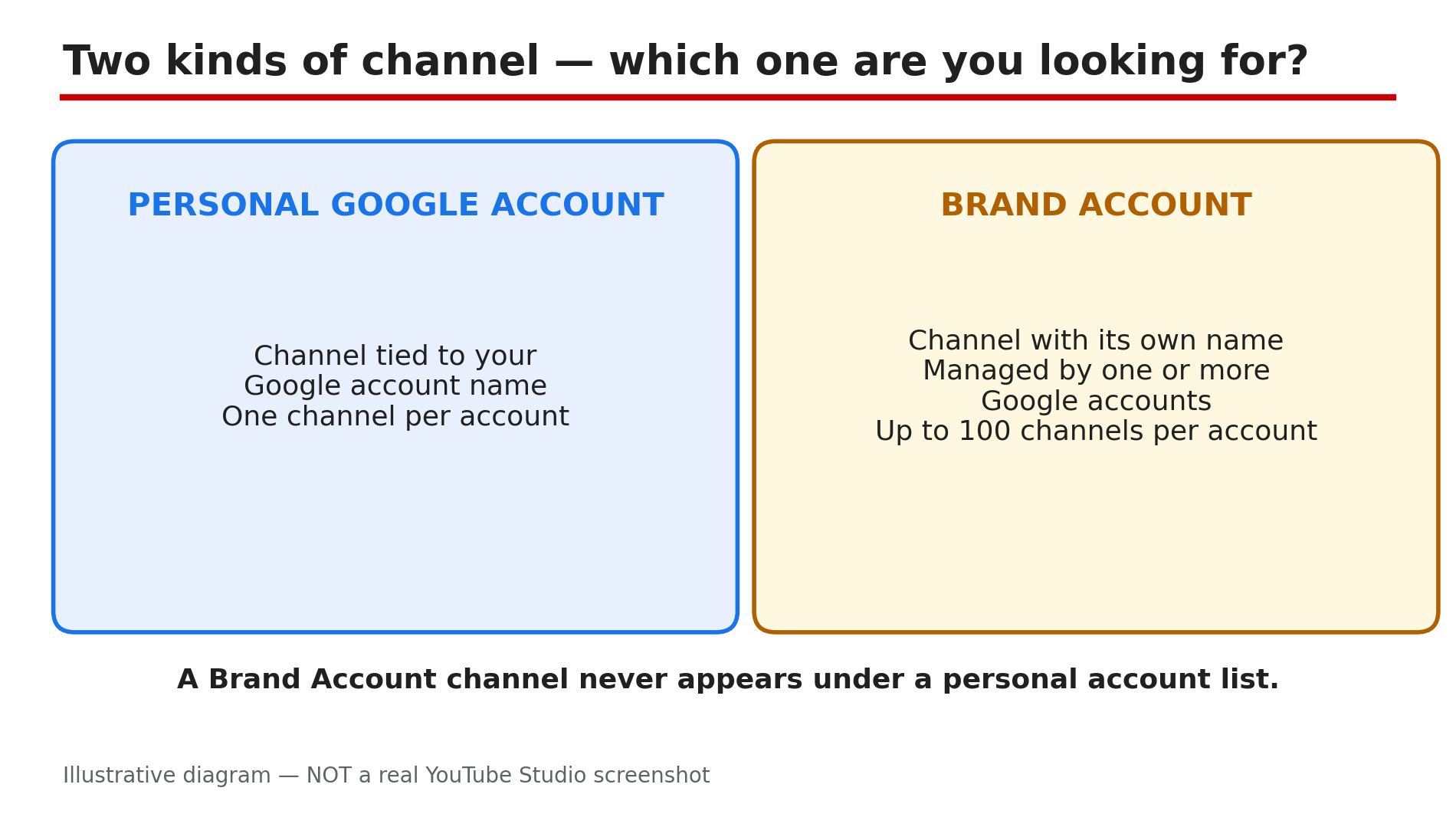
You open YouTube, click your profile picture, and the channel you want is not in the list. Or you click it and nothing happens — you stay on the wrong channel. In most cases it has not gone anywhere: you are signed in to the wrong Google Account, or the Google Account you are using is not a manager of the Brand Account that owns the channel. One Google Account can manage up to 100 channels, and channels with a different name from your Google Account are usually linked to a Brand Account. The list shows only the channels the signed-in Google Account can manage, so a channel under a different account, or a Brand Account you do not manage, does not appear. Work through the steps in order: confirm the account, switch the official way, then check the manager list. Only if every step fails should you think the channel is gone — and never click a delete or replace option while you are looking for it. What You Will LearnWhy a channel can disappear from the switch list How to confirm which Google Account you are signed in to The official way to switch between channels What to do when a channel you have permission for does not show Why a Brand Account channel hides, and how to fix it The delete and replace option never to pick by accidentStep 1 — Confirm which Google Account you are signed in to What to do: Check the signed-in Google Account first — a channel under another Google Account will never appear in your switch list. How: Click your profile picture in the top right corner of youtube.com and read the name and email shown. If it is not the account that owns or manages the missing channel, sign out and sign in with the right Google Account, then check the list again. On a phone, check the same thing in the YouTube app. Example: A creator manages two channels, one under her personal Gmail and one under a work Gmail. Signed in to the personal account, her work channel is missing — she switches accounts and it appears. Common mistake: Assuming the channel was deleted, when the browser is simply signed in to a different Google Account.Illustrative diagram: the two kinds of channel — a personal Google Account channel and a Brand Account channel with its own name. Step 2 — Switch channels the official way What to do: Use YouTube's own switcher. It lists every channel the signed-in Google Account manages, including Brand Account channels. How: On a computer, click your profile picture in the top right corner of youtube.com, then Switch account, then the channel you want. Check the name and icon in the top right corner after every switch — YouTube's Help page says that is how you confirm which channel you are using. If you choose a Brand Account with no channel yet, YouTube offers to create one — skip it unless you mean to start a new channel. Example: A creator with three channels clicks Switch account and sees all three listed by name and icon. She picks the Brand Account channel, and the right name and icon show in the top right corner. Common mistake: Clicking the Google Account email address in the list instead of the channel name. The email entry opens YouTube as a viewer with no channel, which looks like the channel has gone.Illustrative diagram: the switch path — profile picture, Switch account, pick the channel, check the name and icon. Step 3 — If a channel you have permission for does not show, switch in Studio What to do: When a channel you should be able to use is missing from the switch list, try switching inside YouTube Studio on a computer instead. How: Go to studio.youtube.com and sign in with that account. YouTube's Help page gives this as the direct answer for a channel you have permission to access that does not show in the list: switch channels in Studio. If Studio also shows only one channel, the problem is not the switcher — re-check the Google Account in Step 1. Example: A creator manages a friend's channel but it never appears on youtube.com. She opens studio.youtube.com, switches there, and the channel loads — then it shows in the switch list as well. Common mistake: Repeating the same switch on youtube.com and concluding the channel is gone, when the Studio switcher is the route YouTube itself points to.Illustrative diagram: switching in Studio on a computer when the channel is not in the YouTube switch list. Step 4 — Check the Brand Account manager list What to do: If the missing channel is linked to a Brand Account and still does not show, check whether the signed-in Google Account is listed as a manager of that Brand Account. How: YouTube's Help page states it plainly: if your channel is not showing, the Google Account you are signed in to is not listed as a manager of that channel's Brand Account. The owner must add your Google Account as a manager. Ask the owner, or check from an account that already manages the Brand Account, and confirm your email is listed. Until it is, no switcher will show you the channel. Example: A team channel is owned by a Brand Account. A new editor signs in with her own Gmail and the channel is missing. The owner adds her Gmail as a manager, and the channel appears. Common mistake: Asking YouTube support to restore a channel that is not lost, when the fix is a manager invitation from the Brand Account owner.Illustrative diagram: the Brand Account manager list — your account is either on it or it is not. Step 5 — Never pick a delete or replace option while searching What to do: While hunting for a missing channel, do not click anything that mentions deleting a channel or replacing one. A wrong click can do the damage you feared. How: As reported, a September 2026 Community case shows a channel disappearing after the owner chose "Delete channel and replace" during a Brand Account move — a reported case, not a general rule, but take the warning seriously. If a settings screen offers to delete the channel and replace it, stop and read every word before you click. Unsure? Close the screen and ask the Brand Account owner first. Example: A creator moving a channel between Brand Accounts sees a "Delete channel and replace" option and assumes it is a normal step. As reported, the channel disappeared. Common mistake: Clicking through a delete or replace prompt as if it were a confirmation of the move.Illustrative diagram: the safe choice versus the delete or replace option. Step 6 — If it is still missing, check hiding, deletion, and the account itself What to do: If the account, the switcher, and the manager list are all right, check whether the channel was hidden or deleted — and whether the Google Account itself still exists. How: Search YouTube for the channel name while signed out. If the channel page loads, the channel exists and the problem is still access, so go back to Step 4. If the page is gone, check Studio's channel settings for a hidden channel, and ask whether a manager deleted it. Also check the Google Account was not deleted or disabled — a deleted account takes its channels with it. If it was deleted by mistake, the Help page on deleting a channel explains the limited recovery window, so act quickly. Example: A creator cannot find her old channel. A signed-out search finds nothing, and a co-manager admits it was hidden during a cleanup. Unhiding it in Studio brings it back. Common mistake: Creating a new channel with the same name, then finding the old one was only hidden — now two channels share one name.Illustrative diagram: the six-step fix order for a missing channel. Checklist — Find a missing Brand Account channel☐ Signed-in Google Account owns or manages the channel ☐ Switched via profile picture, then Switch account ☐ Name and icon top right confirm the right channel ☐ Tried switching in Studio at studio.youtube.com ☐ Google Account is a Brand Account manager ☐ Did not click any delete or replace option ☐ Searched signed out to check the channel still exists ☐ Checked if the channel was hidden in Studio ☐ Checked the Google Account was not deleted or disabled ☐ Did not create a duplicate channelFAQs 1. How many channels can one Google Account manage? Up to 100, according to YouTube's Help page. Channels with a different name from your Google Account are usually linked to a Brand Account. 2. Why does my channel not appear in the Switch account list? Usually you are signed in to the wrong Google Account, or the signed-in account is not a manager of the channel's Brand Account. Check the account, then the manager list. 3. The channel is missing on YouTube but I have permission — what now? YouTube's Help page says to switch channels in Studio at studio.youtube.com — try that first. 4. Can a channel be recovered after choosing "Delete channel and replace"? As reported, a September 2026 Community case shows a channel disappearing after that choice. Do not pick a delete or replace option unless you mean it, and check the Help page on deleting a channel for a recovery window. 5. Should I recreate the channel with the same name to unhide it? That is community advice, not official Help, as reported. Check first whether the channel is only hidden or the manager list is wrong — recreating it can leave two channels with one name. SourcesYouTube Help — "Switch between channels on a Google Account" (official page, opened live 9 Nov 2026): https://support.google.com/youtube/answer/3046356?hl=en&co=GENIE.Platform=Desktop CreatorPlaybook — "YouTube Handle Taken or Channel Name Wrong? How to Change Your Name and Handle" (internal link, opened live 9 Nov 2026): </blog/youtube-handle-taken-or-channel-name> CreatorPlaybook — "YouTube Channel Name Change: What Happens to Search, URL and Verification" (internal link, opened live 9 Nov 2026): </blog/youtube-channel-name-change-what>