Showing Posts From
Video language
 CreatorPlaybook Team
- 09 Nov, 2026
Video Language Wrong or Auto Captions Never Appear? Fix the Language Setting
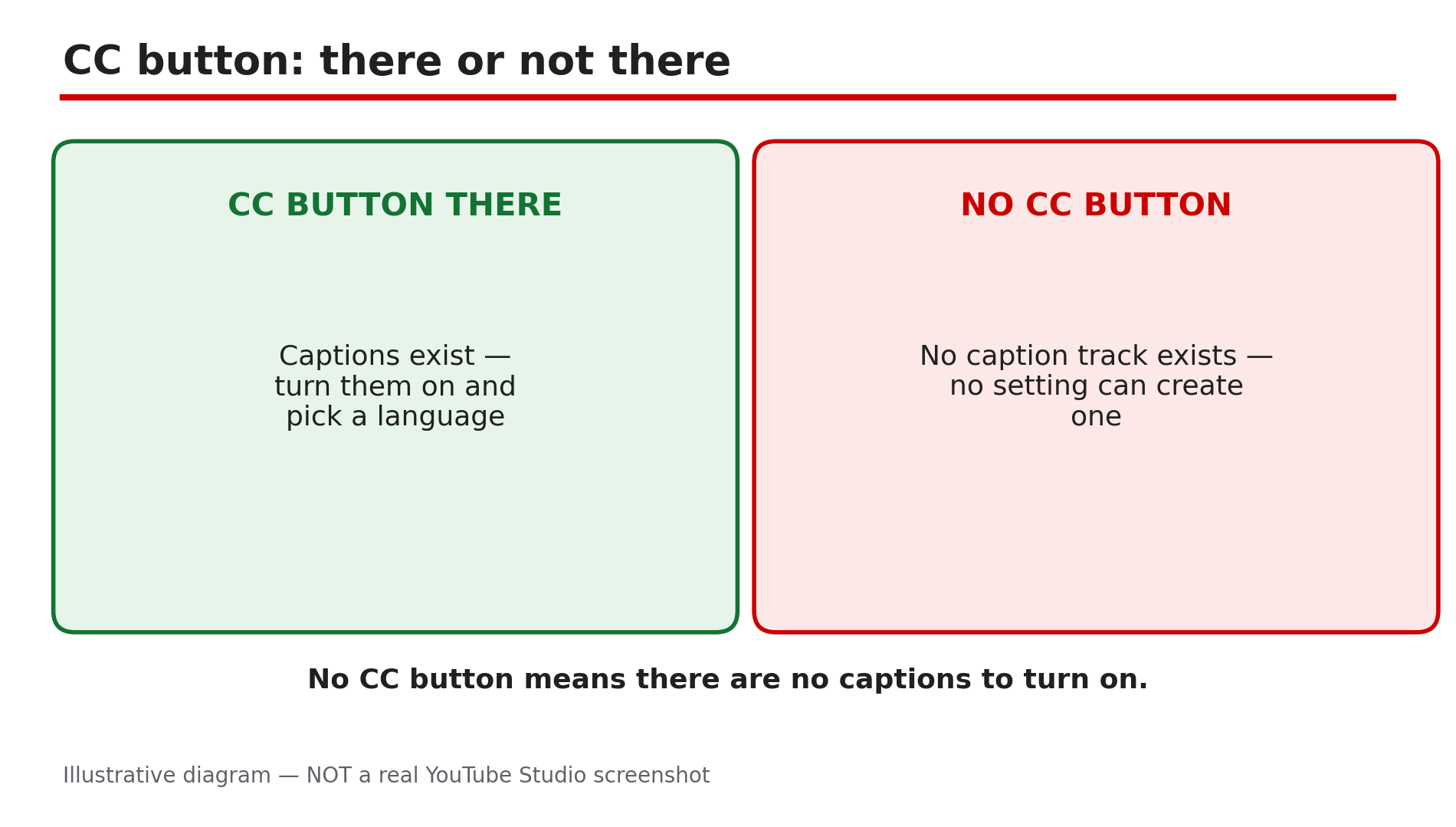
You upload a video, wait a day, and no captions appear. Or captions appear — in Korean, on an English video. Or a viewer writes that your video is suddenly playing in a language you never recorded. In most cases one setting is behind it: the video language, left blank or set wrong in Studio. YouTube will not generate automatic captions without an explicit video language set on that video. The language field is small and easy to miss, and a blank field is the most common cause of missing captions. The same setting decides which language the captions are made in — so a wrong setting gives you captions in the wrong language. Work through the steps in order: check the language field, fix it per video, set the default for future uploads, then check the viewer side. Defaults fix the next upload only — never the videos you already published. What You Will LearnWhy automatic captions never appear How to find the blank video-language field in Studio How to fix the language on one video and save it Why upload defaults do not fix existing videos Why wrong-language captions mean a wrong setting The viewer-side setting behind unexpected dubbed audioStep 1 — Check whether the video has captions at all What to do: Look for the CC button before you change any setting — no setting can create a caption track that does not exist. How: Open the video on a computer and look at the bottom right of the player for the CC button; on a phone, tap the video once, then look for the CC icon. If there is no CC button, YouTube says captions are not available for that video — no caption file was uploaded and none were generated. If the CC button is there, captions exist and the problem is the language or the viewer setting, not a missing track. Example: A viewer complains a tutorial has no subtitles. The creator opens the video and finds no CC button — the video language was never set, so no captions were ever made. Common mistake: Telling a viewer to turn on captions in settings when the video has no caption track — settings can only show a track that exists.Illustrative diagram: a video with a CC button and one without, and what each case means. Step 2 — Find the blank video-language field in Studio What to do: Open the video in Studio and find the language field. A blank field is the tell — the most common cause of captions that never appear. How: Sign in to YouTube Studio on a computer, go to Content, and click the video's title or thumbnail. Scroll down and click SHOW MORE. Under "Language and captions certification", look at the video language field. If it is blank, that is your answer: YouTube will not generate automatic captions without an explicit video language set. Example: A creator checks five old videos and finds three with blank language fields. Those three are the ones with no captions — the other two, with English set, have captions. Common mistake: Checking the channel settings and assuming the language is set, when the field that matters is the one on the individual video.Illustrative mock-up: the Studio path to the video-language field — Content, video, Details, SHOW MORE, Language. Step 3 — Set the language on the video and save What to do: Set the video language to the language actually spoken in the video, then save. This is the fix itself — everything else in this guide is checking. How: In Studio, go to Content, open the video, scroll down, click SHOW MORE, and under "Language and captions certification" choose the intended language of your video, its title and description. Then click SAVE at the top of the page — these are YouTube's Help page steps. Give it a few hours: automatic captions are generated after the video finishes processing, not alongside it. Changing the language affects future translated subtitles; your published and draft subtitles and closed captions will not be affected. Example: A creator sets English on an old tutorial whose language field was blank. Captions appear within a few hours, and the video shows a CC button. Common mistake: Choosing the language and closing the tab without clicking SAVE. Without saving, nothing changes — and the field stays blank.Illustrative diagram: the fix sequence — set the video language, click SAVE, wait a few hours, check for the CC button. Step 4 — Set the upload default, and fix old videos one by one What to do: Set the default language once for future uploads — then fix every existing video by hand, because the default does not touch them. How: In Studio, go to Settings, then Upload defaults, and set the video language there, so every future browser upload inherits it. Then open each old video in Studio and set its language as in Step 3, saving each one. Defaults apply only to future uploads — they do not fix existing videos. Work through your most-watched videos first — those are the ones viewers are opening. Example: A creator sets the default language to English, then checks an old video and finds its field blank. She sets it to English and saves — the default alone would never have fixed it. Common mistake: Setting the language on the channel and assuming old videos are fixed. Defaults help the next upload only.Illustrative diagram: upload defaults fixing future uploads only, and old videos needing a per-video fix. Step 5 — Fix wrong-language captions at the same setting What to do: When automatic captions appear in the wrong language, trace them to the same setting — a wrong setting gives you the wrong language. How: YouTube's Help page says automatic captions will be in the video's default language only, as reported. So if an English video has Korean captions, check the video language and the upload default: one is set to Korean, or was left blank. Also check Auto-translate: it translates from a caption track that already exists, and it can persist across videos, as reported — so if subtitles suddenly appear in the wrong language on every video, check it was not left on. Fix it as in Step 3, then check the track. Example: A viewer opens an English tutorial and sees only Korean captions. The creator checks Studio and finds the video language set to Korean. She sets it to English and saves, and the captions come back in English. Common mistake: Re-uploading the video to fix the captions. The same audio with the same wrong setting gives YouTube the same problem — and the original loses its URL and views.Illustrative diagram: why captions are in the wrong language — wrong video language, wrong default language, or auto-translate left on. Step 6 — Check the viewer side: preferred languages and the audio track What to do: If the creator side is right and a viewer still hears the wrong language, check the viewer side — player, languages, and audio track. How: As reported, a February 2026 update added a Language, then Preferred Languages setting in the YouTube app that controls the auto-dubbing language. A viewer hearing an unexpected language can open that setting and uncheck the languages they do not want, or switch the audio track per video. On a computer, click the Settings gear, then the audio track option, and pick the original language. Captions are text on screen, dubs are spoken audio — if subtitles are right but the audio is wrong, the dub is the missing piece, not the caption file. Example: A German viewer reports hearing English on a video with a German dub. The creator checks player settings and finds the German track listed — the viewer had not switched. Common mistake: Confusing missing captions with missing audio tracks. If subtitles are present but the audio is wrong, fix the audio track.Illustrative diagram: the viewer side — the app Preferred Languages setting, and switching the audio track per video. Checklist — Fix the video language and captions☐ Checked if the video has a CC button at all ☐ Found the video-language field in Studio ☐ Set the language actually spoken in the video ☐ Clicked SAVE at the top of the page ☐ Waited a few hours for automatic captions to appear ☐ Set the upload default language for future uploads ☐ Fixed each old video by hand in Studio ☐ Checked Auto-translate was not left on ☐ Checked the viewer's Preferred Languages and audio track ☐ Did not re-upload the video to fix captionsFAQs 1. Why do my videos have no automatic captions? Usually the video language was never set. YouTube will not generate automatic captions without an explicit video language on that video — set it in Studio, save, and wait a few hours. 2. Why are my automatic captions in the wrong language? Automatic captions are made in the video's default language only, as reported. Check the video language and the upload default — one is set wrong, or Auto-translate was left on. 3. Will setting the upload default fix my old videos? No. Defaults apply only to future uploads. Fix each existing video in Studio, one by one, and save. 4. How long do automatic captions take to appear? They are generated after the video finishes processing, not alongside it. Give it a few hours after setting the language before calling it broken. 5. A viewer hears the wrong language, but the captions are right — what is wrong? That is the audio track, not the captions. As reported, the app's Preferred Languages setting controls the auto-dubbing language — the viewer can uncheck languages there, or switch the audio track. SourcesYouTube Help — "Change the language of your uploaded video" (official page, opened live 9 Nov 2026): https://support.google.com/youtube/answer/6304325?hl=en CreatorPlaybook — "YouTube Captions Not Showing or Wrong? How to Fix Subtitles on Any Video" (internal link, opened live 9 Nov 2026): </blog/youtube-captions-not-showing-or-wrong> CreatorPlaybook — "YouTube Multi-Language Audio Tracks Not Showing? How Dubs and Translated Titles Work" (internal link, opened live 9 Nov 2026): </blog/youtube-multi-language-audio-tracks-not>