Showing Posts From
Youtube branding
 CreatorPlaybook Team
- 04 Nov, 2026
YouTube Banner or Profile Picture Not Updating? How to Fix It
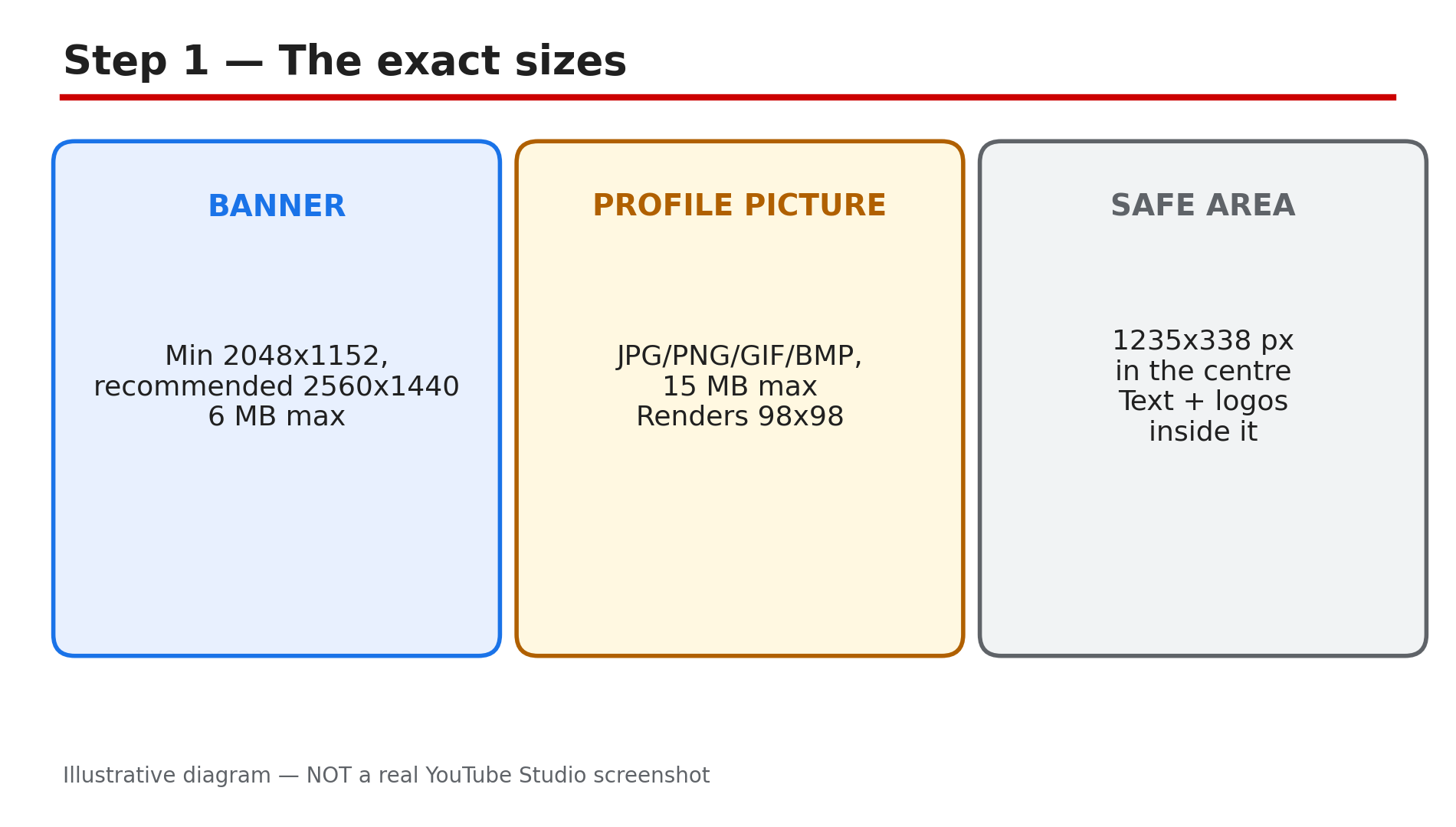
You upload a new banner, it looks perfect in the preview, you close Studio — and the channel page still shows the old one. Or the profile picture changed on your channel but not on your comments. Or nothing changed at all, and you are not sure the upload even worked. In most cases the upload did work. What You Will LearnThe exact banner and profile picture sizes YouTube requires Where to change each image in Studio, and the Publish step people skip Why the profile picture also changes Gmail and Drive — and the Brand Account exception How to test whether it is a real failure or just your browser cache What to do when the upload itself is rejected How long propagation really takes, and when to worryStep 1 — Use the sizes YouTube actually publishes What to do: Check your file against YouTube's own guidelines before you upload it again. How: YouTube's Help page "Manage your channel branding" lists the rules. For the banner, the minimum upload is 2048 x 1152 pixels at 16:9, the recommended size — especially for TV — is 2560 x 1440 pixels, and the file must be 6 MB or smaller. At the minimum size, the safe area for text and logos is 1235 x 338 pixels in the centre: anything outside that area can be cropped on some devices, so keep your channel name and logo inside it. Do not add shadows, borders or frames to the banner image. For the profile picture, the file must be JPG, GIF, BMP or PNG — no animated GIFs — no larger than 15 MB, and it renders at 98 x 98 pixels, so a simple image that survives being shrunk to a small circle works best. The video watermark, if you use one, must be square, at least 150 x 150 pixels and under 1 MB, and it is not shown on videos set as Made for Kids. Example: A creator uploads a 1920 x 1080 banner and wonders why it looks soft on TV. Common mistake: Designing the banner with text at the edges — phones crop the sides, so only the central safe area is guaranteed visible.Illustrative diagram of YouTube's banner and profile picture size rules. Step 2 — Change it in Studio and click Publish What to do: Make the change in the right place, and finish it with Publish — the step most people skip. How: Sign in to YouTube Studio. From the left menu, select Customization, then Profile. Click Change under the profile picture or the banner, pick the image from your computer, adjust the crop, click Done — and then click Publish. Without Publish, nothing changes, and the next person to open Customization sees the old image still in place. YouTube's Help page says it may take a few minutes for a profile picture to update across YouTube, so a short delay after a correct Publish is normal. The banner generally needs a desktop browser, or a mobile browser in desktop mode — the YouTube app does not offer the full branding controls. Example: A creator changes the banner three times in an evening and nothing sticks. Common mistake: Changing the picture from the channel page's Edit button on mobile and expecting the banner to follow.Illustrative diagram of the steps to change a banner or profile picture. Step 3 — Know that the profile picture is also your Google Account picture What to do: Before you change the profile picture, decide whether you want the same image on Gmail and Drive. How: Your YouTube profile picture is your Google Account picture, so changing it also changes the image people see on your Gmail and Google Drive — unless your channel is a Brand Account, in which case the channel picture is separate. If your channel is a Brand Account, check the Brand Account permissions first: a manager without the right permission cannot change the picture at all, and the upload will fail silently or refuse to save. Our separate branding guide explains the Brand Account setup. Example: A creator changes their channel picture to a new logo and the same logo appears on their Gmail the same afternoon. Common mistake: Changing the picture to fix a branding problem, then being unhappy that Gmail changed too.Illustrative diagram of how the profile picture relates to the Google Account picture. Step 4 — Test whether it is cache or a real failure What to do: Open the channel in an incognito window, or on another device, before you upload anything again. How: If the new banner or picture shows correctly in incognito or on another device, the upload worked and your own browser is showing a cached copy of the old image. Clear the browser cache and cookies, sign out and sign back in, and the new image appears. If the old image still shows in incognito and on another device, the change did not save — go back to Step 2 and check that you clicked Publish, and that the file met the size rules in Step 1. Propagation across YouTube's servers takes minutes, but can take up to 24 to 48 hours in some cases, as reported — so a correct upload can still look old on one device for a day. The incognito test is the only test that matters: it separates a YouTube problem from a browser problem in seconds. Example: A creator's new banner shows on their phone but not on their laptop — the laptop's cache was the whole problem. Common mistake: Re-uploading the same file five times because the laptop still shows the old image.Illustrative diagram of the test that tells cache apart from a failed upload. Step 5 — Fix an upload that is actually rejected What to do: If the upload itself fails, the file is the problem — not YouTube. How: The usual causes are a file over the size limit — 6 MB for a banner, 15 MB for a profile picture — an unsupported format, or a weak connection that drops the upload halfway. Export the image again at the right size: a JPG or PNG, 2560 x 1440 for the banner, under 6 MB, and a square image under 15 MB for the profile picture. Try a different browser or a wired connection if the upload stalls. On a Brand Account, confirm you have permission to change the branding — a manager without it will see the change refuse to save. If the file is valid and the connection is stable, the upload succeeds; if it still fails, try the desktop browser in incognito with extensions off, since an ad blocker can interfere with Studio uploads. Example: A creator's 9 MB banner PNG refuses to upload until it is exported as a 2 MB JPG. Common mistake: Uploading a 20 MB TIFF and blaming YouTube.Illustrative diagram of the reasons a branding upload is rejected. Step 6 — Wait the right amount of time, then escalate properly What to do: Give propagation a day, then check again with the incognito test — and only then look for a deeper cause. How: After a correct upload with Publish clicked, wait a few minutes and check in incognito. If it is still old, wait up to 24 hours and check again on a different device and a different network — mobile data instead of Wi-Fi tells you whether a network cache is involved. If it is still old after 48 hours everywhere, something else is wrong: re-open Customization and confirm the new image is actually shown as saved, re-check the file against the size rules, and confirm you are signed in to the right channel — a Brand Account with several channels is the classic trap, where the change was saved to the wrong channel. Do not keep re-uploading the same file in the meantime; each upload that "works" while the wrong channel is selected only deepens the confusion. Example: A creator with three Brand Account channels changes the banner on the wrong one, then spends two days re-uploading to the right one without noticing. Common mistake: Panicking after ten minutes and changing everything again.Illustrative diagram of how long a banner or profile picture change takes to appear. Checklist — Fix a Banner or Profile Picture That Won't Update☐ My banner is at least 2048 x 1152 px, 16:9, 6 MB or smaller — ideally 2560 x 1440 ☐ My profile picture is JPG, GIF, BMP or PNG, 15 MB or smaller, and reads at 98 x 98 px ☐ I changed it in Studio, Customization, Profile — and clicked Publish ☐ I checked it in an incognito window or on another device ☐ If it shows correctly there, I cleared my browser cache and re-signed in ☐ I know the profile picture is also my Google Account picture unless this is a Brand Account ☐ I waited up to 24 to 48 hours for propagation before changing it again ☐ I confirmed I edited the right channel in the Studio channel switcherFAQs 1. Why is my new YouTube banner not showing? Usually you skipped Publish, or your browser is showing a cached copy. 2. What size should a YouTube banner be? At least 2048 x 1152 pixels at 16:9, 6 MB or smaller, with text and logos inside the central 1235 x 338 pixel safe area. 3. Why did my profile picture change on Gmail too? Your YouTube profile picture is your Google Account picture. 4. How long does a banner change take to show everywhere? YouTube says a few minutes for a profile picture, and banner propagation can take up to 24 to 48 hours across its servers, as reported. 5. Can I change my banner from the YouTube app? Not fully — the banner needs Studio on a desktop browser, or a mobile browser in desktop mode. SourcesYouTube Help — "Manage your channel branding" (official page, opened live 4 Nov 2026): https://support.google.com/youtube/answer/10456525?hl=en&co=GENIE.Platform%3DDesktop CreatorPlaybook — "YouTube Branding: Logo, Banner and Intro": </blog/youtube-branding-logo-banner-and-intro> CreatorPlaybook — "YouTube Verification Explained: Phone Verification vs Advanced Features vs Grey Badge": </blog/youtube-verification-explained-phone>