Showing Posts From
Youtube cast
 CreatorPlaybook Team
- 11 Nov, 2026
YouTube Cast Not Working on TV? Fix the Missing Cast Icon and TV Code Link
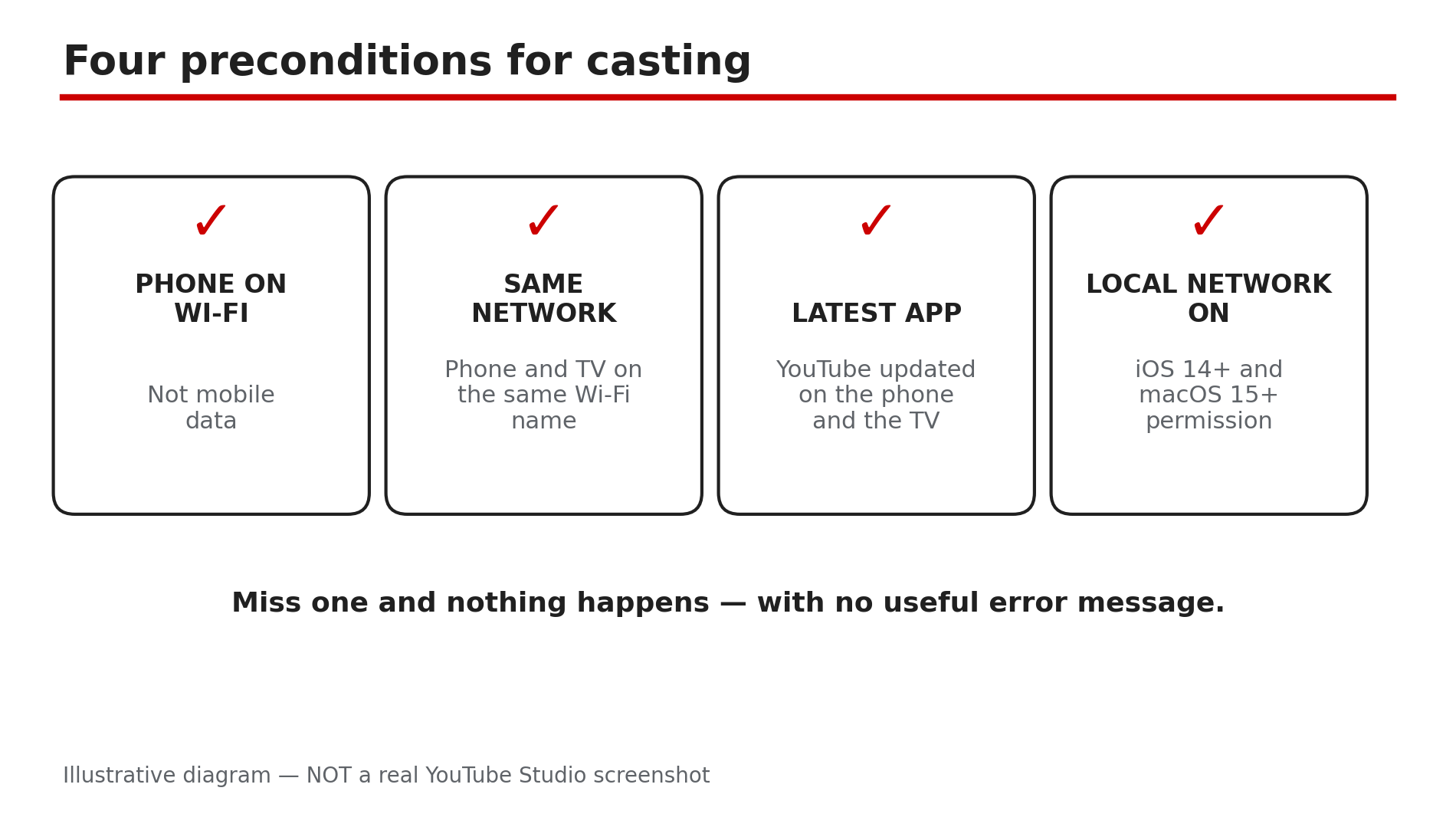
You open a video on your phone, tap the Cast icon, and your TV is not in the list — or the Cast icon is not there at all. Casting looks simple, but it only works when four separate things line up: the right network, the right app version, the right permission, and a TV that can actually be found. Miss one and nothing happens, with no useful error message. This guide checks those preconditions in order, then covers the TV code workaround. What You Will LearnThe four preconditions every cast needs Why your phone must be on the same Wi-Fi as the TV How to link a TV with a 12-digit TV code when networks differ The iOS Local Network permission that silently blocks casting Why older Chromecast models have limited YouTube features What cannot be cast at all, as reportedStep 1 — Check the four preconditions before anything else What to do: Run through the four things Google and YouTube require for casting, and fix the one that fails. How: Four things are required. First, your phone or tablet must be on Wi-Fi — it cannot cast while on mobile data. Second, the phone and the TV must be on the same home Wi-Fi network. Third, the YouTube app on the phone must be updated. Fourth, on iOS 14 or later and macOS 15 or later, the YouTube app needs Local Network access switched on — YouTube's Help text is blunt: when Local Network is turned off, casting will not work. Check all four first. Example: A viewer's TV never appears in the Cast list. The phone is on Wi-Fi and the app is updated — but iOS Local Network permission for YouTube is off. One toggle in iPhone Settings, and the TV appears. Common mistake: Reinstalling the YouTube app first. A reinstall does not restore a missing permission or move the phone onto the right network.Illustrative diagram: the four things every YouTube cast needs before it can work. Step 2 — Same Wi-Fi means the same network name, not just the same house What to do: Confirm both devices are on the exact same Wi-Fi network, not two networks that happen to share a router. How: Compare the Wi-Fi network name on the phone and on the TV, letter for letter. The usual traps: the phone on 5 GHz and the TV on 2.4 GHz under a different name; the TV on a guest network; or AP isolation switched on, which stops devices seeing each other. A guest network is the classic failure — it is designed to isolate devices, so the TV is invisible to the phone by design. Move the TV onto the main network or turn AP isolation off, and try again. Example: A family has one router with two network names, Home-5G and Home-2G. The phone sits on Home-5G, the TV on Home-2G, and casting never works — until both are put on the same name. Common mistake: Assuming "same house" means "same network". Two network names, a guest network, or AP isolation all break discovery.Illustrative diagram: casting needs the same Wi-Fi network name, not just the same house. Step 3 — Use a TV code when the two devices cannot share a network What to do: Link the phone and TV with a 12-digit code when they are on different networks — or when the TV simply never appears in the Cast list. How: YouTube's Help page describes the TV code as the fallback for phones and TVs on separate Wi-Fi networks. On the TV, open the YouTube app, go to Settings, and select Link with TV code — a blue numeric code appears on screen. On the phone, open the YouTube app, tap Cast, tap Link with TV code, enter the code, and tap Link. The TV then appears in the Cast list. To reconnect later, go to your profile picture, Settings, General, Watch on TV, and tap Link next to the TV. Two limits: TV codes do not work from a computer — a computer can only Cast — and unlinking removes all linked devices at once. Example: A viewer casts at a friend's house, where the phone is on mobile data and the TV is on the friend's Wi-Fi. The TV code links them in under a minute. Common mistake: Typing the code after the TV left the Link with TV code screen. Generate a fresh code if it disappears.Illustrative mock-up: the steps to link a phone and TV with a TV code. Step 4 — Update, restart, and clear the stale state What to do: Update both apps, then restart the TV, the phone, and the router in that order. How: Update the YouTube app on the phone and on the TV — an outdated TV app is a common cause, and some TVs only update the app with a TV firmware update. Then restart: switch the TV fully off — unplug it for 60 seconds if it only sleeps — restart the phone, and restart the router. This clears the stale discovery state that makes a TV vanish from the Cast list after a router change or a power cut. On Android, also clear the YouTube app's cache under Settings, Apps, YouTube, Storage. Example: A TV that cast fine for months disappears from the list after a power cut. Nothing was changed — the router's device table was stale. Restarting the router and the TV brings it back. Common mistake: Restarting only the phone. Casting involves three devices — phone, TV, and router — and the stale state is usually in the one you did not restart.Illustrative diagram: the restart order that clears stale casting discovery. Step 5 — Know the limits of older Chromecasts and smart TVs What to do: Check whether your hardware is the limit, before buying a new TV or dongle. How: Older Chromecast models — the second and third generation, and Chromecast Ultra — have limited YouTube features, as reported in casting guides: no sign-in, like, comment, subscribe, or browse on the TV itself, so the phone does all the controlling. That is normal for those models, not a fault. The same applies to old smart TVs whose YouTube app has stopped receiving updates: the app may open and play, but casting features may be missing. If no update is offered, a current streaming stick is the cheapest fix — but try the TV code method in Step 3 first. Example: A Chromecast Ultra user cannot sign in on the TV and assumes casting is broken. It is a hardware limit — the phone signs in and controls playback. Common mistake: Buying a new TV because the Cast icon is missing, when the cause was a permission or a guest network. Rule out Steps 1 to 4 first.Illustrative diagram: older Chromecast models have limited YouTube features by design. Step 6 — Accept what cannot be cast, and check the profile What to do: Rule out the two cases where casting is blocked by design, then check which profile is signed in on the TV. How: As reported, private videos and live content cannot be cast — try a public video to confirm the cast path works. Separately, YouTube's Help page notes that if you are signed in to a YouTube Kids profile through the TV app, you may get an error when you try to cast — switch to a different profile and try again. Finally, confirm the same Google account is signed in on the TV and the phone — it is required for pairing the phone as a remote. Example: A viewer cannot cast one specific video while every other video casts fine. The video is private, and private videos cannot be cast. Common mistake: Treating one uncastable video as a broken TV. Test with a public video first.Illustrative diagram: a public video test tells you whether the setup or the video is at fault. Checklist — Fix YouTube casting☐ Phone is on Wi-Fi, not mobile data ☐ Phone and TV are on the same Wi-Fi network name ☐ YouTube app is updated on the phone and on the TV ☐ Local Network access is on for YouTube on iOS 14+ ☐ Guest network and AP isolation are off; VPN is off while testing ☐ TV code tried when the TV never appears in the Cast list ☐ TV, phone, and router all restarted ☐ Tested with a public video; TV is not on a YouTube Kids profileFAQs 1. Why does my TV not appear in the Cast list? Usually the phone and TV are on different networks, the phone is on mobile data, Local Network permission is off, or AP isolation is on. Check the four preconditions in Step 1 first. 2. Can I cast if my phone and TV are on different networks? Yes, with a TV code. On the TV, go to Settings, Link with TV code; on the phone tap Cast, Link with TV code, and enter the code. TV codes do not work from a computer. 3. Where is the Local Network setting on iPhone? In iPhone Settings, find the YouTube app and switch on Local Network. When it is off, YouTube says casting will not work. 4. Why can I cast some videos but not others? As reported, private videos and live content cannot be cast. Test with a public video: if that casts, your setup is fine and the video itself is the problem. 5. My old Chromecast cannot sign in to YouTube — is it broken? Probably not. Older Chromecast models have limited YouTube features, as reported — the phone controls playback and the TV does not offer sign-in, likes, comments, or browsing. SourcesYouTube Help — "Watch YouTube on your smart TV by linking to your devices" (official page, opened live 11 Nov 2026): https://support.google.com/youtube/answer/7640706?hl=en-gb&co=GENIE.Platform%3DDesktop CreatorPlaybook — "YouTube Video Stuck at Low Quality? Why 1080p or 4K Is Missing and How to Fix It" (internal link, live-verified in the blog sitemap 11 Nov 2026): </blog/youtube-video-stuck-at-low-quality-why>