Showing Posts From
Youtube channel setup
 CreatorPlaybook Team
- 07 Nov, 2026
Channel Trailer / Featured Sections Not Showing on Your YouTube Channel Homepage — How to Fix It
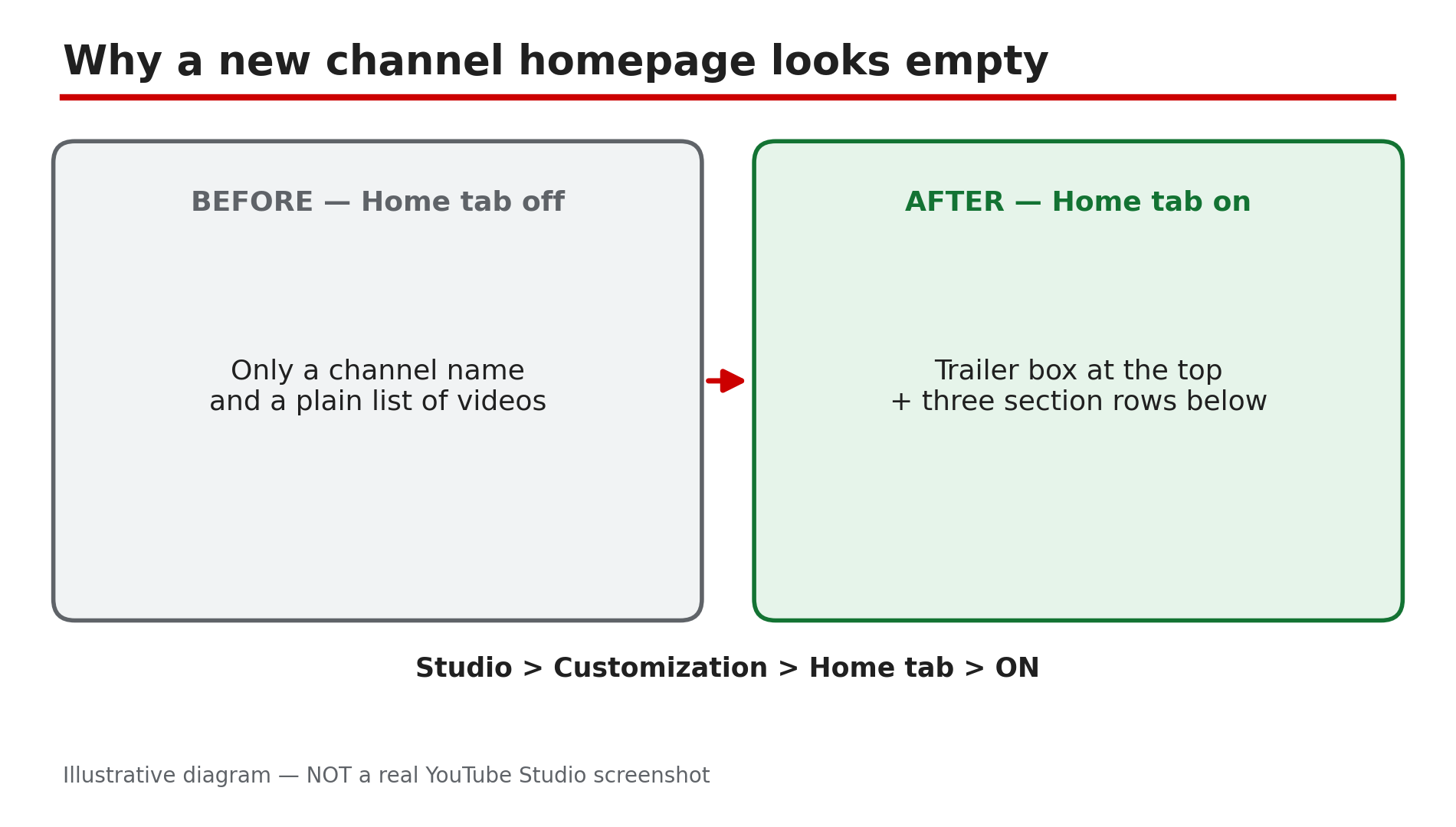
You set up your channel trailer and featured sections, then opened your channel page — and there is nothing there. No trailer, no playlists, no Shorts row, just a bare page with your videos in a plain list. It feels like YouTube ignored everything you did. In most cases nothing is broken. YouTube does not build a channel homepage automatically, and a new channel starts with almost nothing on it. The trailer, the featured video and the sections all live behind one setting — the Home tab in Studio's Customization area — and until that tab is on and your changes are published, visitors see a blank page. This guide goes through the settings in order. What You Will LearnWhy a new channel homepage looks empty, and the one switch that builds it The difference between a channel trailer and a featured video — and who sees each one How to add, edit and reorder up to 12 featured sections Why a video can be assigned but still not appear in a section How to test your homepage as a real visitor sees itStep 1 — Turn the Home tab on first What to do: Check whether the Home tab is on in YouTube Studio — without it there is no homepage layout at all. How: Sign in to YouTube Studio on a computer, open Customization in the left menu, then open the Home tab. YouTube's Help page, "Customize your YouTube channel layout", says this tab is where you organize your trailer, featured video and sections. If the Home tab is off, turn it on. As reported in creator guides, YouTube does not build a homepage automatically. Example: A creator uploads ten videos, then wonders why her channel page shows only a plain list. She opens Customization, finds the Home tab is off, and turns it on. Common mistake: Adding videos to playlists and expecting them to appear on the homepage on their own. Playlists only show up once they are added as a section.Illustrative diagram: turning on the Home tab is what builds the channel homepage layout. Step 2 — Set the channel trailer for people who have not subscribed What to do: Add a channel trailer, the video new visitors see at the top of your homepage before they subscribe. How: In Studio, go to Customization , then the Home tab. Under Layout , click ADD section , then Channel trailer , choose a video, and click Publish. YouTube's Help page explains that the trailer is a preview of your channel so viewers can learn more and subscribe. Pick a short video that says what your channel is about — as reported in creator guides, a trailer under a minute long usually works best. Example: A cooking channel picks a 45-second video that shows three dishes and says "new recipes every Tuesday". Common mistake: Choosing your longest, most popular video as the trailer. A long video asks a stranger for too much time.Illustrative diagram: the trailer is for new visitors and the featured video is for returning subscribers. Step 3 — Set the featured video for returning subscribers What to do: Add a featured video — also called the Spotlight video — which is what subscribers see at the top of your homepage instead of the trailer. How: On the same Home tab , under Layout , click ADD section , then Spotlight , choose a video, and click Publish. YouTube's Help page says you can highlight your video, or any video on YouTube, for returning subscribers to watch when they go to your channel Home tab. Choose something a subscriber has not seen yet — your newest video or the next part of a series. Example: A tech channel sets its latest phone review as the featured video. A subscriber sees the new review at the top; a new visitor sees the trailer instead. Common mistake: Setting the same video as both the trailer and the featured video. The two slots exist for two different audiences.Illustrative diagram: the four steps to add a featured section to your channel homepage. Step 4 — Add your featured sections, one by one What to do: Build the rows of your homepage by adding sections for your videos, Shorts, playlists and channels. How: On the Home tab , under Layout , click ADD section and choose the kind of content you want to show — For you , Videos , Playlists , Memberships , Channels , Top community clips , Effects or Posts. You can add up to 12 custom sections; the layout defaults to four: Short videos, Uploads, Created playlists, and public Subscriptions. Add the sections one at a time, and click Publish after each change — as reported in creator guides, unpublished changes do not appear on your channel. Example: A travel channel adds four sections in order: a "For you" row, a Popular uploads row, a Shorts row, and a playlists row for each country it has covered. Common mistake: Adding twelve sections at once and never publishing. The page still shows the old layout, and the creator assumes the feature is broken.Illustrative diagram: featured sections stack as rows on the homepage, in the order you set. Step 5 — Check why an assigned video still does not appear What to do: If a section is set up but a video is missing, check the video's own status before changing the layout. How: Open Studio, go to Content , and look at the video's visibility. Private and unlisted videos do not appear in sections, and neither do videos that are still processing or scheduled for later — only public, finished videos show up. The same applies to playlists: one made of private videos will look empty on the homepage. Also check that the video is actually in the playlist you think it is in — it is easy to add a video to the wrong playlist. Example: A creator adds a "Best tutorials" section, but her newest tutorial is missing. She checks Content and finds the video is still scheduled for tomorrow. Common mistake: Rebuilding the whole homepage layout when one video is missing. The layout is usually fine.Illustrative diagram: only public, fully processed videos appear in featured sections. Step 6 — Test like a visitor, and check mobile and TV What to do: Check your homepage the way a real visitor sees it — signed out, and on more than one device. How: YouTube's Help page states that once a viewer watches your channel trailer or featured video, it will not be shown to that viewer again. So your own account is the worst way to test: you have already watched the trailer, so YouTube hides it from you. Open your channel in a signed-out browser window or with a fresh account — as reported in creator guides, that is the only reliable test. Then check the page on a phone and, if you can, on a TV: the full setup needs Studio on a desktop computer, not the mobile app, and as reported, the layout differs on mobile and TV. Example: A creator checks her channel on her own account and sees no trailer, so she re-adds it three times. A friend opens the same channel signed out and sees the trailer immediately. Common mistake: Testing only on your own signed-in account, then "fixing" a homepage that was never broken.Illustrative diagram: test your homepage signed out, because your own account hides a trailer you have already watched. Checklist — Get Your Channel Trailer and Featured Sections Showing☐ Home tab is turned ON in Studio > Customization ☐ Channel trailer assigned for people who have not subscribed ☐ Featured video (Spotlight) assigned for returning subscribers ☐ Sections added one by one, up to 12, in the order you want ☐ Publish clicked after every change ☐ Every video in a section is public and fully processed ☐ Homepage checked in a signed-out browser or a fresh account ☐ Layout checked on mobile as well as desktopFAQs 1. Why is my channel homepage blank even though I have videos? Because YouTube does not build a homepage automatically. Turn on the Home tab in Studio > Customization, add a trailer and sections, and click Publish. 2. Why can I see my trailer but my friend cannot — or the other way round? The trailer is only for people who have not subscribed, and YouTube will not show it to a viewer who has already watched it. Test with a fresh or signed-out account. 3. I added sections but nothing changed. What did I miss? You probably did not click Publish. Unpublished changes do not appear on your channel. Go back to Studio > Customization > Home tab and click Publish. 4. Why is one video missing from a section? Check its visibility in Studio > Content. Private, unlisted, processing or scheduled videos do not appear in sections — only public, finished videos show up. 5. Can I set all this up from the YouTube mobile app? The full setup needs Studio on a desktop computer. As reported in creator guides, the Studio app lets you turn the Home tab on or off, but choosing videos and building sections is documented for Studio on the web. SourcesYouTube Help — "Customize your YouTube channel layout" (official page, opened live 7 Nov 2026): https://support.google.com/youtube/answer/3219384 CreatorPlaybook — "YouTube Channel Name Change: What Happens to Search, URL and Verification" (internal link, verified live 7 Nov 2026): </blog/youtube-channel-name-change-what> CreatorPlaybook — "YouTube Channel Not Growing? Diagnose the 4-Stage Analytics Bottleneck in Order" (internal link, verified live 7 Nov 2026): </blog/youtube-channel-not-growing-diagnose-4>