Showing Posts From
Youtube end screens
 CreatorPlaybook Team
- 06 Nov, 2026
YouTube End Screens and Cards Not Showing? The Rules, the Limits and the Fixes
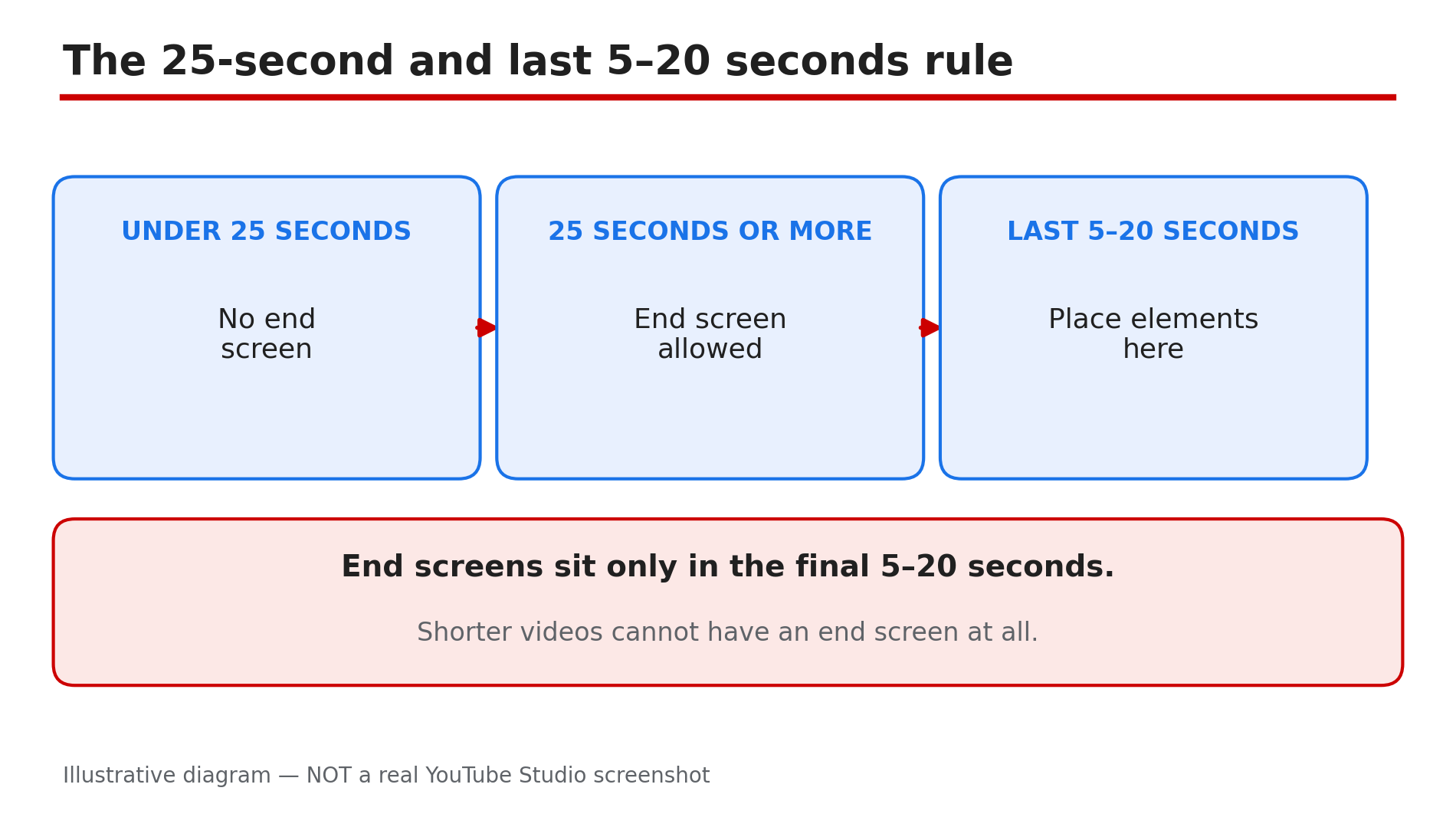
You added an end screen in YouTube Studio, saved it, and watched your video to the end. Nothing appeared. Or you added a card mid-video and its teaser never popped up. It feels like a bug, but usually a rule has been crossed without you knowing it. End screens and cards have strict limits. An end screen can sit only in the last 5 to 20 seconds, and the video must be at least 25 seconds long. Some videos cannot have them at all. Even when you do everything right, YouTube says your end screen may not always show, or may show differently than designed. What You Will LearnThe 25-second rule and the last 5 to 20 seconds Which videos and places never show them Element and card limits, and the Link rule Why a card in the final 20 seconds shows no teaser How to add and save an end screen in Studio How to check end screen clicksStep 1 — Check the 25-second rule and the last 5–20 seconds What to do: Check the video length first, then where the end screen starts and ends. How: Open the video in Studio and check its duration. Shorter than 25 seconds, and you cannot add an end screen. At 25 seconds or longer, place it only inside the last 5 to 20 seconds: no earlier than 20 seconds before the end, and no shorter than 5 seconds. Move it fully inside that window, then save. Example: A 10-minute video ends at 10:00, so the end screen can start at 9:40 at the earliest. A 20-second video cannot have one. Common mistake: Putting an end screen in the middle of a video, or across the last 30 seconds.Illustrative diagram: end screens need a video of at least 25 seconds and sit only in the last 5 to 20 seconds. Step 2 — Check the blocks that stop end screens completely What to do: Check whether your video, its format, or where it is watched is on the list where end screens are not available. How: Check the audience setting first. End screens are not available for videos set as Made for Kids, so changing the timing will not fix that. They are also not available in the YouTube Music app, on mobile web except iPad mobile web, in 360 videos, and in Flash videos. They never show on Shorts — use the Related Video feature instead, which needs Advanced features. Example: You add an end screen to a 360 video and watch it on your phone browser. Nothing appears, because the format and viewing place are both on the list. Common mistake: Re-adding the same end screen on a Made for Kids video or a Short and assuming Studio failed to save it.Illustrative diagram: the videos and viewing places where end screens are not available. Step 3 — Check how many elements you added and who can use a Link What to do: Count your end screen elements and check the type of each one, especially any Link element. How: On a 16:9 video you can add up to 4 elements; other aspect ratios may allow fewer, so a vertical or square video may not accept 4. The types are Video, Playlist, Subscribe, Channel, and Link. The Link element is for Partner Program members only, and the linked site must comply with policies. If you are not in the program, or the site does not comply, that Link will not work. Example: You add Video, Playlist, Subscribe, Channel, and a website Link — five elements on a 16:9 video. That is one too many. Remove one. Common mistake: Adding 4 elements to a non-16:9 video and expecting all 4 to show, or adding a Link without Partner Program membership.Illustrative diagram: the end screen element limit and the Link element rule. Step 4 — Fix card timing, Content ID blocks and the final 20 seconds What to do: Check where each card sits, and whether anything else is blocking cards. How: You can add up to 5 cards per video, at a time you choose. Do not place one in the final 20 seconds if you want its teaser seen: while an end screen shows, card teasers and the video watermark are suppressed. Cards are not available on Made for Kids videos. They will not show if the video has a Content ID claim and the content owner set up a campaign. External-link cards need YouTube Partner Program membership. Example: You add a card at 9:50 in a 10-minute video, where your end screen starts. The viewer never sees its teaser. Move it to 5:00, where the point is first mentioned. Common mistake: Putting the most important card at the very end, next to the end screen.Illustrative diagram: a card in the final 20 seconds never shows its teaser while the end screen is showing. Step 5 — Add and save the end screen correctly in Studio What to do: Add the end screen in the Editor in Studio, save it, and then watch the video through to the end. How: Go to Studio, then Content, open the video, then Editor, then End screen. Choose the element, place it inside the last 5 to 20 seconds, and click SAVE. You can also add one while uploading. Then play the published video to the end where end screens are available. Viewers can hide end screens while watching, so a hidden end screen on one viewing does not prove it was never added. YouTube also says your end screen may not always show, or may show differently than designed, because it improves end screens based on performance, viewer behaviour, device and context. Example: You add Subscribe and Video elements in the last 10 seconds, click SAVE, then watch on desktop and see both. That live check matters more than the Editor preview. Common mistake: Closing the Editor without clicking SAVE, or never watching the live video to the end.Illustrative diagram: the steps to add and save an end screen in YouTube Studio. Step 6 — Measure clicks in Analytics and change what is not working What to do: Look at the end screen numbers in Analytics instead of guessing from one viewing. How: Open Analytics for the video, go to the Engagement tab, and look at "End screen element click rate" — how often viewers clicked an element when shown. For the whole channel, look at "Top end screen element types" and "Top videos by end screen". If one type gets clicks and another gets almost none, change the weak element, its position, or its timing. If the rate is low everywhere, viewers may be leaving before the final seconds. Example: The Video element gets clicks on most videos, but Playlist almost never does. Keep Video, replace Playlist with Subscribe next time, and compare again. Test one change at a time. Common mistake: Changing the end screen after every view, or judging it from a video with very few views.Illustrative diagram: where to check end screen clicks in YouTube Analytics. Checklist — End screens and cards not showing☐ Video at least 25 seconds long ☐ End screen only in the last 5 to 20 seconds ☐ Video is not Made for Kids ☐ Not a Short, 360 video, or blocked viewing place ☐ No more than 4 elements on 16:9 video ☐ Link only with Partner Program membership ☐ No more than 5 cards; no teaser in final 20 seconds ☐ Saved in Studio, checked on live videoFAQs 1. Why is my end screen not showing even though I added it in Studio? Check length, timing, and blocks first. The video must be at least 25 seconds long, the end screen in the last 5 to 20 seconds, and the video not Made for Kids. Check you clicked SAVE and are watching where end screens are available. YouTube also says it may not always show, or may show differently than designed. 2. Can I add an end screen to a Short? No. End screens never show on Shorts. Use the Related Video feature instead, which needs Advanced features. That format does not support end screens. 3. How many end screen elements and cards can I add? Up to 4 elements on a 16:9 video; other aspect ratios may allow fewer. Types are Video, Playlist, Subscribe, Channel, and Link. Up to 5 cards per video, at a time you choose. The Link element and external-link cards need Partner Program membership. 4. Why did my card teaser not appear at the end of the video? While an end screen shows, card teasers and the video watermark are suppressed. A card in the final 20 seconds never shows its teaser, even if added correctly. Move it earlier, to where the viewer needs it. 5. Why do my cards not show at all on a video? Cards are not available on Made for Kids videos. They will also not show if the video has a Content ID claim and the content owner set up a campaign. An external-link card needs Partner Program membership. Check the audience setting and any Content ID claim first, then timing and the limit of 5. SourcesYouTube Help — "Add end screens to videos" (official page, opened live 6 Nov 2026): https://support.google.com/youtube/answer/6388789?hl=en CreatorPlaybook — "Made for Kids on YouTube: Revenue, Limits and What Creators Should Do": </blog/made-for-kids-on-youtube-revenue-limits> CreatorPlaybook — "YouTube Description Links Not Working? The Rules, the Limits and the Fixes": </blog/youtube-description-links-not-working>