Showing Posts From
Youtube links
 CreatorPlaybook Team
- 02 Nov, 2026
YouTube Description Links Not Working? Why Links Are Not Clickable and How to Fix Them
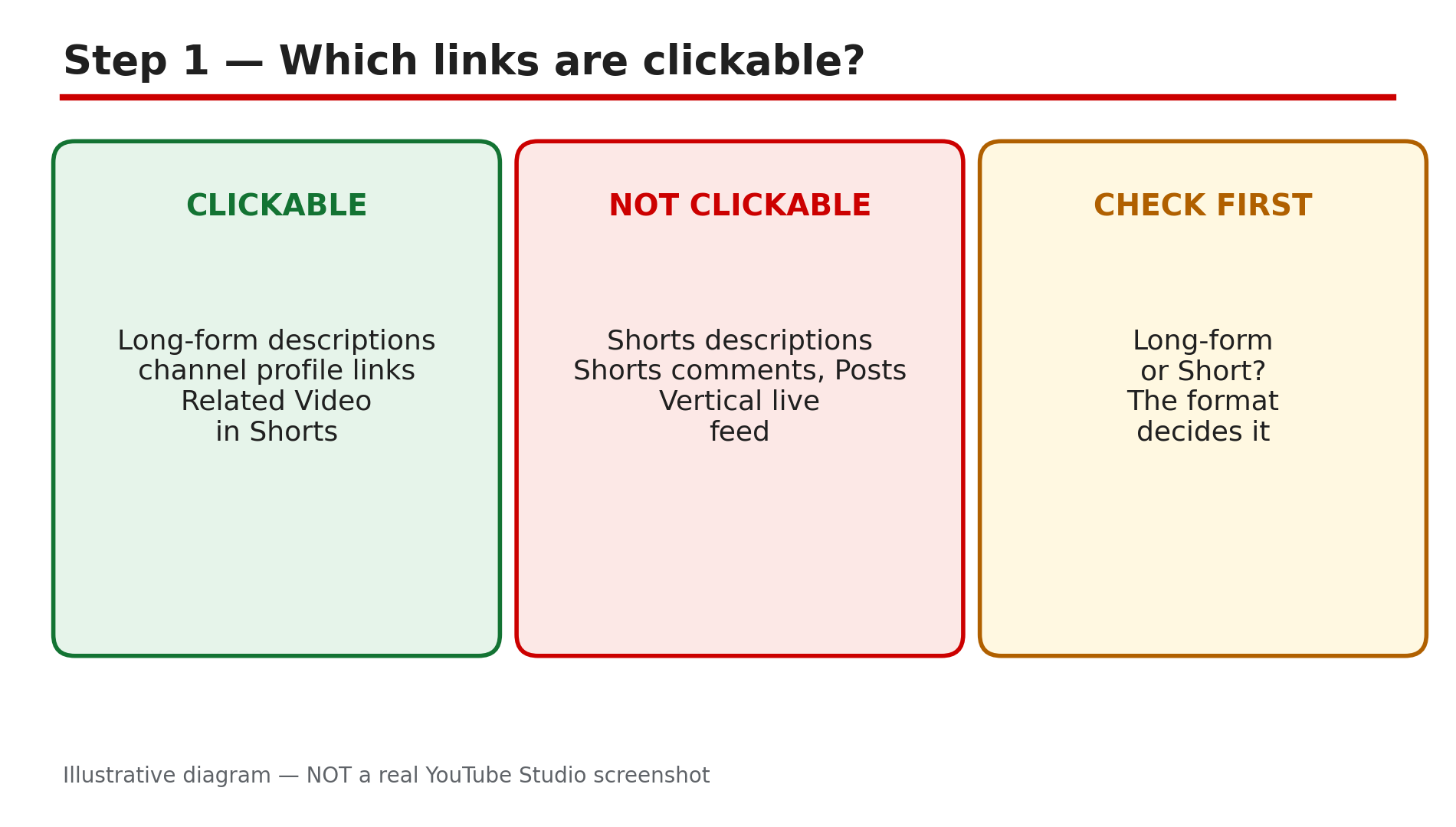
You paste a link into your video description, publish, and click it — nothing happens. Or a viewer tells you the link in your Shorts description cannot be tapped at all. The two problems look identical, but they have opposite fixes: one is a setting you can enable, and the other is a design decision YouTube made in 2023 that no setting can change. YouTube's Help page, "Sharing links with your audiences", opened live for this post, lists exactly which links are clickable and which are not. This guide walks through that list, the Advanced features fix, the Shorts dead end, and why a link can be removed. What You Will LearnWhich YouTube links are clickable and which are not Why long-form description links need Advanced features Why Shorts description links are non-clickable by design How to unlock Advanced features The other causes: Made for Kids, strikes, missing https, link policy The working alternatives when a link can never be clickableStep 1 — Learn which links are clickable What to do: Check YouTube's own clickable-links list before you change any setting, so you fix the right problem. How: YouTube's Help page "Sharing links with your audiences" gives a clear table. Clickable links include channel profile links, brand deal links, URLs in long-form video descriptions, the Related Videos link in Shorts, live-chat and channel-description links for horizontal live streams, Shopping affiliate links, and Shorts Green screen and Remix attribution links. Non-clickable links include URLs in Shorts comments and Shorts descriptions, URLs in live chat and channel descriptions in the mobile app's vertical live feed, and links in Posts. Example: A creator's website link works in a ten-minute tutorial but does nothing in a Short. The difference is the format, not the link. Common mistake: Treating every dead link as the same fault. A link on a Short is not broken — it is non-clickable by design. Check the format first.Illustrative diagram of YouTube's clickable and non-clickable links. Step 2 — Unlock Advanced features for long-form links What to do: Enable Advanced features, because clickable external links in long-form descriptions require them. How: The Help page's table carries a footnote: to add clickable external links, you must enable your channel's access to Advanced features. YouTube's Help page "Get access to intermediate and advanced features", also opened live for this post, explains the route. First, complete phone verification: in Studio on a computer, go to Settings, then Channel, then Feature eligibility, then Intermediate features, then Verify Phone Number. Second, build sufficient channel history, or verify your identity using a valid ID or video. Example: A new channel pastes a website link in a description and it stays plain text. After phone verification and a few weeks of uploads, the same link becomes clickable. Common mistake: Verifying the phone number and stopping there. Phone verification unlocks intermediate features; Advanced features need the second step as well.Illustrative diagram of the two steps to unlock Advanced features. Step 3 — Accept that Shorts links are non-clickable by design What to do: Stop trying to fix Shorts description links — there is no setting for them — and use the alternatives YouTube built instead. How: On 31 August 2023, YouTube made links in Shorts comments, Shorts descriptions and the vertical live feed non-clickable, to reduce spam and scam attempts. No setting, no formatting trick and no verification level changes it. Pinned-comment links on Shorts are also non-clickable. What does work on Shorts: the Related Videos link to a long-form video with a clickable description; YouTube Shopping affiliate links, the clickable exception for products; channel profile links, up to 14 of them; and brand-deal links on Shorts. Example: A creator selling a product through Shorts tags it with a YouTube Shopping affiliate link and adds a Related Video link to a long-form review with the store link. Common mistake: Pasting the link in the Shorts description, then in a pinned comment, then in the title. All three are non-clickable by design — use a Related Video link or a Shopping tag.Illustrative diagram of the 31 August 2023 change that made Shorts links non-clickable. Step 4 — Check the other causes on long-form videos What to do: If the video is long-form and Advanced features are on, work through the remaining causes one by one. How: First, check the URL format: the link needs the full https:// prefix — a bare "www.example.com" without it may not turn into a link. Second, check the audience setting: links are stripped on videos set as Made for Kids. Third, check for a Community Guidelines strike: YouTube's Help page says a strike can delay or restrict feature access. Fourth, check the destination against the External links policy: links to malware, phishing, porn, piracy or regulated goods can be removed, and the video or channel can be struck. Example: A creator's link worked for months, then stopped being clickable the week a Community Guidelines strike arrived. The link was fine — the channel's standing was the cause. Common mistake: Re-pasting the same link ten times, or changing the URL shortener, when the cause is the audience setting or a strike. Check Studio first.Illustrative diagram of the four checks when a working link stops being clickable. Step 5 — Use the alternatives that actually work What to do: Put your important links where viewers can actually click them, instead of where you wish they could. How: Channel profile links are the most reliable home for your important URLs: YouTube lets you showcase up to 14 links on your channel page, and they are clickable on desktop and mobile. Add them in Studio under Customization, in the Basic info or Links section, and put the most important ones first. End screens are clickable and sit on the video itself. Cards can link to a video, playlist, channel or, for Partner Program members, an external website — up to five per video. For Shorts, use the Related Videos link or a Shopping affiliate tag for products. Example: A creator puts the store, the newsletter and the main social profiles in the 14 channel profile links, and uses an end screen to send viewers to the full tutorial. Common mistake: Hiding your only store link in a Shorts description and telling viewers to "check the link below". They cannot click it — put the link where a tap works.Illustrative diagram of the working alternatives to Shorts description links. Step 6 — Keep your links safe so they stay clickable What to do: Protect the links you have, because a policy violation can remove them — or the channel. How: Only link to destinations that follow YouTube's rules. The External links policy covers the destination, not just the video: a link to malware, phishing, porn, piracy or regulated goods can get the link removed, the video struck, or the channel terminated. Check your old descriptions when a sponsor or a tool changes its landing page — a link you added a year ago can point somewhere new today. If a link disappears from a video, check Studio for a strike or a restriction notice before you re-add it. And remember the disclosure rule for affiliate and brand links: a Shopping tag or a paid-promotion label alone does not satisfy the FTC disclosure requirement. Example: A creator's old video links to a tool whose site was later flagged for malware. YouTube removes the link. The creator replaces it with the tool's new official page. Common mistake: Assuming a link is safe forever because it worked when you added it. Destinations change, and a link is only as safe as the page it points to today.Illustrative diagram of the habits that keep YouTube links clickable. Checklist — Before You Publish☐ I know whether the link is on a long-form video or a Short ☐ Advanced features are enabled for clickable long-form links ☐ The link starts with https:// ☐ The video is not set as Made for Kids ☐ I checked Studio for strikes and restrictions ☐ The destination follows the External links policy ☐ My important links are also on my channel profile ☐ On Shorts, I used a Related Video link or a Shopping tag insteadFAQs 1. Why is the link in my YouTube description not clickable? On a long-form video, Advanced features are usually not enabled — clickable external links require them. On a Short, the link is non-clickable by design since 31 August 2023. 2. Can I make a link clickable in a Shorts description? No. YouTube made URLs in Shorts comments and Shorts descriptions non-clickable to reduce spam and scams. Use a Related Videos link, a Shopping affiliate tag, or a channel profile link instead. 3. How do I enable clickable links in descriptions? Enable Advanced features: complete phone verification, then build sufficient channel history or verify your identity with a valid ID or video. The route is Studio, then Settings, then Channel, then Feature eligibility. Only the primary channel owner can do this. 4. Why did my link stop working after it worked for months? Check three things: a Community Guidelines strike, which can restrict feature access; the audience setting, if the video was changed to Made for Kids; and the destination itself, if the linked site now violates the External links policy. 5. Where should I put links if Shorts descriptions do not work? Use channel profile links — up to 14 on your channel page — and on Shorts use the Related Videos link to a long-form video with a clickable description, or a YouTube Shopping affiliate tag for products. End screens and cards can also carry clickable links on long-form videos. SourcesYouTube Help — "Sharing links with your audiences" (official page, opened live 2 Nov 2026): https://support.google.com/youtube/answer/13748639?hl=en YouTube Help — "Get access to intermediate and advanced features" (official page, opened live 2 Nov 2026): https://support.google.com/youtube/answer/9891124?hl=en CreatorPlaybook — "Fan Funding on YouTube: How to Set Up Super Chat, Super Thanks and Memberships": </blog/fan-funding-on-youtube-how-to-set-up>