Showing Posts From
Youtube multi language audio
 CreatorPlaybook Team
- 06 Nov, 2026
YouTube Multi-Language Audio Tracks Not Showing? How Dubs and Translated Titles Work
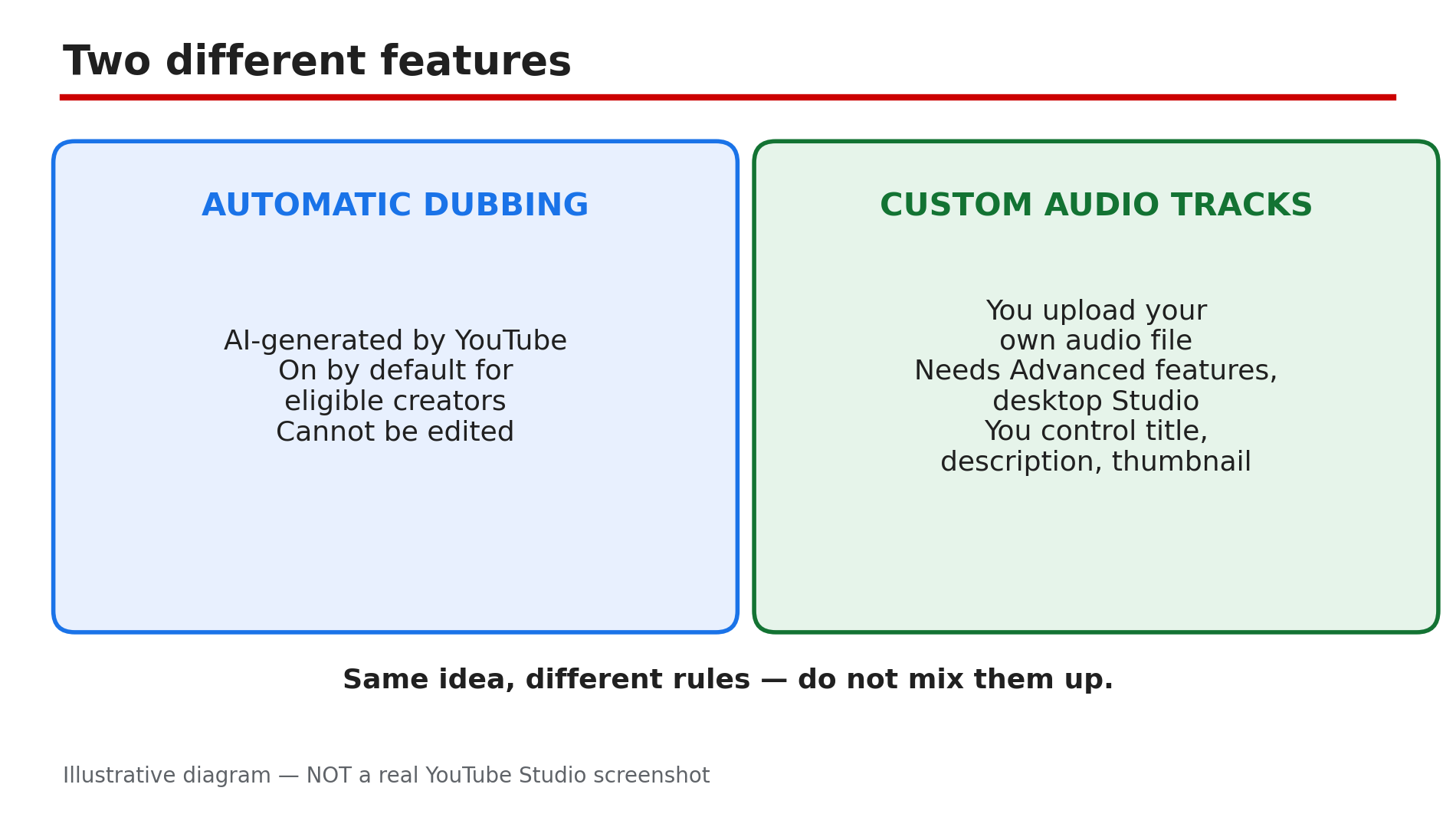
You switched on multi-language audio and nothing changed. Viewers abroad still hear the original language, the translated title never appears, and the extra audio track is simply not there. It feels broken — but most of the time it is working exactly as YouTube designed it. The confusion comes from two different features sharing the idea of "translations". Automatic dubbing uses AI to generate a dubbed version of your video in other languages, and it is on by default for eligible creators. Custom multi-language audio tracks are dubs you upload yourself. They look similar to viewers but have different rules, limits and fixes. What You Will LearnThe difference between automatic dubbing and custom multi-language audio tracks Why automatic dubs are on by default and what you can and cannot change When a video is not eligible for automatic dubbing How to upload your own audio track, and the rule on deleting an automatic dub first Why translated titles and descriptions only appear for some viewers How viewers switch audio tracks on the playerStep 1 — Work out which feature you are looking at What to do: Before changing any setting, find out whether your video has an automatic dub, a custom track, or neither. How: In YouTube Studio on a computer, go to Content, open the video, and check the Languages section. Automatic dubs appear in the per-video language list, and videos with an AI-generated dub are marked "auto-dubbed" in the description. Example: Seeing "Spanish (auto-dubbed)" means YouTube generated that audio. Plain "Spanish" means a human uploaded the track. Common mistake: Assuming every dubbed version is one you control. Automatic dubs cannot be edited — you can only preview, publish or unpublish, or delete them.Automatic dubbing and custom audio tracks are two separate features with different rules. Step 2 — Check whether your video is eligible for automatic dubbing What to do: Automatic dubbing is on by default for eligible creators, but not every video qualifies — check the rules before assuming a missing dub is a bug. How: A video is ineligible if it is longer than 120 minutes, has little or no speech, is music only, is in an unsupported original language, has an undetectable source language, has speech that is too fast, or has a copyright or Content ID claim. If any of these apply, no dub is generated. Example: A 150-minute podcast gets no automatic dub — it is over the 120-minute limit. A shorter cut would qualify. Common mistake: Treating a copyright claim as a small warning. A claimed video is ineligible — sort out the claim first, then check for a dub.Six eligibility checks decide whether YouTube creates an automatic dub for your video. Step 3 — Decide whether to keep, unpublish or delete an automatic dub What to do: Automatic dubs are AI-generated, so they can contain errors — wrong pronunciation, misread names, awkward idioms or jargon. Listen before deciding. How: Preview the dub in the Languages section. If the quality is acceptable, leave it published. If it is poor, unpublish it — you can republish it later. Only delete it if you are sure: a deleted dub cannot be republished. Automatic dubbing does not translate your title or description. Example: A creator hears a product name mispronounced throughout the Hindi auto-dub, so they unpublish it while recording their own version. Common mistake: Deleting a dub to "start fresh" and expecting a new one. Deletion is permanent — unpublish instead.Three choices for an automatic dub — unpublish if you might want it back. Step 4 — Upload your own audio track the right way What to do: For a professional-quality dub, or a language YouTube has not generated automatically, upload your own audio track — this custom feature is separate from automatic dubbing. How: You need Advanced features access, and you must use Studio on a desktop computer — the upload flow is not in the mobile app. Go to Content, open the video, then Languages — or the Languages menu, then Add language. Next to Dub, click Add, and upload an audio-only file about the same length as the video. As reported, this feature has been rolling out gradually since September 2025. Example: A creator records a Spanish voiceover for a 10-minute tutorial, exports one audio file of about 10 minutes, and uploads it via Languages, Add language, Dub, Add. Common mistake: Uploading your own track in a language where YouTube already made an automatic dub, without deleting it first. This is a hard rule: delete the automatic dub before uploading your own track in that language.Five steps to upload your own audio track in YouTube Studio on desktop. Step 5 — Understand why translated titles and descriptions appear for some viewers and not others What to do: Translated titles and descriptions belong to the custom multi-language feature, not automatic dubbing. With only an automatic dub, your title and description stay in the original language. How: When you add a language in the Languages section, add a translated title and description. Viewers see them when the translation matches their Google-account language, browser language or location. Creator-provided translations are prioritised. YouTube search also reads translated titles and descriptions. Example: A creator adds a Spanish track, title and description. A viewer with a Spanish account language sees the Spanish title; an English viewer sees the original. Common mistake: Expecting a translated title to appear for everyone. If no translation matches a viewer's language, they see the original title.Translated titles appear only when they match the viewer's language. Step 6 — Check what the viewer actually sees and hears What to do: Before declaring the feature broken, check the viewer side. Tracks default to the viewer's preferred language — the Help page says watch history determines it — and viewers can switch manually in player settings. How: Open the video signed out, or in a browser set to another language, and click the settings gear on the player to find the audio track option. If your track is listed, it works — the viewer just needs to switch, or their preferred language needs to match. Captions are different from dubs: captions are text on screen, dubs are spoken audio. Example: A German viewer reports hearing English. The creator checks player settings and finds the German track listed — the viewer simply had not switched, and their preferred language was still English. Common mistake: Confusing missing captions with missing audio tracks. If subtitles are present but the audio is still in the original language, the dub is the missing piece — fix the audio track, not the subtitle file. Live auto-dubbing is not available now: YouTube announced a pilot starting early 2027 only, as reported.How a viewer switches audio tracks from the player settings. Checklist — Multi-Language Audio Tracks☐ Checked the video's Languages section in desktop Studio ☐ Identified each language as an automatic dub or uploaded track ☐ Checked eligibility: under 120 minutes, has speech, no claim ☐ Previewed any automatic dub; chose keep, unpublish or delete ☐ Deleted any automatic dub before uploading my own track there ☐ Uploaded an audio-only file about the same length as the video ☐ Added translated title and description for each custom-track language ☐ Tested as a viewer: checked the audio track in player settingsFAQs 1. Why is there no automatic dub on my video? Your video may not be eligible. Automatic dubbing does not work on videos longer than 120 minutes, videos with little or no speech, music-only videos, videos in an unsupported original language, videos with an undetectable source language or speech that is too fast, or videos with a copyright or Content ID claim. As reported, automatic dubbing opened to all creators in February 2026. 2. Can I edit an automatic dub to fix a wrong word? No. Automatic dubs cannot be edited — you can only preview, publish or unpublish, or delete them, and a deleted dub cannot be republished. If the errors bother you, unpublish the automatic dub and upload your own recorded track instead, remembering to delete the automatic dub first. 3. I uploaded my own audio track but it does not show. What went wrong? Check whether YouTube already made an automatic dub in that language. If it did, you must delete it before uploading your own track — this is a hard rule. Also confirm you uploaded from desktop Studio with Advanced features access, the file is audio-only, and its length roughly matches the video. 4. Why does my translated title not show for everyone? Translated titles and descriptions show only when they match the viewer's account language, browser language or location. A viewer whose language does not match any translation you provided sees the original title. Automatic dubbing alone does not translate titles or descriptions. 5. Are captions and audio dubs the same thing? No. Captions and subtitles are text shown on screen; audio dubs are spoken audio in another language. A video can have captions without a dub, or a dub without captions. They are managed separately. SourcesYouTube Help — "Use automatic dubbing" (official page, opened live 6 Nov 2026): https://support.google.com/youtube/answer/15569972?hl=en-GB YouTube Help — "Add Multi-language features to your videos" (official page, opened live 6 Nov 2026): https://support.google.com/youtube/answer/13338784?hl=en CreatorPlaybook — "YouTube Captions Not Showing or Wrong? How to Fix Subtitles" (internal link, verified from the blog sitemap): </blog/youtube-captions-not-showing-or-wrong>