Showing Posts From
Youtube reach
 CreatorPlaybook Team
- 01 Nov, 2026
Hashtags Hurting Your YouTube Reach? Tags to Avoid and How to Use Hashtags Correctly
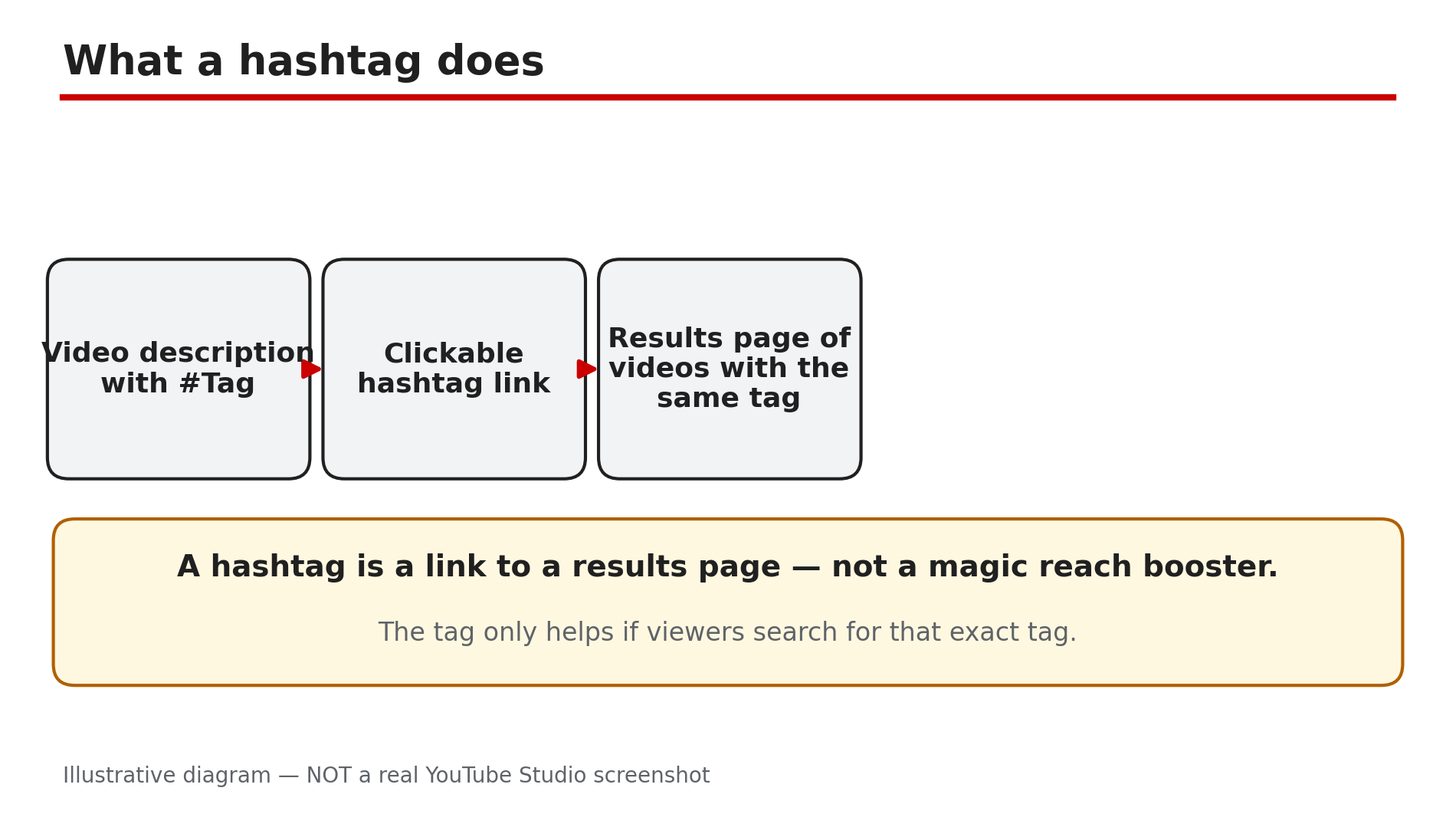
You finish a video, add twenty hashtags to the description — #viral #fyp #trending #youtube #shorts #subscribe and more — and then wonder why the views never come. Many creators blame the algorithm, but the hashtags themselves can be part of the problem. Used badly, they add nothing to your reach and can get your video removed from search or from your uploads. The good news is that hashtags are simple once you know the rules. YouTube's own Help page explains them in a few short paragraphs: keep them relevant, keep the count low, and never use a tag that does not match the video. This guide shows which tags to avoid, why #viral rarely helps, and a routine for choosing 3–5 hashtags that support your video. What You Will LearnWhy hashtags can hurt your reach — and when they are harmless YouTube's real hashtag limit, as stated on the official Help page Why #viral, #fyp and #trending are low-value, not banned How to pick 3–5 relevant hashtags for any video Which three hashtags show above your title A pre-publish checklistStep 1 — Understand what hashtags actually do What to do: Learn the job a hashtag does on YouTube, so you stop expecting it to do work it was never meant to do. How: A hashtag is a clickable keyword, written with a # symbol, that links your video to a results page of other videos with the same tag. YouTube's Help page says hashtags help viewers find related content through search. Up to three description hashtags — the ones YouTube considers most engaging — appear above your video title. Example: A cooking video tagged #EasyPastaRecipe links to a page of other videos using that tag. A viewer who clicks it wants pasta recipes, so the tag matches their intent. Common mistake: Treating hashtags as a ranking trick. A hashtag does not push your video to the top of search or the home page. Your title, thumbnail and watch time do the heavy lifting; hashtags are a small aid, not a growth engine.Illustrative diagram showing how a hashtag links a video to a results page. Step 2 — Learn the real limit: more than 60 hashtags are ignored What to do: Know the official ceiling, and stay far below it. How: YouTube's Help page states it plainly: "If a video or playlist has more than 60 hashtags, we'll ignore each hashtag on that content." Over-tagging may also result in the removal of your video from your uploads or from search. The old figure of 15, still repeated by many guides, comes from an older version of the page — the current page says 60, confirmed live for this post. Example: A creator who pastes 70 tags gets zero benefit — YouTube ignores every one — and risks the video disappearing from search. Common mistake: Copy-pasting a giant block of tags from another creator's description. Even 30 or 40 tags dilute relevance: YouTube says the more tags you add, the less relevant they become. Three to five relevant tags beat forty random ones.Illustrative diagram of YouTube's 60-hashtag limit. Step 3 — Stop using #viral, #fyp and #trending on unrelated videos What to do: Remove generic "reach" tags from your videos unless they genuinely describe the content. How: Tags like #viral, #fyp and #trending are not banned — YouTube does not list them as prohibited. The problem is that they are low-value and, on most videos, misleading. Millions of videos use #viral, so its results page is a crowded feed. Worse, YouTube's policy says misleading or unrelated hashtags may result in the removal of your video or playlist. Example: A tutorial on fixing a leaking tap tagged #viral #fyp #trending tells YouTube nothing about plumbing. A viewer clicking #viral is not looking for a tap repair. Common mistake: Adding #viral to every upload "just in case". It costs you nothing to remove it. Replace it with a tag a real viewer would search for, such as #FixLeakingTap.Illustrative mock-up comparing misleading and relevant hashtags on the same video. Step 4 — Pick 3–5 relevant hashtags for every video What to do: Choose a small set of tags that describe the video's topic, format and audience. How: Use this simple mix. First, one broad topic tag, such as #YouTubeTips. Second, one or two specific tags that match the exact subject, such as #ThumbnailDesign. Third, one format tag if it fits, such as #Shorts or #Tutorial. Type # in the description and YouTube will suggest popular hashtags to pick from when they fit. Keep the total at 3–5 tags. Example: A video titled "How to Design a Thumbnail That Gets Clicks" could use #ThumbnailDesign #YouTubeTips #CTR. Each tag matches the video, and anyone searching them is the right viewer. Common mistake: Using tags for a different audience than the video serves. A Hindi tutorial tagged only in English, or a beginner guide tagged #AdvancedEditing, sends the video to the wrong people, who click away. Poor watch time hurts reach far more than any hashtag helps it.Illustrative diagram of a simple 3–5 hashtag mix for any video. Step 5 — Put hashtags in the right place and format them correctly What to do: Add hashtags to the description, not scattered through the title, and format them so YouTube can read them. How: Type hashtags in the video description when you upload, or edit them in later through YouTube Studio. Tags in the title look spammy and waste space your hook needs. Only the first three description hashtags appear above the title, so put your most important tags first. Hashtags cannot contain spaces: write #TwoWords, never "#two words". Tags are not case-sensitive. Example: A description ending with "#ThumbnailDesign #YouTubeTips #CTR" shows those three tags above the title. A description starting with twenty tags buries its first lines, which viewers and search both read. Common mistake: Stuffing hashtags into the title to "save" the description. The title is your click magnet; every character spent on a tag is one not spent on the reason to watch. Keep tags in the description, where they belong.Illustrative mock-up showing where hashtags appear on a video page. Step 6 — Check your hashtags against the policy before you publish What to do: Run a quick policy check on every tag, every time. How: YouTube's hashtag policies require tags to follow the Community Guidelines. Do not use hashtags that harass or threaten a person or group, promote hatred, contain slurs, or are sexual or explicit — violating tags can get the video removed. Do not add ordinary descriptive tags or repetitive sentences pretending they are hashtags; YouTube's Help page says that is still prohibited and may lead to removal. Profanity in hashtags may lead to an age restriction or removal. When in doubt, confirm in Studio before publishing. Example: A gaming video tagged with a rival creator's name plus an insult is not clever marketing — it is a harassment risk that can cost the video. A clean, relevant tag set carries no such risk. Common mistake: Assuming a tag is safe because other creators use it. Other channels may not have been caught yet. Your channel is the one that pays the price, so check your own tags.Illustrative diagram of a quick hashtag policy check before publishing. Checklist — Before You Publish☐ I have 3–5 hashtags, not a wall of tags ☐ Every hashtag describes what the video is actually about ☐ No #viral, #fyp or #trending on videos they don't fit ☐ Total hashtags well under 60 ☐ Most important tags first, so they can appear above the title ☐ No spaces inside any hashtag ☐ No harassing, hateful, sexual or profane hashtags ☐ Tags are in the description, not cluttering the titleFAQs 1. Do hashtags increase YouTube views? Not directly. Hashtags link your video to a results page for that tag, so they can help the right viewers find it. But as reported, views mainly come from search, suggested videos and browse — driven by title, thumbnail and watch time. Treat hashtags as a small discovery aid, not a growth strategy. 2. Is #viral banned on YouTube? No. #viral, #fyp and #trending are not banned tags. They are low-value because millions of videos use them, and they can hurt you if they do not match your video, since YouTube may treat unrelated hashtags as misleading. Use tags that describe your actual content instead. 3. How many hashtags should I use on a YouTube video? Three to five relevant hashtags is the safe, practical range. YouTube ignores every hashtag if a video has more than 60, and warns that over-tagging may remove the video from uploads or search. Staying at 3–5 keeps you far from that limit. 4. Why don't my hashtags show above my video title? Only up to three description hashtags appear above the title, and YouTube chooses the ones it considers most engaging. If a tag violates policy it will not show at all. Put your best tags first. 5. Can hashtags get my video removed? Yes, in specific cases. YouTube's Help page says misleading or unrelated hashtags, harassing or hateful tags, sexual tags and over-tagging may result in removal of the video from uploads or search. A small set of honest, relevant tags carries no such risk. SourcesYouTube Help — "Find playlists and videos using hashtags" (official page, opened live for this post): https://support.google.com/youtube/answer/6390658 — states the 60-hashtag limit and the policies quoted here. CreatorPlaybook — "YouTube Channel Not Growing? Diagnose These 4 Problems First": /blog/youtube-channel-not-growing-diagnose-4 CreatorPlaybook — "YouTube CTR Suddenly Dropped After 24 August 2026? Here's Why": /blog/youtube-ctr-suddenly-dropped-after-24