Showing Posts From
Youtube recommendations
 CreatorPlaybook Team
- 11 Nov, 2026
YouTube Recommendations Wrong? How to Reset Your Feed the Right Way
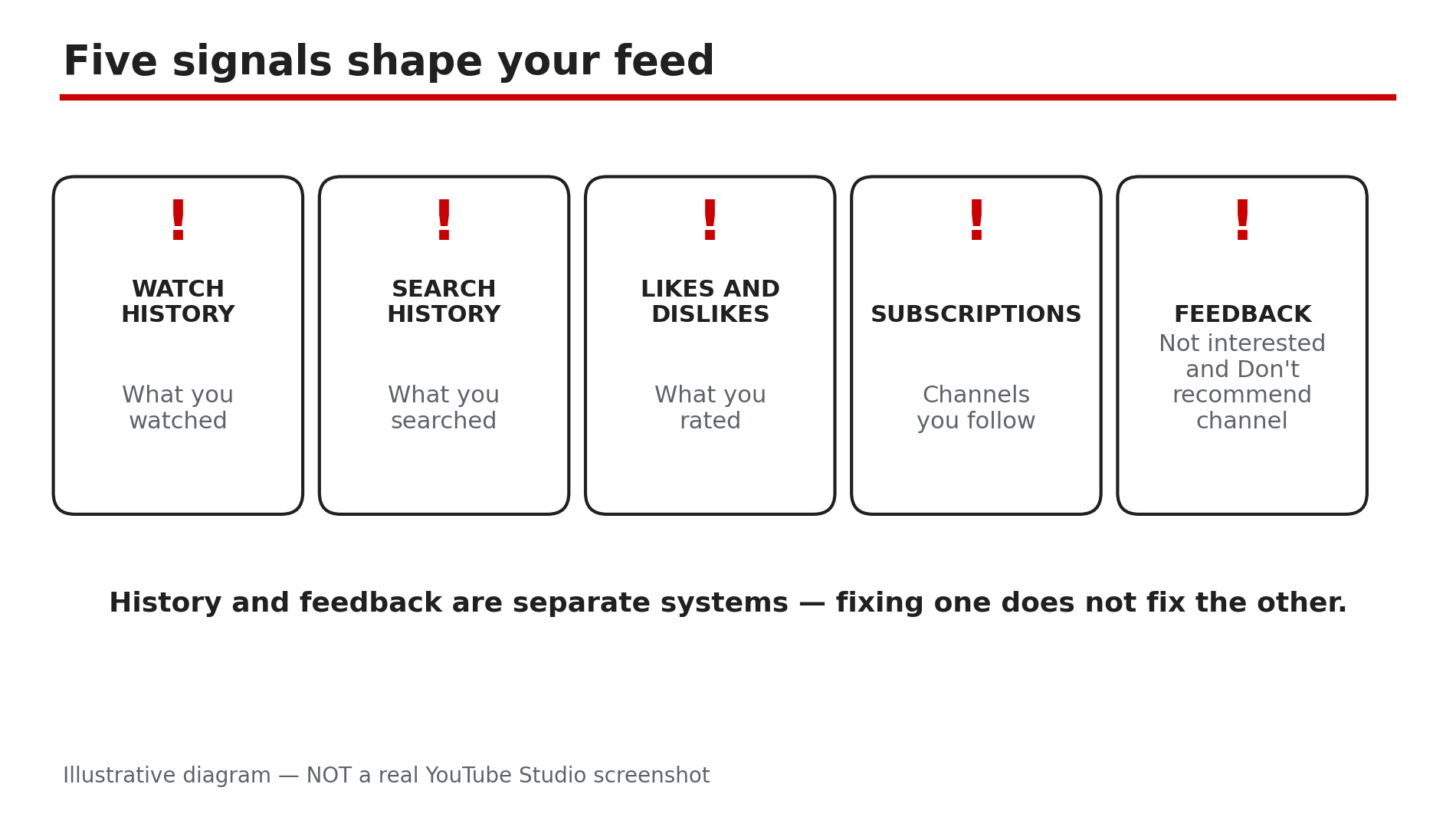
Your Home feed used to show videos you actually wanted. Now it is full of topics you watched once, channels you do not remember subscribing to, and Shorts you never asked for. The first thing most people look for is a "reset recommendations" button — and there is not one. YouTube builds your feed from several separate signals, and each one has its own fix. This guide shows you which signal is causing which problem, and how to retrain the feed without wiping out the personalisation you like. What You Will LearnThe five signals that shape your recommendations The difference between "Not interested" and "Don't recommend channel" How to undo a mistaken "Not interested" tap How deleting or pausing history works — and what it cannot do The Shorts feed limit and seeing fewer Shorts How long a retrained feed takes to settleStep 1 — Learn the five signals before you change anything What to do: Map what YouTube actually uses to pick your videos, so you fix the right signal. How: YouTube's Help page says your recommendations and search results are based on your watch history, your search history, the videos you like or dislike, your subscriptions, and the feedback you give with "Not interested" and "Don't recommend channel". The signals are separate: clearing watch history does not undo a "Not interested" tap, and unsubscribing does not erase the watch history behind a topic. Example: A feed full of cricket highlights after one match with a friend: the cause is watch history, not a subscription. Common mistake: Blaming the algorithm for a feed your own history built. The feed is a mirror; the fix starts with what you watched, searched, and liked.Illustrative diagram: the five signals YouTube uses to build your recommendations. Step 2 — Use "Not interested" for one-off videos, not whole topics What to do: Teach YouTube about single videos with the lightest tool first, before reaching for heavier ones. How: On Home or Watch Next, click More next to a video title and select Not interested. YouTube's Help page says you can then tap Tell us why and pick "I've already watched the video" or "I don't like the video" to fine-tune the signal. This is the right tool for a single video you do not want — a topic you have finished with, a video you already saw elsewhere, or a suggestion that does not fit. It is not a topic ban: one cooking video marked not interested will not remove cooking from your feed. Use it a few times on the same kind of video and the feed adjusts. Example: You finished a DIY project and keep getting DIY videos. Mark three Not interested, and within a day or two the DIY shelf thins out. Common mistake: Tapping Not interested on everything in a bad mood. Heavy negative feedback over-corrects the feed, and the next section shows how to undo it.Illustrative diagram: Not interested hides one video, Don't recommend channel hides a whole channel. Step 3 — Use "Don't recommend channel" only for whole channels What to do: Reserve the channel-level block for channels you never want to see again — never use it for a single bad video. How: Find a video, Short, or post from the channel on Home or Watch Next, click More, and select Don't recommend channel — on some screens it sits under Tell us why. It stops that channel being suggested, but not from search: you can still find it by searching. That is the difference from Step 2 — "Not interested" hides one video, "Don't recommend channel" hides the whole channel from your feed. Use it when a channel keeps appearing despite repeated Not interested taps, or when its whole style is not for you. Example: A channel posts daily videos in a niche you left months ago. Tapping Not interested on each one is a losing battle; Don't recommend channel ends it in one tap. Common mistake: Using Don't recommend channel on a channel you like because of one bad video. You will stop seeing its good videos too, and there is no undo on the feed itself.Illustrative mock-up: the steps to clear Not interested and Don't recommend channel feedback. Step 4 — Undo a mistaken "Not interested" tap in My Activity What to do: Clear your feedback when the feed has been over-corrected, instead of waiting for it to fix itself. How: History and feedback are separate systems, so clearing history does not undo a mistaken tap — you have to clear the feedback itself. YouTube's Help page gives the path: go to My Activity, sign in if asked, find Other Google activity in the left-hand menu, select YouTube "Not interested" feedback, then select Delete. That clears all the Not interested and Don't recommend channel feedback you have submitted. There is a brief Undo window right after a tap, but once it is gone, My Activity is the only way back. Example: A viewer tapped Don't recommend channel on the wrong channel. It vanished from the feed — until the feedback was deleted in My Activity, and the channel returned within a day. Common mistake: Deleting your entire watch history to fix a bad tap. History deletion does not touch feedback at all, so the block stays and your useful history is gone.Illustrative diagram: removing single videos from history is usually better than deleting everything. Step 5 — Delete or pause history for a real reset — carefully What to do: Use history deletion as the big reset, but target it first, and know what it cannot do. How: YouTube's Help page says you can start fresh by deleting your watch and search history — after you delete it, YouTube says it will not base future recommendations on that content. In My Activity under YouTube History, you can delete single videos, a date range, or everything. For a targeted fix, remove individual videos from watch history — the one match, the one rabbit hole, the one topic you regret. To stop history shaping the feed, turn it off in Settings under History and privacy — and turn it back on when done. Two warnings: deleting history does not guarantee a fresh feed, because subscriptions, likes, and account activity still apply; and a full wipe kills useful personalisation, so prefer targeted cleanup. Example: A viewer watched a week of exam-prep videos for a friend and now gets nothing but exams. Deleting just those videos fixed the feed in a day. Common mistake: Deleting all history, then being surprised the feed is still wrong. Subscriptions and likes are separate signals; check Steps 3 and 6 as well.Illustrative diagram: two built-in ways to see fewer Shorts on your Home feed. Step 6 — Tame Shorts, unsubscribe stale channels, and give it time What to do: Finish with the two remaining levers — Shorts controls and subscriptions — then wait for the feed to settle. How: For Shorts, YouTube's Help page describes two controls. On Home, scroll to a Shorts grid, tap More at the top, and tap Show fewer Shorts. Separately, the app has a Shorts feed limit under You, Settings, Time management — as reported, the limits include a zero-minute option, though on an adult account it is a reminder you can dismiss, not a lock. Next, unsubscribe from channels you no longer watch: stale subscriptions are a live signal. Finally, give it time — watch a few videos in the topics you want and like them. A retrained feed usually shows clear change within a few days, not minutes. Example: A viewer's feed was half Shorts from channels they had not watched in a year. Setting Show fewer Shorts and unsubscribing from twelve stale channels cut the noise in half within two days. Common mistake: Expecting an instant reset. There is no button for that — the feed changes when your signals change, and signals change one watch at a time.Illustrative diagram: a simple loop for retraining your recommendations when the feed is still wrong. Checklist — Reset your recommendations☐ Scanned watch history and found the pattern behind the bad feed ☐ Used Not interested on one-off videos, with Tell us why ☐ Used Don't recommend channel only for whole channels ☐ Cleared mistaken feedback in My Activity ☐ Removed single videos from watch history for targeted fixes ☐ Paused or deleted history only where a bigger reset was needed ☐ Set Show fewer Shorts and a Shorts feed limit in the app ☐ Unsubscribed from stale channels and watched videos in wanted topicsFAQs 1. Is there a "reset recommendations" button on YouTube? No. YouTube's Help page lists several ways to influence recommendations — Not interested, Don't recommend channel, and deleting history — but no single reset button. 2. Will deleting my watch history reset my feed completely? Not completely. YouTube says it will not base future recommendations on deleted history, but subscriptions, likes, and Google Account activity still apply. Prefer targeted deletion of the videos that caused the problem. 3. I tapped "Not interested" by mistake — can I undo it? Yes, briefly, with the Undo option right after the tap. After that, go to My Activity, then Other Google activity, then YouTube "Not interested" feedback, and select Delete. 4. Does "Don't recommend channel" block the channel everywhere? No. It stops the channel being suggested in your feed, but you can still find it by searching. To stop seeing a channel entirely, unsubscribe and use Don't recommend channel together. 5. How do I stop Shorts taking over my Home feed? Tap More on a Shorts grid and choose Show fewer Shorts, and set a Shorts feed limit in the app under You, Settings, Time management. As reported, the limit is a reminder on adult accounts, not a hard lock. SourcesYouTube Help — "Manage your recommendations & search results" (official page, opened live 11 Nov 2026): https://support.google.com/youtube/answer/6342839 CreatorPlaybook — "YouTube Watch History Not Saving? Why It Happens and How to Fix It" (internal link, live-verified in the blog sitemap 11 Nov 2026): </blog/youtube-watch-history-not-saving-why>