Showing Posts From
Youtube shopping
 CreatorPlaybook Team
- 07 Nov, 2026
YouTube Shopping / Affiliate Product Links Not Showing — How to Fix It
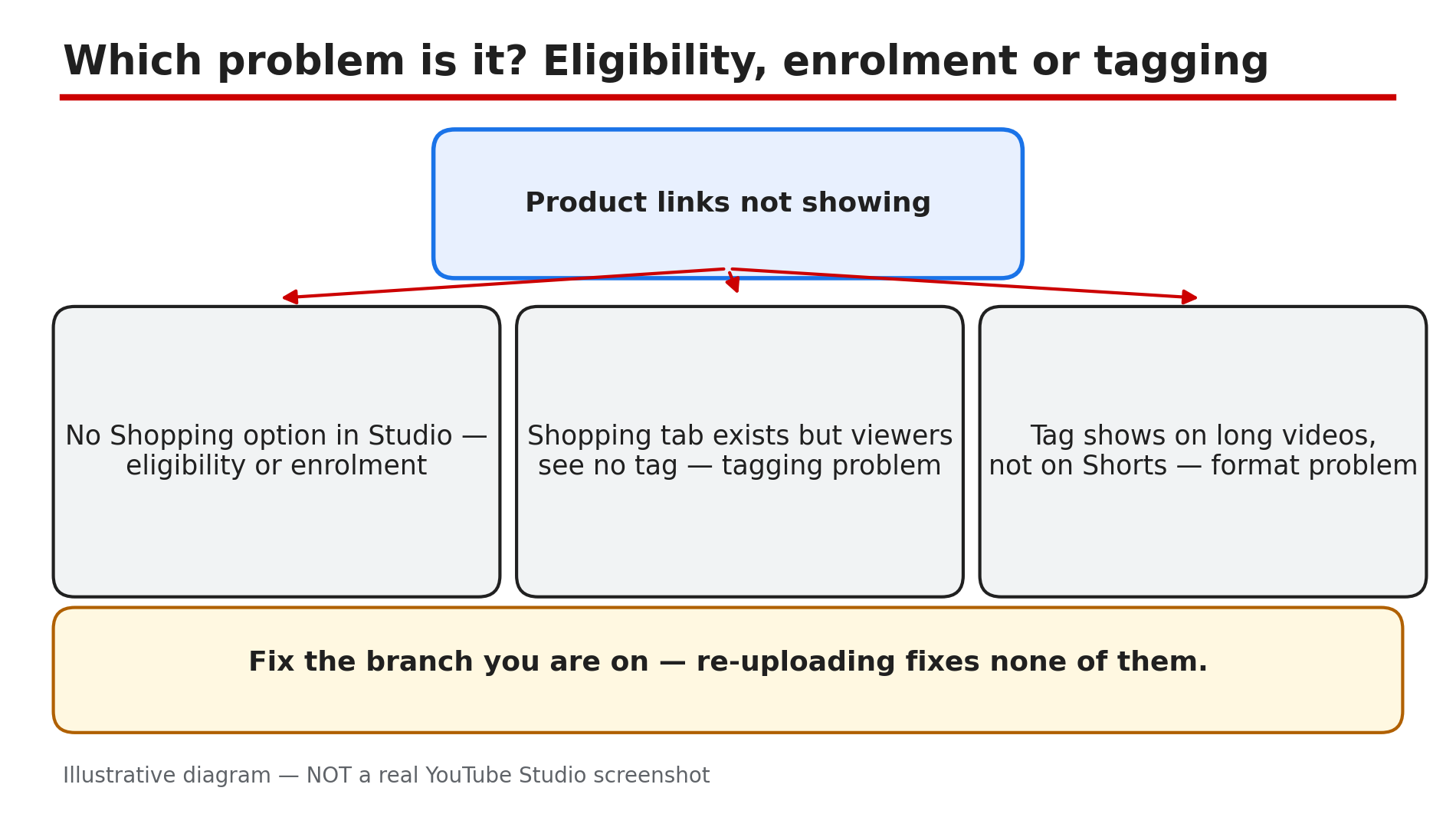
You tag a product in your video, publish it, and nothing appears — no shopping shelf under the video, no product sticker on the Short, nothing your viewers can tap. Or the tagging option is missing from Studio altogether. In most cases the video is fine: something earlier in the chain is missing — eligibility, enrolment, tagging, or the video format. A Shopping tag is not an ordinary description link: YouTube switches it on only for channels that qualify. As reported by several October 2026 sources, YouTube lowered the Shopping affiliate threshold on 25 March 2026 from 1,000 to 500 subscribers — do not trust any guide that still quotes 10,000. Confirm every figure in Studio. What You Will LearnWhy Shopping and affiliate product links disappear The current reported eligibility rules, and where to check your channel How to join the program and tag products correctly Why Shorts description links never work, and what to use instead How to disclose affiliate links and keep your tagsStep 1 — Work out which problem you actually have What to do: Decide whether the problem is eligibility, enrolment or tagging. Each one has a different fix. How: Open YouTube Studio and go to Earn. If there is no Shopping tab or no option to join the affiliate program, the problem is eligibility or enrolment — go to Step 2. If the Shopping tab is there but viewers see no tags, the problem is tagging or format. Example: A creator with 800 subscribers cannot find any Shopping option. Her channel is not yet in the Partner Program — she needs to qualify first. Common mistake: Re-uploading the video. If eligibility is the cause, a fresh upload changes nothing.Illustrative diagram: three different causes for missing product links, each with a different fix. Step 2 — Check your eligibility in Studio, not in an old guide What to do: Check every rule against your own channel in Studio. How: YouTube's Help page on Shopping affiliate eligibility, opened live for this post, lists these requirements: your channel is in the YouTube Partner Program and meets its subscriber threshold; you are based in an eligible country; your channel is not a music channel or Official Artist Channel; and your audience is not set as Made for Kids. The page lists 18 eligible countries, including India. As reported, the bar is now 500, not 10,000 — the Help page only says "meet the subscriber threshold for YPP". As reported, the lower tier also asks for 3 uploads in 90 days, plus watch hours or Shorts views. Example: A creator in India has 600 subscribers but short watch hours. Common mistake: Trusting a guide that says 10,000 and giving up at 2,000 — or assuming 500 subscribers alone qualify you.Illustrative diagram: the five eligibility checks for the YouTube Shopping affiliate program. Step 3 — Join the program and accept the terms What to do: If you are eligible but the tags still do not appear, enrol and accept the terms — eligibility alone does not switch tagging on. How: YouTube's Help page gives the route, opened live for this post: in Studio, select Earn, and under Programs click Join Now, then accept the Shopping Affiliate Program Terms of Service. The seller list differs by country. If a content owner manages your channel, the content owner must accept the agreement for you. Example: A creator sees the Shopping tab but never clicked Join Now. Her videos show no tags until she completes the sign-up. Common mistake: Assuming the Shopping tab means you are enrolled. Seeing the tab and joining are two different steps.Illustrative diagram: the three steps to join the YouTube Shopping affiliate program in Studio. Step 4 — Tag the product the right way, or the tag will not show What to do: Tag only products clearly shown or mentioned in the video, and check the tag on the finished video. How: In Studio, use the product picker to tag products from participating sellers. As reported, a tag should pass four tests: the product is clearly shown and named, it relates to the video, a viewer could reasonably want to buy it, and it is used as intended. Mention the product on screen, in the title, or in the description. On a Short, the first tagged product appears as a sticker — check its position before you publish. YouTube removes tags that break its guidelines; spam tagging is a common reason tags disappear. Example: A creator tags a tripod shown for ten seconds and named in the voiceover, and the tag shows. In the next video she tags five gadgets that never appear, and those tags vanish. Common mistake: Tagging a product you only mention to say you would not buy it. The tag must match what the video shows.Illustrative mock-up: tag only products the video actually shows and names. Step 5 — Stop fighting Shorts description links — use tags and profile links instead What to do: Accept that Shorts description links are non-clickable by design, and use the places that work instead. How: On 31 August 2023, YouTube made Shorts description links, comment links and vertical live feed links non-clickable, to reduce spam and scams. No setting changes that. Shopping affiliate links are the clickable exception on Shorts — that is what the product sticker is for. The other working routes are the Related Video link, and channel profile links, up to 14 of them. In a Short, tell viewers to tap the product sticker or the Related Video. Example: A creator pastes the store link in every Shorts description, but nobody can click it. She tags the product with a Shopping sticker instead — and clicks start coming from it. Common mistake: Pasting the link in the description, then in a pinned comment, then in the title. All three are non-clickable by design.Illustrative diagram: description links do not work on Shorts, but product stickers, Related Videos and profile links do. Step 6 — Disclose the affiliate link and keep your tags alive What to do: Add a clear affiliate disclosure in the video and description, or your tags can be taken away. How: A Shopping tag alone does not satisfy the disclosure rule. As reported in FTC guidance, a commission is a material connection — disclose in the video itself, spoken and on screen, and near the link in the description. If you tag Amazon products, Amazon also requires its own disclosure, as reported: "As an Amazon Associate I earn from qualifying purchases." Do not share Shopping affiliate links outside YouTube — the Help page says this can suspend your affiliate features. Example: A creator's old review still earns from a product whose price doubled, so she updates the description. Common mistake: Hiding the disclosure at the bottom of a long description, below a block of hashtags. The FTC guidance, as reported, is that the connection should be hard to miss.Illustrative diagram: four habits for disclosing affiliate links and keeping product tags alive. Checklist — Get your Shopping / affiliate links showing☐ I know which problem I have ☐ My channel is in the Partner Program (Studio > Earn) ☐ My country is on the current eligible list on the live Help page ☐ My channel is not a music channel, Official Artist Channel or Made for Kids ☐ I joined the program and accepted the terms ☐ I tagged only products shown and named in the video ☐ I checked the tag on the finished video ☐ On Shorts I use a sticker or Related Video ☐ I disclosed the affiliate link in the video and descriptionFAQs 1. Why is there no Shopping option in my YouTube Studio at all? The option only appears for qualifying channels: in the Partner Program, based in an eligible country, and not a music channel or Made for Kids. Check Studio > Earn. 2. I have 500 subscribers. Why can I still not tag products? As reported, 500 subscribers is the lower Partner Program tier, not the whole requirement. That tier also asks for 3 uploads in 90 days plus watch hours or Shorts views, and you must join the program. 3. Why does my product link work on a long video but not on a Short? Shorts description and comment links have been non-clickable by design since 31 August 2023. On a Short, use a Shopping product tag, or a Related Video link to a long-form video. 4. Can I tag Amazon products on YouTube Shopping from India? Amazon joined the program on 27 August 2026. At launch it was reported as US only, but the Amazon Help page opened live on 7 November 2026 now lists India. Check the live page and your own Studio — you also need an active Amazon Influencer or Associates account linked to your channel. 5. Do I still need to disclose affiliate links if YouTube already shows a Shopping tag? Yes. A Shopping tag alone does not satisfy the disclosure rule. Disclose it in the video itself and near the link in the description, and add Amazon's required disclosure for Amazon tags. SourcesYouTube Help — "YouTube Shopping affiliate program overview & eligibility" (opened live 7 Nov 2026): https://support.google.com/youtube/answer/13376398?hl=en CreatorPlaybook — "YouTube Description Links Not Working?" (verified live 7 Nov 2026): </blog/youtube-description-links-not-working> CreatorPlaybook — "Made for Kids on YouTube: Revenue Limits and Disabled Features" (verified live 7 Nov 2026): </blog/made-for-kids-on-youtube-revenue-limits>