Subscribers Not Getting Notifications on YouTube? Bell Settings and the 2026 Push Change
 CreatorPlaybook Team
- 03 Nov, 2026
You upload a video, and a subscriber comments: “I never got a notification.” Then another one says the same thing. Your views are fine, your subscribers are growing, but the bell — the thing that is supposed to tell people you uploaded — seems to be doing nothing.
There are three different reasons subscribers miss a notification. The first is the bell setting itself: most subscribers never change it from Personalised. The second is a change YouTube made in April 2026: it permanently stopped sending push notifications to inactive subscribers who had chosen “All”. The third is a set of limits on the creator’s side — including a cap of three video notifications in 24 hours.
What You Will Learn
- The three bell settings, and which one your subscribers actually have
- The April 2026 push-notification change, and who it affects
- The creator-side limits that stop notifications being sent at all
- The viewer-side checks, in order
- What “Bell notifications sent” in Studio actually tells you
- What to tell a subscriber who says they never get notified
Step 1 — Understand the three bell settings
What to do: Learn what All, Personalised and None actually do, because most of the problem lives here.
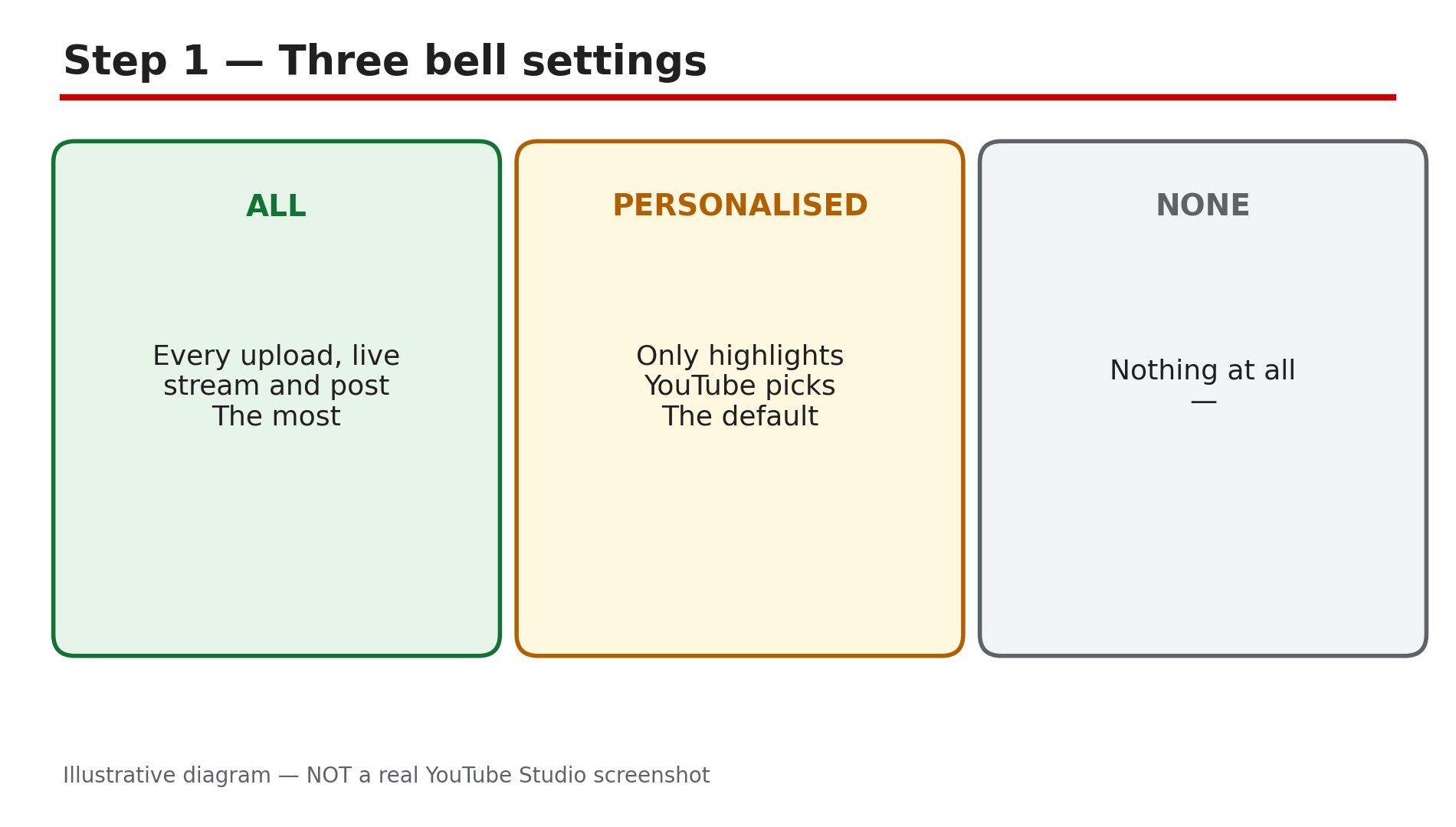
How: When someone subscribes to a channel, YouTube automatically gives them personalised notifications — highlights the system picks for them, not every upload. YouTube’s Help page says you can change from Personalised to All to receive more notifications, or choose None. All means a notification for every upload, live stream and community post. Personalised means YouTube decides which uploads are worth interrupting them for. None means nothing.
Example: A creator asks their audience to check the bell. Dozens reply it was on Personalised — they had subscribed years ago and never touched it.
Common mistake: Telling subscribers to “turn on the bell” without saying which setting. The bell is already on for most of them — on Personalised.
Illustrative diagram of the three YouTube notification bell settings.
Step 2 — Learn the April 2026 push-notification change
What to do: Understand YouTube’s 2026 change, because it explains the subscribers who did everything right and still get nothing on their phone.
How: In April 2026, TeamYouTube announced on the official YouTube Community forum that YouTube had permanently stopped sending push notifications to inactive “All” subscribers — subscribers who meet all three conditions: they have not watched the channel anywhere on YouTube for about a month, they received one or more notifications recently but did not engage with any of them, and they opted into “All” notifications. Those subscribers still get notifications in the app’s Inbox — but no push alert on their phone.
Example: A subscriber chose All in 2024, stopped watching in early 2026, and now gets no push alerts — even though the bell still shows All. They open the app and find three unread notifications in their Inbox.
Common mistake: Treating this as a bug. It is a deliberate change, and the fix is on the viewer’s side: watch the channel again, and the push alerts come back. Do not repeat the third-party claim that the bell “only reaches 30%” of subscribers — that figure comes from a push-notification vendor’s marketing, not from YouTube.
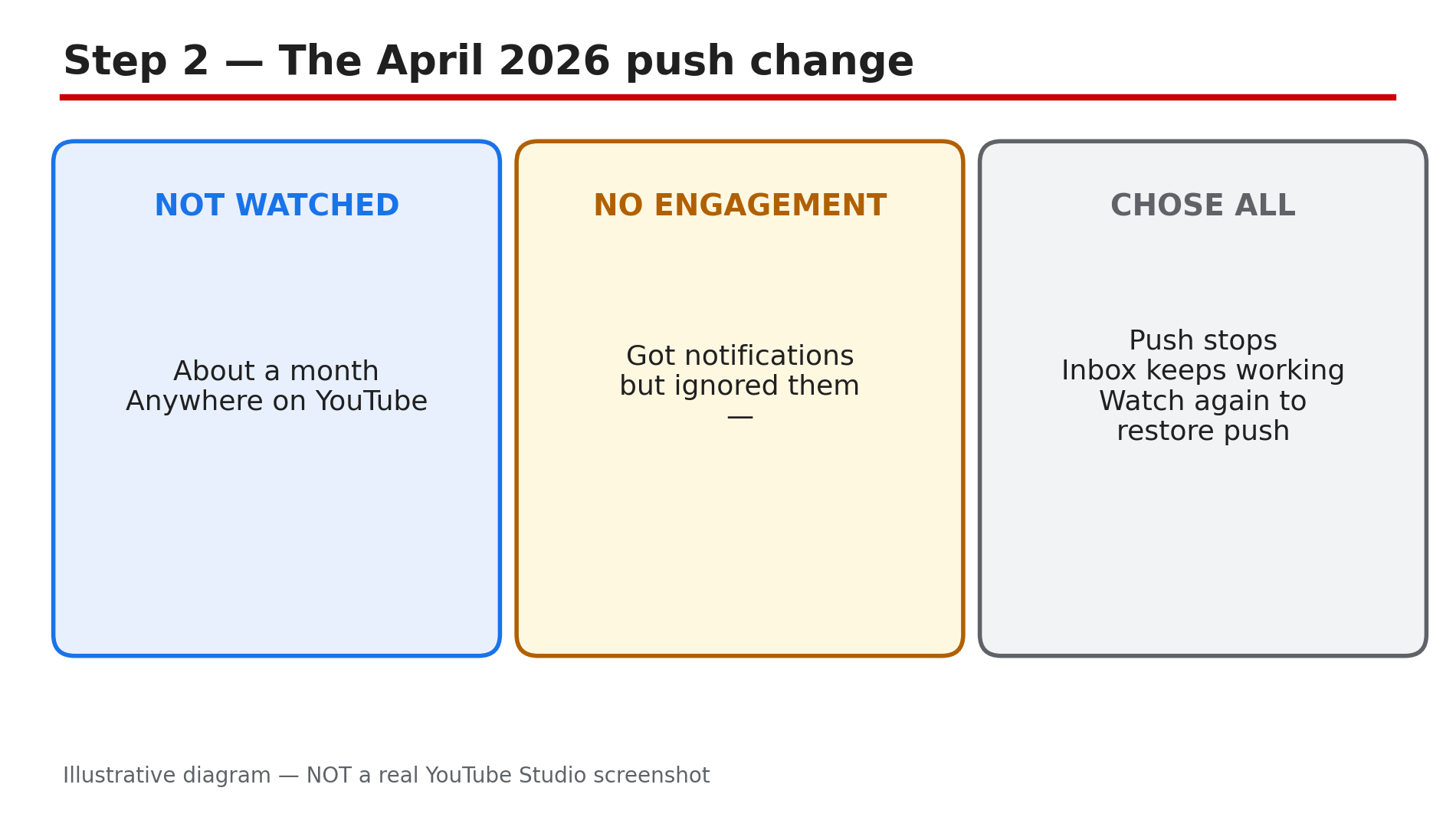
Illustrative diagram of the three conditions behind YouTube’s April 2026 push-notification change.
Step 3 — Check the creator-side limits that swallow notifications
What to do: Check your own publishing behaviour, because several notification failures start with the creator, not the subscriber.
How: YouTube limits how many video notifications go out. As reported in YouTube’s own community guidance, a channel gets a maximum of three video notifications in 24 hours — publish a fourth video in the same day and its notification is not sent. Other creator-side causes: changing a video’s privacy setting before its notifications were sent, choosing to skip notifications for a video at upload, and setting the audience to Made for Kids — YouTube’s Help page is explicit that you will not get notifications if a channel’s content is set as Made for Kids, and the bell is locked to no notifications.
Example: A creator publishes four Shorts and a long video on the same day. The fifth upload gets no notification — the daily limit was already used.
Common mistake: Publishing five videos in one day and blaming the bell. Space uploads out, and check the audience setting before you blame your subscribers.
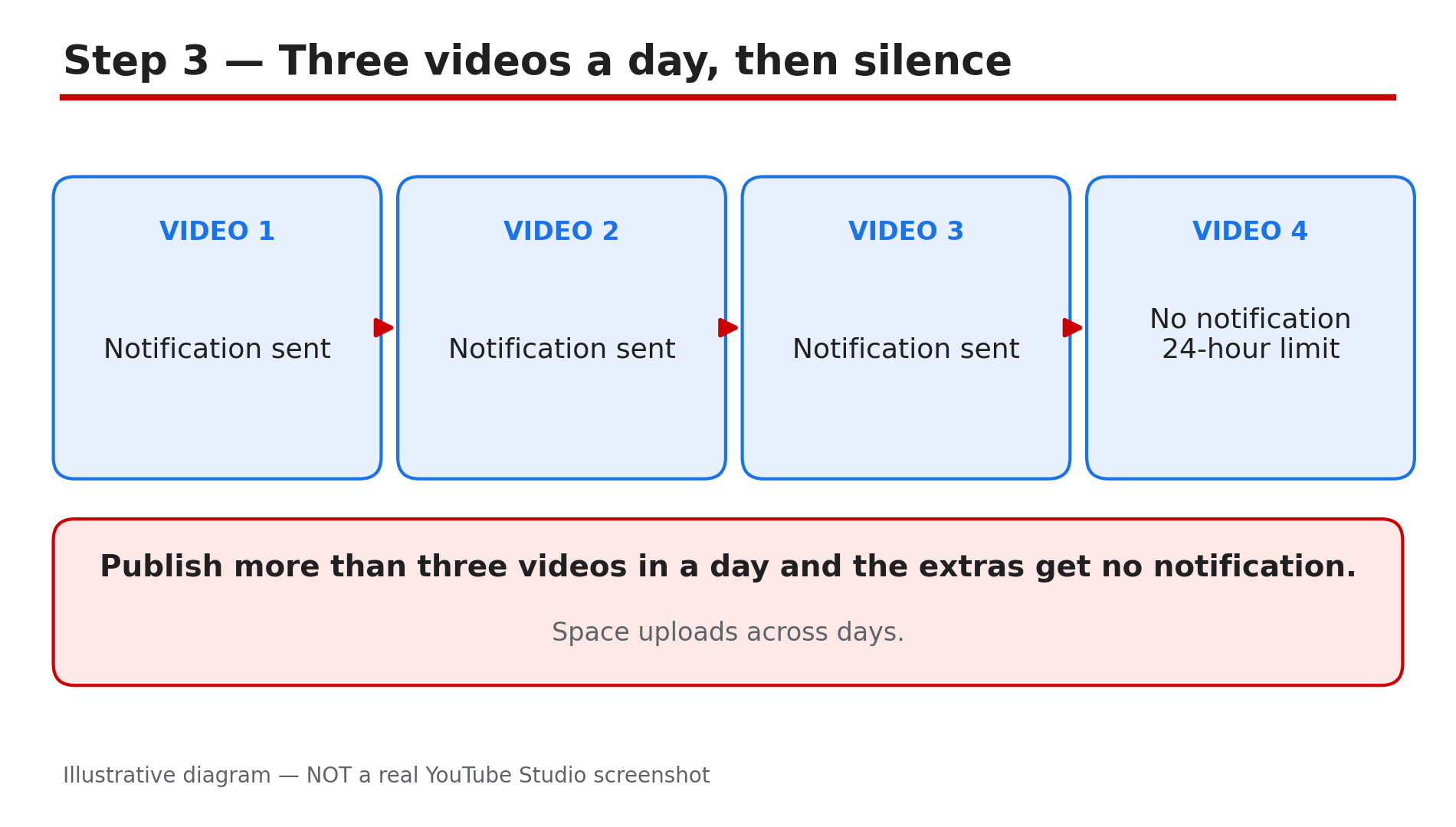
Illustrative diagram of the three-video notification limit in 24 hours.
Step 4 — Walk a subscriber through the viewer-side checks
What to do: Give a subscriber a short ordered checklist, starting with the account and ending with the device.
How: First, confirm they are signed in to the right Google account — notifications only arrive on the account that subscribed, and many people have two. Second, open the channel page and tap the bell next to Subscribed, and choose All. Third, check YouTube’s own notification settings: profile picture, then Settings, then Notifications, and confirm the types they want are switched on. Fourth, check the phone: the YouTube app must be allowed to send notifications, and the phone must not be on Do Not Disturb. Fifth, check the Inbox: tap the bell icon at the top of the home page — notifications that never arrived as a push may be sitting there unread.
Example: A subscriber does all five checks and finds the YouTube app’s notifications were switched off in the phone’s settings after a system update. One toggle fixes it.
Common mistake: Skipping straight to reinstalling the app. Reinstalling is the last step, not the first — and it does not fix a bell set to Personalised or the April 2026 inactivity rule.
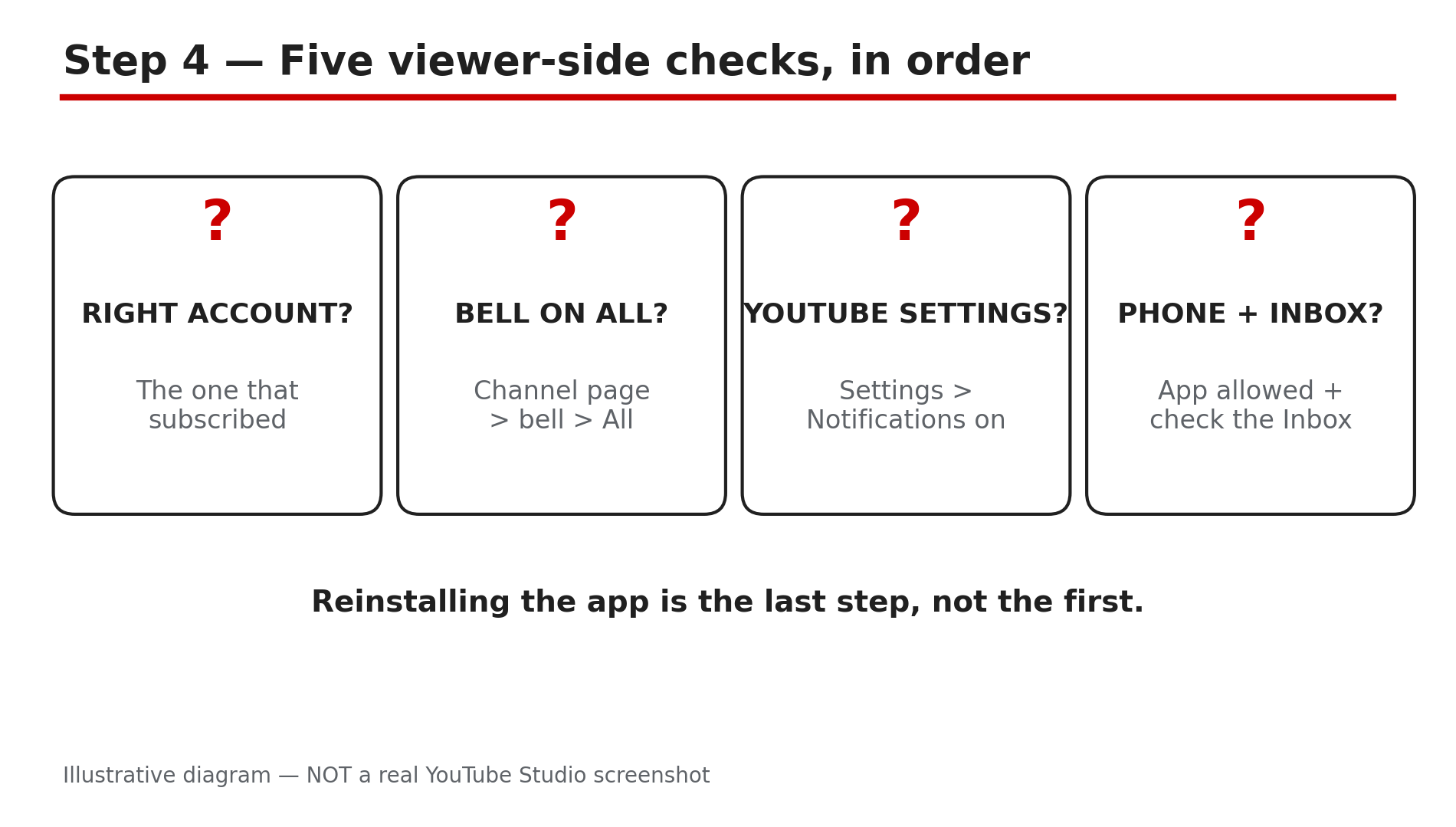
Illustrative diagram of the five viewer-side notification checks in order.
Step 5 — Read “Bell notifications sent” in Studio correctly
What to do: Use Studio’s notification numbers to check whether the problem is delivery or interest.
How: In YouTube Studio, the “Bell notifications sent” figure shows how many notifications YouTube sent for a video. If it is low, the cause is usually on the creator’s side — the 3-a-day limit, a privacy change, or a Made for Kids setting — or the audience is largely inactive, which is what the April 2026 change addresses. If it is high but views from notifications are low, the notifications arrived and people ignored them — that is a title and thumbnail problem, not a notification problem.
Example: A video shows 8,000 bell notifications sent and 300 views from notifications. The notifications worked — the thumbnail did not.
Common mistake: Reading a low notification-views number as proof notifications are broken. Sent and opened are different numbers.
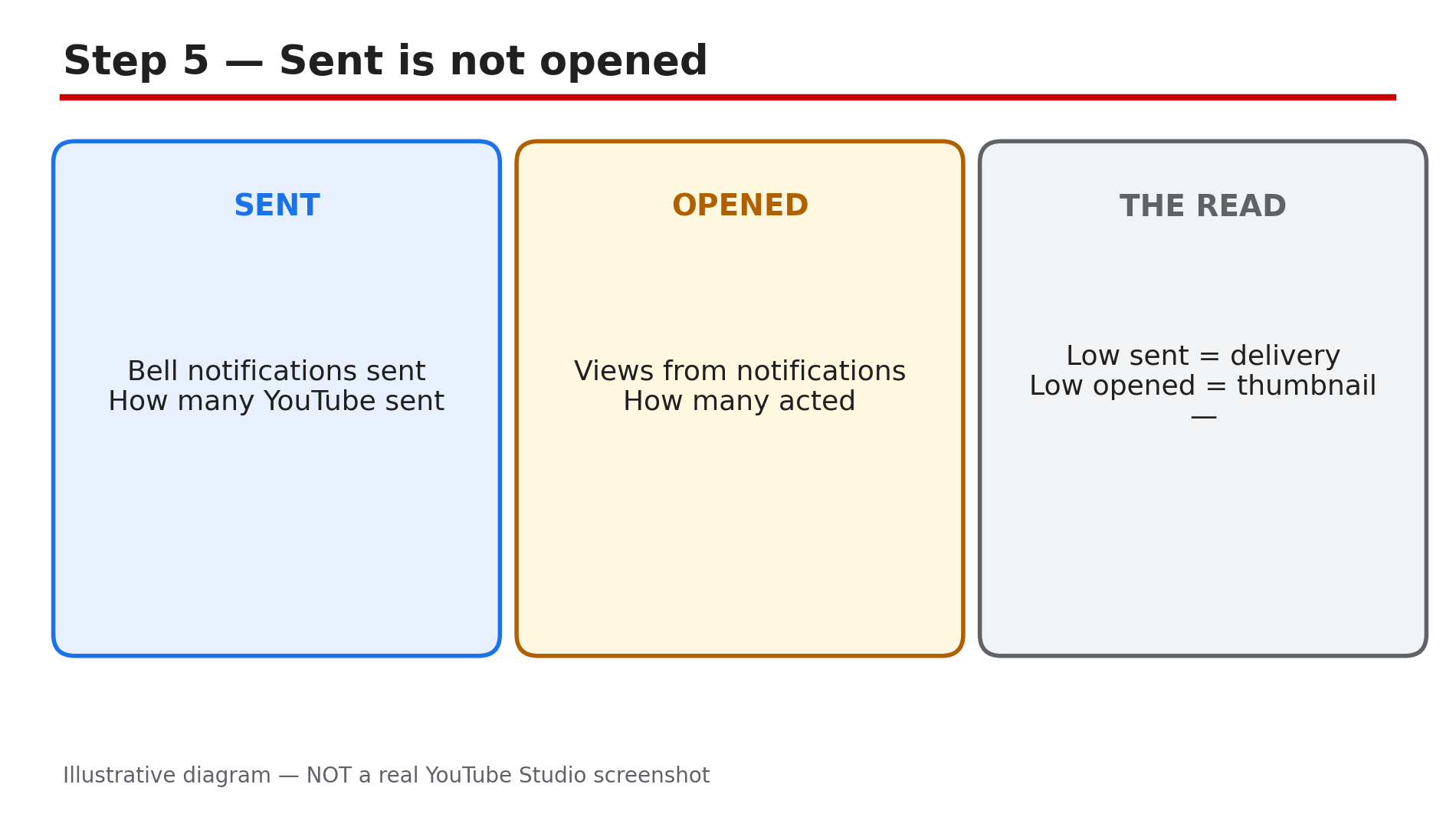
Illustrative diagram separating notifications sent from notification views in Studio.
Step 6 — Tell your audience what to do, in one message
What to do: Put the fix in one short message your subscribers can follow in under a minute.
How: Post it as a community post or say it at the end of a video: “If you miss my uploads, tap the bell next to Subscribe and choose All — not Personalised. Then watch one video, because YouTube stops push alerts if you have not watched in about a month. And check your phone’s notification settings for the YouTube app.” That covers the three causes in three sentences. Do not promise that All guarantees a push for every video — between the 3-a-day limit, the inactivity rule and device settings, no setting can guarantee that.
Example: A creator pins that message as a community post. Over the next month, their notification-driven views rise.
Common mistake: Blaming YouTube in public and telling subscribers the platform is broken. It makes viewers distrust the bell instead of fixing it — and the fix is three taps.
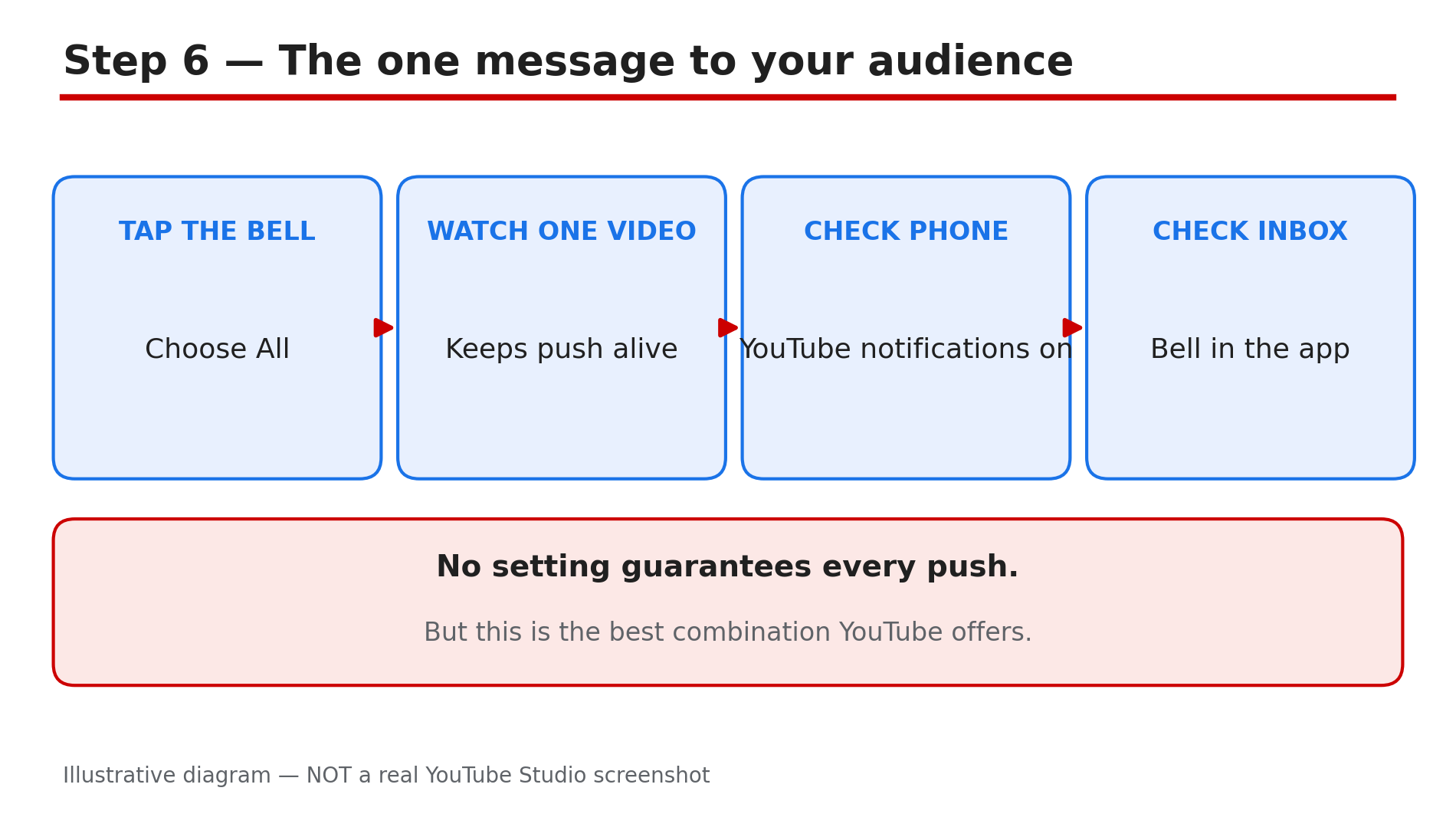
Illustrative diagram of the one short message to send subscribers about notifications.
Checklist — Before You Publish
- ☐ I know the difference between All, Personalised and None
- ☐ I checked whether the April 2026 inactivity rule applies
- ☐ I publish no more than three videos with notifications in 24 hours
- ☐ I do not change privacy settings before notifications go out
- ☐ My videos are not set to Made for Kids
- ☐ I can walk a subscriber through bell, account, app settings and Inbox
- ☐ I read “Bell notifications sent” separately from notification views
- ☐ I told my audience the fix in one short message
FAQs
1. Why am I not getting notifications from a channel I subscribed to?
Usually one of three things: the bell is on Personalised, not All; you have not watched the channel in about a month, so YouTube stopped push alerts; or the YouTube app’s notifications are off in your phone’s settings.
2. What is the difference between All and Personalised notifications?
All sends a notification for every upload, live stream and community post. Personalised sends only highlights YouTube picks for you.
3. Did YouTube stop sending push notifications in 2026?
For one group, yes. TeamYouTube announced in April 2026 that push notifications permanently stopped for inactive “All” subscribers — people who had not watched the channel anywhere for about a month and had not engaged with recent notifications.
4. How many video notifications can a channel send per day?
As reported in YouTube’s community guidance, a maximum of three video notifications in 24 hours. Publish more than three videos in a short period and later ones may not send a notification at all.
5. Why is the bell locked on a channel I like?
YouTube’s Help page says you will not get notifications if a channel’s content is set as Made for Kids — the bell is set to no notifications and cannot be changed. There is no setting on your side that overrides it.
Sources
- YouTube Help — “Manage YouTube notifications” (official page, opened live 3 Nov 2026): https://support.google.com/youtube/answer/3382248?hl=en-NP&co=GENIE.Platform%3DDesktop
- CreatorPlaybook — “YouTube Subscribers Dropping or Stuck? Why Counts Fall”: </blog/youtube-subscribers-dropping-or-stuck>
- CreatorPlaybook — “Made for Kids on YouTube: Revenue Limits and How to Fix a Wrong Audience Setting”: </blog/made-for-kids-on-youtube-revenue-limits>