YouTube Captions Not Showing or Wrong? How to Fix Subtitles on Any Video
 CreatorPlaybook Team
- 03 Nov, 2026
You open a video, look for the CC button, and it is not there. Or it is there, you turn captions on, and the words are wrong — names misheard, sentences garbled, whole lines missing. Either way, the video is harder to watch than it should be — and for viewers who are deaf, hard of hearing, or watching on mute, it may be unwatchable.
Captions fail for a small set of reasons, and they split into two groups: viewer-side problems, where the captions exist but are switched off or in the wrong language, and creator-side problems, where no caption track was ever made. The most common mistake is trying a viewer fix on a creator problem — no setting on your phone can conjure a caption track that does not exist.
What You Will Learn
- The first check: does this video have captions at all
- Viewer-side fixes: the CC button, language, and Auto-translate
- Why automatic captions never appear on some videos
- Why automatic captions get words wrong
- How to fix a track in Studio, or upload your own
- The video-language setting behind most caption failures
Step 1 — Check whether the video has captions at all
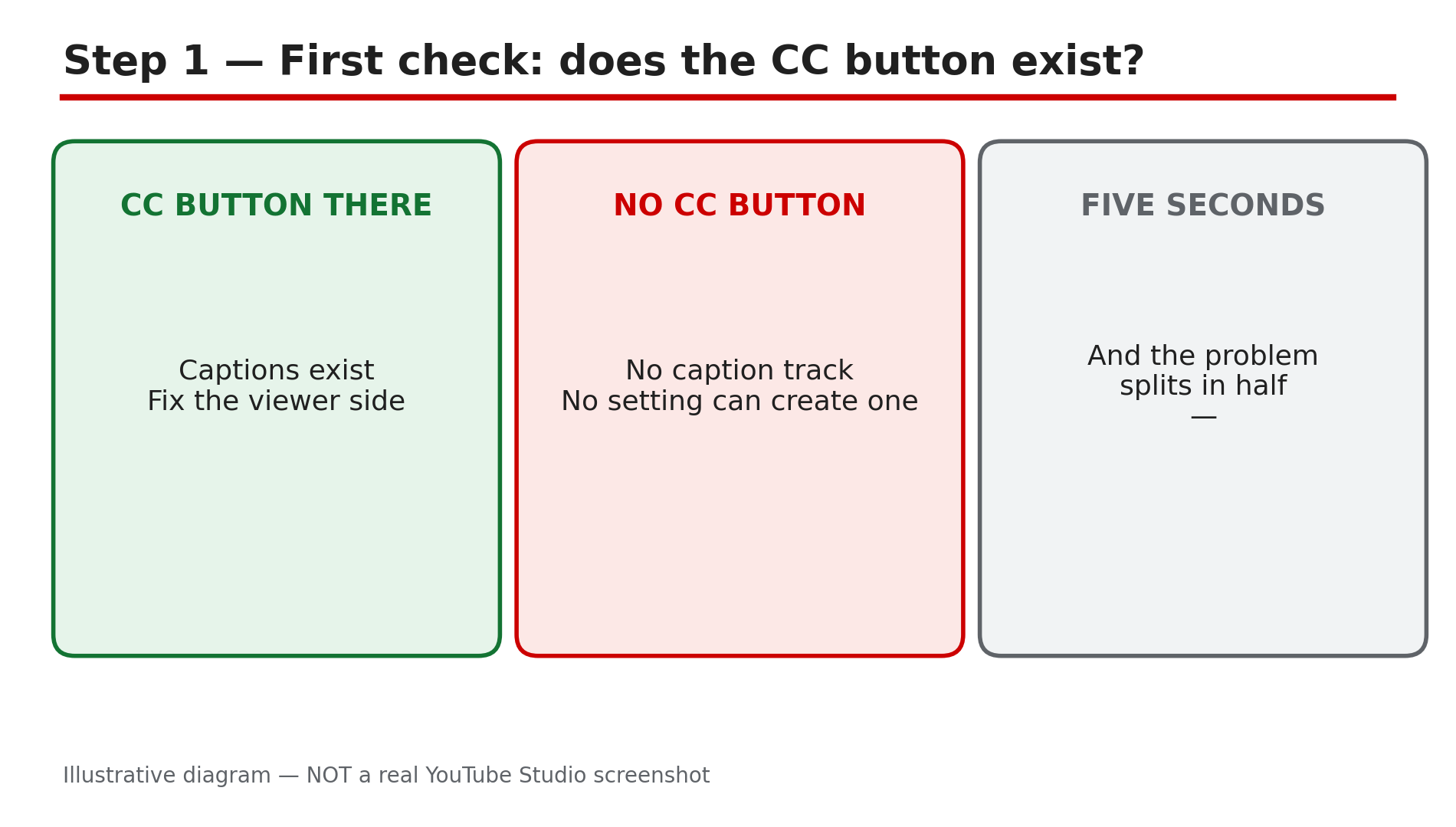
What to do: Look for the CC button before you change any setting, because no setting can create a track that does not exist.
How: On a computer, the CC button sits at the bottom right of the player; on a phone, tap the video once, then look for the CC icon. If there is no CC button, YouTube says captions are not available for that video — no caption file was uploaded and no automatic captions were generated. If the CC button is there, captions exist and the problem is on your side: they are switched off, or in the wrong language.
Example: A viewer complains that a tutorial has no subtitles. The creator opens the video and finds no CC button — the video language was never set.
Common mistake: Telling a viewer to “turn on captions in settings” when the video has no caption track. Settings can only show a track that exists.
Illustrative diagram of the first captions check: whether the CC button exists.
Step 2 — Fix the viewer side: turn them on and pick a language
What to do: If the CC button is there, turn captions on, choose the right language, and check Auto-translate only if your language is missing.
How: On a computer, click CC, then the Settings gear, then Subtitles/CC, and choose a language. On a phone, tap the video, then the CC button, then the menu, then Captions, and pick a language. If your language is not in the list, choose Auto-translate and pick it there — but understand what it does: Auto-translate translates from a caption track that already exists. Auto-translate can also persist across videos, so if subtitles suddenly appear in the wrong language on every video, check that it was not left on.
Example: A Hindi-speaking viewer opens an English tutorial and sees only “English (auto-generated)”. They choose Auto-translate, then Hindi — rough, but readable. On the next video the subtitles are still in Hindi, because Auto-translate stayed on.
Common mistake: Assuming Auto-translate creates captions. It is a translation layer, not a transcription layer. When the menu is missing entirely, the video has no caption track to translate.
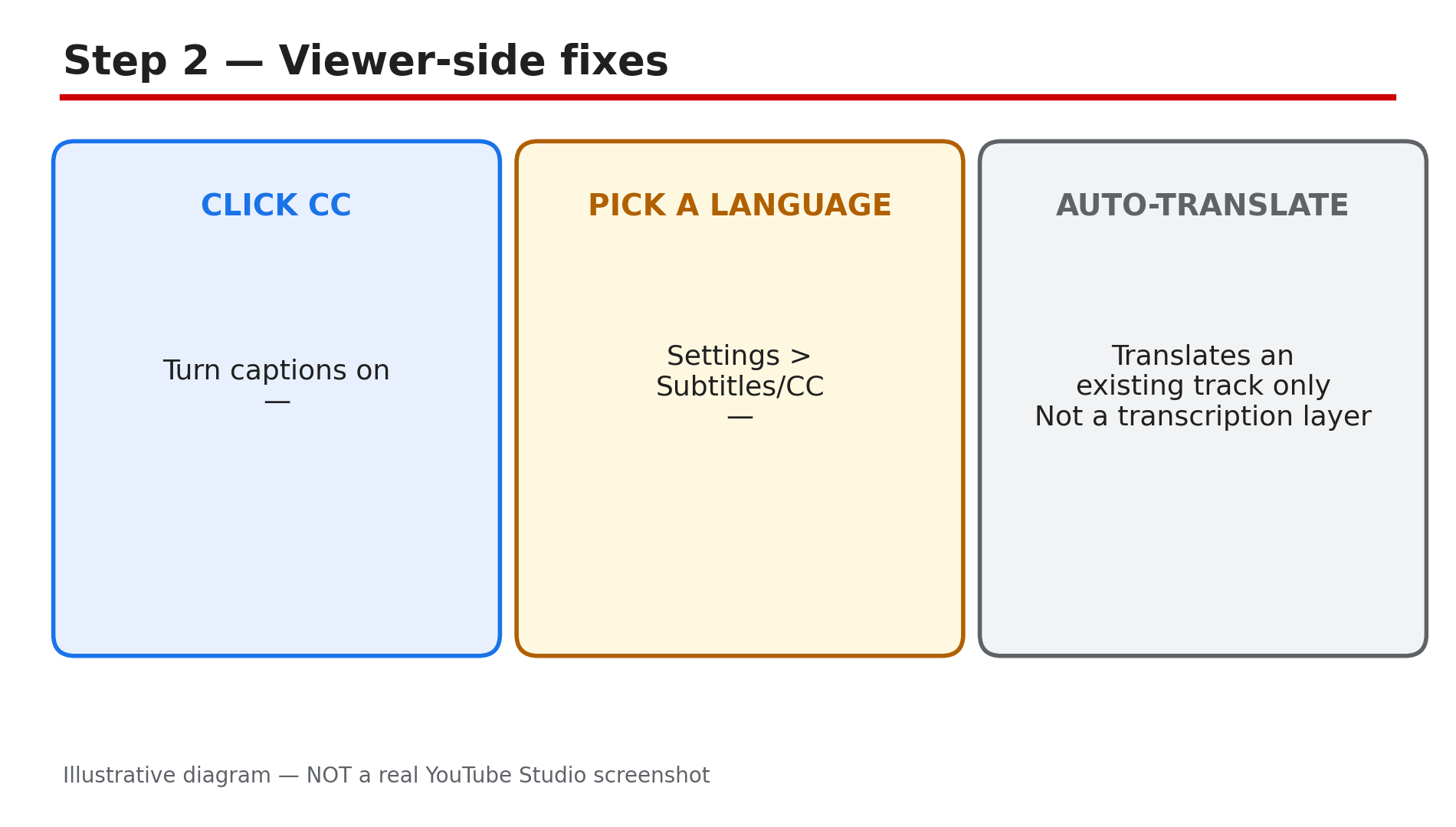
Illustrative diagram of the viewer-side caption fixes.
Step 3 — Learn why automatic captions never appear
What to do: Match the missing track to one of the six reasons YouTube itself lists, instead of re-uploading the video and hoping.
How: YouTube’s Help page “Use automatic captioning” lists the reasons automatic captions may not be generated: the captions are not available yet because the audio is still being processed; the language is not supported; the video is too long; the sound quality is poor or YouTube does not recognise the speech; there is a long silence at the beginning; or multiple speakers talk over each other. The processing point matters most for new uploads: automatic captions are generated after the video itself finishes processing, not alongside it.
Example: A creator uploads a 45-minute panel discussion with three people talking over each other. No captions appear after a day — the cause is overlapping speech, one of YouTube’s listed reasons.
Common mistake: Re-uploading the same video to “fix” captions. Re-uploading the same audio gives YouTube the same problem to solve — while the original video loses its URL and views.
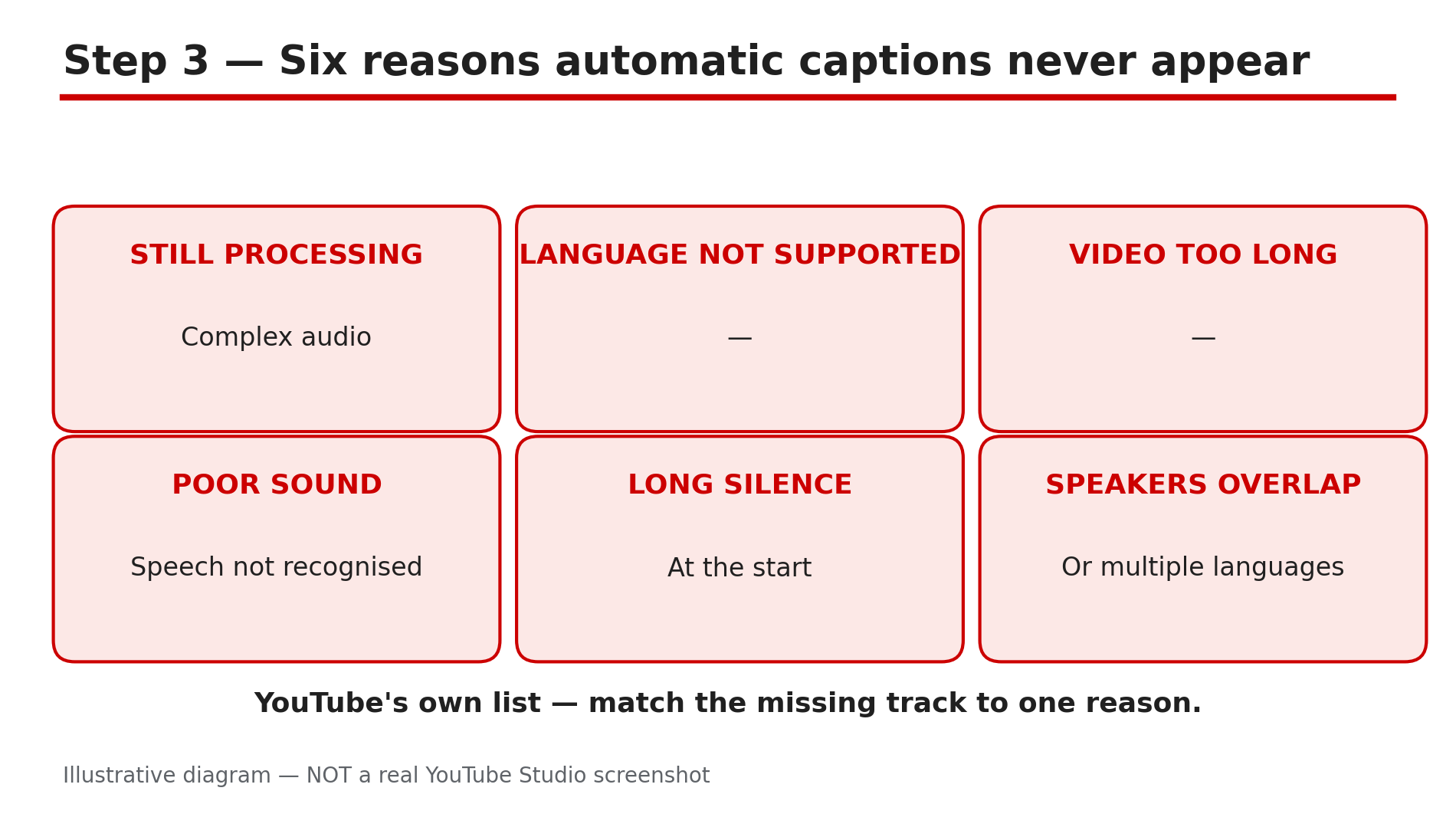
Illustrative diagram of the six reasons YouTube lists for missing automatic captions.
How: YouTube’s Help page is direct: automatic captions are generated by machine-learning algorithms, so the quality may vary, and they might misrepresent speech due to mispronunciations, accents, dialects or background noise. Names and technical terms are the usual casualties — the recogniser guesses the most common similar-sounding word. Third-party estimates put automatic captions around 70–90% accurate, as reported. There is also one deliberate replacement: YouTube replaces potentially inappropriate words with ”[ __ ]” in automatic captions by default. That is a setting, not an error — switch it off in Studio under Settings, then Channel, then Advanced settings.
Example: A creator’s video about a place called “Kasauli” is captioned as “casually” throughout. The creator edits the track once, and the error is gone.
Common mistake: Leaving automatic captions unreviewed on a video that matters. YouTube says creators should always review automatic captions and edit any parts that have not been transcribed properly.
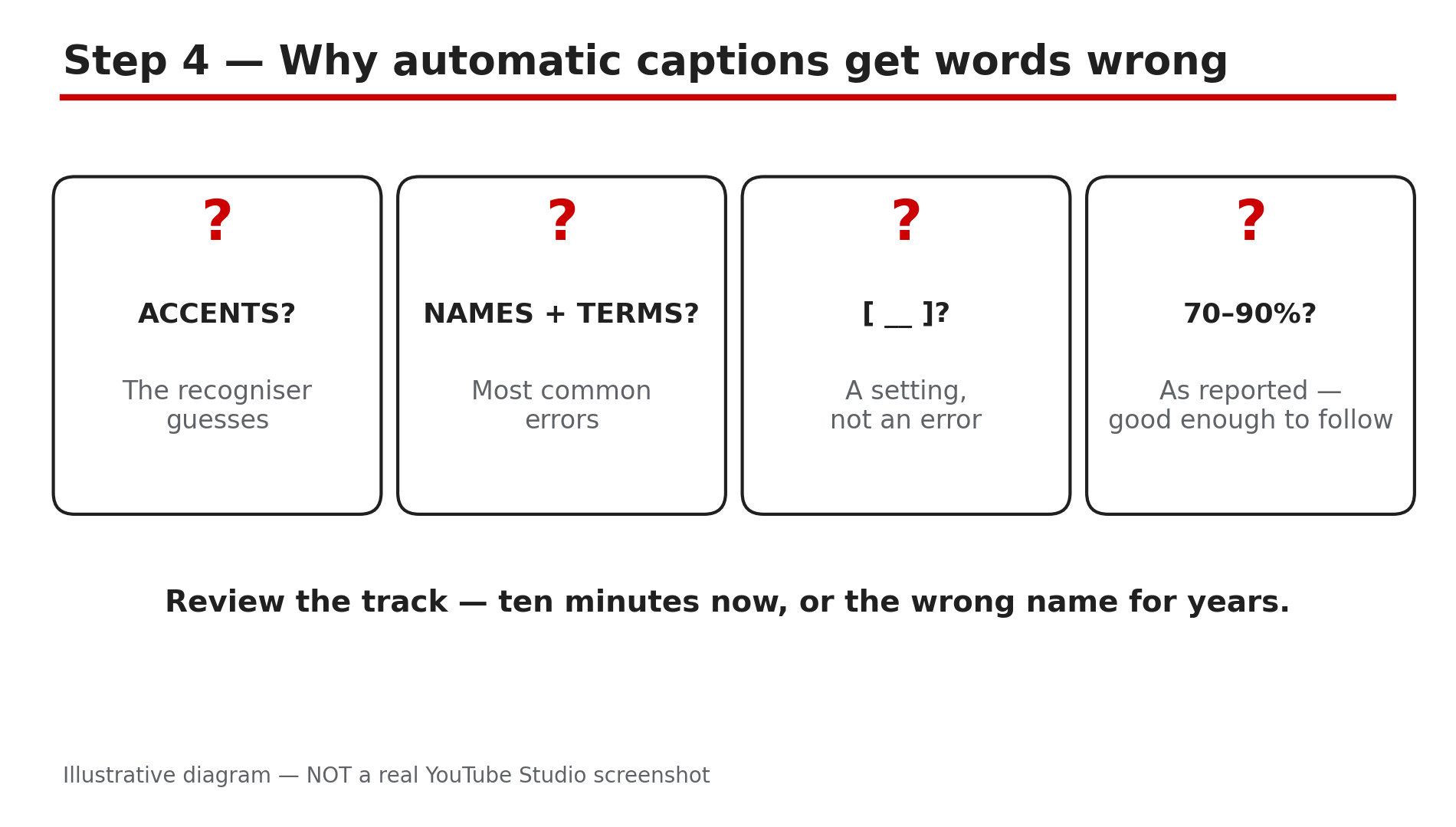
Illustrative diagram of why automatic captions mishear words.
Step 5 — Fix the track in Studio, or upload your own
What to do: Edit the automatic track, or replace it with a clean file you made yourself — the permanent fix.
How: Sign in to YouTube Studio, go to Subtitles, and click the video. Under Subtitles, click More next to the automatic captions and choose to review and edit them. Editing an automatic track creates a new track with your revisions. Or add your own: click Add, choose a language, then Upload file, Auto-sync, or Type manually. Uploading a file is the permanent fix. And check that you published the track: a draft in the Subtitles section will not appear for viewers until it is saved and published.
Example: A creator’s most-watched tutorial has automatic captions full of misheard technical terms. They correct the terms and upload the file. The video now has clean captions.
Common mistake: Editing the automatic track and forgetting to publish it, or editing it on one video and assuming the same errors are fixed on the others. Each video has its own track — fix the ones that matter.
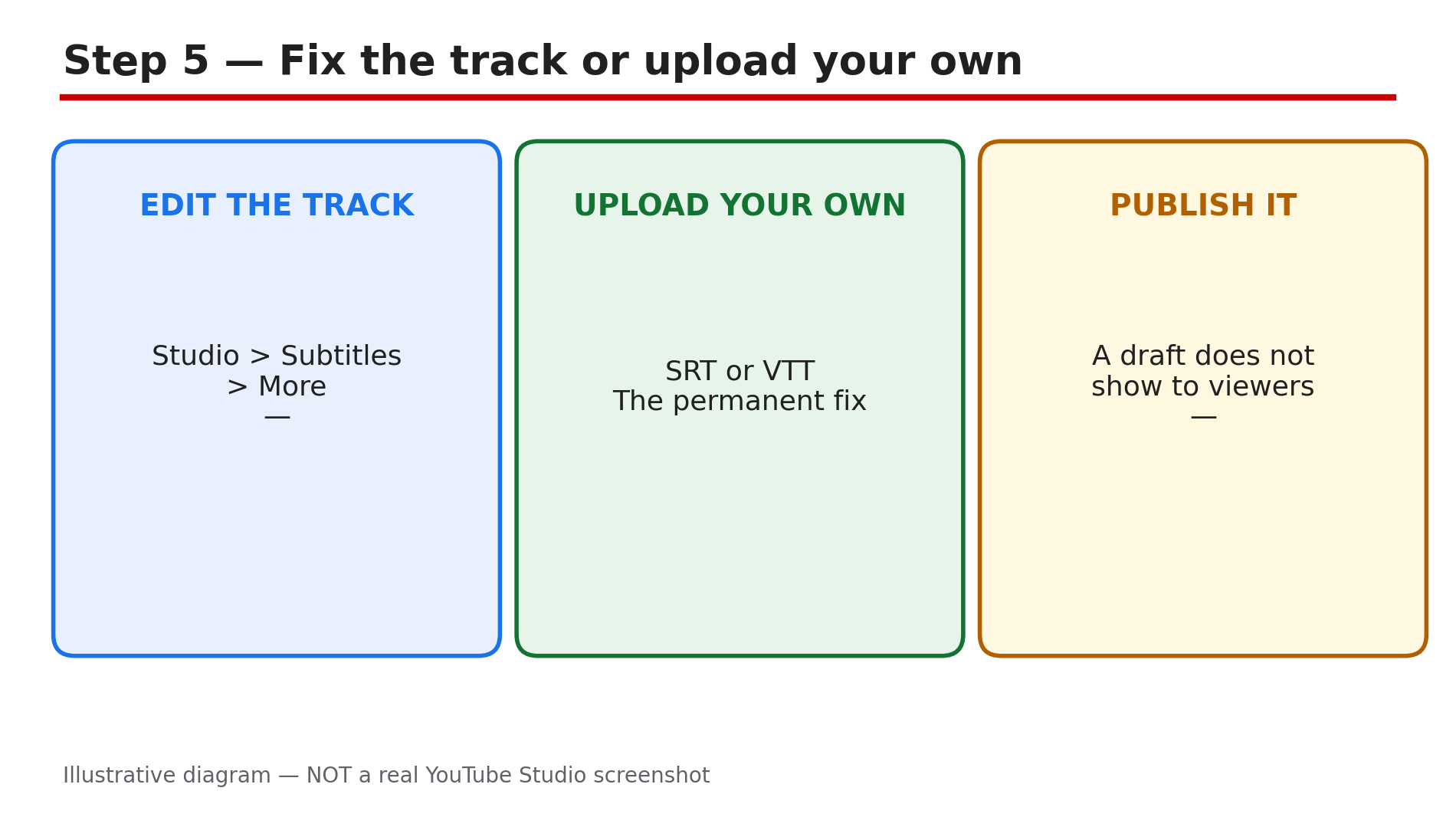
Illustrative diagram of fixing a caption track in Studio or uploading your own file.
Step 6 — Set the video language, so future videos get captions at all
What to do: Set the video language on every upload, and set the default once, so the root cause never comes back.
How: YouTube will not generate automatic captions without an explicit video language set on that video — a blank language field is the most common cause. On each upload, open Details, then Show more, and set Video language. Then set it permanently: Studio, then Settings, then Upload defaults, so every future browser upload inherits it — our guide on upload defaults explains the whole screen. Defaults apply only to future uploads; they do not fix existing videos, so fix each old video in Studio and save.
Example: A creator sets the default language to English, then checks an old video and finds its language field blank. They set it to English, and captions appear within a few hours.
Common mistake: Setting the language on the channel and assuming old videos are fixed. Defaults help the next upload only.
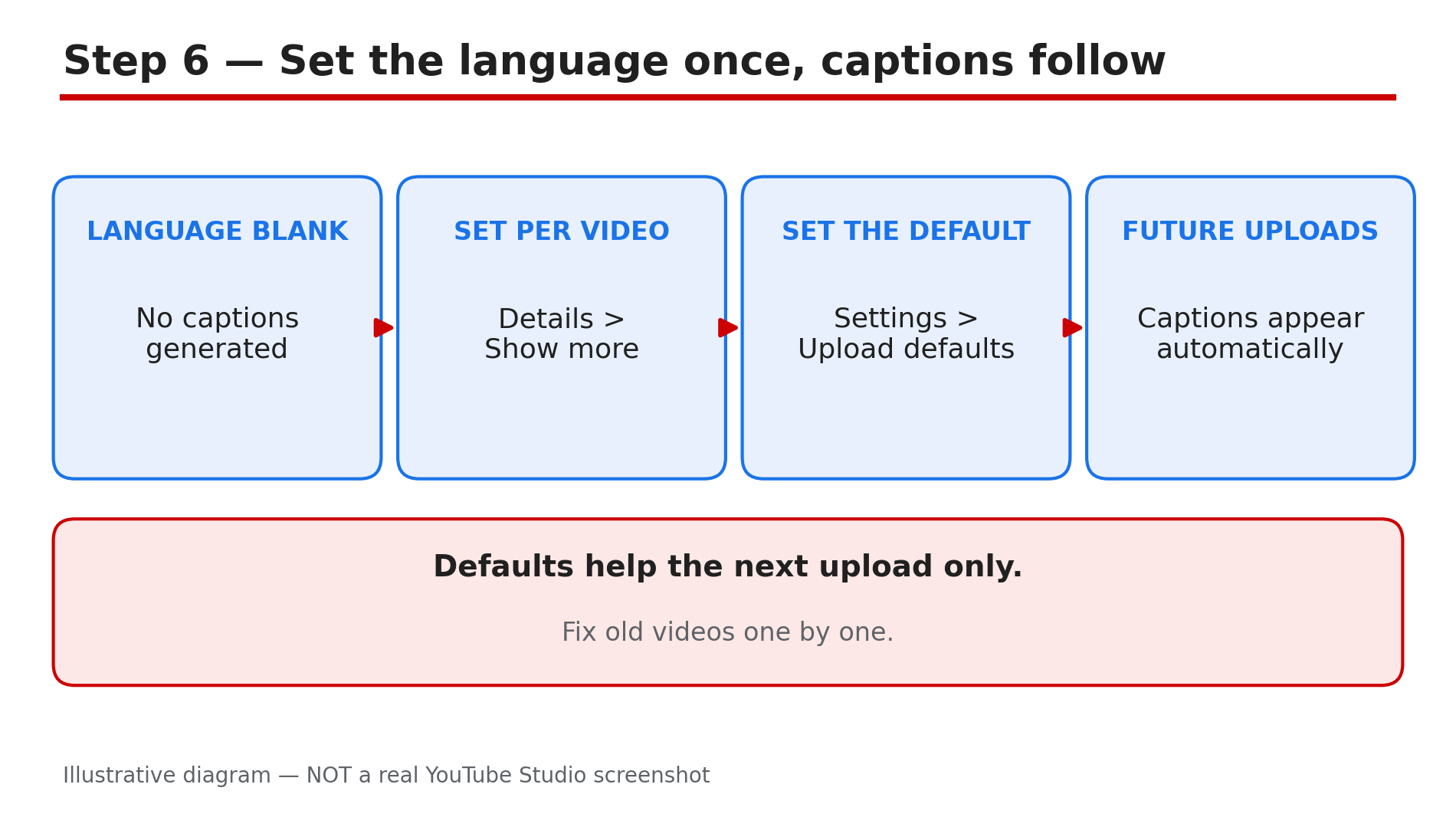
Illustrative diagram of the video-language setting behind most caption failures.
Checklist — Before You Publish
- ☐ I checked whether the video has a CC button at all
- ☐ I turned captions on and picked the right language, or used Auto-translate
- ☐ I waited a few hours for processing before calling captions broken
- ☐ I matched a missing track to one of YouTube’s six reasons
- ☐ I reviewed the automatic track and fixed misheard names and terms
- ☐ I uploaded my own caption file on the videos that matter most
- ☐ I published the track — a draft does not show to viewers
- ☐ I set the video language, and the default language for future uploads
FAQs
1. Why is there no CC button on a YouTube video?
Because no caption track exists for that video — none was uploaded and none was generated. No viewer setting can make the button appear.
2. Why are my YouTube captions wrong?
Automatic captions are made by speech recognition, and YouTube says they can misrepresent speech because of mispronunciations, accents, dialects or background noise. Edit the track in Studio, or upload your own caption file.
3. How long do automatic captions take to appear?
They are generated after the video finishes processing, not alongside it. Give it a few hours before treating it as broken.
4. What does ”[ __ ]” mean in YouTube captions?
It is YouTube replacing a potentially inappropriate word in automatic captions, by default. It is a setting, not an error: switch it off in Studio under Settings, then Channel, then Advanced settings.
5. Can I upload my own subtitles to YouTube?
Yes. In YouTube Studio, go to Subtitles, select the video, add a language, then choose Upload file, Auto-sync or Type manually.
Sources
- YouTube Help — “Use automatic captioning” (official page, opened live 3 Nov 2026): https://support.google.com/youtube/answer/6373554?hl=en-GB
- CreatorPlaybook — “YouTube Upload Defaults: Save Time and Avoid Mistakes on Every Upload”: </blog/youtube-upload-defaults-save-time-and>