YouTube Live Chat Not Showing or Disabled? How to Fix It
 CreatorPlaybook Team
- 05 Nov, 2026
You go live, the stream runs fine, and then the messages arrive — not in chat, but everywhere else. “Chat nahi dikh raha.” “I can’t send a message.” “Where did the replay go?” The video works, but the conversation that makes a stream feel live is missing.
Live chat has more off-switches than most creators expect: off for the whole event, off for one group, filtered so hard it looks empty, or hidden on one screen only. The fix is almost always one setting — the skill is finding which one.
What You Will Learn
- How to tell whether chat is off, filtered, or just hidden on one screen
- How to turn live chat on or off mid-stream
- Why Made for Kids switches chat off by default
- What subscribers-only, members-only and slow mode do to your chat
- Why Premieres follow different chat rules from live streams
- Why chat replay disappears for good
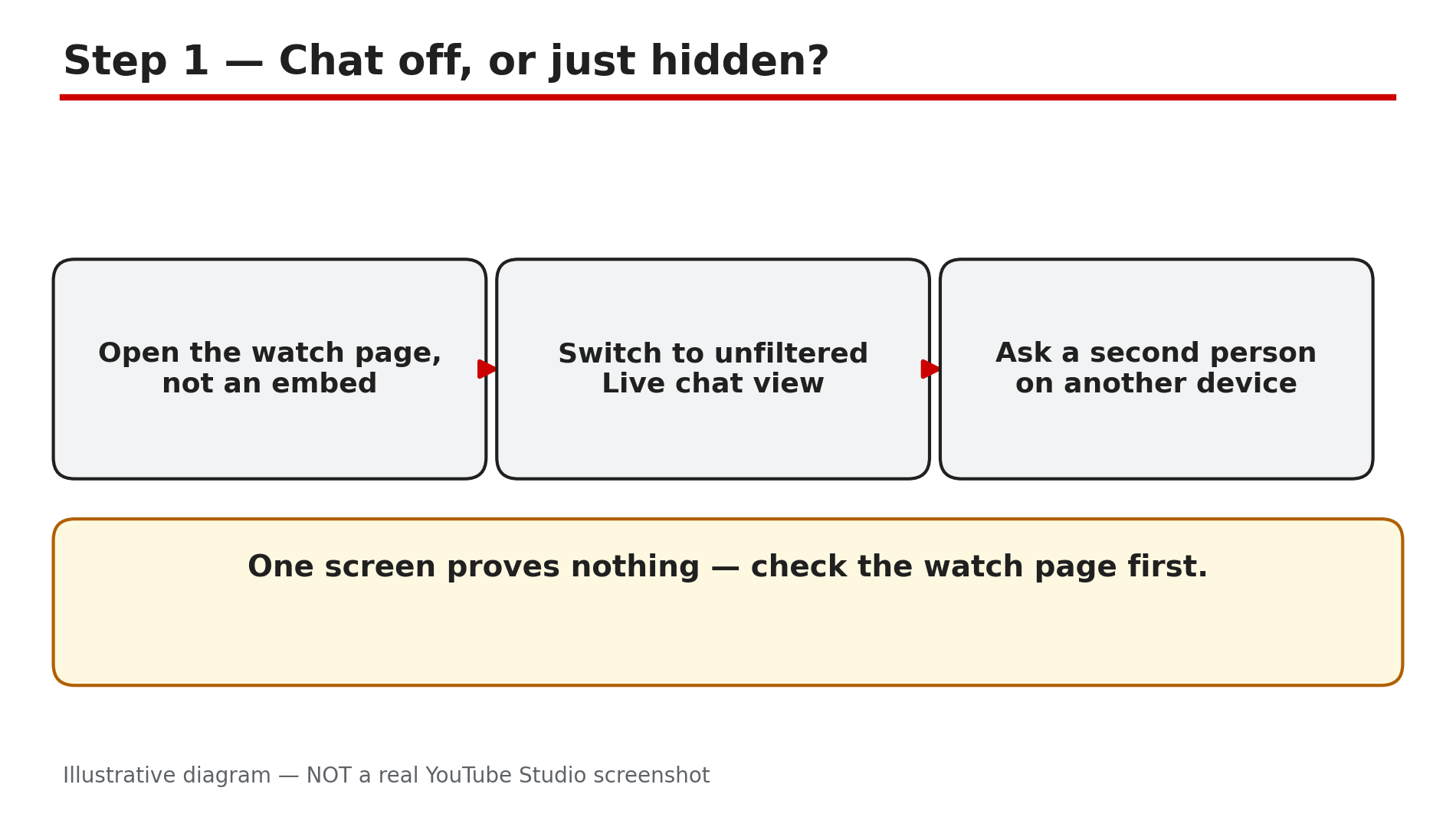
Step 1 — First check: is chat off, or just hidden on your screen?
What to do: Before changing any setting, find out whether the problem is your screen, your viewers’ screens, or the stream.
How: Open the stream on its YouTube watch page — not inside a website embed. A plain embedded player has no chat panel, so a stream on a blog can look chat-less while chat works fine on YouTube. YouTube documents a separate iframe embed for live chat, which does not work on mobile web. On the watch page, click the down arrow at the top of the chat menu: Top chat filters out messages such as potential spam, while unfiltered Live chat shows everything.
Example: A creator embeds a stream on their website and gets ten messages saying chat is missing — while the watch page shows a busy chat. The stream was fine.
Common mistake: Rebuilding the whole stream setup when the chat panel was only collapsed, or the viewer was looking at an embed.
Illustrative diagram of the first three checks when live chat seems to be missing.
Step 2 — Turn live chat back on — even after the stream has started
What to do: Check the live chat on/off switch in Live Control Room, and switch it back on if it is off.
How: YouTube’s Help page “Moderate live chat” states it plainly: you can turn live chat on or off at any time, even after the event has started. Click Edit, then Live chat, then Enable live chat. A chat switched off earlier, or by a moderator mid-stream, can be switched back on without ending the stream. If chat keeps switching itself off, look for a policy notice: YouTube’s Help page notes, based on user reports, that YouTube may turn off live chat if the stream or its chat violates the Community Guidelines.
Example: A creator finds chat off at every weekly stream — a moderator switched it off during a spam attack the week before, and nobody switched it back.
Common mistake: Assuming chat is broken when it was simply left off after the last stream.
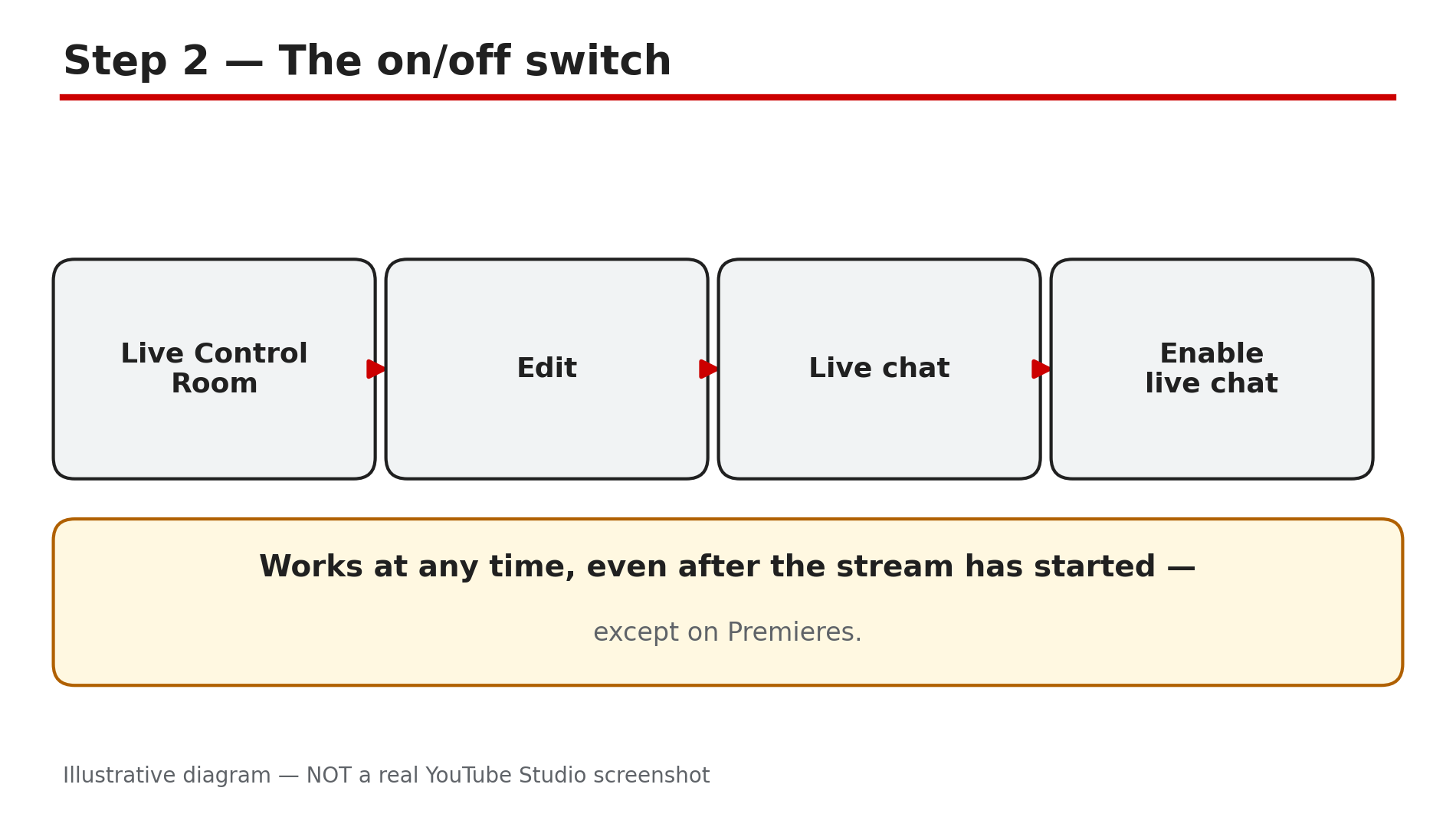
Illustrative diagram of how to turn live chat back on during a live stream.
Step 3 — Check the audience setting: Made for Kids switches chat off
What to do: Check the audience setting on the stream in Studio, because it can switch chat off without any warning.
How: YouTube’s live-chat Help pages state that live chat is turned on by default unless the stream’s audience is set as Made for Kids. If your stream is marked Made for Kids, there is no live chat — and no chat replay either. In Studio, check the audience setting under Content, Details, and correct it for the next stream. If the content genuinely is made for children, the missing chat is expected — do not mark it as not for kids just to get chat back. On an age-restricted stream, a signed-out or under-age viewer will not see chat — sign in to an eligible account. On a supervised account, chat may be limited — test from an ordinary account.
Example: A creator runs a cartoon-style gaming stream, the audience is marked Made for Kids, and chat vanishes. The audience setting is the whole cause.
Common mistake: Toggling every chat setting in Live Control Room while the audience setting quietly keeps chat off. Check the audience first.
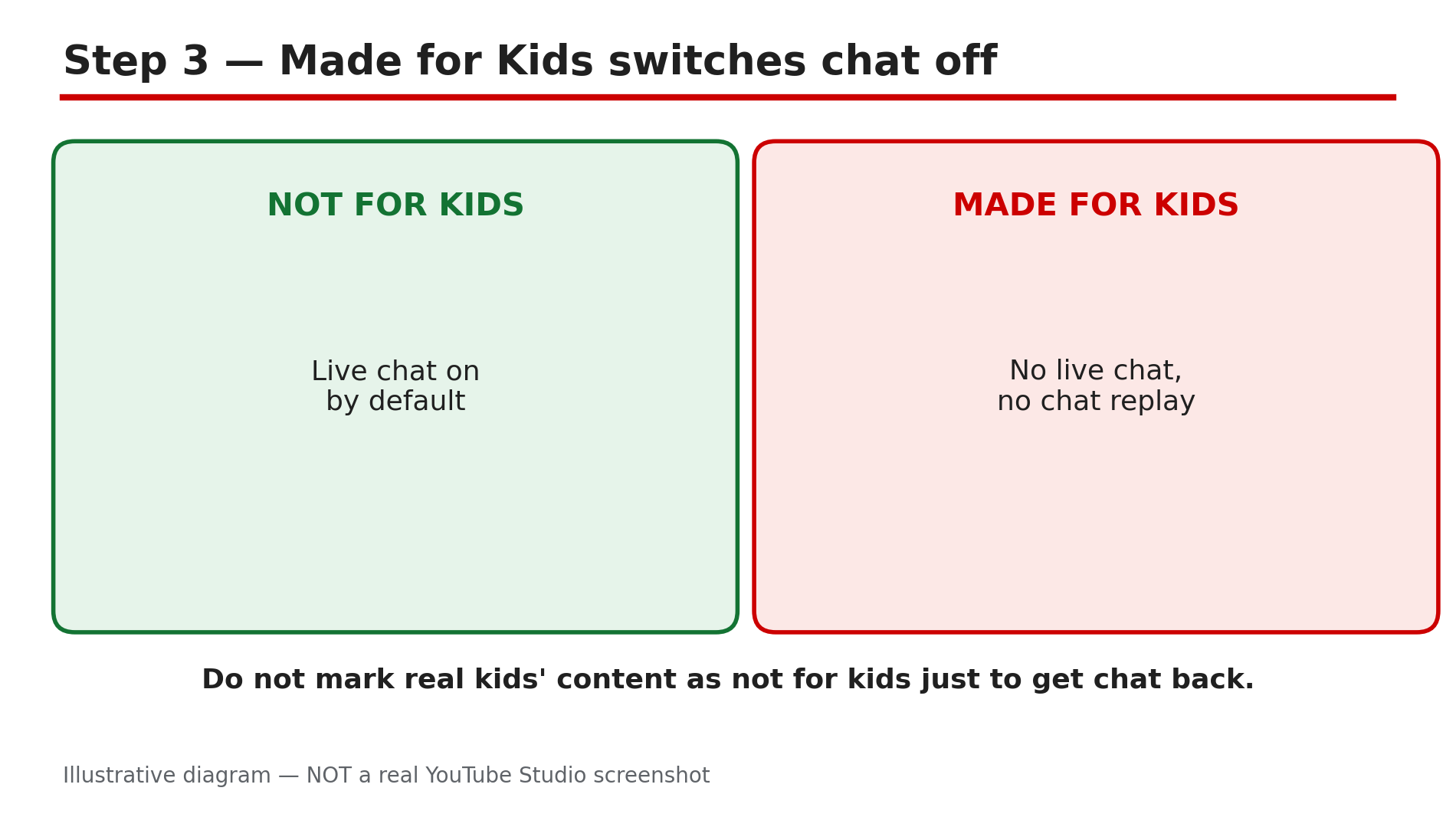
Illustrative diagram of how the Made for Kids audience setting affects live chat.
Step 4 — Check who can send messages: subscribers-only, members-only and slow mode
What to do: If viewers can see the chat but cannot send a message, check the participation modes.
How: YouTube’s “Moderate live chat” page covers three modes. Subscribers-only chat limits sending to subscribers, with an optional minimum subscription period; it can be changed before or during the stream. Slow mode limits how often each person can post; the owner, moderators and members are exempt. Slow mode and subscribers-only can be on together, but members-only and subscribers-only cannot. Then check the silent filters: YouTube can hold potentially inappropriate messages (Basic holds some, Strict holds more), and held messages stay hidden unless you show them. A blocked-words list can swallow matching messages, and a hidden viewer’s messages are invisible to everyone else.
Example: A channel turns on subscribers-only chat with a one-week minimum. New subscribers can read the chat but cannot send anything — and report chat is “disabled”. It is not disabled; they are just not eligible yet.
Common mistake: Turning on subscribers-only chat plus slow mode plus Strict holding, then wondering why the chat looks empty. Each filter is doing its job.
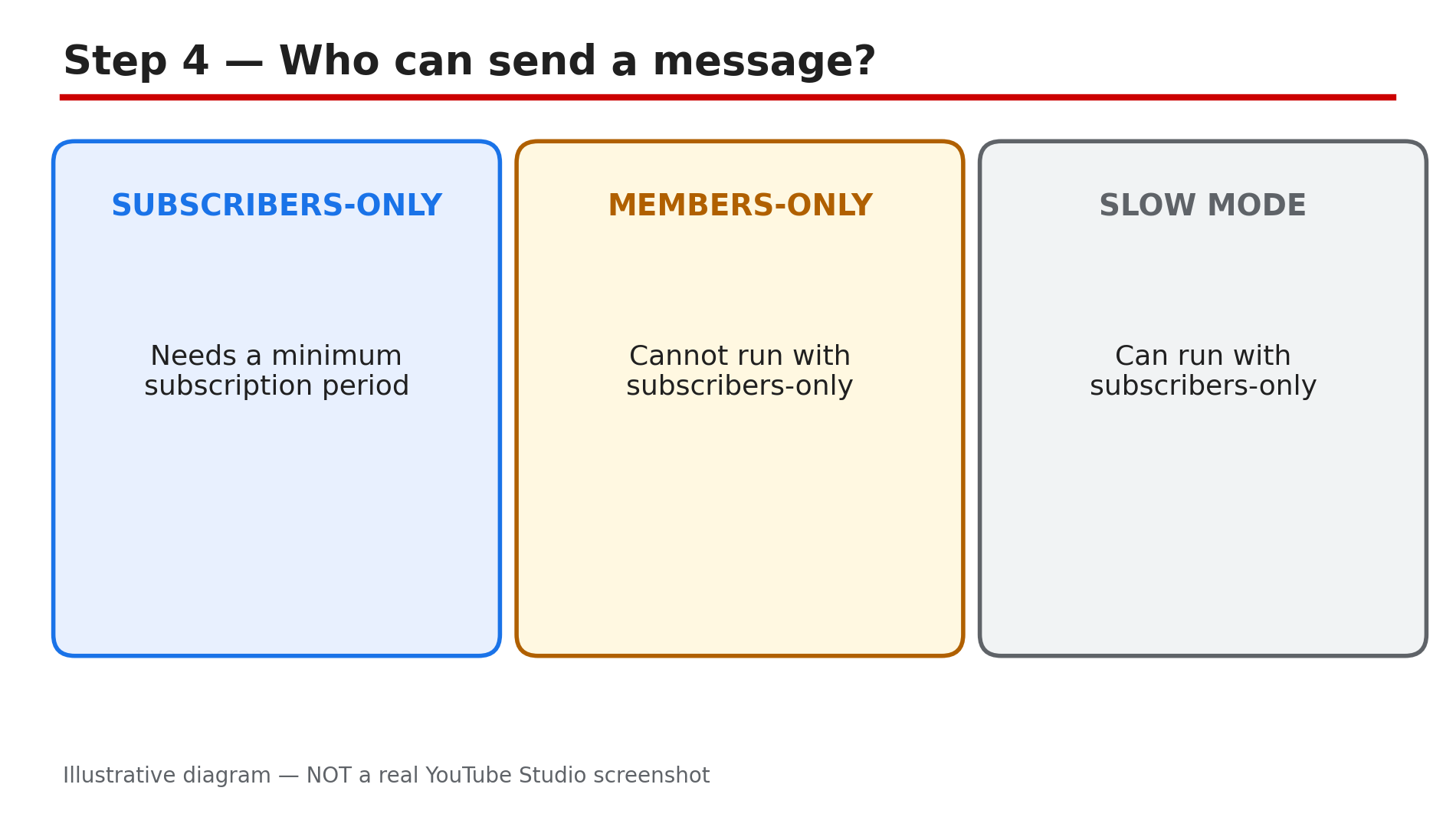
Illustrative diagram of the live chat participation modes and which ones can run together.
Step 5 — Premieres follow different rules from live streams
What to do: Do not apply live-stream fixes to a Premiere — its chat rules are different in one important way.
How: You cannot turn off live chat on Premieres — that is the rule on YouTube’s “Moderate live chat” page, unlike an ordinary live stream. So if a Premiere’s chat seems off, check the audience setting, a participation mode, or the Premiere itself. For a Premiere, set subscribers-only chat in Studio: Content, select the Premiere, Details, Show More, Live chat, then Participants mode, Subscribers. If the Premiere itself did not go live on time, that is a publishing problem — our separate guide on scheduled videos and Premieres not publishing covers that side.
Example: A creator looks for the chat off-switch on a Premiere to run a quiet first viewing, cannot find it, and assumes Studio is broken. The switch does not exist for Premieres.
Common mistake: Telling viewers “chat is off for this Premiere” when it cannot be off.
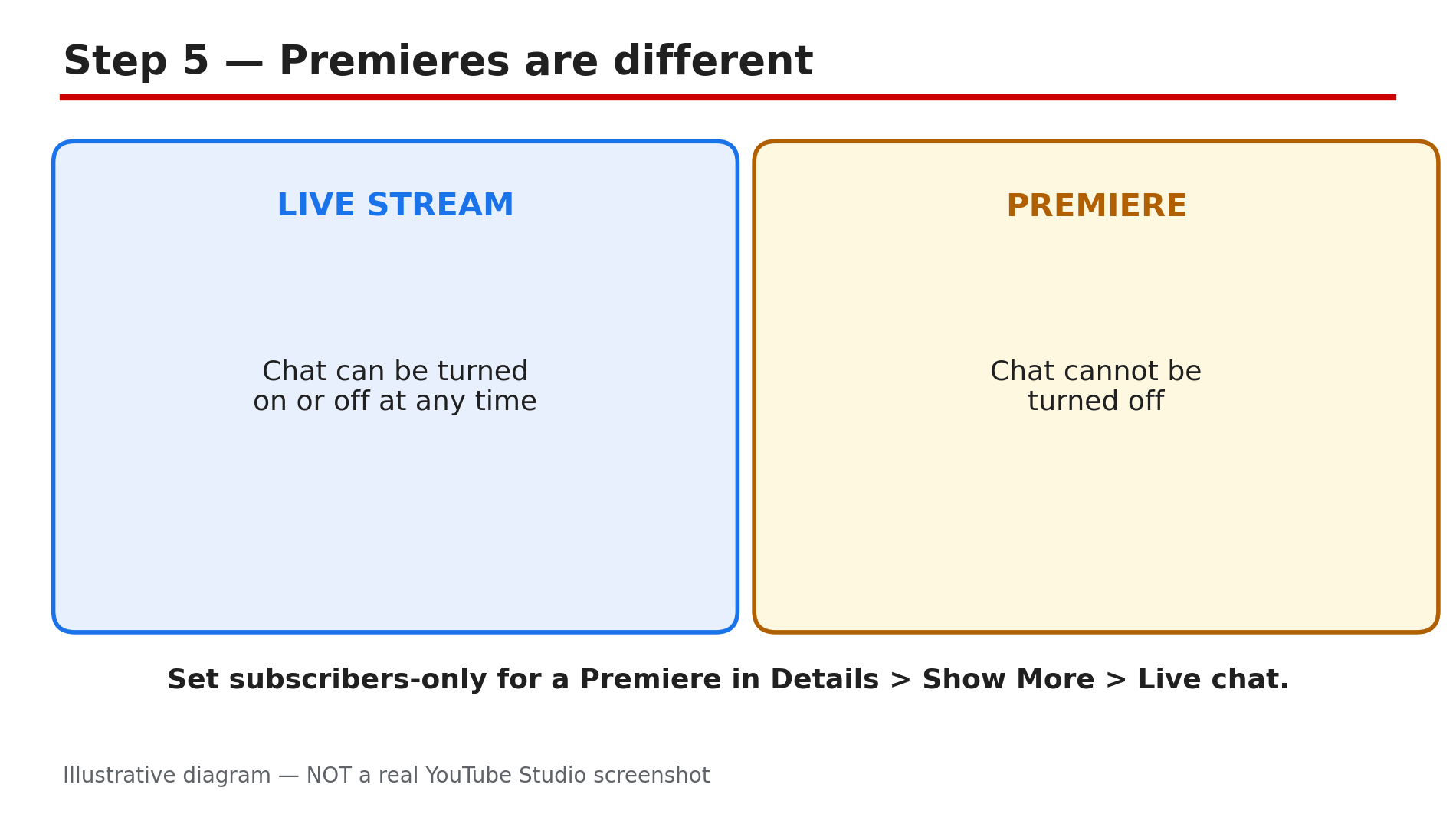
Illustrative diagram comparing live chat rules for live streams and Premieres.
Step 6 — Chat replay missing after the stream ends
What to do: If chat worked live but there is no replay afterwards, check the replay setting and whether the archive was edited.
How: Live chat replay is turned on by default on all live streams. Check it at youtube.com/my_videos — Live tab, video, Customization tab — and confirm “Live chat replay” is ticked. Three things remove replay permanently. First, a stream edited in YouTube’s video editor will not have chat replay — YouTube’s Help page says this applies to all types of edit functions, so even trimming a few seconds of dead air costs the whole replay. If the chat matters, leave the archive untouched and upload a separate edited copy. Second, a Made for Kids stream has no chat, so no replay. Third, replay can be switched off for that archive or by YouTube for a guideline break.
Example: A creator trims the first two minutes of a finished stream to cut the dead air, then finds the chat replay is gone. The trim caused it — the replay cannot be restored.
Common mistake: Editing the archive to tidy it up, then treating the lost replay as a bug.
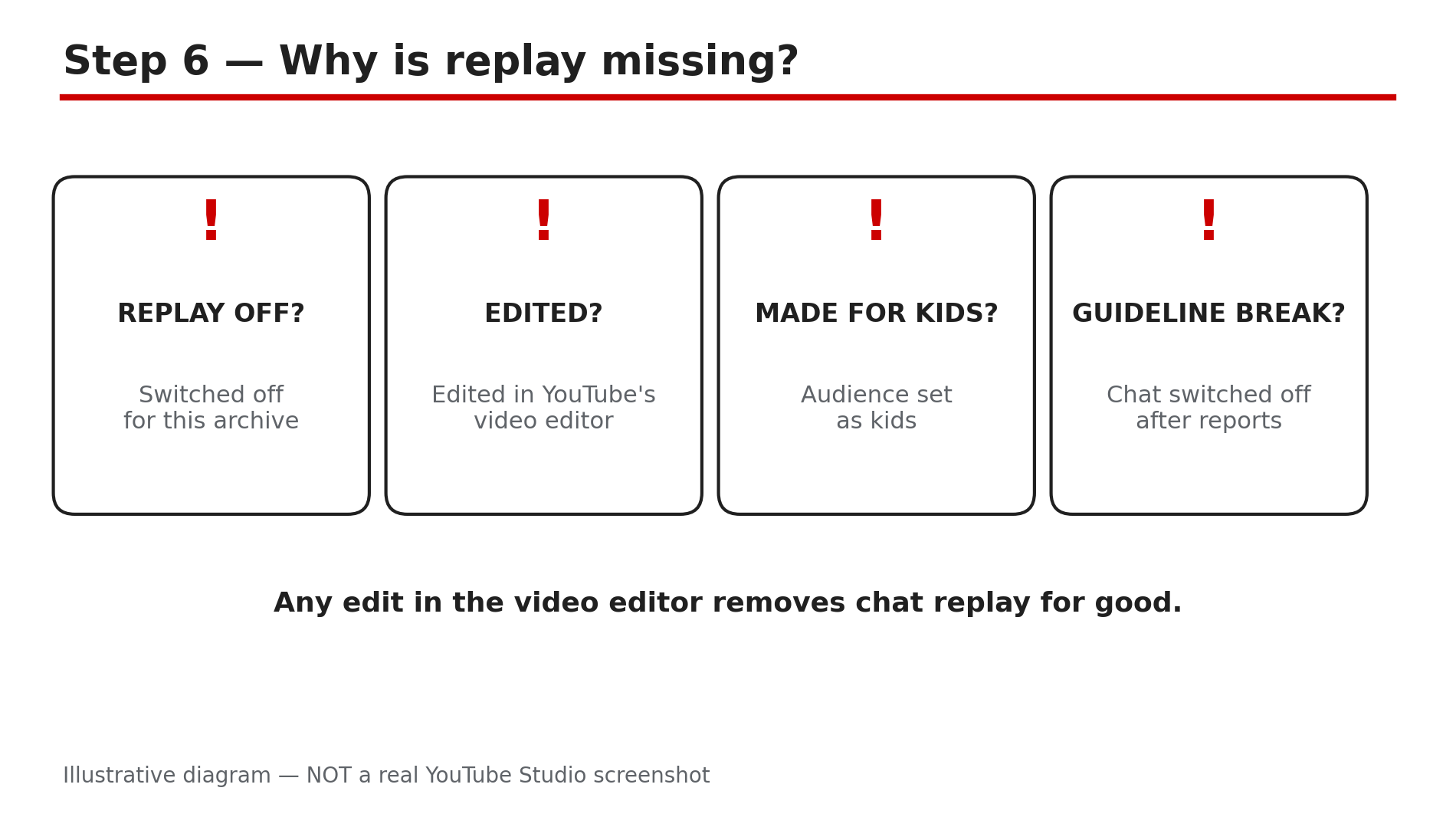
Illustrative diagram of the four checks when chat replay is missing from a finished stream.
Checklist — Before You Go Live Next Time
- ☐ I checked the stream on its YouTube watch page, not an embed
- ☐ I switched the chat view to unfiltered Live chat
- ☐ Live chat is enabled in Live Control Room
- ☐ The audience is not set as Made for Kids unless the content really is for children
- ☐ I know which participation mode is on
- ☐ Slow mode and message holding are set as I want them
- ☐ For a Premiere, I set subscribers-only chat in Details
- ☐ I will not edit the finished archive if I want to keep chat replay
FAQs
1. Can I turn live chat back on after a stream has already started?
Yes, at any time — even after the event has started. Premieres are the exception.
2. Why can my viewers see the chat but not send a message?
A participation mode is on — subscribers-only, members-only, slow mode — or messages are held by moderation.
3. Why is there no chat on my stream at all?
Usually the chat switch is off, the audience is Made for Kids, or you are watching an embed.
4. Why did chat replay disappear from my finished stream?
Most often the archive was edited in YouTube’s video editor — any edit removes chat replay permanently.
5. Why does chat work on YouTube but not on my website?
A plain embedded player has no chat panel. Send viewers to the watch page for chat.
Sources
- YouTube Help — “Moderate live chat” (official page, opened live 5 Nov 2026): https://support.google.com/youtube/answer/9826490?hl=en
- CreatorPlaybook — Live stream disconnects / stream health guide: </blog/youtube-live-stream-keeps-disconnecting>
- CreatorPlaybook — Comments not showing / held for review guide: </blog/youtube-comments-not-showing-held-for>