Showing Posts From
Livestream
 CreatorPlaybook Team
- 05 Nov, 2026
YouTube Live Chat Not Showing or Disabled? How to Fix It
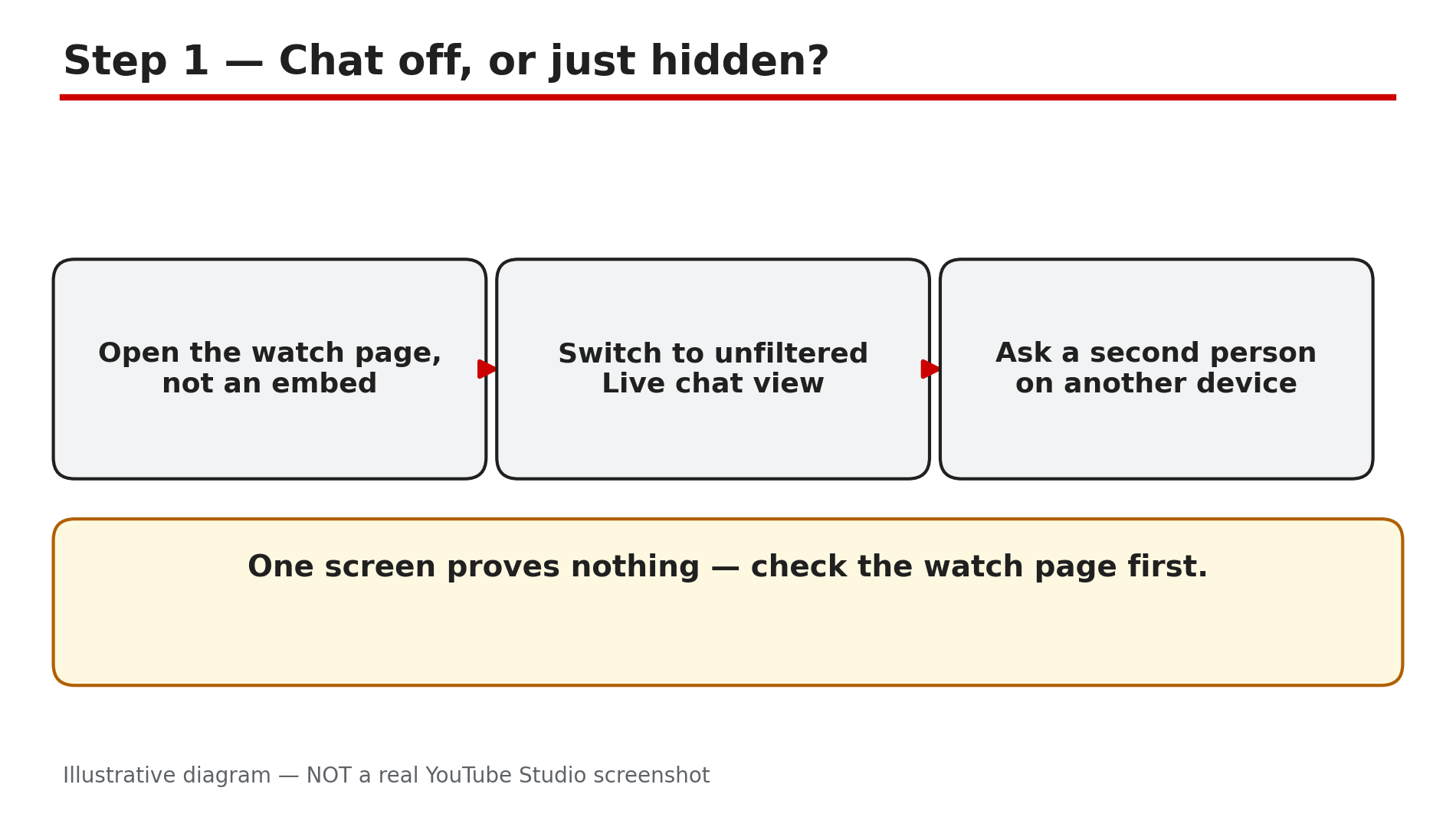
You go live, the stream runs fine, and then the messages arrive — not in chat, but everywhere else. "Chat nahi dikh raha." "I can't send a message." "Where did the replay go?" The video works, but the conversation that makes a stream feel live is missing. Live chat has more off-switches than most creators expect: off for the whole event, off for one group, filtered so hard it looks empty, or hidden on one screen only. The fix is almost always one setting — the skill is finding which one. What You Will LearnHow to tell whether chat is off, filtered, or just hidden on one screen How to turn live chat on or off mid-stream Why Made for Kids switches chat off by default What subscribers-only, members-only and slow mode do to your chat Why Premieres follow different chat rules from live streams Why chat replay disappears for goodStep 1 — First check: is chat off, or just hidden on your screen? What to do: Before changing any setting, find out whether the problem is your screen, your viewers' screens, or the stream. How: Open the stream on its YouTube watch page — not inside a website embed. A plain embedded player has no chat panel, so a stream on a blog can look chat-less while chat works fine on YouTube. YouTube documents a separate iframe embed for live chat, which does not work on mobile web. On the watch page, click the down arrow at the top of the chat menu: Top chat filters out messages such as potential spam, while unfiltered Live chat shows everything. Example: A creator embeds a stream on their website and gets ten messages saying chat is missing — while the watch page shows a busy chat. The stream was fine. Common mistake: Rebuilding the whole stream setup when the chat panel was only collapsed, or the viewer was looking at an embed.Illustrative diagram of the first three checks when live chat seems to be missing. Step 2 — Turn live chat back on — even after the stream has started What to do: Check the live chat on/off switch in Live Control Room, and switch it back on if it is off. How: YouTube's Help page "Moderate live chat" states it plainly: you can turn live chat on or off at any time, even after the event has started. Click Edit, then Live chat, then Enable live chat. A chat switched off earlier, or by a moderator mid-stream, can be switched back on without ending the stream. If chat keeps switching itself off, look for a policy notice: YouTube's Help page notes, based on user reports, that YouTube may turn off live chat if the stream or its chat violates the Community Guidelines. Example: A creator finds chat off at every weekly stream — a moderator switched it off during a spam attack the week before, and nobody switched it back. Common mistake: Assuming chat is broken when it was simply left off after the last stream.Illustrative diagram of how to turn live chat back on during a live stream. Step 3 — Check the audience setting: Made for Kids switches chat off What to do: Check the audience setting on the stream in Studio, because it can switch chat off without any warning. How: YouTube's live-chat Help pages state that live chat is turned on by default unless the stream's audience is set as Made for Kids. If your stream is marked Made for Kids, there is no live chat — and no chat replay either. In Studio, check the audience setting under Content, Details, and correct it for the next stream. If the content genuinely is made for children, the missing chat is expected — do not mark it as not for kids just to get chat back. On an age-restricted stream, a signed-out or under-age viewer will not see chat — sign in to an eligible account. On a supervised account, chat may be limited — test from an ordinary account. Example: A creator runs a cartoon-style gaming stream, the audience is marked Made for Kids, and chat vanishes. The audience setting is the whole cause. Common mistake: Toggling every chat setting in Live Control Room while the audience setting quietly keeps chat off. Check the audience first.Illustrative diagram of how the Made for Kids audience setting affects live chat. Step 4 — Check who can send messages: subscribers-only, members-only and slow mode What to do: If viewers can see the chat but cannot send a message, check the participation modes. How: YouTube's "Moderate live chat" page covers three modes. Subscribers-only chat limits sending to subscribers, with an optional minimum subscription period; it can be changed before or during the stream. Slow mode limits how often each person can post; the owner, moderators and members are exempt. Slow mode and subscribers-only can be on together, but members-only and subscribers-only cannot. Then check the silent filters: YouTube can hold potentially inappropriate messages (Basic holds some, Strict holds more), and held messages stay hidden unless you show them. A blocked-words list can swallow matching messages, and a hidden viewer's messages are invisible to everyone else. Example: A channel turns on subscribers-only chat with a one-week minimum. New subscribers can read the chat but cannot send anything — and report chat is "disabled". It is not disabled; they are just not eligible yet. Common mistake: Turning on subscribers-only chat plus slow mode plus Strict holding, then wondering why the chat looks empty. Each filter is doing its job.Illustrative diagram of the live chat participation modes and which ones can run together. Step 5 — Premieres follow different rules from live streams What to do: Do not apply live-stream fixes to a Premiere — its chat rules are different in one important way. How: You cannot turn off live chat on Premieres — that is the rule on YouTube's "Moderate live chat" page, unlike an ordinary live stream. So if a Premiere's chat seems off, check the audience setting, a participation mode, or the Premiere itself. For a Premiere, set subscribers-only chat in Studio: Content, select the Premiere, Details, Show More, Live chat, then Participants mode, Subscribers. If the Premiere itself did not go live on time, that is a publishing problem — our separate guide on scheduled videos and Premieres not publishing covers that side. Example: A creator looks for the chat off-switch on a Premiere to run a quiet first viewing, cannot find it, and assumes Studio is broken. The switch does not exist for Premieres. Common mistake: Telling viewers "chat is off for this Premiere" when it cannot be off.Illustrative diagram comparing live chat rules for live streams and Premieres. Step 6 — Chat replay missing after the stream ends What to do: If chat worked live but there is no replay afterwards, check the replay setting and whether the archive was edited. How: Live chat replay is turned on by default on all live streams. Check it at youtube.com/my_videos — Live tab, video, Customization tab — and confirm "Live chat replay" is ticked. Three things remove replay permanently. First, a stream edited in YouTube's video editor will not have chat replay — YouTube's Help page says this applies to all types of edit functions, so even trimming a few seconds of dead air costs the whole replay. If the chat matters, leave the archive untouched and upload a separate edited copy. Second, a Made for Kids stream has no chat, so no replay. Third, replay can be switched off for that archive or by YouTube for a guideline break. Example: A creator trims the first two minutes of a finished stream to cut the dead air, then finds the chat replay is gone. The trim caused it — the replay cannot be restored. Common mistake: Editing the archive to tidy it up, then treating the lost replay as a bug.Illustrative diagram of the four checks when chat replay is missing from a finished stream. Checklist — Before You Go Live Next Time☐ I checked the stream on its YouTube watch page, not an embed ☐ I switched the chat view to unfiltered Live chat ☐ Live chat is enabled in Live Control Room ☐ The audience is not set as Made for Kids unless the content really is for children ☐ I know which participation mode is on ☐ Slow mode and message holding are set as I want them ☐ For a Premiere, I set subscribers-only chat in Details ☐ I will not edit the finished archive if I want to keep chat replayFAQs 1. Can I turn live chat back on after a stream has already started? Yes, at any time — even after the event has started. Premieres are the exception. 2. Why can my viewers see the chat but not send a message? A participation mode is on — subscribers-only, members-only, slow mode — or messages are held by moderation. 3. Why is there no chat on my stream at all? Usually the chat switch is off, the audience is Made for Kids, or you are watching an embed. 4. Why did chat replay disappear from my finished stream? Most often the archive was edited in YouTube's video editor — any edit removes chat replay permanently. 5. Why does chat work on YouTube but not on my website? A plain embedded player has no chat panel. Send viewers to the watch page for chat. SourcesYouTube Help — "Moderate live chat" (official page, opened live 5 Nov 2026): https://support.google.com/youtube/answer/9826490?hl=en CreatorPlaybook — Live stream disconnects / stream health guide: </blog/youtube-live-stream-keeps-disconnecting> CreatorPlaybook — Comments not showing / held for review guide: </blog/youtube-comments-not-showing-held-for>
- CreatorPlaybook Team
- 01 Nov, 2026
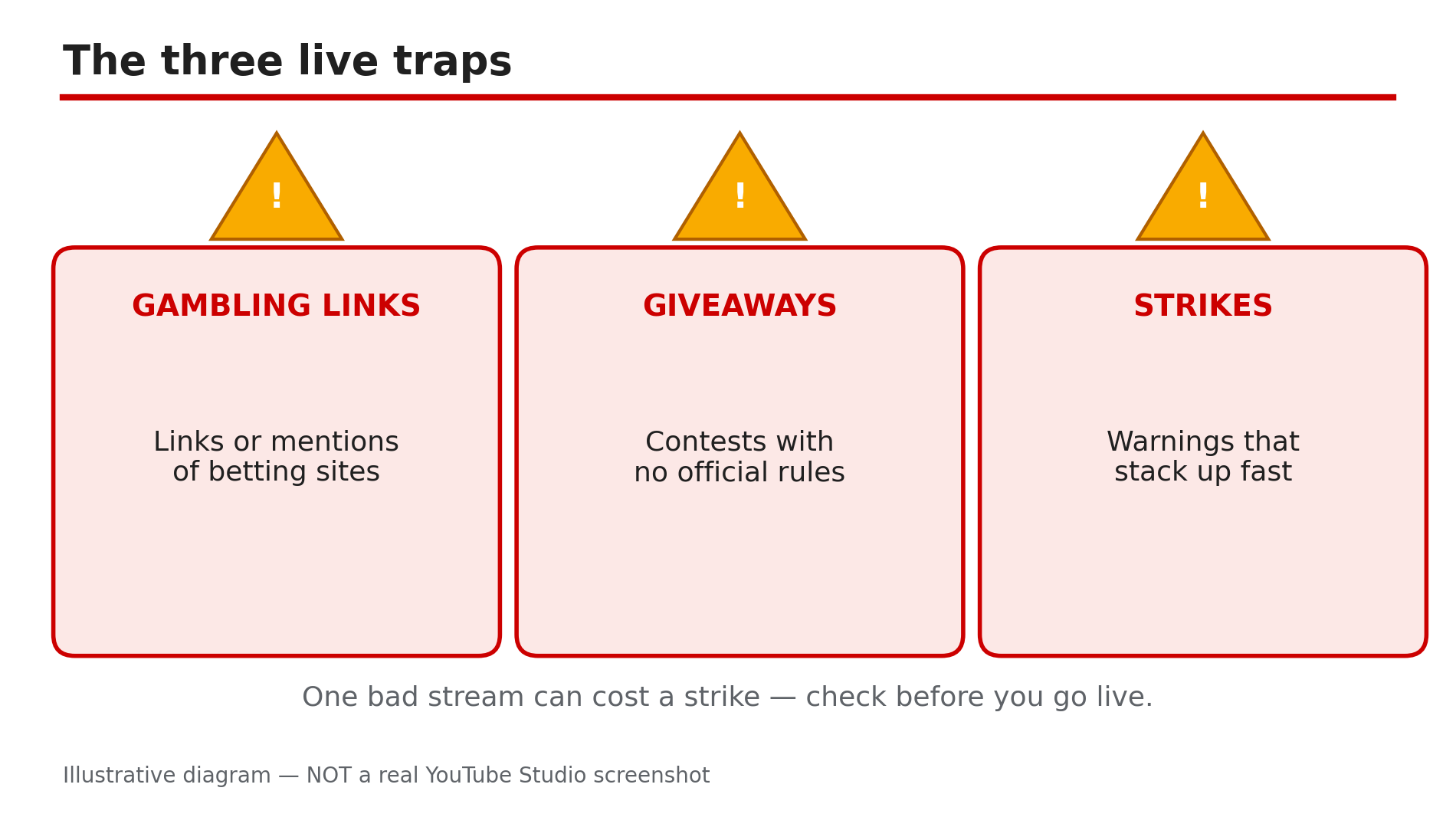
Livestream Policy Violations on YouTube: Crypto, Gambling & Giveaways — Strikes Explained
A livestream feels casual — you are talking, the chat is moving, a link or a giveaway seems harmless. But live is the riskiest format for policy mistakes: everything you say, show and link is judged in real time, and one bad stream can cost you a strike, a week without uploads, or your channel. This post covers the three traps that catch livestreamers most: gambling promotion, contests and giveaways, and the strikes that punish them. The rules below come from YouTube's Help pages, opened live for this post; anything reported rather than confirmed there is labelled as reported. What You Will LearnWhat the gambling policy bans on live — and what it does not Why crypto itself is not banned, but crypto gambling promotion is The gambling update of 28 Oct 2025 (effective 17 Nov 2025) The contest rules every live giveaway must follow Why "subscribe and like to enter" can get a stream removed How live strikes work: warnings, 1- and 2-week bans, terminationStep 1 — Check Every Link Before You Go Live What to do: Check every link you plan to share — description, pinned chat, on screen, or spoken aloud — and confirm it does not lead to a gambling site or app. How: YouTube's regulated-goods policy, opened live for this post, bans content that sells, links to, or facilitates access to "uncertified online gambling sites". It applies to videos, descriptions, comments and live streams, including verbal direction to other sites. A spoken "link in description" counts the same as a clickable link. Example: A sponsor offers you money to mention a betting site on a gaming stream. You check Google's certification list, find it is not certified, and drop the read. Common mistake: Assuming only clickable links count. Saying a site name, showing it on screen, or a QR code still directs viewers to it.Illustrative diagram — the three policy traps that catch livestreamers most often. Not a real YouTube Studio screenshot. Step 2 — Keep Crypto Talk Educational, Never a Gambling Funnel What to do: Talk about crypto however you like — prices, news, blockchain — but never use it as a bridge to gambling. How: Crypto itself is not banned on YouTube. The violation is when crypto content becomes gambling promotion — a stream showing a "crypto casino". As reported, the gambling update (announced 28 Oct 2025, effective 17 Nov 2025) covers gambling with digital goods such as skins and NFTs, and bars directing viewers to uncertified gambling sites and apps. Showing skins or NFTs, or discussing blockchain, is not targeted unless it directs viewers to gambling. Example: You discuss NFT prices — fine. Then you open a site where viewers can gamble those NFTs on coin flips and read out the sign-up link. That crosses the line. Common mistake: Believing "crypto is banned", or the opposite, "anything crypto-related is allowed". Both are wrong — the question is always: does this content direct viewers to gambling?Illustrative diagram — certified vs uncertified gambling sites. Not a real YouTube Studio screenshot. Step 3 — Age-Restrict Gambling and Social-Casino Content Yourself What to do: If your stream features gambling or social-casino content at all, set the audience as not suitable for under-18s, and expect YouTube to age-restrict it anyway. How: The Help page lists as age-restricted anything that "facilitates access to, promotes or depicts online gambling and social/sweepstakes casinos, including content from certified sites". Even certified-site content is age-restricted. Exception: sports betting from Google-certified providers during a live sporting event may be allowed for all audiences. As reported, the October 2025 update also age-restricted social-casino content with no real money involved. Example: You stream a free social-casino game with no real money — set it as age-restricted in Studio before going live. Common mistake: Thinking "no real money, no problem". A social casino with play chips can still be age-restricted — mark it yourself.Illustrative diagram — crypto discussion is allowed, a gambling funnel is not. Not a real YouTube Studio screenshot. Step 4 — Write Official Rules Before Any Live Giveaway What to do: Never announce a giveaway on a livestream without written official rules viewers can read. How: YouTube's contest policy page, opened live for this post, applies to all contests run on YouTube or using YouTube. Official rules must link to the Community Guidelines, state legally required disclosures, state that YouTube is not a sponsor, require viewers to release YouTube from liability, and include a privacy notice for collected personal data. You are solely responsible for your contest, it must follow all relevant laws, and it cannot run through ad units. Example: Before a live headset giveaway, you publish short rules: who can enter, the deadline, how the winner is picked, the privacy notice, and the line "This giveaway is not sponsored, endorsed or administered by YouTube." Common mistake: Announcing the prize and promising to "write the rules later" — if a viewer reports the stream, there are no rules to point to.Illustrative diagram — the five things every live giveaway's official rules must include. Not a real YouTube Studio screenshot. Step 5 — Never Make Subscribe, Like or Comment the Entry Ticket What to do: Let viewers enter with a free action that does not inflate your metrics — for example, a chat message with a keyword — with subscribing, liking and commenting optional. How: The contest policy requires free entry and bans manipulating views, likes, dislikes or subscribers to misrepresent engagement. As reported, the fake-engagement policy goes further: content that exists only to reward engagement can be removed. That is why "subscribe and like to enter" is the most dangerous giveaway line on YouTube. Example: Entry is typing "!prize" in live chat before a time you announce on screen, while you say subscribing is appreciated but not required. Common mistake: Making entry conditional on subscribing, liking, or watching for a set time. You may encourage subscribing and liking; you may not make a prize the reason they do it.Illustrative diagram — how Community Guidelines strikes escalate for livestreamers. Not a real YouTube Studio screenshot. Step 6 — If You Get a Warning or Strike, Stop and Read the Email What to do: If a stream is removed or you get a warning or strike, do not go live again with the same content. Read YouTube's email, find the exact policy named, and decide whether to appeal or wait it out. How: Violating content is removed and YouTube emails you. A first violation usually gets a warning with no penalty; policy training can let it expire after 90 days. As reported, a first strike blocks uploads, live streams, posts, Premieres and custom thumbnails for one week; a second, two weeks. A copyright removal of an active livestream is also reported to bring a strike plus a 7-day live block (a second, 14 days). Confirm timings in Studio. Example: Your gambling stream is removed with a warning email naming the regulated-goods policy. You complete the policy training, remove every gambling link, and do not repeat the format. Common mistake: Deleting the video, or going live to "explain what happened" while a strike is active. Deleting the video does not remove a strike, and a second violation makes things worse.Illustrative diagram — the two-minute pre-stream policy check. Not a real YouTube Studio screenshot. Checklist — Before Every LivestreamAll links checked — no uncertified gambling site No promised guaranteed returns from gambling Crypto content educational only — no funnel to a casino Gambling or social-casino content set as age-restricted Giveaway rules published before the stream Entry is free; subscribing, liking, commenting not required Rules say YouTube is not a sponsor Privacy notice covers personal data collected from entrants No active warning or strike in Studio before going liveFAQs 1. Is crypto banned on YouTube livestreams? No. Talking about prices, news or blockchain is allowed. What is banned is using crypto content to promote or direct viewers to uncertified gambling, for example a crypto casino. As reported, the October 2025 update also covers gambling with digital goods. 2. Can I stream myself playing at an online casino? Only with great care. Gambling content is age-restricted even from certified sites. Directing viewers to an uncertified site is not allowed and promising guaranteed returns is banned for any site. Check the Help page in Sources and local laws first. 3. Can I say "subscribe and like to enter" in a live giveaway? You should not. The contest policy bans manipulating views, likes, dislikes or subscribers, and the fake-engagement policy targets content that exists only to reward engagement. Encourage subscribing and liking, but do not make them the price of entry — use a free chat entry instead. 4. What happens if my livestream gets a strike? As reported, a first strike blocks uploads, live streams, posts, Premieres and custom thumbnails for one week; a second, two weeks; a third within 90 days can terminate the channel. A first violation is usually a warning. Check the exact restriction in Studio. 5. My stream was removed but I think it was a mistake — can I appeal? Yes. Appeal in Studio (Settings > Channel > Channel violations > Appeal). Appeals are usually one per strike, filed within the window in YouTube's email. Keep it short: state what the stream was, which part of the policy was misapplied, and nothing else. SourcesYouTube Help — "Illegal or regulated goods or services policies" (opened live 1 Nov 2026): https://support.google.com/youtube/answer/9229611?hl=en-GB YouTube Help — "YouTube's contest policies and guidelines" (opened live 1 Nov 2026): https://support.google.com/youtube/answer/1620498?hl=en-GB Related on CreatorPlaybook — "YouTube Monetization Paused vs Disabled vs Rejected": </blog/youtube-monetization-paused-vs-disabled>Note: The gambling update (28 Oct 2025 announcement, 17 Nov 2025 effective) and the live strike durations are reported from third-party coverage and the plan file's pre-verification notes, not from the Help pages opened live for this post. Confirm the current wording in Studio and the Help pages above before you go live.