YouTube Live Stream Latency: Normal vs Low vs Ultra-Low — Which One to Pick
 CreatorPlaybook Team
- 11 Nov, 2026
You are answering chat messages, but the viewers replying are watching something you said half a minute ago. That gap is stream latency — the delay between your camera capturing an event and that event appearing on a viewer’s screen — and on YouTube it is controlled by one setting you choose before you go live.
What You Will Learn
- What stream latency is, and why “30 seconds behind” is not a fixed number
- The three modes — Normal, Low, Ultra-low — and their trade-offs
- Why Low and Ultra-low cannot do 4K, and why HLS cannot do Ultra-low
- Where to set latency, and when you cannot change it
- Why webcam and mobile streams give you no latency choice
- How to test your choice before a real audience depends on it
Step 1 — Understand what latency is before you blame your internet
What to do: Learn the definition YouTube itself uses, so you stop chasing the wrong fix.
How: YouTube Help defines stream latency as the delay between your camera capturing an event and the event being displayed to viewers. It is not your upload speed, your encoder bitrate, or your viewers’ internet. Think of it as a buffer: YouTube holds a few seconds of video in reserve so a small hiccup in your connection does not freeze the stream for everyone. A bigger reserve means a smoother stream and a longer delay; a smaller reserve means faster replies and more buffering risk.
Example: Two creators stream from the same street on the same fibre connection. One uses Normal latency and viewers see everything late but never buffer. The other uses Ultra-low and viewers see it in under five seconds — but every Wi-Fi wobble freezes the picture.
Common mistake: Upgrading your internet plan to fix delay. A faster connection improves stability, but it does not shrink the buffer YouTube holds — only the latency mode does.
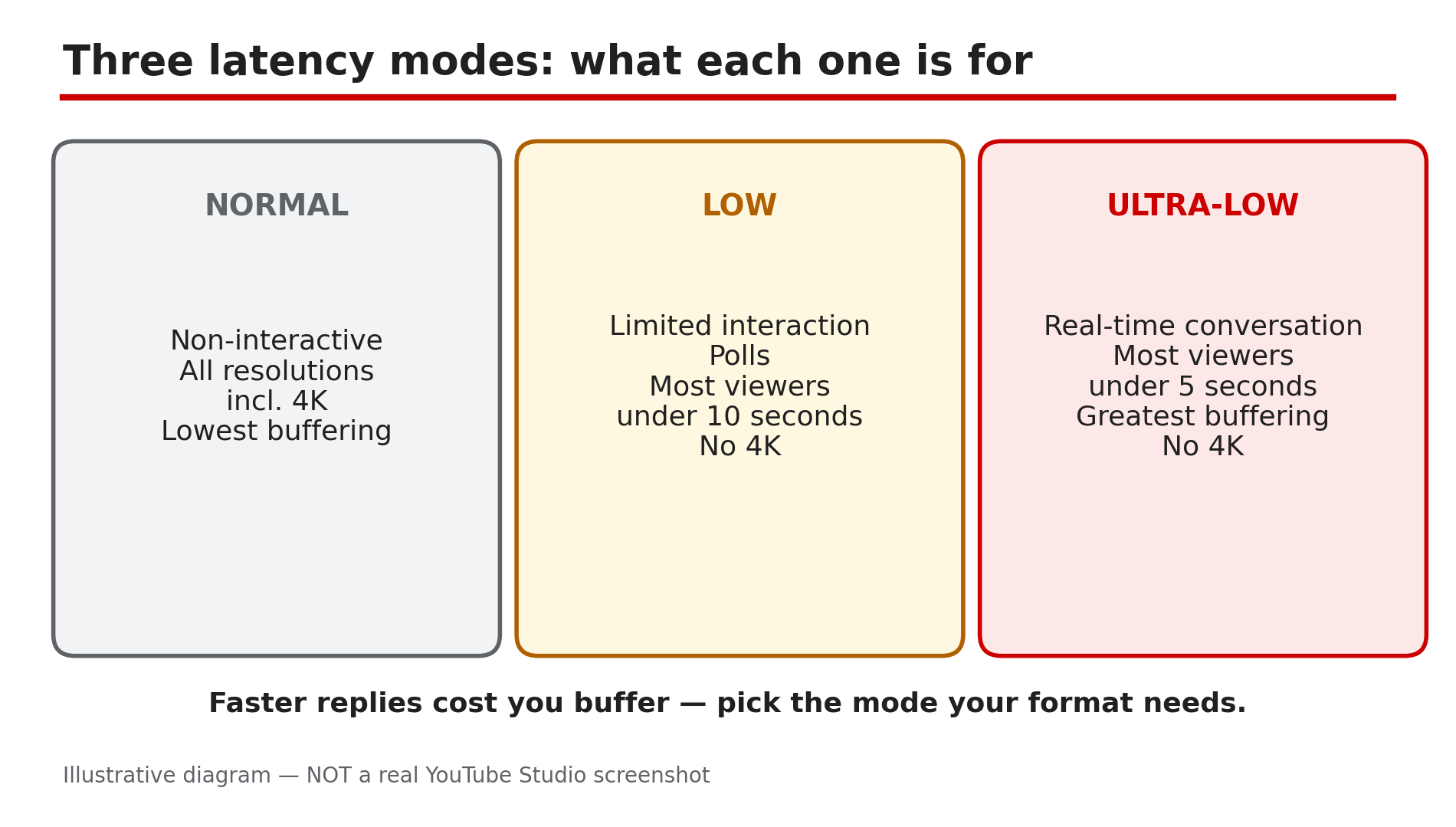
Illustrative diagram: YouTube’s three live stream latency modes and what each one is for.
Step 2 — Normal latency: the quality-first default for non-interactive streams
What to do: Use Normal latency when your viewers do not need to talk back to you in real time.
How: Normal latency is YouTube’s quality-first mode. It supports all resolutions, including 4K, and all live features, and YouTube says it gives viewers the lowest amount of buffering. It suits concerts, church services, conferences, sports matches, and pre-recorded playlist broadcasts — anything where playback quality matters more than immediate replies. YouTube gives no fixed delay figure for Normal latency: guides saying it is always 15, 20, or 30 seconds are informal estimates.
Example: A music channel streams a two-hour concert in 4K on Normal latency. Chat is slow and nobody minds — the audience came to watch, not to talk. And if you stream in 4K, Normal is the only choice: Low and Ultra-low do not support 4K.
Common mistake: Picking Ultra-low for a concert because “faster is better”. Your viewers get a jittery picture and gain nothing, because a concert does not need real-time chat.
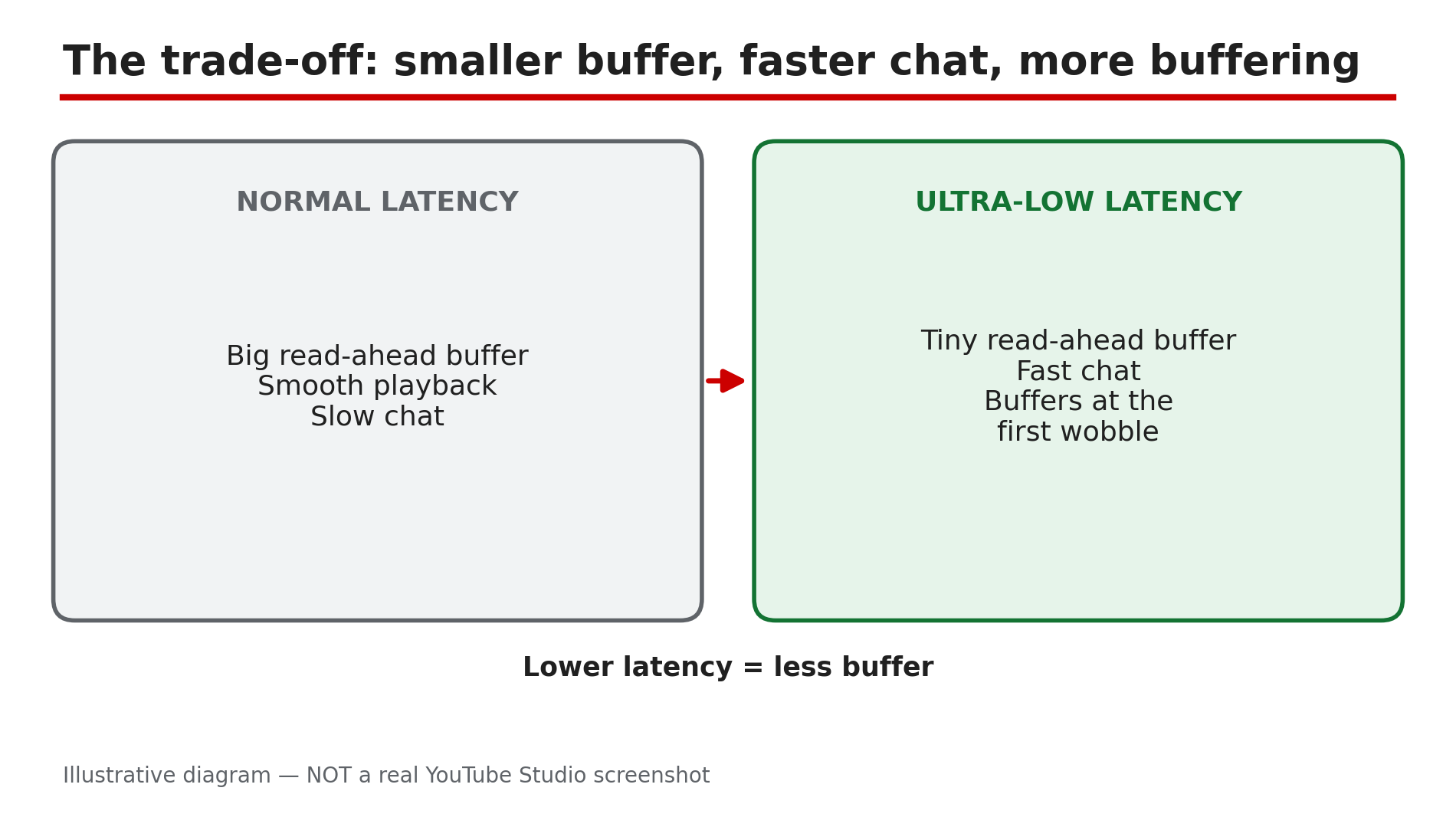
Illustrative diagram: the trade-off between latency and buffering in live streams.
Step 3 — Low latency: the middle ground for polls and occasional chat
What to do: Switch to Low latency when you interact with viewers, but only a little — a poll here, a shout-out there.
How: Low latency is the middle setting. YouTube says most viewers of a Low-latency stream experience a delay of less than 10 seconds — fast enough to run a poll, acknowledge a comment, or take a quick question without the conversation falling apart. The price is that Low latency does not support 4K, and viewers are more likely to see buffering than on Normal. Set it in Live Control Room under Stream settings before you go live. It suits presentations, launches, and study streams where chat matters but nobody is waiting on your next sentence.
Example: A teacher runs a live revision session with a poll every ten minutes. On Low latency, students vote and see the result while the question is still fresh.
Common mistake: Expecting every viewer to be under 10 seconds. YouTube’s figure is “most viewers” — a viewer on a slow connection can still lag further behind.
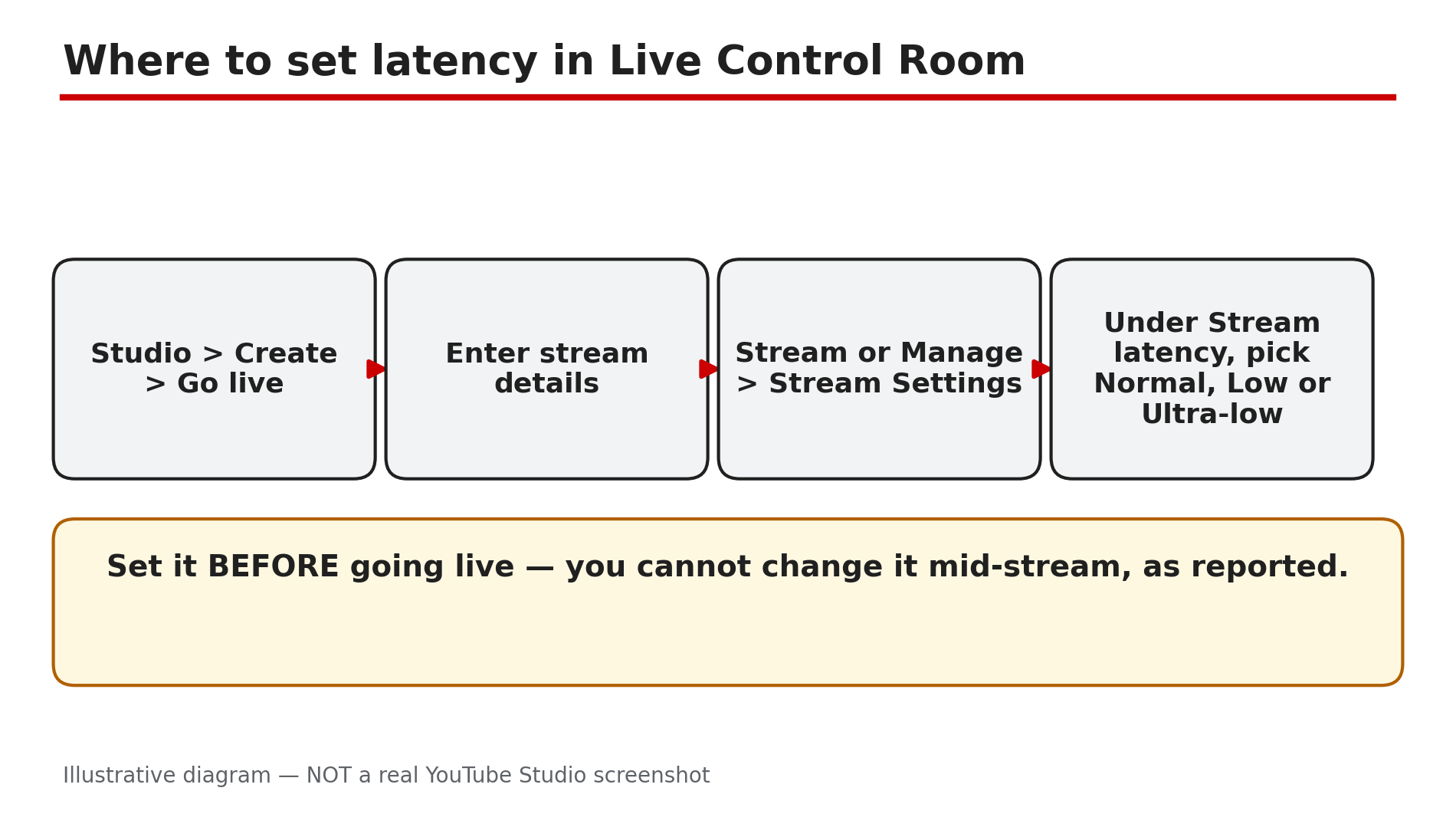
Illustrative mock-up: the steps to choose a latency mode in Live Control Room.
Step 4 — Ultra-low latency: real-time conversation, with real buffering risk
What to do: Use Ultra-low only when your format depends on instant back-and-forth — a live Q&A, an auction, a coaching call, a game with chat.
How: Ultra-low latency is YouTube’s fastest mode. YouTube says most viewers experience a delay of less than five seconds, close enough to real conversation that you can react to chat as it arrives. The trade-off is the steepest: the player holds almost no reserve, so any wobble between your encoder and the viewer shows up as buffering, and the mode does not support 4K. It also does not work with HLS ingestion — HLS sends video in segments, so its latency is higher by design and Ultra-low is unavailable.
Example: A creator runs a live auction where bids arrive in chat. On Ultra-low, a bid placed now is answered now, and nobody loses an item to a delay they could not see.
Common mistake: Using Ultra-low as your default for every stream. If your viewers do not need to reply in seconds, you are paying for speed with buffering and getting nothing back.
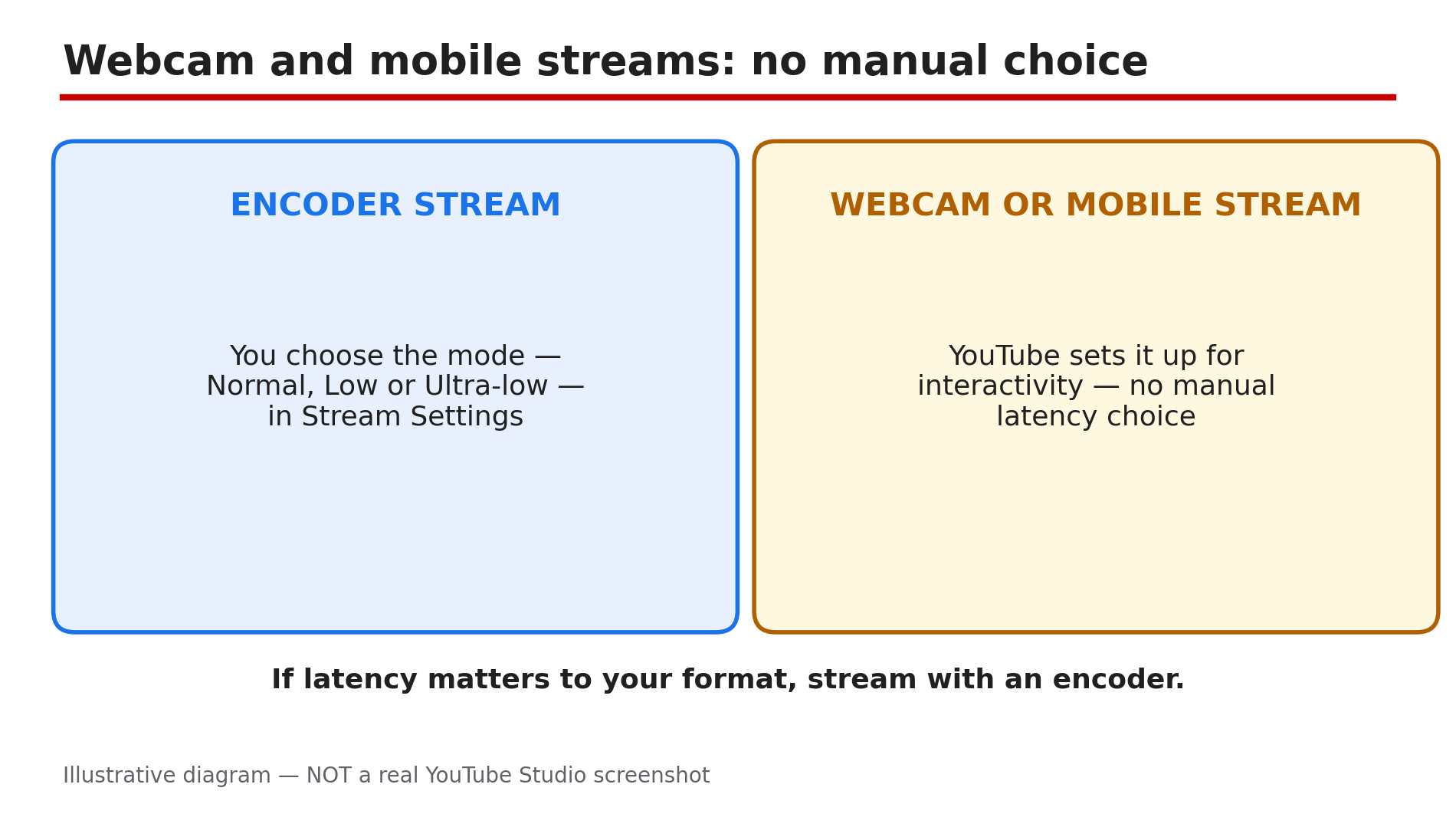
Illustrative diagram: encoder streams let you choose latency, webcam and mobile streams do not.
Step 5 — Set it before you go live, and know when the setting is locked
What to do: Choose the mode in Live Control Room before the stream starts, and check the three things that can lock you out of the choice.
How: In YouTube Studio, go to Create, then Go live, enter your stream details, and open the stream dashboard. Click Stream or Manage, then Stream Settings, and choose under Stream latency. Set it before you go live — per encoder guides, you cannot change the latency mode mid-stream, so a wrong choice means ending the stream and starting again. Three things can remove the choice. First, webcam and mobile streams are always set up for interactivity, so YouTube gives you no manual latency control for them. Second, a 4K stream is always Normal latency. Third, HLS ingestion disables Ultra-low, so use RTMP or RTMPS if you need the fastest mode.
Example: A creator plans a 4K Q&A on Ultra-low, then finds the latency menu greyed out. Drop the encoder to 1080p first — only then does the Ultra-low option appear.
Common mistake: Trying to change latency after going live and assuming the menu will work. It will not — the running stream keeps its original setting.
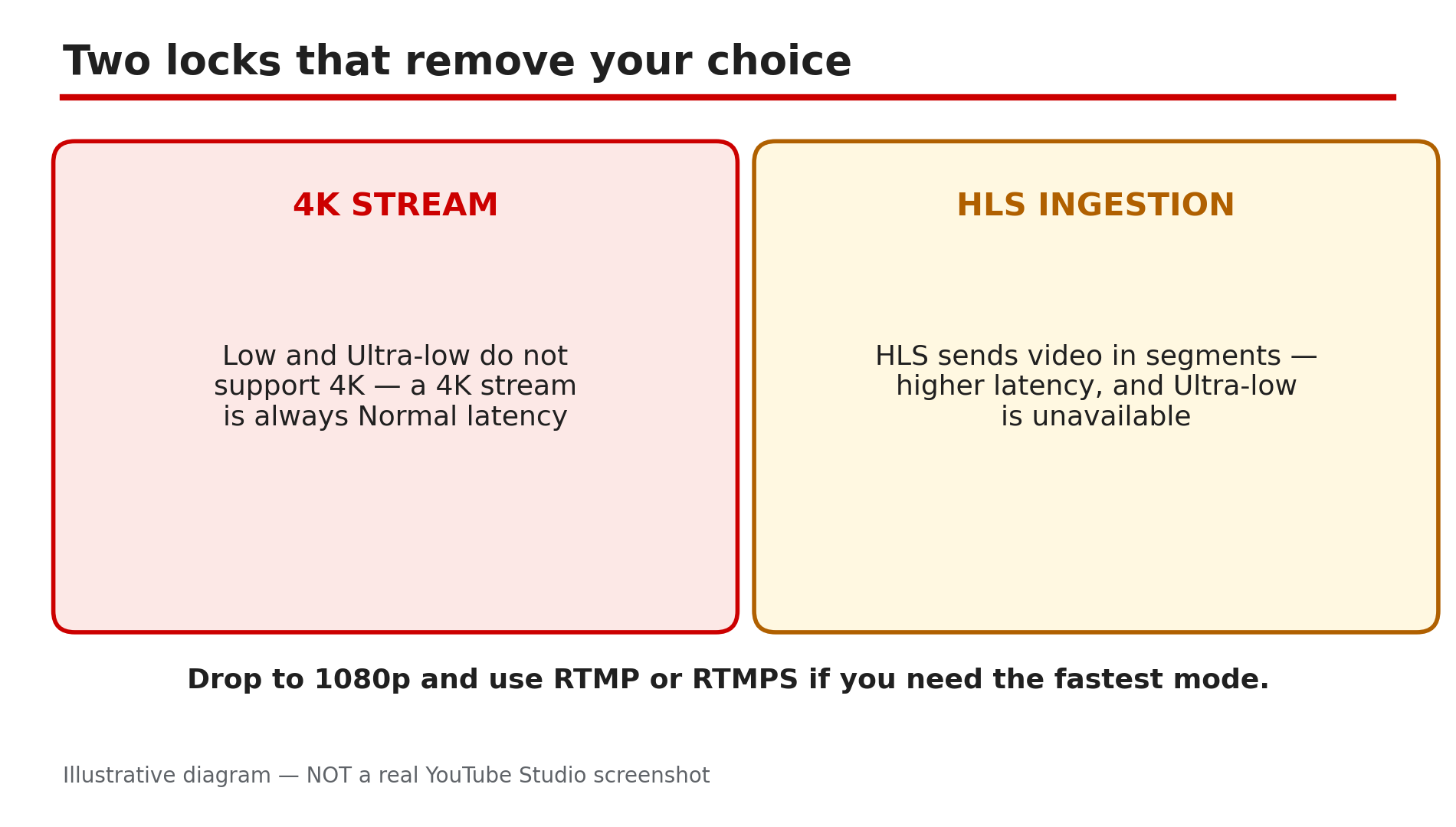
Illustrative diagram: 4K resolution and HLS ingestion both limit which latency modes you can pick.
Step 6 — Test the mode, then watch the numbers that tell the truth
What to do: Run a short test stream in your chosen mode and check the right signals before the event.
How: Before an important stream, go live privately for five minutes in the mode you plan to use, with a friend watching on a phone and another on a computer. Ask them to type a message in chat and time how long it takes to appear, and whether the picture buffers. In Live Control Room, watch Stream Health: a healthy stream stays green, and if it turns yellow or red, the problem is usually your connection or encoder, not the latency mode.
Example: A creator tests Ultra-low privately and sees chat arrive in four seconds with no buffering. On the real stream, one viewer still reports a 20-second delay — the delay is that viewer’s connection, not the stream.
Common mistake: Judging latency from your own preview. The Live Control Room preview is your encoder feed, not the viewer feed — measure from a real viewer device.
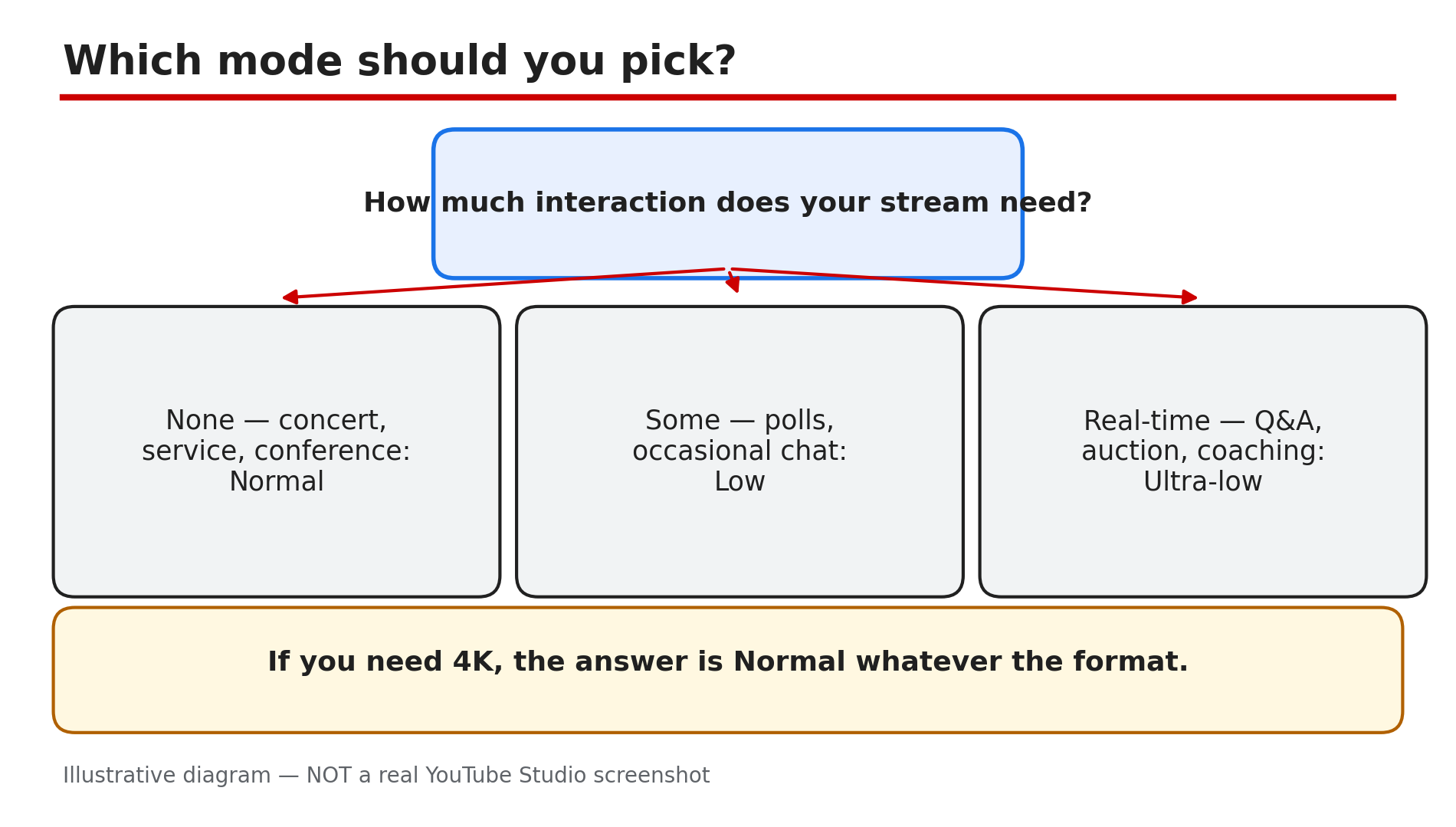
Illustrative diagram: a simple decision tree for choosing a live stream latency mode.
Checklist — Pick the right latency mode
- ☐ Decided how much interaction the stream needs: none, some, or real-time
- ☐ Chose Normal for concerts and 4K; Low for polls and light chat; Ultra-low for real conversation
- ☐ Confirmed the stream is an encoder stream, not webcam or mobile
- ☐ Dropped to 1080p or lower if you need Low or Ultra-low
- ☐ Checked ingestion is RTMP/RTMPS, not HLS, for Ultra-low
- ☐ Set the mode in Live Control Room before going live
- ☐ Tested privately for five minutes and timed chat from a viewer device
- ☐ Checked Stream Health is green before the audience arrives
FAQs
1. How much delay does Normal latency have?
YouTube gives no fixed figure for Normal latency. Guides often quote 15 to 30 seconds as an informal estimate, but the real delay varies, so treat any single number as a rough guide, not a promise.
2. Can I change the latency mode while streaming?
No, as reported — the mode is set before you go live and cannot be changed mid-stream. If you picked wrong, end the stream and start a new one.
3. Why is the latency setting greyed out?
Usually because you are on a webcam or mobile stream, which YouTube sets up for interactivity with no manual choice; because the stream is 4K, which only supports Normal; or because you ingest with HLS, which disables Ultra-low.
4. Does Ultra-low latency give viewers worse quality?
Not directly — but the smaller buffer means any connection wobble is more likely to cause buffering, and the mode does not support 4K. For a non-interactive stream, Normal is smoothest.
5. My stream keeps disconnecting — is that a latency problem?
Usually not. Disconnects and red stream health are connection or encoder problems. See our guide on live stream disconnects for the encoder and stream key checks.
Sources
- YouTube Help — “Understand live streaming latency” (official page, opened live 11 Nov 2026): https://support.google.com/youtube/answer/7444635
- CreatorPlaybook — “YouTube Live Stream Keeps Disconnecting? Encoder, Bitrate and Stream Key Fixes” (internal link, live-verified in the blog sitemap 11 Nov 2026): </blog/youtube-live-stream-keeps-disconnecting>