YouTube Shorts Interactive Stickers Missing? Poll, Quiz, Q&A and Add Yours Fix
 CreatorPlaybook Team
- 13 Nov, 2026
You open the Shorts editor, tap the Sticker icon, and the Poll, Quiz, Q&A or Add Yours sticker is simply not there. There is no sticker setting in YouTube Studio to switch on, and no error message explaining the gap. In most cases nothing is broken: the stickers live in one specific place, and they are usually missing because you are looking in the wrong app or running an old version.
What You Will Learn
- What the Poll, Quiz, Q&A and Add Yours stickers each do
- The exact path to the stickers in the Shorts creation flow
- Why a missing sticker is usually a rollout or version problem, not a setting
- How to tell a limited test, like Ask YouTube, apart from a generally available sticker
- What to check when a sticker is missing on one device but present on another
Step 1 — Know the four stickers first: Poll, Quiz, Q&A and Add Yours do different jobs
What to do: Match the sticker you want to the job it does, because each one collects a different kind of response.
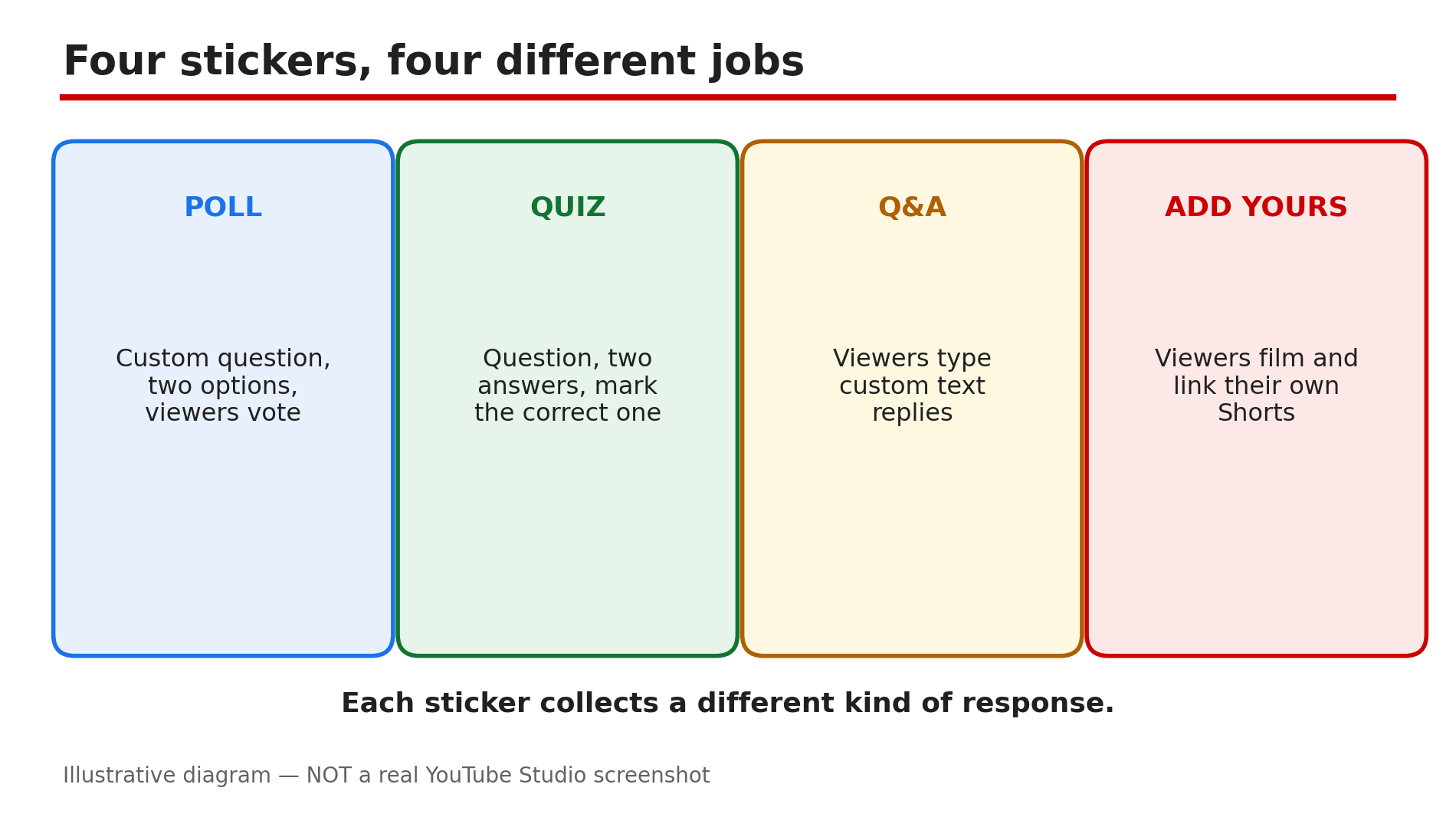
How: YouTube’s blog post of 7 July 2026, “5 ways to build an engaged community with YouTube Shorts”, describes all four. Poll is a custom question with two options to vote on. Quiz is a question with two answers, one marked correct. Q&A takes a question and lets viewers type custom text replies. Add Yours takes a prompt and lets viewers film and link their own Shorts in reply. The same post adds a fifth option: Video Replies, answering a comment with a Short.
Example: A cooking creator runs a Poll — “Paneer vs Chole” — for a fast vote, and a Q&A asking “What recipe confuses you most?” for video ideas.
Common mistake: Treating all four as the same feature. Poll collects votes, Quiz collects answers, Q&A collects text, Add Yours collects videos.
Illustrative diagram: what the four Shorts interactive stickers each do.
Step 2 — Go to the right place: record or upload a Short, then tap the Sticker icon on the editing screen
What to do: Open the stickers from the Shorts creation flow in the YouTube app, because that is the only place they exist.
How: YouTube’s blog gives the path: record or upload your footage as normal, then tap the Sticker icon on the editing screen. Stickers are added while you are making the Short, before you publish it. They do not live in YouTube Studio on a computer or in the Studio app, and cannot be added to a published Short.
Example: A creator spends twenty minutes in Studio looking for a Poll setting, then opens the YouTube app, starts a new Short and taps the Sticker icon — all four stickers are listed there.
Common mistake: Looking for the stickers in Studio after publishing. They are chosen during creation, in the YouTube app.
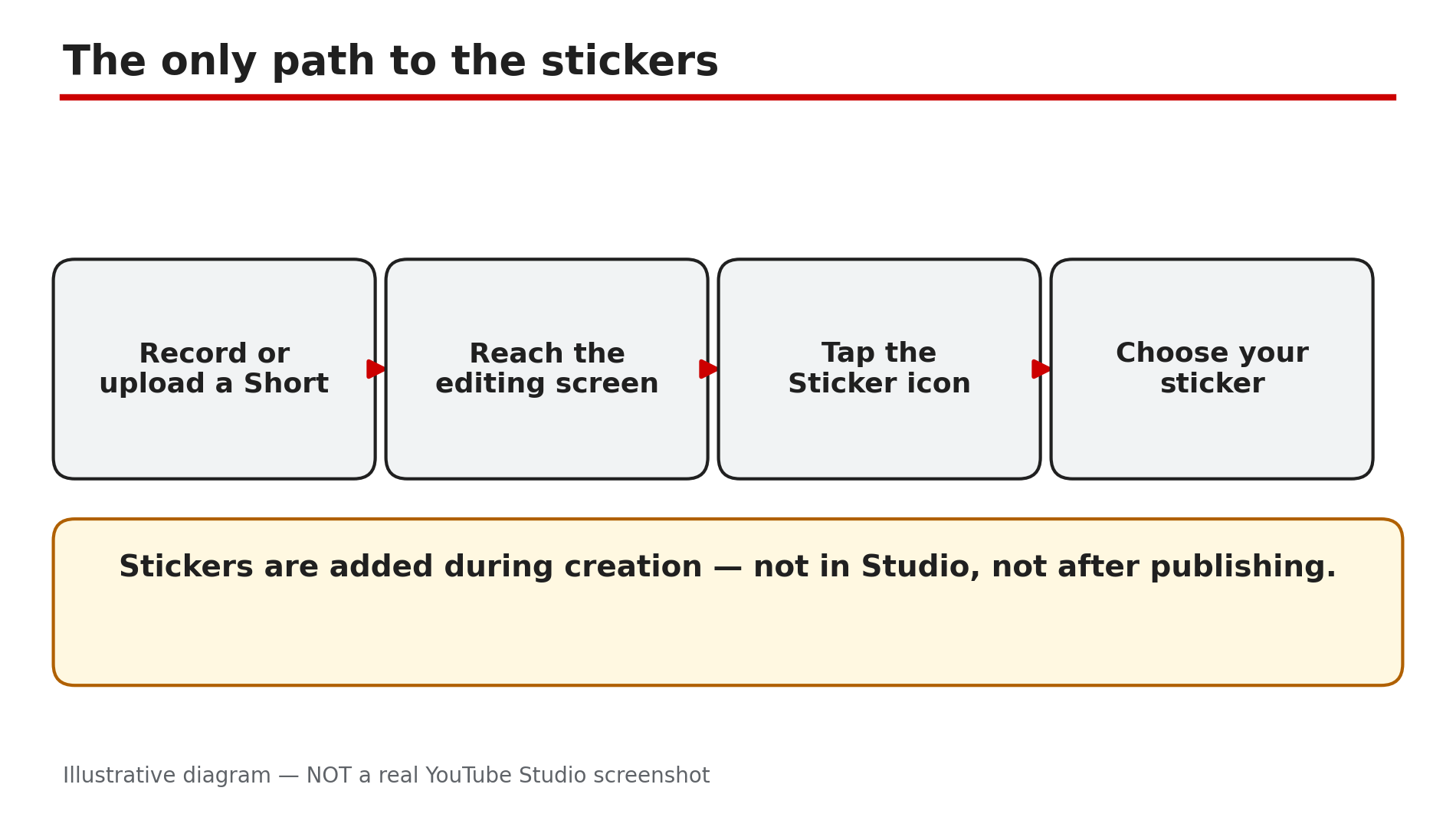
Illustrative mock-up: the four steps to reach the interactive stickers in the Shorts editor.
Step 3 — Check the rollout first: Add Yours and Poll were rolled out to everyone years ago
What to do: Before assuming your account is gated, check the rollout history — for these stickers, the gate has already opened.
How: Add Yours was first tested with a small number of creators in July 2024, and YouTube confirmed in September 2024 that it was fully rolled out to all users, as reported by TechCrunch. Poll stickers were announced in October 2024, with YouTube saying they would roll out to all creators within the week. The July 2026 YouTube Blog post lists all four as the standard interactive stickers. So if one is missing today, the cause is far more likely an old app version, the wrong surface, or the specific Short.
Example: A creator reads an old 2024 guide saying Add Yours is “limited testing” and waits for months. He updates the app, opens a new Short, and Add Yours is in the sticker list — it had been available all along.
Common mistake: Trusting an old article’s “limited testing” label as current fact. Rollouts finish; check the list on your own device today.
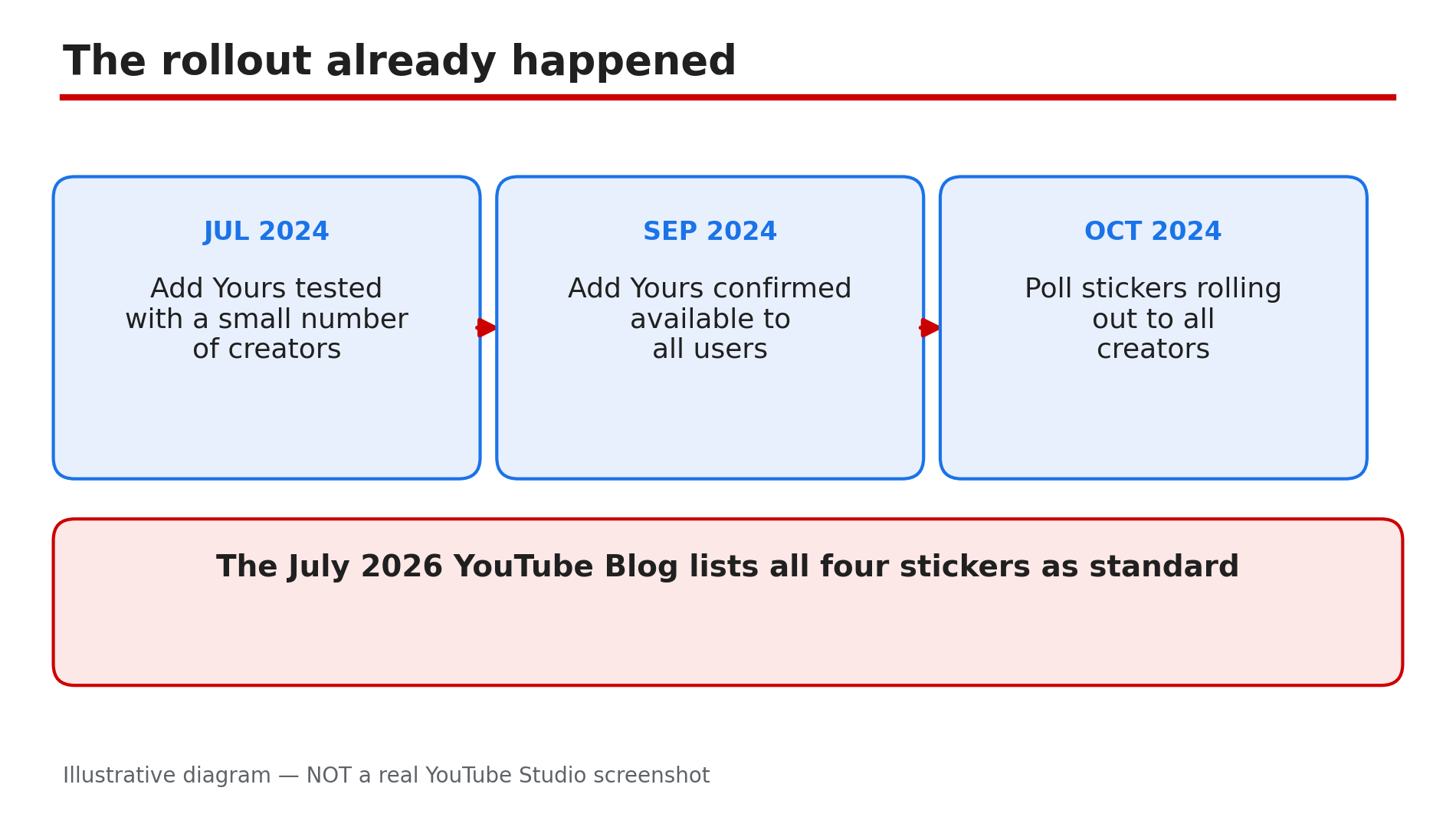
Illustrative diagram: the rollout timeline for the Add Yours and Poll stickers.
Step 4 — Update the app and test on a fresh Short: an old version hides stickers that already exist for your account
What to do: Update the YouTube app to the latest version, then test the stickers on a brand-new Short, not on an old draft.
How: Sticker features arrive with app updates, so an app not updated in months may simply not have the sticker code. Open your app store, check for a YouTube update, install it, and restart the phone. Then record or upload a fresh Short — do not test on a draft saved weeks ago, because a draft can carry the old editing screen. Also check you are signed in to the right Google Account. If the sticker appears on a second device with the same account, the first device’s app is the problem, not your channel.
Example: A creator’s Poll sticker is missing on her phone but present on her tablet with the same account. Her phone’s app is three versions behind — after updating, the Poll sticker appears there too.
Common mistake: Reinstalling the app or creating a new channel before trying a simple update. An update and a fresh test Short take two minutes.
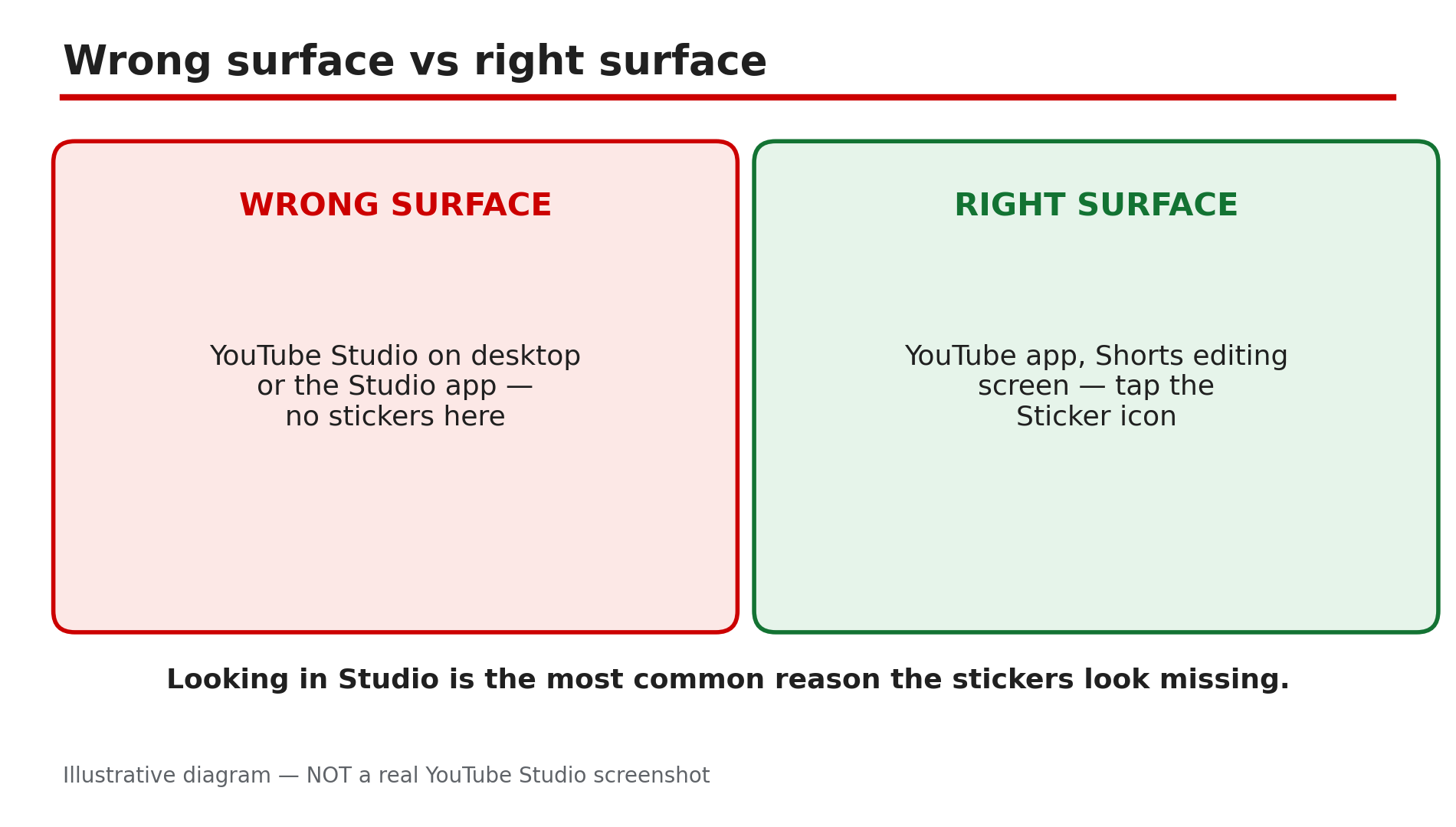
Illustrative diagram: the wrong place and the right place to look for Shorts stickers.
Step 5 — Do not confuse a limited test with a missing sticker: Ask YouTube is still gated, the four stickers are not
What to do: Learn which Shorts features are genuinely limited tests, so you do not chase a setting that does not exist.
How: Ask YouTube inside the Shorts player is a limited test announced on 12 October 2026, as reported by Search Engine Journal: English-only, viewers aged 18 and over, on select Shorts only, with a sparkle icon to tap. If you do not see it, you are outside the experiment — no setting turns it on. The four interactive stickers are different: creator tools in the editing screen, rolled out generally, as shown in Step 3. YouTube also launched AI-generated stickers for Shorts in September 2025, as reported by Social Media Today, alongside the five existing stickers: Q&A, Add Yours, Poll, Quiz and Shopping. AI stickers were reported as available on Android in the US, Canada, New Zealand and Australia — so a missing AI sticker can be a regional rollout.
Example: A creator sees no sparkle icon and assumes his stickers are broken — but his four stickers are all present in the editor.
Common mistake: Treating every missing icon as the same problem. A missing Poll sticker is usually your app; a missing sparkle icon is a limited experiment.
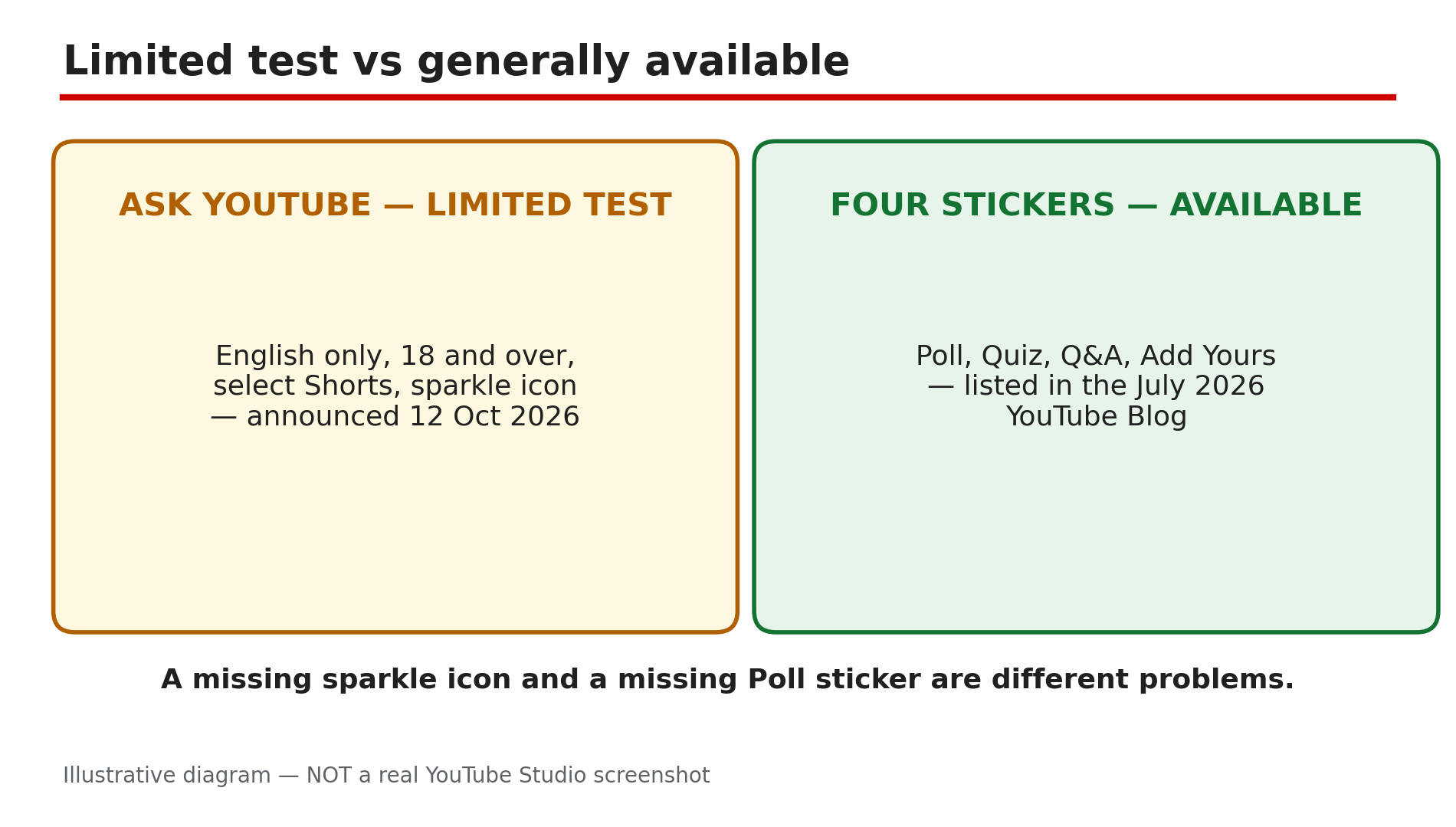
Illustrative diagram: Ask YouTube as a limited test compared with the four generally available stickers.
Step 6 — Check the Short itself: Made for Kids and the wrong surface can hide the stickers
What to do: If the stickers are still missing after updating, check whether this particular Short can carry them at all.
How: Interactive features are not available on every Short. A Short marked Made for Kids loses interactive features such as comments, so check the audience setting — change it only if the video genuinely is not for kids, and never mislabel a kids video to unlock a feature. Also check you are adding the sticker to a Short in the YouTube app’s creation flow, not a long-form video or a desktop browser. If the stickers appear on a fresh test Short but not one video, the difference is in that video’s settings, not your account.
Example: A creator’s Q&A sticker is missing on one Short only. That Short was uploaded as Made for Kids by mistake — correcting the setting on a new upload brings the sticker back.
Common mistake: Flipping the Made for Kids setting back and forth to force a sticker to appear. Fix it on the next upload instead, and only when the video truly is not made for kids.
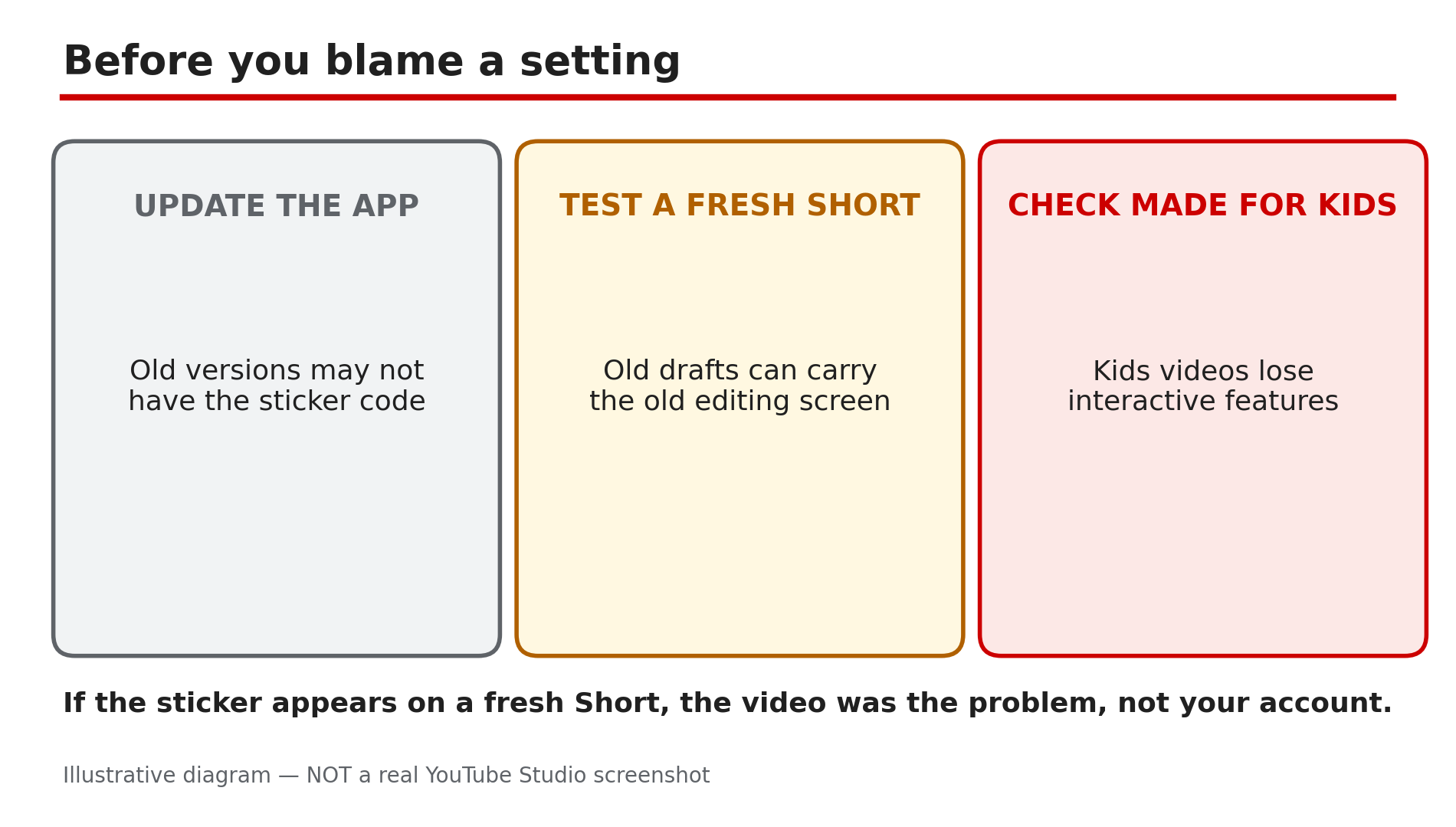
Illustrative diagram: three quick checks before blaming a channel setting for a missing sticker.
Checklist — Find a missing Shorts interactive sticker
- ☐ Confirmed the sticker you want: Poll, Quiz, Q&A or Add Yours
- ☐ Opened stickers from the Shorts editing screen in the YouTube app
- ☐ Updated the YouTube app and restarted the phone
- ☐ Tested on a brand-new Short, not an old draft
- ☐ Signed in to the right Google Account
- ☐ Remembered Add Yours and Poll rolled out to everyone in 2024
- ☐ Did not confuse Ask YouTube (limited test) with the four stickers
- ☐ Checked the Short is not set to Made for Kids
FAQs
1. Where are the Poll, Quiz, Q &A and Add Yours stickers?
In the YouTube app, on the editing screen of a Short you are recording or uploading — tap the Sticker icon there. They are not in YouTube Studio, and cannot be added after publishing.
2. Is the Add Yours sticker still limited to some creators?
No, as far as the public record shows. It was tested with a small number of creators in July 2024, and YouTube confirmed in September 2024 that it was fully rolled out to all users.
3. Why is the Poll sticker missing but the others are there?
Poll stickers were announced in October 2024 as rolling out to all creators within a week, so a missing Poll sticker usually means an old app version or an old draft. Update the app and test on a fresh Short.
4. I do not see Ask YouTube on Shorts — is my account broken?
No. Ask YouTube in the Shorts player is a limited test announced on 12 October 2026: English-only, viewers 18 and over, select Shorts only. Not seeing the sparkle icon means you are outside the experiment, not that a setting is off.
5. Can I add a sticker to a Short I already published?
No. Stickers are added on the editing screen during creation, before you publish. Making a new Short to add one loses the original’s views and comments.
Sources
- YouTube Blog — “5 ways to build an engaged community with YouTube Shorts” (official page, opened live 13 Nov 2026): https://blog.youtube/creator-and-artist-stories/grow-youtube-channel-interactive-shorts/
- CreatorPlaybook — “YouTube Shorts Remix or ‘Use This Sound’ Missing? How to Fix It” (internal link, URL copied from the plan file): </blog/youtube-shorts-remix-or-use-this-sound>
- CreatorPlaybook — “YouTube Shorts Music Disappeared or Muted After Upload? How to Fix It” (internal link, URL copied from the plan file): </blog/youtube-shorts-music-disappeared-or>