Showing Posts From
Youtube shorts
 CreatorPlaybook Team
- 13 Nov, 2026
YouTube Shorts Interactive Stickers Missing? Poll, Quiz, Q&A and Add Yours Fix
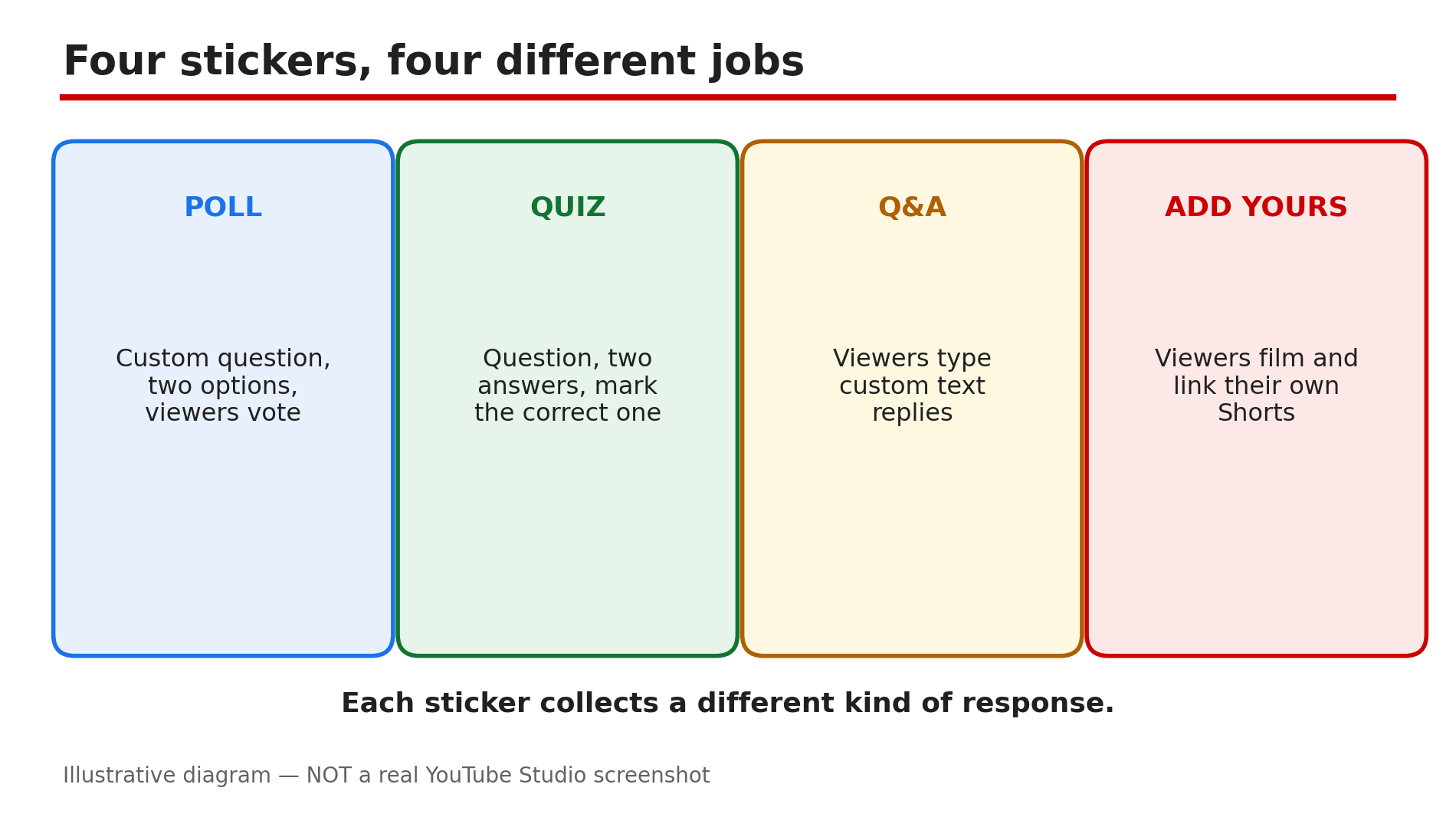
You open the Shorts editor, tap the Sticker icon, and the Poll, Quiz, Q&A or Add Yours sticker is simply not there. There is no sticker setting in YouTube Studio to switch on, and no error message explaining the gap. In most cases nothing is broken: the stickers live in one specific place, and they are usually missing because you are looking in the wrong app or running an old version. What You Will LearnWhat the Poll, Quiz, Q&A and Add Yours stickers each do The exact path to the stickers in the Shorts creation flow Why a missing sticker is usually a rollout or version problem, not a setting How to tell a limited test, like Ask YouTube, apart from a generally available sticker What to check when a sticker is missing on one device but present on anotherStep 1 — Know the four stickers first: Poll, Quiz, Q&A and Add Yours do different jobs What to do: Match the sticker you want to the job it does, because each one collects a different kind of response. How: YouTube's blog post of 7 July 2026, "5 ways to build an engaged community with YouTube Shorts", describes all four. Poll is a custom question with two options to vote on. Quiz is a question with two answers, one marked correct. Q&A takes a question and lets viewers type custom text replies. Add Yours takes a prompt and lets viewers film and link their own Shorts in reply. The same post adds a fifth option: Video Replies, answering a comment with a Short. Example: A cooking creator runs a Poll — "Paneer vs Chole" — for a fast vote, and a Q&A asking "What recipe confuses you most?" for video ideas. Common mistake: Treating all four as the same feature. Poll collects votes, Quiz collects answers, Q&A collects text, Add Yours collects videos.Illustrative diagram: what the four Shorts interactive stickers each do. Step 2 — Go to the right place: record or upload a Short, then tap the Sticker icon on the editing screen What to do: Open the stickers from the Shorts creation flow in the YouTube app, because that is the only place they exist. How: YouTube's blog gives the path: record or upload your footage as normal, then tap the Sticker icon on the editing screen. Stickers are added while you are making the Short, before you publish it. They do not live in YouTube Studio on a computer or in the Studio app, and cannot be added to a published Short. Example: A creator spends twenty minutes in Studio looking for a Poll setting, then opens the YouTube app, starts a new Short and taps the Sticker icon — all four stickers are listed there. Common mistake: Looking for the stickers in Studio after publishing. They are chosen during creation, in the YouTube app.Illustrative mock-up: the four steps to reach the interactive stickers in the Shorts editor. Step 3 — Check the rollout first: Add Yours and Poll were rolled out to everyone years ago What to do: Before assuming your account is gated, check the rollout history — for these stickers, the gate has already opened. How: Add Yours was first tested with a small number of creators in July 2024, and YouTube confirmed in September 2024 that it was fully rolled out to all users, as reported by TechCrunch. Poll stickers were announced in October 2024, with YouTube saying they would roll out to all creators within the week. The July 2026 YouTube Blog post lists all four as the standard interactive stickers. So if one is missing today, the cause is far more likely an old app version, the wrong surface, or the specific Short. Example: A creator reads an old 2024 guide saying Add Yours is "limited testing" and waits for months. He updates the app, opens a new Short, and Add Yours is in the sticker list — it had been available all along. Common mistake: Trusting an old article's "limited testing" label as current fact. Rollouts finish; check the list on your own device today.Illustrative diagram: the rollout timeline for the Add Yours and Poll stickers. Step 4 — Update the app and test on a fresh Short: an old version hides stickers that already exist for your account What to do: Update the YouTube app to the latest version, then test the stickers on a brand-new Short, not on an old draft. How: Sticker features arrive with app updates, so an app not updated in months may simply not have the sticker code. Open your app store, check for a YouTube update, install it, and restart the phone. Then record or upload a fresh Short — do not test on a draft saved weeks ago, because a draft can carry the old editing screen. Also check you are signed in to the right Google Account. If the sticker appears on a second device with the same account, the first device's app is the problem, not your channel. Example: A creator's Poll sticker is missing on her phone but present on her tablet with the same account. Her phone's app is three versions behind — after updating, the Poll sticker appears there too. Common mistake: Reinstalling the app or creating a new channel before trying a simple update. An update and a fresh test Short take two minutes.Illustrative diagram: the wrong place and the right place to look for Shorts stickers. Step 5 — Do not confuse a limited test with a missing sticker: Ask YouTube is still gated, the four stickers are not What to do: Learn which Shorts features are genuinely limited tests, so you do not chase a setting that does not exist. How: Ask YouTube inside the Shorts player is a limited test announced on 12 October 2026, as reported by Search Engine Journal: English-only, viewers aged 18 and over, on select Shorts only, with a sparkle icon to tap. If you do not see it, you are outside the experiment — no setting turns it on. The four interactive stickers are different: creator tools in the editing screen, rolled out generally, as shown in Step 3. YouTube also launched AI-generated stickers for Shorts in September 2025, as reported by Social Media Today, alongside the five existing stickers: Q&A, Add Yours, Poll, Quiz and Shopping. AI stickers were reported as available on Android in the US, Canada, New Zealand and Australia — so a missing AI sticker can be a regional rollout. Example: A creator sees no sparkle icon and assumes his stickers are broken — but his four stickers are all present in the editor. Common mistake: Treating every missing icon as the same problem. A missing Poll sticker is usually your app; a missing sparkle icon is a limited experiment.Illustrative diagram: Ask YouTube as a limited test compared with the four generally available stickers. Step 6 — Check the Short itself: Made for Kids and the wrong surface can hide the stickers What to do: If the stickers are still missing after updating, check whether this particular Short can carry them at all. How: Interactive features are not available on every Short. A Short marked Made for Kids loses interactive features such as comments, so check the audience setting — change it only if the video genuinely is not for kids, and never mislabel a kids video to unlock a feature. Also check you are adding the sticker to a Short in the YouTube app's creation flow, not a long-form video or a desktop browser. If the stickers appear on a fresh test Short but not one video, the difference is in that video's settings, not your account. Example: A creator's Q&A sticker is missing on one Short only. That Short was uploaded as Made for Kids by mistake — correcting the setting on a new upload brings the sticker back. Common mistake: Flipping the Made for Kids setting back and forth to force a sticker to appear. Fix it on the next upload instead, and only when the video truly is not made for kids.Illustrative diagram: three quick checks before blaming a channel setting for a missing sticker. Checklist — Find a missing Shorts interactive sticker☐ Confirmed the sticker you want: Poll, Quiz, Q&A or Add Yours ☐ Opened stickers from the Shorts editing screen in the YouTube app ☐ Updated the YouTube app and restarted the phone ☐ Tested on a brand-new Short, not an old draft ☐ Signed in to the right Google Account ☐ Remembered Add Yours and Poll rolled out to everyone in 2024 ☐ Did not confuse Ask YouTube (limited test) with the four stickers ☐ Checked the Short is not set to Made for KidsFAQs 1. Where are the Poll, Quiz, Q &A and Add Yours stickers? In the YouTube app, on the editing screen of a Short you are recording or uploading — tap the Sticker icon there. They are not in YouTube Studio, and cannot be added after publishing. 2. Is the Add Yours sticker still limited to some creators? No, as far as the public record shows. It was tested with a small number of creators in July 2024, and YouTube confirmed in September 2024 that it was fully rolled out to all users. 3. Why is the Poll sticker missing but the others are there? Poll stickers were announced in October 2024 as rolling out to all creators within a week, so a missing Poll sticker usually means an old app version or an old draft. Update the app and test on a fresh Short. 4. I do not see Ask YouTube on Shorts — is my account broken? No. Ask YouTube in the Shorts player is a limited test announced on 12 October 2026: English-only, viewers 18 and over, select Shorts only. Not seeing the sparkle icon means you are outside the experiment, not that a setting is off. 5. Can I add a sticker to a Short I already published? No. Stickers are added on the editing screen during creation, before you publish. Making a new Short to add one loses the original's views and comments. SourcesYouTube Blog — "5 ways to build an engaged community with YouTube Shorts" (official page, opened live 13 Nov 2026): https://blog.youtube/creator-and-artist-stories/grow-youtube-channel-interactive-shorts/ CreatorPlaybook — "YouTube Shorts Remix or 'Use This Sound' Missing? How to Fix It" (internal link, URL copied from the plan file): </blog/youtube-shorts-remix-or-use-this-sound> CreatorPlaybook — "YouTube Shorts Music Disappeared or Muted After Upload? How to Fix It" (internal link, URL copied from the plan file): </blog/youtube-shorts-music-disappeared-or>
- CreatorPlaybook Team
- 12 Nov, 2026
Shorts Song Missing from the Music Library? Licensing and Country Limits Explained
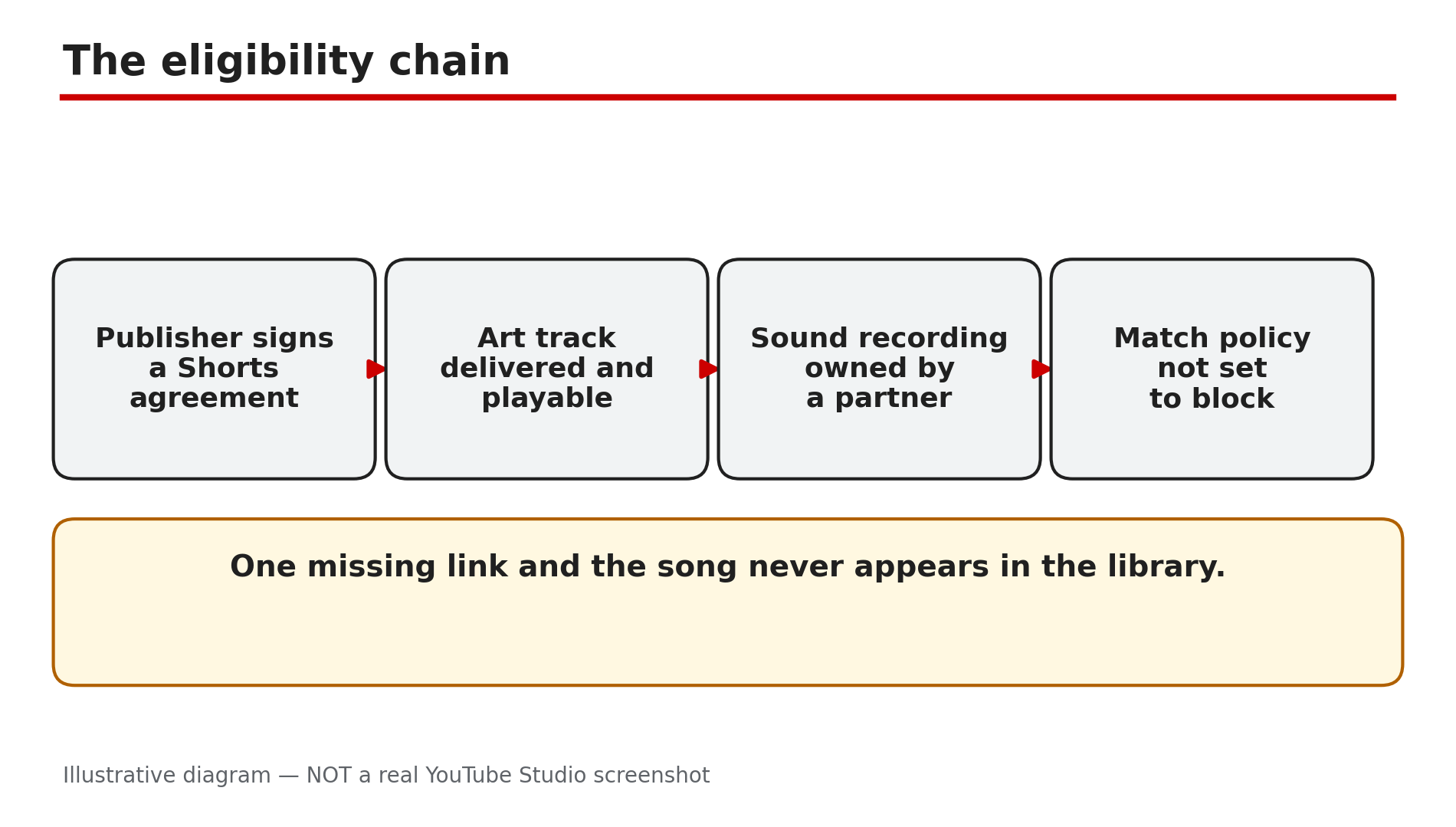
You open the Shorts editor, tap Add sound, search for a song you heard everywhere this week — and it is not there. No result, no error, just silence. Before you assume the app is broken, or download the song from somewhere else, stop: a song appears in the Shorts music library only if its publisher has signed a Shorts agreement with YouTube and the track is cleared for your country. When either condition fails, the song is simply absent. What You Will LearnWhy a song appears only if its publisher signed an agreement How territory ownership decides availability The 90-second limit — why some tracks allow less Why a song can disappear after a deal lapses Why TikTok and Instagram sounds are not licensed for YouTube The safe alternative: the YouTube Audio LibraryStep 1 — Check the eligibility chain: a song needs a Shorts agreement, an art track and a playable policy What to do: A missing song is usually a licensing gap — check the chain before trying to fix the app. How: YouTube's Help page "Music eligibility for YouTube Shorts" applies only to music partners who have a Shorts agreement with YouTube. For a song to be eligible, its art track and embedded sound recording must come from a partner who has a Shorts agreement, and the recording's match policy must be playable and not set to block. If any link in that chain is missing — the publisher never signed, the track was never delivered, or the rights holder set the policy to block — the song does not appear in the library at all. Example: A creator searches for a chart-topping song and finds nothing, but finds a ten-year-old track instantly — the old track's label signed a Shorts agreement years ago; the new song's publisher has not. Common mistake: Reinstalling the app or switching accounts to "fix" a missing song. The library is the same for every account in the same country.Illustrative diagram: the four links a song needs before it appears in the Shorts library. Step 2 — Check territory: a song cleared in one country can be blocked in another What to do: Availability varies by country — a song your friend abroad can use may not exist in your library. How: YouTube's Help page says the art track and the sound recording will not be available in territories where ownership is missing or belongs to a partner who has not agreed to Shorts terms. Rights are negotiated country by country, so a track can be cleared in the United States and blocked in India, or the other way round — and a Short built on it can be muted or unavailable in some regions even after it is published. YouTube's separate Help page adds that when YouTube and a music partner cannot agree on new terms, content with that partner's music becomes unavailable in certain regions. Example: Two creators in different countries search for the same song. One finds it and makes a Short; the other finds nothing. Common mistake: Using a VPN to make the song appear. Do not do this: it is an attempt to bypass regional music licensing, and it does not give you a licence for the song.Illustrative diagram: a song can be cleared in one country and blocked in another. Step 3 — Check the time limit: most tracks allow up to 90 seconds, some only 60 or 30 What to do: When you pick a track, read the seconds it covers — the limit is per track. How: YouTube's Help page says that depending on the song, you may be able to add up to 90 seconds of music in your three-minute Short when using YouTube tools, and selecting an audio track shows how many seconds it will cover. Some tracks are limited to 60 or 30 seconds — the cap is set by the rights holder, not by YouTube. A three-minute Short cannot be scored end to end: even the longest allowance covers only 90 seconds. Example: A creator builds a 90-second Short and picks a track that covers 60 seconds. The music stops two-thirds of the way through — the track's own limit, shown when she selected it. Common mistake: Assuming every library song allows 90 seconds. Check the seconds shown for the track you picked.Illustrative diagram: library tracks cover up to 90, 60 or 30 seconds depending on the song. Step 4 — Check whether the song vanished after a deal lapsed: tracks can disappear mid-use What to do: If a song you used before is suddenly gone, check whether a deal ended — and check your old Shorts too. How: YouTube's Help page on music availability says that when YouTube and a music partner cannot agree on new licensing terms, content containing that partner's music may become unavailable in certain regions — including Shorts you already made, which "may also become unavailable". The same page says a new agreement brings the impacted content back automatically. For a Short that has gone unavailable, YouTube says the remove-or-replace tools are not available for Shorts made with its editing tools — download the Short from Studio and upload it again with different audio. Example: A creator's most-viewed Short suddenly shows as unavailable in three countries — the label's deal had lapsed there. Two months later a new deal is signed and the Short reappears on its own. Common mistake: Deleting the Short and re-uploading it with the same song the day it disappears. The song is still unlicensed in that territory, so the new upload has the same problem.Illustrative diagram: a lapsed licensing deal can make a song and its Shorts unavailable. Step 5 — Do not borrow sounds from other apps: TikTok and Instagram licences do not carry over What to do: Use only music from YouTube's own libraries — a trending sound from TikTok or Instagram is licensed for that app. How: Each platform negotiates its own licences with labels, and a licence for TikTok covers use inside TikTok, not on YouTube. Downloading a trending sound from another app and adding it to your Short in an external editor means the song did not come from the Shorts audio library, so YouTube treats it as an ordinary copyrighted recording: Content ID can match it, and the rights holder can claim it, block it or take it down. Our guide on Shorts music that disappeared after upload covers what happens when that claim lands — including the reported 24 September 2026 change, under which new one-to-three-minute Shorts with an active claim are no longer automatically blocked. Example: A creator downloads a viral sound from Instagram, edits it into a Short in CapCut, and uploads it. Content ID matches the recording and the Short is claimed — the same song, picked from the Shorts library, would have been licensed. Common mistake: Thinking "everyone does it" makes it licensed. Widespread use is not a licence.Illustrative diagram: each app's music licence covers only that app. Step 6 — Use the safe alternative: the YouTube Audio Library in Studio What to do: When the song you want is missing, use music from the YouTube Audio Library instead. How: YouTube's Help page says you may also use royalty-free music from the YouTube Audio Library, and that royalty-free music will not receive a Content ID claim. Open it in Studio — youtube.com/audiolibrary — and search by mood, genre and duration: most tracks need no attribution, but some Creative Commons tracks do, so read the licence line and credit the artist where it asks. Download the track, add it to your Short, and upload — the audio is cleared for YouTube, so no claim follows. The trade-off is real: Audio Library tracks are production music, not chart hits — but they will not get your Short muted, claimed or blocked in another country either. Example: A creator cannot find the chart song she wants for a recipe Short. She picks a bright track from the Audio Library, credits the artist as the licence asks, and the Short runs for a year with no claim. Common mistake: Assuming a track from the Shorts library is cleared for a Short made outside YouTube's tools. It is licensed for Shorts only — a track from the Audio Library is the one to use when you edit outside the app.Illustrative diagram: the YouTube Audio Library compared with a song taken from elsewhere. Checklist — Find music for a Short that will not get claimed or muted☐ Searched the Shorts library inside the app ☐ Accepted a missing song as a licensing gap ☐ Checked the track is cleared in my country ☐ Read the seconds the track covers ☐ Did not use a VPN to reach a blocked song ☐ Did not download a trending sound from TikTok or Instagram ☐ Picked an Audio Library track instead ☐ Read the attribution line on Creative Commons tracksFAQs 1. Why is a famous song missing from the Shorts music library? Because its publisher has not signed a Shorts agreement with YouTube, has blocked Shorts use, or has not cleared the track in your territory. 2. Can I use a VPN to get a song that is not available in my country? No — do not. It is an attempt to bypass regional music licensing. Use a track that is cleared where you are. 3. How much of a song can I use in a Short? Up to 90 seconds in a three-minute Short for most tracks, but some are limited to 60 or 30 seconds. The app shows the seconds when you select a track. 4. My Short used a library song and now it is unavailable — what happened? A licensing deal between YouTube and that music partner may have lapsed in your region. YouTube says the Short should become available again automatically if a new agreement is reached. 5. Is the YouTube Audio Library really claim-free? YouTube's Help page says royalty-free music from the Audio Library will not receive a Content ID claim. Some Creative Commons tracks need attribution — read the licence line. SourcesYouTube Help — "Music eligibility for YouTube Shorts" (official page, opened live 12 Nov 2026): https://support.google.com/youtube/answer/13486873?hl=en YouTube Help — "Certain music content may be unavailable on YouTube and YouTube Music" (official page, opened live 12 Nov 2026): https://support.google.com/youtube/answer/9218267?hl=en CreatorPlaybook — "YouTube Shorts Music Disappeared or Muted After Upload? What to Do" (internal link, URL copied from the plan file): </blog/youtube-shorts-music-disappeared-or>
- CreatorPlaybook Team
- 11 Nov, 2026
YouTube Shorts Remix or "Use This Sound" Missing? Why It Happens and How to Fix It
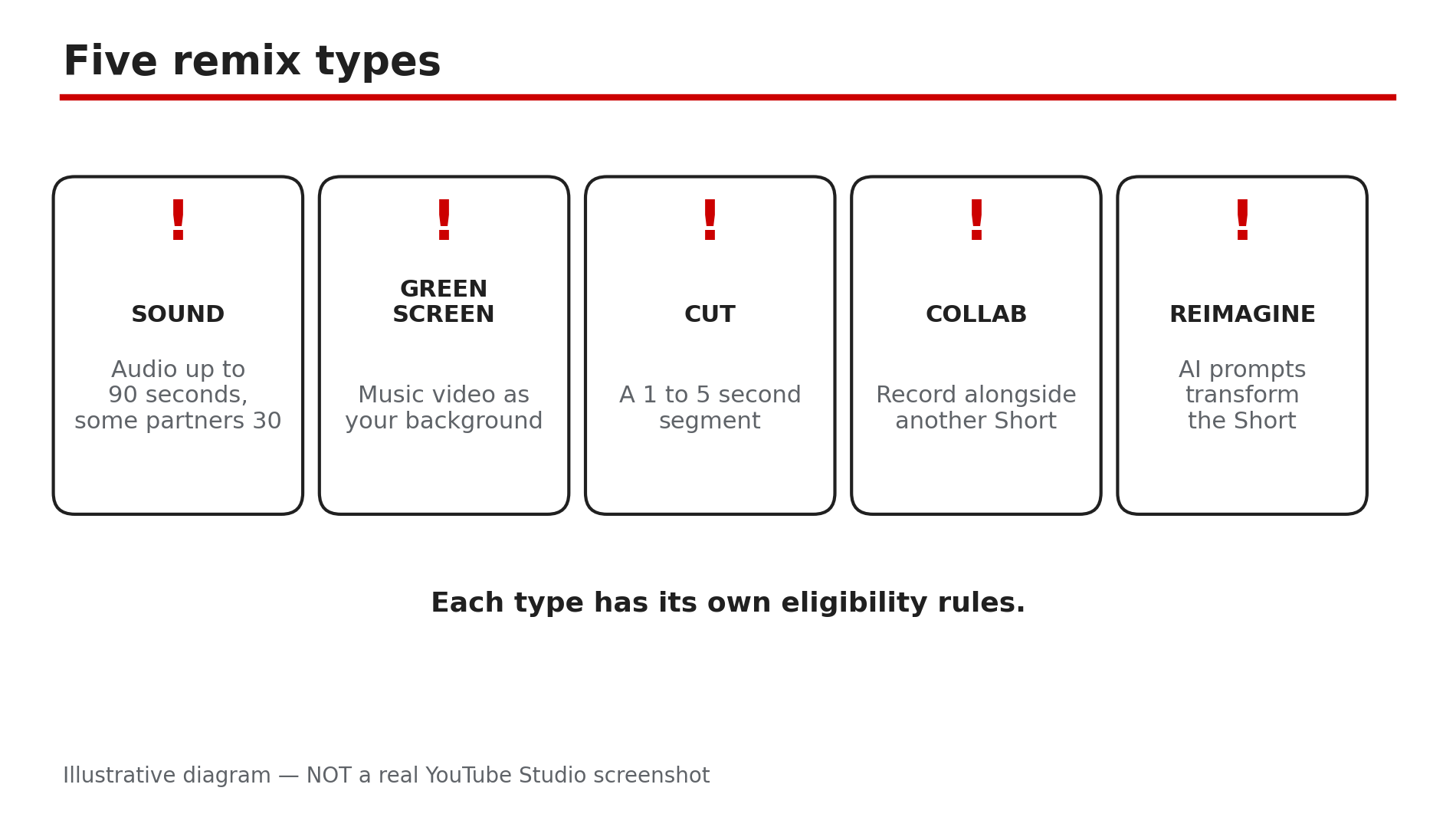
You found the perfect sound for your next Short, opened the video, and the Remix button is nowhere — or the "Use this sound" option is greyed out on a Short you want to sample. Before you assume your app is broken, know this: a missing Remix button is usually a symptom, not a bug. YouTube's own Help pages list several reasons the option disappears, and each one has a different fix — or no fix at all. This guide works through them in order. What You Will LearnThe five remix types — Sound, Green Screen, Cut, Collab, Reimagine Where the Remix and "Use this sound" buttons actually live Why private and unlisted videos can never be remixed How a creator's remixing setting blocks you How a Content ID claim blocks visual remixes but may allow audio What to do when no remix is possible for that videoStep 1 — Know the five remix types, and which one you are missing What to do: Identify the remix type you want, because each one has its own rules and limits. How: YouTube's Help page "Create YouTube Shorts with remixed content" lists the options. Sound samples the audio from a video or music video — up to 90 seconds, though some partner agreements limit it to 30 seconds. Green Screen uses a music video as your Short's background, visual only or audio and video together. Cut samples a one- to five-second segment of a music video. Collab lets you record alongside another Short, and Reimagine uses AI prompts to transform an eligible Short. Remixed Shorts are attributed back to the original work, with a link to the source video. Example: A creator wants the audio from a music video for a 45-second Short. Sound allows up to 90 seconds, so it works — but if that track's partner limits audio use to 30 seconds, the Short gets cut off at 30. Common mistake: Assuming every remix type should appear on every video. Music videos, Shorts, and long-form videos each offer different remix options, and some types only exist for music content.Illustrative diagram: the five ways to remix content into a YouTube Short. Step 2 — Find the button in the right place first What to do: Check the exact place YouTube puts the button, because it moves between screens. How: YouTube's Help page gives three paths. From a Short: tap Sound in the lower right-hand corner to find other Shorts using the same audio, then tap Use this sound. From a long-form video's watch page: tap Share, then Remix, then Use this sound. From an Official Artist Channel: open the channel, go to the Shorts section, tap Popular, pick a Short, tap Sound, then Use this sound. If you are looking on a computer, stop: remixing is a mobile-app feature, and the buttons do not appear on desktop. Also confirm you are signed in — the options need an account. Example: A creator searches for Remix on the desktop site for twenty minutes, then opens the same video in the phone app and finds it under Share in seconds. Common mistake: Tapping the three-dot menu on the watch page and expecting Remix there.Illustrative mock-up: the three paths to the Remix and Use this sound buttons. Step 3 — Check the source video's privacy: only public videos are remixable What to do: Confirm the video you want to remix is Public, because privacy alone can remove the button. How: Only public videos can be remixed. A private video is visible only to its owner and chosen people, and an unlisted video is reachable only by link — neither appears as a remix source. So if the video is your own, open Studio, go to Content, and check its Visibility column; if it is Private or Unlisted, change it to Public and the Remix option appears. If the video belongs to someone else, you cannot change its privacy — and you cannot remix it. Example: A creator tries to remix their own old video and finds no button. It was uploaded as Unlisted for a client preview and never switched to Public. Common mistake: Reinstalling the app when the button is missing. If the source video is private or unlisted, no app fix will bring the button back.Illustrative diagram: only public videos can be remixed into Shorts. Step 4 — Check the creator's Shorts remixing setting What to do: If the video is public and the button is still missing, check whether the creator switched remixing off. How: A creator can disable remixing for their own video. In Studio, go to Content, open the video, and look for the Shorts remixing setting. If it is off, nobody can remix that video — not Sound, not Green Screen, not Cut. Changing the setting cannot override privacy or someone else's rights: turning it back on will not make a private video remixable, and it will not remove a Content ID block. If the video is someone else's, you cannot change their setting; pick a different source. Example: A music channel wonders why nobody remixes its Shorts. Its own remixing setting was off since upload day — one toggle, and remixes start appearing. Common mistake: Thinking the remixing setting is a channel-wide switch. It is per video, so check the exact video you want to remix, not the channel's other videos.Illustrative diagram: a creator's Shorts remixing setting switches remixing on or off for one video. Step 5 — Understand the Content ID and music-network blocks What to do: Learn the two rights-based blocks, because they decide whether any remix is possible at all. How: YouTube's music-partner Help page explains both. First, a Content ID claim: visual remix features are not available for Shorts that have third-party claims — so Green Screen, Cut, and Collab disappear. But if the claim represents music that is available in Shorts, the audio can still be remixed, so Sound may still work. Second, a music network: if the channel that uploaded the Short is linked to a music network, visual remix options are blocked; audio may still work. You can check the link in Studio under your dashboard, in the Network relationship section — if that section does not appear, the channel is not linked. Example: A Short with a claimed song offers Sound but no Green Screen. The claim blocks the visual types; the audio is Shorts-eligible, so Sound still works — exactly what YouTube's Help page describes. Common mistake: Assuming a claim means the Short is dead for remixing. Audio-only remixing often survives a claim; only the visual types are blocked.Illustrative diagram: a Content ID claim blocks visual remix types but may still allow an audio remix. Step 6 — When no remix is possible, use a different source What to do: Stop fighting a blocked video and build the Short from a source that is actually eligible. How: If the video is private, unlisted, remixing-disabled, or blocked by a claim that covers the audio too, no setting on your side will unlock it. Pick a different source instead: search the Shorts library for the same song — a track there is licensed for Shorts use — or use a song from YouTube's Audio Library, which YouTube says carries no Content ID claims. If the sound is your own recording, upload it as your own video first, then remix from that. And if you are a creator whose videos keep getting remixed in ways you do not want, the Shorts remixing setting in Step 4 is your control — set it per video. Example: A creator cannot remix a friend's private rehearsal clip, so they use the same song from the Shorts library instead. The Short goes up the same day, with the audio properly licensed. Common mistake: Downloading the video and re-uploading it as your own to "remix" it. That is re-uploading someone else's content, and it can earn a claim or a strike.Illustrative diagram: what to do when the video you wanted cannot be remixed. Checklist — Find a missing Remix button☐ Identified which remix type you want — Sound, Green Screen, Cut, Collab, or Reimagine ☐ Looked in the right place: Sound on a Short, Share then Remix on a watch page ☐ Confirmed you are in the mobile app and signed in, not on desktop ☐ Checked the source video is Public, not Private or Unlisted ☐ Checked the creator's Shorts remixing setting for that exact video ☐ Checked for a Content ID claim — visual types blocked, audio may still work ☐ Checked whether the channel is linked to a music network ☐ Picked a different source — Shorts library or Audio Library — if this one is blockedFAQs 1. Why is "Use this sound" missing on a Short? Usually the source video is private or unlisted, the creator disabled remixing for it, or a Content ID claim blocks the remix type. Check the source video's privacy and the creator's setting first. 2. Can I remix a private or unlisted video? No. Only public videos are remixable. If it is your own video, change it to Public in Studio; if it belongs to someone else, you cannot remix it. 3. Why does Sound work but Green Screen does not? Usually a Content ID claim: visual remixes are blocked for Shorts with third-party claims, but if the claim is for music available in Shorts, the audio can still be remixed. 4. How long can a Sound remix be? Up to 90 seconds of audio from a music video — but some partner agreements limit it to 30 seconds, so check the track. 5. Can I remix on a computer? No. Remixing is a mobile-app feature. Use the YouTube app on your phone or tablet — the buttons do not appear on desktop. SourcesYouTube Help — "Create YouTube Shorts with remixed content" (official page, opened live 11 Nov 2026): https://support.google.com/youtube/answer/10623810?hl=en-VC&co=GENIE.Platform%3DAndroid YouTube Help — "Make your Shorts available to remix" (official page, opened live 11 Nov 2026): https://support.google.com/youtube/answer/14946424?hl=en-GB CreatorPlaybook — "YouTube Shorts Music Disappeared or Muted? Why It Happens and How to Fix It" (internal link, live-verified in the blog sitemap 11 Nov 2026): </blog/youtube-shorts-music-disappeared-or> CreatorPlaybook — "YouTube Shorts Custom Thumbnail Not Showing? Why It Happens and How to Fix It" (internal link, live-verified in the blog sitemap 11 Nov 2026): </blog/youtube-shorts-custom-thumbnail-not>
- CreatorPlaybook Team
- 10 Nov, 2026
YouTube Shorts Not Loading or Stuck Buffering? How to Fix It
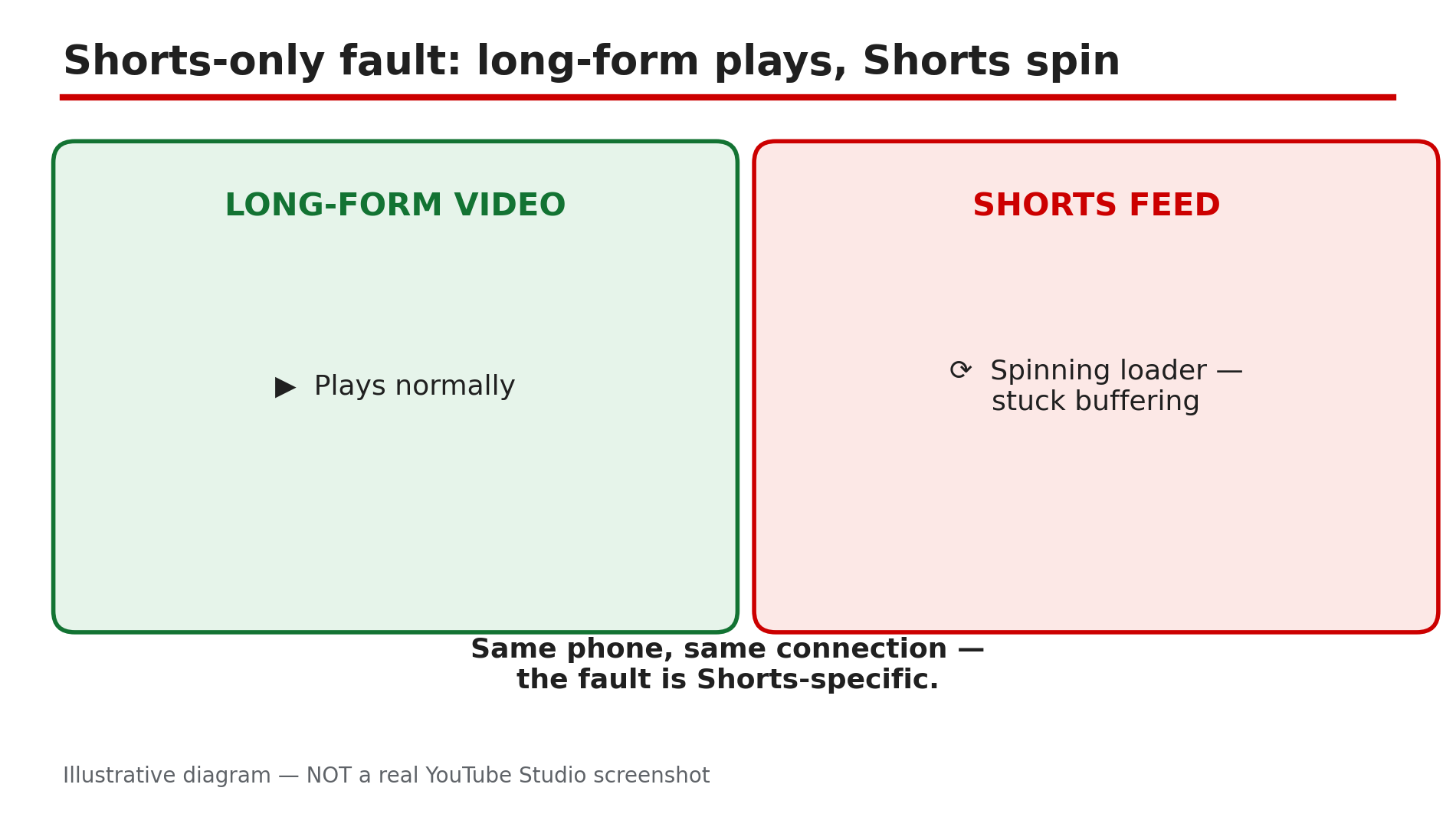
You tap the Shorts tab and get a spinning circle that never stops. The thumbnails may load, the first frame may flash, and then nothing moves. Yet when you go back to a normal video, it plays perfectly. That contrast is the most useful clue you have. Shorts and long-form videos do not fail in the same way: Shorts preload aggressively, swiping from one clip to the next, so a slow or restricted connection stalls the whole feed while a single long video still buffers happily, as reported in guides on this problem. A stale cache entry can also wedge the Shorts tab while search and long-form keep working. This guide walks you through the diagnosis in order — prove it is Shorts-only, fix the connection, clear the wedge, and know when the problem is a bad app update rather than your phone. What You Will LearnHow to prove the fault is Shorts-only and not your connection How to reconnect cleanly by switching networks How to clear the YouTube cache that wedges the Shorts tab Why Data Saver and battery restrictions hit Shorts hardest When an app update is the cause — and when to simply waitStep 1 — Prove it is a Shorts-only fault before changing anything What to do: Confirm that normal videos play while Shorts do not, because that single test decides which fixes are worth trying. How: Open a regular long-form video and let it play for thirty seconds, then go back to the Shorts tab and swipe through five Shorts. If long-form plays and Shorts do not, the fault is Shorts-specific, as reported, and the steps below apply. If long-form videos also fail, you have a general playback problem instead. Example: A viewer finds her favourite channel's new video plays fine, but every Short in the feed spins forever. That contrast tells her the connection is alive and the Shorts feed itself is stuck. Common mistake: Reinstalling the app as a first step — you lose your downloads and settings for a problem a cache clear usually fixes in a minute.Illustrative diagram: a long-form video plays while the Shorts feed stays stuck on a loading spinner. Step 2 — Switch networks to reconnect cleanly What to do: Test the Shorts feed on a different connection, because Shorts preload so aggressively that a weak or throttled connection stalls them first. How: If you are on Wi-Fi, switch to mobile data and try the Shorts tab again. If you are on mobile data, switch to Wi-Fi. You can also toggle airplane mode on for ten seconds and off again to force a fresh connection, as reported in guides on this problem. Shorts need a steady stream of small, fast loads as you swipe, so a connection that copes with one long video can still fail on Shorts. Example: A commuter finds Shorts freeze on the train's Wi-Fi but play instantly on mobile data — the Wi-Fi is throttling video. Common mistake: Blaming the phone when the network is at fault — always test a second network before touching any setting.Illustrative diagram: testing the Shorts feed on a second network to find out whether the connection is at fault. Step 3 — Force stop the app and clear the YouTube cache What to do: Clear the stale Shorts cache entry that can wedge the tab, without deleting your downloads or your login. How: On Android, go to Settings, then Apps, then YouTube, then Storage, and tap Clear cache — not Clear data, which signs you out and deletes downloads. Then force stop the app, reopen it, and try the Shorts tab again, as reported. On iPhone there is no per-app cache clear, so offload the app instead: Settings, then General, then iPhone Storage, then YouTube, then Offload App. Offloading keeps your data while replacing the app itself. Example: A creator's Shorts feed froze every morning after the first swipe. Clearing the YouTube cache once fixed it, and the feed has worked since. Common mistake: Tapping Clear data instead of Clear cache on Android — that wipes your downloads and signs you out, and it is not needed for a Shorts loading fault.Illustrative mock-up: the Android settings path to clear the YouTube cache without touching downloads. Step 4 — Turn off Data Saver and battery restrictions What to do: Check the two settings that quietly throttle Shorts: Data Saver inside YouTube, and battery optimisation on your phone. How: In the YouTube app, tap your profile picture, then Settings, then Data saving, and turn Data Saver off for a test, as reported in guides on this problem. Data Saver limits how much video YouTube preloads, and Shorts — which preload the next clip before you swipe — are hit hardest. Then check battery settings: on Android, go to Settings, then Apps, then YouTube, then Battery, and make sure the app is not set to Restricted — a restricted app cannot fetch the next Short, so every swipe stalls. Example: A student on a small data plan finds Shorts buffer endlessly with Data Saver on, but play smoothly the moment he turns it off on Wi-Fi. Common mistake: Turning Data Saver back on and forgetting it — then blaming YouTube a week later when Shorts stall again on the same setting.Illustrative diagram: how Data Saver and battery restrictions slow down the Shorts feed. Step 5 — Update the app and re-sign in What to do: Rule out a bad app build and a stale signed-in session, in that order. How: Open your app store and check for a YouTube update — install it if one is waiting, then restart your phone before testing again, as reported. A faulty build can break Shorts first while long-form keeps working. If the feed is still stuck, sign out and sign back in to the same account: an empty personalised feed is sometimes a session problem, not a network one. Example: A viewer's Shorts stopped loading the day after an app update. The next update, released three days later, fixed the feed without him changing anything else. Common mistake: Updating the app and testing immediately without restarting the phone — the old version can keep running in the background until the device restarts.Illustrative diagram: the three steps that rule out a bad app build or a stale signed-in session. Step 6 — Know when the problem is YouTube's, and wait it out What to do: If every fix above fails on every network and every device, check for a wider outage and stop troubleshooting your phone. How: Try the Shorts tab on a second device, or in a desktop browser at youtube.com/shorts. If Shorts fail everywhere, check a service-status site such as Downdetector for YouTube reports, as reported. A fault that began right after an app update is likely the build itself — the fix is the next update, and no cache clearing will help. Example: A household finds Shorts frozen on two phones and a tablet at the same time. Downdetector shows a spike of YouTube reports, and the feed recovers by itself within the hour. Common mistake: Factory-resetting the phone for a YouTube-side fault — an extreme step that never fixes a server or app-build problem.Illustrative diagram: a decision tree for telling a YouTube-side Shorts outage from a fault on one device. Checklist — Fix YouTube Shorts not loading or stuck buffering☐ Confirmed long-form videos play while Shorts do not ☐ Tested the Shorts feed on a second network (Wi-Fi and mobile data) ☐ Toggled airplane mode to force a fresh connection ☐ Cleared the YouTube cache on Android, or offloaded the app on iPhone ☐ Turned off Data Saver inside YouTube ☐ Checked battery restrictions are not throttling the YouTube app ☐ Updated the YouTube app and restarted the phone ☐ Signed out and back in if the personalised feed stays empty ☐ Checked a second device and an outage report before resetting anythingFAQs 1. Why do Shorts buffer while normal YouTube videos play fine? Because Shorts preload aggressively as you swipe, so a slow, restricted, or throttled connection stalls the feed while a single long-form video still buffers, as reported. A stale Shorts cache entry can also wedge the tab while everything else works. 2. Will clearing the YouTube cache delete my downloads? No — Clear cache on Android removes temporary files only and keeps your login and downloads. Clear data is the option that signs you out and deletes downloads, so tap the right one. 3. Does Data Saver really affect Shorts more than long videos? Yes, as reported — Shorts depend on preloading the next clip before you swipe, and Data Saver limits preloading. 4. Shorts stopped loading right after an app update. Is my phone broken? Almost certainly not — a bad app build can break Shorts first while long-form keeps working, as reported. Wait for the next update. 5. Should I reinstall YouTube if Shorts will not load? Only after the steps above. Reinstalling is a last resort: clear the cache, switch networks, turn off Data Saver, and update the app first — see our guide on the YouTube app crashing or showing a black screen for the full app-repair order. SourcesYouTube Help — "Troubleshoot YouTube video errors" (official page, opened live 10 Nov 2026): https://support.google.com/youtube/answer/3037019?hl=en CreatorPlaybook — "YouTube Video Stuck at Low Quality? Why 1080p or 4K Is Missing" (internal link, live-verified published post): </blog/youtube-video-stuck-at-low-quality-why> CreatorPlaybook — "YouTube App Not Opening, Crashing, or Black Screen? How to Fix It" (internal link, live-verified published post): </blog/youtube-app-not-opening-crashing-or>
- CreatorPlaybook Team
- 08 Nov, 2026
YouTube Shorts Getting Views but No Subscribers? Why and How to Fix It
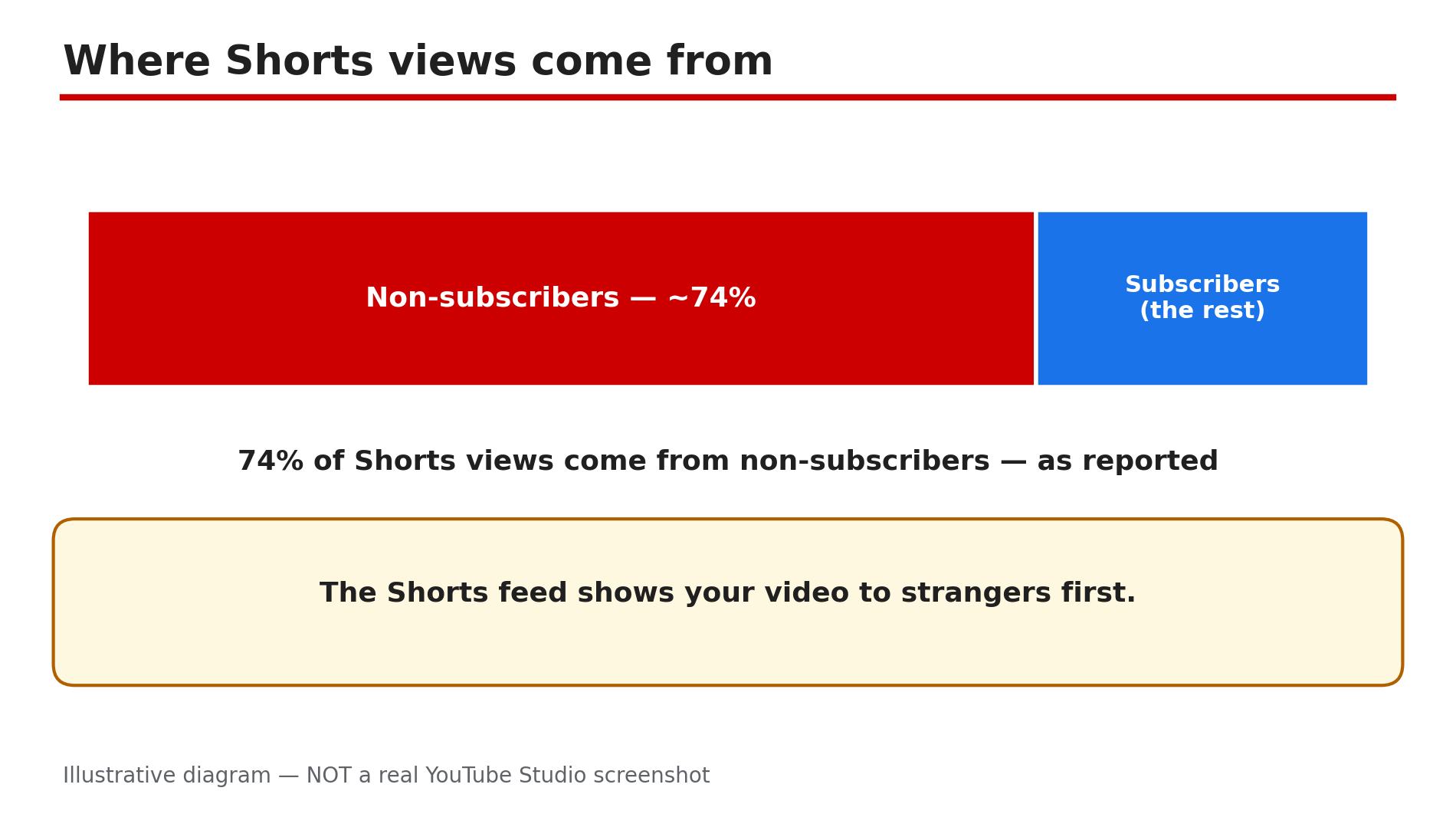
Your Short gets 10,000 views, 50,000 views, maybe even a million — and your subscriber count barely moves. It feels broken. It is not. In most cases, views without subscribers is not a glitch. It is how Shorts are designed to work. Shorts and long-form videos run on separate recommendation systems, and the Shorts feed shows your video to strangers. As reported in a Loopex Digital Q1 2026 report, around 74% of Shorts views come from non-subscribers. The feed rewards a fast swipe — completion, likes, comments, shares, and the newer Save rate added in July 2026 — and none of those is tied to subscribing. At around 16 seconds of average watch time, as reported, that is rarely enough for a stranger to decide to follow you. The fix is not "get more views". It is to give each viewer a reason to come back — here are six fixes that do that. What You Will LearnWhy Shorts views rarely become subscribers What the reported numbers mean How to add a subscribe trigger to every Short How a series earns the next subscribe How your channel page backs the promise How to bridge viewers to long-form videoStep 1 — Read your numbers before fixing anything What to do: Check in YouTube Studio where your Shorts views come from and how many subscribers they produce, so you fix the real gap. How: In Studio, open a Short's Reach tab under Analytics. Most views will show under the Shorts feed — strangers swiping past, not subscribers. Then check the Subscribers report for the same video. As reported by industry analyses, the platform average is around 16.9 new subscribers per 10,000 Shorts views, roughly 1.7%, while strong channels report 2–3%. Treat those as reported ranges, not YouTube's own figures — confirm your own numbers in Studio. Example: A cooking creator's Short has 80,000 views and 90 new subscribers; Studio shows 78% came from the Shorts feed. Nothing is broken — the audience was almost entirely strangers. Common mistake: Judging a Short by views alone. Views measure reach; subscribers measure a decision, and the two need different fixes.Illustrative diagram: most Shorts views come from non-subscribers, so low conversion is the default, not a glitch. Step 2 — Give every Short one reason to subscribe What to do: Attach a specific subscribe trigger to the Short just watched — a promise about what comes next. How: Before you record, finish this sentence: "If you liked this Short, subscribe because tomorrow I will show you ___." Put that promise in the last two or three seconds — not as a generic "please subscribe". The trigger must match the Short: a leaking-tap Short earns "one home fix every day", not "more videos". A specific next video gives them a reason to come back. Example: A fitness creator ends a home workout Short with "Part 2 — the version for bad knees — is tomorrow. Subscribe so you don't miss it." Viewers who want Part 2 now have a concrete reason to subscribe. Common mistake: Saying "like and subscribe" in every Short. Viewers swipe past a generic ask; they act on a specific next step.Illustrative diagram: average Shorts watch time is too short for a stranger to decide to subscribe. Step 3 — Build a series viewers can recognise What to do: Turn one-off Shorts into a series with the same format, opening line, and rhythm, so viewers subscribe for the next episode. How: Pick one format you can repeat at least ten times — "One mistake a day", "60-second fix" — and keep the opening three seconds identical: same phrase, same framing, same on-screen episode number. Publish on a predictable rhythm. A series turns a single view into an expectation, and subscribing becomes the way to keep it. Example: A creator posts "One Excel trick a day" every morning, always opening with "Excel trick number 12". By episode 15, viewers subscribe because they know what tomorrow's trick will be. Common mistake: Posting a different topic and format every day. Each Short then starts from zero, and no viewer ever learns what your channel is for.Illustrative diagram: a specific subscribe promise tied to the Short converts better than a generic ask. Step 4 — Make your channel page back the promise What to do: Make your channel page prove, in five seconds, that subscribing is worth it. How: Open your channel page as a stranger would. Your banner, profile picture, and About section should say the same thing your Shorts promise: who the channel is for and what they get. Group your Shorts into playlists by series, so a visitor who liked one Short sees ten more like it. If the page looks like a different channel from the Short that brought them there, fix the page first. Example: A travel creator's Short about cheap train tickets goes viral, but her channel page shows random vlogs and gaming clips. After she groups her travel Shorts into a "Cheap travel" section and rewrites her banner, the same kind of Short starts converting. Common mistake: Ignoring the channel page. The subscribe button lives there, so the page has to sell it.Illustrative diagram: a repeatable series with the same opening makes subscribing the way to keep watching. Step 5 — Bridge Shorts viewers to a long-form video What to do: Use each Short as a doorway to a longer video on the same topic. How: For each Short, pick one related long-form video, link it in a pinned comment, and mention it: "The full 10-minute version is linked in the pinned comment." As reported by one guide, this bridge can lift watch time by around 20% — present that as reported, and confirm in Studio whether your own pinned-comment links get clicked. A viewer who watches eight minutes of your long video has learned enough to decide it is worth following; a sixteen-second swiper has not. Example: A gardening creator's 40-second Short shows a tomato trick and pins: "Full video — how I grew 40 kg of tomatoes on a balcony — linked below." Viewers who click watch the long video, and some subscribe from its end screen. Common mistake: Linking a random popular video, or hiding the link in the description where Shorts viewers never look.Illustrative mock-up: the channel page must match the Short that brought the visitor there. Step 6 — Test, measure, and repeat what converts What to do: Compare your Shorts by subscribers per 1,000 views, keep the formats that convert, and drop the ones that only collect empty views. How: In Studio, divide subscribers gained by views for each recent Short. Note which formats and triggers sit at the top. Also watch the Save rate, added as a feed signal in July 2026, as reported: a saved Short is one people return to. Change one thing at a time; give each change five Shorts before judging it. One viral Short tells you nothing; a pattern across ten tells you everything. Example: A creator finds her "mistake to avoid" Shorts gain three subscribers per 1,000 views while her trending-audio Shorts gain almost none. She doubles the mistake format, and her subscriber growth rises even as total views fall. Common mistake: Chasing the next viral Short instead of repeating the format that converts. More views of the wrong kind will not fix a conversion problem.Illustrative diagram: a pinned comment bridges a Short to a related long-form video that earns the subscribe. Checklist — Turn Shorts views into subscribers☐ Checked Studio: feed share and subscribers per Short ☐ Compared my rate with the reported range ☐ One specific subscribe trigger in every Short ☐ A repeatable series with the same opening and rhythm ☐ Channel page matches the Shorts' promise, series grouped ☐ Pinned comment links a related long-form video ☐ Measured subscribers per 1,000 views ☐ Kept the converting format, dropped the restFAQs 1. Is it normal for Shorts to get views but almost no subscribers? Yes. As reported, around 74% of Shorts views come from non-subscribers, and the reported average is about 16.9 new subscribers per 10,000 views. Low conversion is the default — Steps 2 to 5 are how you beat it. 2. How long before these fixes show results? Give it two to three weeks and ten or more Shorts. One Short proves nothing — check whether subscribers per 1,000 views are rising across the batch. 3. Should I ask viewers to subscribe in every Short? Yes, but only with a specific promise tied to that Short — the next episode, the full version, the next tip. A generic ask trains viewers to ignore it; a specific reason gives them something to act on. 4. Will one viral Short fix my subscriber problem? No. A viral Short brings strangers who watched for a few seconds and will never return. Steady conversion comes from a series, a clear channel page, and a bridge to long-form video — not one lucky video. 5. How is this different from a channel that is not growing at all? This guide is about Shorts that get views but no subscribers. If your whole channel is stuck with low views, the diagnosis is different — see our guide linked in Sources. SourcesYouTube Help — "Create YouTube Shorts" (official page, opened live 8 Nov 2026): https://support.google.com/youtube/answer/10343433?hl=en CreatorPlaybook — "YouTube Channel Not Growing? Diagnose the 4 Real Reasons" (internal link, live-verified published post): </blog/youtube-channel-not-growing-diagnose-4> CreatorPlaybook — "Shorts vs Long-Form Earning: How Many Views to Earn?" (internal link, live-verified published post): </blog/shorts-vs-long-form-earning-how-many>