YouTube Watch History Not Saving? Why Videos Disappear and How to Fix It
 CreatorPlaybook Team
- 06 Nov, 2026
You watched a video yesterday and want to find it again today, but it is not there. Your YouTube History looks empty, or it stops weeks ago. Your Watch Later list can do the same thing: you save a video, open your phone later, and it never appears.
The cause is usually simple: history is paused, you are on the wrong account, you watched signed out or in Incognito, auto-delete removed older history, or an app or browser problem is blocking the history request. Do not clear all your history as a repair step: it is destructive, it removes the evidence you need, and it cannot bring back unrecorded videos.
What You Will Learn
- Why paused history is the top cause
- How to turn history back on: app, web, TV
- Wrong account or signed-out viewing
- My Activity: missing data or a sync problem
- Auto-delete and older history
- Watch Later sync and the 5,000 limit
Step 1 — Check Whether Watch History Is Paused
What to do: Check the history control first — the most common cause of an empty history.
How: In the app: profile picture, Settings, Manage all history, Controls tab, then look for “Include the YouTube videos that you watch”. If it is unselected, history is paused. On the web: myaccount.google.com, Data and privacy, YouTube History. On a TV or games console: Settings, Pause watch history.
Example: You watched ten videos on Tuesday, but History still ends on Monday. You open the Controls tab and find the setting is unselected.
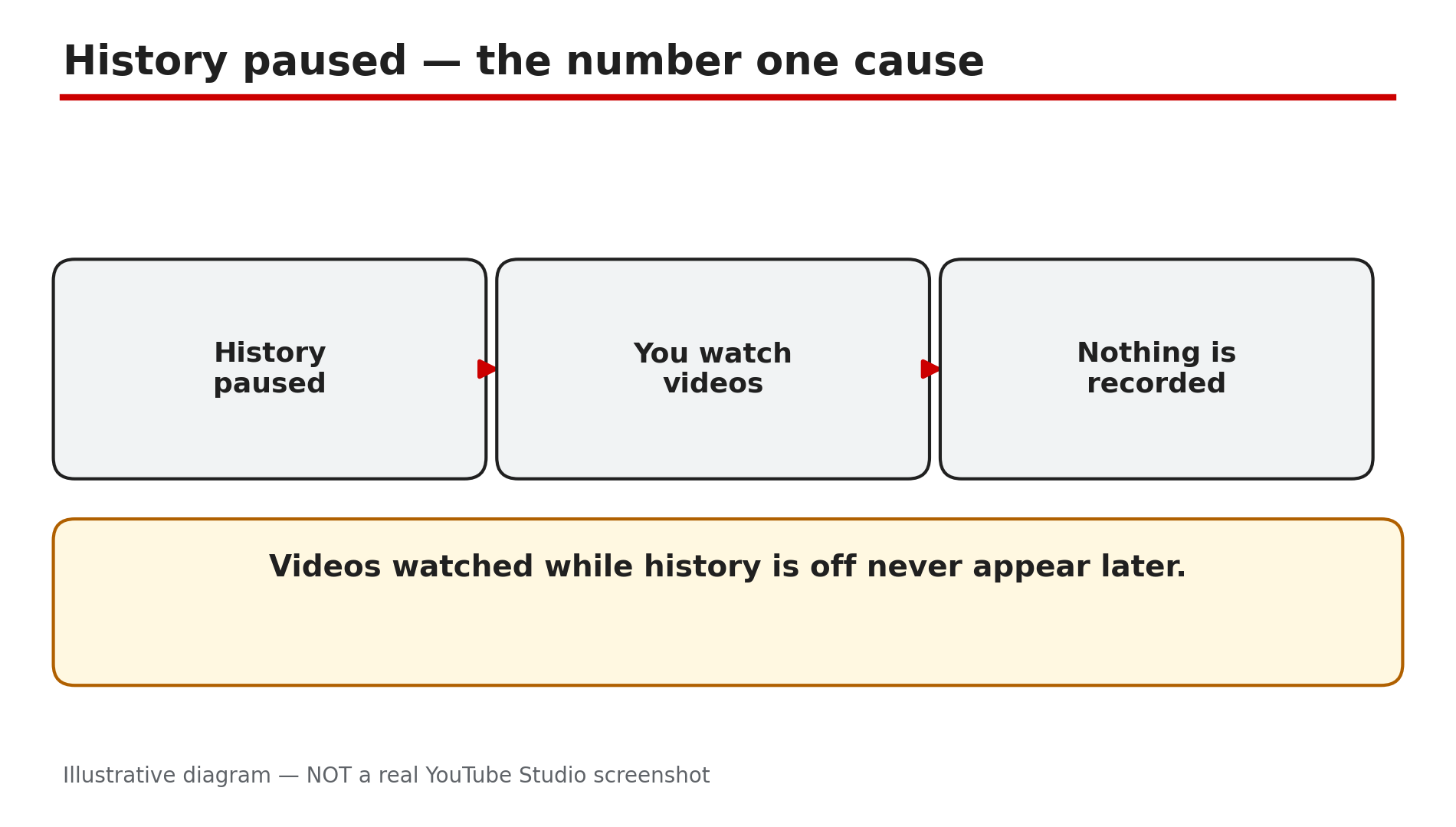
Common mistake: Turning history back on will not bring them back. YouTube Help says: “Any videos that you watch while history is turned off won’t appear in your history.” YouTube’s Help Centre names no automatic reason for history to turn itself off. If it keeps pausing, a setting is being changed, or you are on a different account or session.
Illustrative diagram: when watch history is paused, videos you watch are not recorded.
Step 2 — Confirm You Are on the Right Account and Signed In
What to do: Confirm the exact Google account signed in where you watched.
How: Tap your profile picture and read the account name and email. Do the same on the second device. If they differ, switch to the account you actually watched with. If you watched while signed out, or in Incognito, nothing is recorded — there was no signed-in account to attach the history to.
Example: You watched a tutorial on your work account at lunch, then looked for it that evening on your personal account. It is not there, because history is kept separately for each account.
Common mistake: Assuming history follows you because you are the same person on both accounts. It does not — a video watched on a family member’s account stays in that account’s history.
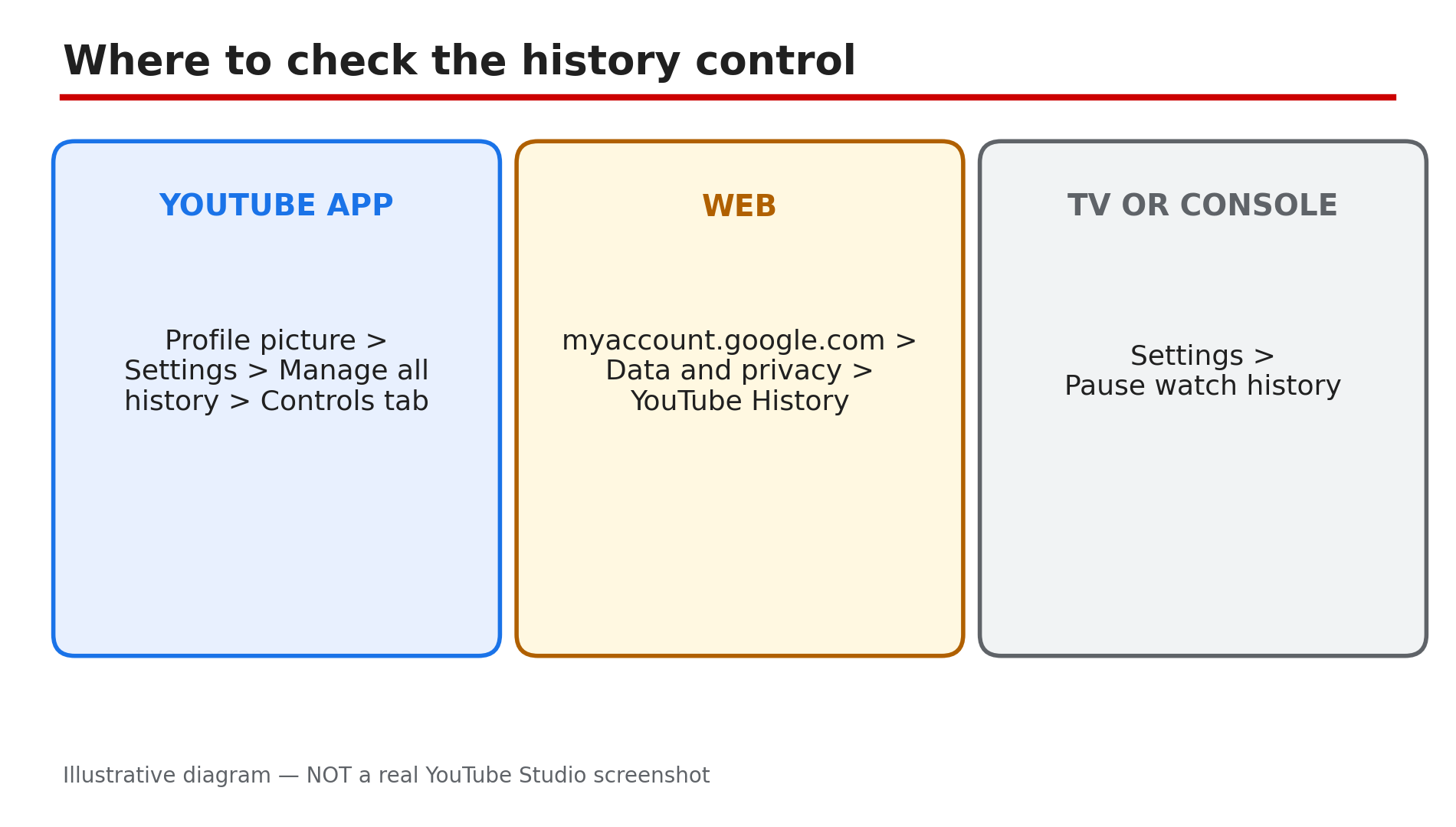
Illustrative diagram: where to find the watch history control on app, web and TV.
Step 3 — Run the My Activity Diagnostic
What to do: Use My Activity to find out whether your videos were recorded at all, before you change or delete anything.
How: Go to myactivity.google.com and filter by YouTube. Play a fresh video for about 30 seconds and check My Activity and YouTube History. If it appears in My Activity but not in History, the data exists and the problem is likely a sync or display issue. If it appears in neither place, it was probably not recorded.
Example: Three videos you watched this morning do not show in the app’s History tab, but all three are listed in My Activity filtered by YouTube. The watching was recorded, so the problem is likely the app.
Common mistake: Clearing all history to “reset” it when videos are missing. Do not do this. Clearing history is destructive and removes the evidence you need to diagnose the problem.
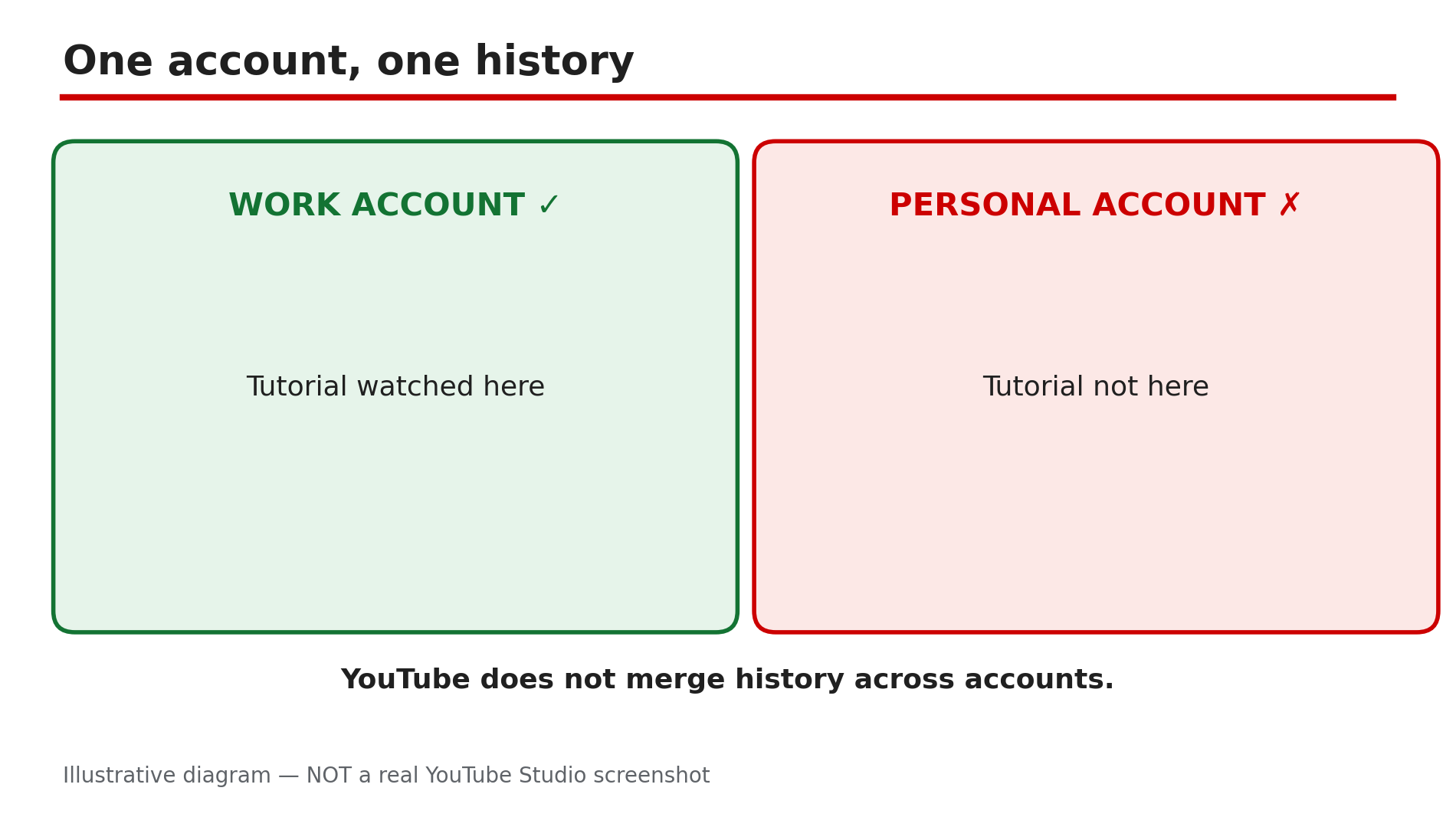
Illustrative diagram: watch history stays with the account you watched on.
Step 4 — Check Auto-Delete and Older History
What to do: Check whether auto-delete is removing older history automatically.
How: Go to Settings, then History and privacy, and look for the auto-delete option for YouTube History: 3, 18 or 36 months. If auto-delete is on, history older than the chosen period is removed automatically.
Example: Your videos from this week are all in History, but nothing from last year is there. You check and find auto-delete is set to 3 months.
Common mistake: Treating missing old videos as proof that history stopped working today. Check the dates first. Once the window has passed, that older history is gone. Google keeps no secret backup.
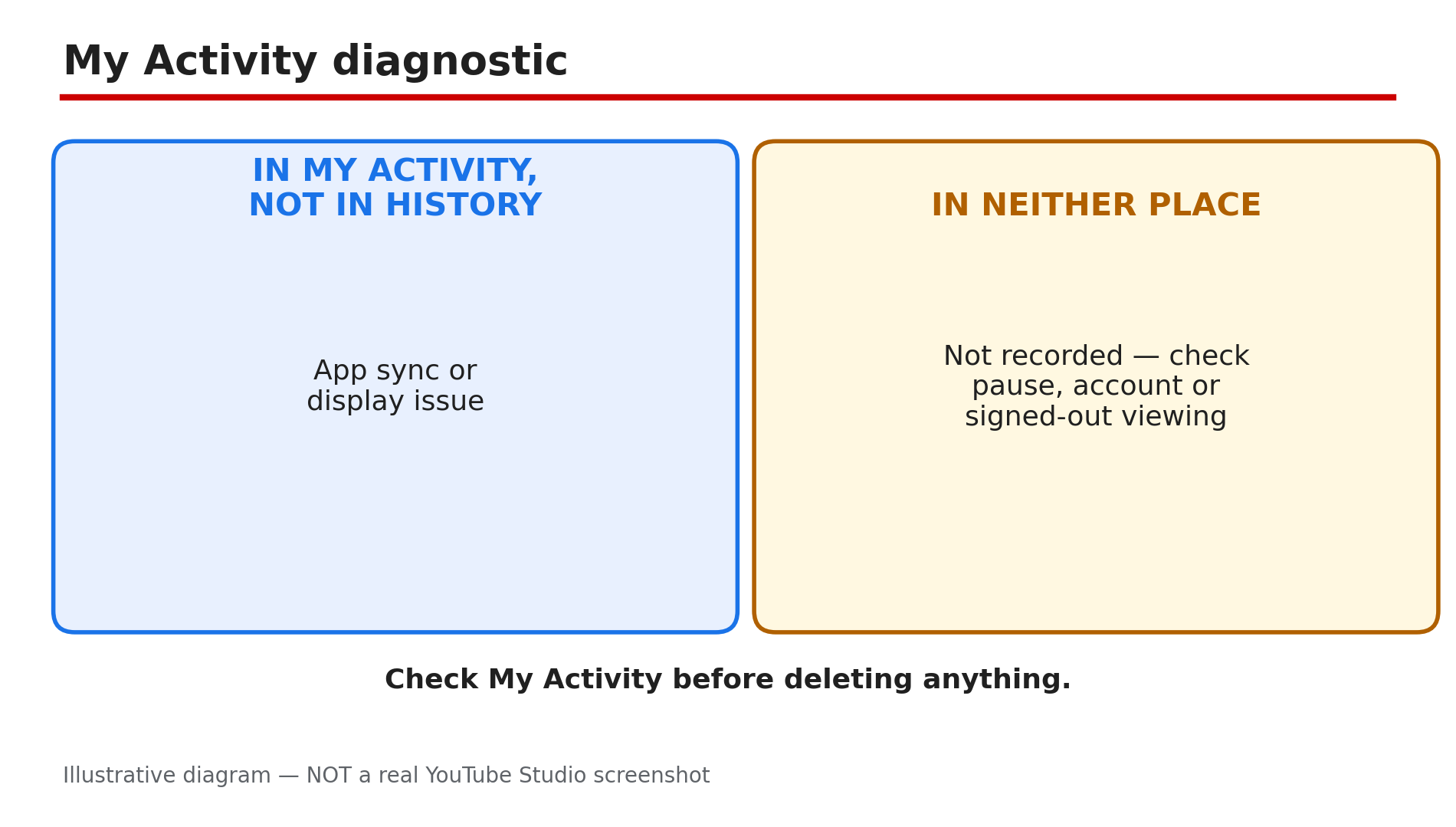
Illustrative diagram: using My Activity to tell a sync problem from missing data.
Step 5 — Fix the App, Browser, Cache and Extensions
What to do: Rule out device-side problems that block the history request while the video still plays.
How: Update the YouTube app, restart the device, then sign out and sign back in. On a browser, clear the cache and cookies for YouTube. If you use an ad blocker or a privacy extension, turn it off for YouTube and play a video for about 30 seconds. These tools can block the request that records a view, even though playback works fine.
Example: Videos play perfectly on your laptop, but none appear in History. You turn off your ad blocker for YouTube, play a video for 30 seconds, and it appears in History.
Common mistake: Reinstalling the app or clearing all app data first, before checking the pause setting, the account, and My Activity. A reinstall can sign you out, and signing in to the wrong account makes the problem look worse.
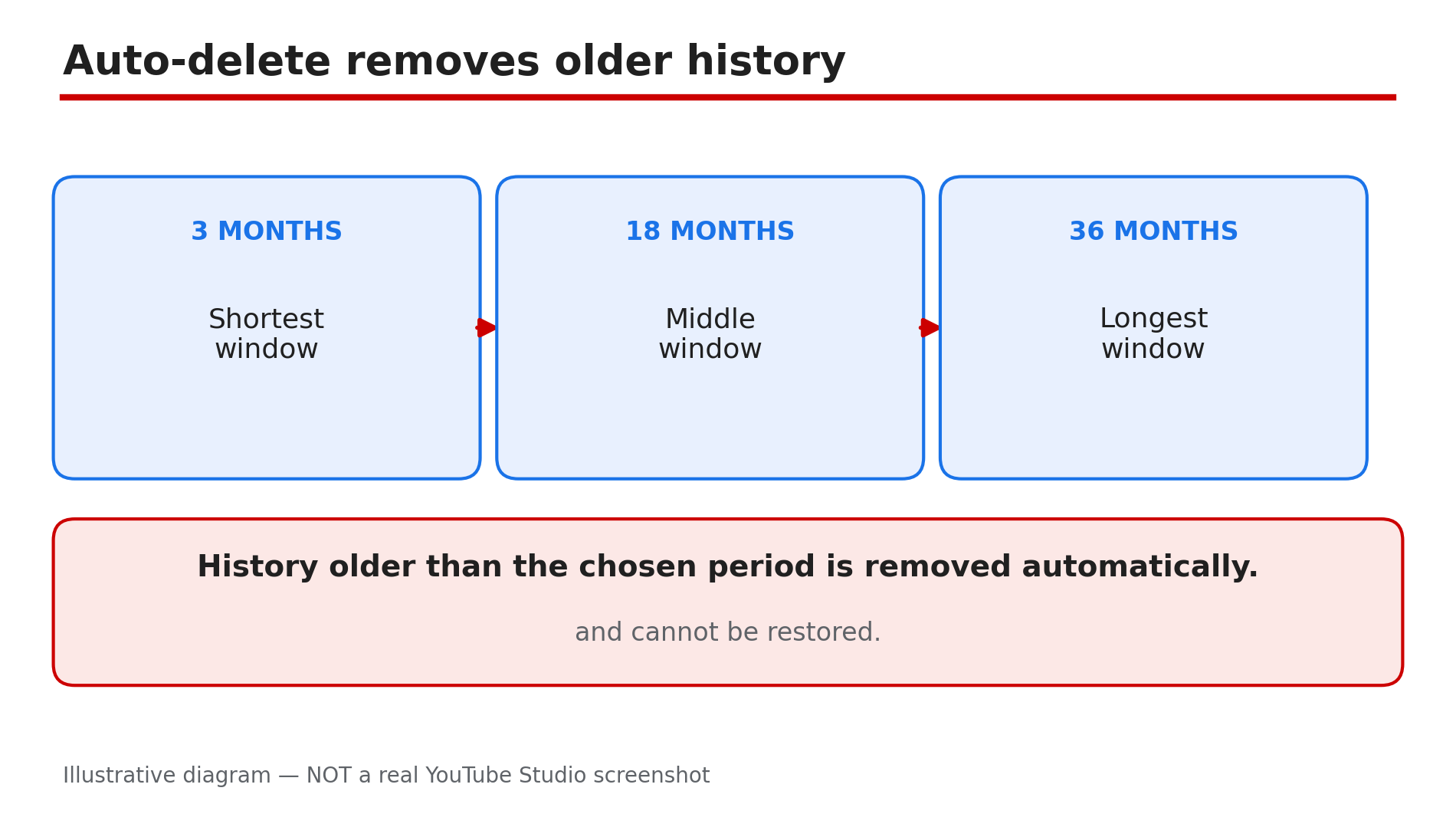
Illustrative diagram: auto-delete periods for YouTube watch history.
Step 6 — Fix Watch Later Sync and the Reported Limit
What to do: Check Watch Later as a separate sync problem — it can fail even when watch history works.
How: Watch Later syncs only across devices signed into the same Google account with a stable connection. If an add does not appear on your phone, check both devices show the same account, then re-sign in. If you added a video while offline, reconnect and wait. Watch Later also has a reported limit of 5,000 videos; no official Help page confirmed it. At the limit, as reported, nothing new can be added until you remove some items.
Example: You saved a video to Watch Later on your laptop, but your phone does not show it — your phone is signed in to a different account. Switch it to the same account, re-sign in, and the saved video appears.
Common mistake: Adding the same video again and again on different devices without checking the account. Repeated adds on the wrong account only fill the wrong list.
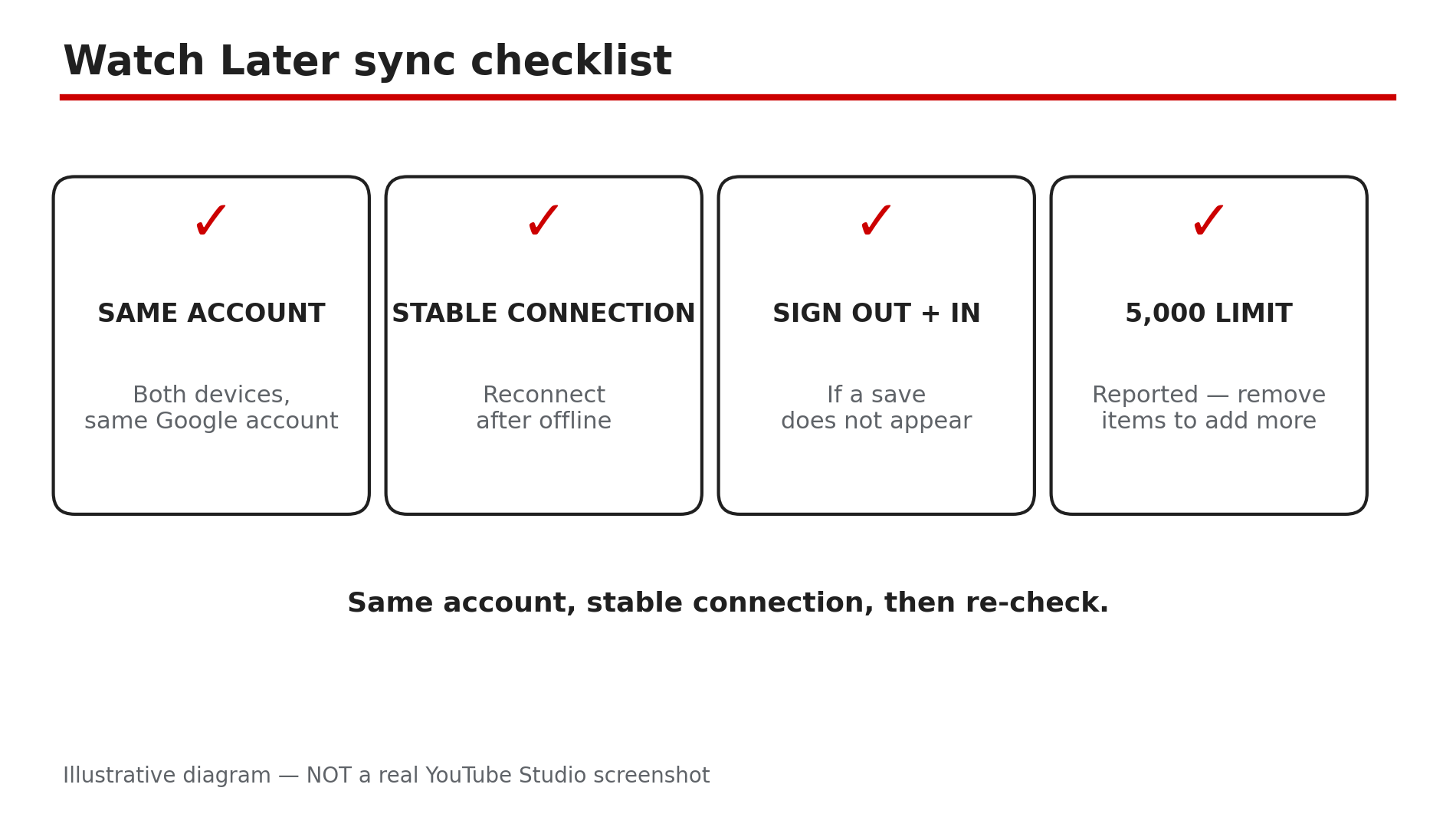
Illustrative diagram: checklist for fixing Watch Later sync across devices.
Checklist — Watch History Not Saving
- ☐ History control on
- ☐ Same account on every device
- ☐ Signed in, not Incognito
- ☐ My Activity checked for the missing videos
- ☐ Fresh video played 30 seconds, checked in History
- ☐ Auto-delete period checked
- ☐ Ad blocker off, app updated, re-signed in
- ☐ Watch Later: same account, reconnected, 5,000 limit noted
FAQs
1. Why is my YouTube watch history not saving at all?
The most common cause is paused watch history. Check Settings, then Manage all history, then the Controls tab, and look for “Include the YouTube videos that you watch”. If it is unselected, history is off. Turn it back on and play a fresh video for about 30 seconds to confirm new videos are being saved.
2. Can I recover videos I watched while history was paused?
No. If history was off while you watched, those videos were never recorded, so turning history back on cannot bring them back. Check My Activity at myactivity.google.com, filtered by YouTube. If the videos are in neither place, search for them again by title, channel, or topic.
3. Why does my history show on one device but not another?
This usually means the two devices are signed in to different Google accounts, or one device is signed out. History is kept separately for each account, and YouTube does not merge it across accounts. Check the profile picture on each device and confirm the account matches.
4. Why is my old watch history missing but recent videos are saving?
Check auto-delete in Settings, then History and privacy. If auto-delete is set to 3, 18 or 36 months, history older than that period is removed automatically. Once the window has passed, that older history is gone, and Google keeps no secret backup.
5. Why is a video I saved to Watch Later not showing on my phone?
Watch Later syncs only across devices signed into the same Google account with a stable connection. Confirm both devices show the same account, then re-sign in. If you added the video while offline, reconnect and wait. Watch Later also has a reported limit of 5,000 videos; no official Help page confirmed it. At that limit, as reported, nothing new can be added until you remove some items.
Sources
- YouTube Help — “View, delete, or turn on or off watch history” (official page, opened live 6 Nov 2026): https://support.google.com/youtube/answer/95725?hl=en
- CreatorPlaybook — “Video Not in Suggested or Recommended? Why YouTube Is Not Showing Your Video” (internal link, verified from the blog sitemap; watch history feeds recommendations): </blog/video-not-in-suggested-or-recommended>