Showing Posts From
Youtube settings
 CreatorPlaybook Team
- 14 Nov, 2026
How to Delete or Hide Your YouTube Channel — and What You Actually Lose
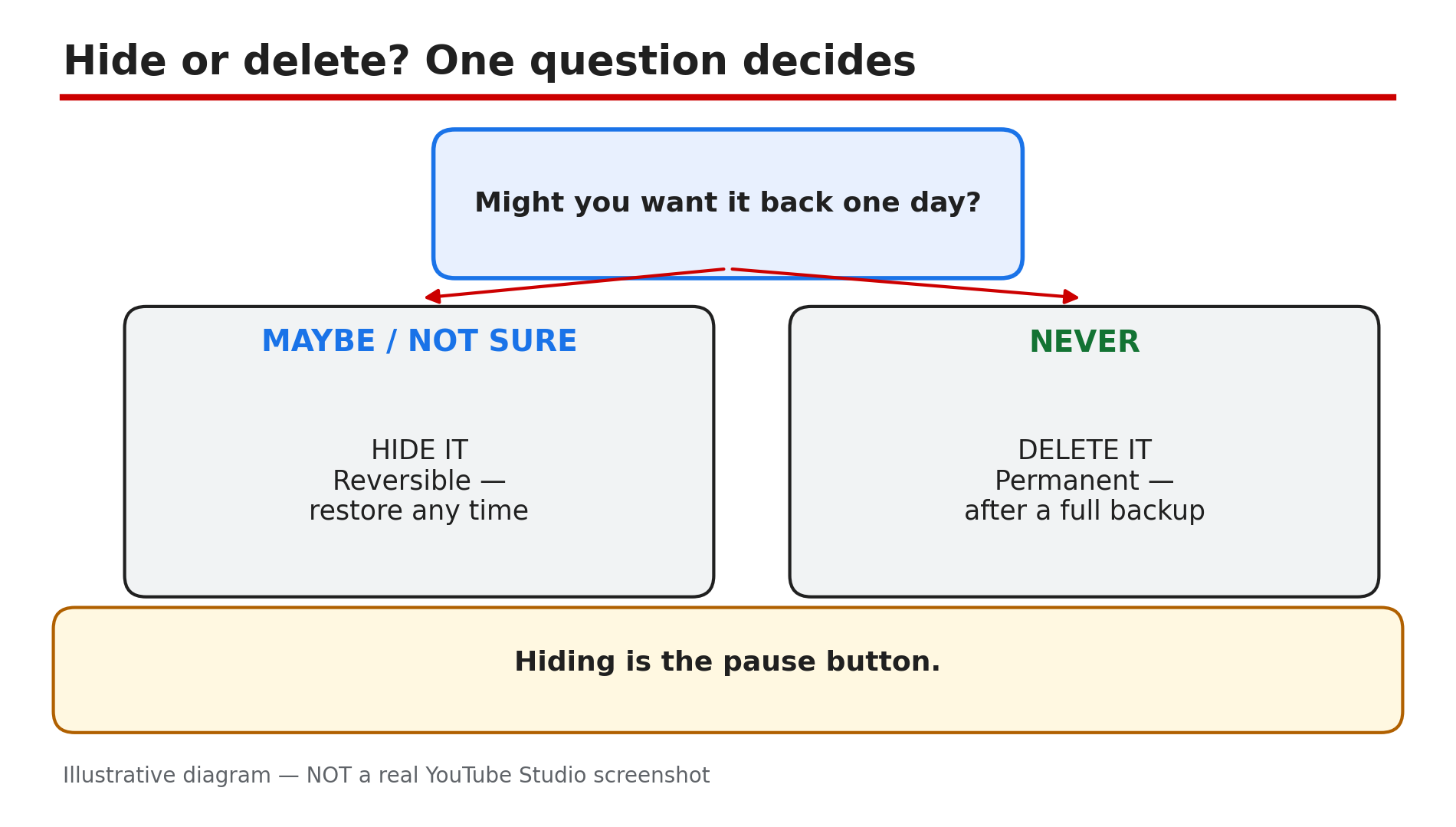
Deleting a YouTube channel is closer to demolishing a house than closing a door: every video, comment, subscriber and playlist tied to it goes too, and a deleted channel cannot simply be brought back. Hiding is the opposite — your channel steps out of public view, everything stays intact, and you can bring it back. Most creators here are burnt out and want a break, started on the wrong Google account, or clicked something by accident. The right move differs in each case, and the wrong move is permanent. One warning: the menu paths have moved between Studio redesigns, so the steps below follow YouTube's Help pages as they read on 14 November 2026. What You Will LearnThe one question that decides hide versus delete How to back up a channel before you touch a setting How to hide a channel the reversible way How to delete a channel permanently Exactly what disappears — and what survives How to restore a hidden channel, and why a deleted one has no way backStep 1 — Decide first: hide or delete — the one question that matters What to do: Answer one question before you open any settings page: might you ever want this channel back? How: If the answer is "maybe" or "I don't know yet", hide the channel. Hiding is temporary by design — YouTube's Help page says you can hide your channel and restore it at any time, and that hiding will not delete it. Your channel, videos, playlists and community posts disappear from search and other users, but nothing is destroyed. If the answer is a firm "never", delete it — but only after Step 2. A hidden channel costs nothing to keep; a deleted one costs everything you built. Example: A burnt-out creator with 40,000 subscribers hides her channel instead. Six months later she restores it — her videos are still there. Common mistake: Deleting to "take a break". Deletion is not a pause button — hiding is.Illustrative diagram: the one question that decides hide versus delete Step 2 — Back up everything before you touch a setting What to do: Download a full copy of the channel first — after deletion there is nothing left to download. How: Start with Google Takeout: choose YouTube, export your videos, and keep the archive safe. Then save what Takeout does not protect well — original video files, descriptions and titles, thumbnails, and a list of video URLs. Screenshot your Studio dashboard too: subscribers, watch time, top videos. Do this even if you only plan to hide, because a hidden channel you later delete still needs its backup made first. Example: A creator deletes a channel with 200 videos, then realises his only copy of his first fifty was the upload itself. Takeout after deletion exports nothing. Common mistake: Assuming YouTube keeps a copy you can ask for later. Once deleted, the Help page says YouTube may have a harder time recovering your account — and no documented restore exists.Illustrative diagram: the five things to back up before you touch a setting Step 3 — Hide your channel the reversible way What to do: Hide the channel from YouTube's settings, on the Help page's current path. How: Sign in to YouTube, open Settings from the left sidebar, click Advanced Settings, then click Hide your channel and select Hide to confirm. That is the Help page's path today — it starts on YouTube itself, not in Studio, with no Channel step. Older guides send you through Studio, then Settings, then Channel, then Advanced settings; follow the labels you actually see. While hidden, your channel, videos, playlists and community posts are hidden from search and other users; your name, handle and picture stay visible only to you. You can still watch, like and subscribe privately. Example: A creator hides his channel during a three-month break. His videos vanish from search, but his watch history and subscriptions keep working, because hiding does not touch his Google account. Common mistake: Forgetting delegated access: anyone with access loses it while the channel is hidden, and Brand Account delegates must be re-added after restore, as the Help page notes.Illustrative diagram: the current path to hide a channel, starting on YouTube itself Step 4 — Delete your channel permanently — the exact Studio path What to do: Delete the channel from YouTube Studio — reading every confirmation box first. How: Sign in to YouTube Studio. From the left sidebar, select Settings, then Channel, then Advanced Settings. At the bottom, select Remove YouTube Content — you may be asked to sign in again to verify your identity. Select "I want to permanently delete my content", tick the boxes, and select Delete my content — the Help page path, checked live on 14 November 2026. Two things to know: you cannot currently delete a channel on a mobile device, as the Help page states, so use a computer; and deletion may take some time, during which thumbnails can still show briefly. Example: A creator with two channels deletes the wrong one — both are signed into the same browser. The confirmations show the channel name: reading them is the last chance to catch it. Common mistake: Rushing the confirmation boxes. They list what will be deleted — read them slowly and check the name and picture match the channel you mean to delete.Illustrative diagram: the Studio path to delete a channel permanently Step 5 — What actually disappears — and what survives What to do: Know the full price of each choice before you pay it. How: Deleting removes your videos, comments, messages, playlists and history, as the Help page states. Embedded videos on your website or blog will break, as reported — the video they point to no longer exists. Monetisation ends with the channel too: Partner Program membership and AdSense linkage are tied to it, as reported — confirm in Studio's Earn tab first. Hiding costs far less: everything becomes private and invisible, but nothing is destroyed. One catch: after restoring, previously public videos come back private — make them public again in Studio. Deleting the channel is not deleting the Google Account: the Help page states these steps delete only your YouTube channel, so Gmail, Drive and Photos stay untouched. As reported, deleting a Brand Account channel removes only that channel. Example: A creator deletes a channel and then finds her website full of dead embeds and her AdSense link gone. It was all listed in the Help page before she clicked. Common mistake: Thinking "delete my channel" deletes your Google Account — or deleting the Google Account to remove a channel. The second, as the Help page warns, deletes the channel with everything else in it.Illustrative diagram: three things you lose when you delete a channel Step 6 — After the click: restore a hidden channel, or live with a deletion What to do: If you hid it, restore it when ready. If you deleted it, rebuild from your backup. How: To restore, sign in to YouTube, open Settings, click Advanced Settings, then click Restore your channel and select Restore — the hiding path in reverse. Your channel, name, handle and picture become visible again, and your playlists return too. But your previously public videos return set to private, so open Studio, go to Content, and set them back to public. If you deleted the channel, there is no documented restore path: the Help page only says YouTube may have a harder time recovering your account, and YouTube's own support forum says a deleted channel cannot be restored. No recovery workaround is documented — do not trust any video or tool promising one. Re-upload from your Step 2 backup, fix broken embeds, and re-check monetisation in Studio. Example: A creator restores a hidden channel after a year away and finds all 80 videos set to private. One afternoon in Studio sets them public again in bulk — her subscribers and playlists are still there. Common mistake: Restoring a hidden channel and assuming the videos are public again. They come back private — until you change them, subscribers see an empty channel.Illustrative diagram: what happens after the click — restore a hidden channel or rebuild a deleted one Checklist — Before you hide or delete a channel☐ Answered the Step 1 question honestly — hide if there is any doubt ☐ Downloaded a full Takeout backup and saved original video files ☐ Saved titles, descriptions, thumbnails and video URLs ☐ Checked the selected channel — right name and picture on screen ☐ Deletion needs a computer, not a mobile device ☐ Read every confirmation box before clicking Delete ☐ Accepted embeds break and monetisation ends with a deleted channel ☐ After restoring, set videos back to public in StudioFAQs 1. Can I get a deleted YouTube channel back? No — there is no documented way to restore a channel you deleted yourself. The Help page only says YouTube may have a harder time recovering your account, and YouTube's own support forum says a deleted channel cannot be restored. Your only safety net is the Step 2 backup. 2. If I hide my channel, do I lose my subscribers? Hiding makes your channel name, videos, likes, subscriptions and subscribers private, as reported, but nothing is deleted. On restore, previously public videos return set to private — set them public again in Studio. 3. Does deleting my channel delete my Google Account or Gmail? No. The Help page states these steps delete only your YouTube channel, not the Google Account you sign in with, so Gmail, Drive and Photos stay untouched. But deleting that Google Account deletes the channel too. 4. Can I delete my YouTube channel from my phone? Not currently. The Help page states you cannot delete a channel on mobile devices, so use a computer and YouTube Studio. 5. What happens to my verification badge if I delete or hide my channel? The badge belongs to the channel, so deleting the channel removes it — a fresh channel must earn verification again. If your badge disappeared while the channel is alive, that is a different problem: see "YouTube Verification Badge Lost or Removed? What to Do Next" on CreatorPlaybook. SourcesYouTube Help — "Hide or restore your YouTube channel" (official Help page, opened live 14 Nov 2026): https://support.google.com/youtube/answer/55759?hl=en YouTube Help — "Delete your YouTube channel" (official Help page, opened live 14 Nov 2026): https://support.google.com/youtube/answer/18261435?hl=en CreatorPlaybook — "YouTube Verification Badge Lost or Removed? What to Do Next" (internal link, URL given in the task): </blog/youtube-verification-badge-lost-or>
- CreatorPlaybook Team
- 11 Nov, 2026
YouTube Recommendations Wrong? How to Reset Your Feed the Right Way
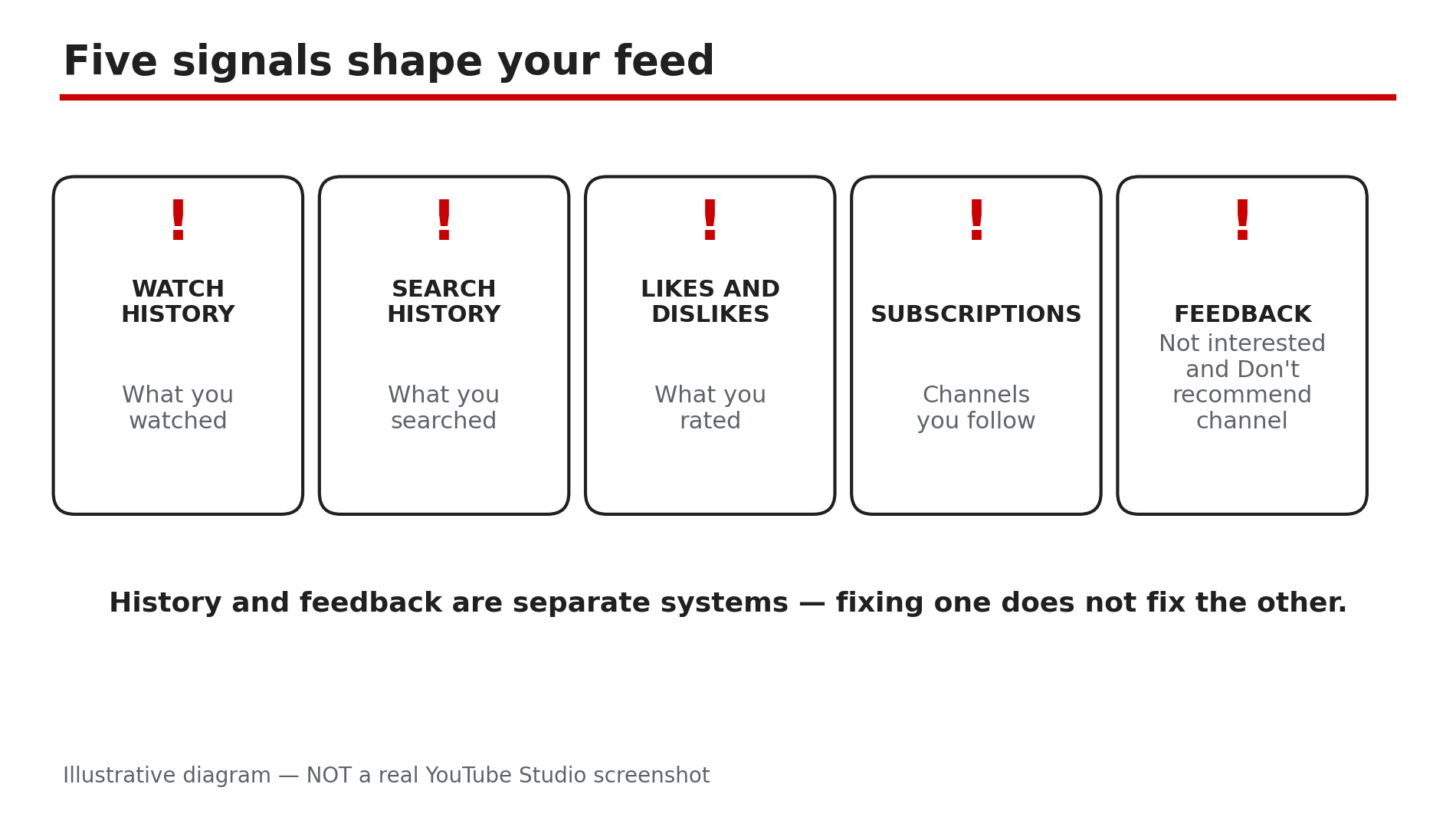
Your Home feed used to show videos you actually wanted. Now it is full of topics you watched once, channels you do not remember subscribing to, and Shorts you never asked for. The first thing most people look for is a "reset recommendations" button — and there is not one. YouTube builds your feed from several separate signals, and each one has its own fix. This guide shows you which signal is causing which problem, and how to retrain the feed without wiping out the personalisation you like. What You Will LearnThe five signals that shape your recommendations The difference between "Not interested" and "Don't recommend channel" How to undo a mistaken "Not interested" tap How deleting or pausing history works — and what it cannot do The Shorts feed limit and seeing fewer Shorts How long a retrained feed takes to settleStep 1 — Learn the five signals before you change anything What to do: Map what YouTube actually uses to pick your videos, so you fix the right signal. How: YouTube's Help page says your recommendations and search results are based on your watch history, your search history, the videos you like or dislike, your subscriptions, and the feedback you give with "Not interested" and "Don't recommend channel". The signals are separate: clearing watch history does not undo a "Not interested" tap, and unsubscribing does not erase the watch history behind a topic. Example: A feed full of cricket highlights after one match with a friend: the cause is watch history, not a subscription. Common mistake: Blaming the algorithm for a feed your own history built. The feed is a mirror; the fix starts with what you watched, searched, and liked.Illustrative diagram: the five signals YouTube uses to build your recommendations. Step 2 — Use "Not interested" for one-off videos, not whole topics What to do: Teach YouTube about single videos with the lightest tool first, before reaching for heavier ones. How: On Home or Watch Next, click More next to a video title and select Not interested. YouTube's Help page says you can then tap Tell us why and pick "I've already watched the video" or "I don't like the video" to fine-tune the signal. This is the right tool for a single video you do not want — a topic you have finished with, a video you already saw elsewhere, or a suggestion that does not fit. It is not a topic ban: one cooking video marked not interested will not remove cooking from your feed. Use it a few times on the same kind of video and the feed adjusts. Example: You finished a DIY project and keep getting DIY videos. Mark three Not interested, and within a day or two the DIY shelf thins out. Common mistake: Tapping Not interested on everything in a bad mood. Heavy negative feedback over-corrects the feed, and the next section shows how to undo it.Illustrative diagram: Not interested hides one video, Don't recommend channel hides a whole channel. Step 3 — Use "Don't recommend channel" only for whole channels What to do: Reserve the channel-level block for channels you never want to see again — never use it for a single bad video. How: Find a video, Short, or post from the channel on Home or Watch Next, click More, and select Don't recommend channel — on some screens it sits under Tell us why. It stops that channel being suggested, but not from search: you can still find it by searching. That is the difference from Step 2 — "Not interested" hides one video, "Don't recommend channel" hides the whole channel from your feed. Use it when a channel keeps appearing despite repeated Not interested taps, or when its whole style is not for you. Example: A channel posts daily videos in a niche you left months ago. Tapping Not interested on each one is a losing battle; Don't recommend channel ends it in one tap. Common mistake: Using Don't recommend channel on a channel you like because of one bad video. You will stop seeing its good videos too, and there is no undo on the feed itself.Illustrative mock-up: the steps to clear Not interested and Don't recommend channel feedback. Step 4 — Undo a mistaken "Not interested" tap in My Activity What to do: Clear your feedback when the feed has been over-corrected, instead of waiting for it to fix itself. How: History and feedback are separate systems, so clearing history does not undo a mistaken tap — you have to clear the feedback itself. YouTube's Help page gives the path: go to My Activity, sign in if asked, find Other Google activity in the left-hand menu, select YouTube "Not interested" feedback, then select Delete. That clears all the Not interested and Don't recommend channel feedback you have submitted. There is a brief Undo window right after a tap, but once it is gone, My Activity is the only way back. Example: A viewer tapped Don't recommend channel on the wrong channel. It vanished from the feed — until the feedback was deleted in My Activity, and the channel returned within a day. Common mistake: Deleting your entire watch history to fix a bad tap. History deletion does not touch feedback at all, so the block stays and your useful history is gone.Illustrative diagram: removing single videos from history is usually better than deleting everything. Step 5 — Delete or pause history for a real reset — carefully What to do: Use history deletion as the big reset, but target it first, and know what it cannot do. How: YouTube's Help page says you can start fresh by deleting your watch and search history — after you delete it, YouTube says it will not base future recommendations on that content. In My Activity under YouTube History, you can delete single videos, a date range, or everything. For a targeted fix, remove individual videos from watch history — the one match, the one rabbit hole, the one topic you regret. To stop history shaping the feed, turn it off in Settings under History and privacy — and turn it back on when done. Two warnings: deleting history does not guarantee a fresh feed, because subscriptions, likes, and account activity still apply; and a full wipe kills useful personalisation, so prefer targeted cleanup. Example: A viewer watched a week of exam-prep videos for a friend and now gets nothing but exams. Deleting just those videos fixed the feed in a day. Common mistake: Deleting all history, then being surprised the feed is still wrong. Subscriptions and likes are separate signals; check Steps 3 and 6 as well.Illustrative diagram: two built-in ways to see fewer Shorts on your Home feed. Step 6 — Tame Shorts, unsubscribe stale channels, and give it time What to do: Finish with the two remaining levers — Shorts controls and subscriptions — then wait for the feed to settle. How: For Shorts, YouTube's Help page describes two controls. On Home, scroll to a Shorts grid, tap More at the top, and tap Show fewer Shorts. Separately, the app has a Shorts feed limit under You, Settings, Time management — as reported, the limits include a zero-minute option, though on an adult account it is a reminder you can dismiss, not a lock. Next, unsubscribe from channels you no longer watch: stale subscriptions are a live signal. Finally, give it time — watch a few videos in the topics you want and like them. A retrained feed usually shows clear change within a few days, not minutes. Example: A viewer's feed was half Shorts from channels they had not watched in a year. Setting Show fewer Shorts and unsubscribing from twelve stale channels cut the noise in half within two days. Common mistake: Expecting an instant reset. There is no button for that — the feed changes when your signals change, and signals change one watch at a time.Illustrative diagram: a simple loop for retraining your recommendations when the feed is still wrong. Checklist — Reset your recommendations☐ Scanned watch history and found the pattern behind the bad feed ☐ Used Not interested on one-off videos, with Tell us why ☐ Used Don't recommend channel only for whole channels ☐ Cleared mistaken feedback in My Activity ☐ Removed single videos from watch history for targeted fixes ☐ Paused or deleted history only where a bigger reset was needed ☐ Set Show fewer Shorts and a Shorts feed limit in the app ☐ Unsubscribed from stale channels and watched videos in wanted topicsFAQs 1. Is there a "reset recommendations" button on YouTube? No. YouTube's Help page lists several ways to influence recommendations — Not interested, Don't recommend channel, and deleting history — but no single reset button. 2. Will deleting my watch history reset my feed completely? Not completely. YouTube says it will not base future recommendations on deleted history, but subscriptions, likes, and Google Account activity still apply. Prefer targeted deletion of the videos that caused the problem. 3. I tapped "Not interested" by mistake — can I undo it? Yes, briefly, with the Undo option right after the tap. After that, go to My Activity, then Other Google activity, then YouTube "Not interested" feedback, and select Delete. 4. Does "Don't recommend channel" block the channel everywhere? No. It stops the channel being suggested in your feed, but you can still find it by searching. To stop seeing a channel entirely, unsubscribe and use Don't recommend channel together. 5. How do I stop Shorts taking over my Home feed? Tap More on a Shorts grid and choose Show fewer Shorts, and set a Shorts feed limit in the app under You, Settings, Time management. As reported, the limit is a reminder on adult accounts, not a hard lock. SourcesYouTube Help — "Manage your recommendations & search results" (official page, opened live 11 Nov 2026): https://support.google.com/youtube/answer/6342839 CreatorPlaybook — "YouTube Watch History Not Saving? Why It Happens and How to Fix It" (internal link, live-verified in the blog sitemap 11 Nov 2026): </blog/youtube-watch-history-not-saving-why>
- CreatorPlaybook Team
- 06 Nov, 2026
YouTube Video Stuck at Low Quality? Why 1080p or 4K Is Missing and How to Fix It
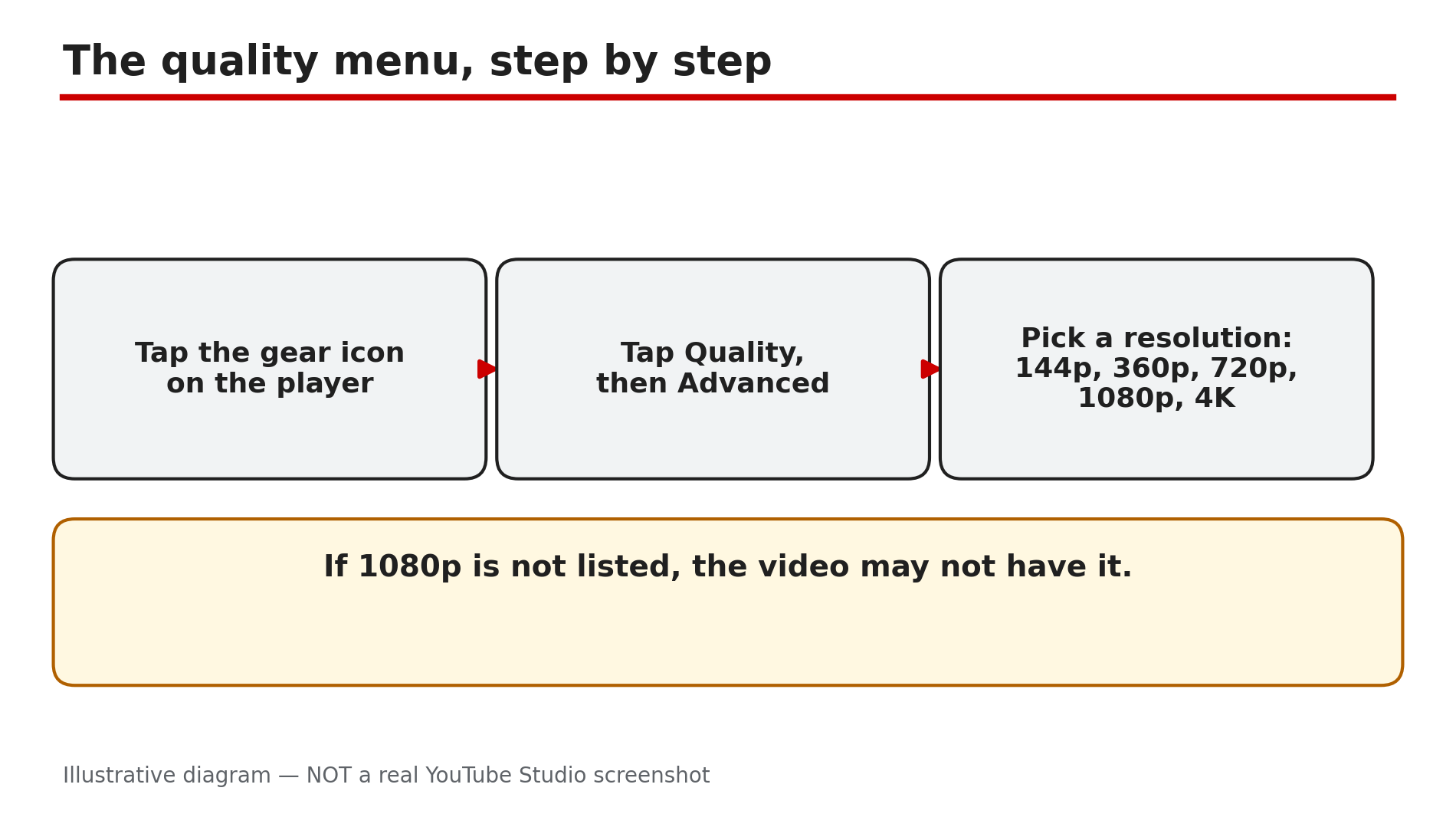
You press play, and the video looks soft and blurry. You open the settings gear and check the quality menu, but the option you want is not there. No 1080p. No 4K. Sometimes a video sits at 360p or 480p even though your internet plan is fast and your phone or TV is new. Usually nothing is broken: YouTube is choosing a quality for you, based on your connection, device, screen, and the video file. Before you change any setting, understand one key rule: a setting cannot create detail that was never uploaded. If a creator recorded a video in standard definition, no menu option will turn it into high definition. This guide covers the viewer side only. What You Will LearnWhat Auto, Higher picture quality, Data saver, and Advanced do Why YouTube changes quality based on connection, screen, and the upload Why 1080p or 4K can be missing on a fast connection and a new device How to test whether your real speed is enough for HD and 4K How VP9 support decides which options appear What 1080p Premium Enhanced bitrate is, as reported, and what it is notStep 1 — Open the quality menu and pick a resolution by hand What to do: Open the quality menu and pick a resolution yourself, to see which options exist for that video. How: On a computer, click the gear icon, then Quality. In the app, tap the video, tap the gear icon, then Quality. Choose Advanced if you see it, then pick a resolution such as 1080p. On a smart TV, find the quality entry in the settings menu. Example: A tutorial plays at 480p. You open Quality, then Advanced, and select 1080p. The picture sharpens within seconds — the video did have 1080p. Common mistake: Seeing only Auto and giving up. On many devices the resolution list sits behind Advanced, so open it.Illustrative diagram: how to open the quality menu and pick a resolution by hand. Step 2 — Turn off Auto and understand the three quality modes What to do: Learn what each quality mode does, then choose the one that matches your situation. How: Per YouTube's Help page, the menu offers Auto, which adjusts quality as your connection changes; Higher picture quality, which uses more data and may buffer more; Data saver, which uses less data at lower quality; and Advanced, which lets you pick a resolution by hand. On strong Wi-Fi choose Higher picture quality; on mobile data, use Data saver. Example: Your videos always start at 480p and slowly improve. You switch to Higher picture quality, and the next starts at 1080p straight away. Common mistake: Setting Higher picture quality on a weak mobile connection, then blaming YouTube when the video keeps pausing. It uses more data, so it buffers more.Illustrative diagram: comparing the three YouTube quality modes. Step 3 — Check whether the video was ever uploaded in high quality What to do: Before blaming your device, check whether the video itself has a high-quality version. How: Open the quality menu and look at the highest resolution listed. If it tops out at 720p or 480p, that is likely the highest quality the creator uploaded — YouTube's Help page states that a video recorded in standard definition will not be available in high definition. Example: An old video from 2012 tops out at 480p on every device, while a new video offers 4K. The old video was uploaded in standard definition. Common mistake: Reinstalling the app and restarting the router to fix a video uploaded in low quality. The detail does not exist in the source file.Illustrative diagram: four common reasons a high-quality option is missing. Step 4 — Test your real speed and give 4K time to process What to do: Measure the speed your device actually gets, and remember a new 4K upload may not offer 4K straight away. How: Run a speed test on the same device and Wi-Fi you watch on, when nobody else is streaming. For smooth 4K, third-party guides report you need around 20–25 Mbps sustained, not just plan speed: the speed your device actually receives, not the number on your bill. YouTube also processes low-quality versions first. As reported, 4K takes roughly four times longer than 1080p, and a 60-minute 4K video can take up to four hours. Example: Your plan promises 100 Mbps, but a test on your phone in the bedroom shows 12 Mbps because the router is two rooms away. You move closer, the test shows 45 Mbps, and 1080p plays smoothly. Common mistake: Quoting your plan speed as proof your connection is fine. Plan speed is a maximum, not a guarantee at your device.Illustrative diagram: your plan speed is not the speed your device receives. Step 5 — Check your browser, device, and VP9 support What to do: Find out whether your browser or device can play the newer formats high-quality options depend on. How: YouTube's Help page explains that some high-quality formats, including 1080p and 4K, may not be available on devices that do not support the latest video compression technology, known as VP9. It also notes some browsers do not support newer formats. Try the same video in a different browser or the official YouTube app, and update both. A 720p laptop screen shows no benefit from a 4K stream. Example: A video offers 4K in the app on your phone but only 720p in an old browser on your laptop. You update the browser, and 1080p appears. Common mistake: Assuming a missing 4K option means YouTube is hiding it from you. Usually the cause is the browser, the app version, or the device's format support. Test the same video on a second browser or device.Illustrative diagram: YouTube processes low-quality versions before 4K. Step 6 — Understand 1080p Premium Enhanced bitrate and what Premium does not do What to do: Understand what the Premium enhanced-bitrate option is, as reported, so you do not pay for Premium expecting a quality fix. How: As reported, 1080p Premium Enhanced bitrate is an enhanced-bitrate version of 1080p for Premium members, with more detail per pixel, but only on videos uploaded in 1080p, never on live streams or Shorts. One reported Stats for Nerds reading showed around 13 Mbps for Premium against around 8 Mbps for standard 1080p. This was not confirmed by any official page checked on 5 November 2026, so treat it as reported. One third-party guide also states Premium itself does not directly improve quality. Example: You buy Premium hoping a favourite channel's videos will look sharper. They look the same, because those videos were uploaded at a low bitrate. Another video, uploaded in crisp 1080p, does show the option. Common mistake: Paying for Premium as a fix for buffering or low quality, then feeling cheated when nothing changes.Illustrative diagram: what 1080p Premium Enhanced bitrate does and does not do. Checklist — Fix low playback quality☐ Open the quality menu and check the highest resolution ☐ Switch from Auto to Advanced and pick a resolution ☐ Higher picture quality on Wi-Fi, Data saver on mobile data ☐ Compare with another video to see if the limit is in this upload ☐ Run a speed test on the device and network where you watch ☐ Wait for 4K processing to finish on new uploads ☐ Try a different browser or the official app, and update both ☐ Remember Premium does not fix a low-quality uploadFAQs 1. Why is my YouTube video stuck at 360p or 480p? YouTube lowers quality when your connection is slow, when the player or screen is small, when your browser or device cannot play newer formats, or when the video was uploaded at low quality. Switch off Auto and pick a resolution. 2. Why is there no 1080p or 4K option on a video? The video may never have been uploaded in that quality. As reported, a new 4K upload may still be processing. Your device or browser may also lack VP9 support. 3. How fast does my internet need to be for 4K on YouTube? Do not rely on plan speed alone. Third-party guides report you need around 20–25 Mbps sustained for smooth 4K playback; purchased 4K movies are reported to need a steady 15 Mbps. 4. Does YouTube Premium improve video quality? Not directly, according to one third-party guide. Premium does not turn a low-quality upload into a high-quality one. As reported, Premium members may see a 1080p Premium Enhanced bitrate option on videos uploaded in 1080p. 5. Why does a video look sharp on my phone but blurry on my TV? The TV has a much larger screen, so the same resolution looks softer, and a low-bitrate upload shows its flaws more clearly. Your TV's app may also lack VP9 support, or its Wi-Fi signal may be weaker. As reported, upload bitrates such as 8 Mbps for 1080p and 35–45 Mbps for 4K explain why a low-bitrate upload never looks sharp. SourcesYouTube Help — "Change the quality of your video" (official page, opened live 6 Nov 2026): https://support.google.com/youtube/answer/91449?hl=en CreatorPlaybook — "YouTube Video Blurry After Upload? Why Your HD Video Looks Low Quality" (upload-side blurry video guide, topic 31): </blog/youtube-video-blurry-after-upload-why>
- CreatorPlaybook Team
- 06 Nov, 2026
YouTube Watch History Not Saving? Why Videos Disappear and How to Fix It
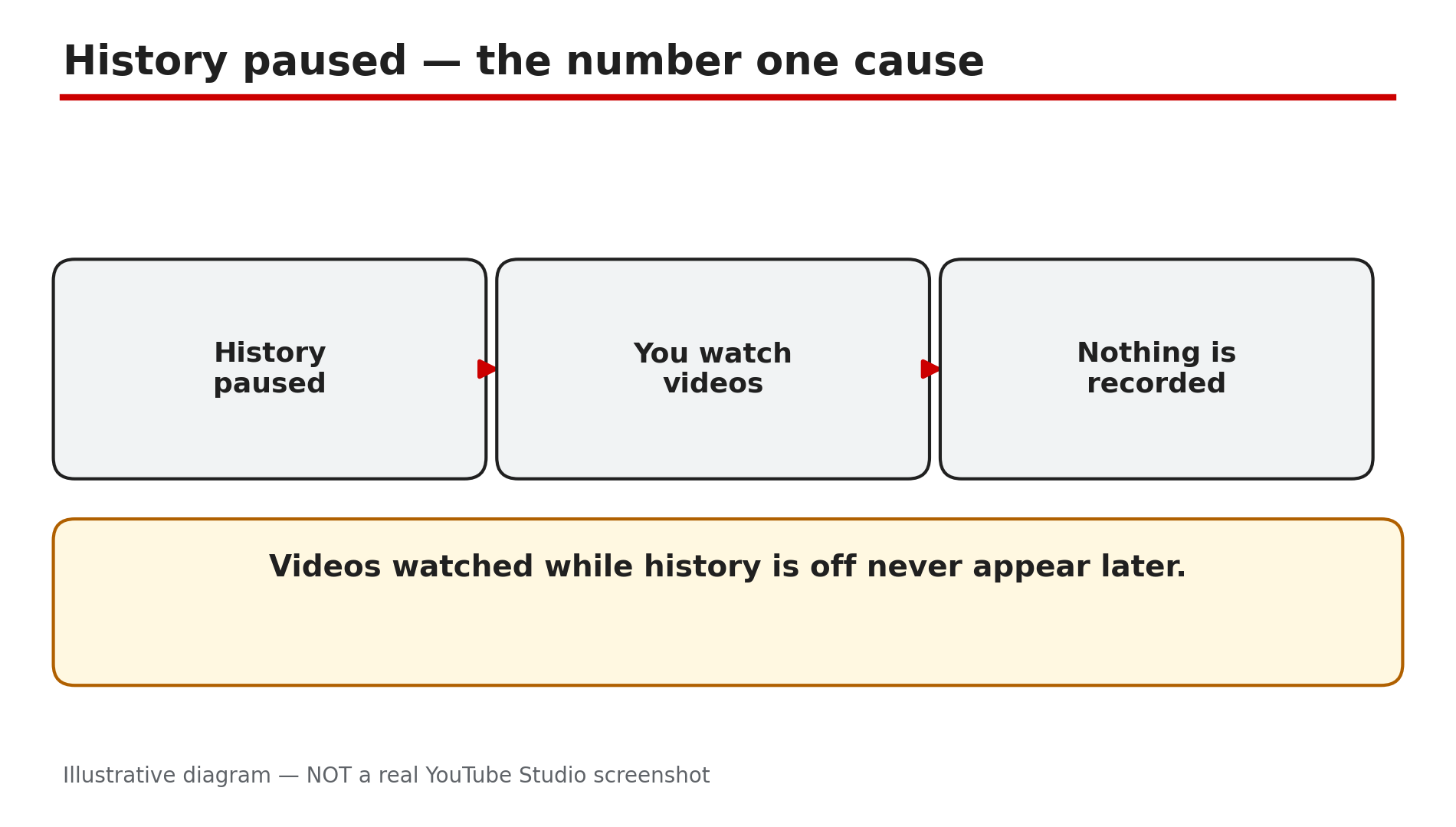
You watched a video yesterday and want to find it again today, but it is not there. Your YouTube History looks empty, or it stops weeks ago. Your Watch Later list can do the same thing: you save a video, open your phone later, and it never appears. The cause is usually simple: history is paused, you are on the wrong account, you watched signed out or in Incognito, auto-delete removed older history, or an app or browser problem is blocking the history request. Do not clear all your history as a repair step: it is destructive, it removes the evidence you need, and it cannot bring back unrecorded videos. What You Will LearnWhy paused history is the top cause How to turn history back on: app, web, TV Wrong account or signed-out viewing My Activity: missing data or a sync problem Auto-delete and older history Watch Later sync and the 5,000 limitStep 1 — Check Whether Watch History Is Paused What to do: Check the history control first — the most common cause of an empty history. How: In the app: profile picture, Settings, Manage all history, Controls tab, then look for "Include the YouTube videos that you watch". If it is unselected, history is paused. On the web: myaccount.google.com, Data and privacy, YouTube History. On a TV or games console: Settings, Pause watch history. Example: You watched ten videos on Tuesday, but History still ends on Monday. You open the Controls tab and find the setting is unselected. Common mistake: Turning history back on will not bring them back. YouTube Help says: "Any videos that you watch while history is turned off won't appear in your history." YouTube's Help Centre names no automatic reason for history to turn itself off. If it keeps pausing, a setting is being changed, or you are on a different account or session.Illustrative diagram: when watch history is paused, videos you watch are not recorded. Step 2 — Confirm You Are on the Right Account and Signed In What to do: Confirm the exact Google account signed in where you watched. How: Tap your profile picture and read the account name and email. Do the same on the second device. If they differ, switch to the account you actually watched with. If you watched while signed out, or in Incognito, nothing is recorded — there was no signed-in account to attach the history to. Example: You watched a tutorial on your work account at lunch, then looked for it that evening on your personal account. It is not there, because history is kept separately for each account. Common mistake: Assuming history follows you because you are the same person on both accounts. It does not — a video watched on a family member's account stays in that account's history.Illustrative diagram: where to find the watch history control on app, web and TV. Step 3 — Run the My Activity Diagnostic What to do: Use My Activity to find out whether your videos were recorded at all, before you change or delete anything. How: Go to myactivity.google.com and filter by YouTube. Play a fresh video for about 30 seconds and check My Activity and YouTube History. If it appears in My Activity but not in History, the data exists and the problem is likely a sync or display issue. If it appears in neither place, it was probably not recorded. Example: Three videos you watched this morning do not show in the app's History tab, but all three are listed in My Activity filtered by YouTube. The watching was recorded, so the problem is likely the app. Common mistake: Clearing all history to "reset" it when videos are missing. Do not do this. Clearing history is destructive and removes the evidence you need to diagnose the problem.Illustrative diagram: watch history stays with the account you watched on. Step 4 — Check Auto-Delete and Older History What to do: Check whether auto-delete is removing older history automatically. How: Go to Settings, then History and privacy, and look for the auto-delete option for YouTube History: 3, 18 or 36 months. If auto-delete is on, history older than the chosen period is removed automatically. Example: Your videos from this week are all in History, but nothing from last year is there. You check and find auto-delete is set to 3 months. Common mistake: Treating missing old videos as proof that history stopped working today. Check the dates first. Once the window has passed, that older history is gone. Google keeps no secret backup.Illustrative diagram: using My Activity to tell a sync problem from missing data. Step 5 — Fix the App, Browser, Cache and Extensions What to do: Rule out device-side problems that block the history request while the video still plays. How: Update the YouTube app, restart the device, then sign out and sign back in. On a browser, clear the cache and cookies for YouTube. If you use an ad blocker or a privacy extension, turn it off for YouTube and play a video for about 30 seconds. These tools can block the request that records a view, even though playback works fine. Example: Videos play perfectly on your laptop, but none appear in History. You turn off your ad blocker for YouTube, play a video for 30 seconds, and it appears in History. Common mistake: Reinstalling the app or clearing all app data first, before checking the pause setting, the account, and My Activity. A reinstall can sign you out, and signing in to the wrong account makes the problem look worse.Illustrative diagram: auto-delete periods for YouTube watch history. Step 6 — Fix Watch Later Sync and the Reported Limit What to do: Check Watch Later as a separate sync problem — it can fail even when watch history works. How: Watch Later syncs only across devices signed into the same Google account with a stable connection. If an add does not appear on your phone, check both devices show the same account, then re-sign in. If you added a video while offline, reconnect and wait. Watch Later also has a reported limit of 5,000 videos; no official Help page confirmed it. At the limit, as reported, nothing new can be added until you remove some items. Example: You saved a video to Watch Later on your laptop, but your phone does not show it — your phone is signed in to a different account. Switch it to the same account, re-sign in, and the saved video appears. Common mistake: Adding the same video again and again on different devices without checking the account. Repeated adds on the wrong account only fill the wrong list.Illustrative diagram: checklist for fixing Watch Later sync across devices. Checklist — Watch History Not Saving☐ History control on ☐ Same account on every device ☐ Signed in, not Incognito ☐ My Activity checked for the missing videos ☐ Fresh video played 30 seconds, checked in History ☐ Auto-delete period checked ☐ Ad blocker off, app updated, re-signed in ☐ Watch Later: same account, reconnected, 5,000 limit notedFAQs 1. Why is my YouTube watch history not saving at all? The most common cause is paused watch history. Check Settings, then Manage all history, then the Controls tab, and look for "Include the YouTube videos that you watch". If it is unselected, history is off. Turn it back on and play a fresh video for about 30 seconds to confirm new videos are being saved. 2. Can I recover videos I watched while history was paused? No. If history was off while you watched, those videos were never recorded, so turning history back on cannot bring them back. Check My Activity at myactivity.google.com, filtered by YouTube. If the videos are in neither place, search for them again by title, channel, or topic. 3. Why does my history show on one device but not another? This usually means the two devices are signed in to different Google accounts, or one device is signed out. History is kept separately for each account, and YouTube does not merge it across accounts. Check the profile picture on each device and confirm the account matches. 4. Why is my old watch history missing but recent videos are saving? Check auto-delete in Settings, then History and privacy. If auto-delete is set to 3, 18 or 36 months, history older than that period is removed automatically. Once the window has passed, that older history is gone, and Google keeps no secret backup. 5. Why is a video I saved to Watch Later not showing on my phone? Watch Later syncs only across devices signed into the same Google account with a stable connection. Confirm both devices show the same account, then re-sign in. If you added the video while offline, reconnect and wait. Watch Later also has a reported limit of 5,000 videos; no official Help page confirmed it. At that limit, as reported, nothing new can be added until you remove some items. SourcesYouTube Help — "View, delete, or turn on or off watch history" (official page, opened live 6 Nov 2026): https://support.google.com/youtube/answer/95725?hl=en CreatorPlaybook — "Video Not in Suggested or Recommended? Why YouTube Is Not Showing Your Video" (internal link, verified from the blog sitemap; watch history feeds recommendations): </blog/video-not-in-suggested-or-recommended>