Showing Posts From
Age restriction
 CreatorPlaybook Team
- 04 Nov, 2026
YouTube Restricted Mode: Why Your Video Is Hidden and How to Fix It
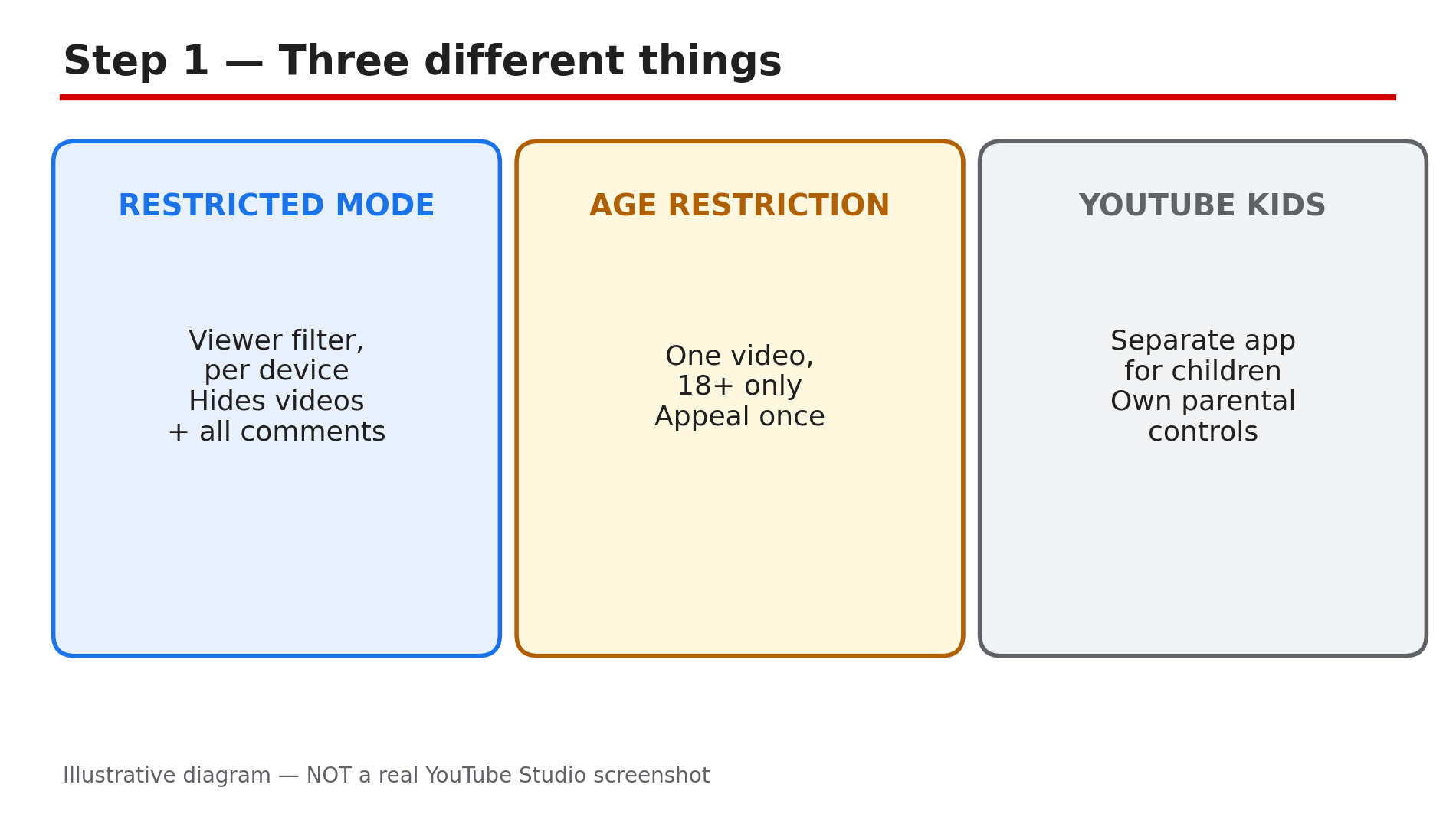
Your video is public, it plays fine for you, and then a viewer writes: "I can't find your video." Or you open YouTube on a school computer and half the videos you expect are simply gone — and there are no comments anywhere. Nothing is broken. A filter is on. That filter is Restricted Mode, and it causes two kinds of confusion. What You Will LearnWhat Restricted Mode is, and what it actually hides How to turn it off on a computer and in the app How to tell who locked it on when the switch will not move How an age restriction on one video is different, and how to appeal it What a creator should do when a video is wrongly hidden How YouTube Kids differs from Restricted ModeStep 1 — What Restricted Mode actually does What to do: First, understand that Restricted Mode is a viewer-side filter, not a ban on your channel or your video. How: Restricted Mode is an optional setting that screens out potentially mature content. YouTube says it uses signals such as the video title, description, metadata, Community Guidelines reviews and age restrictions to decide what to filter. While it is on, it also hides all comments on every video — so an empty comment section is often the first sign the filter is on. It is set per browser, per device and per profile: turning it off on your laptop does nothing for your phone, and nothing for another browser on the same laptop. It is not the same as an age restriction, which applies to one specific video for every viewer under 18, and it is not the same as YouTube Kids, which is a separate app with its own filters and parental controls. Example: A creator's true-crime tutorial vanishes from search on a school computer, but plays normally at home. Common mistake: Thinking a video hidden in Restricted Mode has been deleted or shadowbanned.Illustrative diagram separating Restricted Mode from age restriction and YouTube Kids. Step 2 — Turn Restricted Mode off on your own device What to do: Switch it off in the place where it is on — the setting does not sync between devices. How: On a computer, sign in to YouTube, click your profile photo at the top right, click Restricted Mode near the bottom of the menu, then click "Activate Restricted Mode" to switch it off. In the YouTube app, tap your profile photo, tap Settings, then General, and turn Restricted Mode off. Repeat the steps in every browser and browser profile where you see the filter, because each one holds its own setting. After switching it off, check that comments are visible again on a popular video — comments returning is the quickest proof the filter is off. Example: A parent turns Restricted Mode off on the family laptop, then finds it still on in the child's Chrome profile. Common mistake: Turning it off on the phone app and expecting the TV to follow.Illustrative diagram of the steps to turn Restricted Mode off. Step 3 — When the switch will not turn off, find who locked it What to do: If the toggle is greyed out or flips itself back on, stop toggling and check the content restrictions page. How: Open youtube.com/check_content_restrictions in the same browser. YouTube's Help page says the tool shows whether an administrator set up the restrictions or whether they are on your personal account, with a tick beside the relevant restriction. The restriction can come from three places: a network or school administrator, a Family Link supervised account, or a mobile carrier or DNS filter. The practical test is to switch from Wi-Fi to mobile data and open the same page again: if the restriction disappears on mobile data, the Wi-Fi network is enforcing it. Only the administrator, parent or provider can remove a lock they set. Some mobile network providers offer content filters of their own, and YouTube's Help page notes that a DNS restriction set to "moderate" or "strict" means content filtering is turned on at the network level. Example: A viewer cannot turn Restricted Mode off on their office laptop, and the restrictions page shows a tick next to a network restriction. Common mistake: Reinstalling the app or factory-resetting the phone to fix a locked switch.Illustrative diagram of the three places a Restricted Mode lock can come from. Step 4 — Age restriction is a different thing — and it can be appealed What to do: Do not confuse a video that is age-restricted with a video that is filtered by Restricted Mode. They need different fixes. How: An age restriction is applied by YouTube to one specific video that does not violate the policies but may not be appropriate for viewers under 18 — YouTube considers violence, disturbing imagery, sexually suggestive content, nudity, and the portrayal of dangerous or illegal activities. A warning screen shows before the video plays, and viewers 18 or older can proceed. Age-restricted videos are not shown in certain sections of YouTube and cannot be watched on most third-party websites. Turning off Restricted Mode does not remove an age restriction. As a creator, you can appeal the restriction once: in the Studio app, open Content, select the video, tap the restriction, tap Review issues, enter your reason and submit. YouTube's Help page, "Appeal the age restriction on your video", describes exactly this flow. Our separate guide on age-restricted videos explains the appeal in detail. Example: A history channel's documentary on a war is age-restricted for violent imagery. Common mistake: Telling viewers to "turn off Restricted Mode" to watch an age-restricted video.Illustrative diagram of the checks for a Restricted Mode switch that will not turn off. Step 5 — For creators: check whether your video is wrongly hidden What to do: Test your own video the way a filtered viewer sees it, instead of guessing from your own screen. How: Open an incognito window, turn Restricted Mode on, and search for your video. If it does not appear, look at the signals YouTube uses to filter: the title, the description, the tags, and the thumbnail. A title or thumbnail with violent or suggestive wording or imagery is the most common trigger, and cleaning those up is the fix a creator actually controls. Re-indexing may restore the video after you change the metadata, but YouTube gives no guarantee and no direct appeal for Restricted Mode filtering — there is no button that says "my video should not be filtered". That is the hard difference from an age restriction, which has a formal appeal. Do not re-upload the video to escape the filter: the new upload carries the same signals and the same result. Example: A fitness creator's thumbnail shows a close-up of an injury for a recovery video. Common mistake: Re-uploading the same video with the same title and thumbnail and expecting a different result.Illustrative diagram comparing an age restriction with Restricted Mode. Step 6 — YouTube Kids is a third, separate system What to do: Keep YouTube Kids out of this diagnosis entirely — it is a different app with different rules. How: YouTube Kids is a separate app for children, with its own filters, parental controls, search settings, timer and the ability to block a video or a channel. A video set as Made for Kids loses features everywhere — comments off, notification bell off, cards and end screens off, and only non-personalised ads — and our separate guide on Made for Kids explains those revenue and feature limits in detail. That audience setting is a creator choice in Studio, not a viewer filter, and changing it wrongly can break your monetisation. A video can be Made for Kids, age-restricted, and filtered by Restricted Mode for different reasons at the same time, which is why checking one setting and stopping is never enough. Example: A channel for young children marks every video Made for Kids, then wonders why comments are off and the videos do not appear in Restricted Mode searches. Common mistake: Marking real kids' content as "not for kids" to get comments back.Illustrative diagram of how a creator tests whether a video is wrongly hidden. Checklist — Fix a Restricted Mode Problem☐ I know whether the problem is Restricted Mode, an age restriction, or YouTube Kids ☐ I turned Restricted Mode off on this exact browser or device ☐ I checked comments are visible again after switching it off ☐ If the switch is locked, I opened youtube.com/check_content_restrictions to find who set it ☐ I tested mobile data vs Wi-Fi to tell a network lock from an account lock ☐ As a creator, I tested my video in incognito with Restricted Mode on ☐ As a creator, I cleaned trigger words and imagery from the title and thumbnail ☐ I did not re-upload the video to escape the filterFAQs 1. What is the difference between Restricted Mode and an age restriction? Restricted Mode is a viewer-side filter on one browser or device that hides potentially mature videos and all comments. 2. Why can't I turn Restricted Mode off? It is locked by someone else — a network or school administrator, a parent through Family Link, or a mobile carrier or DNS filter. 3. Does turning off Restricted Mode let me watch age-restricted videos? No — you also need to be signed in with an account that is 18 or older. 4. My video is hidden in Restricted Mode — can I appeal? There is no direct appeal for Restricted Mode filtering. 5. Is YouTube Kids the same as Restricted Mode? No — YouTube Kids is a separate app with its own parental controls. SourcesYouTube Help — "Turn Restricted mode on or off on YouTube" (official page, confirmed in search results 4 Nov 2026): https://support.google.com/youtube/answer/174084?hl=en-GB YouTube Help — "Appeal the age restriction on your video" (official page, opened live 4 Nov 2026): https://support.google.com/youtube/answer/1153367 CreatorPlaybook — "Made for Kids on YouTube: Revenue Limits and How to Fix the Wrong Audience Setting": </blog/made-for-kids-on-youtube-revenue-limits>