Showing Posts From
Copyright checks
 CreatorPlaybook Team
- 03 Nov, 2026
YouTube Pre-Publish Checks: Copyright Check Failing? What to Do Before You Publish
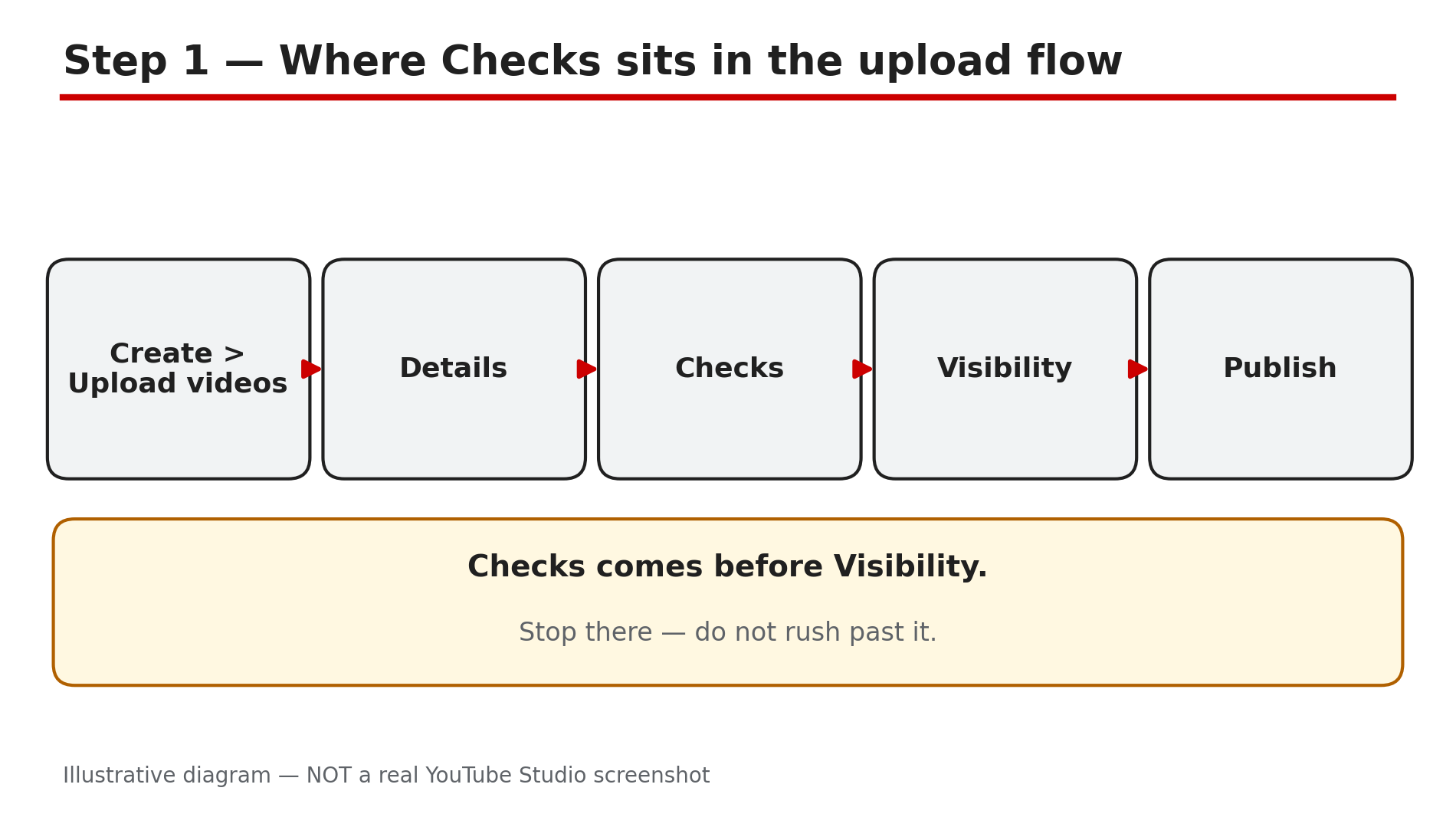
You upload a video, and before you can publish it, YouTube Studio shows a step called Checks. Two lines appear: Copyright and Ad suitability. One of them says "See details" instead of a green tick, and suddenly a video you thought was finished is not finished at all. Checks is YouTube's own pre-publish screen. It scans your upload for copyrighted material and ad-suitability problems, so you can fix them before the video goes public instead of after your audience has already seen it. This guide explains what each result means and what to do when something is flagged. What You Will LearnWhat the Checks step scans, and what it does not How long each check takes, and whether to wait What "See details" means on the copyright check The three ways to fix a claimed song or clip When to dispute a claim, and when disputing makes things worse Why a clean Checks result is not a guaranteeStep 1 — Find the Checks step in the upload flow What to do: Upload on a computer and stop at the Checks step instead of rushing to Visibility. How: Sign in to YouTube Studio on a computer, click Create, then Upload videos, and select your file. Work through Details as usual — title, description, thumbnail, audience — and keep going until the progress bar shows Checks. YouTube's Help page "Upload YouTube videos" describes it plainly: "Use the Checks page to screen your video for copyright issues. Checks help you fix issues before your video is published." Monetised channels also get an ad-suitability check on the same page. Example: A creator uploads a 12-minute tutorial and reaches Checks. The copyright line shows a spinning icon, so they leave the tab open while it finishes. Common mistake: Uploading from the phone app and assuming the same screen appears. Checks is also in the Studio mobile app, as YouTube reported, but the full flow is clearest on desktop.Illustrative diagram of where the Checks step sits in the YouTube upload flow. Step 2 — Wait for both checks to finish What to do: Let the copyright check and the ad-suitability check complete before you publish, whenever you can. How: The copyright check searches your video for copyrighted content and usually finishes within about three minutes, per YouTube's announcement of the feature; the ad-suitability check can take a couple of minutes longer. Checks run in the background, so you can leave and come back. YouTube's Help page says you can publish while checks are still running and fix issues later — but that is a fallback: publishing early means the screening is unfinished, and a claim found afterwards can still affect visibility or monetisation. Example: A creator publishes while Checks is still spinning. At midnight a claim appears, the video is blocked in some countries, and the first night of views is lost. Common mistake: Treating the spinning icon as a formality. If the copyright check is still running, YouTube has not finished comparing your audio and video against its reference database.Illustrative diagram of the two checks YouTube runs before publishing. Step 3 — Read a "See details" result properly What to do: When a check flags something, open See details and read exactly what was matched before you touch anything. How: A green tick means no issue was found. "See details" means something was matched. Click it. For a copyright result, YouTube shows the claimed content, the timecode, who claimed it, and what the claim does — whether the video is blocked, monetised by the claimant, or restricted in some countries. For ad suitability, the page shows which guideline is involved, and monetised videos get a "Request review" option. Example: A creator sees "See details" on a vlog and finds a 12-second music clip at 4:31 claimed by a record label. The rest of the video is clean, so the fix is small and specific. Common mistake: Clicking Dispute the moment a claim appears. A dispute states the claim is wrong. If the match is real, a dispute can escalate it into a removal request and a strike.Illustrative diagram of the three things to read in a claim's details. Step 4 — Fix a claimed song or clip in the Studio Editor What to do: Use the Editor to remove or replace the claimed part, instead of deleting the whole video. How: From the claim details, open the video in the Studio Editor. YouTube gives you three practical options for claimed audio: trim out the claimed segment, replace the song with a track from the Audio Library, or mute the song in that segment. After the edit, the claim is usually released. If the claim covers the video itself — a clip of someone else's footage — trimming the segment out is the usual fix. Our separate guide on copyright claims walks through each option in detail. Example: A creator's 20-minute video has a 30-second claimed song in the middle. They choose "Replace song", pick a similar Audio Library track, and the claim is released without re-uploading. Common mistake: Deleting the video and re-uploading a fixed copy. Deleting throws away the URL, the watch history and the comments, and a strike on the original is not removed by deleting the video.Illustrative diagram of the three ways to fix a claimed song or clip. Step 5 — Dispute only when the claim is wrong What to do: Dispute a claim only if you have a real basis — you own the content, you have a licence, or the use qualifies as fair use. How: A Content ID claim is not a strike — it is a match against a rights holder's reference file, and the claimant chooses what happens: block, monetise, or track. If the match is wrong, dispute it from the claim details and explain why, briefly and factually. While a dispute is ongoing, any revenue is held until it is resolved, as reported by creator guides. A disputed claim the claimant pursues can become a formal removal request — a copyright strike. Example: A creator's own song is claimed by a distributor that does not own it. They dispute — "This is my own composition" — and the claim is released. Common mistake: Disputing a claim on a song you knowingly used without a licence, or because you think a short clip is automatically fair use. Short does not mean fair use — a failed dispute can turn a claim into a strike.Illustrative diagram comparing a Content ID claim with a copyright strike. Step 6 — Treat a clean result as a screen, not a guarantee What to do: Publish with confidence when Checks is green, but keep the habits that protect you after publishing. How: A clean Checks result means YouTube found no match at the time of the upload. It does not mean the video can never be claimed. YouTube's own announcement is explicit: a clean result "does not protect your videos from other potential issues after publishing (like manual claims, Content ID claims created from new reference files, copyright strikes, and/or restrictions as a result of edits to your video settings)." A rights holder can upload a new reference file tomorrow, and a manual claim can arrive at any time. During Checks, YouTube also runs Likeness detection — a background scan for enrolled creators' faces that may have been altered or AI-generated. Example: A creator publishes with two green ticks, then gets a manual claim three weeks later when a label adds a new reference file. Because they kept the licence receipt, they dispute with the receipt attached and the claim is released. Common mistake: Telling yourself "Checks was green, so I am safe forever" and deleting the licence, the project file and the original audio. The green tick is a snapshot, not a shield.Illustrative diagram showing why a clean Checks result does not guarantee a claim-free future. Checklist — Before You Publish☐ I uploaded on a computer and reached the Checks step ☐ I waited for both checks to finish ☐ I opened See details on any flagged result and read what was matched ☐ I fixed claimed audio with trim, replace or mute in the Editor ☐ I disputed only claims I have a real basis to challenge ☐ I did not delete the video to escape a claim ☐ I kept my licences and source files for later claims ☐ I know a clean Checks result is a screen, not a guaranteeFAQs 1. How long does the YouTube Checks step take? YouTube's announcement said the copyright check usually finishes within about three minutes, and the ad-suitability check can take a couple of minutes longer. Checks run in the background, so you can leave and come back. 2. Can I publish while Checks is still running? Yes — YouTube's Help page says you can publish while checks are running and fix issues later. But the screening is then unfinished. Wait when you can. 3. Is a Content ID claim the same as a copyright strike? No. A claim is a match against a rights holder's reference file; the claimant chooses to block, monetise or track the video. A strike comes from a formal legal removal request. 4. What should I do if the copyright check flags my own music? Dispute it, briefly and factually: state that it is your own composition or recording and that no distributor owns it. Keep the licence receipt — a claim released with proof is much faster than one argued from memory. 5. Why did my video get claimed after Checks was green? Because Checks is a snapshot. A rights holder can add a new reference file after you publish, or file a manual claim. SourcesYouTube Help — "Upload YouTube videos" (official page, opened live 3 Nov 2026): https://support.google.com/youtubecreatorstudio/answer/57407?hl=en-GB&co=GENIE.Platform%3DDesktop CreatorPlaybook — "YouTube Copyright Claim: How to Trim, Replace or Dispute It": </blog/youtube-copyright-claim-how-to-trim> CreatorPlaybook — "YouTube Strike Appeal: How to Appeal a Community Guidelines Strike": </blog/youtube-strike-appeal-how-to-appeal>