Showing Posts From
Shorts creation
 CreatorPlaybook Team
- 11 Nov, 2026
YouTube Shorts Remix or "Use This Sound" Missing? Why It Happens and How to Fix It
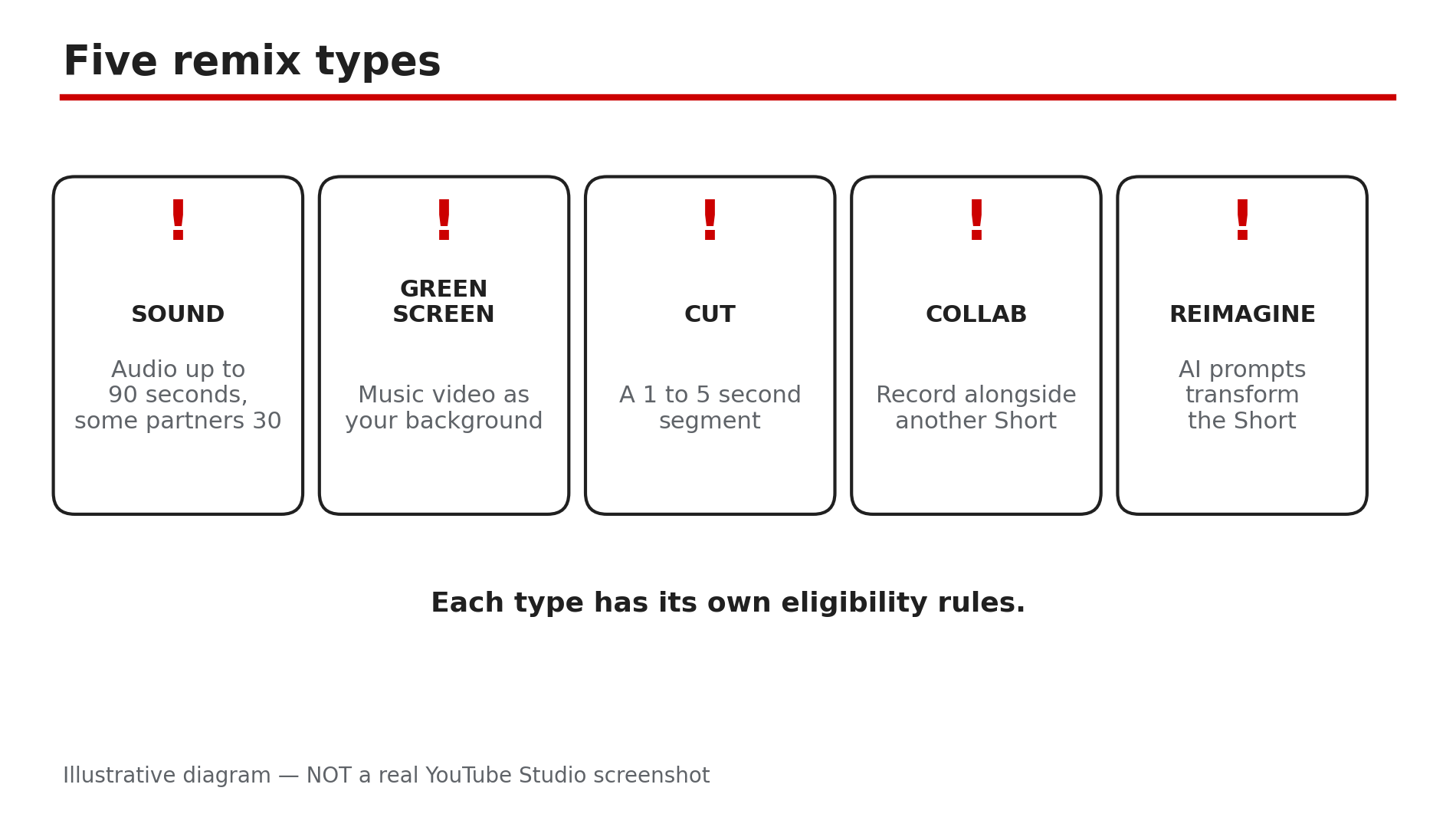
You found the perfect sound for your next Short, opened the video, and the Remix button is nowhere — or the "Use this sound" option is greyed out on a Short you want to sample. Before you assume your app is broken, know this: a missing Remix button is usually a symptom, not a bug. YouTube's own Help pages list several reasons the option disappears, and each one has a different fix — or no fix at all. This guide works through them in order. What You Will LearnThe five remix types — Sound, Green Screen, Cut, Collab, Reimagine Where the Remix and "Use this sound" buttons actually live Why private and unlisted videos can never be remixed How a creator's remixing setting blocks you How a Content ID claim blocks visual remixes but may allow audio What to do when no remix is possible for that videoStep 1 — Know the five remix types, and which one you are missing What to do: Identify the remix type you want, because each one has its own rules and limits. How: YouTube's Help page "Create YouTube Shorts with remixed content" lists the options. Sound samples the audio from a video or music video — up to 90 seconds, though some partner agreements limit it to 30 seconds. Green Screen uses a music video as your Short's background, visual only or audio and video together. Cut samples a one- to five-second segment of a music video. Collab lets you record alongside another Short, and Reimagine uses AI prompts to transform an eligible Short. Remixed Shorts are attributed back to the original work, with a link to the source video. Example: A creator wants the audio from a music video for a 45-second Short. Sound allows up to 90 seconds, so it works — but if that track's partner limits audio use to 30 seconds, the Short gets cut off at 30. Common mistake: Assuming every remix type should appear on every video. Music videos, Shorts, and long-form videos each offer different remix options, and some types only exist for music content.Illustrative diagram: the five ways to remix content into a YouTube Short. Step 2 — Find the button in the right place first What to do: Check the exact place YouTube puts the button, because it moves between screens. How: YouTube's Help page gives three paths. From a Short: tap Sound in the lower right-hand corner to find other Shorts using the same audio, then tap Use this sound. From a long-form video's watch page: tap Share, then Remix, then Use this sound. From an Official Artist Channel: open the channel, go to the Shorts section, tap Popular, pick a Short, tap Sound, then Use this sound. If you are looking on a computer, stop: remixing is a mobile-app feature, and the buttons do not appear on desktop. Also confirm you are signed in — the options need an account. Example: A creator searches for Remix on the desktop site for twenty minutes, then opens the same video in the phone app and finds it under Share in seconds. Common mistake: Tapping the three-dot menu on the watch page and expecting Remix there.Illustrative mock-up: the three paths to the Remix and Use this sound buttons. Step 3 — Check the source video's privacy: only public videos are remixable What to do: Confirm the video you want to remix is Public, because privacy alone can remove the button. How: Only public videos can be remixed. A private video is visible only to its owner and chosen people, and an unlisted video is reachable only by link — neither appears as a remix source. So if the video is your own, open Studio, go to Content, and check its Visibility column; if it is Private or Unlisted, change it to Public and the Remix option appears. If the video belongs to someone else, you cannot change its privacy — and you cannot remix it. Example: A creator tries to remix their own old video and finds no button. It was uploaded as Unlisted for a client preview and never switched to Public. Common mistake: Reinstalling the app when the button is missing. If the source video is private or unlisted, no app fix will bring the button back.Illustrative diagram: only public videos can be remixed into Shorts. Step 4 — Check the creator's Shorts remixing setting What to do: If the video is public and the button is still missing, check whether the creator switched remixing off. How: A creator can disable remixing for their own video. In Studio, go to Content, open the video, and look for the Shorts remixing setting. If it is off, nobody can remix that video — not Sound, not Green Screen, not Cut. Changing the setting cannot override privacy or someone else's rights: turning it back on will not make a private video remixable, and it will not remove a Content ID block. If the video is someone else's, you cannot change their setting; pick a different source. Example: A music channel wonders why nobody remixes its Shorts. Its own remixing setting was off since upload day — one toggle, and remixes start appearing. Common mistake: Thinking the remixing setting is a channel-wide switch. It is per video, so check the exact video you want to remix, not the channel's other videos.Illustrative diagram: a creator's Shorts remixing setting switches remixing on or off for one video. Step 5 — Understand the Content ID and music-network blocks What to do: Learn the two rights-based blocks, because they decide whether any remix is possible at all. How: YouTube's music-partner Help page explains both. First, a Content ID claim: visual remix features are not available for Shorts that have third-party claims — so Green Screen, Cut, and Collab disappear. But if the claim represents music that is available in Shorts, the audio can still be remixed, so Sound may still work. Second, a music network: if the channel that uploaded the Short is linked to a music network, visual remix options are blocked; audio may still work. You can check the link in Studio under your dashboard, in the Network relationship section — if that section does not appear, the channel is not linked. Example: A Short with a claimed song offers Sound but no Green Screen. The claim blocks the visual types; the audio is Shorts-eligible, so Sound still works — exactly what YouTube's Help page describes. Common mistake: Assuming a claim means the Short is dead for remixing. Audio-only remixing often survives a claim; only the visual types are blocked.Illustrative diagram: a Content ID claim blocks visual remix types but may still allow an audio remix. Step 6 — When no remix is possible, use a different source What to do: Stop fighting a blocked video and build the Short from a source that is actually eligible. How: If the video is private, unlisted, remixing-disabled, or blocked by a claim that covers the audio too, no setting on your side will unlock it. Pick a different source instead: search the Shorts library for the same song — a track there is licensed for Shorts use — or use a song from YouTube's Audio Library, which YouTube says carries no Content ID claims. If the sound is your own recording, upload it as your own video first, then remix from that. And if you are a creator whose videos keep getting remixed in ways you do not want, the Shorts remixing setting in Step 4 is your control — set it per video. Example: A creator cannot remix a friend's private rehearsal clip, so they use the same song from the Shorts library instead. The Short goes up the same day, with the audio properly licensed. Common mistake: Downloading the video and re-uploading it as your own to "remix" it. That is re-uploading someone else's content, and it can earn a claim or a strike.Illustrative diagram: what to do when the video you wanted cannot be remixed. Checklist — Find a missing Remix button☐ Identified which remix type you want — Sound, Green Screen, Cut, Collab, or Reimagine ☐ Looked in the right place: Sound on a Short, Share then Remix on a watch page ☐ Confirmed you are in the mobile app and signed in, not on desktop ☐ Checked the source video is Public, not Private or Unlisted ☐ Checked the creator's Shorts remixing setting for that exact video ☐ Checked for a Content ID claim — visual types blocked, audio may still work ☐ Checked whether the channel is linked to a music network ☐ Picked a different source — Shorts library or Audio Library — if this one is blockedFAQs 1. Why is "Use this sound" missing on a Short? Usually the source video is private or unlisted, the creator disabled remixing for it, or a Content ID claim blocks the remix type. Check the source video's privacy and the creator's setting first. 2. Can I remix a private or unlisted video? No. Only public videos are remixable. If it is your own video, change it to Public in Studio; if it belongs to someone else, you cannot remix it. 3. Why does Sound work but Green Screen does not? Usually a Content ID claim: visual remixes are blocked for Shorts with third-party claims, but if the claim is for music available in Shorts, the audio can still be remixed. 4. How long can a Sound remix be? Up to 90 seconds of audio from a music video — but some partner agreements limit it to 30 seconds, so check the track. 5. Can I remix on a computer? No. Remixing is a mobile-app feature. Use the YouTube app on your phone or tablet — the buttons do not appear on desktop. SourcesYouTube Help — "Create YouTube Shorts with remixed content" (official page, opened live 11 Nov 2026): https://support.google.com/youtube/answer/10623810?hl=en-VC&co=GENIE.Platform%3DAndroid YouTube Help — "Make your Shorts available to remix" (official page, opened live 11 Nov 2026): https://support.google.com/youtube/answer/14946424?hl=en-GB CreatorPlaybook — "YouTube Shorts Music Disappeared or Muted? Why It Happens and How to Fix It" (internal link, live-verified in the blog sitemap 11 Nov 2026): </blog/youtube-shorts-music-disappeared-or> CreatorPlaybook — "YouTube Shorts Custom Thumbnail Not Showing? Why It Happens and How to Fix It" (internal link, live-verified in the blog sitemap 11 Nov 2026): </blog/youtube-shorts-custom-thumbnail-not>