Showing Posts From
Youtube 4k
 CreatorPlaybook Team
- 06 Nov, 2026
YouTube Video Stuck at Low Quality? Why 1080p or 4K Is Missing and How to Fix It
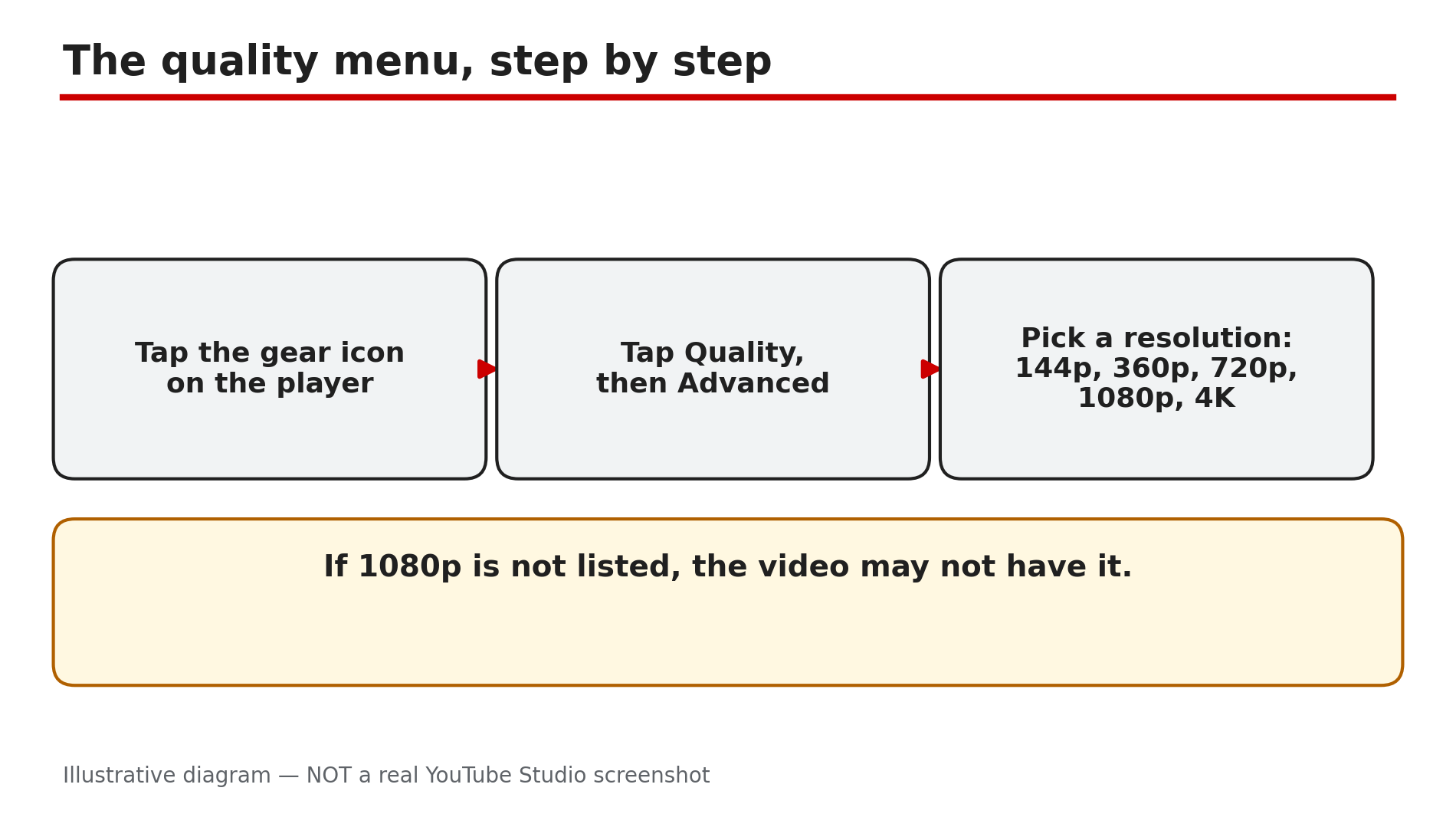
You press play, and the video looks soft and blurry. You open the settings gear and check the quality menu, but the option you want is not there. No 1080p. No 4K. Sometimes a video sits at 360p or 480p even though your internet plan is fast and your phone or TV is new. Usually nothing is broken: YouTube is choosing a quality for you, based on your connection, device, screen, and the video file. Before you change any setting, understand one key rule: a setting cannot create detail that was never uploaded. If a creator recorded a video in standard definition, no menu option will turn it into high definition. This guide covers the viewer side only. What You Will LearnWhat Auto, Higher picture quality, Data saver, and Advanced do Why YouTube changes quality based on connection, screen, and the upload Why 1080p or 4K can be missing on a fast connection and a new device How to test whether your real speed is enough for HD and 4K How VP9 support decides which options appear What 1080p Premium Enhanced bitrate is, as reported, and what it is notStep 1 — Open the quality menu and pick a resolution by hand What to do: Open the quality menu and pick a resolution yourself, to see which options exist for that video. How: On a computer, click the gear icon, then Quality. In the app, tap the video, tap the gear icon, then Quality. Choose Advanced if you see it, then pick a resolution such as 1080p. On a smart TV, find the quality entry in the settings menu. Example: A tutorial plays at 480p. You open Quality, then Advanced, and select 1080p. The picture sharpens within seconds — the video did have 1080p. Common mistake: Seeing only Auto and giving up. On many devices the resolution list sits behind Advanced, so open it.Illustrative diagram: how to open the quality menu and pick a resolution by hand. Step 2 — Turn off Auto and understand the three quality modes What to do: Learn what each quality mode does, then choose the one that matches your situation. How: Per YouTube's Help page, the menu offers Auto, which adjusts quality as your connection changes; Higher picture quality, which uses more data and may buffer more; Data saver, which uses less data at lower quality; and Advanced, which lets you pick a resolution by hand. On strong Wi-Fi choose Higher picture quality; on mobile data, use Data saver. Example: Your videos always start at 480p and slowly improve. You switch to Higher picture quality, and the next starts at 1080p straight away. Common mistake: Setting Higher picture quality on a weak mobile connection, then blaming YouTube when the video keeps pausing. It uses more data, so it buffers more.Illustrative diagram: comparing the three YouTube quality modes. Step 3 — Check whether the video was ever uploaded in high quality What to do: Before blaming your device, check whether the video itself has a high-quality version. How: Open the quality menu and look at the highest resolution listed. If it tops out at 720p or 480p, that is likely the highest quality the creator uploaded — YouTube's Help page states that a video recorded in standard definition will not be available in high definition. Example: An old video from 2012 tops out at 480p on every device, while a new video offers 4K. The old video was uploaded in standard definition. Common mistake: Reinstalling the app and restarting the router to fix a video uploaded in low quality. The detail does not exist in the source file.Illustrative diagram: four common reasons a high-quality option is missing. Step 4 — Test your real speed and give 4K time to process What to do: Measure the speed your device actually gets, and remember a new 4K upload may not offer 4K straight away. How: Run a speed test on the same device and Wi-Fi you watch on, when nobody else is streaming. For smooth 4K, third-party guides report you need around 20–25 Mbps sustained, not just plan speed: the speed your device actually receives, not the number on your bill. YouTube also processes low-quality versions first. As reported, 4K takes roughly four times longer than 1080p, and a 60-minute 4K video can take up to four hours. Example: Your plan promises 100 Mbps, but a test on your phone in the bedroom shows 12 Mbps because the router is two rooms away. You move closer, the test shows 45 Mbps, and 1080p plays smoothly. Common mistake: Quoting your plan speed as proof your connection is fine. Plan speed is a maximum, not a guarantee at your device.Illustrative diagram: your plan speed is not the speed your device receives. Step 5 — Check your browser, device, and VP9 support What to do: Find out whether your browser or device can play the newer formats high-quality options depend on. How: YouTube's Help page explains that some high-quality formats, including 1080p and 4K, may not be available on devices that do not support the latest video compression technology, known as VP9. It also notes some browsers do not support newer formats. Try the same video in a different browser or the official YouTube app, and update both. A 720p laptop screen shows no benefit from a 4K stream. Example: A video offers 4K in the app on your phone but only 720p in an old browser on your laptop. You update the browser, and 1080p appears. Common mistake: Assuming a missing 4K option means YouTube is hiding it from you. Usually the cause is the browser, the app version, or the device's format support. Test the same video on a second browser or device.Illustrative diagram: YouTube processes low-quality versions before 4K. Step 6 — Understand 1080p Premium Enhanced bitrate and what Premium does not do What to do: Understand what the Premium enhanced-bitrate option is, as reported, so you do not pay for Premium expecting a quality fix. How: As reported, 1080p Premium Enhanced bitrate is an enhanced-bitrate version of 1080p for Premium members, with more detail per pixel, but only on videos uploaded in 1080p, never on live streams or Shorts. One reported Stats for Nerds reading showed around 13 Mbps for Premium against around 8 Mbps for standard 1080p. This was not confirmed by any official page checked on 5 November 2026, so treat it as reported. One third-party guide also states Premium itself does not directly improve quality. Example: You buy Premium hoping a favourite channel's videos will look sharper. They look the same, because those videos were uploaded at a low bitrate. Another video, uploaded in crisp 1080p, does show the option. Common mistake: Paying for Premium as a fix for buffering or low quality, then feeling cheated when nothing changes.Illustrative diagram: what 1080p Premium Enhanced bitrate does and does not do. Checklist — Fix low playback quality☐ Open the quality menu and check the highest resolution ☐ Switch from Auto to Advanced and pick a resolution ☐ Higher picture quality on Wi-Fi, Data saver on mobile data ☐ Compare with another video to see if the limit is in this upload ☐ Run a speed test on the device and network where you watch ☐ Wait for 4K processing to finish on new uploads ☐ Try a different browser or the official app, and update both ☐ Remember Premium does not fix a low-quality uploadFAQs 1. Why is my YouTube video stuck at 360p or 480p? YouTube lowers quality when your connection is slow, when the player or screen is small, when your browser or device cannot play newer formats, or when the video was uploaded at low quality. Switch off Auto and pick a resolution. 2. Why is there no 1080p or 4K option on a video? The video may never have been uploaded in that quality. As reported, a new 4K upload may still be processing. Your device or browser may also lack VP9 support. 3. How fast does my internet need to be for 4K on YouTube? Do not rely on plan speed alone. Third-party guides report you need around 20–25 Mbps sustained for smooth 4K playback; purchased 4K movies are reported to need a steady 15 Mbps. 4. Does YouTube Premium improve video quality? Not directly, according to one third-party guide. Premium does not turn a low-quality upload into a high-quality one. As reported, Premium members may see a 1080p Premium Enhanced bitrate option on videos uploaded in 1080p. 5. Why does a video look sharp on my phone but blurry on my TV? The TV has a much larger screen, so the same resolution looks softer, and a low-bitrate upload shows its flaws more clearly. Your TV's app may also lack VP9 support, or its Wi-Fi signal may be weaker. As reported, upload bitrates such as 8 Mbps for 1080p and 35–45 Mbps for 4K explain why a low-bitrate upload never looks sharp. SourcesYouTube Help — "Change the quality of your video" (official page, opened live 6 Nov 2026): https://support.google.com/youtube/answer/91449?hl=en CreatorPlaybook — "YouTube Video Blurry After Upload? Why Your HD Video Looks Low Quality" (upload-side blurry video guide, topic 31): </blog/youtube-video-blurry-after-upload-why>