Showing Posts From
Youtube account
 CreatorPlaybook Team
- 10 Nov, 2026
Locked Out of Your YouTube Channel? How to Recover It
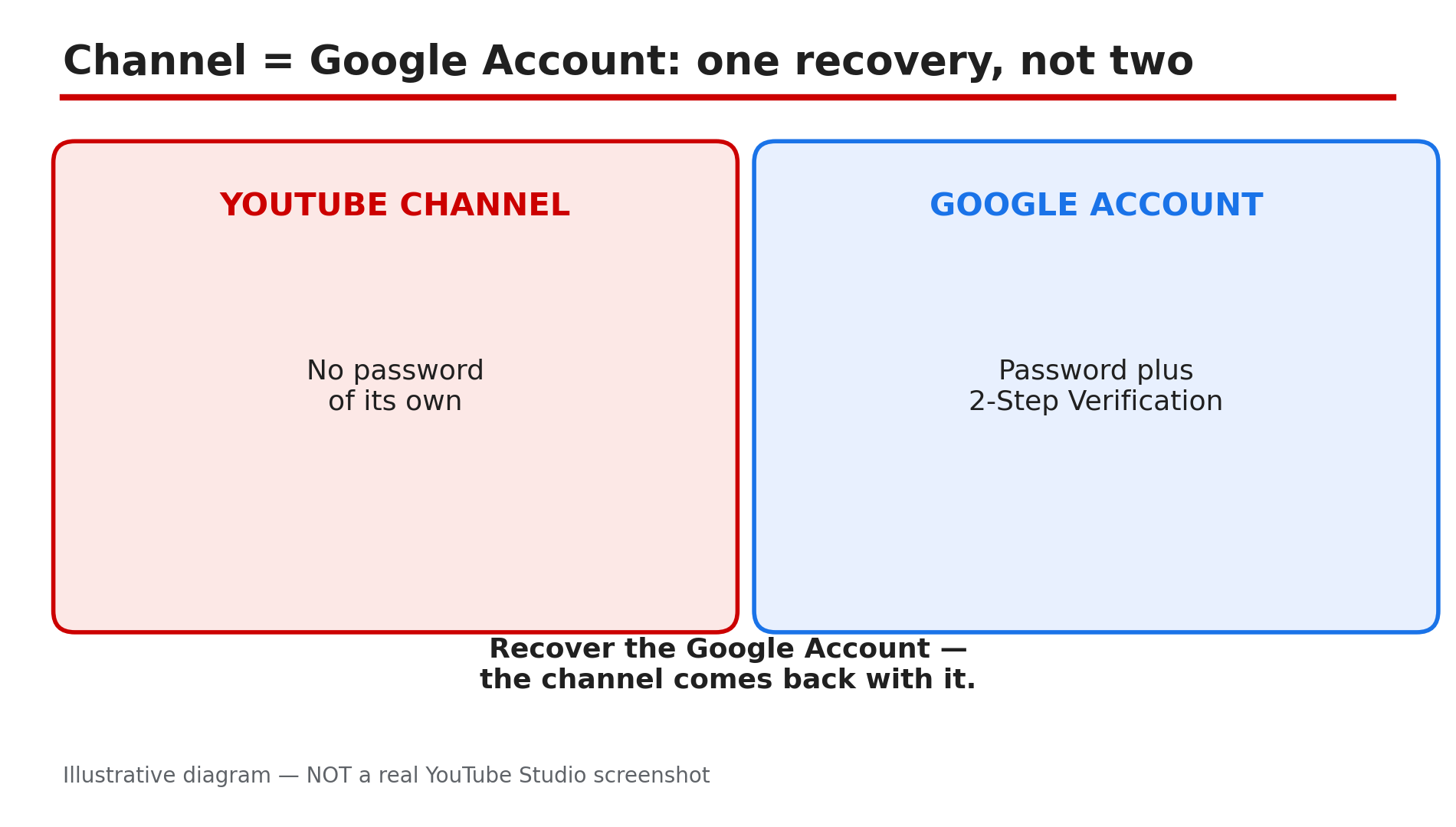
Your phone is gone, and with it went the second step that unlocks your YouTube channel. You know your password, but YouTube keeps asking for a code you can no longer receive. The way back is narrower than most creators expect: a YouTube channel is the Google Account behind it, so recovery means recovering the Google Account — there is no separate YouTube password to reset, as reported. Google's Help page lays out the order: use another second step if you have one, and if you do not, go through Google Account Recovery, which Google says can take 3 to 5 business days to verify it is really you. What You Will LearnWhy a lost phone locks the channel, and why recovery starts with Google, not YouTube How to sign the lost phone out and change your password first How to get in with another second step — backup codes, prompts, or a security key How Google Account Recovery works when no second step is left How to set up backup options so this never happens againStep 1 — Understand what you are recovering: the Google Account, not YouTube What to do: Stop looking for a YouTube recovery form — your channel is your Google Account, and that account is what you must recover. How: A YouTube channel has no password of its own. You sign in to YouTube with a Google Account, and 2-Step Verification protects that account — so every recovery step happens in your Google Account, not in YouTube Studio, as reported. Anyone who promises to "recover your YouTube channel" for a fee is almost certainly a scam: Google's own recovery is free, and it is the only route. Example: A creator with 40,000 subscribers loses his phone, recovers his Google Account, and his channel is simply there when he signs back in. Common mistake: Paying a "recovery service" that asks for your password — they cannot recover anything Google cannot.Illustrative diagram: a YouTube channel is the Google Account behind it, so recovery starts with Google. Step 2 — Sign out the lost phone and change your password What to do: Before anything else, cut the lost phone off from your account and change the password from a device you still control. How: On another signed-in device, open your Google Account, go to Security, then "Your devices", and sign out of the lost phone. Google's Help page recommends exactly this: sign out of the lost or stolen phone, then change your Google Account password. Do this first — a phone that is still signed in can receive Google prompts and codes, so changing the password alone is not enough. Example: A viewer loses her phone in a taxi, signs out of it from her laptop within the hour, and changes her password — nobody can open her channel from it. Common mistake: Changing the password but leaving the lost phone signed in — the finder can still approve prompts from it.Illustrative diagram: the first two moves after losing a phone — sign it out, then change the password. Step 3 — Sign in with another second step if you have one What to do: Try every other second step you set up before you had the problem — one of them is the fastest way back in. How: Google's Help page lists the second steps that can replace a lost phone: verification codes, Google prompts on another device, backup codes, a backup security key, or a trusted computer. Sign in with your password, choose "Try another way", and pick the option you have. Backup codes are the most common lifesaver: the ten 8-digit codes Google gave you when you turned on 2-Step Verification, each usable once. If you saved them in a password manager or on paper, use one now — then remove the lost phone and add your new phone. Example: A creator finds his printed backup codes in a drawer, signs in with one, and adds his new phone — all within ten minutes. Common mistake: Assuming an old backup code is useless — codes do not expire until used or replaced.Illustrative diagram: the five second steps that can replace a lost phone at sign-in. Step 4 — Use Google Account Recovery if no second step is left What to do: If you have no other second step, go through Google Account Recovery and be ready to wait. How: Go to Google Account Recovery and follow the steps. Google's Help page is clear about the wait: because 2-Step Verification is an extra check that you own the account, it can take 3 to 5 business days for Google to make sure it is you. You will be asked questions to confirm ownership, and to enter an email address or phone number where you can be reached, then a code sent there. Answer from a device and location you have used before. Do not start a second attempt while the first is running — it can slow the process down. Example: A creator with no backup codes starts recovery on a Monday from his home computer and gets access back on Thursday — then sets up backup codes the same day. Common mistake: Starting over with different answers after a day — inconsistent answers make Google less sure it is you.Illustrative diagram: the Google Account Recovery timeline when no second step is left. Step 5 — Avoid the traps: Google Voice codes and Advanced Protection What to do: Do not use Google Voice to receive verification codes, and know the special rule if your account has Advanced Protection. How: Google's Help page warns against using Google Voice for verification codes: if you sign out of the Voice app, you might need a code to get back in — but it is sent to your Google Voice, which you cannot open, so you are locked out of both. Use a real mobile number or an authenticator app instead. Separately, if you added Advanced Protection, you can only use a backup security key — no codes, no prompts — and without one you must recover your account. Check today whether you have a second key stored somewhere safe. Example: A creator used Google Voice for codes for years. After a phone reset, the codes went to a Voice app he could not open — and he waited out a full account recovery. Common mistake: Enrolling in Advanced Protection with one key and no backup — one lost key means a long recovery.Illustrative diagram: two traps that turn a lost phone into a much longer lockout. Step 6 — Set up backup options so a lost phone never locks you out again What to do: Once you are back in, spend ten minutes setting up the safety net you wish you had. How: In your Google Account, go to Security, then 2-Step Verification, and do three things. First, generate backup codes and store them off your phone — a password manager, or paper in a drawer. Second, add a recovery email and a second phone number, and keep them current after every number change. Third, register a second device for Google prompts, or add a backup security key. Check these once a year, and again the day you change your number — a recovery phone you no longer own is no recovery at all. Example: A creator who once waited four days for recovery now keeps backup codes in her password manager and a second phone number on file — when she lost her phone again, she was back in within minutes. Common mistake: Storing backup codes only on the phone they are meant to replace — a backup on the lost device is no backup.Illustrative diagram: the three backup options that stop a lost phone from ever locking you out again. Checklist — Recover a YouTube channel locked by a lost phone☐ Accepted that recovery means recovering the Google Account, not YouTube ☐ Signed the lost phone out of the Google Account ☐ Changed the Google Account password from a trusted device ☐ Tried another second step: backup codes, prompts, security key, trusted computer ☐ Used Google Account Recovery if no second step was available ☐ Allowed 3 to 5 business days for Google to verify identity ☐ Did not use Google Voice for verification codes ☐ Checked Advanced Protection rules if they apply ☐ Generated backup codes and stored them off the phone ☐ Added a recovery email and a second phone numberFAQs 1. I know my password but lost my phone. Why can't I sign in to YouTube? Because 2-Step Verification needs both the password and a second step. Without the phone, you need another second step — backup codes, a prompt on another device, or a security key — or Google Account Recovery. 2. How long does Google Account Recovery take without a second step? Google says it can take 3 to 5 business days to verify it is you. Answer from a familiar device and location, and do not start a second attempt while the first is running. 3. Where do I find my backup codes? In your Google Account, under Security, then 2-Step Verification, then Show codes. If you never saved them, generate a new set now — and store them off your phone. 4. Can I recover my channel if it was hacked instead of locked out? That is a different problem — see our guide on a hacked or terminated channel for the recovery and appeal route. 5. Is it safe to use Google Voice for verification codes? No, as Google's Help page warns. If you sign out of the Voice app, the code you need goes to the Voice number you cannot reach. SourcesGoogle Account Help — "Fix common issues with 2-Step Verification" (official page, opened live 10 Nov 2026): https://support.google.com/accounts/answer/185834 CreatorPlaybook — "YouTube Temporary Feature Pause for Hacked Accounts" (internal link, live-verified published post): </blog/youtube-temporary-feature-pause-for> CreatorPlaybook — "YouTube Verification Badge Lost or Removed? How to Get It Back" (internal link, live-verified published post): </blog/youtube-verification-badge-lost-or>