Showing Posts From
Youtube ads
 CreatorPlaybook Team
- 14 Nov, 2026
Ads Not Showing on a Monetized Video — Green Icon, No Revenue
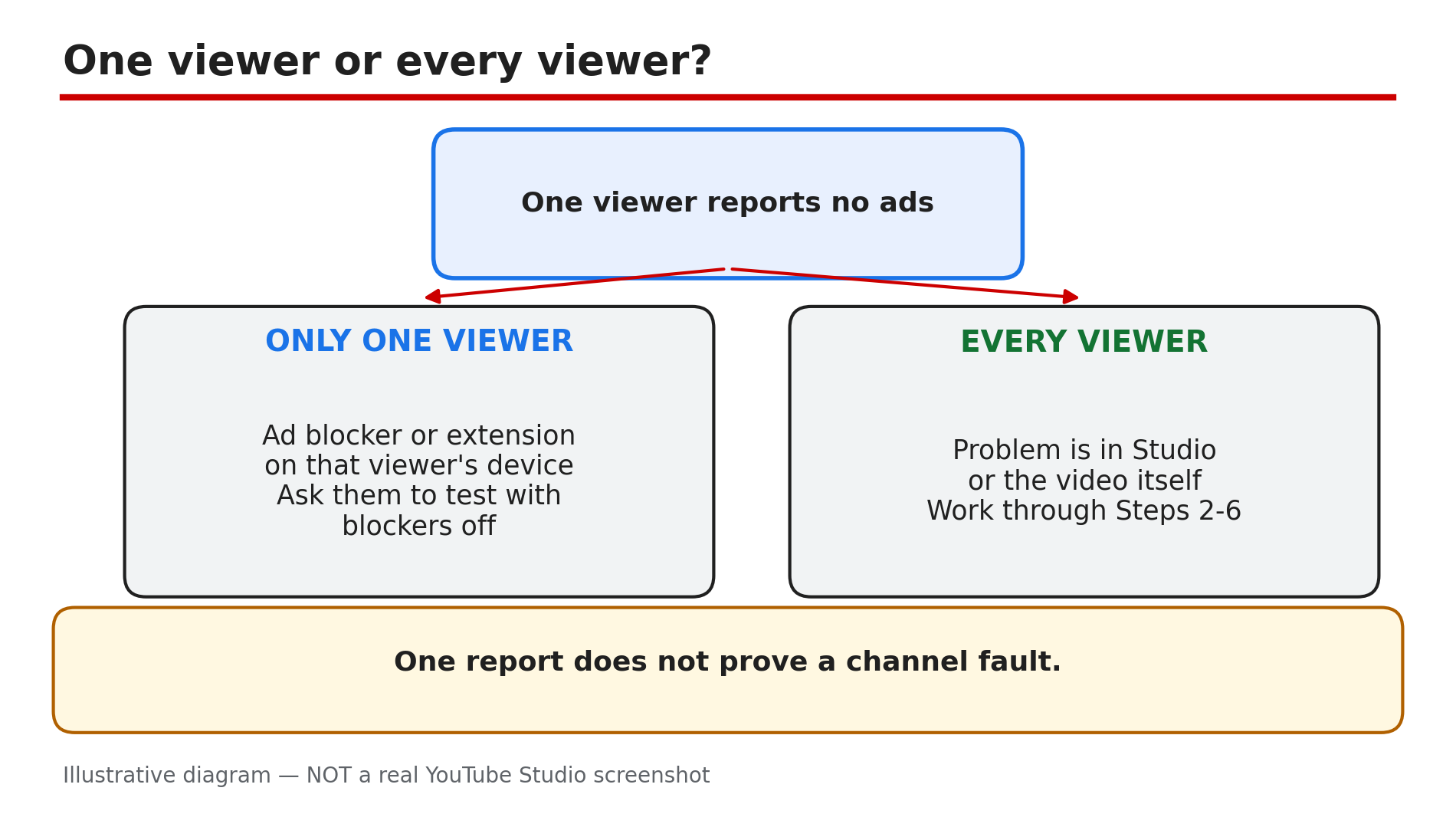
Your video is monetized, the icon in YouTube Studio is green — and yet no ads appear, and no revenue lands in Analytics. Know this first: turning monetization on is permission for ads to be considered, not a promise that an ad fills every slot. YouTube's own guidance puts it plainly, as reported: "Ad slots are not guaranteed to serve ads." Some videos show no ad because a real fault blocks them — monetization off, a yellow icon, a claim, a wrong setting. Others show no ad because no advertiser bid on that view — and nothing is wrong. This guide separates the two cases, in order. What You Will LearnOne viewer or every viewer: the test that splits the problem What the green, yellow and grey icons mean The five switches that must all be on What turns an icon yellow, and how to fix it How mid-rolls and embeds quietly kill ads When "no ads" is normal — and how Analytics proves itStep 1 — Ask one viewer or every viewer What to do: Before touching Studio, find out how widespread the missing ads are — ask two or three people on different devices whether they see an ad. How: Open the video yourself in another browser, signed out, extensions off. YouTube's Help page says ad-blocking software or browser add-ons can stop you seeing ads on your own video — so your own screen is the least reliable test. If one viewer sees no ads but others do, the fault is on that viewer's device. If nobody sees an ad anywhere, the problem is in Studio or in the video. Example: A creator panics after one comment saying "no ads on this video". Three other viewers saw a pre-roll ad. The commenter was running an ad blocker. Common mistake: Treating one viewer's report as proof the whole channel lost ads.Illustrative diagram: the one-viewer-or-every-viewer test that splits a no-ads problem in half. Step 2 — Open Studio and read the icon What to do: Open YouTube Studio, go to Earn, then to Content and look at the Monetization column. Click the icon to read what it says. How: A green icon means the video meets the advertiser-friendly guidelines and can earn most ads, as reported. A yellow icon means limited or no ads — a reduced pool of advertisers will bid. A grey or off icon means monetization is off for that video, or the video is ineligible. Also check Earn: if monetization is paused at channel level, the cause is usually a missing or unapproved AdSense for YouTube account, as reported — see our guide on monetization paused vs disabled. The icon is per video, and it can change after publishing. Example: A creator checks Earn, sees the channel is fine, then finds the video's icon is yellow, not green. The video was never broken — it was limited from the start. Common mistake: Checking only the channel switch, never the icon on the video.Illustrative diagram: what the green, yellow and grey monetization icons mean. Step 3 — Check the video's own switches What to do: Open the video in Studio and confirm five things — every one must be right, or ads will not serve. How: First, monetization must be on for this specific video, not just the channel. Second, the video must be public — YouTube lists private videos as ineligible for ads. Third, the ad formats must be turned on. Fourth, ads must not be turned off for your channel in account settings — YouTube says that switch stops ads on every video you own. Fifth, check for a third-party claim — YouTube lists such videos as ineligible to monetize with ads. Example: A creator uploads a video as private to test it, then makes it public and wonders why the first viewers saw no ads. It had been private when those views happened — and private videos cannot show ads. Common mistake: Assuming channel monetization on means every video is on automatically.Illustrative diagram: the five switches that must all be on for ads to serve. Step 4 — If the icon is yellow: find the trigger, edit, review What to do: Click the yellow icon and read the reason YouTube gives. Fix that part, then request a human review. How: The common triggers, as reported: swearing or shocking content in the first 30 seconds, violent or shocking imagery, a sensitive topic, and a sensational thumbnail. Edit out the trigger — bleep the language, swap the thumbnail — then request a human review. Reviews are reported to take up to 7 days, with one appeal per video — so fix the video first. One yellow icon mostly hurts that one video, but a pattern of yellows can raise the channel's risk in review, as reported. Example: A creator's challenge video turns yellow the day after upload — the first 20 seconds contain loud swearing after a spicy-food bite. She bleeps it, swaps the thumbnail, requests a review, and the icon turns green within a few days, as reported. Common mistake: Requesting a review before editing — the same trigger is still in the video.Illustrative diagram: the three common triggers that turn a monetization icon yellow. Step 5 — Check mid-rolls and where the video is playing What to do: Check how mid-roll ads are controlled, and where viewers are actually watching — the watch page, or an embedded player. How: For live streams, confirm Monetization is On in Live Control Room. YouTube documents three mid-roll modes, as reported: automatic (YouTube picks the breaks), scheduled (you choose an interval), and manual (you insert each break yourself). YouTube recommends automatic mid-rolls; scheduled or manual choices may earn less, as reported. A delay setting can postpone automatic mid-rolls by 10 minutes. Finally, check the player: ads are turned off for a live stream when its player is embedded on an external site with autoplay, as reported — compare it on the YouTube watch page first. Example: A 24/7 stream shows no ads on the channel's website, but ads appear on the watch page. The website embed uses autoplay, which switches ads off for live streams, as reported. Common mistake: Inserting manual mid-roll breaks and expecting every one to fill. A break is an opportunity, not a guaranteed ad.Illustrative diagram: automatic mid-rolls compared with scheduled or manual mid-rolls. Step 6 — When everything is on and still no ad What to do: Open YouTube Analytics and look at what the video actually earned. If the switches are all on and the icon is green, the rest is usually normal. How: YouTube's Help page says ads may not be displayed on each video view — check your earnings to see whether ads have been displayed on specific videos. So check ad revenue in Analytics, not one playback. A green video can still earn nothing on some views — no advertiser bid, or no ad was available. Also give a new upload time: once you turn monetization on, it may take some time for ads to show up, as reported, and status generally settles within about a day, as reported. Re-uploading does not change the auction — it only throws away your views and comments. Example: A creator watches her own new video three times, sees no ad, and re-uploads. Analytics later shows the original had already earned ad revenue — the re-upload cost its watch time for nothing. Common mistake: Re-uploading a green video to "fix" ads that were never broken. Check Analytics first.Illustrative diagram: an ad slot is created, an auction runs, and the ad may not fill. Checklist — Ads not showing on a monetized video☐ Asked several viewers on different devices if they see ads ☐ Tested signed out, in another browser, extensions off ☐ Checked Studio > Earn ☐ Read the video's icon — green, yellow or off ☐ Confirmed monetization on, video public, ad formats on ☐ Confirmed channel ads are not turned off ☐ Checked for a third-party claim ☐ If yellow: edited the trigger, requested a human review ☐ Checked mid-roll mode, any autoplay embed ☐ Checked the video's ad revenue in Analytics firstFAQs 1. My video is monetized and the icon is green, but I never see an ad. Is something broken? Not necessarily — a green icon means the video can earn ads, not that every view gets one. YouTube says ad slots are not guaranteed to serve ads, as reported, and ads may not be displayed on each video view. Check ad revenue in Analytics — if other viewers' plays earned, nothing is broken. 2. Why do I see ads on my video but my friend does not? Your friend's device is the likely cause. Ad-blocking software and browser extensions can hide ads, as YouTube's Help page says. Ask them to turn the blocker off or try a different browser. 3. How long after turning monetization on should I wait before worrying? Give it time. Once you turn monetization on, it may take some time for ads to show up, as reported, and status generally settles within about 24 hours, as reported. If the icon is still green and Analytics shows no revenue after a day or two of real views, work through the checks above. 4. Can an embedded video show ads? For live streams, ads are turned off when the player is embedded on an external site with autoplay, as reported — compare on the watch page. 5. Will one yellow icon hurt my whole channel's earnings? One yellow icon mainly hurts that one video. But a pattern of yellows can raise how YouTube's systems assess your whole channel, as reported — so fix repeated yellows at the source: first 30 seconds, thumbnail, topic. SourcesYouTube Help — "Ads aren't being shown on my video" (official Help page, opened live 14 Nov 2026): https://support.google.com/youtube/answer/117739?hl=en-GB CreatorPlaybook — "YouTube Monetization Paused vs Disabled: What's the Difference and How to Fix Each" (internal link, URL as given in the task): </blog/youtube-monetization-paused-vs-disabled> CreatorPlaybook — "YouTube Premium Revenue Explained: How Much You Earn Per View" (internal link, URL as given in the task): </blog/youtube-premium-revenue-explained-how>