Showing Posts From
Youtube branding
 CreatorPlaybook Team
- 13 Nov, 2026
YouTube Branding Watermark Not Showing? Fix It and Stop Chasing the Hover Subscribe Button
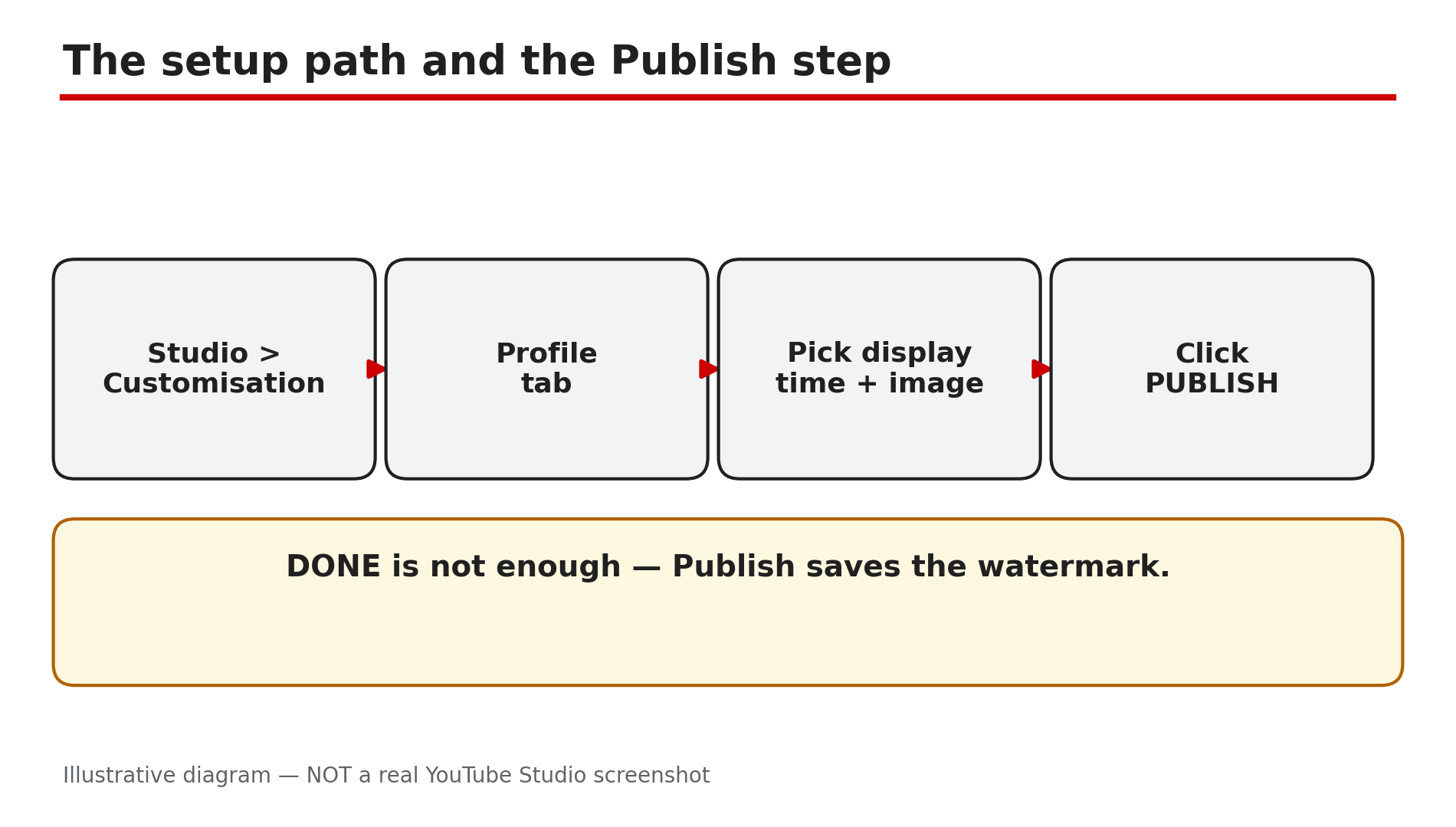
You set a branding watermark — the small channel logo in the corner of your videos — and then you watch your own video and it is not there. Or you hover over the corner expecting a Subscribe button to pop up, and nothing happens. Most watermark problems have a small set of causes — and one is not a problem at all: YouTube removed the desktop hover-to-subscribe button in 2025. What You Will LearnWhere the watermark setting lives, and the Publish step people skip The image rules: square, at least 150 x 150 pixels, under 1 MB How long to wait before deciding the watermark is broken Why Made for Kids videos never show a watermark Where it does and does not appear: mobile, embeds, chromeless players What YouTube removed in September 2025 — and what to use insteadStep 1 — Check the watermark is set up — and that you clicked Publish What to do: Open the watermark setting in Studio and confirm the image is there, a display time is chosen, and you clicked Publish. How: YouTube's Help page gives the path: sign in to YouTube Studio, select Customisation, then Profile, choose a display time — end of video (last 15 seconds), a custom start time, or the entire video — click CHANGE, pick your image, click DONE, then click PUBLISH. That last click is the one people miss: changing the image and closing the page does not save it. Example: A creator uploads a new logo, picks "Entire video", closes the tab, and checks a video — no watermark. She re-uploads it, clicks Publish, and the watermark appears. Common mistake: Looking for the watermark under video settings or in the YouTube app. It is channel-wide, under Customisation, set in Studio on a computer.Illustrative mock-up: the four steps to set a video watermark in YouTube Studio. Step 2 — Check the image: square, at least 150 x 150 pixels, under 1 MB What to do: Confirm your image meets YouTube's watermark rules before blaming anything else. How: YouTube's Help page lists the rules plainly: the watermark must be a square image, at least 150 x 150 pixels, and less than 1 MB in size. A rectangular logo will not work as uploaded — crop it to a square first, or put it on a square transparent background. A file over 1 MB will not save. Keep the design simple: a watermark sits small in a video corner, so fine detail and thin text turn into a smudge. Example: A gaming channel uploads a wide banner-style logo as its watermark and nothing shows — the image is 1200 x 300 pixels, not square. She crops it to a 500 x 500 pixel square PNG under 1 MB, uploads it, clicks Publish, and it appears. Common mistake: Uploading the channel banner as the watermark. The banner is 16:9 and the watermark must be square — different images for different jobs.Illustrative diagram: the three image rules for a YouTube video watermark. Step 3 — Wait: allow up to 12 to 24 hours for the watermark to appear What to do: After a correct setup and Publish, wait before changing anything again. How: A new or changed watermark does not always appear instantly on every video. As reported by creator guides, allow up to 12 to 24 hours for the change to propagate across YouTube. If you keep re-uploading the image every ten minutes, you restart the wait each time and never learn whether the first upload worked. Make one correct change, click Publish once, and leave it alone for a day. Example: A creator sets a watermark at noon, checks a video at 12:15 and sees nothing, then deletes it and uploads a different file. By evening, neither image shows reliably. She sets it once more, clicks Publish, and by morning it is on every video. Common mistake: Treating a watermark that has not appeared yet as one that will never appear. Ten minutes is not a test — a day is.Illustrative diagram: how long a new watermark can take to appear everywhere. Step 4 — Check the video: Made for Kids videos never show a watermark What to do: Open the video in Studio and check its Audience setting — if it is Made for Kids, the watermark is switched off by design. How: YouTube's Help page states it directly: video watermarks are not available on videos set as Made for Kids, and if a video that previously showed a watermark is later set as Made for Kids, viewers will not see it. This is not a bug and no setting overrides it. To check, open the video's Details in Studio and look at Audience. If the setting is wrong — a video for adults marked as Made for Kids by mistake — change it to "No, it's not made for kids" and save. Example: A creator notices the watermark on all her videos except one, which YouTube's classifier marked Made for Kids. She corrects the Audience setting, and the watermark comes back. Common mistake: Re-uploading the watermark or the video when one video is affected. One video missing a watermark while the rest show it points at that video's settings, not the channel-wide watermark.Illustrative diagram: how the Made for Kids setting affects the video watermark. Step 5 — Check where you are looking: mobile, embeds and chromeless players hide it What to do: Test the watermark on a desktop browser in landscape, and compare with where you first noticed it missing. How: YouTube's Help page says the channel watermark is available in landscape view on computers and mobile devices, and that it is not clickable on mobile. It also says channel watermarks do not show on custom chromeless players or Adobe Flash. So if you watch on a phone held upright, in a small embedded player, or inside an app using a chromeless player, the watermark may be invisible or unclickable — expected behaviour, not a fault. Example: A creator checks his video on his phone in portrait mode and sees no watermark. On his laptop the watermark sits in the corner of the same video. Nothing is broken — the portrait player simply does not show it the way the desktop player does. Common mistake: Testing on one device in one orientation and concluding the watermark is gone everywhere. Confirm on desktop before changing the setting.Illustrative diagram: where the channel watermark appears and where it does not. Step 6 — Stop waiting for the hover-to-subscribe button: YouTube removed it in September 2025 What to do: Accept that hovering over the watermark on desktop no longer shows a Subscribe button — and move your subscribe ask to places that still work. How: In an announcement dated 24 September 2025, YouTube said it was removing the Subscribe button that appears when you hover your cursor over a video's branded watermark on desktop. A Subscribe button already sits directly below the video player, so the extra button was removed to simplify the viewing experience, and less than 0.05% of all channel subscriptions came from the hover-to-subscribe feature. The announcement also said clearly: you can still add both end screens and watermarks to videos — the watermark itself is not removed, only the hover button is. Example: A creator hovers over the watermark, sees no Subscribe button, and spends an hour re-uploading the watermark and changing browsers. Then she reads the September 2025 announcement: the button is gone for everyone. Common mistake: Treating the missing hover button as proof the watermark is broken. The watermark's job now is branding — a small logo in the corner. Use an end screen, a pinned comment, or a spoken call to action instead.Illustrative diagram: the hover-to-subscribe button was removed in September 2025, but the watermark itself remains. Checklist — Fix a branding watermark that is not showing☐ Watermark set in Studio > Customisation > Profile, with a display time chosen ☐ Clicked Publish — not just DONE ☐ Image is square, at least 150 x 150 pixels, under 1 MB ☐ Waited up to 12 to 24 hours after publishing before changing it again ☐ Checked the video is not set as Made for Kids ☐ Tested on a desktop browser in landscape, not only on a phone ☐ Checked the video is not playing in a chromeless embedded player ☐ No longer expecting the hover-to-subscribe buttonFAQs 1. I set the watermark and clicked Publish, but it is still not showing. What now? Wait up to 12 to 24 hours, as reported, and test on a desktop browser. If it is still missing after a day, re-open Customisation > Profile — if the field is empty, the setting never saved, so set it again and click Publish. 2. Does the watermark show on every video? It shows channel-wide, with one big exception: videos set as Made for Kids never show it. It also may not appear in chromeless embedded players, and it is not clickable on mobile. 3. Can viewers still subscribe by clicking the watermark? No — not since September 2025. YouTube removed the desktop hover-to-subscribe button. Viewers subscribe using the Subscribe button below the player, or through an end screen. The watermark itself remains as branding. 4. Why does the watermark show on my laptop but not on my phone? YouTube says the watermark is available in landscape view on computers and mobile devices and is not clickable on mobile. In portrait on a phone, or inside some embedded players, it may not appear at all. 5. Is my watermark too small or too big? YouTube requires a square image of at least 150 x 150 pixels and under 1 MB — a 500 x 500 pixel PNG is a safe choice. Keep the design simple. SourcesYouTube Help — "Manage your channel branding" (official page, opened live 13 Nov 2026): https://support.google.com/youtube/answer/10456525?hl=en-GB YouTube Community announcement — "New 'Hide' End Screens Button & Changes to Desktop Hover-to-Subscribe Button", 24 Sep 2025 (official announcement thread, opened live 13 Nov 2026; the thread page itself rendered only its title, so the quoted wording is from the search result of the same thread, confirmed by multiple reports): https://support.google.com/youtube/thread/375578802?hl=en&msgid=439836592 CreatorPlaybook — "YouTube Banner or Profile Picture Not Updating After Change" (internal link, URL copied from the plan file): </blog/youtube-banner-or-profile-picture-not>