Showing Posts From
Youtube mobile
 CreatorPlaybook Team
- 12 Nov, 2026
YouTube Studio Mobile App Missing Features? Desktop-Only Tasks and the Workaround
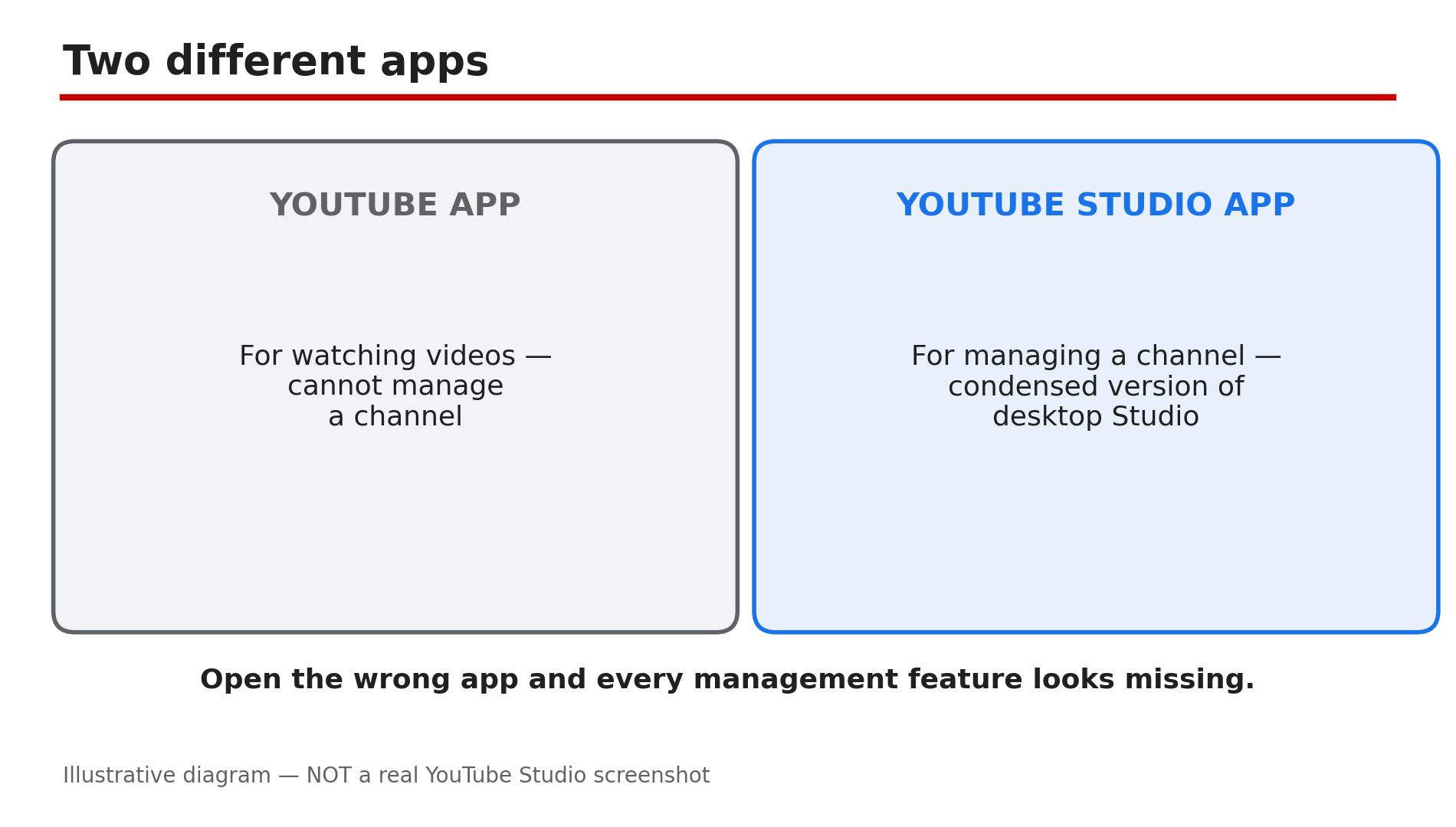
You open the YouTube Studio app on your phone, look for the end screen button, the bulk edit option or the channel customisation page — and none of them is there. Before you reinstall the app or assume your account is broken, stop: the Studio mobile app is a condensed version of desktop Studio by design, and several jobs simply do not exist in it. This guide lists the desktop-only tasks, shows how to tell a missing feature from a real fault, and gives the workaround for full Studio on a phone. What You Will LearnTelling a missing feature from a broken app Desktop-only tasks: bulk editing, detailed analytics, monetisation controls Why customisation, end screens and cards are not in the app Why Shorts thumbnails need a computer How to open full desktop Studio on a phone What the app is actually good forStep 1 — Confirm it is a missing feature, not a fault: right app, right account, updated version What to do: Before concluding a feature is missing, confirm you are in the Studio app, on the right channel, updated. How: The regular YouTube app and the YouTube Studio app are two different apps — the one you watch videos on cannot manage a channel at all, so make sure you opened YouTube Studio. Then check the channel: tap your profile picture and confirm the channel name — a feature can look missing on the wrong account or a different Brand Account channel. Finally, update the app — YouTube rolls features out gradually, and an old version can lack a newer control. If it is still absent after those three checks, it is almost certainly a desktop-only task, not a fault. Example: A creator cannot find the end screen button and reinstalls the app twice. The app was fine — end screens are not in the mobile app. Common mistake: Clearing app data or factory-resetting the phone to "fix" a missing feature. A desktop-only task does not appear after a reset, and clearing data signs you out of every account on the phone.Illustrative diagram: the YouTube app and the YouTube Studio app are two different apps. Step 2 — Bulk editing: changing many videos at once needs a computer What to do: To change the title, tags, description, visibility or end screens of many videos at once, use desktop Studio — the app edits one video at a time. How: Desktop Studio lets you select several videos in Content and edit them together: change the category, tags, visibility or audience setting across twenty uploads in one action. The mobile app has no multi-select and no bulk editor — each video must be opened and edited individually. As reported, this is one of the most commonly missed features, and no setting in the app unlocks it. If you only need to fix one video, the app is fine; if you need to fix fifty, use a computer. Example: A creator rebrands and needs to add the same tag to 60 old videos — 60 separate edits in the app, one bulk edit in desktop Studio. Common mistake: Editing videos one by one in the app and giving up halfway, leaving half the channel with the old tags. Batch the job in desktop Studio instead.Illustrative diagram: what the Studio app can do compared with what it cannot do. Step 3 — Detailed analytics: retention curves and traffic-source reports are desktop-only What to do: For the deep reports — retention curves, traffic sources and revenue breakdowns — use desktop Studio; the app shows summaries, not the full picture. How: The app's Analytics tab gives a useful overview: views, watch time and subscribers over the last few days, and a simple per-video summary. What it does not give you is the detailed retention curve with its key moments — Intro, Top moments, Spikes and Dips — or the full traffic-source breakdown, or the detailed revenue reports. Those live in desktop Studio under Analytics > Engagement and Analytics > Revenue. The app is fine for a morning check of yesterday's numbers. Example: A creator's video has 50,000 views but low watch time. The app shows the low number but not the curve. In desktop Studio the retention graph shows a cliff at 30 seconds — the hook broke the title's promise. Common mistake: Judging a video by the app's headline numbers alone. The summary hides where viewers leave.Illustrative diagram: bulk editing in desktop Studio compared with one-by-one editing in the app. Step 4 — Monetisation controls and channel customisation: full settings live on desktop What to do: For ad placements, mid-roll positions, channel layout, featured sections, the trailer and the watermark, use desktop Studio — the app only shows basic monetisation figures. How: The app shows revenue and RPM figures, but as reported, detailed monetisation management needs the desktop version: choosing where ads appear, setting mid-roll positions, and the full set of Earn-tab controls. The same applies to channel customisation. YouTube's Help page on customising your channel layout describes the workflow in Studio: Customization > Home tab, add sections, set a trailer and a featured video, then Publish. The app lets you update individual video details and reply to comments, but not channel-level layout and branding. Example: A creator wants to add a featured section for a new playlist series. In the app there is no Customization menu. In desktop Studio it is Customization > Home tab > Add section, then Publish. Common mistake: Assuming the channel layout is broken because the Home tab looks empty on a phone. The Home tab only shows the sections you set up, and setting them up is a desktop job.Illustrative diagram: the app's analytics summary compared with desktop Studio's detailed reports. Step 5 — End screens, cards and custom Shorts thumbnails: computer-only, by design What to do: Add end screens and cards, and upload custom Shorts thumbnails, in desktop Studio — the app does not offer them. How: YouTube's Help page on end screens describes the workflow in Studio: Content, click the video, then Editor, then End screen — an Editor that exists in desktop Studio, not in the mobile app. The page also notes end screens are not available on mobile web, except on iPad. Cards follow the same rule: they are placed in the desktop Editor, not the app. Custom Shorts thumbnails are the same — computer-only, verified account required, and the mobile route only picks a frame from the video. None of this is a bug; the tools were built for a desktop screen. Example: A creator records a Short on her phone, opens the Studio app to add a custom thumbnail, and finds only the frame picker. She opens studio.youtube.com in her phone's browser in desktop mode and uploads the thumbnail there. Common mistake: Uploading the Short from the app and assuming the thumbnail cannot be changed afterwards. It can — in desktop Studio, by editing the video and choosing a custom thumbnail.Illustrative diagram: end screens, cards and custom Shorts thumbnails need a computer. Step 6 — The workaround: open full desktop Studio in your phone's browser What to do: When a job needs desktop Studio, open studio.youtube.com in your phone's browser and request the desktop site. How: As reported by third-party guides, the reliable route is: open your phone's browser (Chrome on Android, Safari on iPhone), go to studio.youtube.com, sign in to the right Google account, and use the browser menu to request the desktop site — on Chrome it is "Desktop site", on Safari it is "Request Desktop Website". YouTube may show a banner saying "Get the app" — do not tap it, or you will be sent back to the condensed app. Tap "Continue to Studio" instead, and the full desktop Studio loads in the browser. It is fiddly on a small screen — zoom and scroll carefully, and use landscape orientation for the Editor. Do not install third-party "desktop mode" tools; they are not official, and they ask for your Google sign-in. Example: A creator on a train needs to add an end screen before a video goes live. She opens studio.youtube.com in Chrome, taps "Desktop site", taps "Continue to Studio", and adds the end screen — all from her phone. Common mistake: Tapping "Get the app" and then wondering why the feature is still missing. The app is the condensed version; the desktop site in the browser is the full version.Illustrative mock-up: the four steps to open full desktop Studio on a phone. Checklist — Get a desktop-only task done from your phone☐ Confirmed I opened YouTube Studio, not the YouTube app ☐ Confirmed the right Google account and channel ☐ Updated the Studio app ☐ Identified the task as desktop-only ☐ Opened studio.youtube.com in the phone browser ☐ Requested the desktop site in the browser ☐ Tapped "Continue to Studio", not "Get the app" ☐ Did not install any third-party desktop-mode toolFAQs 1. Why can't I add end screens in the Studio app? Because end screens are a desktop-only feature. YouTube's Help page describes adding them through the Editor in Studio on a computer. Use desktop Studio in your phone's browser instead. 2. Can I bulk-edit videos in the Studio app? No. The app has no multi-select or bulk editor — each video must be edited one at a time. Desktop Studio lets you select several videos and change them together. 3. Is the Studio app broken if the Customization menu is missing? No. Channel customisation lives in desktop Studio's Customization menu, which the app does not include. It is a missing feature, not a fault. 4. How do I get desktop Studio on my phone? Open studio.youtube.com in your phone's browser, request the desktop site from the browser menu, and tap "Continue to Studio" instead of "Get the app". 5. Are third-party apps that unlock Studio features safe? No — do not use them. They are not official, and they ask for your Google sign-in. Use the desktop site in your own browser instead. SourcesYouTube Help — "Add end screens to videos" (official page, opened live 12 Nov 2026): https://support.google.com/youtube/answer/6388789?hl=en CreatorPlaybook — "YouTube Studio Not Loading, Blank or 'Something Went Wrong'? How to Fix It" (internal link, URL copied from the plan file): </blog/youtube-studio-not-loading-blank-or> CreatorPlaybook — "YouTube Shorts Custom Thumbnail Not Showing? What to Check" (internal link, URL copied from the plan file): </blog/youtube-shorts-custom-thumbnail-not>