Showing Posts From
Youtube processing
 CreatorPlaybook Team
- 06 Nov, 2026
YouTube 'Processing Abandoned'? Why the Video Could Not Be Processed and How to Fix It
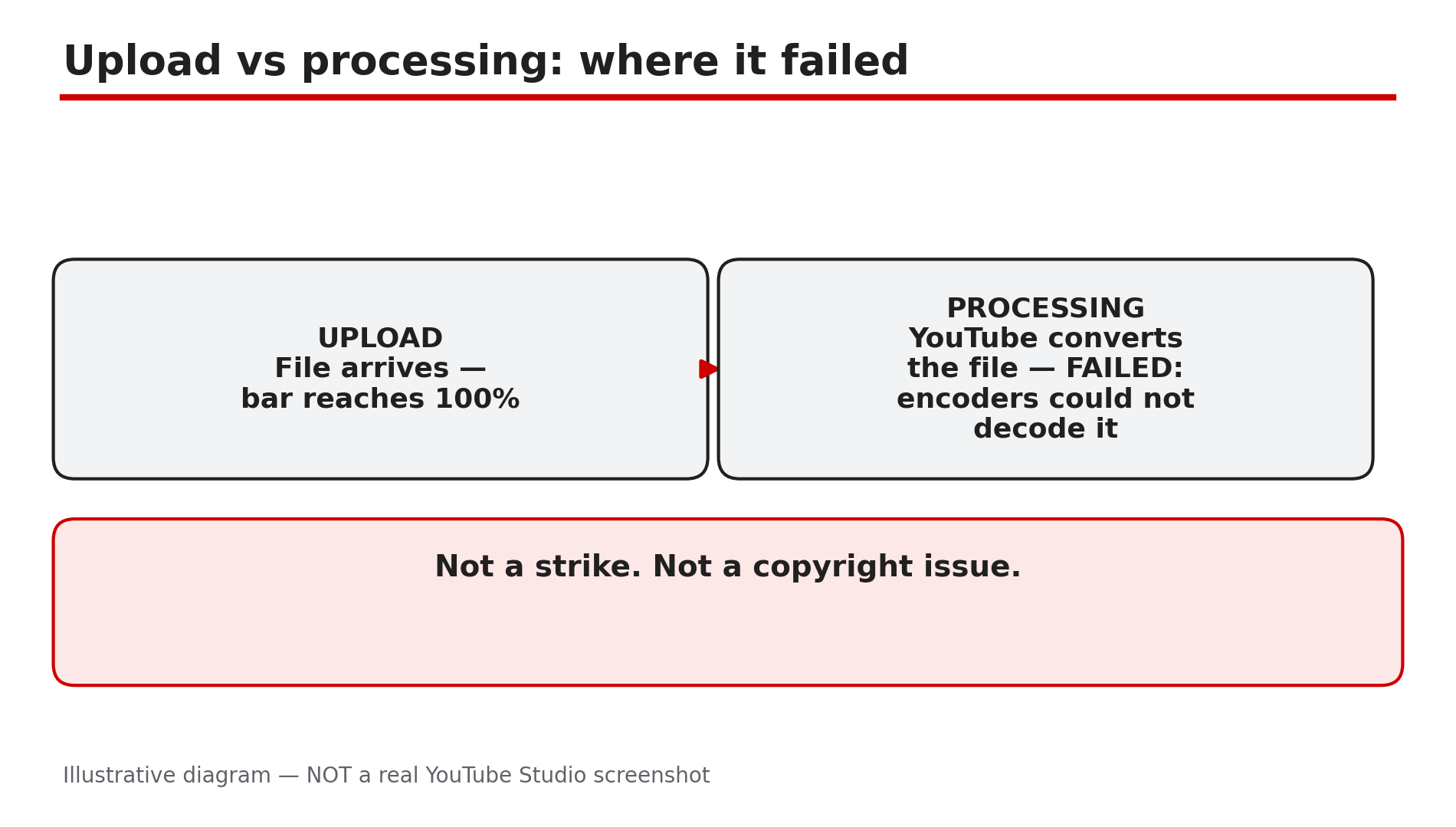
You upload a video, the bar reaches 100%, and then instead of a finished video you see "Processing abandoned: the video could not be processed". The error is almost always a problem with the video file itself, not your channel — not a strike, not a copyright issue, and not a sign your account is in trouble. The upload arrived on YouTube's servers, but its encoders could not read it. Something in it is shortened, incomplete, or in a form the encoder cannot decode — which is why uploading the same file again usually produces the same error. Check the file first, re-export if needed, then upload a clean copy. What You Will LearnWhat "Processing abandoned" means — a file problem, not a channel penalty How to test your file for damage before uploading again How to re-export with H.264 and AAC When to delete the abandoned entry and upload fresh How interrupted recordings damage a file, and how to avoid itStep 1 — Confirm what the error really means What to do: Check whether the upload reached 100% before it failed — that tells you the file arrived and processing broke. How: In YouTube Studio, open Content and find the video. If it shows "Processing abandoned" after the bar completed, the file arrived but could not be decoded. YouTube's Help page says: "Processing abandoned: This error message may occur if the uploaded file is shortened or invalid. It can also occur on reduced upload speeds. Try playing your video back on your device and make sure that you're using a supported file type, then upload again. If the problem remains, try uploading your video from a different platform." Example: A creator's 12-minute tutorial hits 100%, then shows "Processing abandoned" — the recording stopped early when the laptop battery died. Common mistake: Treating this like a strike and checking channel standing for hours — it has nothing to do with strikes.Illustrative diagram: the upload finished, but processing could not decode the file. Step 2 — Play the file to the end on your own device What to do: Play the exported video from start to finish in a desktop player, watching for freezes, black screens, missing audio, or a player that stops early. How: Open the file in VLC or another desktop player. Do not just scrub through it — a file can look fine at the start and break near the end. Let it play to the final frame and confirm the duration matches your editor — if it stops early or the audio drops out, the file is damaged. Example: A gaming creator's 20-minute recording plays normally for 14 minutes, then the picture freezes while the audio keeps going — the recording software had crashed, so the file must be re-exported from the original project. Common mistake: Skipping this test and re-uploading the same file again and again. A damaged file almost always fails the same way.Illustrative diagram: how to test a video file by playing it fully before uploading again. Step 3 — Check the format and re-export with standard settings What to do: Confirm the file uses a supported format, then re-export with H.264 video, AAC audio, and a constant frame rate. How: In your export settings, choose MP4, H.264 video, and AAC audio. Set a constant frame rate, such as 30 frames per second, rather than a variable frame rate. For game capture recordings, mix the audio down to a single stereo track — multiple tracks and variable frame rates are reported to cause processing failures. Example: A creator records gameplay with variable frame rate and two audio tracks. After re-exporting at a constant 30 fps with one mixed audio track, the video processes in a few minutes. Common mistake: Exporting to an unusual format, such as a raw camera codec, then blaming YouTube when the encoder cannot read it.Illustrative diagram: standard export settings for a file YouTube can process. Step 4 — Fix a file damaged by an interrupted recording What to do: If the recording or export was interrupted, rebuild the file from the original project — a file with a missing index cannot be decoded. How: Did it stop after a crash, a full disk, a dead battery, or a removed memory card? As reported in a FixMP4 engineering guide dated 27 October 2026, a common form of damage is a missing moov atom index — the part of an MP4 file that tells a player where each section lives. When a recording is interrupted, that index may never be written, so re-export from the original project. Example: A creator records a vlog on a phone that runs out of storage halfway through, so the file plays for a few seconds, then stops. After freeing storage and re-exporting, the new file uploads without trouble. Common mistake: Trying to "fix" the file by renaming it or changing its extension from .mov to .mp4 — renaming changes nothing inside the file.Illustrative mock-up: an interrupted recording can leave the file index missing, so the file cannot be decoded. Step 5 — Delete the abandoned entry and upload as a fresh video What to do: Delete the abandoned video from YouTube Studio, then upload the repaired file as a new video — YouTube does not let you replace the file of an existing video. How: In YouTube Studio, open Content, select the video showing "Processing abandoned", and delete it. Then upload the new file as a fresh video, re-entering the title, description, thumbnail, and settings — so keep those details saved before you delete. There is no "replace file" button on YouTube. Example: A creator's tutorial fails processing twice. After re-exporting, she deletes the abandoned entry, uploads the new file with the saved title and description, and the video processes fully within fifteen minutes. Common mistake: Leaving the abandoned entry in place and uploading the fixed file as a second video, leaving a broken video in your content list.Illustrative diagram: delete the abandoned entry first, then upload the fixed file as a fresh video. Step 6 — Upload on a stable connection and wait for processing What to do: Upload the new file on a stable connection, keep the tab open until 100%, and wait for processing to finish. How: Use a wired connection or strong Wi-Fi, and avoid large downloads while uploading. YouTube's Help page notes this error can also occur on reduced upload speeds, and as reported by creators, a VPN dropping out mid-upload can break the file. Keep the tab open until the bar shows 100%, then check the video plays in Studio before sharing it. Example: A creator uploads a 4K video over weak hotel Wi-Fi, and the upload stalls and restarts. The video fails with "Processing abandoned". The next day, on a stable home connection, the same file uploads and processes without a problem. Common mistake: Closing the laptop lid or the browser tab the moment the bar hits 100%, before processing has run.Illustrative diagram: five checks for a stable upload that reaches processing cleanly. Checklist — Fix a "Processing Abandoned" error☐ Error appeared after 100%, not a stuck upload ☐ Played the file to the end; it plays cleanly ☐ File is MP4 with H.264 video and AAC audio ☐ Re-exported at constant frame rate, one audio track ☐ Rebuilt the file if the recording or export was interrupted ☐ Deleted the abandoned entry before uploading again ☐ Uploaded the new file as a fresh video ☐ Stable connection; tab kept open until processing finishedFAQs 1. Is "Processing abandoned" a strike or a penalty on my channel? No. YouTube received your file but its encoders could not decode it, usually because it is shortened, incomplete, or unsupported. It is not a copyright issue or a strike. 2. Can I just upload the same file again and hope it works? You can try once, but a damaged file usually fails the same way. Play the file to the end first. If it freezes or stops early, only a re-export or a repair will change the result. 3. Can I replace the file on the video that failed? No. YouTube does not let you replace the video file of an existing upload. Delete the abandoned entry, upload the repaired file as a new video, and re-enter the title, description, thumbnail, and settings. 4. How is this different from a video stuck while uploading? A stuck upload never reaches 100%, so the file has not fully arrived — the usual fix is to resume it within 24 hours from the upload page. "Processing abandoned" appears after the upload completes. 5. My file plays fine on my computer but still fails. What should I try? Re-export it with standard settings: MP4, H.264 video, AAC audio, constant frame rate, and one mixed audio track. Game capture files with variable frame rate or several audio tracks are a common cause. If it still fails, YouTube's Help page suggests trying a different platform. SourcesYouTube Help — "Common uploading errors" (official page, opened live 6 Nov 2026): https://support.google.com/youtube/answer/10383400?hl=en CreatorPlaybook — "YouTube Video Stuck on Uploading or Processing? How to Fix It" (internal link, verified from the blog sitemap): </blog/youtube-video-stuck-uploading-or> CreatorPlaybook — "YouTube Pre-Publish Checks: Copyright, Thumbnail & Title Checklist Before You Hit Publish" (internal link, verified from the blog sitemap): </blog/youtube-pre-publish-checks-copyright>