Showing Posts From
Youtube playback errors
 CreatorPlaybook Team
- 04 Nov, 2026
YouTube Video Unavailable? What Each Playback Error Means and How to Fix It
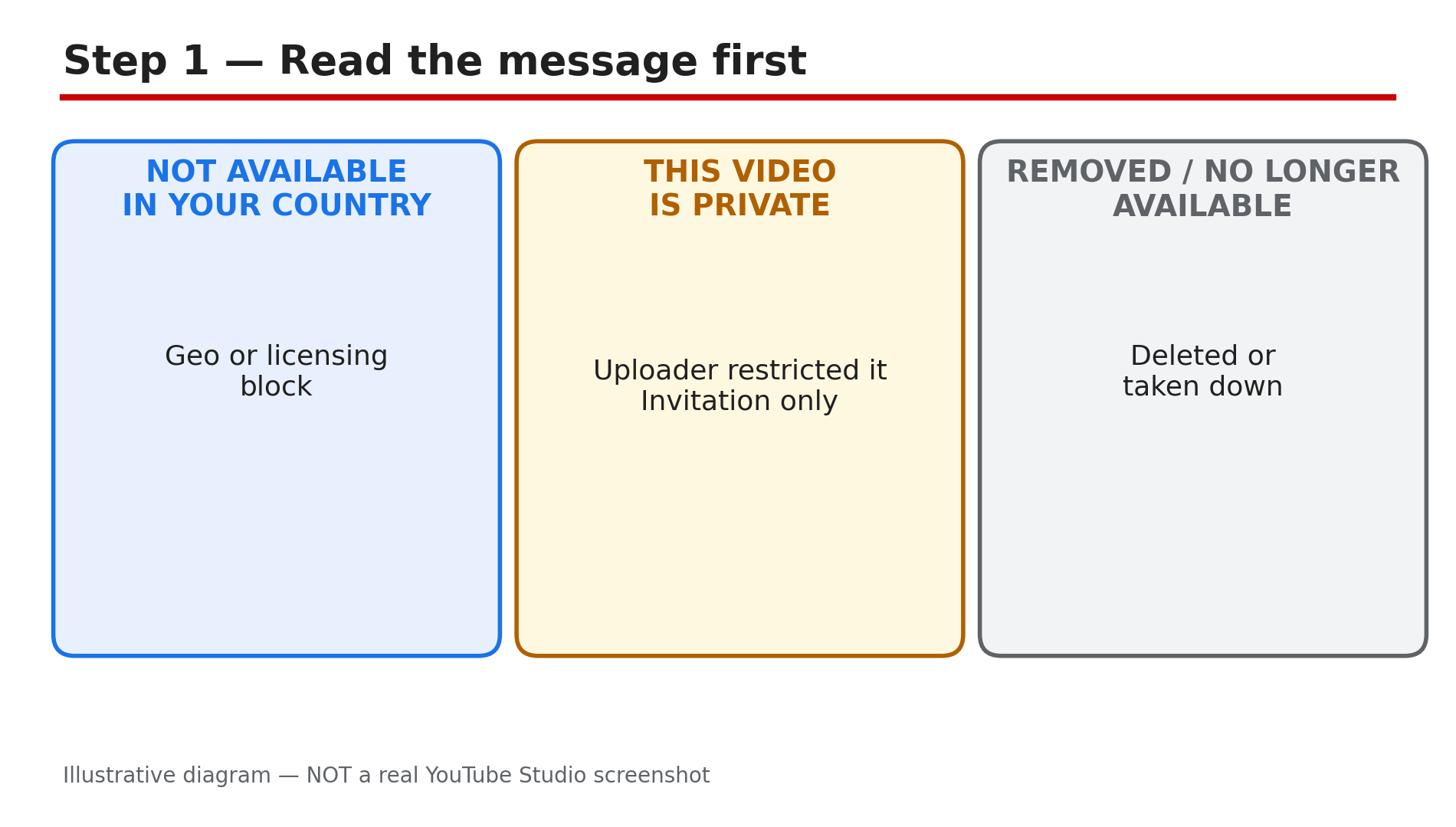
You click a video and instead of the video you get a grey box: "This video is unavailable." Or a different message — "Playback error. Tap to retry." Or "An error has occurred." Each message means something different, and the fix that works for one does nothing for another. The most common mistake is treating every playback error as a broken connection. What You Will LearnWhat each "video unavailable" message actually means How to tell a video problem from a connection problem in one minute The viewer checks that fix most playback errors, in order What creators should check in Studio when viewers report errors When a VPN helps, and when YouTube's own rules say it does not Which errors have no viewer fix at allStep 1 — Read the exact message before you do anything What to do: Write down the exact words on the screen, because the message is the diagnosis. How: YouTube's own troubleshooting page lists the common error messages: "An error has occurred", "Playback error. Tap to retry", "Connection to server lost", "This video is unavailable", and "Something went wrong. Tap to retry". Each points somewhere different. "Not available in your country" means a geo or licensing block. "This video is private" means the uploader restricted it to invited viewers. "Removed" or "no longer available" means the uploader deleted it or YouTube removed it for copyright or policy reasons. An age or sign-in warning means an age restriction, Restricted Mode, or an account requirement. A generic "Error code: 0" means YouTube could not load the video at all, and the cause is unspecified — it could be the browser, the app, the network, an extension, a VPN, or the video itself. Example: A viewer clicks a music video and sees "The uploader has not made this video available in your country". Common mistake: Seeing "video unavailable" on one video and reinstalling the app.Illustrative diagram of what each video-unavailable message means. Step 2 — Test whether it is the video or your connection What to do: Open two or three videos from big, established public channels before you change any setting. How: If only one video fails, the problem is specific to that upload — its privacy setting, a restriction, or a removal. If every video fails, the cause is your browser, app, account, network or YouTube itself. Try the same failing video on another device or another network, for example mobile data instead of Wi-Fi: if it plays there, your home network or browser is the cause. YouTube's troubleshooting page starts the same way — restart the connection, check the speed, and make sure you are signed in, since YouTube may block signed-out users from some content. Example: A viewer's favourite video will not play on their laptop but plays fine on their phone on mobile data. Common mistake: Clearing all your cache and cookies first logs you out of everything and fixes nothing if the video is private.Illustrative diagram of the one-minute test that separates a video problem from a connection problem. Step 3 — Run the viewer fixes in order What to do: Work through the checks in this order, testing the video after each one. How: First, reload the page or restart the app — YouTube's own page calls a restart the first move, and on a TV it recommends unplugging the device for at least 30 seconds. Second, open YouTube in an incognito or private window with all extensions off: if the video plays there, an ad blocker or another extension is breaking playback, as YouTube's troubleshooting page warns. Third, clear the browser cache and cookies, or clear the app's cache on Android — but not "Clear data", which signs you out and deletes downloads. Fourth, update the YouTube app and your browser or device software. Fifth, check your internet speed against the resolution: YouTube's page lists roughly 20 Mbps sustained for 4K, 5 Mbps for 1080p and 2.5 Mbps for 720p — if your connection cannot sustain the selected quality, lower the quality instead of fighting the error. Example: A viewer gets "Playback error" on every video in Chrome but not in incognito. Common mistake: Changing the DNS settings or reinstalling the app before trying incognito.Illustrative diagram of the viewer fixes for playback errors, in order. Step 4 — Check sign-in, Restricted Mode and the account What to do: Confirm you are signed in to the right account, and that no filter is hiding the video. How: YouTube's troubleshooting page says to make sure you are signed in, because some features do not work correctly otherwise, and signed-out users can be blocked from some content. If the video shows an age warning, sign in with an account that is 18 or older — an age-restricted video will not play for a signed-out or under-18 viewer. If videos are missing or hidden, check Restricted Mode: on a computer it is under your profile photo, and in the app under Settings, then General. Restricted Mode is a viewer-side filter set per browser and device, and it hides potentially mature videos and all comments while it is on. If the switch will not turn off, the filter is locked by a network administrator, a parent through Family Link, or a mobile carrier — only that person or provider can remove it. Example: A student on school Wi-Fi cannot play a video that plays fine at home. Common mistake: Assuming an age warning means the video was deleted — age-restricted videos still exist and need an eligible signed-in account.Illustrative diagram of the account and Restricted Mode checks. Step 5 — For creators: check the video in Studio What to do: If viewers report your video as unavailable, open the video in Studio and read its Restrictions column before you blame YouTube. How: In Studio, go to Content and look at the video's Visibility and Restrictions. A private video can only be watched by the uploader and invited people — a playlist link does not grant access. An age restriction shows in the Restrictions column, and you can appeal it once from the video's details. A copyright claim can block the video in some countries or worldwide — our separate guide on videos blocked in some countries explains the territorial claim in detail. A video still processing will not play properly either, so check that processing has finished, especially after a long upload. If the video is public, processed and unrestricted, ask the viewer which exact message they see — the message tells you which of these it is. Example: A creator's new video shows "unavailable" to viewers in Germany because of a territorial copyright block on the music. Common mistake: Re-uploading the video because viewers report an error starts from zero views and keeps the same problem.Illustrative diagram of what a creator should check in Studio when viewers report errors. Step 6 — Know when there is no viewer fix What to do: Accept the errors that no setting can change, and stop wasting time on them. How: A deleted video cannot be restored by a viewer — the URL may help you find an authorised re-upload, but the original is gone. A private video cannot be watched without an invitation, and no VPN, downloader or modified URL grants permission. A video removed by YouTube for a policy or copyright reason has no viewer fix either. A VPN can technically load a geo-blocked video, but YouTube's Terms prohibit circumventing geo-restrictions — treat it only as a reported viewer workaround with that caveat, never as a recommended fix, and never for private or deleted content. If every video fails everywhere, check whether YouTube itself is down before changing anything else. Example: A viewer spends an hour troubleshooting a video that says "Video unavailable — this video has been removed by the uploader". Common mistake: Paying for a "YouTube unblocker" tool that promises to play private or deleted videos.Illustrative diagram of the playback errors that have no viewer fix. Checklist — Fix a "Video Unavailable" Error☐ I read the exact error message instead of guessing ☐ I tested two or three other public videos to see if it is one video or all of them ☐ I reloaded the page and restarted the app or device ☐ I tried an incognito window with extensions off ☐ I checked I am signed in to the right account ☐ I checked Restricted Mode on this browser or device ☐ I cleared the cache (not the data) and updated the app ☐ As a creator, I checked Visibility and Restrictions in Studio ☐ I accepted it if the video is private, deleted or removed — no fix existsFAQs 1. Why does one video say "unavailable" while others play fine? Because the problem belongs to that video — it is private, deleted, removed, age-restricted or blocked in your country. 2. What does "This video is not available in your country" mean? The rights holder limited playback to certain countries, or YouTube blocked it to comply with local law. 3. Why does YouTube work in incognito but not in my normal browser? An extension, usually an ad blocker, or a corrupted cookie is interfering. 4. Can a VPN fix a "video unavailable" error? Only for a geo-block, and YouTube's Terms prohibit circumventing geo-restrictions. 5. I am a creator — why do viewers see "unavailable" on my public video? Check Studio, Content, then the Restrictions column: an age restriction, a territorial copyright claim or unfinished processing are the usual causes. SourcesYouTube Help — "Troubleshoot YouTube video errors" (official page, opened live 4 Nov 2026): https://support.google.com/youtube/answer/3037019?hl=en CreatorPlaybook — "YouTube Video Blocked in Some Countries or Worldwide: What to Do": </blog/youtube-video-blocked-in-some-countries> CreatorPlaybook — "YouTube Video Blurry After Upload: Why HD Is Stuck at 360p": </blog/youtube-video-blurry-after-upload-why>