Showing Posts From
Troubleshooting
 CreatorPlaybook Team
- 09 Nov, 2026
YouTube App Not Opening, Crashing or Black Screen? How to Fix It
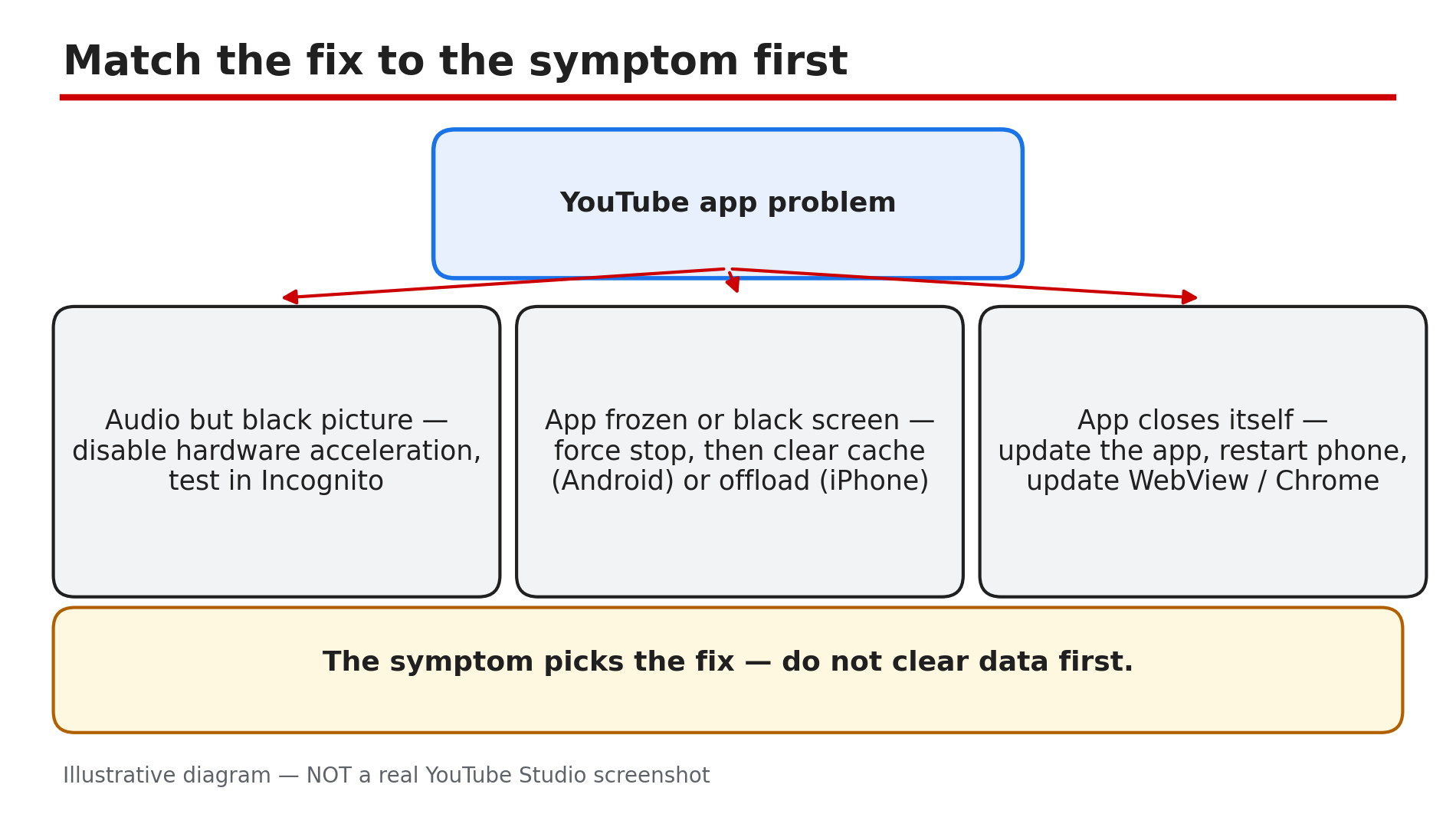
You tap the YouTube app and nothing happens. Or it opens to a black screen, plays sound with no picture, or closes itself after a few seconds. It is the app you open every day — and suddenly it will not behave. In most cases the fault is not YouTube itself. It is usually a stale app cache, an out-of-date app version, a bad browser setting, or a faulty system update that breaks several apps at once. The fix depends on the symptom — so match it first, then work through the steps in order. Try the quick fixes first: close and reopen, update the app, restart the phone. Most cases clear up within the first four fixes. What You Will LearnMatch the symptom — black screen, crash, will not open — to the right fix Quick sequence: close, update, restart, then replay Force stop and clear the cache on Android without losing anything What to do on iPhone, with no per-app cache clear How a faulty WebView update can crash several apps When the upload is at fault — and no app fix helpsStep 1 — Read the symptom and test another video and device What to do: Note exactly what happens first: the app will not open, it opens to a black screen, it plays audio with no picture, or it closes itself. Then test whether the fault follows the video or the device. How: Open a different video. If one video is black on every device, the upload itself is likely defective — no app fix helps, so watch a different video or tell the creator. If every video fails on one device but works on another, the fault is in that device. If nothing works anywhere, check Step 6 for an outage. Example: A viewer's favourite tutorial shows a black screen on her phone, laptop, and TV, while every other video plays fine. The upload itself is defective — she watches the creator's re-upload instead of reinstalling the app. Common mistake: Clearing the cache and reinstalling to fix one broken upload, when the video is the problem.Illustrative diagram: the three symptoms — black picture with audio, frozen or black screen, app closing itself — and the fix each one points to. Step 2 — Close and reopen the app, then restart your phone What to do: Start with the two ten-second fixes. A frozen app often clears with a full close, and a phone that has been on for weeks can need a restart. How: Close the app fully — swipe it away from recent apps, do not just press Home — then reopen it and try the same video. YouTube's Help page lists closing the app or rebooting the device as a first fix, then replaying the video. If it still freezes, restart the phone. On a smart TV, unplug it, wait 30 seconds, and plug it back in. Example: A viewer's app freezes on the loading circle every evening. She swipes it away and reopens it — it loads in seconds. Common mistake: Pressing Home and reopening the same frozen session — close it fully first.Illustrative diagram: the fix order — close the app fully, reopen it, restart the phone, replay the video. Step 3 — Update the YouTube app, WebView, and your device software What to do: Update the app before trying anything deeper. Google pushes server-side changes constantly, and an app build more than a few months old can suddenly stop working. How: Open the Play Store or App Store, search for YouTube, and tap Update if one is offered. On Android, also update Android System WebView and Chrome: as reported, a faulty WebView update can crash several apps at once, so if YouTube and other apps started crashing the same day, updating WebView is the fix. Then update your device software and restart the phone. Example: A viewer's YouTube, Gmail, and banking apps all start crashing the same morning. He updates Android System WebView, and all three work again. Common mistake: Updating YouTube but leaving a broken WebView in place, then blaming the phone.Illustrative diagram: the three updates to check — the YouTube app, Android System WebView and Chrome, and the device software. Step 4 — Force stop and clear the cache on Android, or offload on iPhone What to do: If the app still freezes or shows a black screen, clear its temporary data. Corrupted cache is the most common cause of loading issues — and clearing it does not delete your login or downloads. How: On Android, long-press the YouTube icon, tap App info, then Force stop. Then tap Storage and cache, and tap Clear cache — not Clear data, which signs you out and resets the app. On iPhone there is no per-app cache clear, so offload instead: Settings, General, iPhone Storage, tap YouTube, then Offload App — it keeps your data. As reported, this resolves about nine in ten cases on Android. Example: A viewer's app opens to a black screen every time. She force stops it, clears the cache, and reopens it — the feed loads, and she is still signed in. Common mistake: Tapping Clear data instead of Clear cache, then losing sign-in and settings — or on iPhone, deleting instead of offloading.Illustrative diagram: the Android path — force stop, then clear cache — and the iPhone path — offload, then reinstall. Step 5 — On a browser: disable hardware acceleration and test in Incognito What to do: If the problem is YouTube in a browser — audio but a black picture, or the page freezing — the cause is usually the browser, not YouTube. Test with extensions off first. How: Disable hardware acceleration in your browser settings and reload the video — as reported, this fixes audio with a black picture on many computers. Then open YouTube in an Incognito window with extensions disabled: YouTube's Help page suggests this test for ad-blocking extensions. If the video plays in Incognito, an extension is the culprit — turn them on one at a time until playback breaks, then allow YouTube in that extension or remove it. Also clear the browser cache and cookies for youtube.com. Example: A viewer hears audio but sees only black in Chrome. In an Incognito window the video plays perfectly. She disables her ad blocker, and the picture comes back. Common mistake: Reinstalling the phone app when the fault is in the desktop browser, or clearing cookies without knowing your password first.Illustrative diagram: the browser tests — hardware acceleration off, and the Incognito test with extensions disabled. Step 6 — Reinstall the app, check for an outage, and know when to stop What to do: If nothing above worked, reinstall the app and check whether YouTube itself is down. If the service is down, no fix on your side will help — wait. How: Uninstall YouTube, restart the phone, then reinstall it from the official store and sign in again. On most Android phones YouTube is a system app: in the Play Store, tap Uninstall to roll back to the original version, then update it again. Before reinstalling, check Downdetector — as reported, a spike in reports means an outage, and a flat line means the fault is local. If YouTube is down, wait: major outages are usually resolved within an hour. If the app works on mobile data but not Wi-Fi, the fault is your network — restart the router or try another network. Example: A viewer reinstalls YouTube twice with no change, then checks Downdetector and sees thousands of reports. She waits forty minutes, and YouTube comes back. Common mistake: Factory-resetting the phone for a YouTube outage, or reinstalling when a short wait would fix it.Illustrative diagram: the last-resort order — reinstall the app, check Downdetector for an outage, and wait if YouTube is down. Checklist — Fix the YouTube app not opening, crashing, or black screen☐ Symptom noted: will not open, black screen, audio only, closes itself ☐ Another video tested, and another device tested ☐ App closed fully and reopened; phone restarted ☐ YouTube app updated to the latest version ☐ Android System WebView and Chrome updated ☐ Cache cleared on Android, app offloaded on iPhone ☐ Browser: hardware acceleration off, Incognito test done ☐ Extensions tested one at a time; culprit allowed or removed ☐ App reinstalled from the official store ☐ Downdetector checked before any factory resetFAQs 1. Why does the YouTube app keep closing itself? Usually a corrupted cache or an out-of-date app version. Force stop the app, clear the cache on Android, update YouTube, and restart the phone. Also update Android System WebView and Chrome — a faulty WebView update can crash several apps. 2. Why is there sound but a black picture? In a browser, disable hardware acceleration and test in Incognito — an extension is often the cause. In the app, force stop and clear the cache. If one video is black on every device, the upload is likely defective. 3. Does clearing the cache delete my login or downloads? No. On Android, Clear cache removes temporary files only — your login and downloads stay. Do not tap Clear data, which resets the app and signs you out. On iPhone, offload instead of deleting. 4. Why can't I uninstall YouTube on my Android phone? Because it is a system app on most Android phones. In the Play Store, tap Uninstall on YouTube to roll back to the original version, then update it again. That is the closest thing to a reinstall. 5. How do I know if YouTube is down or it is just my phone? Check Downdetector for YouTube and look at the last hour of reports. A spike means an outage — wait, as major outages are usually resolved within an hour. A flat line means the fault is local. SourcesYouTube Help — "Troubleshoot YouTube video errors" (official page, opened live 9 Nov 2026): https://support.google.com/youtube/answer/3037019?hl=en CreatorPlaybook — "YouTube Studio Not Loading, Blank, or "Something Went Wrong"? How to Fix It" (internal link, opened live 9 Nov 2026): </blog/youtube-studio-not-loading-blank-or> CreatorPlaybook — "YouTube Video Stuck at Low Quality? Why 1080p or 4K Is Missing and How to Fix It" (internal link, opened live 9 Nov 2026): </blog/youtube-video-stuck-at-low-quality-why>
- CreatorPlaybook Team
- 09 Nov, 2026
YouTube Premium Not Working? How to Fix It (Viewer Side)
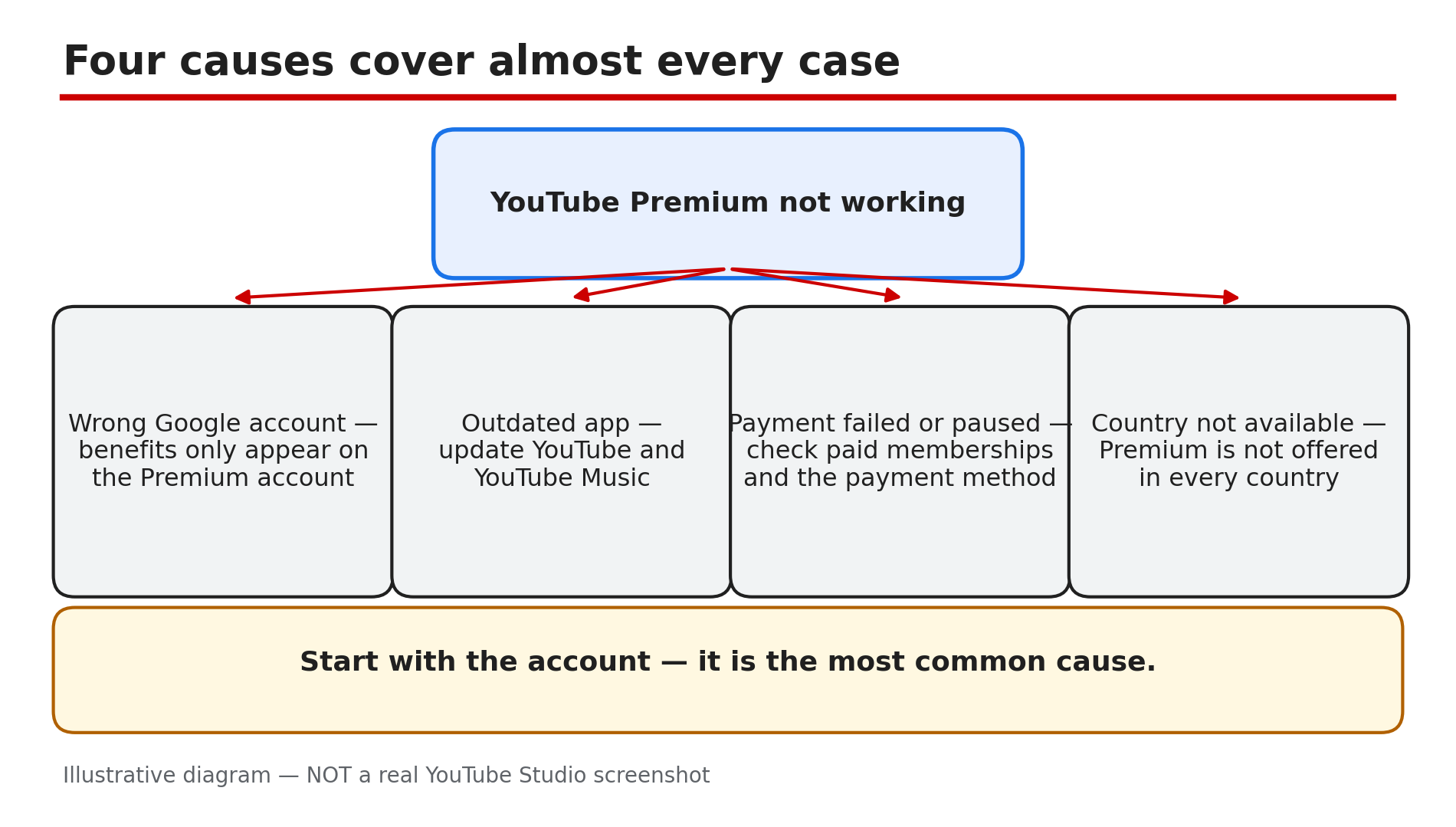
You paid for YouTube Premium, yet the ads are back, the badge is gone, or your downloads will not play. It feels like the subscription vanished overnight, and the first instinct is to pay again or cancel in anger. Do neither yet — in most cases the membership is fine. As reported, most cases come down to one of four things: the wrong Google account, an out-of-date app, a failed payment or paused membership, or a country where Premium is not available. Benefits only appear on the Premium account, on the latest app, with a payment that went through. Work through the steps in order — most fixes take under a minute. What You Will LearnMatch your symptom to the right cause Check you are signed in to the Premium account Why an old app hides Premium benefits Check membership status, billing date, and pauses Fix a declined payment and add a backup method What Premium never removes — and why it is not a faultStep 1 — Match the symptom to the cause before changing anything What to do: Read what you see and match it to the likely cause. Ads point to the wrong account; a missing Premium badge points to a failed payment or a paused membership. How: Ask three questions: did Premium work yesterday and stop today, or has it never worked here? Does it fail on every device or only one? What is missing — ads, downloads, background play, or everything? If everything is missing everywhere, start with Steps 2 and 4; if only background play fails, skip to Step 6. Example: A viewer sees ads on her phone but not her laptop. The laptop uses her Premium account; the phone uses a second account from years ago. One switch fixes it. Common mistake: Reinstalling the app or cancelling before checking the signed-in account — the most common cause of all.Illustrative diagram: the four causes of Premium not working. Step 2 — Confirm you are signed in to the right Google account What to do: Check that the account signed in now is the one that pays for Premium. Benefits only appear on your Premium membership account, so a second account — even your own — sees ads. How: Tap your profile picture at the top right and read the account name and email. If it is not the Premium account, tap Switch account and pick the right one. Check every device separately — phone, laptop, and TV can each use a different account. On a family plan, use the member account, not the family manager's. Example: A family of four shares one TV. One member signs in to his own account, which has no Premium, and reports Premium is broken. Switching the TV back to the member account restores ad-free viewing. Common mistake: Assuming one sign-in covers all devices. Each device keeps its own account, so check them one by one.Illustrative diagram: which account is signed in — the Premium account or the wrong account. Step 3 — Update the YouTube and YouTube Music apps What to do: Update both apps before digging into payments. An old app can lose Premium features even when the membership is active — YouTube's Help pages say to update to the latest version to make sure you have all member benefits. How: Open the Play Store or App Store, search for YouTube, and tap Update if one is offered. Do the same for YouTube Music — offline listening and background play come from the same membership. Then close the app fully and reopen it. If there is no download button, or background play is missing, an old app or the wrong account is the usual reason. Example: A viewer updates her phone and the download button disappears. She checks the Play Store: a YouTube update has waited three weeks. After updating, the button is back. Common mistake: Updating only YouTube and forgetting YouTube Music, then wondering why music downloads fail.Illustrative diagram: updating the YouTube and YouTube Music apps, and restarting after updating. Step 4 — Check your membership status, billing date, and pauses What to do: Open your membership page and read its status: active, paused, or cancelled — and when the next payment is due. How: On a computer, go to youtube.com/paid_memberships; in the app, tap your profile picture, then Purchases and memberships. YouTube's Help page says you will see your next billing date, or an option to unpause if the membership is paused. A paused membership stops all benefits at the end of the billing cycle, so Premium can seem to switch off weeks after someone paused it. Tap to unpause — YouTube says you will be billed at the current price when you resume. Example: A viewer paused Premium on holiday in September and forgot. In October the benefits stop at the end of the billing cycle, and she thinks Premium broke. The page shows Paused; one tap restores it. Common mistake: Checking only the app and missing the membership page, or assuming a pause takes effect the same day — it ends at the billing cycle.Illustrative diagram: the membership page — next billing date, paused or active, payment method — and what to do about each. Step 5 — Fix a declined payment and add a backup payment method What to do: If the membership page shows a payment problem, fix the payment method now. A declined card is a common reason Premium stops, and YouTube gives you a short window to put it right. How: YouTube's Help page says a declined membership brings an email, and you have 3 days to fix it before losing access, while YouTube re-attempts payment. On the membership page, expand the details and click Update payment method. Check the card number, expiry date, and billing address — an expired card or a wrong postcode is the usual cause. YouTube also suggests adding a backup payment method. If the card still fails after 3 days, the membership enters a Paused state for 30 days while YouTube keeps retrying; updating your payment info restores it. Example: A viewer's bank replaces her card after a fraud alert. The old card is declined, she gets the email, and she updates the payment method that evening. Premium never stops. Common mistake: Ignoring YouTube's email for a week, then discovering the membership paused — and paying for a new subscription instead of updating the card.Illustrative diagram: the declined-payment timeline — 3 days to fix it, then a 30-day paused state. Step 6 — Check background play, downloads, travel, and what Premium never removes What to do: If the membership is active but one feature misbehaves, check that feature's own setting — and learn which things Premium was never meant to remove. How: For audio that stops when you lock the phone, open Settings, then Background and Downloads — YouTube lists three options: Always on, Off, or Headphones or external speakers. If it is set to Off, audio stops on lock — set it to Always on. Downloads made before travelling stay available offline for 30 days, as reported — reconnect before then. Travelling where Premium is not available also removes benefits — wait until you are home. A creator's own promotion inside a video is expected: Premium removes ads before and during videos, plus third-party banner and search ads, but not branding built into the video. Example: A viewer locks her phone mid-podcast and the audio stops — background play is set to Off. She switches it to Always on, and the audio keeps playing with the screen locked. Common mistake: Reporting a creator's in-video sponsorship as a Premium failure, or blaming Premium when a download expires after 30 days offline.Illustrative diagram: the three background play settings — Always on, Off, and Headphones or external speakers. Checklist — Fix YouTube Premium not working☐ Symptom matched to a cause before changing anything ☐ Signed in to the Premium account on every device ☐ YouTube app updated to the latest version ☐ YouTube Music app updated too ☐ Membership page checked: active, paused, or cancelled ☐ Next billing date confirmed on youtube.com/paid_memberships ☐ Payment method current, with a backup method added ☐ Background play set to Always on for audio on lock ☐ Downloads reconnected to the internet within 30 days ☐ Creator promotions recognised as expected, not a faultFAQs 1. I paid for Premium but I still see ads. Why? Most often you are signed in to the wrong Google account — benefits only appear on the Premium account. Tap your profile picture, check the account, and switch. Also confirm the membership is active on youtube.com/paid_memberships. 2. I was charged but I have no Premium benefits. What do I do? Check whether the charge is still being processed — YouTube's Help page says a purchase may show as pending before benefits appear. Check Google Pay for the transaction status and confirm the right account; if the charge completed but benefits are missing, contact Support. 3. My Premium stopped weeks after I paused it. Is that normal? Yes. A paused membership stops all benefits at the end of the billing cycle, not on the day you pause it. Open youtube.com/paid_memberships and tap to unpause — YouTube says you will be billed at the current price. 4. Does Premium work when I travel abroad? Only in countries where Premium is available. YouTube says that if you travel where Premium is not available, you will not be able to access your benefits. Downloads made before travelling stay available offline for 30 days, as reported. 5. Why does a video still show a sponsorship if I have Premium? Because Premium removes YouTube's ads, not the creator's own promotion. Branding built into the video itself stays for everyone, including Premium members. SourcesYouTube Help — "Fix YouTube Premium & YouTube Music Premium billing issues" (official page, opened live 9 Nov 2026): https://support.google.com/youtube/answer/9972274 CreatorPlaybook — "YouTube Premium Revenue Explained: How You Earn From Premium Viewers" (internal link, opened live 9 Nov 2026): </blog/youtube-premium-revenue-explained-how>
- CreatorPlaybook Team
- 04 Nov, 2026
YouTube Video Unavailable? What Each Playback Error Means and How to Fix It
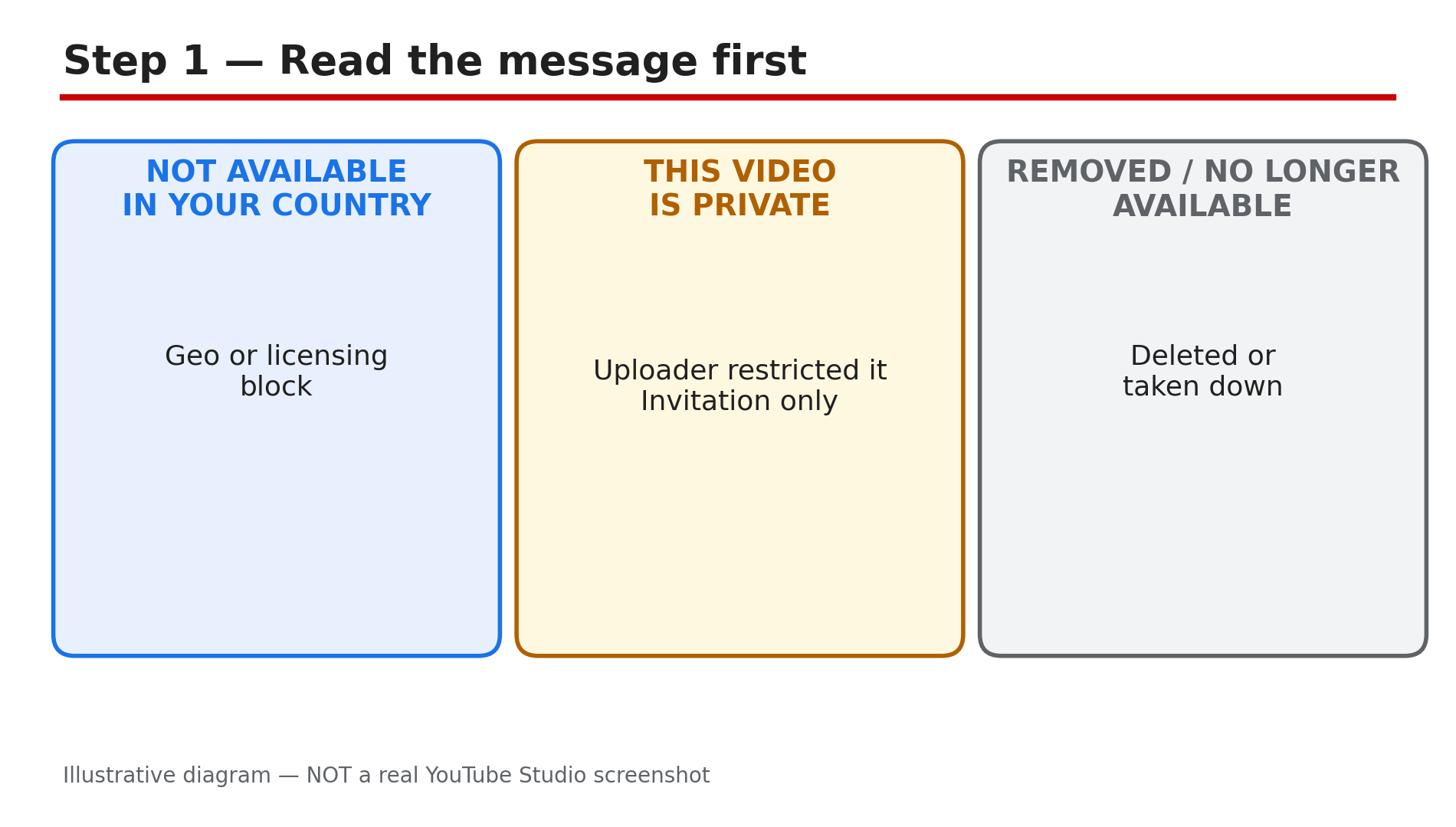
You click a video and instead of the video you get a grey box: "This video is unavailable." Or a different message — "Playback error. Tap to retry." Or "An error has occurred." Each message means something different, and the fix that works for one does nothing for another. The most common mistake is treating every playback error as a broken connection. What You Will LearnWhat each "video unavailable" message actually means How to tell a video problem from a connection problem in one minute The viewer checks that fix most playback errors, in order What creators should check in Studio when viewers report errors When a VPN helps, and when YouTube's own rules say it does not Which errors have no viewer fix at allStep 1 — Read the exact message before you do anything What to do: Write down the exact words on the screen, because the message is the diagnosis. How: YouTube's own troubleshooting page lists the common error messages: "An error has occurred", "Playback error. Tap to retry", "Connection to server lost", "This video is unavailable", and "Something went wrong. Tap to retry". Each points somewhere different. "Not available in your country" means a geo or licensing block. "This video is private" means the uploader restricted it to invited viewers. "Removed" or "no longer available" means the uploader deleted it or YouTube removed it for copyright or policy reasons. An age or sign-in warning means an age restriction, Restricted Mode, or an account requirement. A generic "Error code: 0" means YouTube could not load the video at all, and the cause is unspecified — it could be the browser, the app, the network, an extension, a VPN, or the video itself. Example: A viewer clicks a music video and sees "The uploader has not made this video available in your country". Common mistake: Seeing "video unavailable" on one video and reinstalling the app.Illustrative diagram of what each video-unavailable message means. Step 2 — Test whether it is the video or your connection What to do: Open two or three videos from big, established public channels before you change any setting. How: If only one video fails, the problem is specific to that upload — its privacy setting, a restriction, or a removal. If every video fails, the cause is your browser, app, account, network or YouTube itself. Try the same failing video on another device or another network, for example mobile data instead of Wi-Fi: if it plays there, your home network or browser is the cause. YouTube's troubleshooting page starts the same way — restart the connection, check the speed, and make sure you are signed in, since YouTube may block signed-out users from some content. Example: A viewer's favourite video will not play on their laptop but plays fine on their phone on mobile data. Common mistake: Clearing all your cache and cookies first logs you out of everything and fixes nothing if the video is private.Illustrative diagram of the one-minute test that separates a video problem from a connection problem. Step 3 — Run the viewer fixes in order What to do: Work through the checks in this order, testing the video after each one. How: First, reload the page or restart the app — YouTube's own page calls a restart the first move, and on a TV it recommends unplugging the device for at least 30 seconds. Second, open YouTube in an incognito or private window with all extensions off: if the video plays there, an ad blocker or another extension is breaking playback, as YouTube's troubleshooting page warns. Third, clear the browser cache and cookies, or clear the app's cache on Android — but not "Clear data", which signs you out and deletes downloads. Fourth, update the YouTube app and your browser or device software. Fifth, check your internet speed against the resolution: YouTube's page lists roughly 20 Mbps sustained for 4K, 5 Mbps for 1080p and 2.5 Mbps for 720p — if your connection cannot sustain the selected quality, lower the quality instead of fighting the error. Example: A viewer gets "Playback error" on every video in Chrome but not in incognito. Common mistake: Changing the DNS settings or reinstalling the app before trying incognito.Illustrative diagram of the viewer fixes for playback errors, in order. Step 4 — Check sign-in, Restricted Mode and the account What to do: Confirm you are signed in to the right account, and that no filter is hiding the video. How: YouTube's troubleshooting page says to make sure you are signed in, because some features do not work correctly otherwise, and signed-out users can be blocked from some content. If the video shows an age warning, sign in with an account that is 18 or older — an age-restricted video will not play for a signed-out or under-18 viewer. If videos are missing or hidden, check Restricted Mode: on a computer it is under your profile photo, and in the app under Settings, then General. Restricted Mode is a viewer-side filter set per browser and device, and it hides potentially mature videos and all comments while it is on. If the switch will not turn off, the filter is locked by a network administrator, a parent through Family Link, or a mobile carrier — only that person or provider can remove it. Example: A student on school Wi-Fi cannot play a video that plays fine at home. Common mistake: Assuming an age warning means the video was deleted — age-restricted videos still exist and need an eligible signed-in account.Illustrative diagram of the account and Restricted Mode checks. Step 5 — For creators: check the video in Studio What to do: If viewers report your video as unavailable, open the video in Studio and read its Restrictions column before you blame YouTube. How: In Studio, go to Content and look at the video's Visibility and Restrictions. A private video can only be watched by the uploader and invited people — a playlist link does not grant access. An age restriction shows in the Restrictions column, and you can appeal it once from the video's details. A copyright claim can block the video in some countries or worldwide — our separate guide on videos blocked in some countries explains the territorial claim in detail. A video still processing will not play properly either, so check that processing has finished, especially after a long upload. If the video is public, processed and unrestricted, ask the viewer which exact message they see — the message tells you which of these it is. Example: A creator's new video shows "unavailable" to viewers in Germany because of a territorial copyright block on the music. Common mistake: Re-uploading the video because viewers report an error starts from zero views and keeps the same problem.Illustrative diagram of what a creator should check in Studio when viewers report errors. Step 6 — Know when there is no viewer fix What to do: Accept the errors that no setting can change, and stop wasting time on them. How: A deleted video cannot be restored by a viewer — the URL may help you find an authorised re-upload, but the original is gone. A private video cannot be watched without an invitation, and no VPN, downloader or modified URL grants permission. A video removed by YouTube for a policy or copyright reason has no viewer fix either. A VPN can technically load a geo-blocked video, but YouTube's Terms prohibit circumventing geo-restrictions — treat it only as a reported viewer workaround with that caveat, never as a recommended fix, and never for private or deleted content. If every video fails everywhere, check whether YouTube itself is down before changing anything else. Example: A viewer spends an hour troubleshooting a video that says "Video unavailable — this video has been removed by the uploader". Common mistake: Paying for a "YouTube unblocker" tool that promises to play private or deleted videos.Illustrative diagram of the playback errors that have no viewer fix. Checklist — Fix a "Video Unavailable" Error☐ I read the exact error message instead of guessing ☐ I tested two or three other public videos to see if it is one video or all of them ☐ I reloaded the page and restarted the app or device ☐ I tried an incognito window with extensions off ☐ I checked I am signed in to the right account ☐ I checked Restricted Mode on this browser or device ☐ I cleared the cache (not the data) and updated the app ☐ As a creator, I checked Visibility and Restrictions in Studio ☐ I accepted it if the video is private, deleted or removed — no fix existsFAQs 1. Why does one video say "unavailable" while others play fine? Because the problem belongs to that video — it is private, deleted, removed, age-restricted or blocked in your country. 2. What does "This video is not available in your country" mean? The rights holder limited playback to certain countries, or YouTube blocked it to comply with local law. 3. Why does YouTube work in incognito but not in my normal browser? An extension, usually an ad blocker, or a corrupted cookie is interfering. 4. Can a VPN fix a "video unavailable" error? Only for a geo-block, and YouTube's Terms prohibit circumventing geo-restrictions. 5. I am a creator — why do viewers see "unavailable" on my public video? Check Studio, Content, then the Restrictions column: an age restriction, a territorial copyright claim or unfinished processing are the usual causes. SourcesYouTube Help — "Troubleshoot YouTube video errors" (official page, opened live 4 Nov 2026): https://support.google.com/youtube/answer/3037019?hl=en CreatorPlaybook — "YouTube Video Blocked in Some Countries or Worldwide: What to Do": </blog/youtube-video-blocked-in-some-countries> CreatorPlaybook — "YouTube Video Blurry After Upload: Why HD Is Stuck at 360p": </blog/youtube-video-blurry-after-upload-why>
- CreatorPlaybook Team
- 31 Oct, 2026
Delete and Re-Upload a YouTube Video? Why It Hurts and What to Do Instead
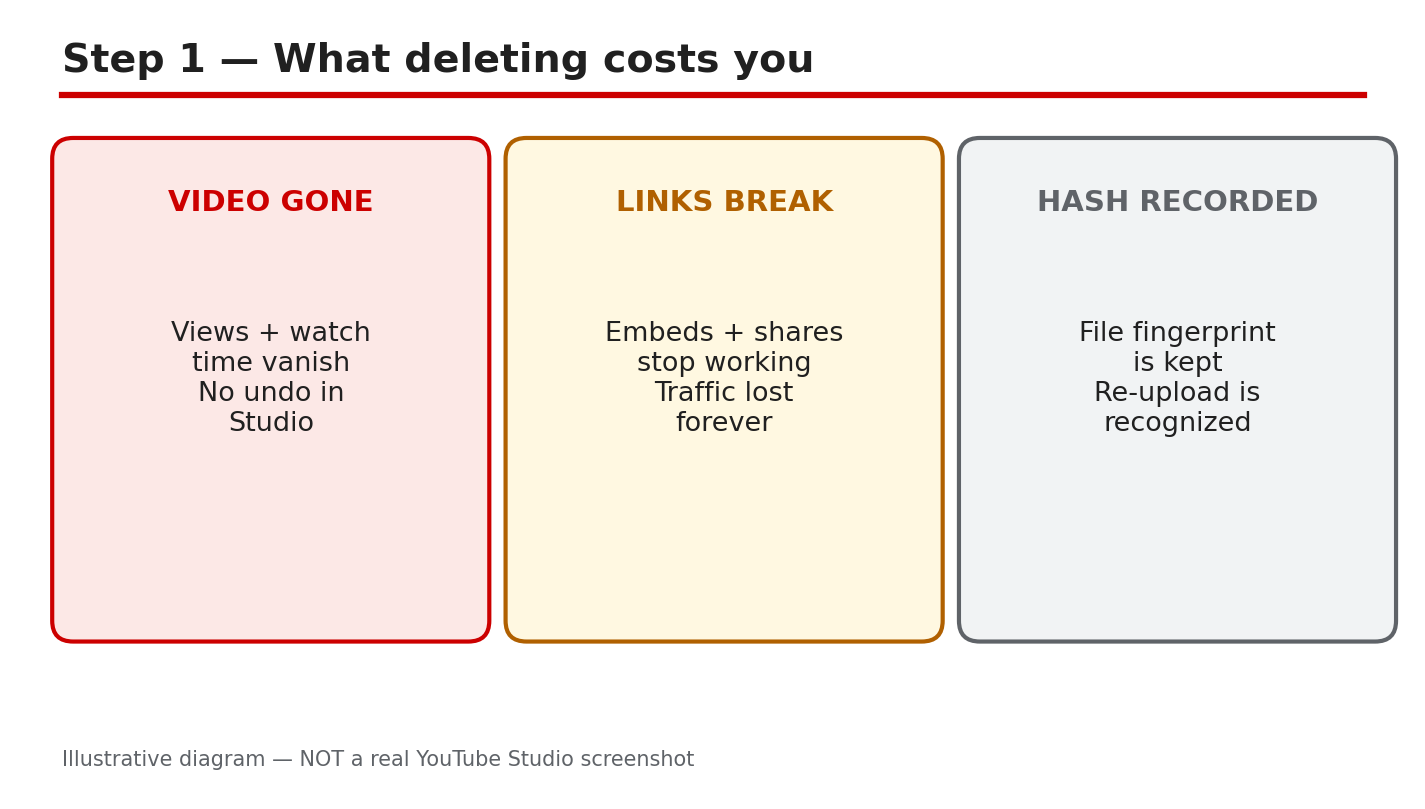
Your video has a mistake. A wrong date in the first ten seconds, a clip you no longer have the rights to, or a typo in the title. Deleting the video and uploading it again feels like the obvious fix. It is not. As reported, a re-upload is treated as a brand-new video, and the original's watch time, comments, ranking, and links do not move with it. YouTube Help is clear on one point: you cannot replace a video, because any new upload gets a new URL. Worse, as reported, deleting and re-uploading the same file can trigger spam signals, because the system may recognize the file it already saw. This guide explains what deleting really costs, what to do instead, and the rare cases where a fresh upload is the right call. What You Will Learn In this guide you will learn what you lose when you delete a video, why re-uploading the same file can look like spam as reported, how to unlist a video instead, how to trim and fix a video in the YouTube Studio Editor, when a new version is worth making, and how to re-upload correctly with real changes. Step 1 - Learn What Deleting a Video Actually Costs What to do: Before you delete anything, write down what the video has earned: watch time, comments, search ranking, and every link pointing to it. How: Open YouTube Studio, check the video's Analytics, and note its watch time, traffic sources, and search terms. Then check where the video is linked: your blog, your other videos' cards and end screens, playlists, and social posts. Deleting the video removes it from all of those places at once. YouTube Help says that after a video is deleted, its URL and title are no longer visible or searchable in YouTube Analytics. The watch time it earned is gone from your channel's totals, and the comments disappear too. Example: A creator deleted a tutorial with 40,000 views over one wrong date. The replacement started from zero, and the blog post linking to it broke. Common mistake: Deleting first and checking the cost later. Once a video is deleted, there is no undo. Check the numbers before you touch the delete button, not after.Illustrative diagram (mock-up, not a real YouTube Studio screenshot): deleting a video removes its watch time, comments, ranking, and links. Step 2 - Understand Why the Same File Can Look Like Spam What to do: Assume YouTube can recognize a file it has seen before, and treat a re-upload of the same file as a risk, not a fresh start. How: As reported, YouTube checks uploaded files against content it has already processed, using file hashes and fingerprints that identify a video even when its title or description changes. A creator who deletes a video and uploads the identical file again is, as reported, sending the system a file it may already know, which can read as an attempt to dodge a removal or reset a bad metric. The safe rule is simple: if the file is unchanged, do not delete and re-upload it. Example: A channel deleted a video with a copyright claim on its audio, then re-uploaded the same file with only the title changed. The claim returned within hours. Common mistake: Changing the title and description and expecting a different result. As reported, the system matches the file, not the words around it.Illustrative diagram (mock-up, not a real YouTube Studio screenshot): a re-uploaded file can be matched to the original by its hash. Step 3 - Unlist the Video Instead of Deleting It What to do: If a video has a problem but is not harmful, change its visibility to Unlisted. It stops appearing in search and recommendations, but keeps its watch time, comments, and links. How: In YouTube Studio, open the video, click Visibility, and choose Unlisted. The video leaves public search and your channel page, but anyone with the link can still watch it, and its record in Analytics stays intact. If the video contains something that violates YouTube's policies or could harm viewers, deleting is the right choice, because an unlisted video still exists on your channel. Example: A creator found an outdated price in a tutorial. She unlisted the video, recorded a corrected version, and later set the old one back to public with a pinned comment pointing to the update. Common mistake: Deleting a video that only needed to be hidden for a week. Unlisted is reversible. Deletion is not.Illustrative diagram (mock-up, not a real YouTube Studio screenshot): unlisting hides a video while keeping its watch time and links. Step 4 - Trim and Fix the Video in the Studio Editor What to do: Fix small mistakes with YouTube Studio's Editor instead of re-uploading. You can trim the start, end, and middle, and blur or replace audio. How: Open the video in YouTube Studio, click Editor, and use Trim to cut out the mistake. You can also blur faces or objects, and, if the problem is music, replace or erase the song. YouTube Help says you can edit a video's title and description, make enhancements, and add a card, and the video keeps its URL, its watch time, and its comments. Keep the edit small: trimming a few seconds is safe. Our guide on how to trim a video after a copyright claim walks through the exact steps. Example: A creator's video opened with a wrong logo for three seconds. She trimmed those three seconds in the Editor, kept the video's 12,000 views, Common mistake: Trimming after the video has a warning or strike and assuming the problem is gone. Trimming removes the segment, but any notice you received still stands. Check the email and the Earn tab.Illustrative diagram (mock-up, not a real YouTube Studio screenshot): trimming a mistake in the Studio Editor keeps the video's URL. Step 5 - Decide When a New Version Is Actually Worth Making What to do: Re-upload only when the video genuinely needs to be a different video: a major re-edit, a new structure, or new information throughout. How: Ask whether an unlisted fix or an Editor trim can solve it. If the answer is no, plan the new version as a new video: rewrite the script, re-record the core sections, and give it a title and description that fit the new content. Then unlist the old video rather than deleting it, and link the new one from the old video's description and a pinned comment. Example: A creator's 2024 guide was fully outdated. She recorded a fresh 2026 version, unlisted the old one, and added a card pointing to the new upload. Common mistake: Re-uploading a slightly different version and keeping the old one public too. Two near-identical videos split the audience and can confuse search. Unlist the old one.Illustrative diagram (mock-up, not a real YouTube Studio screenshot): a new version is worth it only when the video truly changes. Step 6 - Re-Upload Properly and Keep the Old Links Working What to do: If you re-upload, treat it as a new video: new title, new description, new thumbnail, and a plan for the old links. How: Upload the new file with a title and description that describe the new version, and add a thumbnail that shows the change. In the old video's description and pinned comment, link to the new video. Update the links on your blog and in your cards and end screens. Remember that a new upload gets a new URL, so every old link needs updating, or it will break. Our guide on why a video is not showing in search explains why a fresh upload takes time to rank again. Example: A creator re-uploaded a course video with a new structure and updated every link in the course page the same day. Nobody complained about a broken link. Common mistake: Re-uploading and forgetting the old links. A new URL means every card, end screen, playlist, blog post, and social post that pointed to the old video now points nowhere.Illustrative diagram (mock-up, not a real YouTube Studio screenshot): a re-upload gets a new URL, so old links must be updated. Your Delete and Re-Upload ChecklistWatch time, ranking, and links checked before any delete. Harmful content deleted; fixable videos unlisted instead. Small mistakes fixed in the Studio Editor. Old video unlisted, not deleted, when a new version is made. New video linked from the old video's description and comments.Frequently Asked Questions Can I delete a video and re-upload it? You can, but you lose the original's watch time, ranking, comments, and links, and the same file may be flagged again as reported. Does unlisting a video keep its watch time? Yes. An unlisted video keeps its watch time and comments, and it stops appearing in search and recommendations. Can I replace a video without changing its URL? No. YouTube Help says you cannot replace a video, because any new upload gets a new URL. What should I do about a copyright claim on my audio? Try trimming the claimed audio or replacing the song in the Studio Editor before you consider deleting the video. SourcesYouTube Help, Replace or delete your video: support.google.com/youtube/answer/55770 (verified live 31 October 2026). CreatorPlaybook, YouTube Copyright Claim? How to Trim, Replace or Erase the Song: creatorplaybook.blogspot.com/2026/10/youtube-copyright-claim-how-to-trim.html CreatorPlaybook, YouTube Video Not Showing in Search Results: How to Fix It: creatorplaybook.blogspot.com/2026/10/youtube-video-not-showing-in-search.html
- CreatorPlaybook Team
- 30 Oct, 2026
YouTube Video Blurry After Upload? Why HD Is Stuck at 360p and How to Fix It
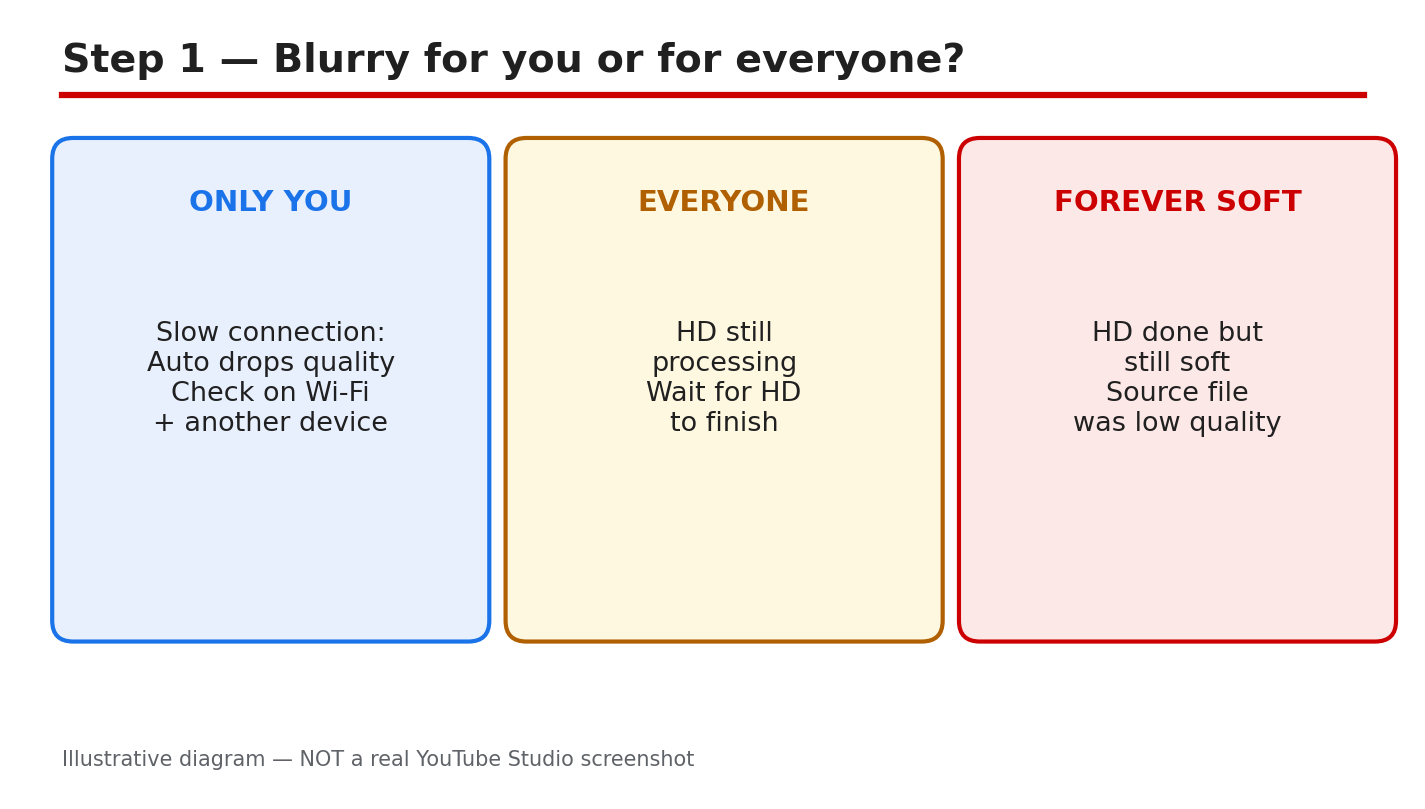
Your video looked sharp on your phone, but on YouTube it looks soft, blocky, and stuck at 360p. Before you delete it and upload it again, stop. In most cases, the video is not broken. YouTube publishes a low-quality version first and adds the high-definition versions later, while your own connection can also force the player down to 360p. This guide shows you how to tell which of the three causes is behind your blurry video, how to check the real processing status in YouTube Studio, and how to fix a video that stays soft after processing has finished. Follow the six steps in order. What You Will LearnHow to tell a connection problem, a processing delay, and a low-quality source file apart. Where to check HD processing status in YouTube Studio and on the watch page. Why 4K and 1080p videos take hours to finish processing. How to audit your original file, export settings, and bitrate. When to wait, when to re-export, and when to re-upload. A sharp-upload routine you can repeat for every new video.Step 1: Find Out Who Sees the Blur Open your video on fast Wi-Fi, then open it again on mobile data and on a second device, such as a laptop or a friend's phone. If the video looks sharp on one connection and blurry on another, the problem is your connection, not your upload. YouTube's Auto quality setting drops the resolution when the connection is slow, so a video can look like 360p on weak Wi-Fi and 1080p on a strong connection. Example: your edit looks crisp on your laptop at home, but blurry on your phone on the bus. That is a connection problem, and re-uploading will not fix it. Common mistake: deleting the video and uploading it again before checking another device. If everyone sees the same soft picture on fast connections, the cause is different: either HD is still processing, or your source file was already low quality. Ask two people to check. Figure 1: Illustrative diagram showing how to tell a blurry-for-you problem from a blurry-for-everyone problem. This is a mock-up, not a real YouTube Studio screenshot. Step 2: Check Whether HD Has Finished Processing In YouTube Studio, go to Content, find your video, and look at the row for it. Studio shows the processing status, and you can also open the video's watch page, click Settings, then Quality. If 1080p or 4K is missing from that menu, HD is still processing. YouTube processes the low-quality version first so the video can go live quickly, then adds the higher qualities in the background. Example: you publish at 6 p.m. and the quality menu tops out at 360p. By 10 p.m., 1080p appears without you touching anything. Common mistake: judging the video in the first hour and telling viewers it is broken. Give processing time to finish, and check the quality menu again after a few hours before you take any other step. Figure 2: Illustrative diagram of the Studio Content row and the watch-page Quality menu used to check HD processing. This is a mock-up, not a real YouTube Studio screenshot. Step 3: Understand Why HD Takes So Long Processing time depends on the video format, length, frame rate, quality, and traffic, according to YouTube Help. Higher-quality videos take longer to upload and to process. YouTube reports that a 4K video is four times larger than a 1080p video, so it can take four times longer for 4K quality to become available after the upload finishes. A 60-minute 4K video at 30fps can take up to 4 hours to finish high-resolution processing, and a 60fps 4K video will take longer. Example: a 45-minute 4K tutorial uploaded at noon may still show only 360p at 3 p.m. That is normal processing, not a failed upload. Common mistake: re-uploading the same file because the HD version is slow, which only restarts the whole queue. Upload long 4K videos early, and never promise viewers a sharp premiere in the first hours. Figure 3: Illustrative diagram of the factors that slow HD processing: length, 4K resolution, 60fps, and busy traffic. This is a mock-up, not a real YouTube Studio screenshot. Step 4: Audit Your Original File and Export Open the original file on your computer and check its resolution. If it is 720p or lower, YouTube cannot invent detail that was never there, and the video will stay soft even after processing finishes. A video sent through WhatsApp as a normal chat message is compressed to 720p or lower, so always ask the sender to send the original as a Document instead. Finally, check your export: use 1080p or higher, a high bitrate, and the same frame rate as your recording. Example: a friend sends you a clip on WhatsApp, you upload it, and it never goes past 720p. The fix is the original file, sent as a Document. Common mistake: raising the export resolution to 4K from a 720p source and expecting a sharper picture. Upscaling a soft file only makes a bigger soft file, so start from the sharpest original you have. Figure 4: Illustrative diagram of a quality audit: original resolution, WhatsApp compression, and export bitrate. This is a mock-up, not a real YouTube Studio screenshot. Step 5: Fix a Video That Stays Soft Wait until the quality menu shows that HD has finished before you decide the video is broken. If HD is done and the picture is still soft, the source is the problem, and no setting inside YouTube will sharpen it. Re-export the video at 1080p with a high bitrate from the sharpest original file, then upload the new version as Private first. Check the new upload on the watch page, and only replace the live video once the new one looks sharp. Example: a tutorial stays soft at 720p after a full day, so you re-export it at 1080p from the original project and upload it as Private. Once HD finishes, you swap it in. Common mistake: deleting the live video before the replacement is ready, which loses its views and watch time. Keep the live video up until the new one is ready to publish. Figure 5: Illustrative diagram of the fix: wait for HD, re-export at 1080p, upload as Private, then replace. This is a mock-up, not a real YouTube Studio screenshot. Step 6: Use a Sharp-Upload Routine Every Time Make every upload follow the same routine. Export at 1080p or higher with a high bitrate, then upload the video as Private or Unlisted. Wait until the quality menu shows 1080p or 4K, then switch the video to Public or let your scheduled time run. This removes the most common reason viewers see a blurry first impression. Example: you upload Friday's video as Private on Thursday night, confirm 1080p on Friday morning, then make it Public. Common mistake: publishing a 4K video the minute the upload bar hits 100 percent and sharing the link everywhere while it is still 360p. First impressions stick, so let HD finish before anyone watches. Figure 6: Illustrative diagram of the sharp-upload routine: export, upload Private, wait for HD, then publish. This is a mock-up, not a real YouTube Studio screenshot. Quick ChecklistChecked the video on Wi-Fi and on a second device. Opened the watch-page Quality menu to confirm HD is finished. Waited several hours for a long 4K upload to process. Confirmed the original file is 1080p or higher. Asked for the original file as a Document, not a WhatsApp chat video. Re-uploaded as Private first, and kept the live video until ready.Frequently Asked Questions Why is my YouTube video stuck at 360p? YouTube publishes the low-quality version first and adds HD later. A 60-minute 4K video at 30fps can take up to 4 hours to finish high-resolution processing, according to YouTube Help. Why does my video look blurry only on my phone? Your connection is the likely cause. YouTube's Auto setting lowers quality on slow connections, so test the same video on fast Wi-Fi and on another device before changing anything. Can I make a 720p video look like 1080p? No. YouTube cannot add detail that was never in the source file, so re-export from the sharpest original you have, at 1080p or higher with a high bitrate. Should I delete a blurry video and upload it again? Not right away. Wait for HD to finish, and if the video is still soft, upload the fixed version as Private first. Delete the live video only after the replacement is ready. Does verifying my account speed up processing? YouTube Help says verifying your account gives the best processing time, so it is worth doing. It does not turn a low-quality source file into HD, but it removes one avoidable delay. Sources — Check It YourselfYouTube Help: Low video quality after upload YouTube Help: Upload videos longer than 15 minutes Related on CreatorPlaybook: YouTube Video Stuck Uploading or Processing? How to Fix It Without Losing the Video
- CreatorPlaybook Team
- 30 Oct, 2026
YouTube Comments Not Showing? Held for Review, Spam Filter, or Disabled — Fix It
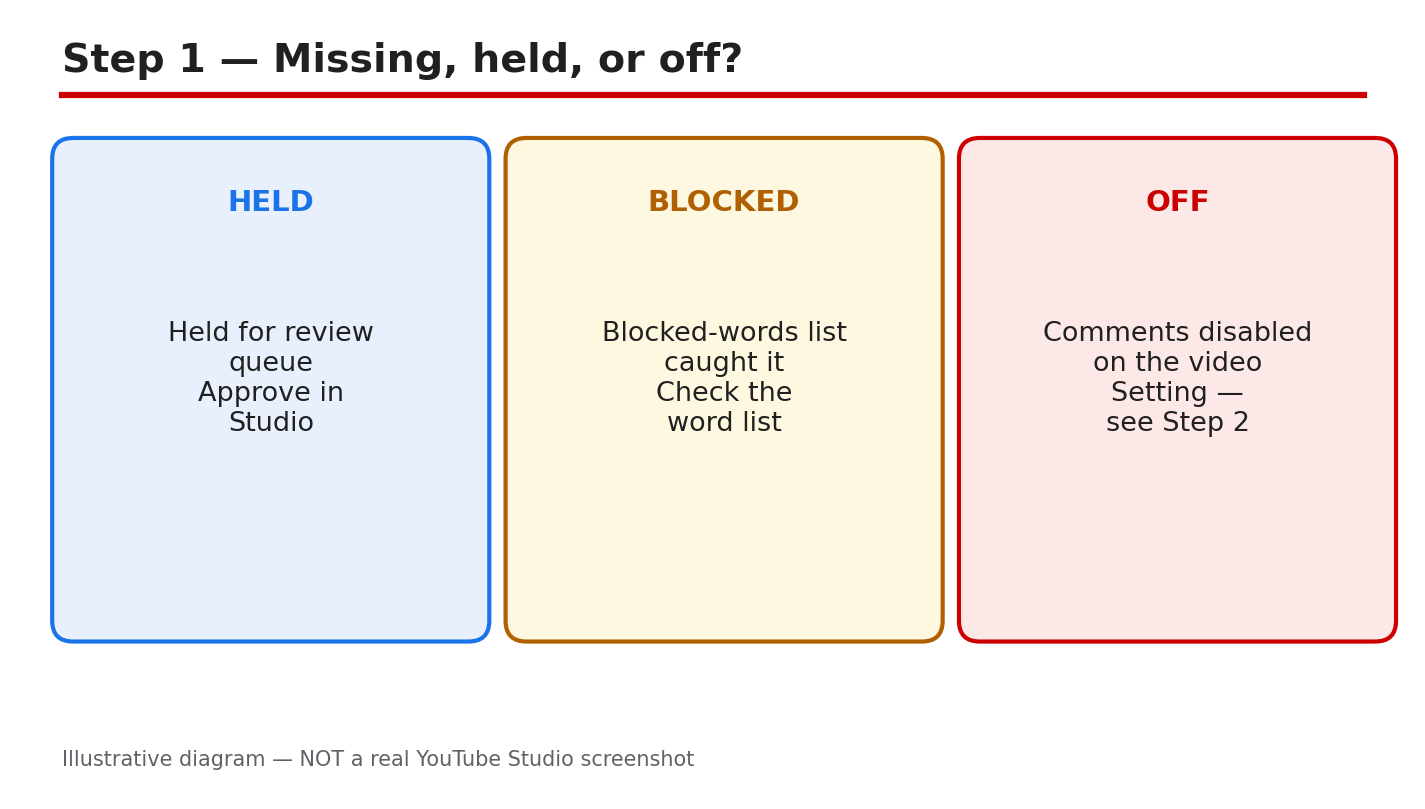
A viewer writes a thoughtful comment, and it never appears under your video. Another comment with a link vanishes too. Before you blame viewers, check your own settings: most missing comments are held for review, caught by a filter, or switched off by a setting you did not mean to change. This guide shows you how to tell the three cases apart, find the setting, fix the cause, and build a comments habit that keeps real discussion visible. Work in order, and test with a comment from a second account you control. What You Will LearnTell held, blocked, and disabled comments apart. Find comment settings for one video and the whole channel. Spot spam filters, blocked words, and a wrong Made for Kids label. Approve real comments and reply fast in the first hours. Build a daily and weekly comments habit.Step 1: Missing, Held, or Off? Three states look the same to a viewer but need different fixes. Held for review means the comment waits in a queue until you approve it. A blocked-words catch means your own word list stopped the comment. Comments disabled means the video or channel setting has comments off, so nobody can comment at all. Check the queue first, then the word list, then the switch itself. Guessing the cause and changing everything at once only hides the real one. Path: YouTube Studio > Community > Held for review, then Likely spam. Example: a creator found 40 kind comments held for review after switching on 'Hold all comments'. Changing it to 'Hold potentially inappropriate comments' let real comments through. Common mistake: turning comments off and on again, hoping old comments return, instead of checking the held queue first.Diagram: missing, held, or off — three states, three different fixes. Illustrative diagram, not a real Studio screenshot. Step 2: Find the Comment Setting There are two places to check. For one video, open YouTube Studio, go to Content, click the video, open Details, and scroll to Comments visibility. There you can allow all comments, hold some for review, or turn comments off. For the whole channel, go to Settings, then Community, then Defaults, and set the same choice for new uploads. The held queue lives under Community in the left menu, with tabs for Published, Held for review, and Likely spam. Path: YouTube Studio > Content > video > Details > Comments visibility, and Settings > Community > Defaults. Example: comments were on for old videos but off for new ones, because the channel default was set to Off. Changing Defaults fixed every future upload. Common mistake: fixing one video and forgetting the channel default, so the next upload has the same problem.Diagram: find the setting — video Details, channel Defaults, and the held queue. Illustrative diagram, not a real Studio screenshot. Step 3: Why Comments Vanish Three filters hide most comments. First, the spam filter catches comments with links, repeated text, or patterns that look automated. Second, your blocked-words list stops any comment that holds one of your words, even when the rest of the comment is friendly. A single broad word, like 'free', can hide hundreds of good comments. Third, a wrong Made for Kids label turns comments off by design. Videos set as Made for Kids do not allow comments, so an adult video with the wrong label loses every comment. Check the audience label before you blame the filter. Path: YouTube Studio > Content > video > Details > Audience, then check 'Made for Kids' is correct. Example: a gaming channel blocked the word 'link', and every comment asking for a game link vanished. Removing that one word restored the discussion. Common mistake: adding dozens of blocked words after one bad comment, which silences ordinary viewers too.Diagram: why comments vanish — spam filter, blocked words, wrong Made for Kids label. Illustrative diagram, not a real Studio screenshot. Step 4: Run the Comments Checks Work through four checks in order. First, open the video's Comments visibility and confirm it is set to allow comments. Second, open the held queue and count how many real comments wait there. Third, open Details, then Audience, and confirm the Made for Kids label matches the video. Fourth, open Settings, then Community, and read your blocked-words list line by line. Remove any word that is too broad. Finish by posting a test comment from a second account to confirm comments show. Path: YouTube Studio > Community > Held for review, then Published, to compare the two lists. Example: a check found 60 held comments, 12 blocked by one broad word, and a correct audience label. Approving the 60 fixed the video in ten minutes. Common mistake: approving spam along with real comments, which teaches the filter nothing and fills the thread with junk.Diagram: the comments checks — setting, held queue, audience label, blocked words. Illustrative diagram, not a real Studio screenshot. Step 5: Fix and Reply Approve the real comments first, starting with the oldest, then remove or report the spam. If one blocked word caused the problem, delete that word from the list and save. Then reply fast. Comments answered in the first hours draw more replies, and a lively thread signals YouTube that viewers care about the video. Ask a simple question at the end of your reply so the viewer has a reason to come back. Pin the best question to the top of the comments so new viewers see it first. Path: YouTube Studio > Community > Held for review > Approve, then reply from the Published tab. Example: a creator approved 30 held comments and replied to each one. The video gained 12 new comments the same day. Common mistake: replying only to praise and ignoring questions, which ends the conversation instead of growing it.Diagram: fix and reply — approve real comments, remove the blocking word, reply fast. Illustrative diagram, not a real Studio screenshot. Step 6: Build the Comments Habit Daily, open the held queue each morning and approve or remove every comment the same day. Weekly, read your blocked-words list and remove words that are too broad. Before you publish, set comments to the choice you want while the video is still unlisted, and pin a question that invites the first comment. Reply to the first ten comments on every new video yourself. A channel that answers becomes a place people return to, and returning viewers are the ones who comment again. Path: YouTube Studio > Settings > Community > Defaults, set before publishing, then Community > Held for review daily. Example: a channel cleared its queue every morning for a month. Comments per video doubled, and the community began answering new viewers first. Common mistake: clearing the queue once and never returning, so the same comments pile up again within a week.Diagram: the comments habit — daily queue, weekly block-list review, set before Public, pin a question. Illustrative diagram, not a real Studio screenshot. Quick ChecklistComments visibility set to allow comments on the video. Held queue empty, with real comments approved. Audience label correct for the video. Blocked-words list free of broad words. Channel default set before the video goes Public. First ten comments answered, best question pinned.Frequently Asked Questions Why did my comment disappear right after I posted it? It was likely held for review or caught by the spam filter. Check the Held for review tab in YouTube Studio > Community. Can viewers comment on Made for Kids videos? No. Comments are turned off on Made for Kids videos by design, so check the audience label if comments are missing. I turned comments off and on. Will old comments return? Check the held queue first — approvals there are the surest way to bring real comments back, and changing the on-off switch rarely helps. Should I use 'Hold all comments for review'? Only for a short time, such as after a sensitive video. For daily use, 'Hold potentially inappropriate comments' keeps real discussion visible with less work. How do I handle rude comments once they appear? Approve the fair ones, hide or report the abusive ones, and reply calmly to honest criticism. Our guide to negative comments explains the reply step in detail. Sources — Check It Yourself Check the facts in this guide against YouTube's own help pages.Learn about comment settings — YouTube Help How to Handle Negative Comments on YouTube
- CreatorPlaybook Team
- 29 Oct, 2026
YouTube Video Stuck Uploading or Processing? How to Fix It Without Losing the Video
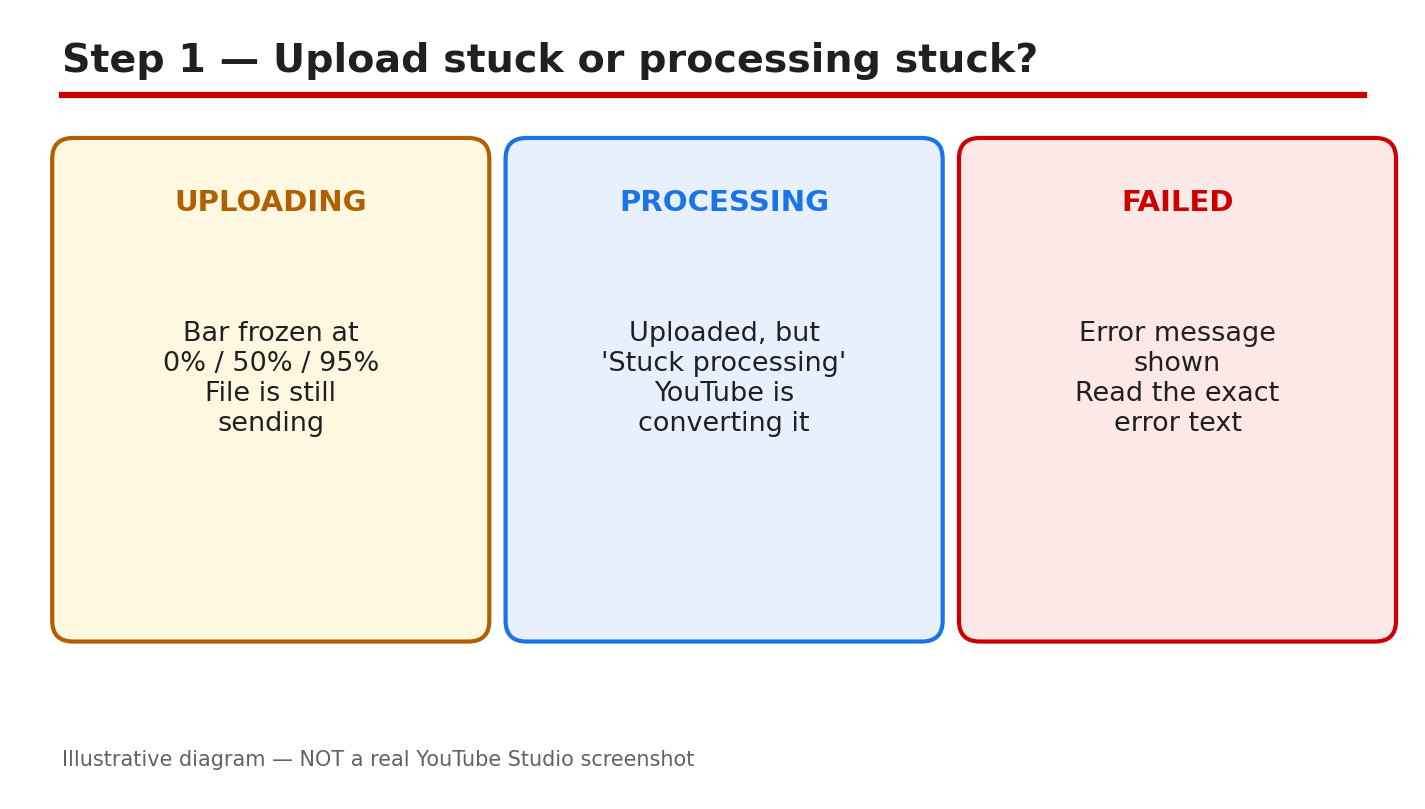
A stuck upload feels urgent. The bar stops moving, the video will not play, and the work you edited seems lost. Most stuck uploads are not lost. They are paused, converting, or waiting for a check. This guide helps you tell those states apart, check the right place in Studio, and fix the problem without deleting the file you need. If the bar moves slowly, that is still progress. If nothing changes for a long time, the status row, not the bar alone, tells you what to do next. You will work in order. First, name the state. Next, check the status in Studio. Then fix the connection or the file. After that, check processing limits and claims. Only re-upload when the guide says it is safe. Keep the original file and the draft until the replacement is live and playing. Related reading: YouTube Upload Stuck, Comments Disabled, or Wrong Made for Kids Label? Fix All Three, which explains the Studio layout used below. What You Will LearnHow uploading, processing, and a failed upload differ. Where to check the true status in Studio. How to fix a stalled upload safely. Which file and processing checks matter most. When re-uploading helps, and when it harms. A calm upload-day plan you can repeat.Step 1: Tell Uploading, Processing, and Failed Apart What to do: Uploading means the file is still moving from your computer to YouTube. The progress bar may stop, but the transfer has not finished. Processing means the upload finished and YouTube is converting the file into versions viewers can play. Failed means YouTube stopped and showed an error. Each state needs a different fix, so do not treat every stuck video the same way. Studio path: YouTube Studio > Content. Read the video row first. Do not open the upload window again until you know the state. Example: A creator sees 95 percent for an hour and fears the video is lost. The row says Processing, so the file arrived safely and is converting. Common mistake: Deleting the draft because the bar looks frozen. Deleting removes your place in the queue and can lose details you already entered.Illustrative diagram/mock-up — NOT a real YouTube Studio screenshot: uploading, processing, and failed states compared. Step 2: Check the Status First in Studio What to do: Check status before you change anything. In Studio, the Content page shows each video with a status. Uploading and processing look similar on a phone, but they are different problems. An uploading video still needs your connection and browser. A processing video needs time, not another upload. Write down what the row says, including any restriction or error words, before you act. Studio path: YouTube Studio > Content > video row. Look at Status, Visibility, and Restrictions together. Example: A creator opens Content and sees Processing, not Uploading. They leave the tab open, wait, and the HD version appears later. Common mistake: Starting a second upload while the first is processing. Duplicates compete, confuse viewers, and waste your connection.Illustrative diagram/mock-up — NOT a real YouTube Studio screenshot: checking the video status row. Step 3: Fix a Stalled Upload Safely What to do: Fix the connection and the browser first. Use a stable connection, preferably wired or strong Wi-Fi, and avoid large downloads during the upload. Keep the browser tab open and the computer awake. For a retry, export at 1080p, which is smaller and easier to send than 4K. Do not close the tab, sleep the computer, or switch networks mid-upload. Studio path: YouTube Studio > Create > Upload videos. Watch the progress bar and the processing estimate in the upload window. Example: A creator uploads over weak hotel Wi-Fi and stalls at 60 percent. At home, on a stable connection, the same 1080p file finishes. Common mistake: Closing the tab to check the channel page. Closing can interrupt the transfer, so wait until the upload window confirms completion.Illustrative diagram/mock-up — NOT a real YouTube Studio screenshot: stable connection, 1080p retry, and awake tab. Step 4: Check Processing, File Format, and Limits What to do: Check the file before you blame the connection. YouTube recommends MP4 with H.264 video and AAC audio. Check the length and size against the reported limits: under 12 hours and 256 GB, whichever is less, as reported on the official Help page. HD and 4K versions take extra time, even after the standard version plays. A claim can also hold processing, so check Restrictions in Studio and read the claim before re-uploading. Check the file name and the export settings too. A damaged export can fail the same way twice, so export again from the original project if the file will not play. Studio path: YouTube Studio > Content > video > Details > Checks. Read the claim and restriction notes there. Example: A creator uploads a 4K file and sees only standard quality at first. The HD version appears later, without a second upload. Common mistake: Re-exporting at a higher resolution to speed processing. A larger file usually takes longer, not shorter.Illustrative diagram/mock-up — NOT a real YouTube Studio screenshot: MP4, H.264, AAC, size, and HD checks. Step 5: When to Re-Upload, and When to Wait What to do: Wait before you re-upload. For processing, wait up to 24 hours as reported, and check the status again in Studio. Re-upload only if the upload failed, Studio showed an error, or the file is corrupt and will not play. Keep the original file and the draft until the new version is live. Do not delete the first version until you have watched the replacement play. Studio path: YouTube Studio > Content. Confirm the failed or corrupt status, then use Create > Upload videos for the retry. Example: A creator waits overnight for processing, then finds the video live. No duplicate was needed, and the original details stayed intact. Common mistake: Deleting the draft and the original file after a failed upload. Without the original, a clean retry is much harder.Illustrative diagram/mock-up — NOT a real YouTube Studio screenshot: wait, check, then re-upload only if failed. Step 6: Follow a Simple Upload-Day Plan What to do: Use one plan on upload day. Export the file, check the format, and test the connection before you start. Upload early, keep the tab open, and note the time you started. Check status once after upload, once after processing, and once before you share the link. If a step fails, fix one thing, note it, and try again calmly. Studio path: YouTube Studio > Content for checks, and Create > Upload videos for the upload itself. Example: A creator uploads at 9 a.m., checks at noon, and shares at 6 p.m. after the HD version appears. The calm plan avoids duplicates. Common mistake: Sharing the link before checking playback. A shared link to a processing video frustrates viewers and earns no watch time.Illustrative diagram/mock-up — NOT a real YouTube Studio screenshot: export, upload, check, then share. ChecklistState named: uploading, processing, or failed. Status checked in Studio Content. Connection stable, tab open, computer awake. File checked: MP4, H.264, AAC, size, length. Claims and restrictions checked in Studio. Re-upload only after failure or corruption. Original file and draft kept until live.Frequently Asked Questions Why is my upload stuck at a percentage? Usually the connection dropped, or the file is still moving. Check the connection, keep the tab open, and check the status in Studio Content before retrying. How long should processing take? It varies by length, resolution, and format. Standard quality often appears first, while HD takes longer. Wait up to 24 hours as reported, then check Studio again. Should I delete and re-upload a stuck video? Not yet. Check the status first. Re-upload only if the upload failed or the file is corrupt, and keep the original file and draft until the new version plays. What file format works best for uploads? Use MP4 with H.264 video and AAC audio, as recommended in Help. Export at 1080p for a retry, and check the official Help page for current limits before uploading. Can a claim hold up processing? A claim can affect a video, so check Restrictions and Checks in Studio. Read the claim, follow the steps shown there, and do not re-upload the same file to avoid it. Fix one state at a time, and let processing finish before you judge the result. Sources — Check It Yourself Official pages opened and verified live on 29 October 2026. Check the current wording before acting, because limits and wording can change.Upload YouTube videos — YouTube Help Upload videos longer than 15 minutes — YouTube HelpNo official YouTube video is embedded here. No exact official video URL was verified live in this run.
- CreatorPlaybook Team
- 29 Oct, 2026
YouTube Video Age-Restricted or Removed? How to Appeal and Fix It
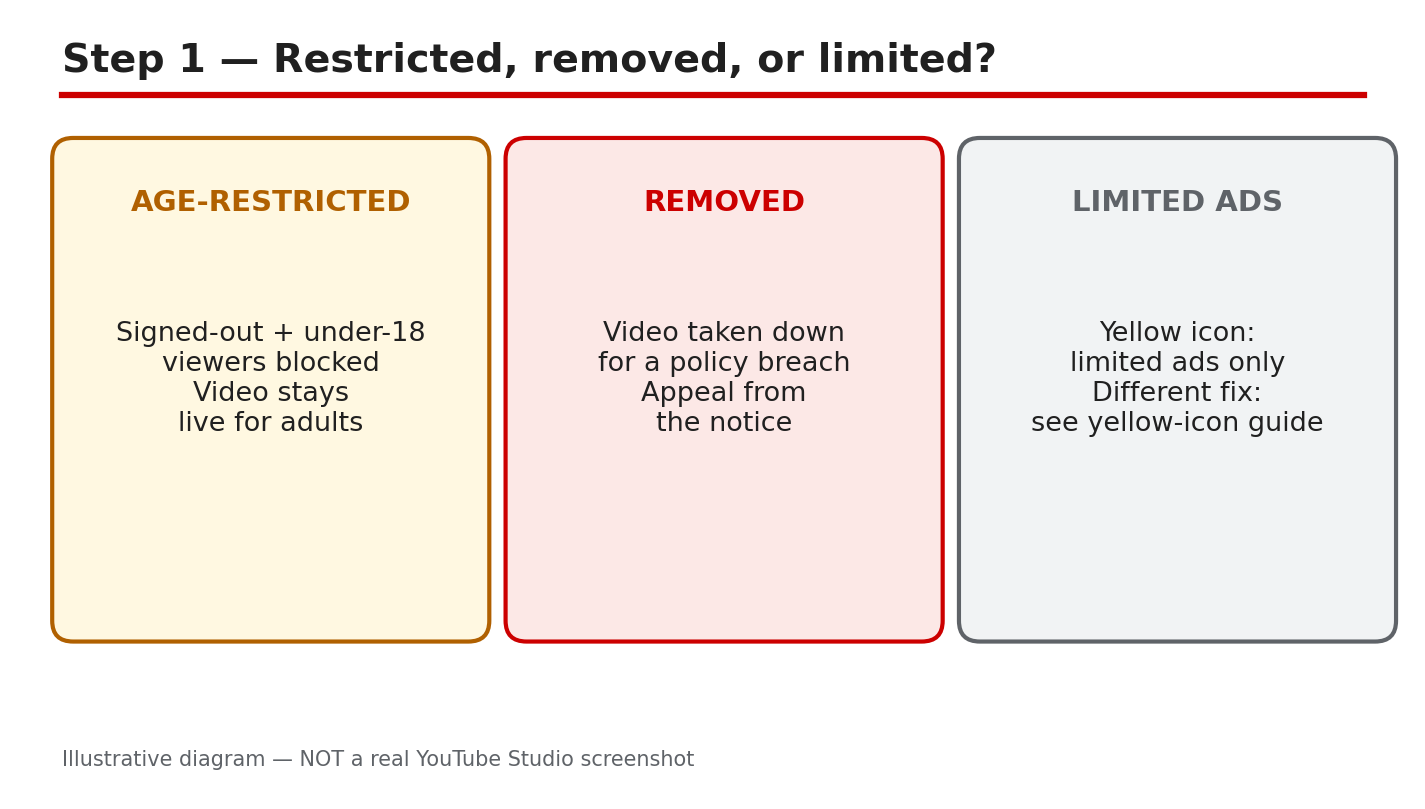
A notice on one video can change how the whole channel feels. The video is still there for some viewers, or it is gone, and the message in Studio is short. This guide slows that moment down. You will learn how to tell an age restriction, a removal, and a limited-ads rating apart, read the exact notice YouTube sent, and choose the right next step: edit, appeal, or accept the rating and plan better videos. For a different money problem, read YouTube Yellow Dollar Icon? How to Fix Limited Ads and Request a Review first. It explains the yellow dollar icon and how to request a review. This post covers only age restrictions and removals, and it never advises re-uploading the same video as a new upload to get around a decision. What You Will LearnAge-restricted, removed, and limited ads: what each label means. Where to read the reason and the policy named in Studio. The guideline categories that commonly trigger an age gate. What to check and fix before you appeal. When to edit, when to appeal, and when to accept a rating. A seven-day plan to fix the video and the next ones.Step 1: Tell Age-Restricted, Removed, and Limited Ads Apart What to do: Do not act on the first feeling the notice gives you. An age-restricted video is still live, but signed-out viewers and viewers under 18 cannot watch it. A removed video is taken down and cannot be watched at all. Limited ads is different: the video stays up, but ads are limited. Studio path: YouTube Studio > Content > Restrictions. Read the label on the video before you guess the reason. Example: A travel video is age-restricted, so adults can watch it but signed-out viewers cannot. A second video is removed for a policy breach, so nobody can watch it. The fix for each one is different. Common mistake: Treating a limited-ads rating as a removal, or appealing an age restriction as if the video had been removed. Match the response to the label.Illustrative diagram/mock-up, NOT a real YouTube Studio screenshot: age-restricted, removed, and limited-ads compared. Step 2: Read the Notice First, Before You Guess What to do: Open the notice and read it slowly. Note the video, the reason given, and the policy named. Look for the option Studio shows: appeal, edit, or accept. Do not guess the reason from comments or from what happened to another channel. Your notice is the only record that matters for this video. Studio path: YouTube Studio > Content > Restrictions > click the restriction. Read the reason, the policy named, and the appeal or edit option shown. Example: Studio says a video is age-restricted for violent or graphic content. The creator watches the flagged section, sees a close injury shot, and knows exactly what to blur before deciding anything else. Common mistake: Skipping the notice and rewriting the title instead. A new title does not change the flagged content, and it wastes the one appeal you may get.Illustrative diagram/mock-up, NOT a real YouTube Studio screenshot: reading the restriction notice first. Step 3: Know the Common Age-Gate Triggers What to do: Check your video against the guideline categories YouTube Help lists for age-restricted content. They include child safety, harmful or dangerous activities including drug use, nudity and sexually suggestive content, violent or graphic content, and vulgar language. These are categories, not a checklist that guarantees a rating: context, purpose, and how closely the content is shown all matter. Use them to find the likely trigger in your video, then confirm it in your own notice. Studio path: YouTube Studio > Content > Restrictions > click the restriction. Compare the policy named there with the category you found. Example: A documentary shows a close injury during a rescue. The context is news and education, but the close shot still triggers a restriction. Blurring the closest seconds keeps the story and lowers the risk. Common mistake: Saying the content is educational and stopping there. Purpose helps, but it does not remove a close graphic shot. Fix the shot, or explain the context clearly in an appeal.Illustrative diagram/mock-up, NOT a real YouTube Studio screenshot: common age-gate triggers. Step 4: Before You Appeal, Watch and Fix What to do: Watch the exact flagged part, not the whole video from memory. Pause at the seconds Studio names, if it names them, and decide whether the fix is obvious: blur, cut, or mute. Check the title and thumbnail too: they must describe the video honestly and must not promise something the video does not show. Note what you changed, and keep the evidence ready. Studio path: YouTube Studio > Content > click the video > Editor. Trim or blur the flagged part on the same video, and save before you appeal. Example: A creator blurs a three-second injury shot, keeps the rescue story, and checks that the thumbnail no longer shows the injury. The appeal, if needed, can then point to the exact edit. Common mistake: Appealing first and editing later. If the content is clearly the problem, an appeal without a fix asks a reviewer to approve the same flagged content.Illustrative diagram/mock-up, NOT a real YouTube Studio screenshot: checks before you appeal. Step 5: Decide: Edit, Appeal, or Accept What to do: Choose one path and follow it cleanly. Edit in the Studio Editor on the same video when the fix is clear. Appeal only when you believe the decision is wrong for this video, with one clear, factual appeal. Accept a fair rating when the flagged content is really there: plan the next videos differently. Never re-upload the same video as a new upload to avoid a restriction or removal. Studio path: YouTube Studio > Content > Restrictions > click the restriction > appeal or edit, as shown. Use the option Studio shows for your case. Example: A creator edits a graphic shot, then appeals with the edit noted, because the restriction named a policy the edited video no longer breaks. Another creator accepts a fair rating and changes how the next video is filmed. Common mistake: Sending several appeals, or re-uploading the video with a new title. Repeated appeals do not add evidence, and a re-upload can create a second problem for the same content.Illustrative diagram/mock-up, NOT a real YouTube Studio screenshot: edit or appeal decision. Step 6: A Seven-Day Fix Plan What to do: Day one: read the notice and watch the flagged part. Day two: edit or blur the same video, and fix the title and thumbnail. Day three: send one clear appeal, only if the decision is wrong for this video. Days four and five: check email and Studio for the result. Days six and seven: review your other videos for the same trigger, and write a short rule for future videos. Studio path: YouTube Studio > Content > Restrictions to track the result, and Content to review similar videos one by one. Example: A creator fixes one video on day two, checks Studio on day four, and spends day six removing the same close shot from two older videos. Common mistake: Fixing one video and filming the next one the same way. The plan only works if the rule changes how you film, edit, and title videos.Illustrative diagram/mock-up, NOT a real YouTube Studio screenshot: seven-day fix plan. Checklist: Fix It in OrderLabel named: age-restricted, removed, or limited ads. Reason and policy copied from the Studio notice. Flagged part watched, and the exact seconds noted. Edit made on the same video, where the fix was clear. Title and thumbnail checked for honest description. One clear appeal sent, only if the decision was wrong. Same video not re-uploaded as a new upload.Frequently Asked Questions Can I appeal an age restriction more than once? YouTube Help says you can only appeal the age restriction on a video one time, so make the first appeal complete and factual. How long does an age-restriction appeal take? YouTube does not promise a fixed time in the pages checked for this post. Check email and Studio, and do not send repeated appeals while you wait. Should I delete the video and upload it again? No. Do not re-upload the same video as a new upload to avoid a restriction or removal. Edit the same video, appeal if the decision is wrong, or accept a fair rating. What if the video is educational or news? Context and purpose matter, but they do not always remove a restriction for close graphic or sexual content. Fix the closest shots, or explain the context clearly in one appeal. Will an age restriction hurt my whole channel? An age restriction limits who can watch that video. It is not the same as a removal or a strike, but repeated restrictions are a sign to change how you film and edit. Sources: Check It Yourself Official pages opened and verified live on 29 October 2026. Check the current wording before acting, because Studio options and Help wording can change.Age-restricted content (YouTube Help) Appeal the age restriction on your video (YouTube Help)No official YouTube video is embedded here. No exact official video URL was verified live in this run.
- CreatorPlaybook Team
- 29 Oct, 2026
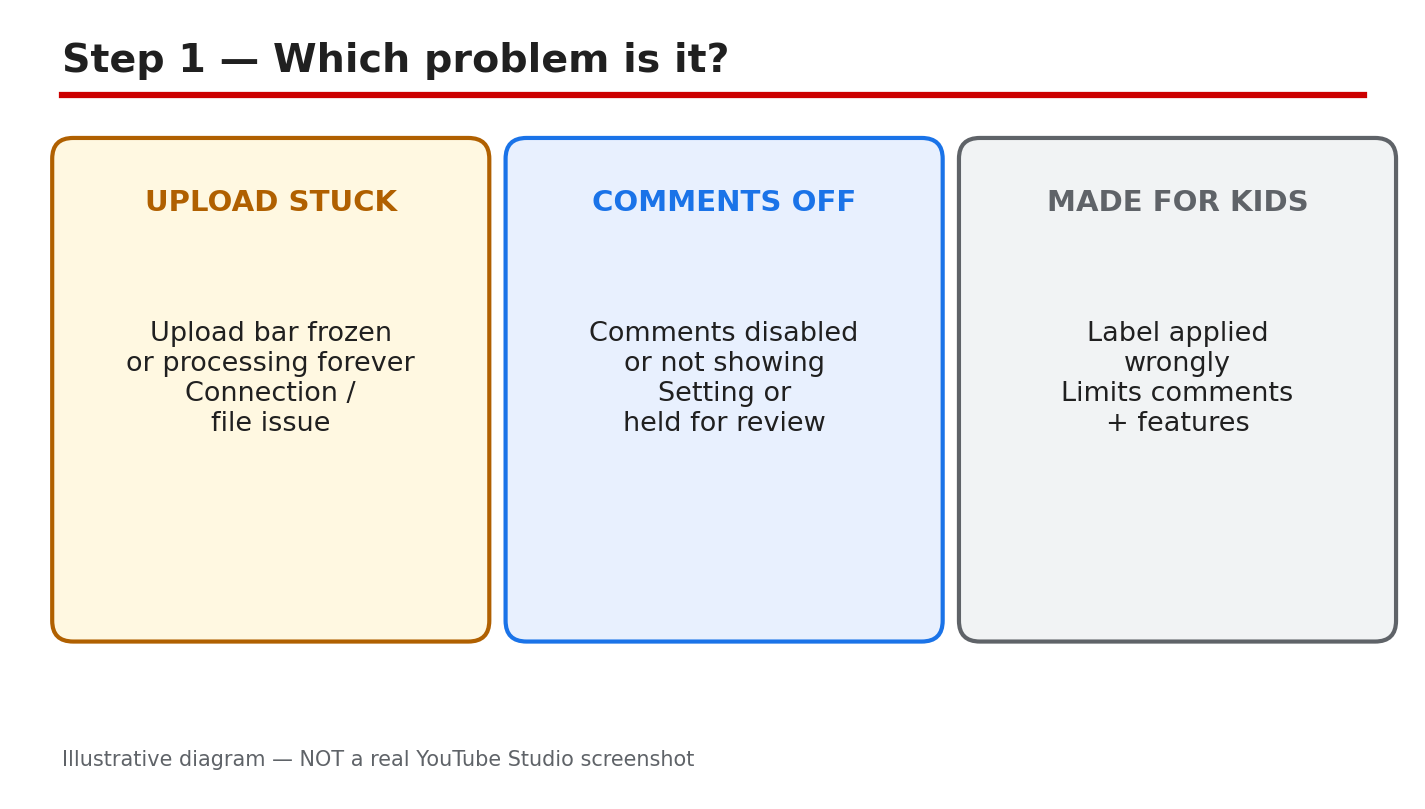
YouTube Upload Stuck, Comments Disabled, or Wrong Made for Kids Label? Fix All Three
Three YouTube problems look alike at first: a video that never finishes uploading, comments that vanish, and a Made for Kids label that seems wrong. Each has a different cause and a different fix. Most are settings, not bugs, and most can be fixed in one sitting. This guide helps you name the problem, find the setting, and fix it without deleting work you need. Related reading: How to Read and Use the YouTube Studio App. That guide explains the Studio layout used below, so open it if a menu name looks unfamiliar. Below, each step gives what to do, the exact Studio path, a short example, and a common mistake. Work in order, and check only the section that matches your problem if you are short on time. What You Will LearnWhich of the three problems you have. Where each setting lives in Studio. How to unstick an upload safely. How to restore missing comments. How to fix a wrong Made for Kids label. A 24-hour plan to check everything.Step 1: Name the Exact Problem First What to do: Name the problem in one sentence first. An upload problem shows as processing that never finishes. A comments problem shows as comments missing or held where you cannot see them. A Made for Kids problem shows as a label on a video that is not made for children, with comments turned off. Studio path: YouTube Studio > Content. Look at the video row first: check its visibility, its restrictions, and whether comments are shown. The row tells you which of the three problems you are dealing with. Example: A creator sees an upload stuck at 95 percent and assumes comments are broken too. The row shows the upload is still processing, so comments are not the problem yet. Common mistake: Fixing all three problems at once. Changing the label, the comments setting, and the file in the same hour makes it impossible to know which change helped.Illustrative diagram/mock-up — NOT a real YouTube Studio screenshot: which problem is it. Step 2: Find the Setting in Studio What to do: Open the video and go to its Details page. Two controls cause most of these problems: the Audience setting and the comments visibility setting. Both live on the same Details page. Check them in a computer browser, because every option is visible there. Studio path: YouTube Studio > Content > click the video > Details. Scroll to Audience for the Made for Kids label, and find Show more, then Comments, for comment visibility. Note what each setting says before you change it. Example: A creator opens Details and finds Audience set to Yes, it is made for kids, on a video about fixing a bike. That one setting explains why comments are off. Common mistake: Hunting for one fix-all switch in Studio. There is none. Audience, comments, and upload state are separate controls, so check each in turn.Illustrative diagram/mock-up — NOT a real YouTube Studio screenshot: find the setting. Step 3: Fix a Stuck Upload What to do: Check the connection and the file, not the video page. A weak or dropping connection is the most common cause of a stuck upload. Use an H.264 MP4 file, within the size limits on the official upload page. Keep the upload tab open and the computer awake while it processes. Do not delete the stuck upload until you have checked the file and the connection. Studio path: YouTube Studio > Content > Create > Upload videos. During upload, watch the progress bar and the processing notice. After upload, check Content for the video row and its processing state before you edit titles or settings. Example: A creator uploads a video over hotel Wi-Fi, and it stalls at 60 percent. At home, on a stable connection, the same file uploads in twenty minutes. The file was fine; the connection was the problem. Common mistake: Uploading the same file again while the first copy is still processing. Duplicates compete for the same connection and can leave two half-finished copies. Retry once from a stable network instead.Illustrative diagram/mock-up — NOT a real YouTube Studio screenshot: upload stuck checks. Step 4: Fix Comments That Are Disabled or Missing What to do: Check the comments setting first, then the held queue. Set comments to Allow all comments if you want every comment to show. Held comments are not deleted; they wait in Held for review until you approve or remove them. Also check the blocked-words list, because one blocked word can hold a comment. Studio path: YouTube Studio > Content > video > Details > Show more > Comments. For held comments, go to Studio > Content > Comments > Held for review. Approve, hide, or delete from there, and keep a note of what you changed. Example: A creator sees no comments on a new video and assumes viewers stayed silent. The Details page shows comments set to Disable comments from an earlier edit. Switching it back brings the missing comments into view at once. Common mistake: Assuming held comments are lost forever. They sit in the Held for review queue until you act. Deleting the video destroys its watch time for a problem that one approval would have solved.Illustrative diagram/mock-up — NOT a real YouTube Studio screenshot: comments checks. Step 5: Fix a Wrong Made for Kids Label What to do: Change the Audience setting only if the label is wrong. If the video is made for children, keep the label, because comments stay off by design. If the video is for a general audience, set Audience to No, it is not made for kids. If Studio applied the label automatically and it is wrong, use the appeal route in Studio. Studio path: YouTube Studio > Content > video > Details > Audience. Choose Yes or No for made for kids, save, and check that comments follow the label. For an automatic label you disagree with, follow the appeal steps shown in Studio. Example: A creator posts a woodworking tutorial, and Studio labels it made for kids because the thumbnail shows bright colours. Setting Audience to No restores comments, and the video keeps its views. Common mistake: Setting every video to Not made for kids to keep comments on. A video truly made for children must carry the label, and mislabelling it can bring a policy problem. Label by the real audience.Illustrative diagram/mock-up — NOT a real YouTube Studio screenshot: Made for Kids fix. Step 6: Follow the 24-Hour Fix Plan What to do: Work the plan in order, and give each fix time to take effect. Hour one: name the problem and check the Details page. Hours two to six: fix the upload, comments, or label, and note the change. By the next day: re-check the video row, the comments, and the label. Studio path: YouTube Studio > Content for the daily re-check, Details for the Audience and comments settings, and Comments > Held for review for approvals. Use the same three places each time, so the check takes minutes, not hours. Example: A creator fixes the Audience label at noon, but comments are still off at 1 p.m. By the next morning, after a check in Studio, comments are back. The fix had worked; the display needed time. Common mistake: Repeating the same fix every hour. Changing the setting, saving, changing it back, and saving again can leave the video worse off than one careful change. Make the change once, note it, and check again the next day.Illustrative diagram/mock-up — NOT a real YouTube Studio screenshot: 24-hour fix plan. ChecklistProblem named in one sentence. Details page checked: Audience and comments. Connection and file checked before retrying. Held comments reviewed, not assumed lost. Audience label matches the real audience. One change made and noted. Re-checked the next day in Studio.Frequently Asked Questions Why is my upload stuck at a percentage? Usually the connection dropped, or the file is still processing. Check the connection, keep the tab open, and give processing time before retrying. Do not delete the upload. Why did my comments disappear? Check the comments setting in Details, the Held for review queue, and the Made for Kids label. One of the three usually explains it, and held comments are not deleted. Can I keep comments on a video made for kids? No. Comments stay off by design on videos labelled made for kids. Do not mislabel the video to turn comments on; label it by its real audience. Should I delete and re-upload a stuck video? No. Check the connection and the file format, and retry once from a stable network. Deleting loses the processing already done and can leave duplicates. How do I appeal a wrong Made for Kids label? Use the appeal steps shown in Studio for that video, and give the reason the label is wrong. Keep the label while the appeal is pending, and check Studio for the outcome. Sources — Check It Yourself Official pages opened and verified live on 29 October 2026. Check current wording before acting.Upload YouTube videos — YouTube Help Set your channel or video's audience — YouTube Help Learn about comment settings — YouTube Help (verified live, not linked). Determining if your content is 'made for kids' — YouTube Help (verified live, not linked).No official YouTube video is embedded here. No exact official video URL was verified live.