Showing Posts From
Youtube playlists
 CreatorPlaybook Team
- 08 Nov, 2026
YouTube Playlist Videos Unavailable or Missing? How to Fix It
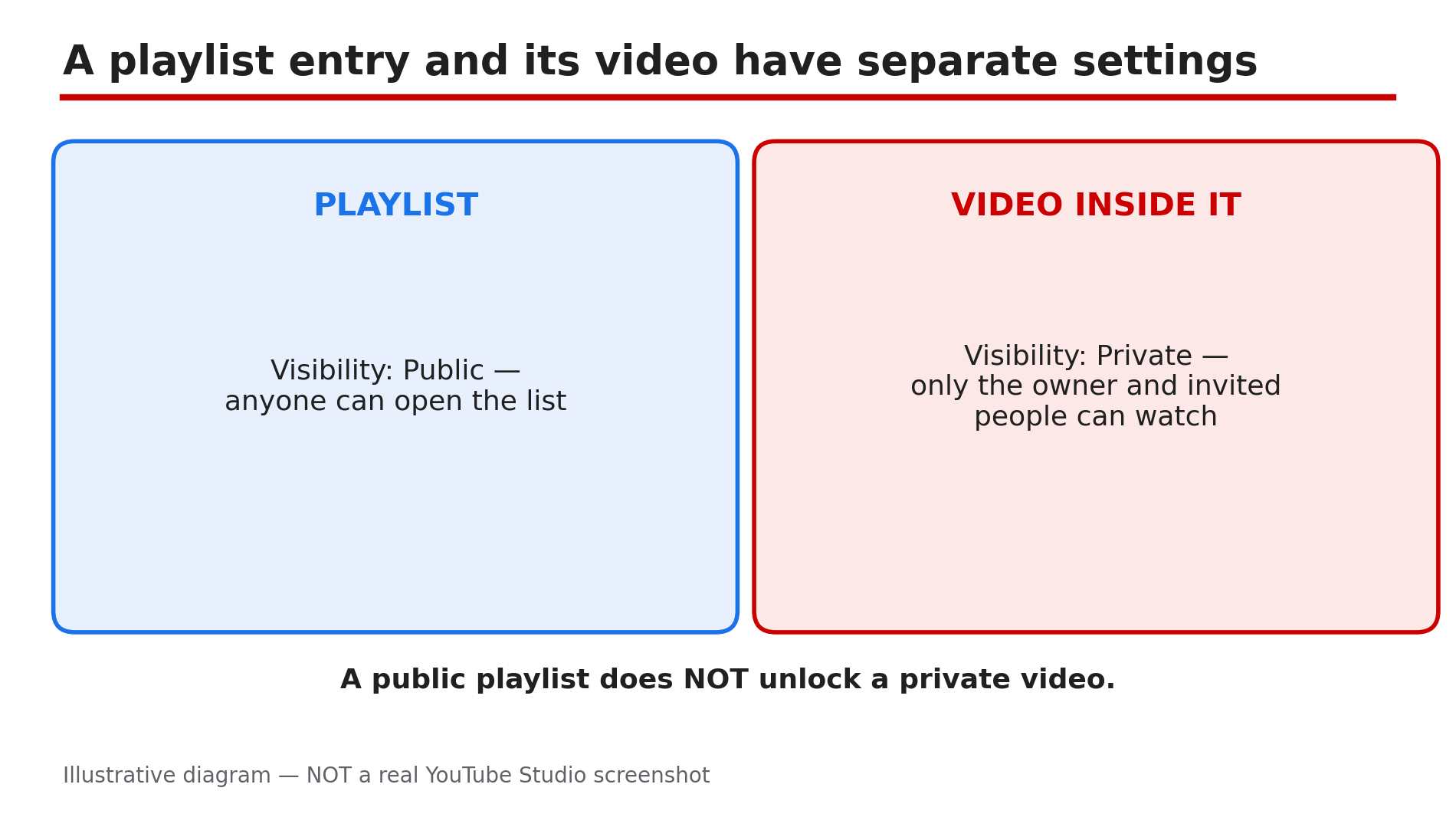
You open a playlist you built with care, and some entries are greyed out. The thumbnail is gone, the title reads "Private video" or "Deleted video", and tapping it does nothing. In most cases the playlist itself is fine. The problem is with the individual video inside it. A playlist entry and the video it points to have separate access conditions, as reported in guides on this problem: the video's owner may have made it private, deleted it, or had it removed, while the entry stays behind as a grey placeholder. This guide shows you how to read the greyed-out entries, reveal the hidden ones, and clean the playlist up. Owners can fix their playlists; viewers can only do so much — there is no legitimate way to watch someone else's private video. What You Will LearnWhy a playlist entry goes grey or disappears How to reveal hidden unavailable videos in your own playlist How to tell a private video from a deleted or removed one What owners can fix, and what only the uploader can fix How to keep a playlist clean so it does not break againStep 1 — Read the greyed-out entry before touching anything What to do: Read exactly what each broken entry says — "Private video", "Deleted video", or "Video unavailable" — before removing or replacing anything. How: Open the playlist on a computer and scroll through it slowly. A greyed-out entry usually keeps a label that names the cause: "Private video" means the uploader changed its visibility to private, while "Deleted video" means the uploader removed it or YouTube removed it. Note what each broken entry says. Example: A teacher finds three grey entries in her revision playlist: two "Private video" and one "Deleted video". The private ones might come back; the deleted one is gone for good. Common mistake: Deleting every grey entry at once — you may throw away a video that only needs its uploader to flip it back to public.Illustrative diagram: a playlist and the video inside it have separate visibility settings. Step 2 — Turn on "Show unavailable videos" to see what is hidden What to do: If entries seem missing rather than greyed out, switch on "Show unavailable videos" so the hidden entries appear. How: Open the playlist, click the three-dot menu next to the playlist title, and choose "Show unavailable videos", as reported in guides on this problem. Greyed-out deleted and private entries should now appear, marked as unavailable. On some devices the option appears only on a computer. Once the hidden entries are visible, remove them one by one. Example: A creator's 40-video playlist shows only 37 entries. He turns on "Show unavailable videos" and three grey entries appear — two private, one deleted. Common mistake: Assuming the playlist lost videos because of a YouTube bug, when the entries were simply hidden by default and the fix is one menu option.Illustrative mock-up: three greyed-out playlist entries and what each label means. Step 3 — Work out which cause applies to each entry What to do: Match each broken entry to its cause — private, unlisted, deleted, removed by YouTube, or blocked — because each one needs a different response. How: Start with the label from Step 1. A "Private video" entry means only the owner and invited people can watch it, as reported. An unlisted video may still appear in a public playlist, so an unlisted entry that plays is not broken. A "Deleted video" entry means the uploader deleted it. A removed video was taken down by YouTube, as reported, for a Community Guidelines, copyright, or trademark reason. Embedding disabled or an age restriction can also block playback in an embedded playlist even when the video plays on its watch page. A territorial copyright block can also hide a video in some countries only. Example: A music playlist has one entry that plays on its own watch page but not inside the embedded playlist on a website. Its embedding is disabled — so watch it on YouTube instead of deleting it. Common mistake: Treating every grey entry as deleted — a private video can return, and an embedding block is a playback limit, not a missing video.Illustrative diagram: turning on Show unavailable videos reveals hidden dead entries in a playlist. Step 4 — Fix it as the playlist owner: remove, replace, or ask What to do: Remove entries that are gone for good, replace them with working copies, and ask the uploader about private entries you still want. How: For a deleted or removed entry, hover over it and choose Remove — but only after Step 3 confirms the cause. Then search YouTube for the same video — uploaders often re-upload it — and add the working copy in the same position. For a private entry, contact the uploader and ask them to change the video back to public or unlisted; only the uploader can restore access. If the video is yours, change its visibility back in YouTube Studio and confirm the change took effect. Example: A creator finds a deleted tutorial in his playlist, searches, and finds the same creator re-uploaded it under a new title. He removes the dead entry and adds the new upload in the same spot. Common mistake: Leaving dead entries in place for months — viewers hit grey entries, stop watching, and the playlist's watch time falls.Illustrative diagram: a decision tree that matches each broken playlist entry to its cause. Step 5 — Fix it as a viewer: know what you can and cannot do What to do: Try the simple checks first, then accept that only the uploader can restore a private or deleted video. How: First, open the video's own watch page: if it plays there but not in the playlist, the problem is embedding or an age restriction. Next, check you are signed in to the right account — a private video shared with one account will not play on another. If the entry is private or deleted, no setting or extension restores it: as reported, there is no legitimate workaround to watch someone else's private video. Leave a polite comment asking the owner to replace the entry. Example: A viewer finds a private video in a workout playlist, confirms it is private, and comments asking the owner to replace it. A week later the owner swaps in a public re-upload. Common mistake: Installing a downloader or "unblocker" extension that promises to play private videos — it cannot, and it risks your account and your device.Illustrative diagram: the three owner fixes for a broken playlist entry — remove, replace, or ask the uploader. Step 6 — Stop it happening again: playlist hygiene What to do: Build a small routine so dead entries never pile up: check playlists monthly and keep a note of irreplaceable videos. How: Once a month, open each public playlist on a computer, turn on "Show unavailable videos", and remove dead entries the same day. Prefer videos from channels that keep their content public and stable. Note the title and channel of any video you cannot afford to lose, so you can find a replacement if it disappears. Example: A study-channel owner checks her playlists on the first Sunday of every month and removes dead entries the same day. Common mistake: Treating a playlist as finished once published — videos change visibility or get deleted all the time.Illustrative diagram: a monthly routine for checking playlists and removing dead entries. Checklist — Fix YouTube playlist videos unavailable or missing☐ Read each grey entry's label ☐ Turned on "Show unavailable videos" to reveal hidden entries ☐ Matched each entry to its cause ☐ Removed dead entries; replaced with working copies where possible ☐ Asked the uploader about private entries ☐ Checked playback on the video's own watch page ☐ Confirmed the right signed-in account as a viewer ☐ Monthly playlist check scheduledFAQs 1. Why does a video in my playlist say "Private video" when the playlist is public? Because the playlist and the video have separate visibility settings: only the video's owner and invited people can watch a private video, as reported. Only the uploader can change it back. 2. What does "Show unavailable videos" do? It reveals the greyed-out deleted and private entries YouTube hides by default, as reported, so you can see which entries are broken and remove or replace them. Find it in the playlist's three-dot menu. 3. A video plays on its own page but not in my playlist. Is it deleted? No. If it plays on its watch page, it is not deleted. The likely cause is embedding disabled or an age restriction blocking playback in the embedded playlist, as reported. Watch it on YouTube itself. 4. Can I watch a private video in someone else's playlist somehow? No. There is no legitimate workaround: only the uploader can restore access to a private video. Ask the owner to replace the entry with a public version. 5. How is this different from a video blocked in some countries? A country block hides a video only where the rights do not apply, while a private or deleted video is unavailable everywhere — see our guide on the "Video unavailable" message for what each error means. SourcesYouTube Help — "Create and manage playlists" (official page, opened live 8 Nov 2026): https://support.google.com/youtube/answer/57792?hl=en-GB&co=GENIE.Platform=Desktop CreatorPlaybook — "YouTube 'Video Unavailable' — What Each Message Means and How to Fix It" (internal link, live-verified published post): </blog/youtube-video-unavailable-what-each>