Showing Posts From
Youtube errors
 CreatorPlaybook Team
- 10 Nov, 2026
YouTube Shorts Not Loading or Stuck Buffering? How to Fix It
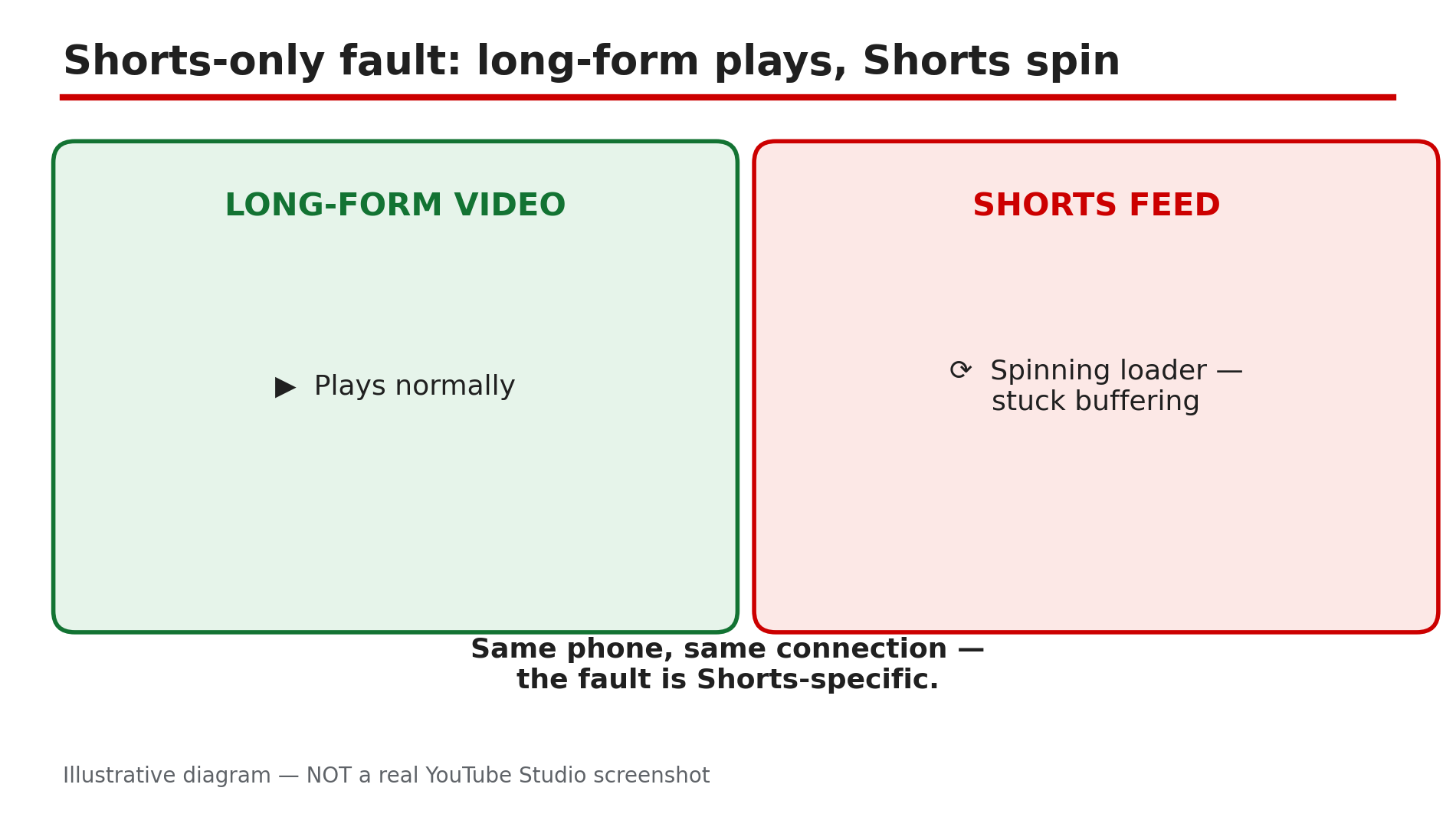
You tap the Shorts tab and get a spinning circle that never stops. The thumbnails may load, the first frame may flash, and then nothing moves. Yet when you go back to a normal video, it plays perfectly. That contrast is the most useful clue you have. Shorts and long-form videos do not fail in the same way: Shorts preload aggressively, swiping from one clip to the next, so a slow or restricted connection stalls the whole feed while a single long video still buffers happily, as reported in guides on this problem. A stale cache entry can also wedge the Shorts tab while search and long-form keep working. This guide walks you through the diagnosis in order — prove it is Shorts-only, fix the connection, clear the wedge, and know when the problem is a bad app update rather than your phone. What You Will LearnHow to prove the fault is Shorts-only and not your connection How to reconnect cleanly by switching networks How to clear the YouTube cache that wedges the Shorts tab Why Data Saver and battery restrictions hit Shorts hardest When an app update is the cause — and when to simply waitStep 1 — Prove it is a Shorts-only fault before changing anything What to do: Confirm that normal videos play while Shorts do not, because that single test decides which fixes are worth trying. How: Open a regular long-form video and let it play for thirty seconds, then go back to the Shorts tab and swipe through five Shorts. If long-form plays and Shorts do not, the fault is Shorts-specific, as reported, and the steps below apply. If long-form videos also fail, you have a general playback problem instead. Example: A viewer finds her favourite channel's new video plays fine, but every Short in the feed spins forever. That contrast tells her the connection is alive and the Shorts feed itself is stuck. Common mistake: Reinstalling the app as a first step — you lose your downloads and settings for a problem a cache clear usually fixes in a minute.Illustrative diagram: a long-form video plays while the Shorts feed stays stuck on a loading spinner. Step 2 — Switch networks to reconnect cleanly What to do: Test the Shorts feed on a different connection, because Shorts preload so aggressively that a weak or throttled connection stalls them first. How: If you are on Wi-Fi, switch to mobile data and try the Shorts tab again. If you are on mobile data, switch to Wi-Fi. You can also toggle airplane mode on for ten seconds and off again to force a fresh connection, as reported in guides on this problem. Shorts need a steady stream of small, fast loads as you swipe, so a connection that copes with one long video can still fail on Shorts. Example: A commuter finds Shorts freeze on the train's Wi-Fi but play instantly on mobile data — the Wi-Fi is throttling video. Common mistake: Blaming the phone when the network is at fault — always test a second network before touching any setting.Illustrative diagram: testing the Shorts feed on a second network to find out whether the connection is at fault. Step 3 — Force stop the app and clear the YouTube cache What to do: Clear the stale Shorts cache entry that can wedge the tab, without deleting your downloads or your login. How: On Android, go to Settings, then Apps, then YouTube, then Storage, and tap Clear cache — not Clear data, which signs you out and deletes downloads. Then force stop the app, reopen it, and try the Shorts tab again, as reported. On iPhone there is no per-app cache clear, so offload the app instead: Settings, then General, then iPhone Storage, then YouTube, then Offload App. Offloading keeps your data while replacing the app itself. Example: A creator's Shorts feed froze every morning after the first swipe. Clearing the YouTube cache once fixed it, and the feed has worked since. Common mistake: Tapping Clear data instead of Clear cache on Android — that wipes your downloads and signs you out, and it is not needed for a Shorts loading fault.Illustrative mock-up: the Android settings path to clear the YouTube cache without touching downloads. Step 4 — Turn off Data Saver and battery restrictions What to do: Check the two settings that quietly throttle Shorts: Data Saver inside YouTube, and battery optimisation on your phone. How: In the YouTube app, tap your profile picture, then Settings, then Data saving, and turn Data Saver off for a test, as reported in guides on this problem. Data Saver limits how much video YouTube preloads, and Shorts — which preload the next clip before you swipe — are hit hardest. Then check battery settings: on Android, go to Settings, then Apps, then YouTube, then Battery, and make sure the app is not set to Restricted — a restricted app cannot fetch the next Short, so every swipe stalls. Example: A student on a small data plan finds Shorts buffer endlessly with Data Saver on, but play smoothly the moment he turns it off on Wi-Fi. Common mistake: Turning Data Saver back on and forgetting it — then blaming YouTube a week later when Shorts stall again on the same setting.Illustrative diagram: how Data Saver and battery restrictions slow down the Shorts feed. Step 5 — Update the app and re-sign in What to do: Rule out a bad app build and a stale signed-in session, in that order. How: Open your app store and check for a YouTube update — install it if one is waiting, then restart your phone before testing again, as reported. A faulty build can break Shorts first while long-form keeps working. If the feed is still stuck, sign out and sign back in to the same account: an empty personalised feed is sometimes a session problem, not a network one. Example: A viewer's Shorts stopped loading the day after an app update. The next update, released three days later, fixed the feed without him changing anything else. Common mistake: Updating the app and testing immediately without restarting the phone — the old version can keep running in the background until the device restarts.Illustrative diagram: the three steps that rule out a bad app build or a stale signed-in session. Step 6 — Know when the problem is YouTube's, and wait it out What to do: If every fix above fails on every network and every device, check for a wider outage and stop troubleshooting your phone. How: Try the Shorts tab on a second device, or in a desktop browser at youtube.com/shorts. If Shorts fail everywhere, check a service-status site such as Downdetector for YouTube reports, as reported. A fault that began right after an app update is likely the build itself — the fix is the next update, and no cache clearing will help. Example: A household finds Shorts frozen on two phones and a tablet at the same time. Downdetector shows a spike of YouTube reports, and the feed recovers by itself within the hour. Common mistake: Factory-resetting the phone for a YouTube-side fault — an extreme step that never fixes a server or app-build problem.Illustrative diagram: a decision tree for telling a YouTube-side Shorts outage from a fault on one device. Checklist — Fix YouTube Shorts not loading or stuck buffering☐ Confirmed long-form videos play while Shorts do not ☐ Tested the Shorts feed on a second network (Wi-Fi and mobile data) ☐ Toggled airplane mode to force a fresh connection ☐ Cleared the YouTube cache on Android, or offloaded the app on iPhone ☐ Turned off Data Saver inside YouTube ☐ Checked battery restrictions are not throttling the YouTube app ☐ Updated the YouTube app and restarted the phone ☐ Signed out and back in if the personalised feed stays empty ☐ Checked a second device and an outage report before resetting anythingFAQs 1. Why do Shorts buffer while normal YouTube videos play fine? Because Shorts preload aggressively as you swipe, so a slow, restricted, or throttled connection stalls the feed while a single long-form video still buffers, as reported. A stale Shorts cache entry can also wedge the tab while everything else works. 2. Will clearing the YouTube cache delete my downloads? No — Clear cache on Android removes temporary files only and keeps your login and downloads. Clear data is the option that signs you out and deletes downloads, so tap the right one. 3. Does Data Saver really affect Shorts more than long videos? Yes, as reported — Shorts depend on preloading the next clip before you swipe, and Data Saver limits preloading. 4. Shorts stopped loading right after an app update. Is my phone broken? Almost certainly not — a bad app build can break Shorts first while long-form keeps working, as reported. Wait for the next update. 5. Should I reinstall YouTube if Shorts will not load? Only after the steps above. Reinstalling is a last resort: clear the cache, switch networks, turn off Data Saver, and update the app first — see our guide on the YouTube app crashing or showing a black screen for the full app-repair order. SourcesYouTube Help — "Troubleshoot YouTube video errors" (official page, opened live 10 Nov 2026): https://support.google.com/youtube/answer/3037019?hl=en CreatorPlaybook — "YouTube Video Stuck at Low Quality? Why 1080p or 4K Is Missing" (internal link, live-verified published post): </blog/youtube-video-stuck-at-low-quality-why> CreatorPlaybook — "YouTube App Not Opening, Crashing, or Black Screen? How to Fix It" (internal link, live-verified published post): </blog/youtube-app-not-opening-crashing-or>
- CreatorPlaybook Team
- 08 Nov, 2026
YouTube Playlist Videos Unavailable or Missing? How to Fix It
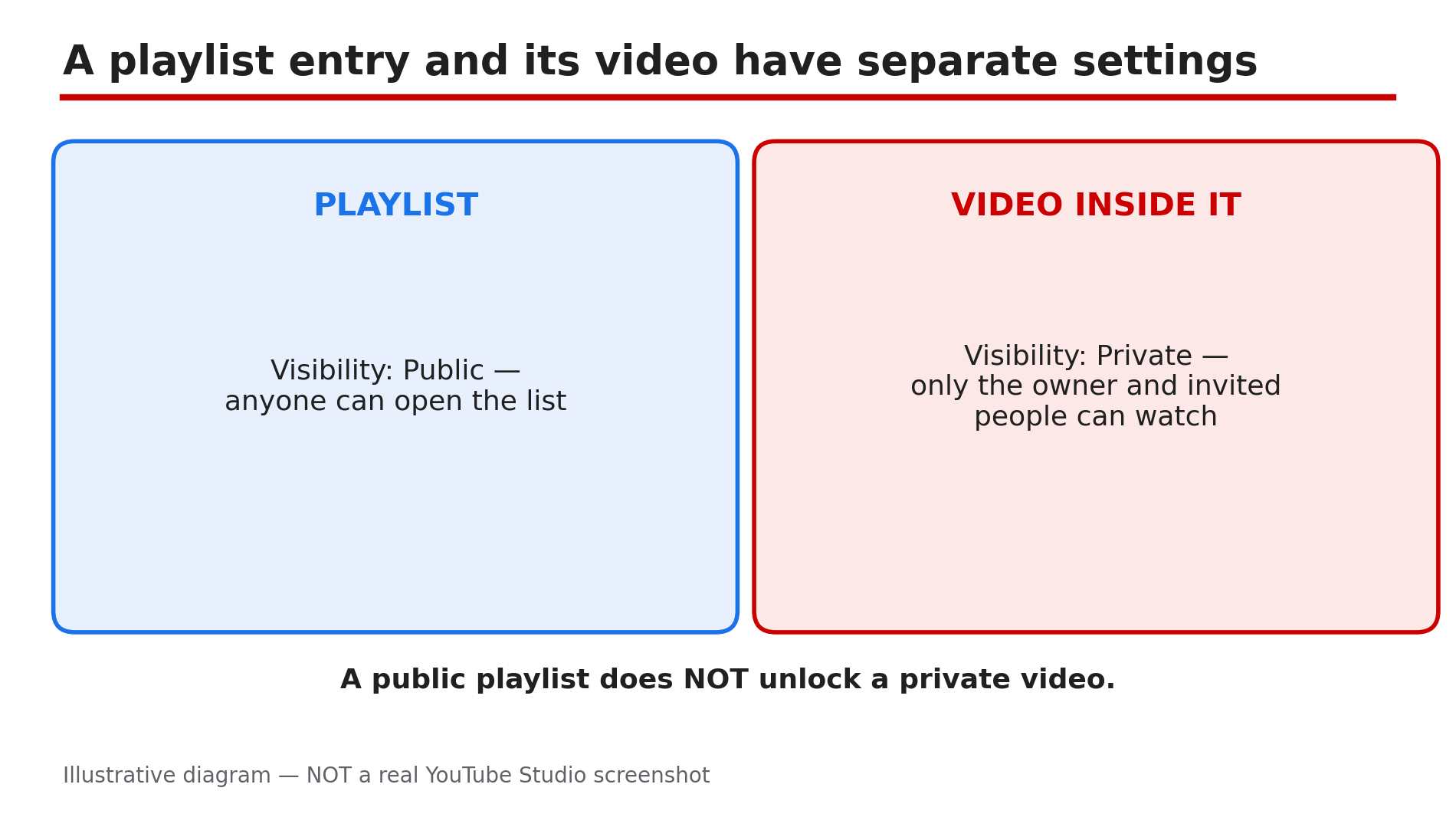
You open a playlist you built with care, and some entries are greyed out. The thumbnail is gone, the title reads "Private video" or "Deleted video", and tapping it does nothing. In most cases the playlist itself is fine. The problem is with the individual video inside it. A playlist entry and the video it points to have separate access conditions, as reported in guides on this problem: the video's owner may have made it private, deleted it, or had it removed, while the entry stays behind as a grey placeholder. This guide shows you how to read the greyed-out entries, reveal the hidden ones, and clean the playlist up. Owners can fix their playlists; viewers can only do so much — there is no legitimate way to watch someone else's private video. What You Will LearnWhy a playlist entry goes grey or disappears How to reveal hidden unavailable videos in your own playlist How to tell a private video from a deleted or removed one What owners can fix, and what only the uploader can fix How to keep a playlist clean so it does not break againStep 1 — Read the greyed-out entry before touching anything What to do: Read exactly what each broken entry says — "Private video", "Deleted video", or "Video unavailable" — before removing or replacing anything. How: Open the playlist on a computer and scroll through it slowly. A greyed-out entry usually keeps a label that names the cause: "Private video" means the uploader changed its visibility to private, while "Deleted video" means the uploader removed it or YouTube removed it. Note what each broken entry says. Example: A teacher finds three grey entries in her revision playlist: two "Private video" and one "Deleted video". The private ones might come back; the deleted one is gone for good. Common mistake: Deleting every grey entry at once — you may throw away a video that only needs its uploader to flip it back to public.Illustrative diagram: a playlist and the video inside it have separate visibility settings. Step 2 — Turn on "Show unavailable videos" to see what is hidden What to do: If entries seem missing rather than greyed out, switch on "Show unavailable videos" so the hidden entries appear. How: Open the playlist, click the three-dot menu next to the playlist title, and choose "Show unavailable videos", as reported in guides on this problem. Greyed-out deleted and private entries should now appear, marked as unavailable. On some devices the option appears only on a computer. Once the hidden entries are visible, remove them one by one. Example: A creator's 40-video playlist shows only 37 entries. He turns on "Show unavailable videos" and three grey entries appear — two private, one deleted. Common mistake: Assuming the playlist lost videos because of a YouTube bug, when the entries were simply hidden by default and the fix is one menu option.Illustrative mock-up: three greyed-out playlist entries and what each label means. Step 3 — Work out which cause applies to each entry What to do: Match each broken entry to its cause — private, unlisted, deleted, removed by YouTube, or blocked — because each one needs a different response. How: Start with the label from Step 1. A "Private video" entry means only the owner and invited people can watch it, as reported. An unlisted video may still appear in a public playlist, so an unlisted entry that plays is not broken. A "Deleted video" entry means the uploader deleted it. A removed video was taken down by YouTube, as reported, for a Community Guidelines, copyright, or trademark reason. Embedding disabled or an age restriction can also block playback in an embedded playlist even when the video plays on its watch page. A territorial copyright block can also hide a video in some countries only. Example: A music playlist has one entry that plays on its own watch page but not inside the embedded playlist on a website. Its embedding is disabled — so watch it on YouTube instead of deleting it. Common mistake: Treating every grey entry as deleted — a private video can return, and an embedding block is a playback limit, not a missing video.Illustrative diagram: turning on Show unavailable videos reveals hidden dead entries in a playlist. Step 4 — Fix it as the playlist owner: remove, replace, or ask What to do: Remove entries that are gone for good, replace them with working copies, and ask the uploader about private entries you still want. How: For a deleted or removed entry, hover over it and choose Remove — but only after Step 3 confirms the cause. Then search YouTube for the same video — uploaders often re-upload it — and add the working copy in the same position. For a private entry, contact the uploader and ask them to change the video back to public or unlisted; only the uploader can restore access. If the video is yours, change its visibility back in YouTube Studio and confirm the change took effect. Example: A creator finds a deleted tutorial in his playlist, searches, and finds the same creator re-uploaded it under a new title. He removes the dead entry and adds the new upload in the same spot. Common mistake: Leaving dead entries in place for months — viewers hit grey entries, stop watching, and the playlist's watch time falls.Illustrative diagram: a decision tree that matches each broken playlist entry to its cause. Step 5 — Fix it as a viewer: know what you can and cannot do What to do: Try the simple checks first, then accept that only the uploader can restore a private or deleted video. How: First, open the video's own watch page: if it plays there but not in the playlist, the problem is embedding or an age restriction. Next, check you are signed in to the right account — a private video shared with one account will not play on another. If the entry is private or deleted, no setting or extension restores it: as reported, there is no legitimate workaround to watch someone else's private video. Leave a polite comment asking the owner to replace the entry. Example: A viewer finds a private video in a workout playlist, confirms it is private, and comments asking the owner to replace it. A week later the owner swaps in a public re-upload. Common mistake: Installing a downloader or "unblocker" extension that promises to play private videos — it cannot, and it risks your account and your device.Illustrative diagram: the three owner fixes for a broken playlist entry — remove, replace, or ask the uploader. Step 6 — Stop it happening again: playlist hygiene What to do: Build a small routine so dead entries never pile up: check playlists monthly and keep a note of irreplaceable videos. How: Once a month, open each public playlist on a computer, turn on "Show unavailable videos", and remove dead entries the same day. Prefer videos from channels that keep their content public and stable. Note the title and channel of any video you cannot afford to lose, so you can find a replacement if it disappears. Example: A study-channel owner checks her playlists on the first Sunday of every month and removes dead entries the same day. Common mistake: Treating a playlist as finished once published — videos change visibility or get deleted all the time.Illustrative diagram: a monthly routine for checking playlists and removing dead entries. Checklist — Fix YouTube playlist videos unavailable or missing☐ Read each grey entry's label ☐ Turned on "Show unavailable videos" to reveal hidden entries ☐ Matched each entry to its cause ☐ Removed dead entries; replaced with working copies where possible ☐ Asked the uploader about private entries ☐ Checked playback on the video's own watch page ☐ Confirmed the right signed-in account as a viewer ☐ Monthly playlist check scheduledFAQs 1. Why does a video in my playlist say "Private video" when the playlist is public? Because the playlist and the video have separate visibility settings: only the video's owner and invited people can watch a private video, as reported. Only the uploader can change it back. 2. What does "Show unavailable videos" do? It reveals the greyed-out deleted and private entries YouTube hides by default, as reported, so you can see which entries are broken and remove or replace them. Find it in the playlist's three-dot menu. 3. A video plays on its own page but not in my playlist. Is it deleted? No. If it plays on its watch page, it is not deleted. The likely cause is embedding disabled or an age restriction blocking playback in the embedded playlist, as reported. Watch it on YouTube itself. 4. Can I watch a private video in someone else's playlist somehow? No. There is no legitimate workaround: only the uploader can restore access to a private video. Ask the owner to replace the entry with a public version. 5. How is this different from a video blocked in some countries? A country block hides a video only where the rights do not apply, while a private or deleted video is unavailable everywhere — see our guide on the "Video unavailable" message for what each error means. SourcesYouTube Help — "Create and manage playlists" (official page, opened live 8 Nov 2026): https://support.google.com/youtube/answer/57792?hl=en-GB&co=GENIE.Platform=Desktop CreatorPlaybook — "YouTube 'Video Unavailable' — What Each Message Means and How to Fix It" (internal link, live-verified published post): </blog/youtube-video-unavailable-what-each>
- CreatorPlaybook Team
- 07 Nov, 2026
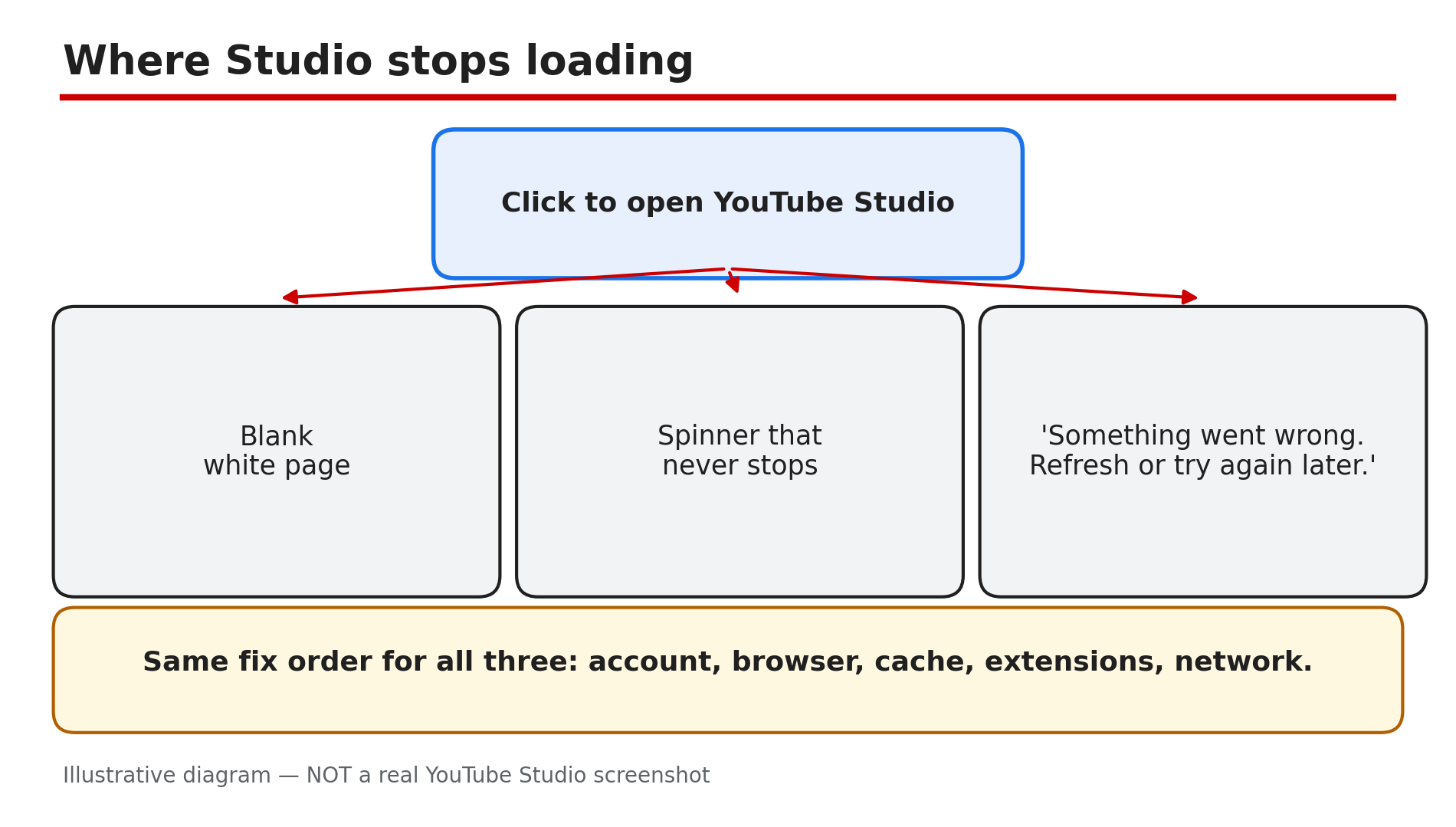
YouTube Studio Not Loading, Blank, or "Something Went Wrong"? How to Fix It
You click to open YouTube Studio and nothing happens. The page stays blank, the spinner turns forever, or a message says "Something went wrong. Refresh or try again later." Your videos are due, and your channel's control room is locked shut. In most cases this is not a strike or a deleted account. It is usually a browser or sign-in problem: the wrong account, an outdated browser, a corrupted cache, a blocking extension, or a changed DNS setting. There is no dedicated Help page called "Studio not loading", so this guide uses YouTube's video-errors causes, which apply to Studio in the same browser. Work through the steps in order, testing Studio after each change. What You Will LearnHow to read the symptom: blank page, spinner, or error How to check your account and channel How to restart, update, and clean your browser How to find a blocking extension Which Studio features are desktop-only, not a bugStep 1 — Refresh and read the exact symptom What to do: Refresh and note exactly what you see — a blank page, a spinner, or "Something went wrong" — before changing anything. How: Press refresh once and wait a minute. If the error message appears, click the Reload option in it, as YouTube's Help page suggests. Then open youtube.com in a new tab: if ordinary videos play but Studio does not, the fault is with Studio, not your connection. If nothing loads, check your connection and whether other creators report an outage. Example: A creator's Studio shows a blank screen every morning, but the watch page plays normally — so the fault is specific to Studio, pointing her to Steps 3 to 5, not her router. Common mistake: Assuming the channel was deleted or hacked — a blank page almost never means that.Illustrative diagram: the three ways Studio fails to load, and the shared fix order. Step 2 — Confirm the right account and channel What to do: Check you are signed in to the Google account that owns the channel, and the switcher shows the right channel. How: Click your profile picture at the top right and read the account name. If you have more than one channel or a brand account, open the channel switcher and pick the right channel — Studio shows the selected channel's data, so the wrong one can look like missing videos or an empty dashboard. If you are signed out, sign in again with the account that owns the channel. Example: A creator with two channels opens Studio and sees no videos. She is signed in to her personal account, not the brand account that owns the channel. One switch brings all her videos back. Common mistake: Creating a new channel by accident while signing in — check the switcher first.Illustrative mock-up: checking the signed-in account and the channel switcher before any browser fix. Step 3 — Restart your browser and device, then update the browser What to do: Close the browser completely, restart your device, and update to the latest version of a compatible browser. How: Close every browser window, then reopen it and try Studio again. If that fails, restart your computer or phone; YouTube's Help page lists restarting the device as a fix. Then check for a browser update: YouTube recommends the latest version of Chrome, Firefox, or Safari. If you use the Studio app, update the app and your device's software too. Example: A creator's Studio stops loading after a browser update is left half-installed. He restarts his laptop, the update finishes, and Studio opens normally. Common mistake: Updating the YouTube app while the real problem is the outdated desktop browser you use for Studio.Illustrative diagram: the order for browser fixes — restart first, update second, clear cache and cookies third. Step 4 — Clear the cache and cookies, then sign in again What to do: Clear your browser's cache and cookies for YouTube, then sign in to Studio again. How: YouTube's Help page lists clearing the cache and cookies as a fix for "Something went wrong", because corrupted cache or cookies can stop pages loading. In your browser settings, clear cached images and files and cookies for youtube.com and studio.youtube.com only. Then reopen the browser and sign in again. Before clearing cookies, make sure you know your Google password: clearing cookies signs you out of many sites. Example: A creator sees "Something went wrong" on Studio every day for a week. She clears the cache and cookies, signs in again, and Studio loads in seconds. Common mistake: Clearing only the cache, or clearing everything without knowing your password first.Illustrative diagram: comparing Studio in a normal window and an incognito window to find a blocking extension. Step 5 — Test in incognito with extensions off, and check ad blockers and DNS What to do: Open Studio in an incognito window with all extensions disabled. If it works there, an extension — often an ad blocker — is the problem. How: Open an incognito window with extensions switched off, sign in, and open Studio — the exact test YouTube's Help page suggests for ad-blocking extensions. If Studio loads, turn extensions on one at a time in your normal window until Studio breaks again — that is the culprit. Add Studio to that extension's allowed list, or turn off ad blocking for youtube.com. Also check your DNS settings: YouTube says to confirm you are using your preferred DNS servers and no third-party app has changed them. If you installed a VPN or privacy app recently, turn it off briefly and refresh Studio. Example: A creator installs a new ad blocker and Studio goes blank the same evening. In an incognito window with extensions off, Studio works. She whitelists studio.youtube.com, and Studio works in her normal window again. Common mistake: Turning the ad blocker off everywhere instead of allowing just YouTube.Illustrative diagram: three tests that show whether the fault is local or with your channel. Step 6 — Try another browser or network — and know what is NOT a bug What to do: Try Studio in a different browser, network, or device. If it works elsewhere, the fault is with the first one — not your channel. How: Open Studio in a second browser, such as Firefox if you normally use Chrome, or try your phone's hotspot instead of home Wi-Fi. If Studio still fails everywhere, use the Help icon on any YouTube page to search the Help Center. One thing is not a bug at all: some Studio features only work on a computer. As reported in YouTube's Help pages, custom Shorts thumbnails can only be added in YouTube Studio on a computer, and your account must be verified. End screens, cards, and bulk editing are desktop-only too. If an option is missing on the mobile app, switch to a computer first. Example: A creator cannot find the custom thumbnail option for a Short on her phone. On her laptop the same afternoon, the option is there — the phone app does not offer it, by design. Common mistake: Reinstalling browsers before trying a second browser — a two-minute test that would have shown the fault was local. And reporting a missing mobile feature as a bug, when it is desktop-only.Illustrative diagram: Studio features that only work on a computer, so a missing option on mobile is not a fault. Checklist — Fix YouTube Studio not loading☐ Refreshed; symptom noted (blank, spinner, error) ☐ Ordinary videos play, or connection fault noted ☐ Right account and channel ☐ Browser closed, device restarted, updated ☐ Cache and cookies cleared; signed in again ☐ Incognito test done; Studio whitelisted ☐ DNS checked; VPN tested off ☐ Second browser, network, or device tried ☐ Desktop-only features checked on computerFAQs 1. Is Studio not loading a strike or a problem with my channel? No, not usually. A blank page or "Something went wrong" is most often a browser or sign-in problem — the wrong account, an outdated browser, corrupted cache, or a blocking extension. Check the steps above, and confirm in Studio once it opens. 2. Studio works on my phone but not on my computer. Why? Because the fault is in the computer's browser, not your channel. Work through Steps 3 to 5 on the computer: restart, update, clear cache and cookies, and test in incognito. 3. I cleared my cookies and now I am signed out of everything. Is that normal? Yes. Clearing cookies signs you out of many sites — which is why this guide says to know your password first. Sign back in, then open Studio again. 4. Why can't I add a custom Shorts thumbnail on my phone? Because it is desktop-only by design, as reported in YouTube's Help pages: custom Shorts thumbnails can only be added in YouTube Studio on a computer, and your account must be verified. 5. How is this different from a video stuck on uploading or processing? A stuck upload means Studio opens fine but a video will not finish uploading or converting. Here Studio itself will not open, so you cannot reach the upload page. Fix Studio first. SourcesYouTube Help — "Troubleshoot YouTube video errors" (official page, opened live 7 Nov 2026): https://support.google.com/youtube/answer/3037019?hl=en CreatorPlaybook — "YouTube Video Stuck on Uploading or Processing? How to Fix It" (internal link, opened live 7 Nov 2026): </blog/youtube-video-stuck-uploading-or> CreatorPlaybook — "YouTube 'Processing Abandoned'? Why the Video Could Not Be Processed and How to Fix It" (internal link, opened live 7 Nov 2026): </blog/youtube-processing-abandoned-why-video>