Earn Tab Features Missing? Super Thanks, Memberships and Shopping Not Showing
 CreatorPlaybook Team
- 29 Oct, 2026
A missing feature can feel like a broken promise. You open the Earn tab, look for Super Thanks, memberships, or the Shopping shelf, and the card is not there, or it says you are not eligible. The reason is often simple: a requirement is not met, the feature is not live where you live, or the card needs one more setup step.
This guide helps you name the missing feature, find the exact reason on its Earn tab card, and check the requirements against the official Help page and your own channel. Write down the exact reason the card shows, work through the checks in order, and do not promise a feature in a video before it appears on your channel.
What You Will Learn
By the end, you will be able to:
- Name the feature that is missing.
- Find its card and read the eligibility reason.
- Check the subscriber, watch-hour, and view requirements.
- Check whether the feature is available where you live.
- Turn a feature on and test it on your own video.
- Plan a rollout without promising a feature too early.
Step 1: Name the feature that is missing
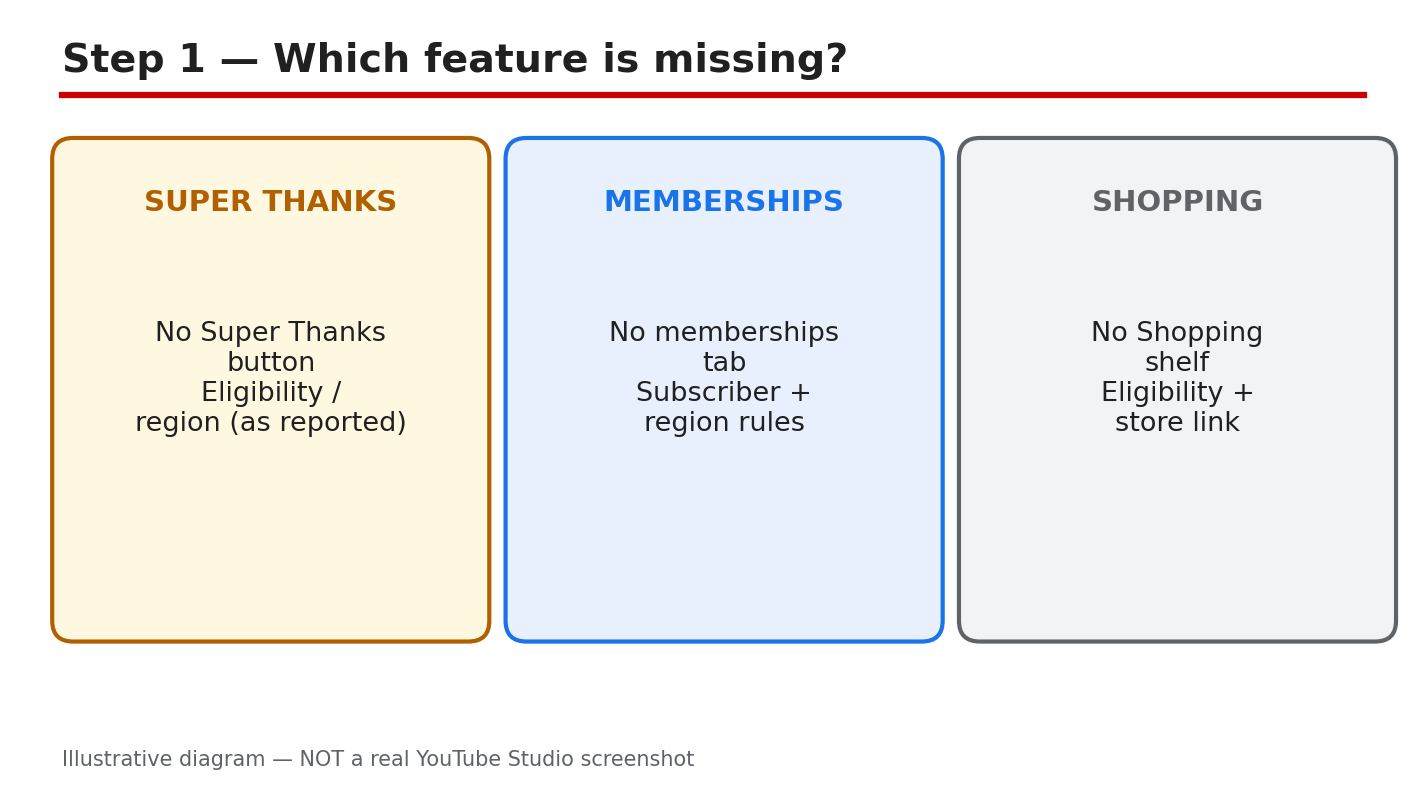
What to do: Name one feature, not all of them. Super Thanks, memberships, and Shopping each have a separate card and separate requirements, so a fix for one does not unlock another. Check only that card first, and finish its checks before you move to the next feature.
Studio path: YouTube Studio > Earn. Look at the feature cards on the page and note which card is present, which card is missing, and what each card says.
Example: Ana wants memberships but keeps checking the Super Thanks card. Once she looks at the memberships card, she sees the reason that applies to memberships only.
Common mistake: Treating every missing card as the same problem. A Shopping problem is not a Super Thanks problem.
Illustrative diagram, not a real screenshot: Super Thanks, memberships, and Shopping compared.
Step 2: Find the card and read its reason
What to do: Open the Earn tab and read the card for your feature word by word. The card lists the requirements and, when you are not eligible, the reason it is hidden. Do not guess from a friend’s channel: the card on your own channel is the only reason that counts for you. Write the reason down exactly. If the card shows no reason, check again after signing in with only the channel account.
Studio path: YouTube Studio > Earn. Find the card for Super Thanks, memberships, or Shopping, and read the requirements and the eligibility message on that card.
Example: Ben’s memberships card says he needs more subscribers. He stops searching for a hidden setting and starts working on the number the card actually names.
Common mistake: Skipping the card and changing settings at random. If you do not read the reason, you can change the wrong thing and still see no card.
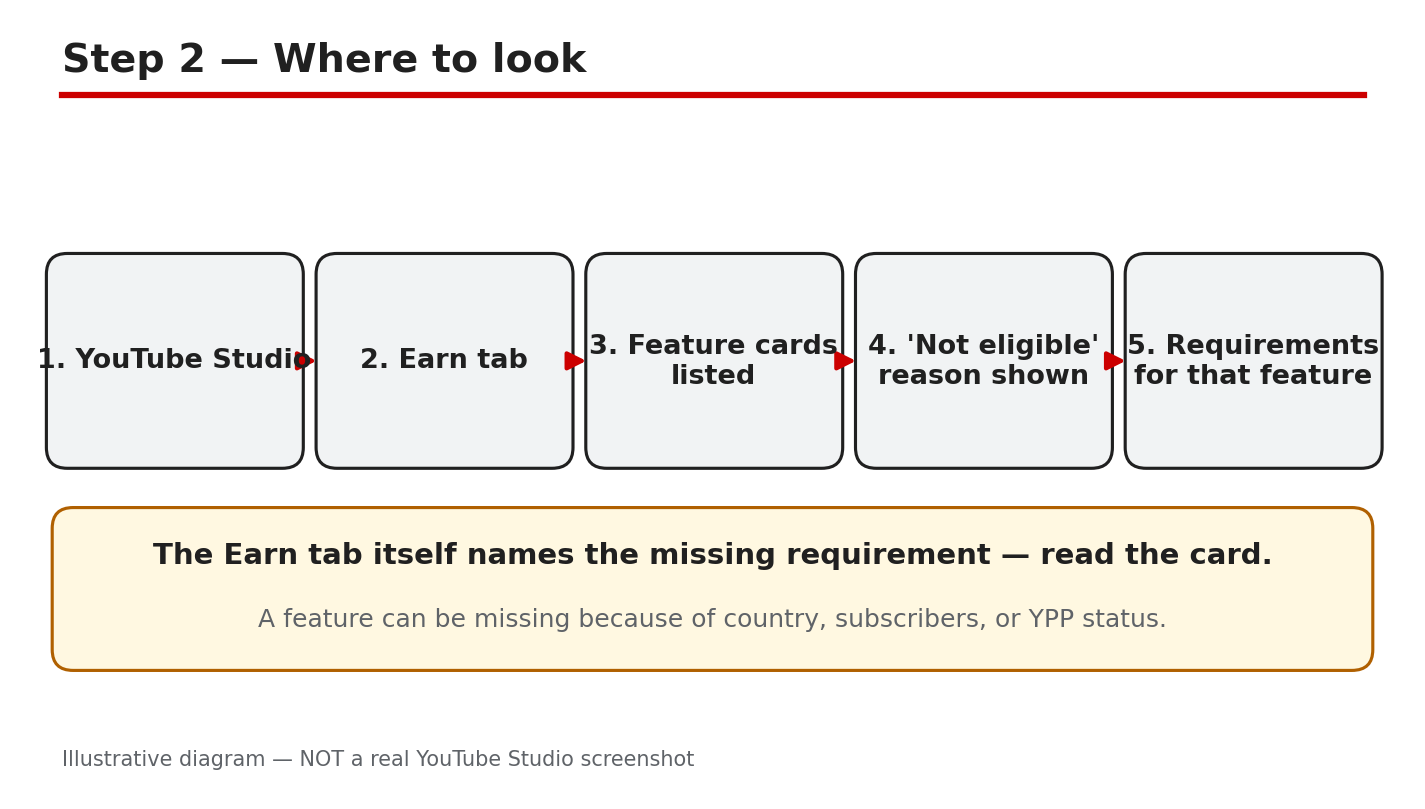
Illustrative diagram, not a real screenshot: Earn tab feature cards and eligibility reasons.
Step 3: Why features stay hidden
What to do: Compare your channel with the requirements the Help page reports, and check the same numbers on your Earn tab card. The Help page reports that channel memberships need 500 subscribers, 3 public uploads in the last 90 days, and either 3,000 qualified watch hours in the last 365 days or 3 million qualified Shorts views in the last 90 days. Super Thanks needs age 18 or older and availability in your country or region. Shopping has its own subscriber rule and is not for Made for Kids content. Availability differs by country or region, so check the Help page and your card.
Studio path: YouTube Studio > Earn for your card, and the Help page in Sources for the full, current requirements.
Example: Carla has 420 subscribers and wants memberships. The reported 500-subscriber requirement explains why her card is hidden.
Common mistake: Copying a threshold from an old video. Check the current Help page and your own card instead.
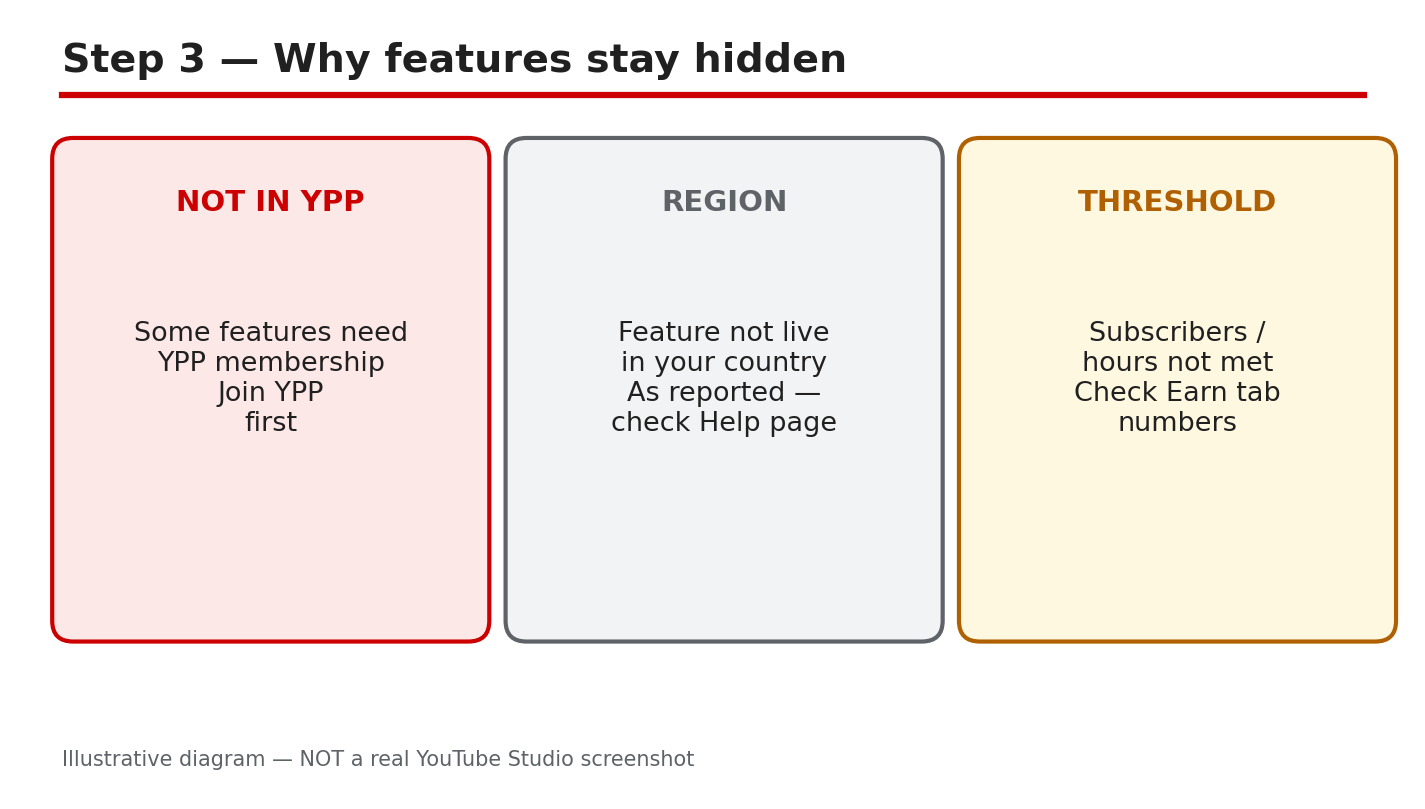
Illustrative diagram, not a real screenshot: thresholds, countries, and availability compared.
Step 4: Run the eligibility checks
What to do: Check four things: Partner Program membership in good standing, the feature available in your country or region, the numbers on the card met, and no active strike blocking the feature. If one check fails, that check is your next task. Note which one failed.
Studio path: YouTube Studio > Earn for the card, and YouTube Studio > Content for any strike or restriction notice on your videos.
Example: Dev meets the subscriber number, but his card still hides memberships. A strike notice in Content explains the block, so he fixes that first.
Common mistake: Checking only subscribers. A strike, a country limit, or a Partner Program problem can hide a card even when the numbers look right.
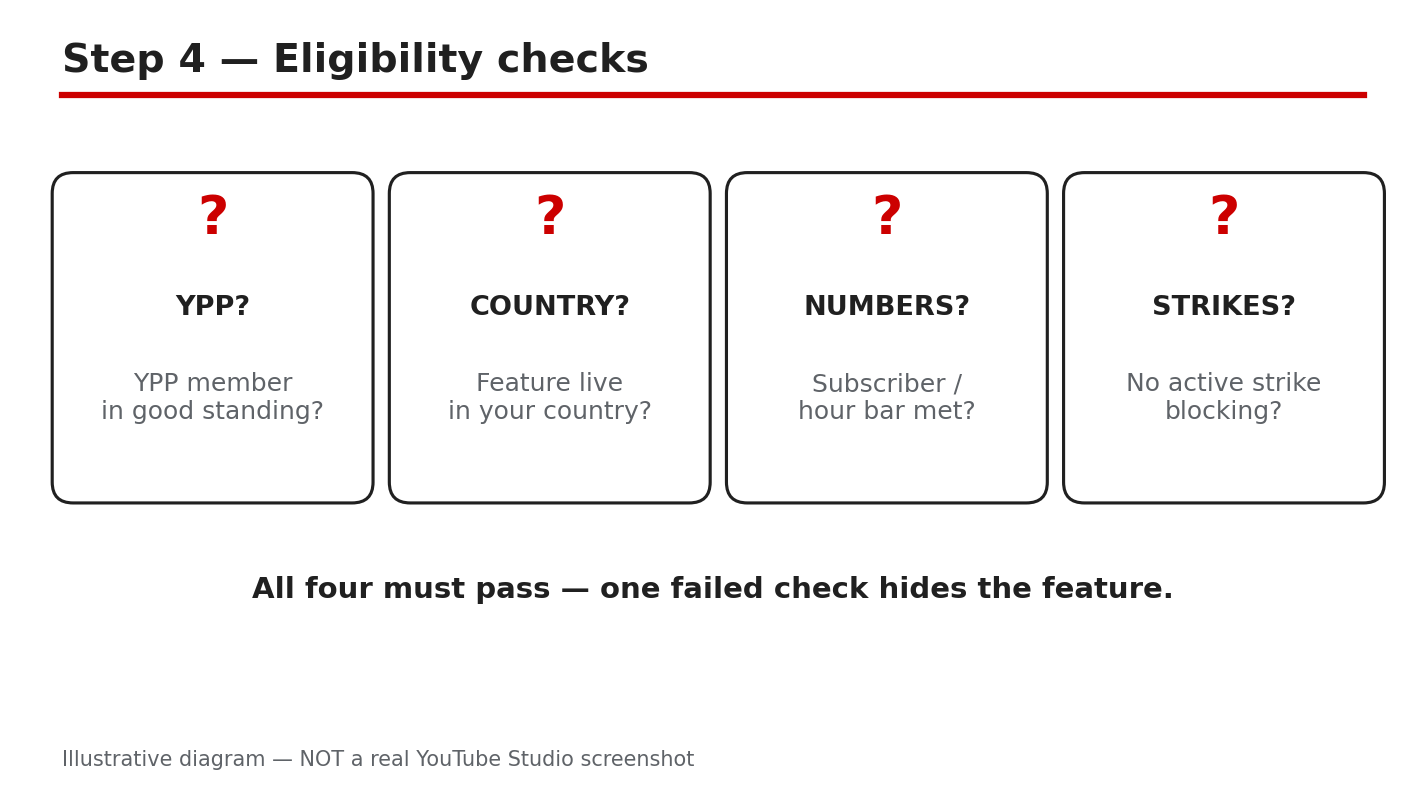
Illustrative diagram, not a real screenshot: four eligibility checks in order.
Step 5: Turn the feature on
What to do: On the feature card, accept the module or terms for that feature, then finish its setup. For Shopping, link your store; for memberships, set prices and perks. The feature should appear after setup is complete. Then test it yourself: open one of your own videos and check that the feature shows where viewers will see it. If the feature still does not show, re-open the card and check for an unfinished step.
Studio path: YouTube Studio > Earn > the feature card. Accept the module or terms, finish setup, then check one of your videos as a viewer would.
Example: Lina accepts the memberships module, sets one perk and a price, and then checks her own video. The Join button appears only after setup is finished.
Common mistake: Accepting the terms but skipping setup. An unfinished store link, price, or perk can leave the feature hidden even after you accept.
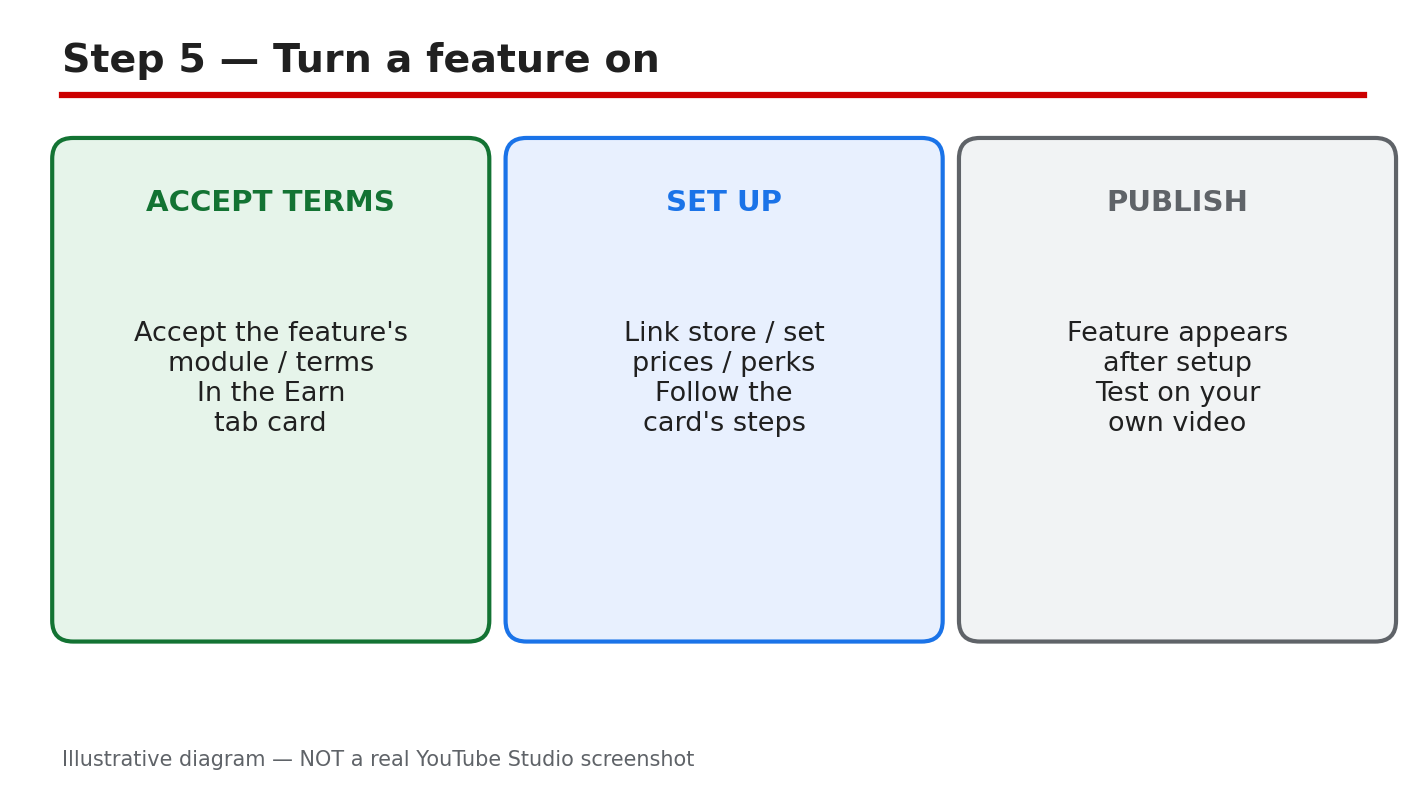
Illustrative diagram, not a real screenshot: accept terms, finish setup, test the feature.
Step 6: Roll the feature out slowly
What to do: Announce the feature only after it is live on your channel and tested on your own video. Start with one video, tell viewers exactly what the feature does, and watch for questions before you mention it in every video. If a viewer says they cannot see it, ask which country they are in and which device they use. Keep the first announcement short and clear.
Studio path: YouTube Studio > Earn to confirm the card is live, then one published video to test what viewers see.
Example: Omar tests memberships on one video, answers three viewer questions, and only then adds the Join mention to his next video.
Common mistake: Promising Super Thanks or memberships in a video before the feature is live. Viewers look for it, cannot find it, and trust drops.
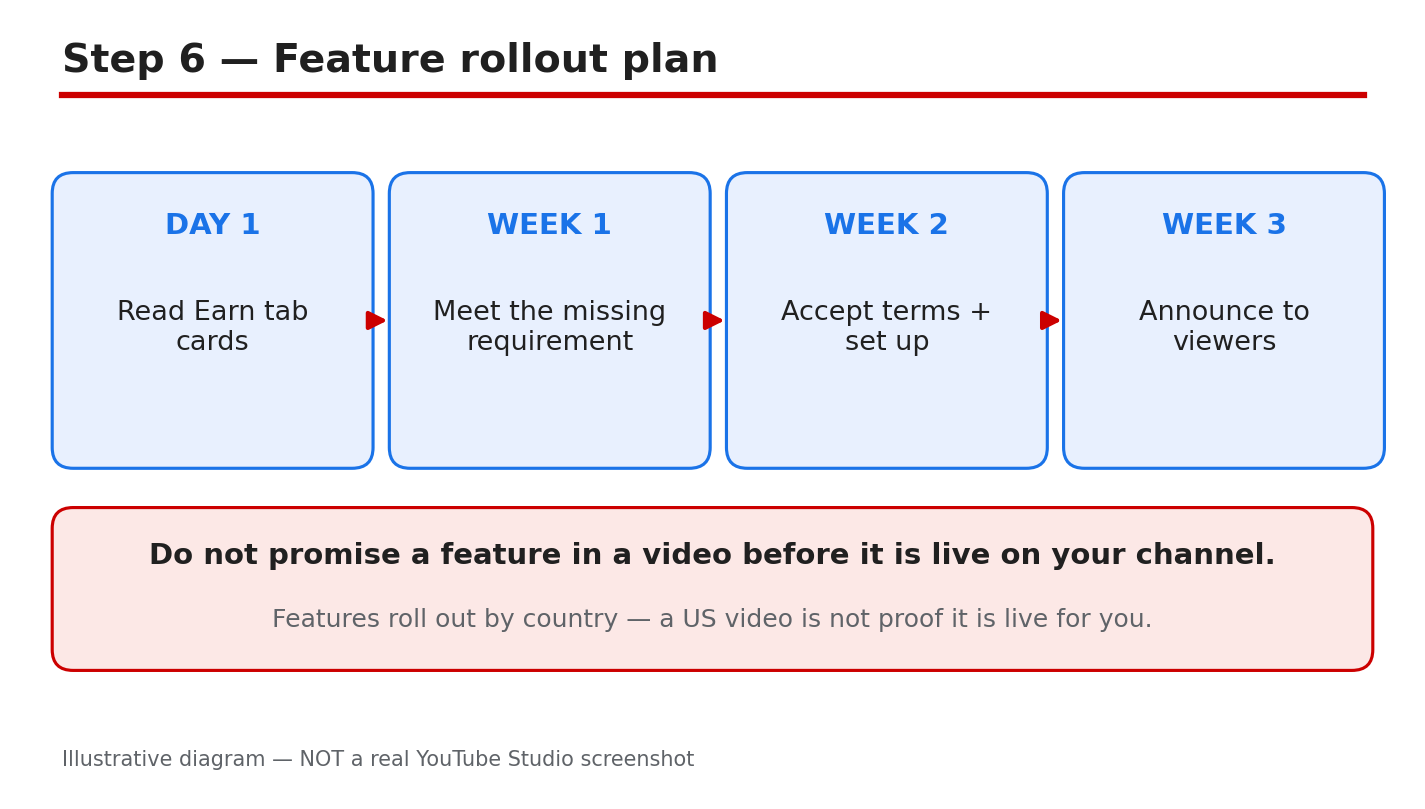
Illustrative diagram, not a real screenshot: test one video, then tell viewers.
Checklist: Before you announce a feature
Tick each item before you tell viewers a feature is coming.
- I have named the one missing feature.
- I have read the reason on its Earn tab card.
- I have checked the Help page requirements for that feature.
- I have checked country availability and my numbers.
- I have finished setup and tested the feature myself.
- I have not promised the feature before it is live.
Frequently Asked Questions
Why is Super Thanks missing when my channel is monetized?
Monetization and Super Thanks are separate features. Super Thanks needs its own eligibility, including age 18 or older, availability in your country or region, and the Commerce Product Module, so check its own card and the Help page.
Can I turn on memberships with fewer than 500 subscribers?
No, not on the reported requirements. The Help page reports 500 subscribers, 3 public uploads in the last 90 days, and the watch-hour or Shorts-view requirement. Grow to those numbers, then check the card again.
Why can a friend see Shopping but I cannot?
Shopping availability and requirements differ by channel and country or region. Check your own Earn tab card and the Help page instead of comparing channels, and finish any setup the card asks for.
I accepted the terms. Why is the feature still hidden?
Accepting terms is only one step. Finish the setup the card asks for, such as linking a store or setting prices and perks, then test the feature on your own video.
Should I tell viewers a feature is coming soon?
No. Wait until the feature is live on your channel and tested on your own video. Promising it early sends viewers looking for something they cannot find yet.
Sources — Check It Yourself
Check the official page below, and re-read your own Earn tab card before you act. Requirements can change, so check the page again if your card changes. No official YouTube video is embedded in this post, because no exact official video was verified live in this run.