Embedded YouTube Video Not Playing? "Playback on Other Websites Disabled" Fix
 CreatorPlaybook Team
- 12 Nov, 2026
You paste a YouTube video into your website or blog, and instead of the player your visitors see: “Playback on other websites has been disabled by the video owner.” The video plays fine on YouTube itself — the owner has switched off embedding, or something else blocks playback outside YouTube. This guide works through the causes in order.
What You Will Learn
- What the “Playback on other websites disabled” message actually means
- Where the owner’s embedding setting lives in YouTube Studio
- Why private videos can never be embedded, but unlisted videos can
- How age restrictions, region blocks and copyright claims break embeds
- Why newer channels may have embedding restricted until Advanced Features are unlocked
- What website owners should check in their own embed code
Step 1 — Read the exact message first: not every failed embed has the same cause
What to do: Match the fix to the exact words on screen — three messages mean three different problems.
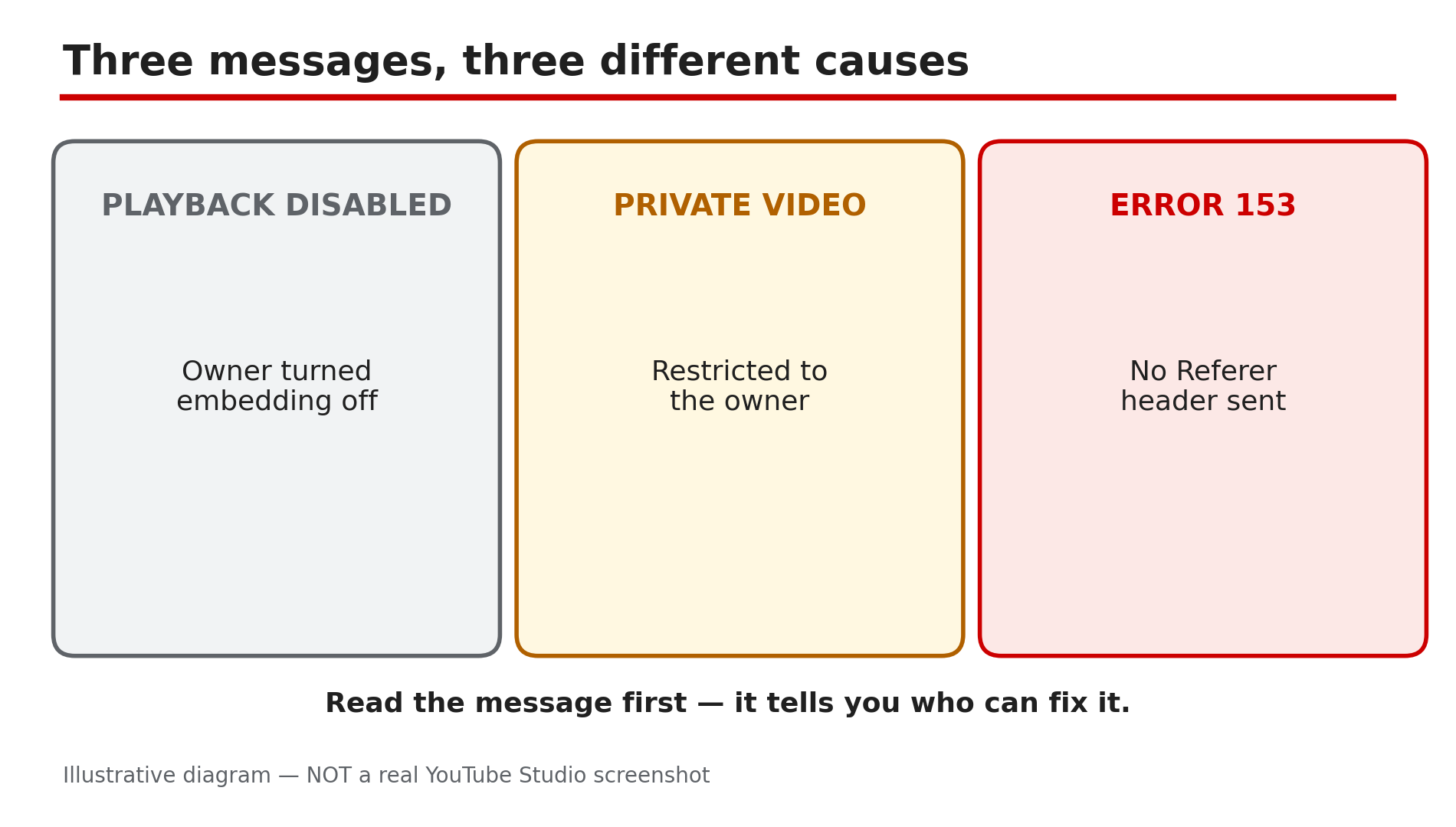
How: If the player says “Playback on other websites has been disabled by the video owner”, the owner turned embedding off — only the owner can change it. If it says the video is private, it is restricted to the owner and invited viewers. If it says the video is unavailable in your country, the rights holder has blocked it in your region. If it shows “error 153”, YouTube’s Help page says the embed request arrived without an HTTP Referer header — a website problem, covered in Step 6.
Example: A blogger embeds a tutorial and sees the “disabled by the video owner” message. She emails the owner, who switches the setting on — the same embed code works that day.
Common mistake: Rebuilding the embed code before reading the message. The words on the player already tell you who can fix it.
Illustrative diagram: three embed error messages and what each one means.
Step 2 — Check the owner’s embed setting: Studio > Content > Details > Show More > Allow embedding
What to do: If you own the video, confirm “Allow embedding” is ticked — the most common cause of this error.
How: YouTube’s Help page gives the exact path: in YouTube Studio, open Content, click Details next to the video, select Show More at the bottom, then tick “Allow embedding” under Distribution and click Save. The setting is per video, not channel-wide, so a video you uploaded last year can have embedding off while a new one has it on. If you are not the owner, you cannot change this — ask the owner, or pick a different video that allows embedding.
Example: A creator embeds his own older video on his course website and it refuses to play. In Details he finds “Allow embedding” unticked on that one video — his upload defaults had changed since he made it. He ticks it, saves, and the embed works.
Common mistake: Looking for the setting under Channel settings or in the YouTube app. It lives on each video’s Details page under Show More — use a computer browser.
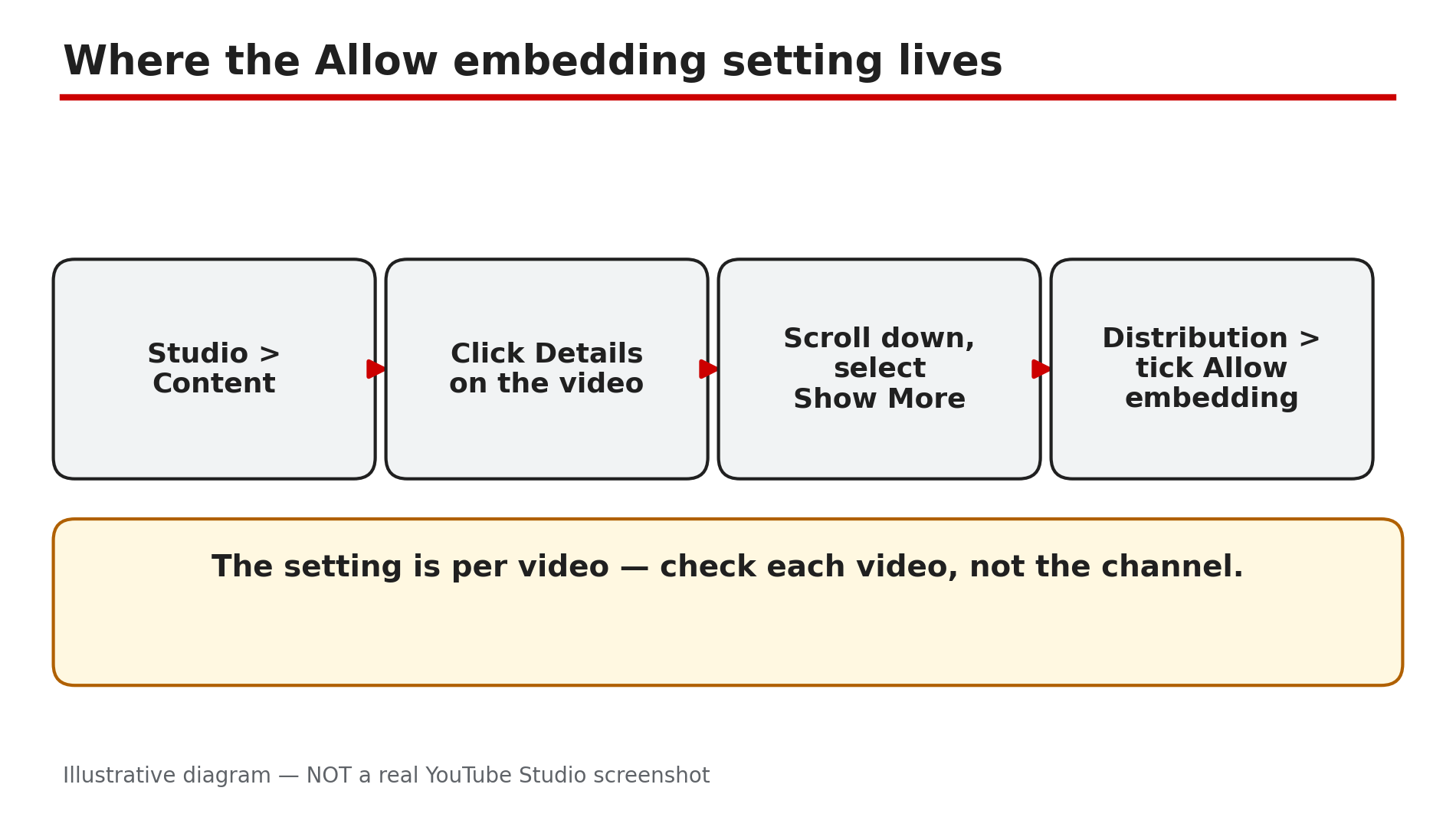
Illustrative mock-up: the four steps to find the Allow embedding setting in YouTube Studio.
Step 3 — Check privacy: a private video can never be embedded, an unlisted one can
What to do: Confirm the video is Public or Unlisted, because Private is a hard stop for embeds.
How: A private video can only be watched by the owner and the people the owner chose, and it cannot be embedded on any website. An unlisted video can be embedded as long as embedding is switched on in Step 2: anyone with the link or the embed can watch it, even though it never appears in search or on the channel page. So if your embed shows a private-video message, change the video to Unlisted or Public in Studio — do not touch the website.
Example: A teacher embeds a lesson video on a class page and it shows as private — she had uploaded it as Private for review and forgotten to change it. Switching it to Unlisted makes the class page work.
Common mistake: Assuming Unlisted means “not embeddable”. It only hides the video from search and the channel page; with embedding on, it plays on any site.
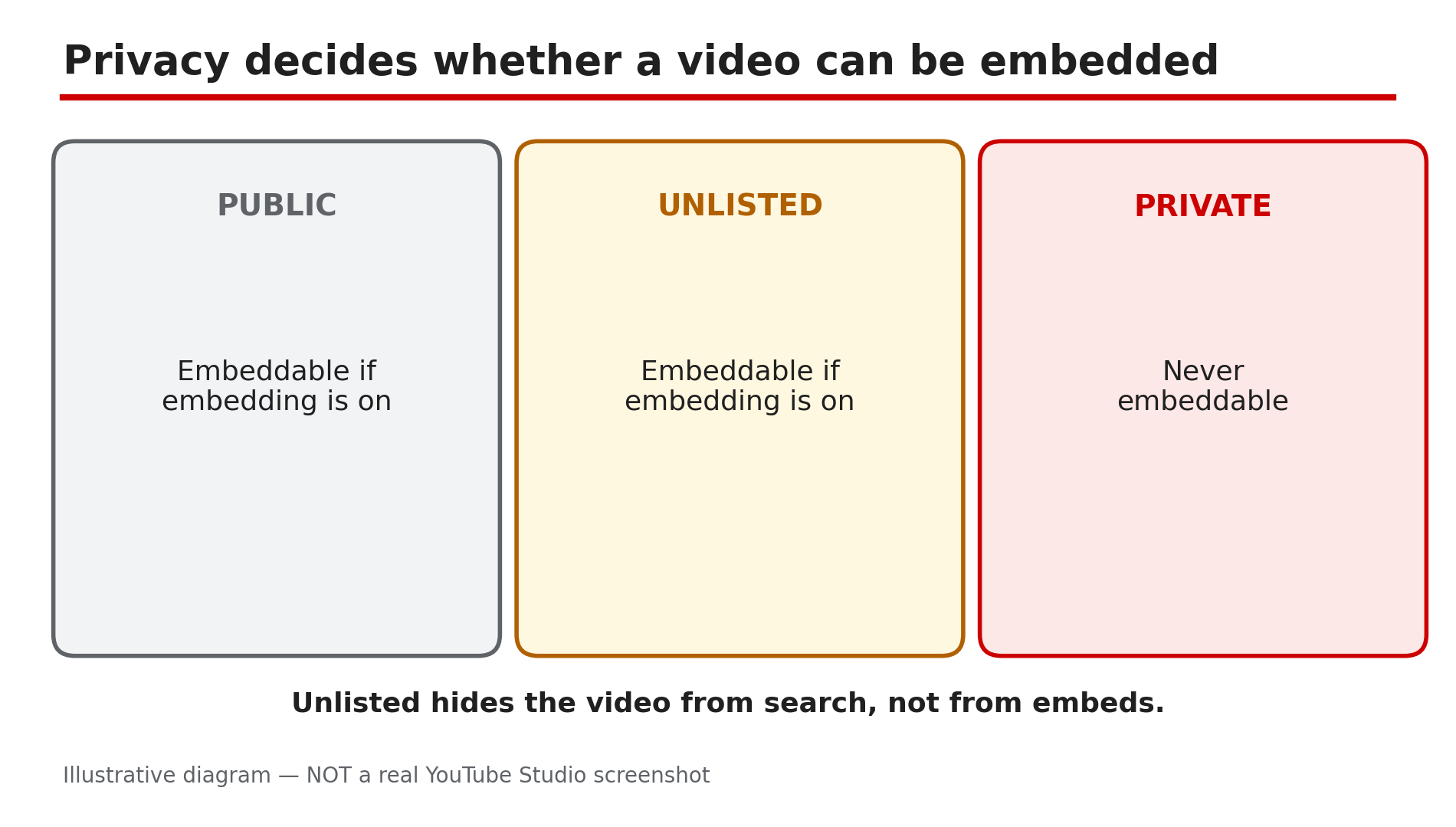
Illustrative diagram: how a video’s privacy setting decides whether it can be embedded.
Step 4 — Check restrictions: age limits, region blocks and copyright claims also break embeds
What to do: Open the video in Studio and read the Restrictions column — several restrictions block playback outside YouTube even with embedding on.
How: YouTube’s Help page says age-restricted videos cannot be watched on most third-party websites — they redirect viewers back to YouTube, where they must sign in and confirm their age. A territorial copyright block does the same for viewers in the blocked country: the embed loads, then refuses to play. A copyright claim can also restrict where a video plays. In Studio, read the Restrictions column in Content; if it shows an age restriction or a copyright claim, that is your answer.
Example: A creator embeds a music video on his blog; it plays for him but not for readers in another country. The Restrictions column shows a territorial block — the rights holder never licensed that song there, so no embed setting can fix it.
Common mistake: Telling every visitor to “just click Watch on YouTube”. That is a workaround, not a fix — signed-out visitors still cannot watch an age-restricted video there either.
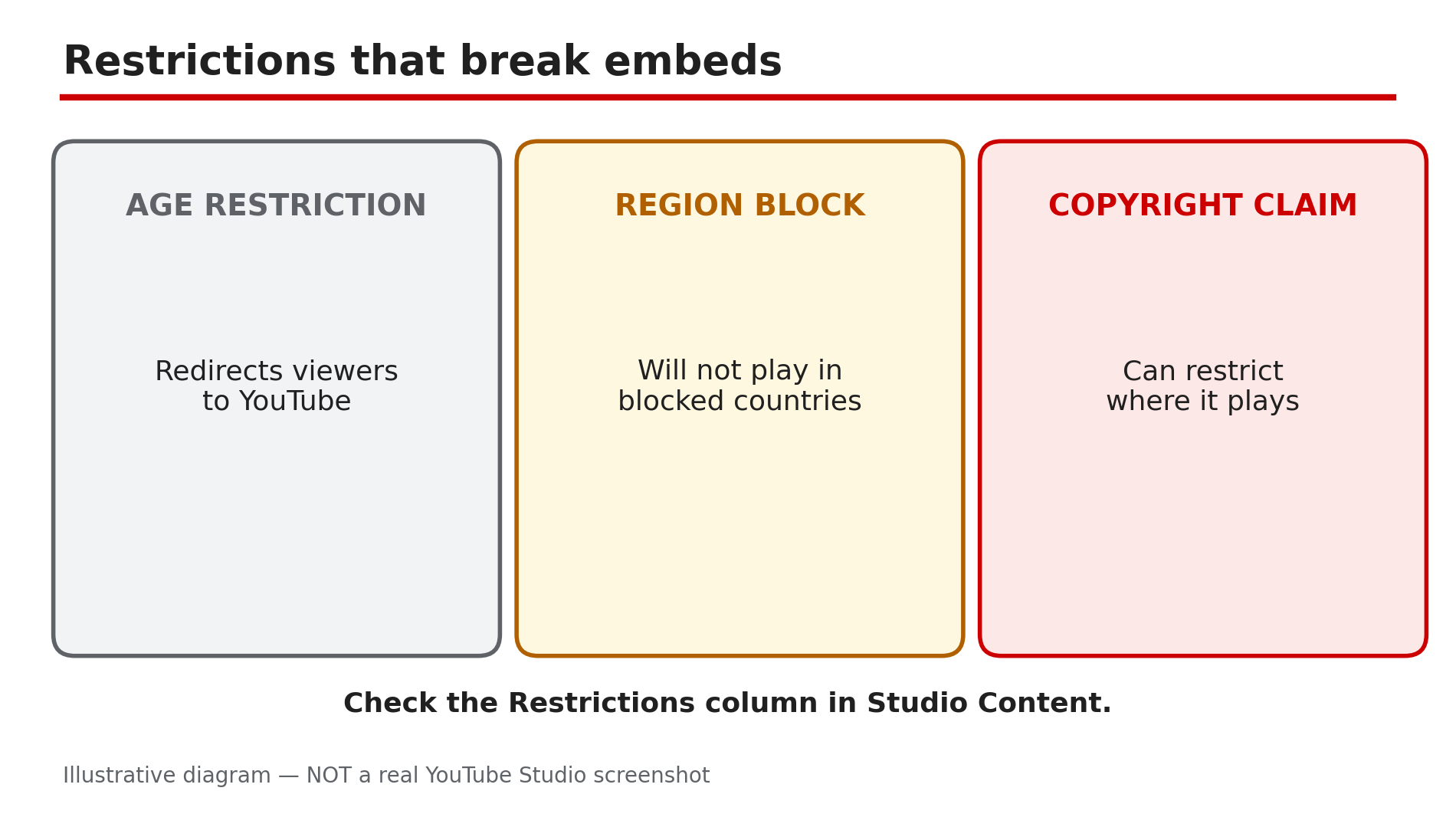
Illustrative diagram: three restrictions that stop an embedded video from playing.
Step 5 — Check Advanced Features: newer channels may have embedding restricted until verified
What to do: If embedding is on, the video is public, and there is no restriction — but the embed still fails — check whether the channel has unlocked Advanced Features.
How: As reported by third-party support guides, embedding can be restricted on newer channels until Advanced Features are unlocked — the channel has verified its phone number and built up channel history, or completed ID or video verification. This is not confirmed on YouTube’s public Help pages, so treat it as a reported cause to check: go to Studio > Settings > Channel > Feature eligibility and see whether Advanced Features shows as enabled. If it is off, complete the verification steps there, then test the embed again.
Example: A new channel embeds its own trailer on its website and gets the disabled message on every video, even though “Allow embedding” is ticked. The channel had never verified a phone number — after phone verification, embedding started working.
Common mistake: Creating a second channel to “start fresh”. A new channel has even less history — fix the verification on the channel that owns the video.
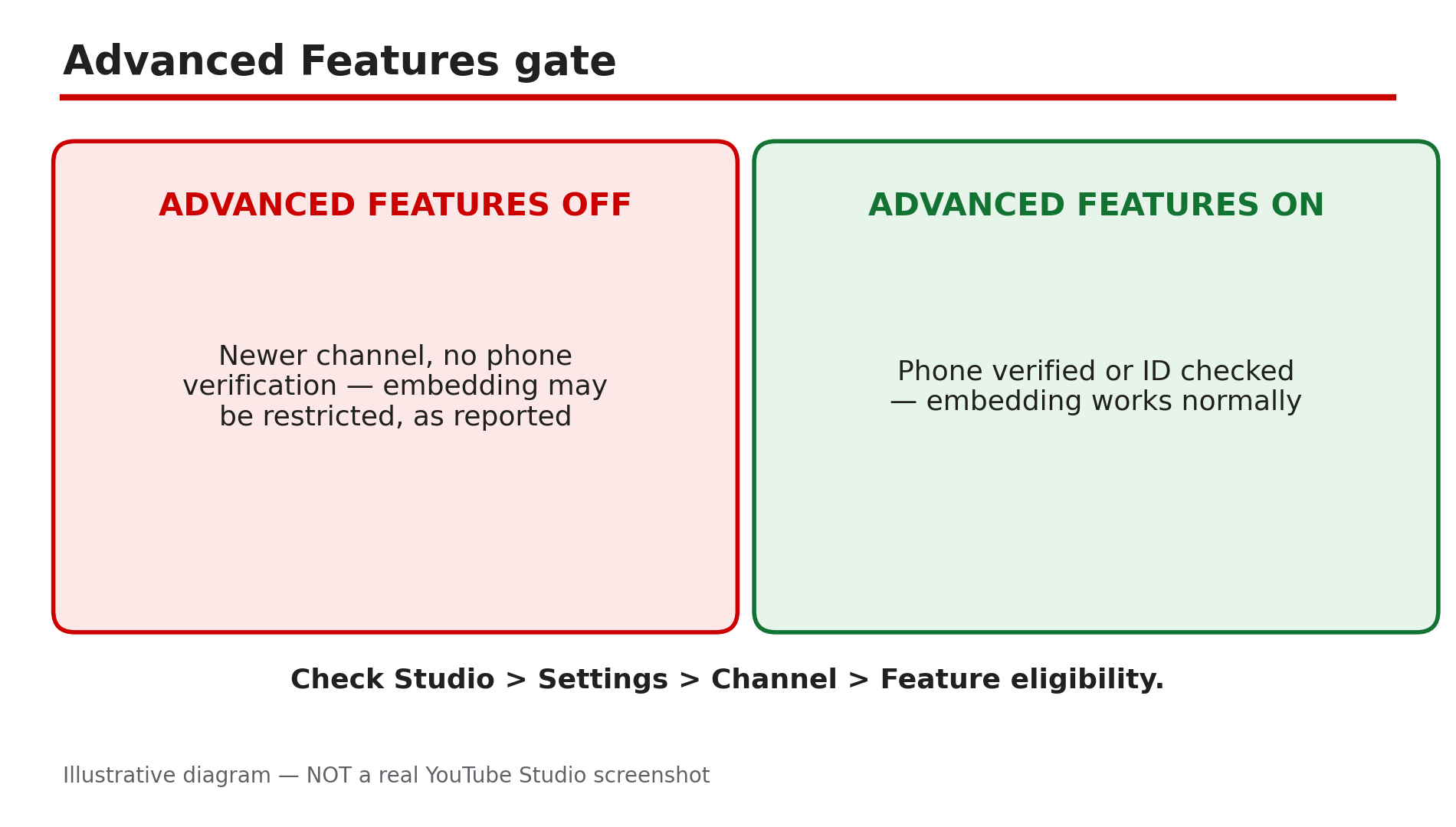
Illustrative diagram: Advanced Features may gate embedding on newer channels.
Step 6 — Website owners: use the /embed/ URL, and send a proper Referer header
What to do: If the video’s settings are all correct, fix your own embed code — use the /embed/ address and make sure your site sends a Referer.
How: The correct embed code uses youtube.com/embed/VIDEO_ID, not youtube.com/watch?v=VIDEO_ID — the Share > Embed button gives you this code, so copy it from there instead of hand-writing it. YouTube’s Help page also says its Terms of Service require embedders to provide an HTTP Referer header, and that without one viewers see “error 153” and a blocked player. A missing Referer usually means the video is being opened directly in a browser address bar, or a privacy tool is stripping it — test the embed inside a normal page.
Example: A developer tests an embed by pasting the embed URL into the browser address bar and sees error 153. The same code works inside an actual page, because the page supplies the Referer the address bar cannot.
Common mistake: Blaming YouTube for error 153. It means the request arrived with no context about where it came from — a site-side problem the video owner cannot fix.
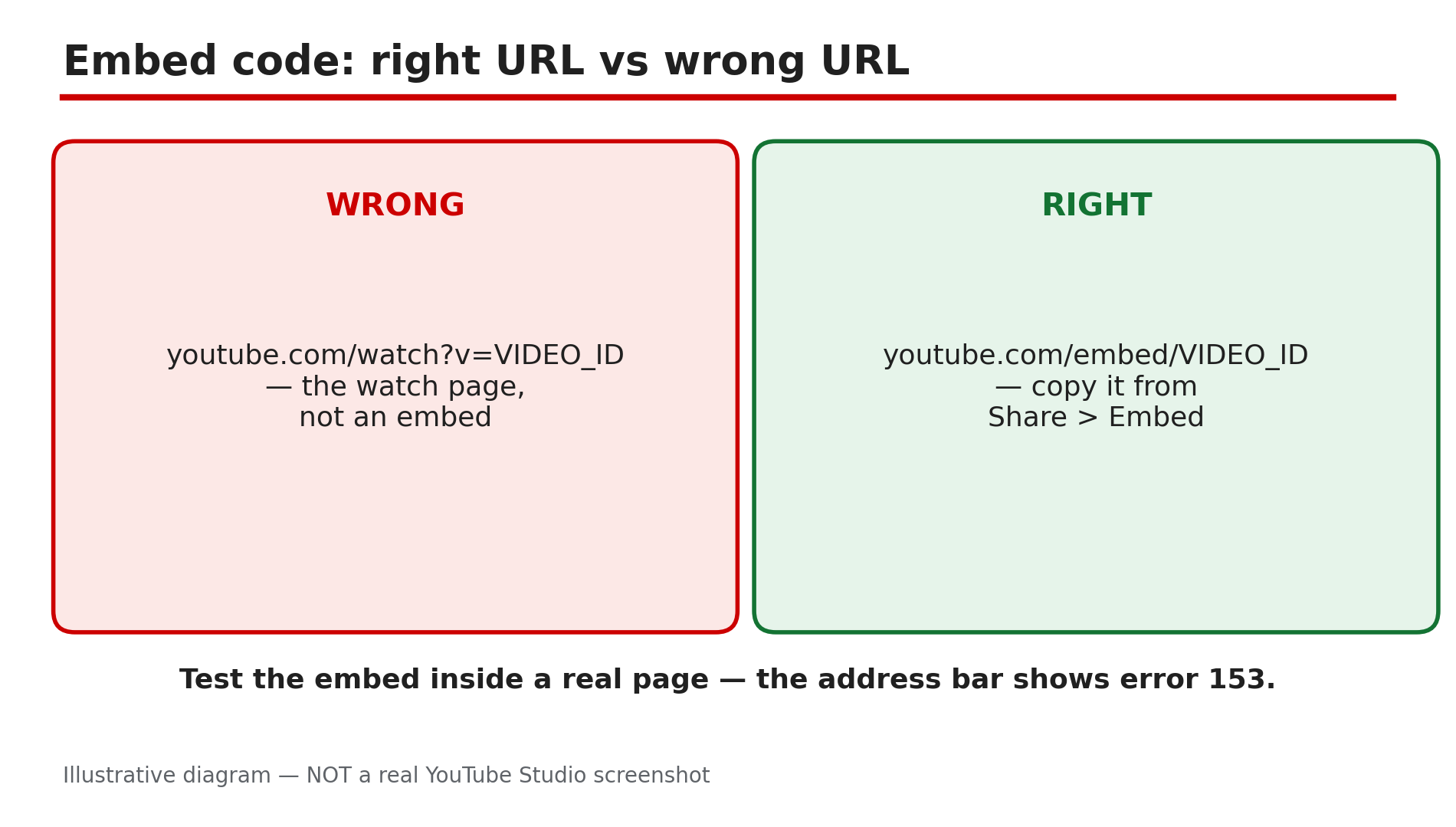
Illustrative diagram: the correct embed URL compared with the watch page URL.
Checklist — Fix an embedded video that will not play
- ☐ Read the exact message on the player before changing anything
- ☐ Confirmed “Allow embedding” is ticked in Studio > Content > Details > Show More
- ☐ Confirmed the video is Public or Unlisted, not Private
- ☐ Checked the Restrictions column for age restriction, region block or claim
- ☐ Checked Advanced Features is enabled on the channel (as reported)
- ☐ Used the /embed/ URL, not the /watch/ URL
- ☐ Tested the embed inside a real page, not the address bar
- ☐ Checked the site sends a Referer header for error 153
FAQs
1. The video plays on YouTube but not on my website — is my website broken?
Probably not. The most common cause is the owner’s “Allow embedding” setting, which only the owner can change. Check the exact message first — it tells you whether the problem is the setting, the privacy, a restriction, or your embed code.
2. Can I embed a private video on my own website?
No. Private videos cannot be embedded anywhere. Change the video to Unlisted to make it playable on a site without it appearing in search or on the channel page.
3. Can I embed an unlisted video?
Yes, as long as embedding is switched on for that video. Unlisted only hides it from search and the channel page — anyone with the link or embed code can watch it.
4. Why does the embed work for me but not for visitors in another country?
A territorial copyright block. The rights holder has blocked the video in their country, so the embed refuses to play there. No embed code can override a region block.
5. What is error 153 on an embedded video?
YouTube says the embed request arrived without an HTTP Referer header, which its Terms require. It usually appears when the embed URL is opened directly in a browser, or when a site strips the referrer.
Sources
- YouTube Help — “Embed videos & playlists” (official page, opened live 12 Nov 2026): https://support.google.com/youtube/answer/171780?hl=en
- CreatorPlaybook — “YouTube Video Unavailable? What Each Playback Error Means and How to Fix It” (internal link, URL copied from the plan file): </blog/youtube-video-unavailable-what-each>
- CreatorPlaybook — “YouTube Restricted Mode: Why Your Video Is Hidden and How to Fix It” (internal link, URL copied from the plan file): </blog/youtube-restricted-mode-why-your-video>