Showing Posts From
Youtube videos
 CreatorPlaybook Team
- 14 Nov, 2026
YouTube Audio Out of Sync — Lips Don't Match the Sound (Viewer + Creator Fix)
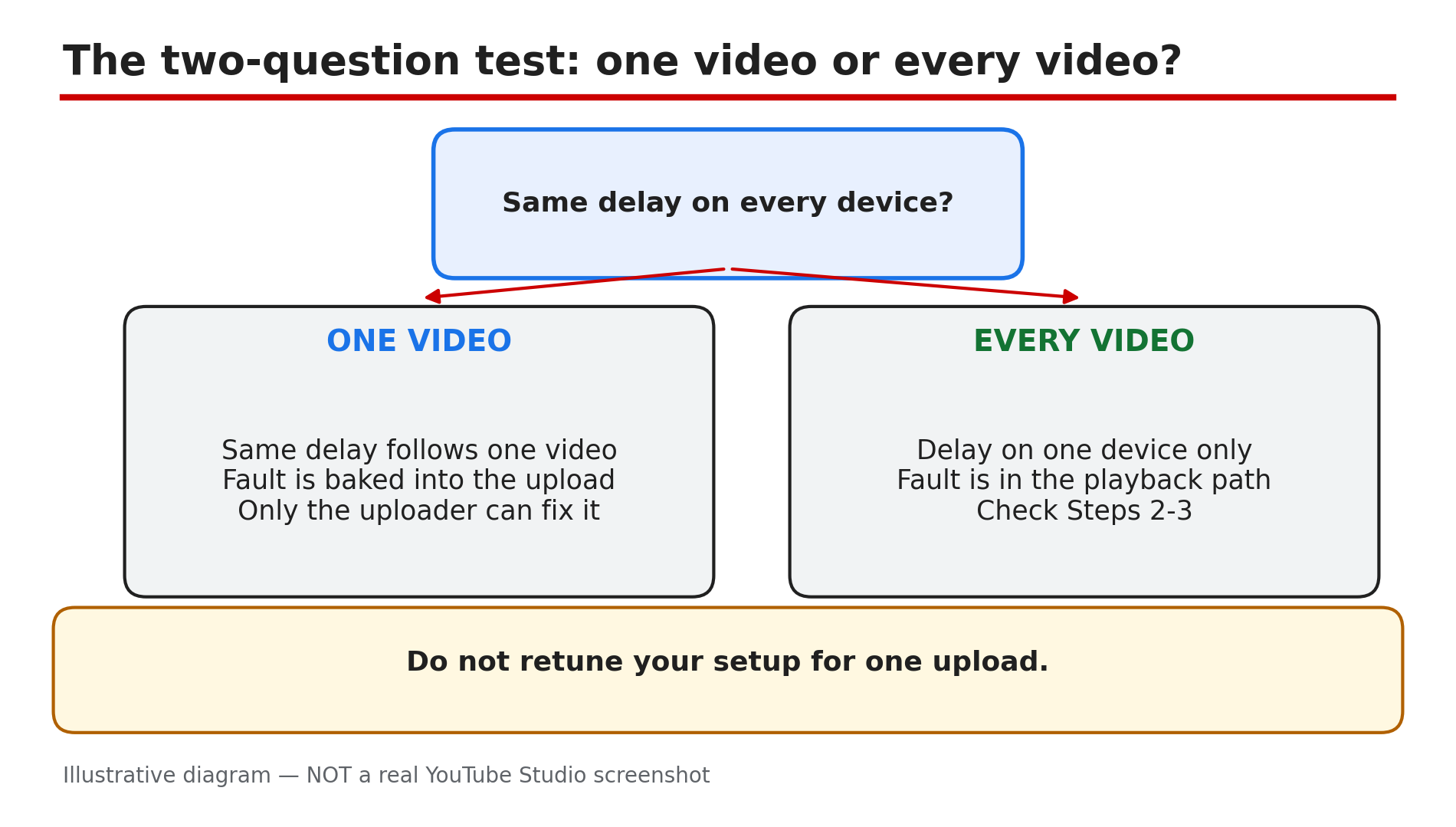
The speaker's lips move, and the words arrive a beat later — or a beat earlier. The sound is there, so this is not a video with no sound at all: the timing is wrong. One quick test tells you whether the fault is baked into the video or sitting in your own playback path, and each answer has a different fix. This guide works through both sides — what viewers can try, and what creators must fix in the file itself. What You Will LearnThe two-question test that splits a video fault from a device fault The viewer fixes to try first: reload, restart, device speakers Why Bluetooth and 5.1 surround delay the sound What YouTube Help says creators must fix How variable frame rate drifts the sound — and the re-encode fix How to fix a fixed offset in a live stream with OBSStep 1 — The two-question test: one video or every video? What to do: Play the same video on another device, and play a different video on the same device. How: If the same delay follows one video across every device — phone, laptop, TV — the fault is baked into that upload, and only the uploader can fix it, as reported. Leave a polite comment saying what is wrong and when it starts. If every video is out of sync on one device while others play fine, the fault is in the playback path — Bluetooth, 5.1 surround, or a soundbar — see Steps 2 and 3. Do not retune your whole setup for one upload. If a video has no sound at all, the checks are different — see our guide to a video with no sound. Example: A lagging tutorial shows the same lag on the viewer's phone. The upload is at fault, not his laptop. Common mistake: Changing TV settings or buying new headphones over one video.Illustrative diagram: the two-question test that splits a sync problem into one video or every video. Step 2 — Viewer fixes first: reload, restart, switch speakers What to do: Reload the video, restart the app or browser, and test with the device's own speakers. How: Reload the page first — as reported, this forces the player to re-sync the streams. On a phone, close YouTube, reopen it, update the app, and restart the phone. Try the same video in another browser: in sync there means the first browser is the suspect — check extensions and clear cached files, as reported. The decisive test is the speakers: switch from Bluetooth to the device's built-in speakers or wired headphones. Bluetooth adds a delay that looks like a sync fault and follows you from video to video, as reported. If playback also stalls, lower the quality — see our guide to a video stuck at low quality. Example: Bluetooth earbuds lag every video slightly; the phone's own speaker lines the lips and words up again. Common mistake: Applying a permanent audio delay to the whole device before checking other videos.Illustrative diagram: the five viewer fixes to try first. Step 3 — On a TV or soundbar: turn off 5.1 surround What to do: Compare the TV's own speakers with your soundbar or receiver, and test with 5.1 surround off. How: Restart the YouTube app first, then play the same video through the TV's own speakers: if only the external audio is delayed, check that device's lip-sync controls — TV sets are slower with the picture than the sound, as reported. In the regular YouTube app, turn off 5.1 surround in the player controls as a test — YouTube says it appears only for supported videos and devices, as reported. On YouTube TV: account avatar, then Settings, then 5.1 audio, and switch it off — Google's documented test for a 5.1 setup, as reported. Example: Through a soundbar, every voice lags; the TV speakers fix it, and a small lip-sync delay on the soundbar finishes the job. Common mistake: Retuning every device to suit one out-of-sync broadcast — report that broadcast instead.Illustrative diagram: comparing TV speakers with a soundbar, and testing 5.1 surround off. Step 4 — Creators: match the track lengths What to do: Open your raw video in your editor and check the tracks are the same length. How: YouTube Help treats this as an upload-side fault: "Make sure that the durations of your audio and video tracks are the same. If your audio track is shorter or longer than your video, your audio and video may not sync correctly." Open the original recording in your editor — not a YouTube download — and compare the track lengths. If one is shorter, stretch or trim it so both end together. Check from start to finish: in sync at the start but not the end means one track is a different length, as reported. No re-timing is possible on a published video, as reported — the fix is a new upload. Example: A 20-minute tutorial drifts near the end — its audio track is three seconds short. Matching the lengths and re-uploading fixes it. Common mistake: Editing the published video in Studio and expecting the drift to go away — Studio cannot re-time baked-in audio.Illustrative diagram: audio and video tracks of the same length stay in sync; a shorter audio track drifts apart. Step 5 — Creators: re-encode to a constant frame rate What to do: Re-encode the file to a constant frame rate, then upload it again. How: Phones and screen recorders write a variable frame rate to save space, as reported, and drift follows when it changes between camera and upload. In your editor, set a constant frame rate — YouTube prefers 24, 25, 30, 48, 50 or 60 frames per second — and export again. Match the audio settings too: AAC-LC, 128–256 kbps, 44100 or 48000. Watch the exported file from the start, jump to the middle, then watch the last minute — drift often shows only late. Upload the new file as a new video, and point viewers to it from the old description. Example: A creator records on a phone and every upload drifts worse toward the end; re-encoding to a constant 30 frames per second ends the drift. Common mistake: Re-uploading the same variable-frame-rate file and hoping the transcode fixes it — it cannot invent timing that was never in the upload.Illustrative diagram: variable frame rate drifts apart, constant frame rate stays in sync. Step 6 — Live streams: clap test, then fix the offset in OBS What to do: Make a short clap-test recording, then correct the offset in your encoder. How: Clap in front of the camera, speak a sentence, and watch it through wired headphones, so Bluetooth does not confuse the test, as reported. If the recording is already out of sync, fix the source timing first. If it looks right, test an unlisted stream. In OBS, open the Audio Mixer, right-click the audio source, choose Advanced Audio Properties, and find Sync Offset: if the clap is heard before the hands meet, the audio is early, and a positive Sync Offset delays it — 100 milliseconds early needs roughly 100 milliseconds of delay, as reported. If the sound comes after the hands meet, the audio is late — check for an existing offset first, and delay the video with a Render Delay filter, as reported. A delay setting only fixes a fixed offset: a growing gap means a source or clock problem — check encoder overload and driver updates, as reported. Latency is different: a stream can run seconds behind real life with correct lip sync, as reported. Example: A streamer hears her clap 150 milliseconds before her hands meet; that Sync Offset lines the stream up. Common mistake: Adding more audio delay when the sound is already late — that makes the problem worse.Illustrative diagram: the clap-test flow — find the offset, set it in OBS, then re-test. Checklist — Fix YouTube audio out of sync☐ Same video on another device; a different video on this device ☐ Reloaded the video and restarted the app or browser ☐ Tested the device's built-in speakers, not Bluetooth ☐ On a TV, compared TV speakers with the soundbar; tested 5.1 off ☐ Creators: audio and video track lengths match in the editor ☐ Creators: re-encoded to a constant frame rate ☐ Creators: uploaded the fixed file as a new video ☐ Streamers: clap test done; OBS Sync Offset setFAQs 1. Why is YouTube audio out of sync only on my TV? TV sets take longer over the picture than the sound, as reported, and Bluetooth or 5.1 surround adds delay. Test the TV's own speakers first, then turn 5.1 off where the option appears. 2. Can I fix out-of-sync audio on a video someone else uploaded? No. If the delay follows one video across every device, it is baked into the upload and only the uploader can fix it, as reported. Leave a comment saying what is wrong and when. 3. My video drifts more toward the end. Why? A variable frame rate, or audio and video tracks of different lengths, as reported. Re-encode to a constant frame rate, match the lengths, and upload the new file. 4. Why does the sound lag only on Bluetooth headphones? Bluetooth adds a delay that looks like a sync fault and follows you from video to video, as reported. Test with built-in speakers or wired headphones to confirm. 5. My live stream starts in sync, then drifts. Will a delay fix it? No. A fixed offset is fixed with an OBS Sync Offset; a growing gap means a source or clock problem, as reported. SourcesYouTube Help — "Troubleshoot audio or video issues with uploads on YouTube" (official source, opened live 14 Nov 2026): http://support.google.com/youtube/answer/58134?hl=en-GB CreatorPlaybook — "YouTube Video Has No Sound? Fix Audio That Disappears (Viewer + Creator Guide)" (topic 108): </blog/youtube-video-no-sound-audio-disappears> CreatorPlaybook — "YouTube Video Stuck at Low Quality? Why 1080p or 4K Is Missing and How to Fix It" (topic 72): </blog/youtube-video-stuck-at-low-quality-why>
- CreatorPlaybook Team
- 14 Nov, 2026
Your Vertical Video Uploaded as a Short (or Won't Upload as a Short) — the 3-Minute Rule
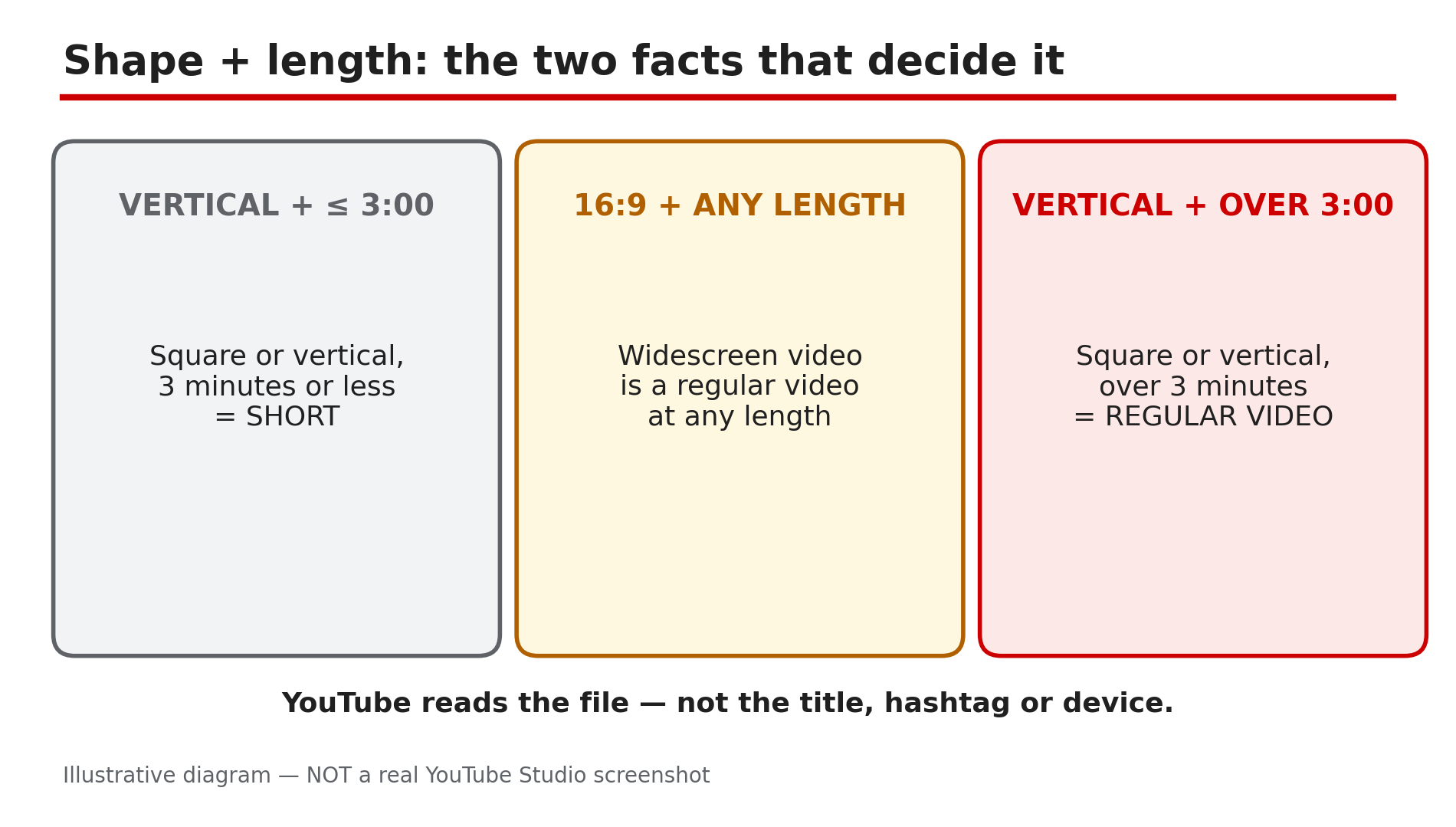
You filmed a two-minute vertical tutorial, expecting a regular video — and YouTube filed it as a Short. Or the opposite: you cut a vertical clip for the Shorts feed, and it shows up as a long-form video. The upload page never asked. YouTube never asks whether an upload is a Short. It decides from the file alone — its shape and its length — as reported on YouTube's Help pages. A square or vertical video of three minutes or less, uploaded on or after 15 October 2024, is a Short. Everything else is a regular video. No hashtag or Studio toggle changes that. What You Will LearnThe exact rule that decides whether an upload is a Short Why a PC upload still becomes a Short How to keep a short vertical video long-form: the 16:9 frame When making it longer than three minutes is the right fix Why a video that should be a Short stays long-form Why older vertical videos stay long-form, and the claim trap over 1 minuteStep 1 — Check the file's shape and length: the two facts that decide everything What to do: Check two facts about your exported file: its aspect ratio and its exact duration. How: YouTube's Help page on three-minute Shorts states the rule, as reported: videos uploaded on or after 15 October 2024 "with a square or vertical aspect ratio up to three minutes in length will be categorized as Shorts on YouTube." Shape: square or vertical counts; 16:9 does not. Length: three minutes or less counts; over does not. Check the file's properties, not the editor preview. Example: A creator exports a 2:45 vertical explainer at 1080x1920 and uploads it. It lands in the Shorts feed — the file matched both conditions. Common mistake: Assuming the upload device matters. The classification runs on the file, not the device, as reported.Illustrative diagram: the two facts — shape and length — that decide whether an upload is a Short. Step 2 — If you wanted long-form, put the vertical clip in a 16:9 frame What to do: To keep a short vertical video out of Shorts, export it inside a 16:9 frame. How: YouTube's own advice is direct, as reported: "If you don't want your content to be classified as Shorts, use a wider aspect ratio such as 16:9 for long-form videos." Create a 1920x1080 project, drop the vertical clip in, and fill the sides — black bars work, or a blurred copy of the clip behind it. Export the 16:9 file and upload that. Check on-screen text is still readable: your subject now fills only the middle third of a TV. Example: A creator's 2:20 vertical cooking tutorial keeps landing in the Shorts feed. She re-exports it in a 1920x1080 sequence with a blurred background — it appears as a regular video. Common mistake: Adding or removing "#Shorts" and expecting a change. The hashtag decides nothing, as reported.Illustrative diagram: the same clip as a vertical file becomes a Short, but inside a 16:9 frame it stays a regular video. Step 3 — If you wanted long-form, make the video longer than three minutes — only if there is real content to add What to do: If the content genuinely runs longer, extend it past three minutes. How: A vertical or square video over three minutes is a regular video under the rule, whatever its shape. If your tutorial has a cut step or section, add it back and let the video run to 3:15 or 3:30. Only do this with real content: padding a 2:50 clip with ten seconds of nothing gives viewers a reason to leave. The 16:9 frame from Step 2 is usually better for a searchable tutorial. Confirm in Studio that the upload appears as a regular video. Example: A creator's vertical repair guide runs 2:55 and lands as a Short. He restores the section he cut, the video becomes 3:25, and the re-upload is a regular video. Common mistake: Looping the ending to push past three minutes. Add real content, or use the 16:9 frame.Illustrative diagram: a 2:50 vertical video is a Short, while a 3:25 vertical video is a regular video — the 3:00 line decides it. Step 4 — Your vertical video won't become a Short: check the length, the export dimensions, and the black bars What to do: If you wanted a Short and YouTube treated it as a regular video, check the same three conditions — length, shape, and the real export dimensions. How: First, length: three minutes or under — editors often add a fraction of a second, so a 3:04 export is over the line. Aim for 2:55 or under. Second, shape: it must be square or vertical. Third, check the export dimensions, not the preview: a vertical clip exported from a 16:9 project with black bars is a 16:9 file to YouTube. Confirm the width is smaller than the height: 1080x1920, not 1920x1080. Example: A creator cuts a vertical clip in a 16:9 project and uploads it — it appears as a regular video. The file is 1920x1080. Re-exporting from a 9:16 sequence fixes it. Common mistake: Judging the shape from the editor preview. YouTube reads the file, not the picture.Illustrative diagram: three checks when a vertical video won't become a Short — length, export dimensions, and black bars. Step 5 — Check the upload date: videos uploaded before 15 October 2024 stay long-form What to do: If an older vertical video never became a Short, check its upload date — the rule is not retroactive. How: YouTube's Help page says videos uploaded before 15 October 2024 "will remain the same, as a long-form video on YouTube," as reported. A vertical video posted in 2023 is still a regular video; the same file uploaded today becomes a Short. For Official Artist Channels the switch came later: uploads on or after 8 December 2025 are Shorts, earlier ones stay long-form, as reported. No detail edit can reclassify an old upload. To put that content in the Shorts feed, upload it again — but a re-upload starts with zero views. Example: A vertical 2:10 video from 2023 sits in a creator's long-form list. It was uploaded before 15 October 2024, so it stays long-form, as reported. Common mistake: Editing the title or tags of an old video and expecting it to flip into a Short.Illustrative diagram: timeline of the 3-minute rule — before 15 Oct 2024, 15 Oct 2024, and 8 Dec 2025 for Official Artist Channels. Step 6 — Watch the claim trap: a Short over one minute with an active claim is blocked worldwide, as reported What to do: Before building a Short over one minute on claimed music, check the claim rules — and the Copyright tab in Studio after uploading. How: YouTube's Help page states, as reported, that any Short over one minute with an active copyright claim of any type, "will be blocked globally on YouTube. The video will not be playable or recommended on YouTube, and will not be eligible for monetization." There are no penalties to your channel, as reported, and once the claim is resolved the Short becomes viewable again. Remove the claimed content or dispute the claim — confirm the options in Studio. A third-party guide reports a possible September 2026 change; it could not be confirmed on the official Help page in this run, so treat the block as the rule. This trap only bites over one minute: as reported, Shorts under one minute are unaffected, so keeping a Short built on claimed music to 60 seconds or under avoids the block. Example: A creator posts a 2:30 Short using a popular song, and it shows zero views. The Copyright tab shows an active claim — the Short is blocked worldwide, as reported. Common mistake: Assuming a claim only takes the revenue. Over one minute, it can block the video entirely.Illustrative diagram: a Short with an active copyright claim — under 1 minute it stays up, over 1 minute it is blocked worldwide. Checklist — Fix a vertical video that uploaded as a Short (or won't upload as one)☐ Checked the file's dimensions and duration, not the editor preview ☐ Confirmed the rule: square/vertical, 3:00 or under, on/after 15 Oct 2024 = Short ☐ To stay long-form: re-exported in a 1920x1080 frame, sides filled ☐ Or extended it past 3:00 with real content ☐ Checked the upload date — pre-15 Oct 2024 stays long-form ☐ Checked the Copyright tab if a Short over 1 minute has no views ☐ Confirmed in Studio the re-upload is in the right placeFAQs 1. Is there a setting in YouTube Studio to upload a vertical video as a regular video? No, as reported: YouTube Help lists only the aspect ratio and the length, and the upload page has no toggle. 2. Why did my video upload as a Short when I uploaded it from my PC? Because YouTube classifies the file, not the device, as reported. Any square or vertical video up to three minutes long becomes a Short. 3. Why is my vertical video not being treated as a Short? Check that the exported file is three minutes or under and its dimensions are actually square or vertical, as reported. A vertical picture exported with black bars is a 16:9 file. Shorts upload at a maximum of 1080p, as reported. 4. Will my older vertical videos turn into Shorts now? No, as reported. Videos uploaded before 15 October 2024 remain long-form; for Official Artist Channels the cut-off is 8 December 2025. 5. Can a copyright claim block my Short completely? Yes, as reported: a Short over one minute with an active copyright claim is blocked globally — not playable, not recommended, not eligible for monetization. Shorts under one minute are not affected. Remove the claimed content or dispute it, and confirm the wording in Studio. SourcesYouTube Help — "Understand three-minute YouTube Shorts" (official source, opened live 14 Nov 2026): https://support.google.com/youtube/answer/15424877 CreatorPlaybook — "YouTube Shorts Music Disappeared or Muted? Why It Happens and How to Fix It" (internal link, URL supplied in the task brief): </blog/youtube-shorts-music-disappeared-or> CreatorPlaybook — "YouTube Shorts Custom Thumbnail Not Showing? How to Fix It" (internal link, URL supplied in the task brief): </blog/youtube-shorts-custom-thumbnail-not>
- CreatorPlaybook Team
- 13 Nov, 2026
YouTube Video Has No Sound? Fix Audio That Disappears (Viewer + Creator Guide)
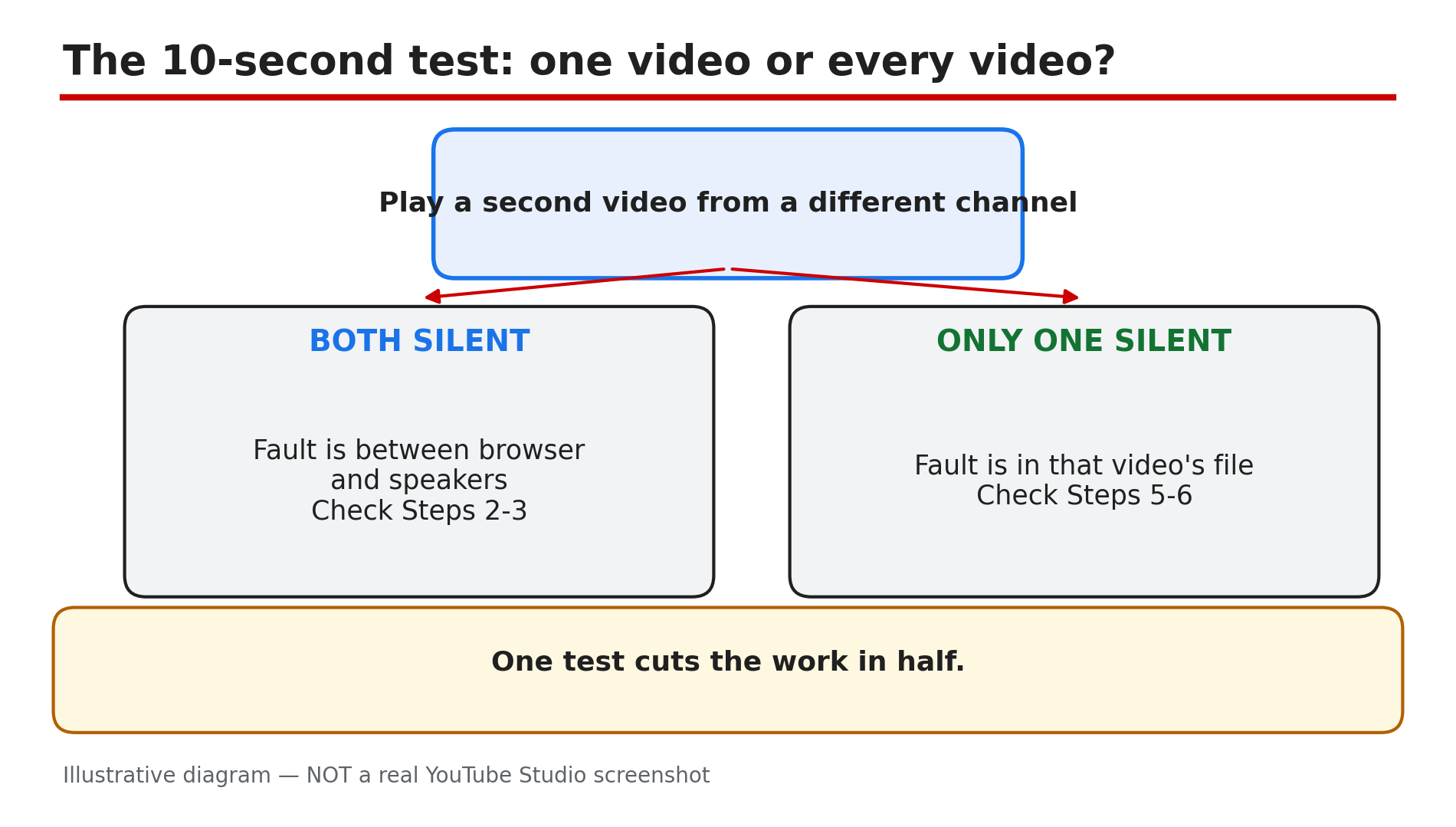
You press play, the picture moves, the lips move — and there is no sound. The cause can sit anywhere between the video file and your speakers: a muted player, a muted tab, an extension, a bad export, a copyright claim, or — since October 2026 — a reported app bug that kills the audio when the player drops out of full-screen. This guide works through them in order. What You Will LearnThe 10-second test that splits the problem in half The five device settings that silence every video How to test whether an extension is in the audio path The reported October 2026 mini-player bug — and the app fixes to try first Why an upload can arrive with picture and no sound What to do when a copyright claim muted the trackStep 1 — Play a second video from a different channel: the test that splits the problem in half What to do: Before you change a single setting, open a second video from a different channel and play it. How: If both are silent, neither file is at fault — the problem sits between the browser and your speakers, so work through Steps 2 and 3. If the second video plays with sound, the first file is the suspect — see Steps 5 and 6. Ask someone else to open the same link too: silent for them as well means the fault is in the video. One test cuts the work in half — people reinstall drivers for an hour over a video silent for every viewer on earth, as the Tribute guide puts it. Example: A viewer restarts his laptop over a silent tutorial, then opens a music video from another channel — it plays fine. The tutorial's track was the problem. Common mistake: Reinstalling drivers or resetting the browser before testing a second video.Illustrative diagram: the 10-second test that splits a no-sound problem in half. Step 2 — Check the five device settings: player, tab, output, app mixer, extension What to do: Work through the five settings on your own device, in order. How: 1. Player volume — hover the speaker icon in the player; it remembers a muted state between sessions. 2. Browser tab — each browser mutes one tab at a time, and the tab keeps that state after a reload. 3. Output device — a laptop paired with a speaker in another room plays the sound where you cannot hear it. 4. App mixer — Windows holds a level per application, so the browser can sit at zero. 5. Extension — ad blockers and volume boosters sit in the audio path; Step 3. Example: A viewer hears nothing on YouTube but Spotify plays loudly — in the Volume Mixer her browser is at zero. One slider fixes it. Common mistake: Turning the system volume up and assuming the player is fine — the player, the tab and the app each have their own volume.Illustrative diagram: the five device settings that can silence every YouTube video. Step 3 — Test in a private window with extensions off: the extension in the audio path What to do: Open the same video in a private (incognito) window with extensions off. How: Ad blockers and volume boosters sit in the audio path and can silence a video. A private window usually runs with extensions disabled, so if the sound returns there, an extension is the cause. Re-enable them one at a time to find the culprit. Still silent? Try another browser: sound in Safari but silence in Chrome points at the browser. Example: A viewer has no sound on any YouTube video in Chrome, but in a private window the sound is back. Disabling his volume-booster extension brings it back. Common mistake: Clearing all cookies and cache first — that wipes your sign-ins. The private-window test is faster.Illustrative diagram: testing a silent video in a private window with extensions off. Step 4 — If the app kicks you out of full-screen and the sound dies: the reported October 2026 bug What to do: If you are on the YouTube app and the video kicks you out of full-screen into the floating mini player — and the sound dies with it — try the app fixes first. How: Android Headlines reported on 2 Nov 2026 that this bug has been around since early October 2026 and affects the app on both Android and iPhone. Viewers report being thrown out of full-screen into the mini player, with the audio killed — and expanding the mini player back does not bring the sound back. First, close the video and play it again — that restores sound for some, not all. If that fails, force-stop and restart the app — that has worked for others. Google had still not responded publicly as of 1 Nov 2026, and no fix had been reported as of 13 Nov 2026 — there is no official Help page for this bug. Example: A viewer on Android sees the player drop to the mini player and the sound stop — she closes the video, reopens it, and the sound is back. Common mistake: Assuming your phone's speakers or headphones broke. If the sound died the moment the player dropped out of full-screen, it is the reported bug, not your hardware.Illustrative diagram: timeline of the reported October 2026 mini-player bug that kills audio. Step 5 — Creators: check the file before you blame the player What to do: If the video is silent for everyone, the fault is in the file — check the export before you blame YouTube. How: YouTube publishes AAC-LC audio at 48 kHz, stereo 384 kbps, as reported — a file with an unusual audio codec can arrive with picture and nothing else. Re-export from your editor, and confirm the file plays with sound on your own machine. Second, check your screen recorder: it offers microphone and system sound, and switches one of them on — a recording that caught the microphone only has no video audio. Third, check mono compatibility: a single lapel mic into a two-channel recorder puts everything on the left channel, and on a phone speaker that reads as silence. Export a centred stereo mix and test it on a phone before uploading. Example: A creator uploads a tutorial and every viewer reports silence, though it sounds fine on her computer — her recorder had captured the microphone only. Common mistake: Re-uploading the same file and hoping YouTube fixes it — the transcode cannot invent audio that was never in the upload.Illustrative diagram: three upload faults that leave a video with picture and no sound. Step 6 — Check the Copyright tab: a claim can mute the whole track What to do: Open YouTube Studio and check the Copyright tab before you blame the export. How: When a claim lands, YouTube offers Erase song, Trim out segment and Replace song — and Erase song mutes either the claimed track or every sound in the video, as reported. If your video went silent after a claim, check the Copyright tab in Studio: the claim appears there with the claimed stretch and the options. Dispute it, replace the song, or trim the segment — and if you use Erase song, confirm in Studio it removed only the claimed audio. Audio is baked into the uploaded file, so a repaired version has to go up as a new upload. The one thing you can add after publishing is an Audio Library track in the Studio editor (Content > video > Editor > Audio) — but the video must be shorter than six hours, as reported. Example: A creator's vlog goes silent overnight — the Copyright tab shows a claim on the background song, and Erase song had muted the entire audio, dialogue included. Common mistake: Using Erase song without checking what it muted — confirm the result in Studio first.Illustrative diagram: the three claim options in YouTube Studio and what Erase song can mute. Checklist — Fix a YouTube video with no sound☐ Played a second video from a different channel first ☐ Checked the player's volume — it remembers a muted state ☐ Checked the browser tab is not muted ☐ Checked the output device and the app volume mixer ☐ Tested in a private window with extensions off ☐ If the app dropped out of full-screen, reopened the video, then restarted it ☐ Creators: confirmed the file plays with sound on your own machine ☐ Checked the Copyright tab in Studio before re-uploadingFAQs 1. Why do YouTube videos have no sound in Chrome but sound fine in Safari? A muted tab or an extension in the audio path explains almost every case, as reported. Open the same link in a private window with extensions off — if the sound returns, the browser was the problem. 2. My uploaded video is silent. Can I fix it without losing the views? No. Audio is baked into the uploaded file, so a repaired version has to go up as a new upload, as reported. The only change after publishing is an Audio Library track in the Studio editor. 3. How do I tell whether a claim muted my video? Open YouTube Studio, then the Copyright tab. A claim appears there with the claimed stretch and the options — dispute it, replace the song, or trim the segment. 4. Why is the sound gone only on my phone, but fine on my computer? Check mono compatibility first: audio on one channel only can read as silence on a phone speaker while playing on a computer, as reported. Also check Bluetooth — a paired speaker in another room can look like a video fault. 5. Is the October 2026 mini-player bug fixed yet? As reported, no. Reports as of 1 Nov 2026 said the bug was still affecting users on Android and iPhone, and Google had still not responded publicly. Reopening the video or restarting the app works for some, not all. SourcesAndroid Headlines — "YouTube's Latest Bug Silences Videos and Dumps You Into the Mini Player" (primary source for the bug report, opened live 13 Nov 2026): https://www.androidheadlines.com/2026/11/youtubes-latest-bug-silences-videos-and-dumps-you-into-the-mini-player.html CreatorPlaybook — "YouTube Shorts Music Disappeared or Muted? Why It Happens and How to Fix It" (internal link, URL copied from the plan file): </blog/youtube-shorts-music-disappeared-or> CreatorPlaybook — "YouTube Video Unavailable? What Each Playback Error Means and How to Fix It" (internal link, URL copied from the plan file): </blog/youtube-video-unavailable-what-each>
- CreatorPlaybook Team
- 13 Nov, 2026
YouTube Studio Edits Not Saving? Title, Description and Tags Reverting — Fix It
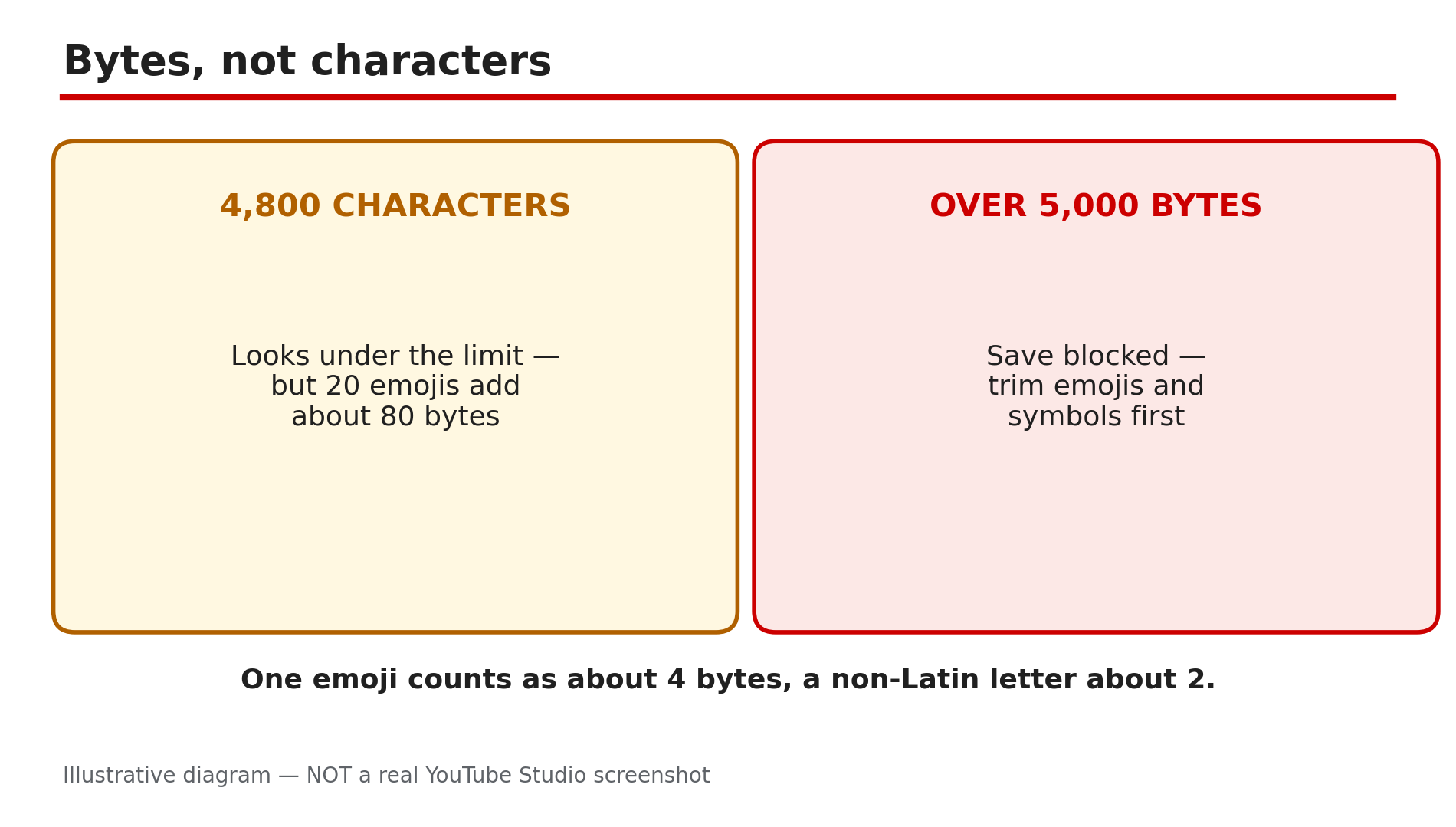
You edit a video's title or description, click Save, and an hour later the old text is back — or Save never lights up at all. Most of the time something in your text trips a rule YouTube enforces quietly, or you are editing from the one place that cannot do the job properly. Note: there is no single official Help page for "edits not saving", so claims from third-party guides are labelled as reported. What You Will LearnWhy YouTube counts descriptions in bytes, not characters Which two characters YouTube rejects, and how they sneak in from Word or Docs The 500-character tags limit, duplicate phrases, and the 60-hashtag rule Why Save stays greyed out, and what wakes it up Why the Studio mobile app loses edits, and why desktop is the fix How the wrong account, role, extension, or scheduling tool can undo your saveStep 1 — Count bytes, not characters: the description limit is 5,000 bytes What to do: Measure your description in bytes before blaming Studio. How: As reported by third-party guides, YouTube's description limit is 5,000 characters, but it is enforced as 5,000 bytes: an emoji takes about 4 bytes, a non-Latin letter about 2. Count roughly by hand: every emoji counts as four. Trim emoji chains and repeated symbols first, then try saving again. Example: A creator writes a 4,700-character description with twenty emojis. Studio refuses to save. She removes most of the emojis, and the same description saves immediately. Common mistake: Counting characters in a word processor and concluding you are under the limit. Your word processor counts letters; YouTube counts bytes.Illustrative diagram: why a description under 5,000 characters can still be over the byte limit. Step 2 — Strip the banned characters: remove every < and > and re-paste through plain text What to do: Delete every < and > from your description, then re-paste it through a plain-text editor. How: As reported by third-party guides, YouTube flat-out rejects the < and > characters in descriptions — that is HTML-tag territory, and Studio refuses to save text containing them. They almost always sneak in from pasting: Word, Google Docs, a webpage, or an old draft. Paste your description into Notepad or TextEdit, copy it back out, and paste that clean version into Studio. Then type any remaining symbols by hand, and leave < and > out entirely. Example: A creator copies a description from Google Docs, where a template used < and > around a placeholder. Studio refuses to save, with no explanation. She pastes it through Notepad, and the save works on the first try. Common mistake: Editing the same pasted text over and over in Studio. Invisible formatting survives every edit inside Studio — only plain text strips it out.Illustrative diagram: the angle bracket characters YouTube rejects in descriptions, and the plain-text fix. Step 3 — Fix the tags field: 500 characters total, no repeated phrases, and the 60-hashtag rule What to do: Shorten the tags list to fit 500 characters, remove duplicate phrases, and keep hashtags under 60. How: As reported, all the tags on a video share a 500-character budget, and the commas between tags count toward it. If your list runs over 500, Studio may reject the save with an "Invalid tags" error. Tags are also rejected when the same keyword phrase repeats: YouTube's Help guidance warns against excessive or repetitive tagging, so repeating one phrase three ways can trip the check. Keep 5 to 10 short, distinct phrases. Hashtags are a separate rule, and this one is official: YouTube's Help page on hashtags says that if a video or playlist has more than 60 hashtags, YouTube will ignore each hashtag on that content, and over-tagging may remove the video from uploads or search. Example: A creator pastes 40 tags into the field and gets "Invalid tags". She counts: 612 characters, and the phrase "gaming setup" appears four times. She cuts it to eight distinct tags, and the save goes through. Common mistake: Filling all 500 characters because the space is there. YouTube's Help page says tags play a minimal role in discovery — the title, thumbnail and description matter far more — so a long tag list buys you nothing and risks the save.Illustrative diagram: how the 500-character tags budget decides whether tags save. Step 4 — Wake up the greyed-out Save button: no change detected, or the video is still processing What to do: Make a small real change and wait for processing to finish before concluding that Save is broken. How: As reported by third-party guides, Studio keeps the Save button disabled when it detects no changes, and while the video is still processing. It is easy to trigger: retype the exact same title, and Save stays grey because nothing changed. Type one small change — add a word, then remove it — and watch the button activate. If the video is still uploading or processing, some fields stay locked until it finishes. Finish the upload first, wait for the processing indicator to clear, and then edit the description. Example: A creator opens a video's Details to fix a typo, but the typo is already fixed in the current text. Save stays grey. She adds a word, Save lights up, she removes it, and saves the real edit. Common mistake: Clicking a greyed-out Save button harder, or refreshing the page and retyping everything. A grey Save button means Studio sees no change — give it one, or wait for processing.Illustrative diagram: the two reasons the Save button stays greyed out in YouTube Studio. Step 5 — Redo the edit on desktop: the Studio mobile app has documented description problems What to do: If you edited on the Studio mobile app, redo the same edit in a desktop browser at studio.youtube.com — and do not trust the app for descriptions. How: As reported by third-party guides, the YouTube Studio mobile app has a documented description problem: in 2026, creators reported descriptions vanishing after uploads and edits, and the forum advice was to edit on studio.youtube.com in a desktop browser — if it works there, the app was the problem. YouTube itself ran a "Blank video descriptions on Mobile Devices" fix notice in mid-2026, as reported. Open a desktop browser, go to Studio, open the video's Details, make the edit, and click Save. Example: A creator updates a description on the Studio app while commuting. That evening the description is blank. She retypes it on her laptop, saves, and the description stays put. Common mistake: Repeating the same edit in the app three times and concluding YouTube is broken. If it fails in the app and works on desktop, the app was the problem.Illustrative diagram: why description edits should be redone in desktop Studio, not the mobile app. Step 6 — Check the account, the role, and the tools that can overwrite your edit What to do: Confirm the right channel and role, then check extensions, VPNs and scheduling tools. How: First, the account: as reported, only the Owner, Manager and Editor roles can edit video details. If someone invited you to a channel, check your role before retyping anything. Also check the channel switcher: with more than one channel, you can easily edit the wrong one. Second, the tools: if you stream or schedule through another app, it may apply its own global metadata and overwrite what you typed. Third, the browser: an extension, a VPN or a DNS setting can interfere with Studio's save requests, as reported, so try the edit in an incognito window with extensions off. Example: A creator's description keeps reverting every night. Her scheduling tool applies a global description template on publish, overwriting her manual edit. She turns off the template override, and the description finally stays. Common mistake: Rewriting the description yet again without asking what else touches the video. If an edit reverts on a schedule, something automated is doing it.Illustrative diagram: three things that can undo a Studio edit after you save. Checklist — Fix Studio edits that will not save☐ Description under 5,000 bytes, emojis counted as 4 each ☐ Removed every < and >, re-pasted through plain text ☐ Tags under 500 characters, no repeated phrases ☐ Hashtags under 60, all relevant to the video ☐ Made a small real change so the Save button activates ☐ Waited for upload and processing to finish before editing ☐ Redid the edit in a desktop browser, not the Studio mobile app ☐ Right channel, right role, no tool overwriting the editFAQs 1. My description keeps reverting after I save it. What is overwriting it? Usually one of two things, as reported: a streaming or scheduling app is overwriting the description with its own metadata, or you edited on the Studio mobile app and the edit never committed. Re-save on desktop Studio. 2. Why is the Save button greyed out in YouTube Studio? As reported, Save stays grey when Studio detects no changes, or while the video is still processing. Type a small change; if it is mid-processing, finish the upload first. 3. What does "Invalid tags" mean? As reported, the tags list is usually over 500 characters, commas included, or the same phrase repeats. Shorten it to a few distinct phrases and try again. 4. How many hashtags can I use in a description? YouTube's Help page says that over 60 hashtags, it will ignore each hashtag, and over-tagging may remove the video from search. Keep a few relevant ones — the first three show above the title. 5. I edited on the Studio app and the description vanished. Is it gone? The text may never have been saved, as reported by creators in 2026. Retype it in a desktop browser at studio.youtube.com, save, and reload to confirm. SourcesYouTube Help — "Find playlists & videos using hashtags" (official page, opened live 13 Nov 2026): https://support.google.com/youtube/answer/6390658?hl=en Format Studio — "Why Your YouTube Description Won't Save (5 Fixes)" (third-party guide, opened live 13 Nov 2026; the byte limit, banned characters, mobile-app reports and greyed-out Save causes in this post come from it, presented as reported): https://www.formatstudio.site/blog/why-youtube-description-wont-save.html CreatorPlaybook — "YouTube Upload Defaults: Save Time and Avoid Mistakes" (internal link, URL copied from the plan file): </blog/youtube-upload-defaults-save-time-and>
- CreatorPlaybook Team
- 13 Nov, 2026
YouTube Branding Watermark Not Showing? Fix It and Stop Chasing the Hover Subscribe Button
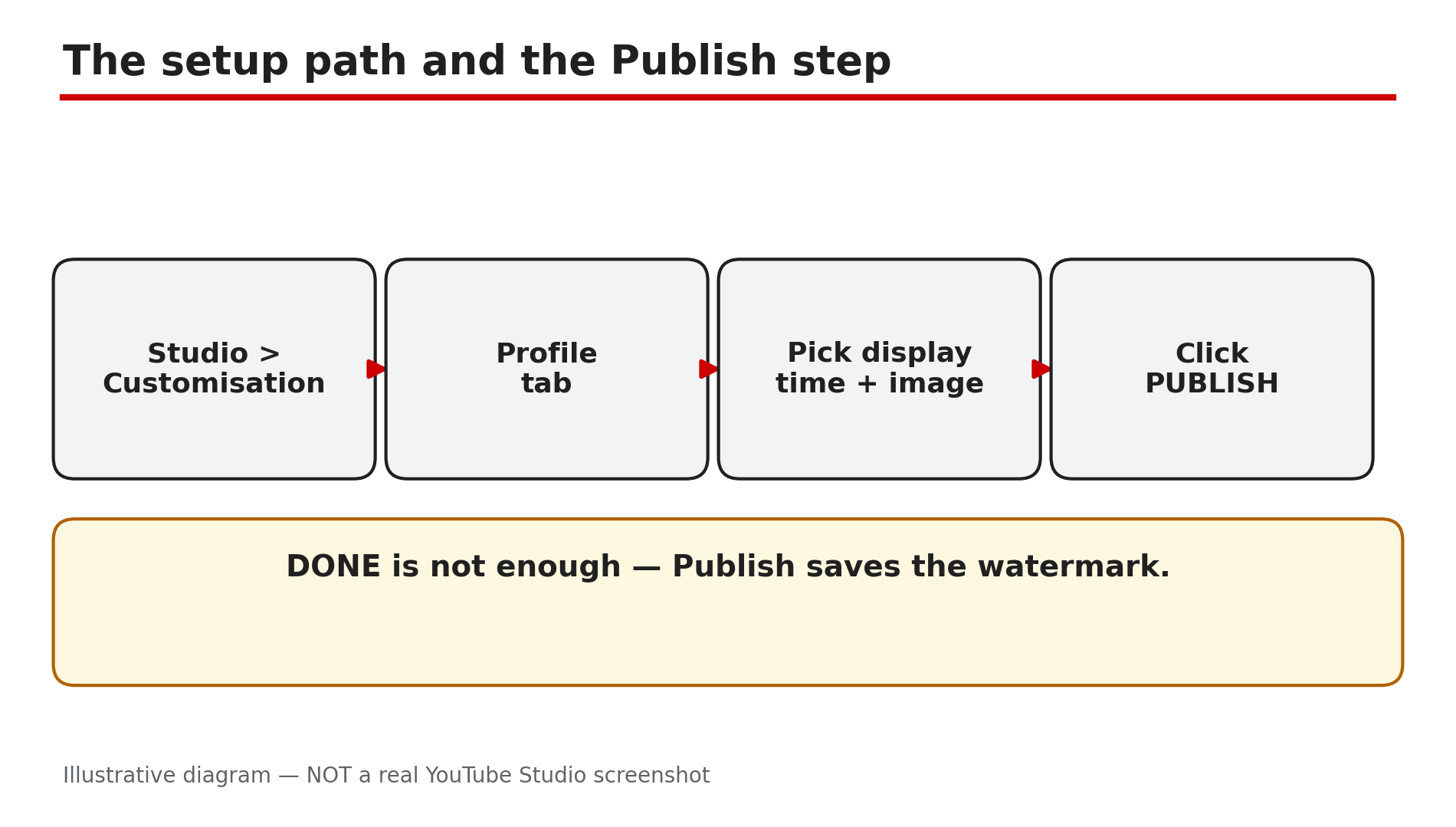
You set a branding watermark — the small channel logo in the corner of your videos — and then you watch your own video and it is not there. Or you hover over the corner expecting a Subscribe button to pop up, and nothing happens. Most watermark problems have a small set of causes — and one is not a problem at all: YouTube removed the desktop hover-to-subscribe button in 2025. What You Will LearnWhere the watermark setting lives, and the Publish step people skip The image rules: square, at least 150 x 150 pixels, under 1 MB How long to wait before deciding the watermark is broken Why Made for Kids videos never show a watermark Where it does and does not appear: mobile, embeds, chromeless players What YouTube removed in September 2025 — and what to use insteadStep 1 — Check the watermark is set up — and that you clicked Publish What to do: Open the watermark setting in Studio and confirm the image is there, a display time is chosen, and you clicked Publish. How: YouTube's Help page gives the path: sign in to YouTube Studio, select Customisation, then Profile, choose a display time — end of video (last 15 seconds), a custom start time, or the entire video — click CHANGE, pick your image, click DONE, then click PUBLISH. That last click is the one people miss: changing the image and closing the page does not save it. Example: A creator uploads a new logo, picks "Entire video", closes the tab, and checks a video — no watermark. She re-uploads it, clicks Publish, and the watermark appears. Common mistake: Looking for the watermark under video settings or in the YouTube app. It is channel-wide, under Customisation, set in Studio on a computer.Illustrative mock-up: the four steps to set a video watermark in YouTube Studio. Step 2 — Check the image: square, at least 150 x 150 pixels, under 1 MB What to do: Confirm your image meets YouTube's watermark rules before blaming anything else. How: YouTube's Help page lists the rules plainly: the watermark must be a square image, at least 150 x 150 pixels, and less than 1 MB in size. A rectangular logo will not work as uploaded — crop it to a square first, or put it on a square transparent background. A file over 1 MB will not save. Keep the design simple: a watermark sits small in a video corner, so fine detail and thin text turn into a smudge. Example: A gaming channel uploads a wide banner-style logo as its watermark and nothing shows — the image is 1200 x 300 pixels, not square. She crops it to a 500 x 500 pixel square PNG under 1 MB, uploads it, clicks Publish, and it appears. Common mistake: Uploading the channel banner as the watermark. The banner is 16:9 and the watermark must be square — different images for different jobs.Illustrative diagram: the three image rules for a YouTube video watermark. Step 3 — Wait: allow up to 12 to 24 hours for the watermark to appear What to do: After a correct setup and Publish, wait before changing anything again. How: A new or changed watermark does not always appear instantly on every video. As reported by creator guides, allow up to 12 to 24 hours for the change to propagate across YouTube. If you keep re-uploading the image every ten minutes, you restart the wait each time and never learn whether the first upload worked. Make one correct change, click Publish once, and leave it alone for a day. Example: A creator sets a watermark at noon, checks a video at 12:15 and sees nothing, then deletes it and uploads a different file. By evening, neither image shows reliably. She sets it once more, clicks Publish, and by morning it is on every video. Common mistake: Treating a watermark that has not appeared yet as one that will never appear. Ten minutes is not a test — a day is.Illustrative diagram: how long a new watermark can take to appear everywhere. Step 4 — Check the video: Made for Kids videos never show a watermark What to do: Open the video in Studio and check its Audience setting — if it is Made for Kids, the watermark is switched off by design. How: YouTube's Help page states it directly: video watermarks are not available on videos set as Made for Kids, and if a video that previously showed a watermark is later set as Made for Kids, viewers will not see it. This is not a bug and no setting overrides it. To check, open the video's Details in Studio and look at Audience. If the setting is wrong — a video for adults marked as Made for Kids by mistake — change it to "No, it's not made for kids" and save. Example: A creator notices the watermark on all her videos except one, which YouTube's classifier marked Made for Kids. She corrects the Audience setting, and the watermark comes back. Common mistake: Re-uploading the watermark or the video when one video is affected. One video missing a watermark while the rest show it points at that video's settings, not the channel-wide watermark.Illustrative diagram: how the Made for Kids setting affects the video watermark. Step 5 — Check where you are looking: mobile, embeds and chromeless players hide it What to do: Test the watermark on a desktop browser in landscape, and compare with where you first noticed it missing. How: YouTube's Help page says the channel watermark is available in landscape view on computers and mobile devices, and that it is not clickable on mobile. It also says channel watermarks do not show on custom chromeless players or Adobe Flash. So if you watch on a phone held upright, in a small embedded player, or inside an app using a chromeless player, the watermark may be invisible or unclickable — expected behaviour, not a fault. Example: A creator checks his video on his phone in portrait mode and sees no watermark. On his laptop the watermark sits in the corner of the same video. Nothing is broken — the portrait player simply does not show it the way the desktop player does. Common mistake: Testing on one device in one orientation and concluding the watermark is gone everywhere. Confirm on desktop before changing the setting.Illustrative diagram: where the channel watermark appears and where it does not. Step 6 — Stop waiting for the hover-to-subscribe button: YouTube removed it in September 2025 What to do: Accept that hovering over the watermark on desktop no longer shows a Subscribe button — and move your subscribe ask to places that still work. How: In an announcement dated 24 September 2025, YouTube said it was removing the Subscribe button that appears when you hover your cursor over a video's branded watermark on desktop. A Subscribe button already sits directly below the video player, so the extra button was removed to simplify the viewing experience, and less than 0.05% of all channel subscriptions came from the hover-to-subscribe feature. The announcement also said clearly: you can still add both end screens and watermarks to videos — the watermark itself is not removed, only the hover button is. Example: A creator hovers over the watermark, sees no Subscribe button, and spends an hour re-uploading the watermark and changing browsers. Then she reads the September 2025 announcement: the button is gone for everyone. Common mistake: Treating the missing hover button as proof the watermark is broken. The watermark's job now is branding — a small logo in the corner. Use an end screen, a pinned comment, or a spoken call to action instead.Illustrative diagram: the hover-to-subscribe button was removed in September 2025, but the watermark itself remains. Checklist — Fix a branding watermark that is not showing☐ Watermark set in Studio > Customisation > Profile, with a display time chosen ☐ Clicked Publish — not just DONE ☐ Image is square, at least 150 x 150 pixels, under 1 MB ☐ Waited up to 12 to 24 hours after publishing before changing it again ☐ Checked the video is not set as Made for Kids ☐ Tested on a desktop browser in landscape, not only on a phone ☐ Checked the video is not playing in a chromeless embedded player ☐ No longer expecting the hover-to-subscribe buttonFAQs 1. I set the watermark and clicked Publish, but it is still not showing. What now? Wait up to 12 to 24 hours, as reported, and test on a desktop browser. If it is still missing after a day, re-open Customisation > Profile — if the field is empty, the setting never saved, so set it again and click Publish. 2. Does the watermark show on every video? It shows channel-wide, with one big exception: videos set as Made for Kids never show it. It also may not appear in chromeless embedded players, and it is not clickable on mobile. 3. Can viewers still subscribe by clicking the watermark? No — not since September 2025. YouTube removed the desktop hover-to-subscribe button. Viewers subscribe using the Subscribe button below the player, or through an end screen. The watermark itself remains as branding. 4. Why does the watermark show on my laptop but not on my phone? YouTube says the watermark is available in landscape view on computers and mobile devices and is not clickable on mobile. In portrait on a phone, or inside some embedded players, it may not appear at all. 5. Is my watermark too small or too big? YouTube requires a square image of at least 150 x 150 pixels and under 1 MB — a 500 x 500 pixel PNG is a safe choice. Keep the design simple. SourcesYouTube Help — "Manage your channel branding" (official page, opened live 13 Nov 2026): https://support.google.com/youtube/answer/10456525?hl=en-GB YouTube Community announcement — "New 'Hide' End Screens Button & Changes to Desktop Hover-to-Subscribe Button", 24 Sep 2025 (official announcement thread, opened live 13 Nov 2026; the thread page itself rendered only its title, so the quoted wording is from the search result of the same thread, confirmed by multiple reports): https://support.google.com/youtube/thread/375578802?hl=en&msgid=439836592 CreatorPlaybook — "YouTube Banner or Profile Picture Not Updating After Change" (internal link, URL copied from the plan file): </blog/youtube-banner-or-profile-picture-not>
- CreatorPlaybook Team
- 12 Nov, 2026
YouTube Studio Mobile App Missing Features? Desktop-Only Tasks and the Workaround
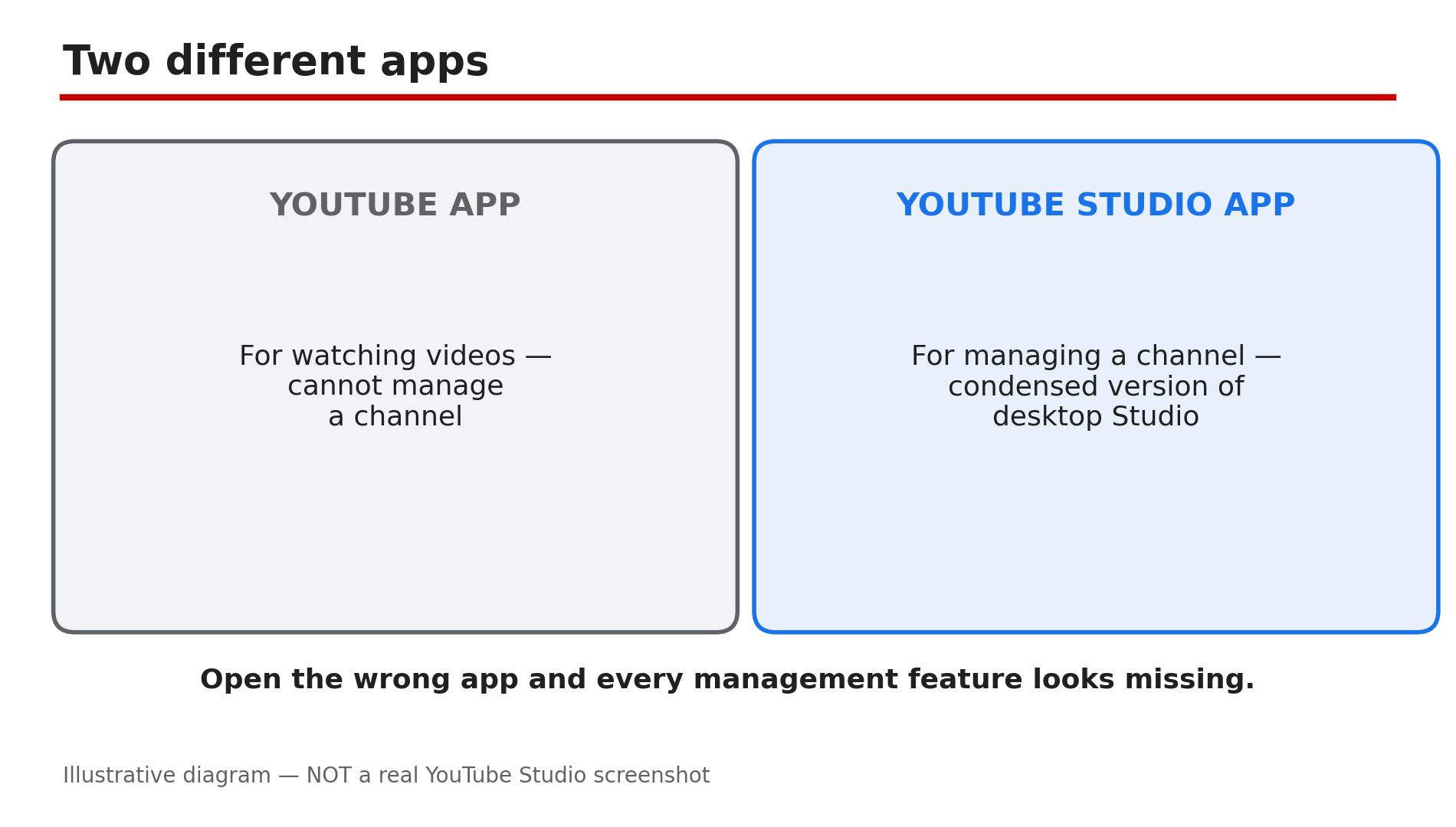
You open the YouTube Studio app on your phone, look for the end screen button, the bulk edit option or the channel customisation page — and none of them is there. Before you reinstall the app or assume your account is broken, stop: the Studio mobile app is a condensed version of desktop Studio by design, and several jobs simply do not exist in it. This guide lists the desktop-only tasks, shows how to tell a missing feature from a real fault, and gives the workaround for full Studio on a phone. What You Will LearnTelling a missing feature from a broken app Desktop-only tasks: bulk editing, detailed analytics, monetisation controls Why customisation, end screens and cards are not in the app Why Shorts thumbnails need a computer How to open full desktop Studio on a phone What the app is actually good forStep 1 — Confirm it is a missing feature, not a fault: right app, right account, updated version What to do: Before concluding a feature is missing, confirm you are in the Studio app, on the right channel, updated. How: The regular YouTube app and the YouTube Studio app are two different apps — the one you watch videos on cannot manage a channel at all, so make sure you opened YouTube Studio. Then check the channel: tap your profile picture and confirm the channel name — a feature can look missing on the wrong account or a different Brand Account channel. Finally, update the app — YouTube rolls features out gradually, and an old version can lack a newer control. If it is still absent after those three checks, it is almost certainly a desktop-only task, not a fault. Example: A creator cannot find the end screen button and reinstalls the app twice. The app was fine — end screens are not in the mobile app. Common mistake: Clearing app data or factory-resetting the phone to "fix" a missing feature. A desktop-only task does not appear after a reset, and clearing data signs you out of every account on the phone.Illustrative diagram: the YouTube app and the YouTube Studio app are two different apps. Step 2 — Bulk editing: changing many videos at once needs a computer What to do: To change the title, tags, description, visibility or end screens of many videos at once, use desktop Studio — the app edits one video at a time. How: Desktop Studio lets you select several videos in Content and edit them together: change the category, tags, visibility or audience setting across twenty uploads in one action. The mobile app has no multi-select and no bulk editor — each video must be opened and edited individually. As reported, this is one of the most commonly missed features, and no setting in the app unlocks it. If you only need to fix one video, the app is fine; if you need to fix fifty, use a computer. Example: A creator rebrands and needs to add the same tag to 60 old videos — 60 separate edits in the app, one bulk edit in desktop Studio. Common mistake: Editing videos one by one in the app and giving up halfway, leaving half the channel with the old tags. Batch the job in desktop Studio instead.Illustrative diagram: what the Studio app can do compared with what it cannot do. Step 3 — Detailed analytics: retention curves and traffic-source reports are desktop-only What to do: For the deep reports — retention curves, traffic sources and revenue breakdowns — use desktop Studio; the app shows summaries, not the full picture. How: The app's Analytics tab gives a useful overview: views, watch time and subscribers over the last few days, and a simple per-video summary. What it does not give you is the detailed retention curve with its key moments — Intro, Top moments, Spikes and Dips — or the full traffic-source breakdown, or the detailed revenue reports. Those live in desktop Studio under Analytics > Engagement and Analytics > Revenue. The app is fine for a morning check of yesterday's numbers. Example: A creator's video has 50,000 views but low watch time. The app shows the low number but not the curve. In desktop Studio the retention graph shows a cliff at 30 seconds — the hook broke the title's promise. Common mistake: Judging a video by the app's headline numbers alone. The summary hides where viewers leave.Illustrative diagram: bulk editing in desktop Studio compared with one-by-one editing in the app. Step 4 — Monetisation controls and channel customisation: full settings live on desktop What to do: For ad placements, mid-roll positions, channel layout, featured sections, the trailer and the watermark, use desktop Studio — the app only shows basic monetisation figures. How: The app shows revenue and RPM figures, but as reported, detailed monetisation management needs the desktop version: choosing where ads appear, setting mid-roll positions, and the full set of Earn-tab controls. The same applies to channel customisation. YouTube's Help page on customising your channel layout describes the workflow in Studio: Customization > Home tab, add sections, set a trailer and a featured video, then Publish. The app lets you update individual video details and reply to comments, but not channel-level layout and branding. Example: A creator wants to add a featured section for a new playlist series. In the app there is no Customization menu. In desktop Studio it is Customization > Home tab > Add section, then Publish. Common mistake: Assuming the channel layout is broken because the Home tab looks empty on a phone. The Home tab only shows the sections you set up, and setting them up is a desktop job.Illustrative diagram: the app's analytics summary compared with desktop Studio's detailed reports. Step 5 — End screens, cards and custom Shorts thumbnails: computer-only, by design What to do: Add end screens and cards, and upload custom Shorts thumbnails, in desktop Studio — the app does not offer them. How: YouTube's Help page on end screens describes the workflow in Studio: Content, click the video, then Editor, then End screen — an Editor that exists in desktop Studio, not in the mobile app. The page also notes end screens are not available on mobile web, except on iPad. Cards follow the same rule: they are placed in the desktop Editor, not the app. Custom Shorts thumbnails are the same — computer-only, verified account required, and the mobile route only picks a frame from the video. None of this is a bug; the tools were built for a desktop screen. Example: A creator records a Short on her phone, opens the Studio app to add a custom thumbnail, and finds only the frame picker. She opens studio.youtube.com in her phone's browser in desktop mode and uploads the thumbnail there. Common mistake: Uploading the Short from the app and assuming the thumbnail cannot be changed afterwards. It can — in desktop Studio, by editing the video and choosing a custom thumbnail.Illustrative diagram: end screens, cards and custom Shorts thumbnails need a computer. Step 6 — The workaround: open full desktop Studio in your phone's browser What to do: When a job needs desktop Studio, open studio.youtube.com in your phone's browser and request the desktop site. How: As reported by third-party guides, the reliable route is: open your phone's browser (Chrome on Android, Safari on iPhone), go to studio.youtube.com, sign in to the right Google account, and use the browser menu to request the desktop site — on Chrome it is "Desktop site", on Safari it is "Request Desktop Website". YouTube may show a banner saying "Get the app" — do not tap it, or you will be sent back to the condensed app. Tap "Continue to Studio" instead, and the full desktop Studio loads in the browser. It is fiddly on a small screen — zoom and scroll carefully, and use landscape orientation for the Editor. Do not install third-party "desktop mode" tools; they are not official, and they ask for your Google sign-in. Example: A creator on a train needs to add an end screen before a video goes live. She opens studio.youtube.com in Chrome, taps "Desktop site", taps "Continue to Studio", and adds the end screen — all from her phone. Common mistake: Tapping "Get the app" and then wondering why the feature is still missing. The app is the condensed version; the desktop site in the browser is the full version.Illustrative mock-up: the four steps to open full desktop Studio on a phone. Checklist — Get a desktop-only task done from your phone☐ Confirmed I opened YouTube Studio, not the YouTube app ☐ Confirmed the right Google account and channel ☐ Updated the Studio app ☐ Identified the task as desktop-only ☐ Opened studio.youtube.com in the phone browser ☐ Requested the desktop site in the browser ☐ Tapped "Continue to Studio", not "Get the app" ☐ Did not install any third-party desktop-mode toolFAQs 1. Why can't I add end screens in the Studio app? Because end screens are a desktop-only feature. YouTube's Help page describes adding them through the Editor in Studio on a computer. Use desktop Studio in your phone's browser instead. 2. Can I bulk-edit videos in the Studio app? No. The app has no multi-select or bulk editor — each video must be edited one at a time. Desktop Studio lets you select several videos and change them together. 3. Is the Studio app broken if the Customization menu is missing? No. Channel customisation lives in desktop Studio's Customization menu, which the app does not include. It is a missing feature, not a fault. 4. How do I get desktop Studio on my phone? Open studio.youtube.com in your phone's browser, request the desktop site from the browser menu, and tap "Continue to Studio" instead of "Get the app". 5. Are third-party apps that unlock Studio features safe? No — do not use them. They are not official, and they ask for your Google sign-in. Use the desktop site in your own browser instead. SourcesYouTube Help — "Add end screens to videos" (official page, opened live 12 Nov 2026): https://support.google.com/youtube/answer/6388789?hl=en CreatorPlaybook — "YouTube Studio Not Loading, Blank or 'Something Went Wrong'? How to Fix It" (internal link, URL copied from the plan file): </blog/youtube-studio-not-loading-blank-or> CreatorPlaybook — "YouTube Shorts Custom Thumbnail Not Showing? What to Check" (internal link, URL copied from the plan file): </blog/youtube-shorts-custom-thumbnail-not>
- CreatorPlaybook Team
- 12 Nov, 2026
Live Stream Recording Missing After Your Stream Ends? Why the VOD Disappears
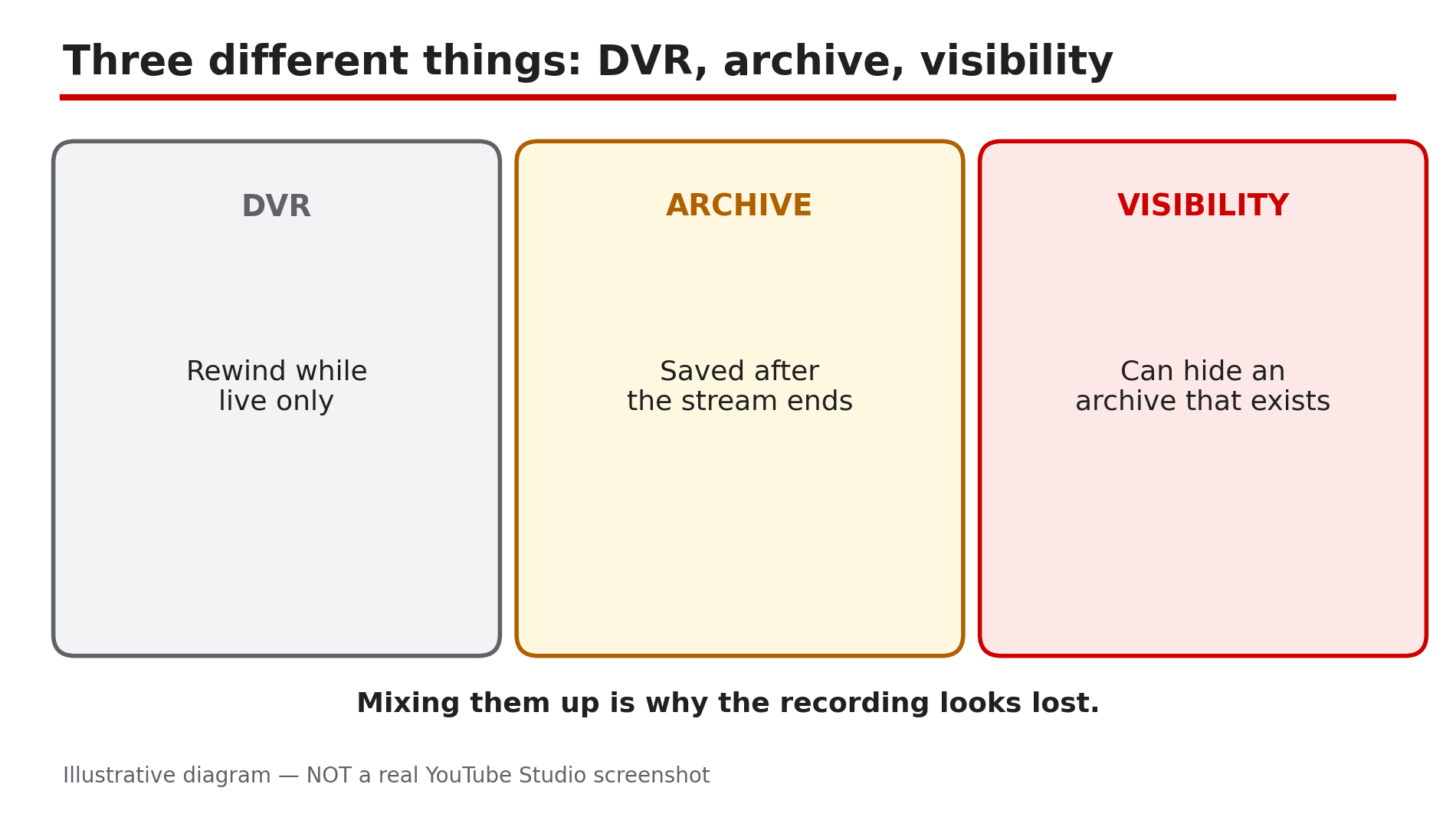
You finish a two-hour livestream, go to your channel to share the recording — and it is not there. No replay, no video on demand, nothing in the Videos tab. Before you assume YouTube deleted it, stop: a missing recording usually has one of a few specific causes, each with a different fix. The key distinction is between three things people mix up: DVR, which only works while you are live; the archive, which YouTube saves after you end; and the visibility setting, which can hide an archive that does exist. What You Will LearnWhere to look first: the Live tab in Studio Why a private or unlisted setting can hide an existing recording The 12-hour archive limit — what it does and does not mean Why DVR saves nothing after the stream ends How long VOD conversion takes How to protect your next stream with a local recordingStep 1 — Check whether the archive exists at all: Studio > Content > Live tab What to do: Open Studio > Content > Live and look for the ended stream. How: YouTube's Help page on archiving live streams says the archive lives under Content > Live in Studio. Sign in to the right account and channel first — a Brand Account stream will not appear under your personal channel. If it is listed, the archive exists — the problem is visibility or processing (Steps 2 and 5). If it is not listed, YouTube did not capture an archive — usually the 12-hour limit in Step 3. Example: A gaming creator ends a four-hour stream and cannot find the replay. In Studio > Content > Live, the stream is listed as Private — the archive exists, it was just never made public. Common mistake: Searching the channel page or YouTube search for the replay. Search indexing is separate and can take days, and the channel page only shows public videos — Studio's Live tab is the only place that tells you whether the archive exists.Illustrative diagram: DVR, the archive and visibility are three different things. Step 2 — Check visibility: the replay may exist but be private or unlisted What to do: Read the archive's visibility — a private or unlisted replay is invisible to viewers. How: In Studio > Content > Live, click the details of the ended stream and select Visibility. A replay set to Private can only be seen by you and people you chose; set to Unlisted, anyone with the link can watch it, but it never appears in the Videos tab. Also check whether the stream was set to "Make unlisted after broadcast" — as reported, that option flips the archive to Unlisted automatically when the stream ends, which is why a public stream can vanish the moment it ends. Example: A creator runs a members-only stream, then wonders why the replay is not on the channel page. The stream settings had "Make unlisted after broadcast" on, so the archive went Unlisted at the end. Common mistake: Assuming the archive was deleted because it is not on the channel page. A private or unlisted archive is still there and still fixable with one setting change.Illustrative mock-up: the four steps to find a live stream archive in YouTube Studio. Step 3 — Check the 12-hour rule: a stream over 12 hours may not be captured at all What to do: Check how long the stream ran — YouTube only promises automatic archiving under 12 hours. How: YouTube's Help page is explicit: "If your live stream is less than 12 hours, YouTube can automatically archive it for you", and "If your stream exceeds 12 hours, it may not be captured at all." Note the wording — "may not be captured" is an archive risk, not proof that YouTube ends a broadcast at 12 hours. No rule says a healthy stream is forcibly stopped at 12 hours — the limit is about what YouTube preserves afterwards. So a 14-hour stream ending with no archive is the documented outcome — restart every 11 hours next time so each part gets its own archive. Example: A creator runs a 24-hour charity stream. Viewers watch live all day, but when it ends there is no replay — the stream ran far past 12 hours. The local recording from Step 6 is the only copy left. Common mistake: Treating 12 hours as a hard cutoff for going live. The broadcast can keep running; it is the archive that is at risk.Illustrative diagram: streams under 12 hours can be archived, longer ones may not be captured. Step 4 — Understand DVR: rewinding while live does not save anything after the end What to do: Stop relying on DVR as a recording — it only exists while the stream is live. How: DVR is the pause and rewind bar viewers see during a live stream — it lets them rewind while the broadcast is still running. It is not a recording — when the stream ends, the DVR window closes with it. YouTube also warns DVR may be limited or unavailable for streams longer than 12 hours, so viewers may not be able to rewind to the start. If viewers say they "rewound it yesterday", they were rewinding the live DVR — there is no DVR left to recover once the archive is missing. Example: A viewer watches the first hour of a stream, pauses it, and comes back after it ends expecting to resume. The stream is over, the DVR is gone, and without an archive there is nothing to resume. Common mistake: Telling viewers "you can rewind it later". You cannot — DVR is live-only. Only the archive, or a local recording you upload yourself, survives the end of the stream.Illustrative diagram: DVR works only while the stream is live. Step 5 — Wait for conversion: a new replay takes minutes to hours, and appears at 144p first What to do: Give the archive time to convert before concluding it is missing. How: After a stream ends, YouTube converts the recording into a video on demand, and as reported that conversion takes minutes to hours depending on the length of the stream. A new broadcast can take 1 to 5 minutes to appear to visitors, as reported. The replay usually appears first at 144p while higher resolutions are still processing. If the stream is listed in Studio > Content > Live but not yet on the channel page, wait, then reload the channel page incognito. Example: A two-hour livestream ends at 9 pm. At 9:05 the replay is nowhere on the channel. By 10:30 it appears, first at 144p, then in HD — the conversion just took time. Common mistake: Deleting the archive and re-uploading because it did not appear in five minutes. The archive was still converting, and the re-upload loses the watch link, the live chat replay and the view count.Illustrative diagram: a live stream replay converts after the stream ends, appearing at low quality first. Step 6 — Protect the next stream: end before 12 hours and keep a local recording What to do: Change the workflow — record locally and plan the stream length around the archive limit. How: YouTube's Help page recommends recording a local archive as a backup — the only reliable protection: set your encoder to record to your own computer while you stream, so you hold a copy whatever YouTube does. A local recording does not force YouTube to create an archive — if no archive was captured, there is no documented way to make YouTube generate one afterwards. With a local file you can upload the recording as a normal video. Also end sessions before 12 hours and check the replay exists before the next stream. Example: A creator who lost a 13-hour stream's archive now records locally on every broadcast and restarts every 10 hours. The next 12-hour event ends with three archives, plus a local file for each part. Common mistake: Assuming a local recording is unnecessary because "YouTube always saves it". YouTube can archive streams under 12 hours — "can" is not a guarantee — and over 12 hours it may not capture anything at all.Illustrative diagram: three habits that protect your next live stream recording. Checklist — Find a missing live stream recording☐ Checked Studio > Content > Live on the right account and channel ☐ Read the archive's visibility — Private or Unlisted hides it ☐ Checked whether "Make unlisted after broadcast" was on ☐ Checked the stream length against the 12-hour limit ☐ Remembered DVR is live-only and saves nothing after the stream ☐ Waited for conversion — minutes to hours, first at 144p ☐ Reloaded the channel page incognito before concluding it is gone ☐ Set up local encoder recording for the next streamFAQs 1. My stream ended an hour ago and there is no replay — is it gone? Not necessarily. Check Studio > Content > Live first: if the stream is listed, the archive exists and the problem is visibility or conversion time. If it is not listed, YouTube did not capture it. 2. Can I recover a stream that ran over 12 hours? There is no documented recovery if YouTube did not capture the archive — a stream over 12 hours "may not be captured at all". Your only copy is a local encoder recording, if you made one. 3. Why did my replay disappear from the channel page right after the stream ended? The stream was probably set to "Make unlisted after broadcast", which flips the archive to Unlisted when the stream ends. Change it to Public in Studio > Content > Live. 4. Viewers could rewind during the stream — why can't they rewind now? That was DVR, which only works while the stream is live. When the stream ends, the DVR window closes — only the archive, or a recording you upload yourself, survives. 5. How long does a replay take to appear after a stream ends? As reported, conversion takes minutes to hours depending on length. The replay usually shows at 144p first. SourcesYouTube Help — "Archive live streams" (official page, opened live 12 Nov 2026): https://support.google.com/youtube/answer/6247592?hl=en CreatorPlaybook — "New YouTube Video Not Showing on Your Channel Page? 6 Checks That Fix It" (internal link, URL copied from the plan file): </blog/new-youtube-video-not-showing-on-your> CreatorPlaybook — "YouTube Live Stream Latency: Normal vs Low vs Ultra-Low — Which One Should You Pick?" (internal link, URL copied from the plan file): </blog/youtube-live-stream-latency-normal-vs>
- CreatorPlaybook Team
- 12 Nov, 2026
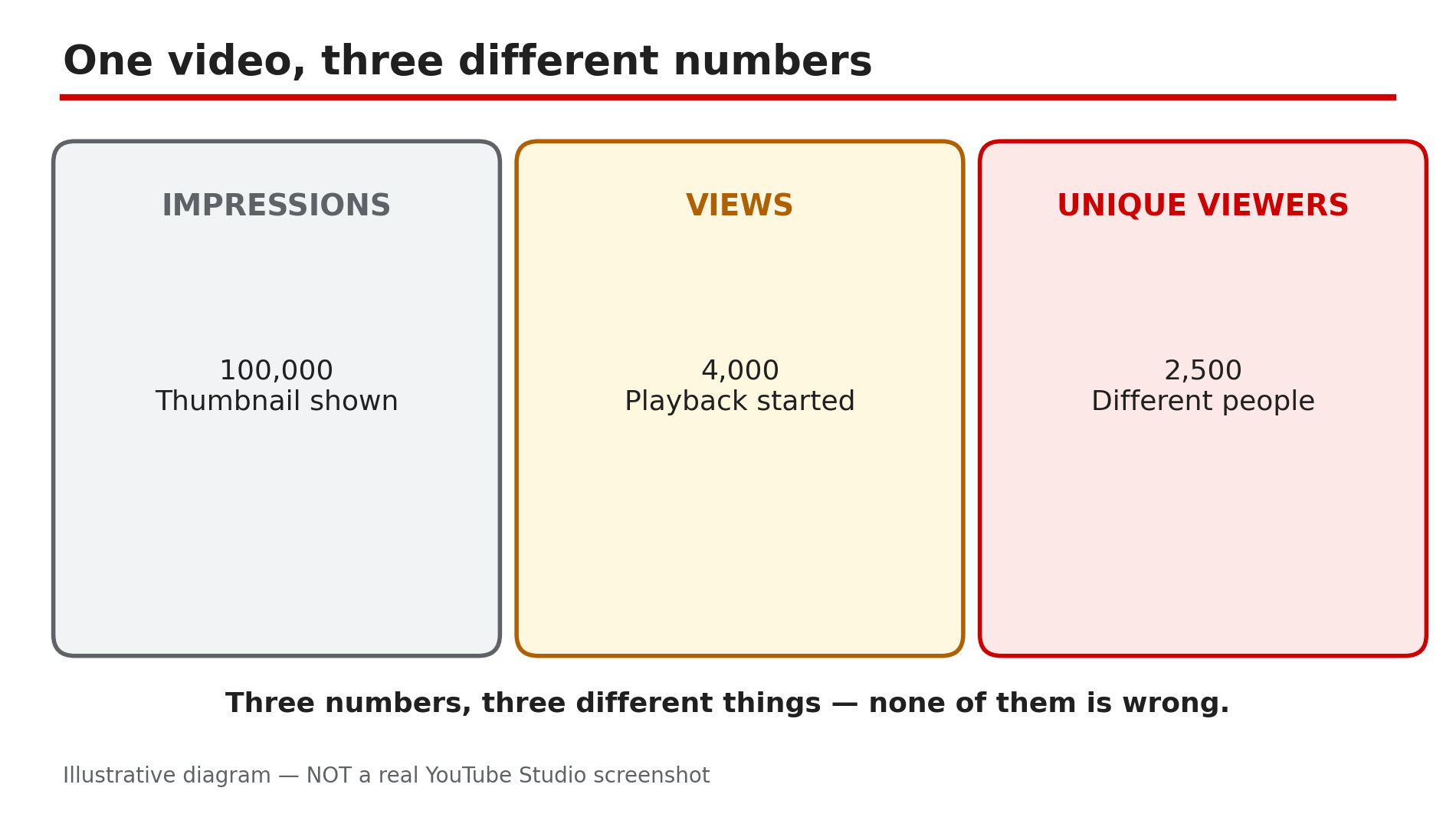
Views vs Unique Viewers vs Impressions on YouTube: What Each Number Really Means
Open YouTube Analytics and you will see three numbers that look like they should agree — and do not. A video can have 100,000 impressions, 4,000 views and only 2,500 unique viewers — and none of those numbers is wrong. They measure three different things: how many times the thumbnail was shown, how many times playback started, and how many different people watched. Confusing them leads to wrong fixes. This guide defines each number the way YouTube does, then shows how to read them together. What You Will LearnWhat an impression is What impressions click-through rate measures How YouTube counts a view since the 24 August 2026 change What unique viewers counts, and why it is always lower than views What unique reach adds, including co-viewing on one TV How to diagnose a video from the three numbersStep 1 — Impressions: how many times your thumbnail was shown What to do: Read impressions as "chances to be clicked", not as viewers. How: YouTube's Help page defines impressions as the number of times your thumbnail was shown to viewers on YouTube. Every appearance on Home, in search, in Suggested videos or in the Shorts feed is one impression — whether the viewer noticed it or not. One person can generate many impressions by scrolling past the same thumbnail again and again. A video that is never surfaced anywhere gets almost no impressions — a video with zero impressions has a distribution problem, not a thumbnail problem. Example: A new video shows 40,000 impressions in its first week. That does not mean 40,000 people saw it — the thumbnail appeared 40,000 times, many of them the same people scrolling past it on Home. Common mistake: Calling 100,000 impressions "100,000 people reached". Reach is a different number — Step 5 — and impressions alone say nothing about how many people noticed it.Illustrative diagram: one video's impressions, views and unique viewers side by side. Step 2 — Impressions click-through rate: of the people who saw it, how many clicked What to do: Use impressions CTR to judge the thumbnail and title together. How: Impressions click-through rate is how often viewers watched a video after seeing its thumbnail. It is a ratio, not a count: 4,000 views from 100,000 impressions is a 4% CTR. YouTube's Help page says half of all channels and videos sit between 2% and 10% impressions CTR, so a 2–3% CTR is not automatically broken — traffic source moves the number more than niche does. Compare against your own recent videos of similar length, which Analytics shows as typical CTR, not against a stranger's screenshot. Example: Two videos each get 50,000 impressions. One gets 1,500 views (3% CTR), the other 5,000 views (10% CTR) — the second thumbnail earned three times as many clicks from the same chances. Common mistake: Judging a video by CTR alone. A 10% CTR on 1,000 impressions is 100 views; a 3% CTR on 1,000,000 impressions is 30,000 views.Illustrative diagram: an impression is a thumbnail shown, a view is playback started. Step 3 — Views: playback started, counted from the first moment since 24 August 2026 What to do: Read views as "playbacks started" — the rule changed on 24 August 2026. How: YouTube's Help page states that since 24 August 2026, views are counted the moment a video starts to play, across all formats. Before that, a Short counted as a view only after a few seconds of watching; now the count starts at playback. That is why Shorts view counts jumped after the change while watch time did not. YouTube also validates playbacks while counting, so the public counter can slow down, freeze or fall while low-quality playbacks are discarded — replaying your own video on two phones is YouTube's own example. Example: A Short published in July 2026 showed 800 views after a day; the same Short republished after the change shows 1,400 views in a day with the same watch time. The audience did not change — the rule did. Common mistake: Comparing a video's views across the 24 August 2026 change as if the rule stayed the same. Views before and after that date were counted differently — a jump or drop across that line is a measurement change, not a performance change.Illustrative diagram: how YouTube's view-counting rule changed on 24 August 2026. Step 4 — Unique viewers: how many different people watched What to do: Read unique viewers as your audience size — one person watching five times is five views but one unique viewer. How: YouTube defines unique viewers as the estimated number of viewers who watched your content within the selected date range. The key word is estimated: YouTube deduplicates by signed-in accounts and device signals, and it cannot perfectly identify every person. The gap tells you about repeat watching — a tutorial with 10,000 views and 9,000 unique viewers was mostly watched once each, while a music video with 10,000 views and 3,000 unique viewers was rewatched heavily. Example: A 10-minute how-to has 5,000 views and 4,800 unique viewers — almost everyone watched once. A 30-second Short has 50,000 views and 12,000 unique viewers — the same people looped it several times each. Common mistake: Treating unique viewers as a smaller, worse version of views. It is the audience size; views are the audience size multiplied by how often they came back.Illustrative diagram: the same view count can mean one repeat viewer or five different people. Step 5 — Unique reach: the people who saw it, including co-viewing on one TV What to do: Use unique reach for how many people the video actually reached, including people watching together. How: Unique reach is the estimated total number of individual people who saw your video or channel, accounting for shared viewing on devices like YouTube TV and the main YouTube app on TV. The Help page gives the example directly: if three people watch your video together on one TV, it counts as one view but the video's unique reach increases by three. The related metric, Views (Co-viewed), does the same — a family of three watching twice counts as six co-viewed views. On a channel whose audience watches on TV, views understate the real audience, and unique reach corrects for it. Example: A family channel's video shows 20,000 views and 32,000 unique reach. The gap is not an error — households watching together on the living-room TV, where one playback reaches three or four people. Common mistake: Comparing unique reach with unique viewers as if they were the same thing. Unique viewers counts people who watched; unique reach counts people who saw the video or channel, including co-viewers who never pressed play.Illustrative diagram: three people watching on one TV count as one view but three in unique reach. Step 6 — Read the three numbers together: the diagnosis is in the combination What to do: Put the three numbers side by side before deciding what to fix — each pattern points at a different problem. How: High impressions with low views means the thumbnail and title are not earning clicks — a packaging problem, and our guide on thumbnail CTR stuck at 2–3% shows how to test your way up. High impressions with low unique viewers means the same small pool keeps seeing the thumbnail — a distribution problem. High views with low unique viewers means heavy rewatching: the video holds its audience but is not reaching new people, so the fix is distribution and topic choice. Low impressions with high CTR means the packaging works but YouTube is not surfacing the video — check the topic and title keywords. Example: One video has 200,000 impressions, 3,000 views and 2,800 unique viewers — CTR is 1.5%, so the thumbnail is the problem. Another has 200,000 impressions, 12,000 views and 3,000 unique viewers — CTR is fine, but the same 3,000 people watched four times each, so the problem is reach. Common mistake: Fixing the thumbnail when the problem is distribution, or re-editing the video when the problem is the thumbnail. The three numbers together tell you which to fix — changing the wrong thing wastes a week.Illustrative diagram: three number patterns and the problem each one points to. Checklist — Read your Analytics numbers correctly☐ Checked impressions in the Reach tab, not just the headline count ☐ Compared impressions CTR with my own recent videos, not a stranger's ☐ Remembered views count from playback start since 24 Aug 2026 ☐ Read unique viewers as audience size, not a smaller view count ☐ Checked unique reach for co-viewing on TV ☐ Compared views with unique viewers to spot rewatching ☐ Diagnosed from the combination, not from one number alone ☐ Did not compare views across the 24 August 2026 counting changeFAQs 1. Why are my views higher than my unique viewers? Views count playbacks; unique viewers count people. One person watching five times is five views and one unique viewer — a big gap usually means heavy rewatching. 2. Why do my impressions keep rising but my views stay flat? Your thumbnail is being shown but not clicked — a thumbnail and title problem. Check the packaging before touching the video itself. 3. Are impressions the same as reach? No. Impressions count how many times the thumbnail was shown, including repeats to the same person. Unique reach counts individual people who saw the video or channel, including people watching together on one TV. 4. Did the 24 August 2026 change make my Shorts views go up? Very likely. Since that date a view counts the moment playback starts, so Shorts views rose while watch time stayed the same. It is a counting change, not an audience change — and it does not change YPP earnings, which still use engaged views. 5. My views froze for a day — is something broken? Usually not. YouTube validates playbacks while counting, so the public counter can slow down, freeze or fall while low-quality playbacks are discarded. A count stuck at zero with no impressions at all is a distribution problem instead. SourcesYouTube Help — "Understand your YouTube content performance" (official page, opened live 12 Nov 2026): https://support.google.com/youtube/answer/12220281?hl=en CreatorPlaybook — "YouTube CTR Suddenly Dropped After the 24 August 2026 View-Counting Change? What Really Happened" (internal link, URL copied from the plan file): </blog/youtube-ctr-suddenly-dropped-after-24> CreatorPlaybook — "How to Read Your YouTube Retention Graph: Dips, Spikes and What to Fix" (internal link, URL copied from the plan file): </blog/how-to-read-your-youtube-retention>
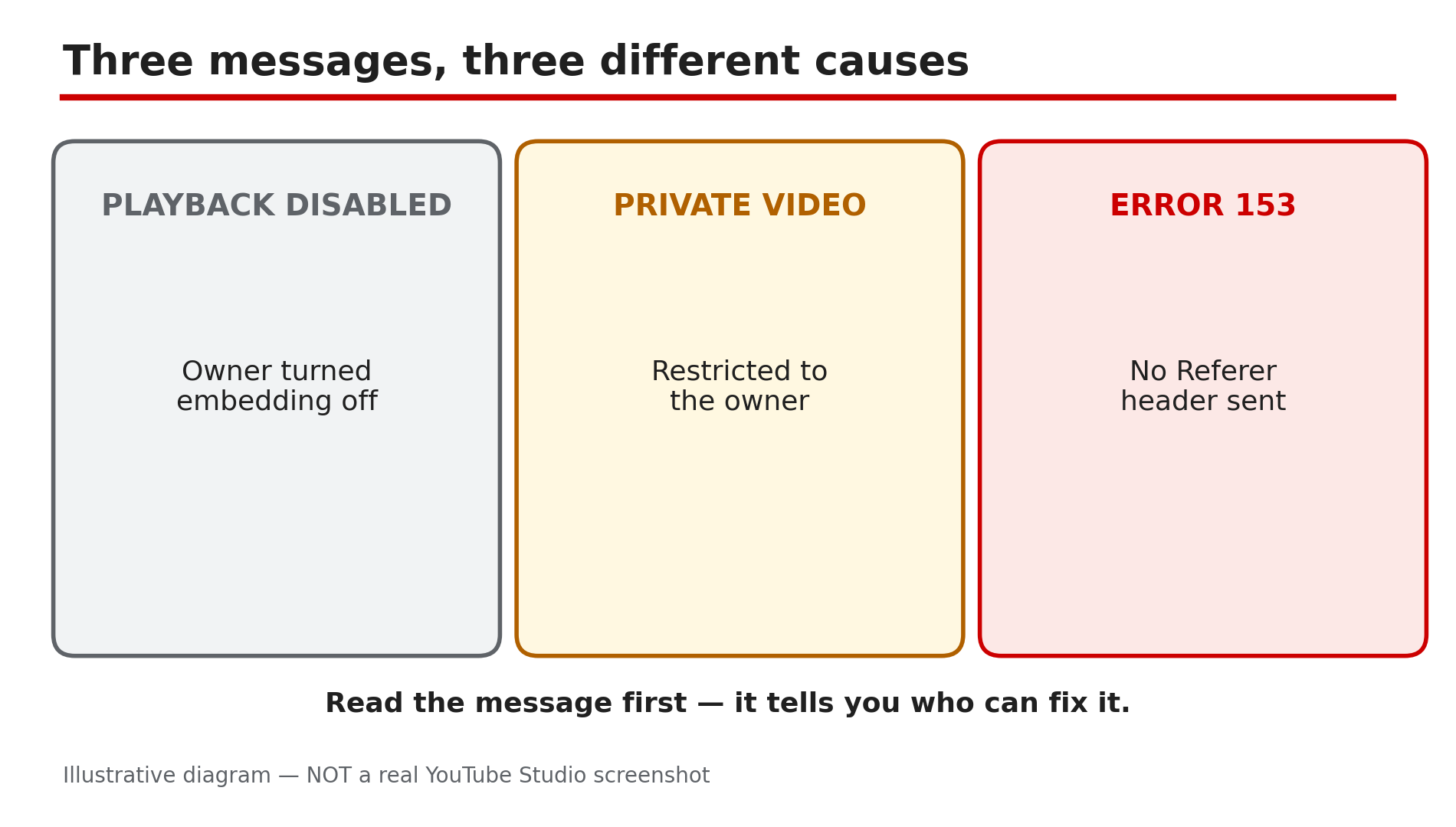
- CreatorPlaybook Team
- 12 Nov, 2026
Embedded YouTube Video Not Playing? "Playback on Other Websites Disabled" Fix
You paste a YouTube video into your website or blog, and instead of the player your visitors see: "Playback on other websites has been disabled by the video owner." The video plays fine on YouTube itself — the owner has switched off embedding, or something else blocks playback outside YouTube. This guide works through the causes in order. What You Will LearnWhat the "Playback on other websites disabled" message actually means Where the owner's embedding setting lives in YouTube Studio Why private videos can never be embedded, but unlisted videos can How age restrictions, region blocks and copyright claims break embeds Why newer channels may have embedding restricted until Advanced Features are unlocked What website owners should check in their own embed codeStep 1 — Read the exact message first: not every failed embed has the same cause What to do: Match the fix to the exact words on screen — three messages mean three different problems. How: If the player says "Playback on other websites has been disabled by the video owner", the owner turned embedding off — only the owner can change it. If it says the video is private, it is restricted to the owner and invited viewers. If it says the video is unavailable in your country, the rights holder has blocked it in your region. If it shows "error 153", YouTube's Help page says the embed request arrived without an HTTP Referer header — a website problem, covered in Step 6. Example: A blogger embeds a tutorial and sees the "disabled by the video owner" message. She emails the owner, who switches the setting on — the same embed code works that day. Common mistake: Rebuilding the embed code before reading the message. The words on the player already tell you who can fix it.Illustrative diagram: three embed error messages and what each one means. Step 2 — Check the owner's embed setting: Studio > Content > Details > Show More > Allow embedding What to do: If you own the video, confirm "Allow embedding" is ticked — the most common cause of this error. How: YouTube's Help page gives the exact path: in YouTube Studio, open Content, click Details next to the video, select Show More at the bottom, then tick "Allow embedding" under Distribution and click Save. The setting is per video, not channel-wide, so a video you uploaded last year can have embedding off while a new one has it on. If you are not the owner, you cannot change this — ask the owner, or pick a different video that allows embedding. Example: A creator embeds his own older video on his course website and it refuses to play. In Details he finds "Allow embedding" unticked on that one video — his upload defaults had changed since he made it. He ticks it, saves, and the embed works. Common mistake: Looking for the setting under Channel settings or in the YouTube app. It lives on each video's Details page under Show More — use a computer browser.Illustrative mock-up: the four steps to find the Allow embedding setting in YouTube Studio. Step 3 — Check privacy: a private video can never be embedded, an unlisted one can What to do: Confirm the video is Public or Unlisted, because Private is a hard stop for embeds. How: A private video can only be watched by the owner and the people the owner chose, and it cannot be embedded on any website. An unlisted video can be embedded as long as embedding is switched on in Step 2: anyone with the link or the embed can watch it, even though it never appears in search or on the channel page. So if your embed shows a private-video message, change the video to Unlisted or Public in Studio — do not touch the website. Example: A teacher embeds a lesson video on a class page and it shows as private — she had uploaded it as Private for review and forgotten to change it. Switching it to Unlisted makes the class page work. Common mistake: Assuming Unlisted means "not embeddable". It only hides the video from search and the channel page; with embedding on, it plays on any site.Illustrative diagram: how a video's privacy setting decides whether it can be embedded. Step 4 — Check restrictions: age limits, region blocks and copyright claims also break embeds What to do: Open the video in Studio and read the Restrictions column — several restrictions block playback outside YouTube even with embedding on. How: YouTube's Help page says age-restricted videos cannot be watched on most third-party websites — they redirect viewers back to YouTube, where they must sign in and confirm their age. A territorial copyright block does the same for viewers in the blocked country: the embed loads, then refuses to play. A copyright claim can also restrict where a video plays. In Studio, read the Restrictions column in Content; if it shows an age restriction or a copyright claim, that is your answer. Example: A creator embeds a music video on his blog; it plays for him but not for readers in another country. The Restrictions column shows a territorial block — the rights holder never licensed that song there, so no embed setting can fix it. Common mistake: Telling every visitor to "just click Watch on YouTube". That is a workaround, not a fix — signed-out visitors still cannot watch an age-restricted video there either.Illustrative diagram: three restrictions that stop an embedded video from playing. Step 5 — Check Advanced Features: newer channels may have embedding restricted until verified What to do: If embedding is on, the video is public, and there is no restriction — but the embed still fails — check whether the channel has unlocked Advanced Features. How: As reported by third-party support guides, embedding can be restricted on newer channels until Advanced Features are unlocked — the channel has verified its phone number and built up channel history, or completed ID or video verification. This is not confirmed on YouTube's public Help pages, so treat it as a reported cause to check: go to Studio > Settings > Channel > Feature eligibility and see whether Advanced Features shows as enabled. If it is off, complete the verification steps there, then test the embed again. Example: A new channel embeds its own trailer on its website and gets the disabled message on every video, even though "Allow embedding" is ticked. The channel had never verified a phone number — after phone verification, embedding started working. Common mistake: Creating a second channel to "start fresh". A new channel has even less history — fix the verification on the channel that owns the video.Illustrative diagram: Advanced Features may gate embedding on newer channels. Step 6 — Website owners: use the /embed/ URL, and send a proper Referer header What to do: If the video's settings are all correct, fix your own embed code — use the /embed/ address and make sure your site sends a Referer. How: The correct embed code uses youtube.com/embed/VIDEO_ID, not youtube.com/watch?v=VIDEO_ID — the Share > Embed button gives you this code, so copy it from there instead of hand-writing it. YouTube's Help page also says its Terms of Service require embedders to provide an HTTP Referer header, and that without one viewers see "error 153" and a blocked player. A missing Referer usually means the video is being opened directly in a browser address bar, or a privacy tool is stripping it — test the embed inside a normal page. Example: A developer tests an embed by pasting the embed URL into the browser address bar and sees error 153. The same code works inside an actual page, because the page supplies the Referer the address bar cannot. Common mistake: Blaming YouTube for error 153. It means the request arrived with no context about where it came from — a site-side problem the video owner cannot fix.Illustrative diagram: the correct embed URL compared with the watch page URL. Checklist — Fix an embedded video that will not play☐ Read the exact message on the player before changing anything ☐ Confirmed "Allow embedding" is ticked in Studio > Content > Details > Show More ☐ Confirmed the video is Public or Unlisted, not Private ☐ Checked the Restrictions column for age restriction, region block or claim ☐ Checked Advanced Features is enabled on the channel (as reported) ☐ Used the /embed/ URL, not the /watch/ URL ☐ Tested the embed inside a real page, not the address bar ☐ Checked the site sends a Referer header for error 153FAQs 1. The video plays on YouTube but not on my website — is my website broken? Probably not. The most common cause is the owner's "Allow embedding" setting, which only the owner can change. Check the exact message first — it tells you whether the problem is the setting, the privacy, a restriction, or your embed code. 2. Can I embed a private video on my own website? No. Private videos cannot be embedded anywhere. Change the video to Unlisted to make it playable on a site without it appearing in search or on the channel page. 3. Can I embed an unlisted video? Yes, as long as embedding is switched on for that video. Unlisted only hides it from search and the channel page — anyone with the link or embed code can watch it. 4. Why does the embed work for me but not for visitors in another country? A territorial copyright block. The rights holder has blocked the video in their country, so the embed refuses to play there. No embed code can override a region block. 5. What is error 153 on an embedded video? YouTube says the embed request arrived without an HTTP Referer header, which its Terms require. It usually appears when the embed URL is opened directly in a browser, or when a site strips the referrer. SourcesYouTube Help — "Embed videos & playlists" (official page, opened live 12 Nov 2026): https://support.google.com/youtube/answer/171780?hl=en CreatorPlaybook — "YouTube Video Unavailable? What Each Playback Error Means and How to Fix It" (internal link, URL copied from the plan file): </blog/youtube-video-unavailable-what-each> CreatorPlaybook — "YouTube Restricted Mode: Why Your Video Is Hidden and How to Fix It" (internal link, URL copied from the plan file): </blog/youtube-restricted-mode-why-your-video>
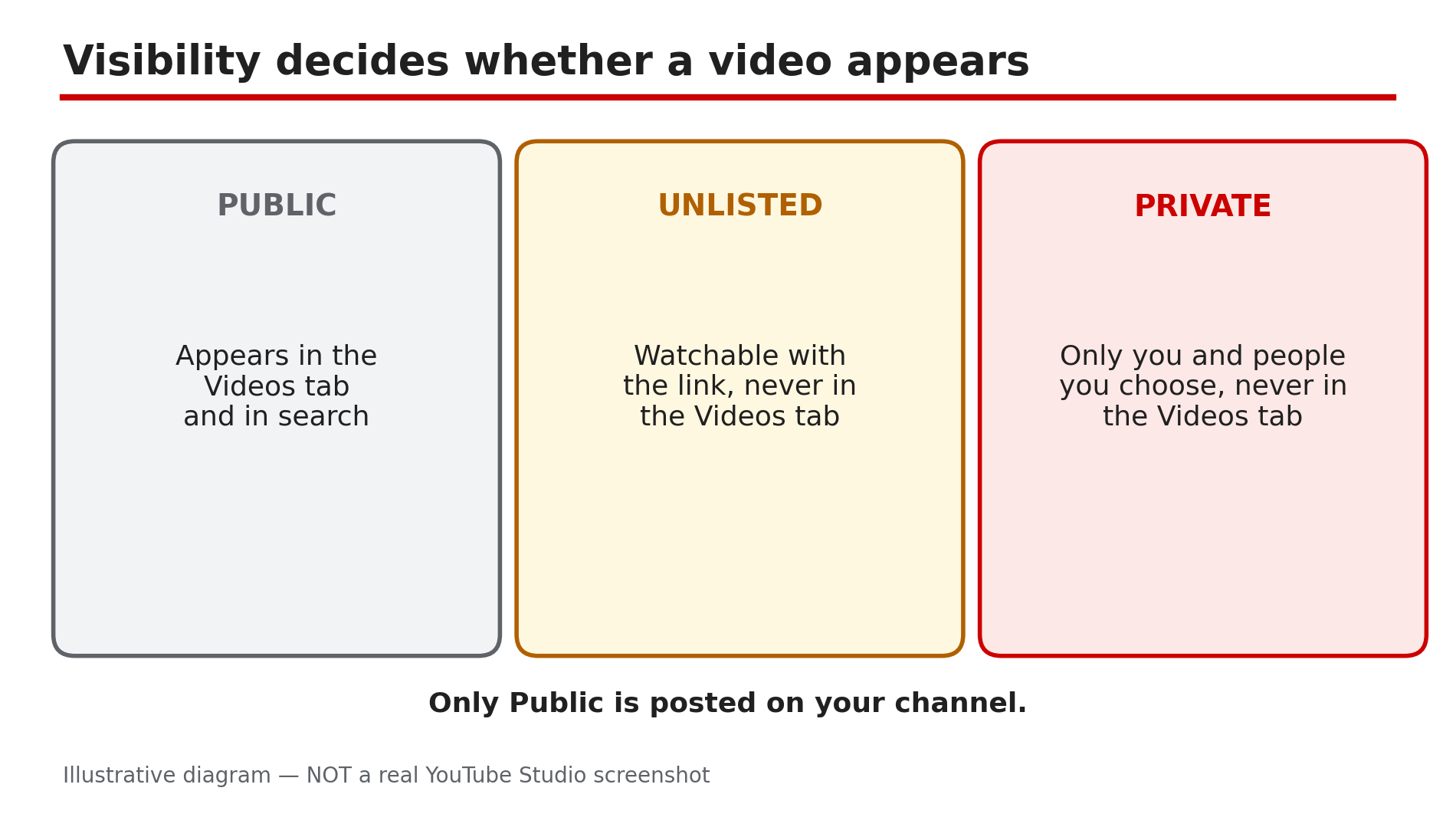
- CreatorPlaybook Team
- 11 Nov, 2026
New YouTube Video Not Showing on Your Channel Page? 6 Checks That Fix It
You uploaded a video, it plays fine from the direct link — but when you open your own channel page, it is not there. Before you re-upload it or assume YouTube deleted it, stop: in most cases the video exists and is fine, and the reason it is missing is one of a short list of settings. This guide works through those checks in order. What You Will LearnWhy private and unlisted videos never appear in the Videos tab How long processing takes, and why a new video shows at 144p first The difference between your Home tab and your Videos tab How to check the video's real status in YouTube Studio Why a strike or a Premiere problem can keep a video hidden Why search indexing is separate — and not the same as a missing listingStep 1 — Check visibility first: private and unlisted videos never appear What to do: Confirm the video is actually Public, because the other two settings hide it by design. How: YouTube's Help page on privacy settings is explicit: private videos will not appear in the Videos tab of your channel homepage, and neither will unlisted videos. Only public videos are posted on your channel. In Studio, go to Content and look at the Visibility column. If it says Private, only you and the people you chose can see it. If it says Unlisted, anyone with the link can watch it, but it still will not appear in the Videos tab or in search. Change it to Public and click Save. Example: A creator uploads a video, shares the link in a WhatsApp group, and gets views — then panics because the video is missing from the channel. The upload default was Unlisted. One click to Public fixes it. Common mistake: Assuming "Unlisted" means hidden from search but visible on your channel. It means hidden from both — the link is the only way in.Illustrative diagram: how a video's visibility setting decides whether it appears on your channel page. Step 2 — Wait for processing: a new video appears slowly, and at 144p first What to do: Give YouTube time to finish processing, especially for livestream replays and long videos. How: YouTube processes the file after it arrives, and the low resolutions appear first — a new video often plays at 144p while the HD versions are still being made. A livestream replay is slower still: after a stream ends, the recording converts into a video on demand, which can take minutes to hours depending on length, and a new broadcast can take 1 to 5 minutes to appear to visitors, as reported. During that window the video may be missing from the channel page even though Studio shows it — wait, then reload in an incognito window. Example: A two-hour livestream ends at 9 pm. At 9:05 the replay is nowhere on the channel. By 10:30 it appears, first at 144p, then in HD. Nothing was broken — the conversion just took time. Common mistake: Deleting the video and re-uploading it because it did not appear in five minutes — the re-upload starts processing from zero.Illustrative diagram: a new video appears at low quality first while higher resolutions are still processing. Step 3 — Check the right tab: Home shows sections, Videos shows everything What to do: Look in the Videos tab, not the Home tab, because the two tabs show different things. How: Your Home tab shows only the sections you set up in Studio — a trailer, popular uploads, playlists. If you never set up a section, or the new video does not fit any of them, Home will not show it. The Videos tab is the full list of your public videos, newest first. So open your channel, click Videos, and scroll. If the video is there, your channel is fine — Home just was not built to show it. To add it, create a section in Studio under Customization and click Publish — see our guide on channel trailers and featured sections. Example: A creator's new video is missing from Home but sits at the top of the Videos tab. The channel had only one section — Popular uploads — and a brand-new video with no views did not qualify for it yet. Common mistake: Judging the channel by the Home tab alone. Home is a curated shop window; Videos is the warehouse.Illustrative diagram: the Home tab shows only the sections you set up, while the Videos tab shows every public video. Step 4 — Check the video's real status in YouTube Studio What to do: Open Studio and read what YouTube actually says about the video, instead of guessing from the channel page. How: In Studio, go to Content and find the video — for a livestream replay, check the Live tab. Read three things: Visibility, Restrictions, and the processing status. A video with a copyright claim or an age restriction will show it in the Restrictions column, and an age-restricted video is hidden from many viewers. Also check you are signed into the right Google account and the right channel. Finally, open the video's direct watch-page link while signed out: if it plays, the video exists and the problem is listing, not the video itself. Example: A creator could not find a video on the channel page, but the watch link played fine. In Studio, the Restrictions column showed an age restriction. Common mistake: Checking on the uploading account and concluding "it is there for me, so it is there for everyone". Creators see their own private and unlisted videos; visitors do not.Illustrative mock-up: the four checks to run in YouTube Studio when a video is missing. Step 5 — Check for a strike or a Premiere problem What to do: Rule out the two cases where YouTube itself holds a video back: a penalty, or a scheduled Premiere that never fired. How: A Community Guidelines strike freezes publishing for a week, and YouTube says a scheduled video will not publish during the penalty period — it is set to private instead, and you must reschedule it after the freeze ends. Separately, if the missing video was a Premiere, check that it is still scheduled as a Premiere and has not slipped to private or unlisted — and confirm the date and timezone, because the watch page uses Pacific time. Our guide on scheduled videos and Premieres covers the full diagnosis. Example: A creator scheduled a Premiere for Saturday and got a strike on Friday. Saturday came and the video never appeared — YouTube had set it to private during the penalty, and it needed rescheduling. Common mistake: Assuming a Premiere failed because the channel page is empty. Open the watch-page link first: a public watch page can exist before the Premiere starts even when the listing is missing.Illustrative diagram: a strike or a Premiere problem can keep a video off the channel page. Step 6 — Do not confuse the channel listing with search indexing What to do: Treat "not on my channel page" and "not in search results" as two different problems with two different timelines. How: Search indexing is separate from the channel listing and can take days. YouTube says a recently uploaded or changed video may take a few days to appear in search results, and recommends searching by the exact video ID to check. So if the video is in the Videos tab but missing from search, that is an indexing delay, not a listing fault — wait, and do not change the title or re-upload, because that restarts the clock. Our guide on videos not showing in search covers that diagnosis in full. If the video is missing from the Videos tab itself, the cause is one of Steps 1 to 5, not indexing. Example: A video tops the Videos tab an hour after upload, but searching its exact title finds nothing for two days. The listing was fine; search just had not caught up. Common mistake: Re-uploading a video to "fix" search.Illustrative diagram: the channel listing and search indexing are two different systems with different timelines. Checklist — Find a missing video☐ Confirmed the video is Public in Studio, not Private or Unlisted ☐ Waited for processing to finish, especially for livestream replays ☐ Checked the Videos tab, not just the Home tab ☐ Checked Restrictions and processing status in Studio Content ☐ Confirmed the right Google account and the right channel ☐ Opened the direct watch link while signed out ☐ Ruled out an active strike or a Premiere scheduling problem ☐ Separated the channel listing from search indexingFAQs 1. My video is public but still not on my channel page — why? Check processing first: it may still be converting after a livestream. Then check the Videos tab rather than Home, and open the direct watch link while signed out to confirm the video itself plays. 2. Do unlisted videos appear on the channel page? No. YouTube's Help page says unlisted videos will not appear in the Videos tab, and they will not show up in search either — only people with the link can watch them. 3. How long does a livestream replay take to appear? As reported, conversion takes minutes to hours, and a new broadcast can take 1 to 5 minutes to appear. A long stream takes longer; the video usually appears first at 144p. 4. Will changing the title help the video appear in search? No — and it can hurt. Search indexing can take days, and editing the title restarts that wait. If the video is in the Videos tab, the listing is fine; give search time. 5. I got a strike — where did my scheduled video go? YouTube says a scheduled video will not publish during a penalty and is set to private. Check Studio for the strike, wait for the freeze to end, then reschedule. SourcesYouTube Help — "Change video privacy settings" (official page, opened live 11 Nov 2026): https://support.google.com/youtube/answer/157177?hl=en CreatorPlaybook — "YouTube Channel Not Showing in Search? Why It Happens and How to Fix It" (internal link, live-verified in the blog sitemap 11 Nov 2026): </blog/youtube-channel-not-showing-in-search> CreatorPlaybook — "YouTube Scheduled Video or Premiere Not Publishing on Time? What to Check" (internal link, live-verified in the blog sitemap 11 Nov 2026): </blog/youtube-scheduled-video-or-premiere-not> CreatorPlaybook — "Channel Trailer and Featured Sections Not Showing? How to Set Up Your Homepage" (internal link, live-verified in the blog sitemap 11 Nov 2026): </blog/channel-trailer-featured-sections-not>