Fan Funding on YouTube: How to Set Up Super Chat, Super Thanks and Memberships
 CreatorPlaybook Team
- 31 Oct, 2026
Fan funding is money your viewers send you directly. Super Chat and Super Stickers highlight a fan’s message during a live stream, Super Thanks lets a viewer tip on an uploaded video or Short, and memberships turn loyal viewers into monthly supporters with badges and perks. As reported, creators keep 70% of the net revenue, and these features unlock earlier than ad revenue — at 500 subscribers under the expanded YouTube Partner Program. Each feature has its own setup. This guide walks through it in order.
What you will learn
- What each fan funding feature does, and where viewers see it
- The eligibility numbers and rules to check first
- How to accept the Commerce Product Module and turn features on
- How to set up membership tiers, prices, and perks
- Why a feature may not show, and the fix
Step 1: Check you meet the eligibility numbers
What to do: Check the reported fan funding thresholds first.
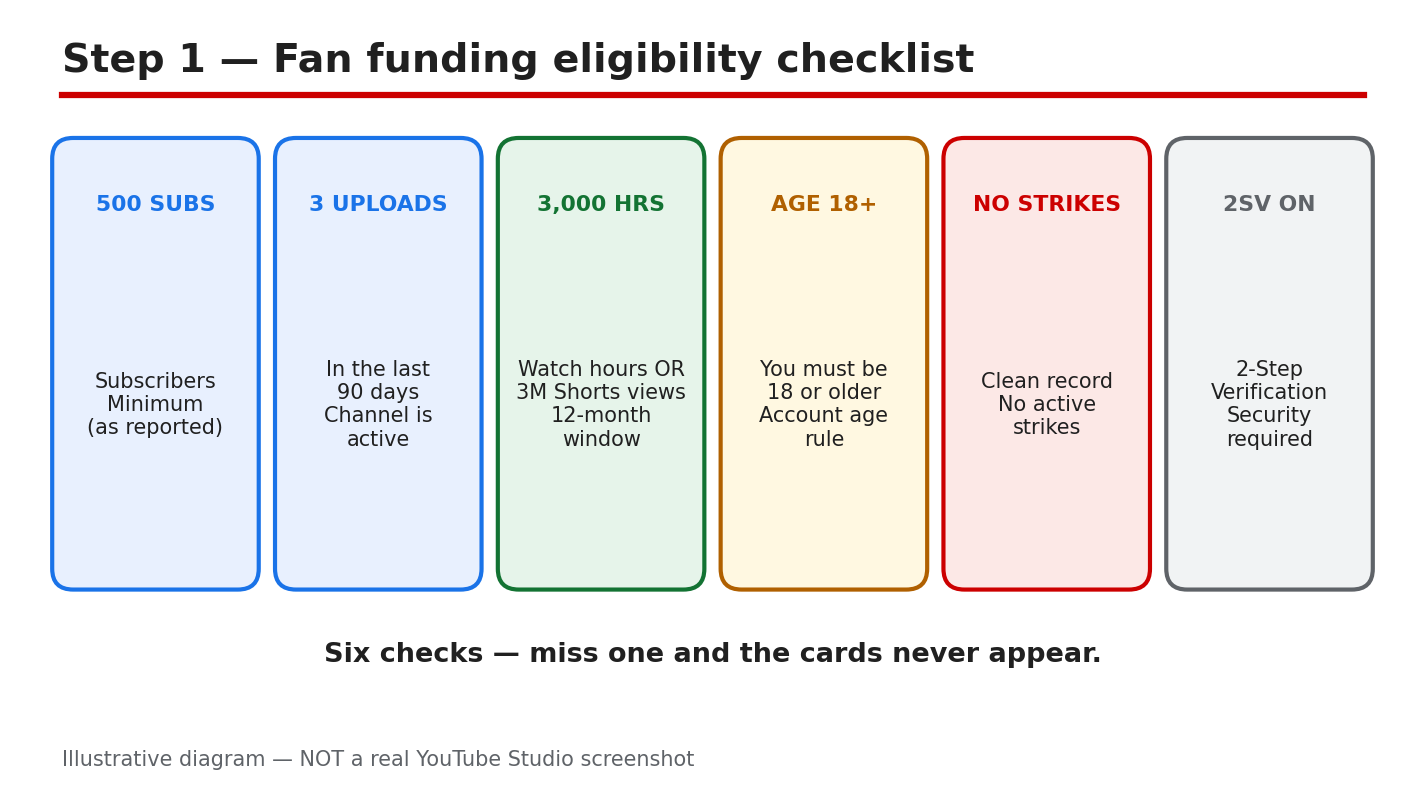
How to do it: As reported, fan funding opens at 500 subscribers, 3 valid public uploads in the last 90 days, and either 3,000 qualified watch hours in 12 months or 3 million qualified Shorts views in 90 days. You must also be 18 or older, have no active strikes, have two-step verification on, and have a linked AdSense account. Confirm each number on your own Earn tab. YouTube has announced Partner Program updates from 1 February 2027 — confirm in Studio/Earn tab.
Example: A cooking channel has 620 subscribers and 3,400 watch hours but only 2 uploads in 90 days. One more public video clears the gap.
Common mistake: Comparing your channel with a friend’s. Eligibility is per channel and per country.
Illustrative diagram (mock-up) of the eligibility checks — not a real YouTube Studio screenshot.
Step 2: Accept the Commerce Product Module
What to do: Accept the Commerce Product Module in the Earn tab. It covers all fan funding features.
How to do it: Sign in to YouTube Studio on a computer and select Earn in the left menu. Click Get started for the Commerce Product Module and read the terms before accepting. Creators who signed the older Addendum before 2023 are reported not to need the new module. Once accepted, the Supers and Memberships cards should appear.
Example: A gaming creator joined the Partner Program but skipped the module step. Her Earn tab showed no Supers card until she accepted it.
Common mistake: Accepting the Watch Page ads module and assuming fan funding is covered. Each module is separate.
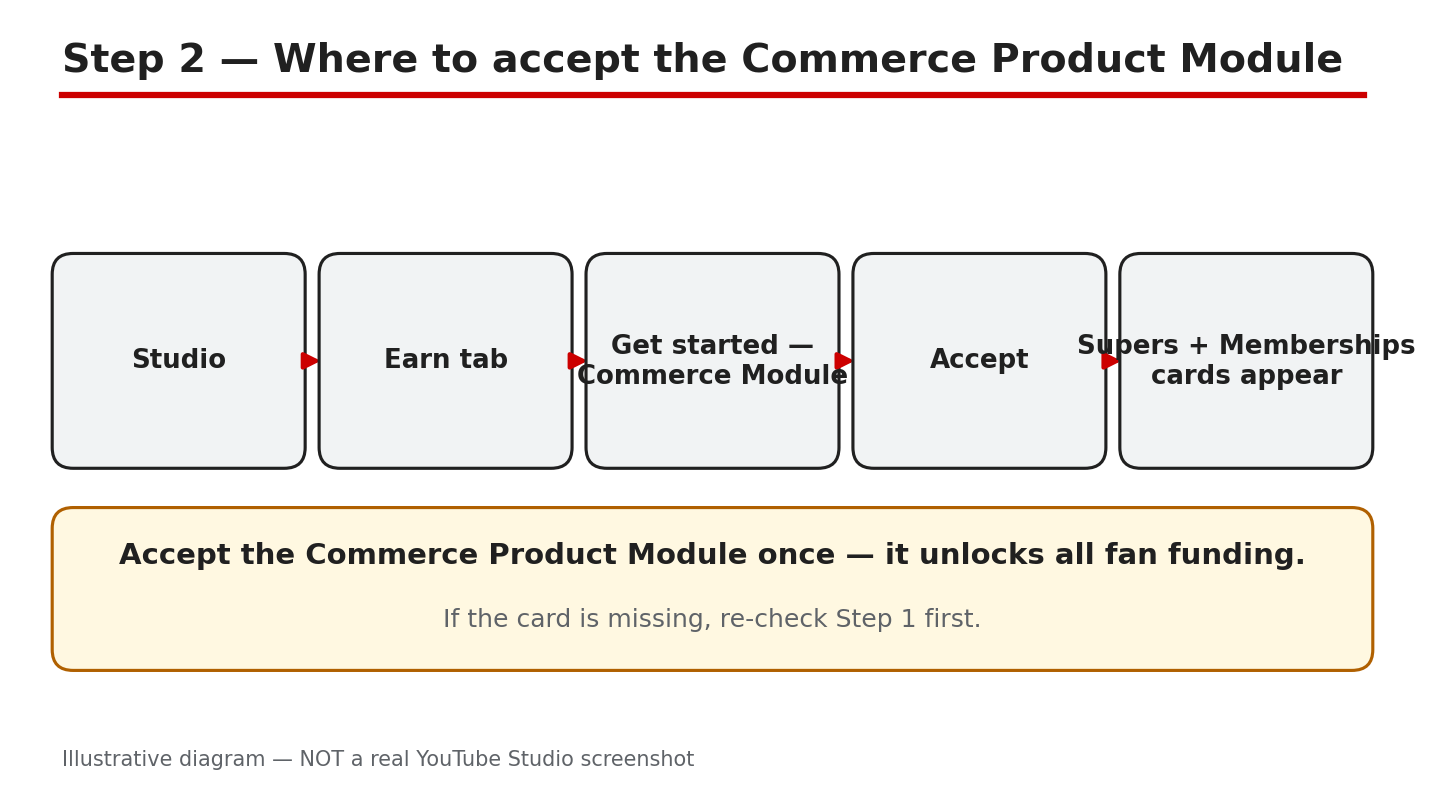
Illustrative diagram (mock-up) of the Commerce Product Module path — not a real YouTube Studio screenshot.
Step 3: Turn on Super Chat and Super Stickers
What to do: Turn on Super Chat and Super Stickers for live streams and Premieres.
How to do it: In YouTube Studio, go to Earn > Supers and toggle on Super Chat and Super Stickers individually. As reported, viewers choose preset amounts from $1 to $500, with local equivalents. Super Chat only works during live streams and Premieres, and only when live chat is enabled on that stream, so check the chat setting first.
Example: A music teacher goes live every Friday and toggles Super Chat on once. A viewer’s paid message stays pinned at the top of the chat.
Common mistake: Expecting Super Chat on an uploaded video. It is a live-stream feature only.
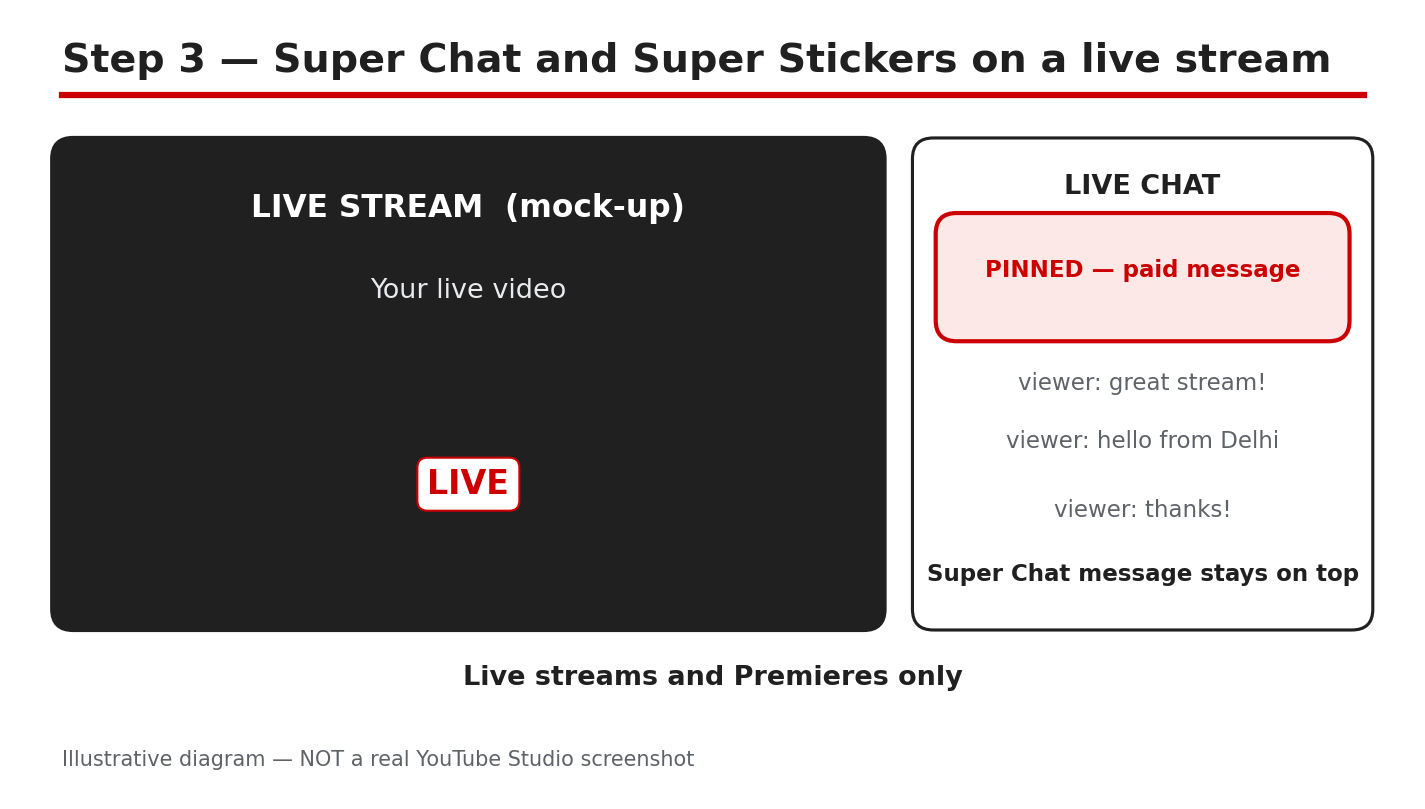
Illustrative diagram (mock-up) of Super Chat in live chat — not a real YouTube Studio screenshot.
Step 4: Turn on Super Thanks
What to do: Turn on Super Thanks for uploaded videos and Shorts.
How to do it: In YouTube Studio, go to Earn > Supers and toggle on Super Thanks. As reported, once enabled it is on by default across eligible uploaded videos, and viewers can buy a one-time animation plus a highlighted comment. Tip amounts are reported as fixed at $2, $5, $10, or $50. Super Thanks is not available on made-for-kids channels or videos, or, as reported, on music channels under an SRAV contract — confirm in Studio/Earn tab.
Example: A creator turns on Super Thanks and checks her top tutorial. The Thanks button appears, and a viewer leaves a $5 tip.
Common mistake: Turning Super Thanks on and never checking a video. If the button does not appear, an audience setting may be blocking it.
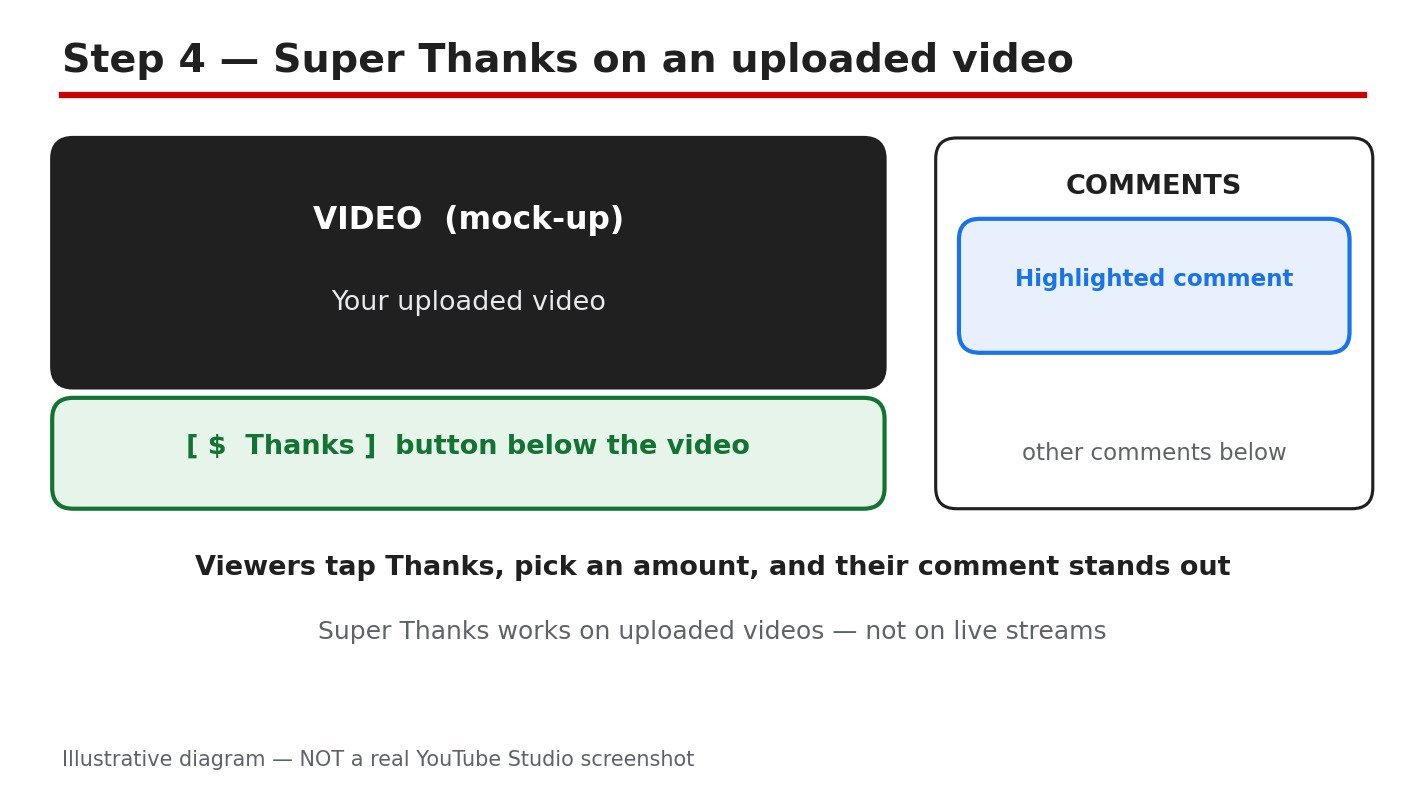
Illustrative diagram (mock-up) showing where viewers find Super Thanks — not a real YouTube Studio screenshot.
Step 5: Set up channel memberships
What to do: Create membership tiers with prices and perks, then submit them for review.
How to do it: In YouTube Studio, go to Earn > Memberships and click Get started. As reported, you can create several tiers, each with its own price and perks such as loyalty badges, custom emoji, members-only posts, and members-only videos or live streams. Start with one simple tier — a low price with a badge and an emoji — and add more only when the first one works. YouTube reviews membership offers before they go live, so wait for approval before announcing them. As reported, memberships are not available on channels set as made for kids, or on channels with many ineligible videos.
Example: A travel creator offers one tier with a badge, emoji set, and a members-only monthly Q&A. She announces it only after approval.
Common mistake: Creating five tiers with complicated perks on day one. Viewers cannot tell them apart, and you must deliver every perk monthly.
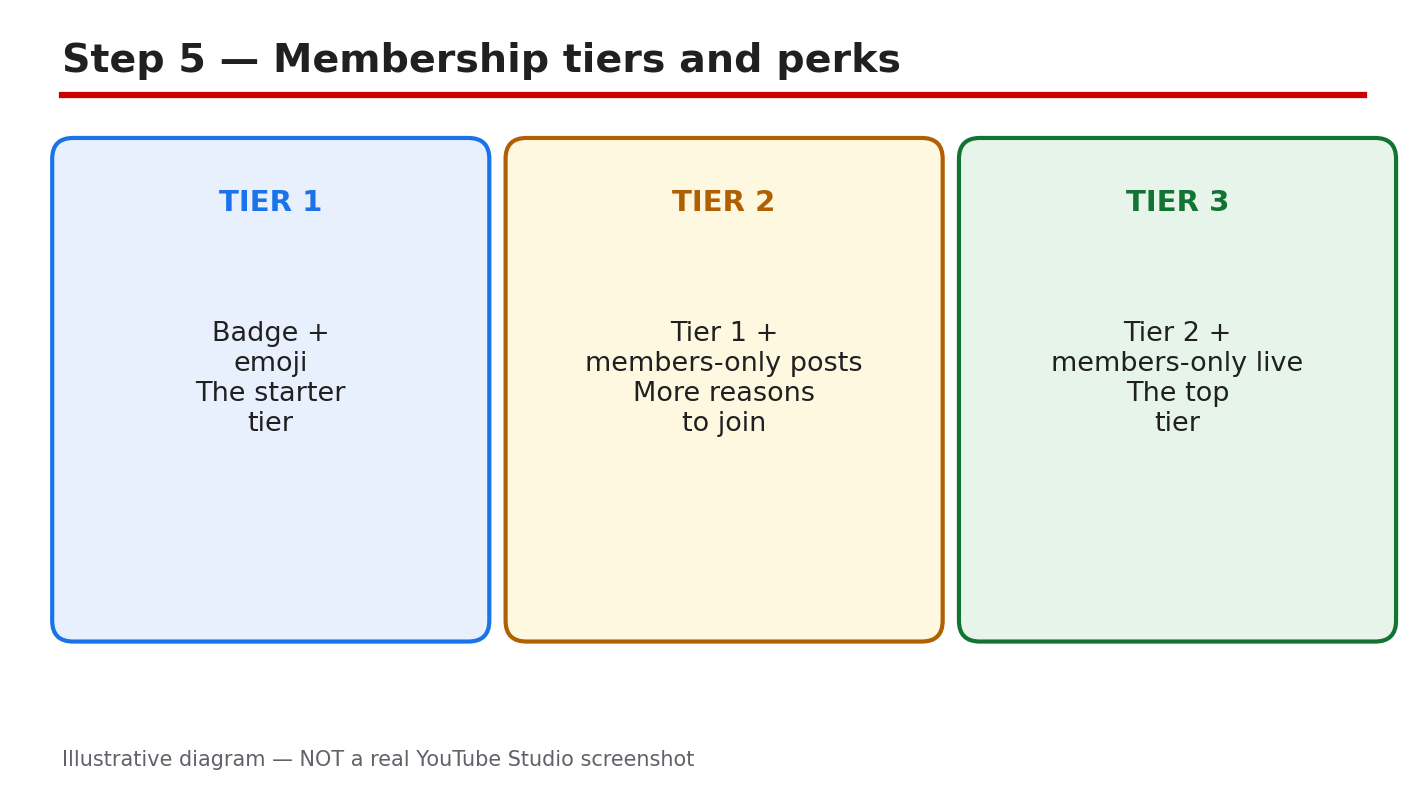
Illustrative diagram (mock-up) of membership tier structure — not a real YouTube Studio screenshot.
Step 6: Test what viewers see and fix “not showing”
What to do: Check each feature as a viewer would, then work through why it may not appear.
How to do it: Open your channel and one of your videos while signed out, and look for the Join button, the Thanks button, and — during a live stream — the Super Chat option. If one is missing, check in order: your country is not on that feature’s availability list (as reported, each feature has its own list of around 99–100 locations); the channel or video is set as made for kids; live chat is off on the stream; the setup is unfinished, such as a membership tier still awaiting review; or a strike is blocking it. Changing your channel’s country setting does not make you eligible, as reported.
Example: A creator in a country not on the Super Chat list could not see it, while a friend in India could.
Common mistake: Announcing a feature in a video before testing it. Viewers look for a button that is not there, and trust drops. Test first, announce second.
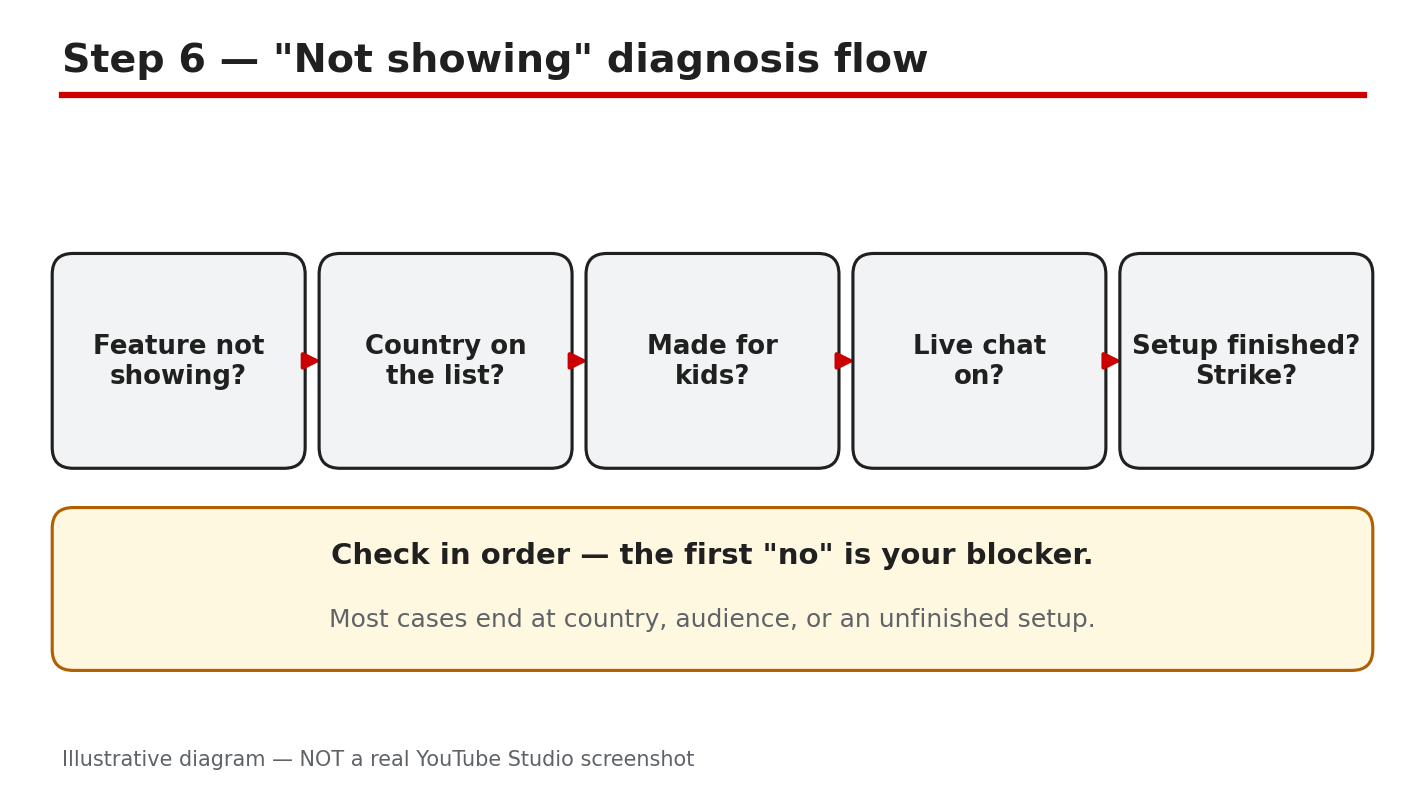
Illustrative diagram (mock-up) of the not-showing diagnosis flow — not a real YouTube Studio screenshot.
Checklist
- ☐ Eligibility checked: 500 subscribers, 3 uploads, watch hours/Shorts views, 18+
- ☐ Commerce Product Module accepted in the Earn tab
- ☐ Super Chat and Super Stickers toggled on in Earn > Supers
- ☐ Super Thanks toggled on and checked on one video
- ☐ Membership tiers created and submitted for review
- ☐ Each feature tested as a viewer would see it
Frequently asked questions
Do I need 1,000 subscribers for Super Chat, Super Thanks, or memberships?
No, as reported. Fan funding opens at the 500-subscriber tier, while ad revenue needs 1,000 subscribers.
How much do creators keep from fan funding?
As reported, creators keep 70% of the net revenue from all four features. Payments go through your linked AdSense account.
Why can my viewers not see Super Chat during my live stream?
Check three things: Super Chat is on in Earn > Supers, live chat is enabled on that stream, and your country is on the availability list. It works only on live streams and Premieres.
Why is the Thanks button missing on my videos?
As reported, Super Thanks does not appear on videos set as made for kids or on certain music channels, and it needs its own toggle in Earn > Supers. Check the toggle and the video’s audience setting.
Sources
- YouTube Help, Choose how you want to monetize: https://support.google.com/youtube/answer/94522?hl=en (verified live 31 Oct 2026).
- CreatorPlaybook, YouTube Monetization Paused vs Disabled vs Rejected: </blog/youtube-monetization-paused-vs-disabled> (verified live 31 Oct 2026).
- CreatorPlaybook, Earn Tab Features Missing? Super Thanks, Memberships and Shopping: </blog/earn-tab-features-missing-super-thanks> (verified live 31 Oct 2026).
No official YouTube video is embedded here — none was verified live.