Showing Posts From
Youtube monetization
 CreatorPlaybook Team
- 14 Nov, 2026
Ads Not Showing on a Monetized Video — Green Icon, No Revenue
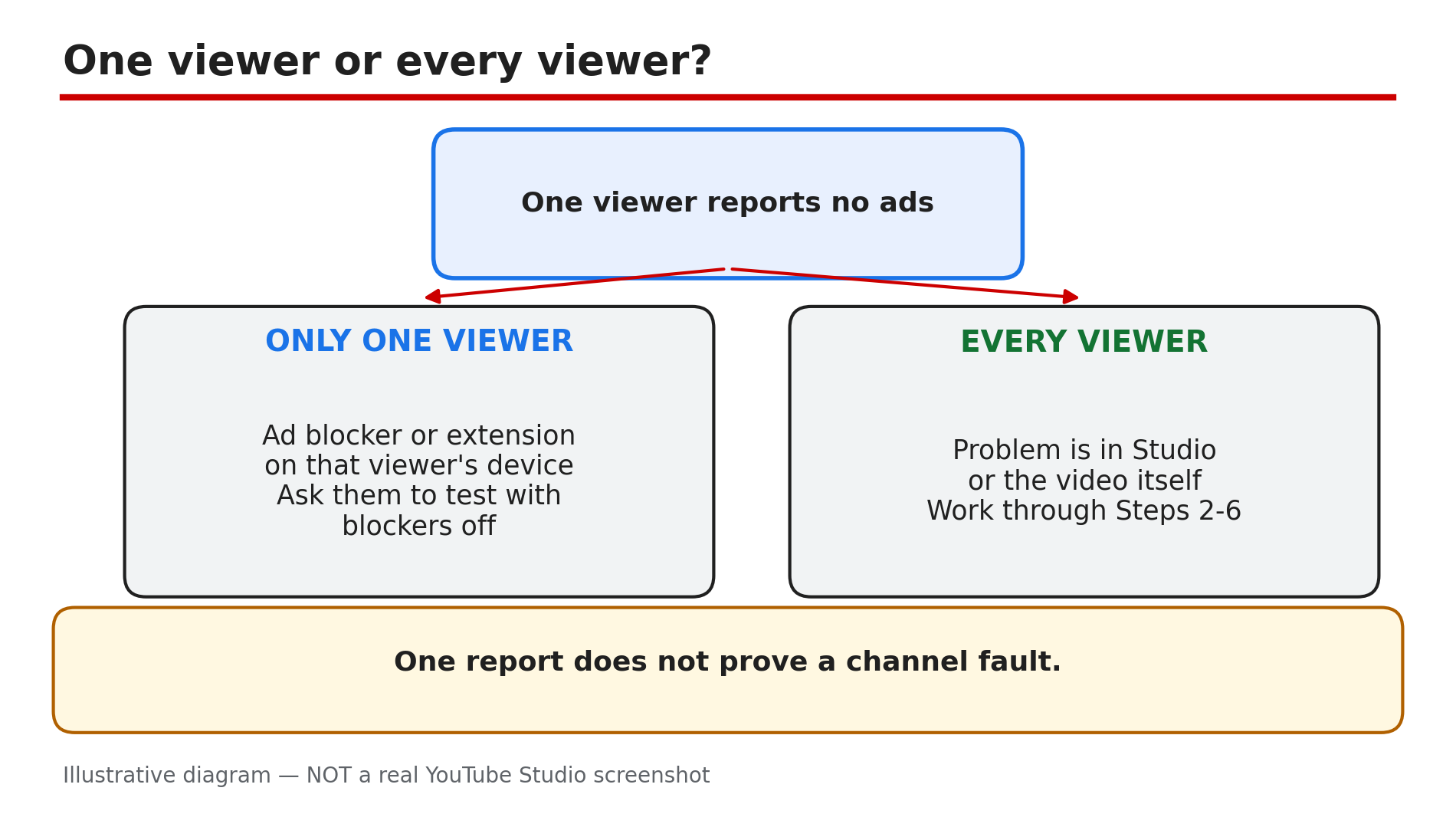
Your video is monetized, the icon in YouTube Studio is green — and yet no ads appear, and no revenue lands in Analytics. Know this first: turning monetization on is permission for ads to be considered, not a promise that an ad fills every slot. YouTube's own guidance puts it plainly, as reported: "Ad slots are not guaranteed to serve ads." Some videos show no ad because a real fault blocks them — monetization off, a yellow icon, a claim, a wrong setting. Others show no ad because no advertiser bid on that view — and nothing is wrong. This guide separates the two cases, in order. What You Will LearnOne viewer or every viewer: the test that splits the problem What the green, yellow and grey icons mean The five switches that must all be on What turns an icon yellow, and how to fix it How mid-rolls and embeds quietly kill ads When "no ads" is normal — and how Analytics proves itStep 1 — Ask one viewer or every viewer What to do: Before touching Studio, find out how widespread the missing ads are — ask two or three people on different devices whether they see an ad. How: Open the video yourself in another browser, signed out, extensions off. YouTube's Help page says ad-blocking software or browser add-ons can stop you seeing ads on your own video — so your own screen is the least reliable test. If one viewer sees no ads but others do, the fault is on that viewer's device. If nobody sees an ad anywhere, the problem is in Studio or in the video. Example: A creator panics after one comment saying "no ads on this video". Three other viewers saw a pre-roll ad. The commenter was running an ad blocker. Common mistake: Treating one viewer's report as proof the whole channel lost ads.Illustrative diagram: the one-viewer-or-every-viewer test that splits a no-ads problem in half. Step 2 — Open Studio and read the icon What to do: Open YouTube Studio, go to Earn, then to Content and look at the Monetization column. Click the icon to read what it says. How: A green icon means the video meets the advertiser-friendly guidelines and can earn most ads, as reported. A yellow icon means limited or no ads — a reduced pool of advertisers will bid. A grey or off icon means monetization is off for that video, or the video is ineligible. Also check Earn: if monetization is paused at channel level, the cause is usually a missing or unapproved AdSense for YouTube account, as reported — see our guide on monetization paused vs disabled. The icon is per video, and it can change after publishing. Example: A creator checks Earn, sees the channel is fine, then finds the video's icon is yellow, not green. The video was never broken — it was limited from the start. Common mistake: Checking only the channel switch, never the icon on the video.Illustrative diagram: what the green, yellow and grey monetization icons mean. Step 3 — Check the video's own switches What to do: Open the video in Studio and confirm five things — every one must be right, or ads will not serve. How: First, monetization must be on for this specific video, not just the channel. Second, the video must be public — YouTube lists private videos as ineligible for ads. Third, the ad formats must be turned on. Fourth, ads must not be turned off for your channel in account settings — YouTube says that switch stops ads on every video you own. Fifth, check for a third-party claim — YouTube lists such videos as ineligible to monetize with ads. Example: A creator uploads a video as private to test it, then makes it public and wonders why the first viewers saw no ads. It had been private when those views happened — and private videos cannot show ads. Common mistake: Assuming channel monetization on means every video is on automatically.Illustrative diagram: the five switches that must all be on for ads to serve. Step 4 — If the icon is yellow: find the trigger, edit, review What to do: Click the yellow icon and read the reason YouTube gives. Fix that part, then request a human review. How: The common triggers, as reported: swearing or shocking content in the first 30 seconds, violent or shocking imagery, a sensitive topic, and a sensational thumbnail. Edit out the trigger — bleep the language, swap the thumbnail — then request a human review. Reviews are reported to take up to 7 days, with one appeal per video — so fix the video first. One yellow icon mostly hurts that one video, but a pattern of yellows can raise the channel's risk in review, as reported. Example: A creator's challenge video turns yellow the day after upload — the first 20 seconds contain loud swearing after a spicy-food bite. She bleeps it, swaps the thumbnail, requests a review, and the icon turns green within a few days, as reported. Common mistake: Requesting a review before editing — the same trigger is still in the video.Illustrative diagram: the three common triggers that turn a monetization icon yellow. Step 5 — Check mid-rolls and where the video is playing What to do: Check how mid-roll ads are controlled, and where viewers are actually watching — the watch page, or an embedded player. How: For live streams, confirm Monetization is On in Live Control Room. YouTube documents three mid-roll modes, as reported: automatic (YouTube picks the breaks), scheduled (you choose an interval), and manual (you insert each break yourself). YouTube recommends automatic mid-rolls; scheduled or manual choices may earn less, as reported. A delay setting can postpone automatic mid-rolls by 10 minutes. Finally, check the player: ads are turned off for a live stream when its player is embedded on an external site with autoplay, as reported — compare it on the YouTube watch page first. Example: A 24/7 stream shows no ads on the channel's website, but ads appear on the watch page. The website embed uses autoplay, which switches ads off for live streams, as reported. Common mistake: Inserting manual mid-roll breaks and expecting every one to fill. A break is an opportunity, not a guaranteed ad.Illustrative diagram: automatic mid-rolls compared with scheduled or manual mid-rolls. Step 6 — When everything is on and still no ad What to do: Open YouTube Analytics and look at what the video actually earned. If the switches are all on and the icon is green, the rest is usually normal. How: YouTube's Help page says ads may not be displayed on each video view — check your earnings to see whether ads have been displayed on specific videos. So check ad revenue in Analytics, not one playback. A green video can still earn nothing on some views — no advertiser bid, or no ad was available. Also give a new upload time: once you turn monetization on, it may take some time for ads to show up, as reported, and status generally settles within about a day, as reported. Re-uploading does not change the auction — it only throws away your views and comments. Example: A creator watches her own new video three times, sees no ad, and re-uploads. Analytics later shows the original had already earned ad revenue — the re-upload cost its watch time for nothing. Common mistake: Re-uploading a green video to "fix" ads that were never broken. Check Analytics first.Illustrative diagram: an ad slot is created, an auction runs, and the ad may not fill. Checklist — Ads not showing on a monetized video☐ Asked several viewers on different devices if they see ads ☐ Tested signed out, in another browser, extensions off ☐ Checked Studio > Earn ☐ Read the video's icon — green, yellow or off ☐ Confirmed monetization on, video public, ad formats on ☐ Confirmed channel ads are not turned off ☐ Checked for a third-party claim ☐ If yellow: edited the trigger, requested a human review ☐ Checked mid-roll mode, any autoplay embed ☐ Checked the video's ad revenue in Analytics firstFAQs 1. My video is monetized and the icon is green, but I never see an ad. Is something broken? Not necessarily — a green icon means the video can earn ads, not that every view gets one. YouTube says ad slots are not guaranteed to serve ads, as reported, and ads may not be displayed on each video view. Check ad revenue in Analytics — if other viewers' plays earned, nothing is broken. 2. Why do I see ads on my video but my friend does not? Your friend's device is the likely cause. Ad-blocking software and browser extensions can hide ads, as YouTube's Help page says. Ask them to turn the blocker off or try a different browser. 3. How long after turning monetization on should I wait before worrying? Give it time. Once you turn monetization on, it may take some time for ads to show up, as reported, and status generally settles within about 24 hours, as reported. If the icon is still green and Analytics shows no revenue after a day or two of real views, work through the checks above. 4. Can an embedded video show ads? For live streams, ads are turned off when the player is embedded on an external site with autoplay, as reported — compare on the watch page. 5. Will one yellow icon hurt my whole channel's earnings? One yellow icon mainly hurts that one video. But a pattern of yellows can raise how YouTube's systems assess your whole channel, as reported — so fix repeated yellows at the source: first 30 seconds, thumbnail, topic. SourcesYouTube Help — "Ads aren't being shown on my video" (official Help page, opened live 14 Nov 2026): https://support.google.com/youtube/answer/117739?hl=en-GB CreatorPlaybook — "YouTube Monetization Paused vs Disabled: What's the Difference and How to Fix Each" (internal link, URL as given in the task): </blog/youtube-monetization-paused-vs-disabled> CreatorPlaybook — "YouTube Premium Revenue Explained: How Much You Earn Per View" (internal link, URL as given in the task): </blog/youtube-premium-revenue-explained-how>
- CreatorPlaybook Team
- 01 Nov, 2026
Shorts vs Long-Form Earning: How Many Shorts Views Equal 1,000 Long-Form Views? (2026 Data)
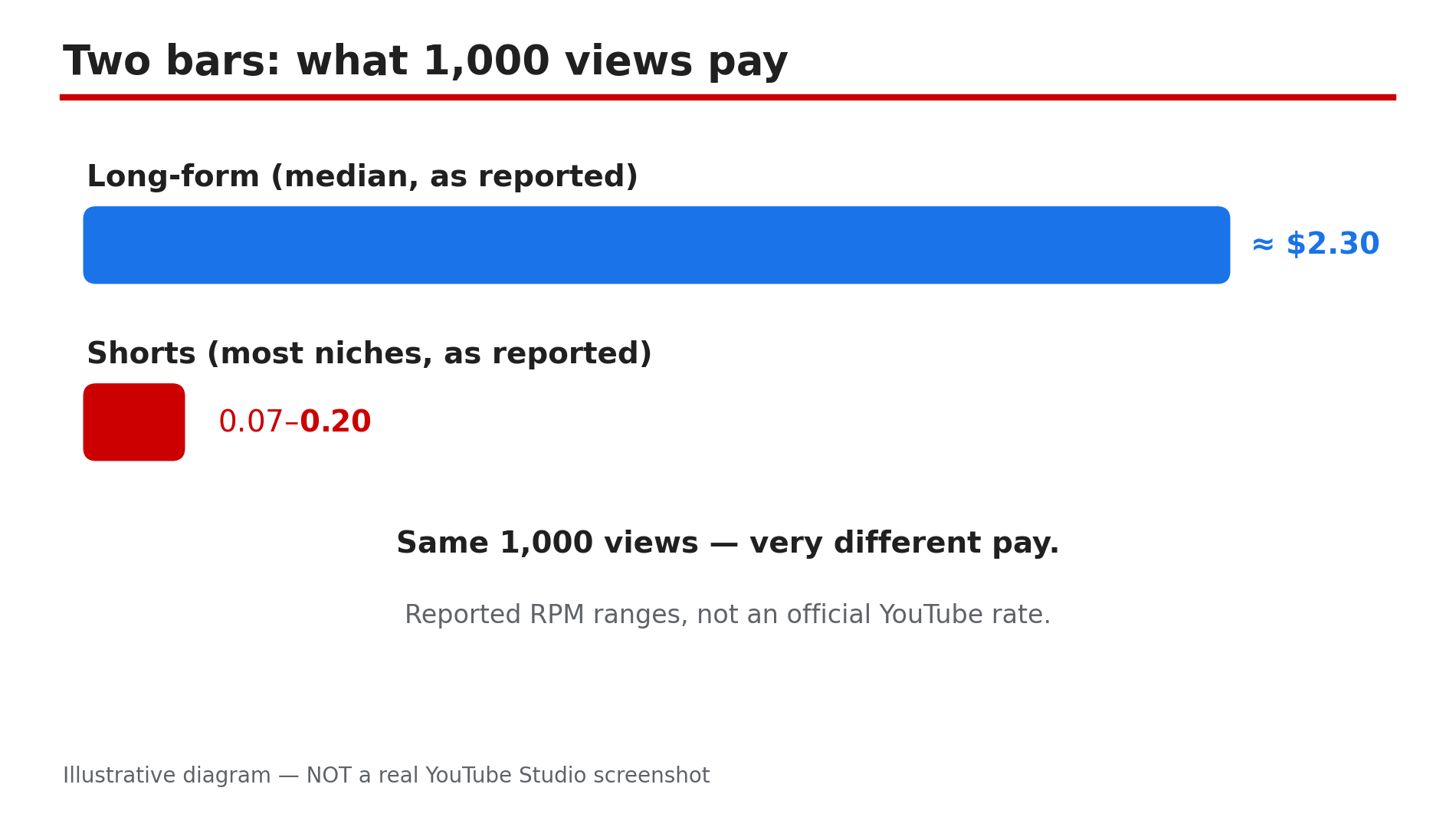
A Short with 100,000 views can earn less than a long video with 1,000 views — because on YouTube a view is not a view: the two formats are paid through completely different systems. As reported in a 2026 study of 274 channels, Shorts typically earn only 3–14% of long-form earnings per 1,000 views in the same niche. Shorts reach new people fast; long-form is where the ad money lives. YouTube publishes no fixed RPM — the figures are ranges that move with your niche and your audience's country. Below: both pay systems, the reported 2026 numbers, your channel's maths, and the February 2027 changes. Every third-party figure is labelled as reported; confirm your own numbers in Studio. What You Will Learn55% long-form, 45% of a pool on Shorts Reported 2026 RPM ranges by niche How many Shorts views equal 1,000 long-form views Where to find your real RPM in Studio What changes on 1 February 2027: the 10-million and 20-million figures How to mix Shorts and long-formStep 1 — Understand the Two Different Pay Systems What to do: Learn how each format is paid. How: On long-form, ads play on the video itself, and YouTube's Help pages confirm the creator keeps 55% of that ad revenue. Shorts carry no ads on the individual Short: ads run between Shorts in the feed, YouTube pools that revenue monthly and splits the Creator Pool by each creator's share of engaged views. Creators keep 45% of their allocation. Music changes the pool, not the rate. Example: YouTube's own example: a $90,000 pool and 100 million engaged views — a Short with 1 million engaged views gets 1% ($900), so $405 after the 45% share. Common mistake: Assuming a Short pays like a long video with the same view count — one is a share of a pool, the other a direct cut of ads.Illustrative diagram — reported RPM ranges, not an official YouTube rate. Step 2 — Read the RPM Ranges, Never a Fixed Rate What to do: Treat every RPM figure as a range — check its niche and country. How: RPM is revenue per 1,000 views: what a creator actually receives after YouTube's cut. YouTube publishes no official RPM, so the figures come from third-party studies of real Studio data, the largest recent one by AIR Media-Tech and MilX, covering 274 monetised channels. As reported, median long-form RPM was about $2.30 per 1,000 views, while most Shorts RPMs clustered at $0.07–$0.20 per 1,000 engaged views. Niche matters most: as reported, music is the exception at 41–60% of long-form ($0.97–$1.48). Gaming sat near $0.17, most others in the $0.07–$0.20 band. Country matters too: as reported, a mostly US audience paid around $0.328 per 1,000 Shorts views, an Indian audience far less. Example: Two channels with 100,000 Shorts views each: the music channel might earn roughly $97–$148, as reported; a general channel roughly $7–$20. Common mistake: Quoting one fixed number as if it were YouTube's rate — without a niche and a country, it probably is not your channel's rate.Illustrative diagram of the four-step Creator Pool process described in YouTube Help. Step 3 — Do the Maths: How Many Shorts Views Equal 1,000 Long-Form Views? What to do: Turn the ranges into a view count you can picture. How: In the 274-channel study, as reported, Shorts RPM was 3–14% of long-form RPM in most niches, so most channels need roughly 11,000–34,000 Shorts views to earn what 1,000 long-form views earn. Most niches sit at 11,000–26,000, gaming near 18,600, music about 1,100. Divide your long-form RPM by your Shorts RPM: at $2.30 and $0.10, the answer is 23, so 23,000 Shorts views match 1,000 long-form views. The study measures Shorts RPM per 1,000 engaged views, not raw plays. Example: A small education channel earns $2.50 per 1,000 long-form views and $0.08 per 1,000 Shorts views — $2.50 ÷ $0.08 is about 31, so about 31,000 Shorts views match 1,000 long-form views. Common mistake: Comparing view counts across formats — compare revenue, not views.Illustrative diagram — reported ranges from the 274-channel study, not a fixed rate. Step 4 — Check Your Own Numbers in YouTube Studio What to do: Read the two RPMs for your channel. How: In YouTube Studio on a computer, open Analytics, then the Revenue tab, for RPM and estimated revenue. Compare both RPMs over the same 28-day period, looking at the revenue column, not the views column. The Earn tab shows which modules you have accepted, including the Shorts Monetization Module, required before any Shorts views count toward revenue sharing — views earned before you accept it are not eligible, as YouTube's Help page states. Also check Shorts for Content ID claims in Studio > Content — a claimed Short over one minute long can be blocked and earn nothing. Example: One creator with 2 million Shorts views a month and 50,000 long-form views found the long videos earned over three times as much as the Shorts combined. Common mistake: Never opening the Revenue tab — views are a reach metric, revenue is a money metric.Illustrative diagram — niche and audience country move RPM more than view count does. Step 5 — Plan for the February 2027 Rule Changes What to do: Learn the two February 2027 figures. How: Announced 10 August 2026, effective 1 February 2027. First, the entry bar for new applicants: a new channel needs 1,000 subscribers plus either 8,000 qualified watch hours in 12 months or 20 million qualified Shorts views in 90 days — double today's 4,000 hours or 10 million views, for new applicants only, as reported. Second, the ongoing Shorts threshold for everyone already in the programme: a channel needs at least 10 million qualified Shorts views in the last 90 days to earn Shorts revenue that month, per YouTube's Help page. Below 10 million, Shorts revenue pauses while long-form keeps earning. Example: With 12 million Shorts views in the last 90 days, a channel keeps its Shorts revenue in February 2027; at 8 million it loses Shorts revenue that month but keeps all long-form earnings. Common mistake: Saying '20 million views or you lose monetisation' — twenty million is the new entry bar, ten million the rolling monthly bar.Illustrative diagram — 20 million is the new entry bar, 10 million is the rolling monthly bar. Step 6 — Build a Mix Where Each Format Does Its Best Job What to do: Give each format its best job instead of choosing between them. How: Use Shorts for discovery: a Short reaches new people, and a good one can send some to a related long video through the Related Video link or a pinned comment. Use long-form for depth and money: tutorials where viewers stay for minutes, watch mid-roll ads, build watch time. As reported, in the 274-channel study Shorts brought in under 2% of total revenue for most channels — a Shorts-only channel builds reach without building income. Example: A cooking creator posts two Shorts a week — quick tips and teasers — and one long video teaching the full recipe: the Shorts bring subscribers, the long video earns the revenue. Common mistake: Going all-in on Shorts because the views feel exciting — views are not income.Illustrative diagram — a suggested upload mix, not a guaranteed result. Checklist☐ My long-form and Shorts RPM from Studio > Analytics > Revenue ☐ My views-equivalent number (long-form RPM ÷ Shorts RPM) ☐ Shorts Monetization Module accepted in Studio > Earn ☐ Whether my audience is mostly in a high- or low-paying country ☐ My Shorts checked for Content ID claims in Studio > Content ☐ February 2027: 20 million is the new entry bar; 10 million is the rolling bar ☐ Updated terms accepted before 31 January 2027 (if already in YPP) ☐ Upload mix gives long-form a real shareFAQs 1. How much does YouTube pay per 1,000 Shorts views? No official fixed rate exists. As reported in the 2026 AIR Media-Tech study of 274 channels, most niches earned $0.07–$0.20 per 1,000 engaged Shorts views, music far higher at $0.97–$1.48 — confirm your own figure in Studio. 2. How many Shorts views equal 1,000 long-form views? As reported, most channels need about 11,000–34,000 Shorts views, because Shorts RPM is roughly 3–14% of long-form RPM; music needs far fewer, around 1,100. 3. Why do Shorts pay so much less than long-form? The systems differ: long-form pays a 55% share of ads on your own video; Shorts pay a 45% share of a monthly pool divided by each creator's share of engaged views. 4. Do I need 10 million or 20 million Shorts views from February 2027? Both are real, for different things, as reported. From 1 February 2027, new applicants need 20 million qualified Shorts views in 90 days (or 8,000 watch hours) to join; existing partners need 10 million in the last 90 days to earn Shorts revenue that month. 5. Should I stop making Shorts and only make long videos? Usually not: Shorts are still the fastest way to reach new viewers. Use a mix — Shorts for discovery, long-form for depth and income. SourcesYouTube Help — "YouTube Shorts monetization policies": Creator Pool process, 45% share, music splits, engaged views, and the 10-million rule from 1 February 2027. Opened live 1 Nov 2026. https://support.google.com/youtube/answer/12504220?hl=en YouTube Premium revenue, explained — CreatorPlaybook (internal): Premium viewers as a second income stream. /blog/youtube-premium-revenue-explained-how YouTube CTR suddenly dropped after 24 August 2026 — CreatorPlaybook (internal): engaged views, not raw plays, now count. /blog/youtube-ctr-suddenly-dropped-after-24All third-party study figures (AIR Media-Tech / MilX, 274 channels, Sept 2026) are presented as reported, not as official YouTube figures. Confirm your earnings in Studio.
- CreatorPlaybook Team
- 31 Oct, 2026
Fan Funding on YouTube: How to Set Up Super Chat, Super Thanks and Memberships
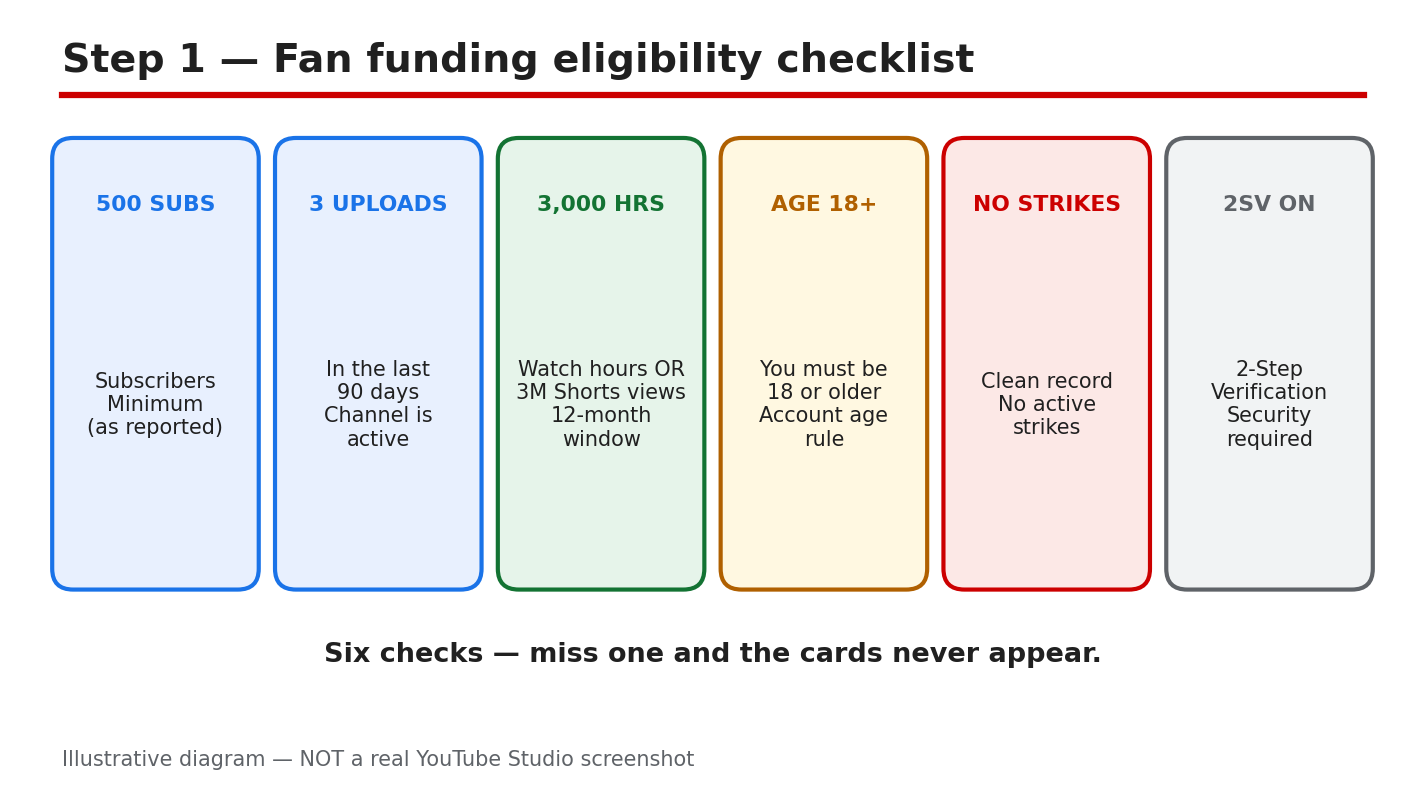
Fan funding is money your viewers send you directly. Super Chat and Super Stickers highlight a fan's message during a live stream, Super Thanks lets a viewer tip on an uploaded video or Short, and memberships turn loyal viewers into monthly supporters with badges and perks. As reported, creators keep 70% of the net revenue, and these features unlock earlier than ad revenue — at 500 subscribers under the expanded YouTube Partner Program. Each feature has its own setup. This guide walks through it in order. What you will learnWhat each fan funding feature does, and where viewers see it The eligibility numbers and rules to check first How to accept the Commerce Product Module and turn features on How to set up membership tiers, prices, and perks Why a feature may not show, and the fixStep 1: Check you meet the eligibility numbers What to do: Check the reported fan funding thresholds first. How to do it: As reported, fan funding opens at 500 subscribers, 3 valid public uploads in the last 90 days, and either 3,000 qualified watch hours in 12 months or 3 million qualified Shorts views in 90 days. You must also be 18 or older, have no active strikes, have two-step verification on, and have a linked AdSense account. Confirm each number on your own Earn tab. YouTube has announced Partner Program updates from 1 February 2027 — confirm in Studio/Earn tab. Example: A cooking channel has 620 subscribers and 3,400 watch hours but only 2 uploads in 90 days. One more public video clears the gap. Common mistake: Comparing your channel with a friend's. Eligibility is per channel and per country.Illustrative diagram (mock-up) of the eligibility checks — not a real YouTube Studio screenshot. Step 2: Accept the Commerce Product Module What to do: Accept the Commerce Product Module in the Earn tab. It covers all fan funding features. How to do it: Sign in to YouTube Studio on a computer and select Earn in the left menu. Click Get started for the Commerce Product Module and read the terms before accepting. Creators who signed the older Addendum before 2023 are reported not to need the new module. Once accepted, the Supers and Memberships cards should appear. Example: A gaming creator joined the Partner Program but skipped the module step. Her Earn tab showed no Supers card until she accepted it. Common mistake: Accepting the Watch Page ads module and assuming fan funding is covered. Each module is separate.Illustrative diagram (mock-up) of the Commerce Product Module path — not a real YouTube Studio screenshot. Step 3: Turn on Super Chat and Super Stickers What to do: Turn on Super Chat and Super Stickers for live streams and Premieres. How to do it: In YouTube Studio, go to Earn > Supers and toggle on Super Chat and Super Stickers individually. As reported, viewers choose preset amounts from $1 to $500, with local equivalents. Super Chat only works during live streams and Premieres, and only when live chat is enabled on that stream, so check the chat setting first. Example: A music teacher goes live every Friday and toggles Super Chat on once. A viewer's paid message stays pinned at the top of the chat. Common mistake: Expecting Super Chat on an uploaded video. It is a live-stream feature only.Illustrative diagram (mock-up) of Super Chat in live chat — not a real YouTube Studio screenshot. Step 4: Turn on Super Thanks What to do: Turn on Super Thanks for uploaded videos and Shorts. How to do it: In YouTube Studio, go to Earn > Supers and toggle on Super Thanks. As reported, once enabled it is on by default across eligible uploaded videos, and viewers can buy a one-time animation plus a highlighted comment. Tip amounts are reported as fixed at $2, $5, $10, or $50. Super Thanks is not available on made-for-kids channels or videos, or, as reported, on music channels under an SRAV contract — confirm in Studio/Earn tab. Example: A creator turns on Super Thanks and checks her top tutorial. The Thanks button appears, and a viewer leaves a $5 tip. Common mistake: Turning Super Thanks on and never checking a video. If the button does not appear, an audience setting may be blocking it.Illustrative diagram (mock-up) showing where viewers find Super Thanks — not a real YouTube Studio screenshot. Step 5: Set up channel memberships What to do: Create membership tiers with prices and perks, then submit them for review. How to do it: In YouTube Studio, go to Earn > Memberships and click Get started. As reported, you can create several tiers, each with its own price and perks such as loyalty badges, custom emoji, members-only posts, and members-only videos or live streams. Start with one simple tier — a low price with a badge and an emoji — and add more only when the first one works. YouTube reviews membership offers before they go live, so wait for approval before announcing them. As reported, memberships are not available on channels set as made for kids, or on channels with many ineligible videos. Example: A travel creator offers one tier with a badge, emoji set, and a members-only monthly Q&A. She announces it only after approval. Common mistake: Creating five tiers with complicated perks on day one. Viewers cannot tell them apart, and you must deliver every perk monthly.Illustrative diagram (mock-up) of membership tier structure — not a real YouTube Studio screenshot. Step 6: Test what viewers see and fix "not showing" What to do: Check each feature as a viewer would, then work through why it may not appear. How to do it: Open your channel and one of your videos while signed out, and look for the Join button, the Thanks button, and — during a live stream — the Super Chat option. If one is missing, check in order: your country is not on that feature's availability list (as reported, each feature has its own list of around 99–100 locations); the channel or video is set as made for kids; live chat is off on the stream; the setup is unfinished, such as a membership tier still awaiting review; or a strike is blocking it. Changing your channel's country setting does not make you eligible, as reported. Example: A creator in a country not on the Super Chat list could not see it, while a friend in India could. Common mistake: Announcing a feature in a video before testing it. Viewers look for a button that is not there, and trust drops. Test first, announce second.Illustrative diagram (mock-up) of the not-showing diagnosis flow — not a real YouTube Studio screenshot. Checklist☐ Eligibility checked: 500 subscribers, 3 uploads, watch hours/Shorts views, 18+ ☐ Commerce Product Module accepted in the Earn tab ☐ Super Chat and Super Stickers toggled on in Earn > Supers ☐ Super Thanks toggled on and checked on one video ☐ Membership tiers created and submitted for review ☐ Each feature tested as a viewer would see itFrequently asked questions Do I need 1,000 subscribers for Super Chat, Super Thanks, or memberships? No, as reported. Fan funding opens at the 500-subscriber tier, while ad revenue needs 1,000 subscribers. How much do creators keep from fan funding? As reported, creators keep 70% of the net revenue from all four features. Payments go through your linked AdSense account. Why can my viewers not see Super Chat during my live stream? Check three things: Super Chat is on in Earn > Supers, live chat is enabled on that stream, and your country is on the availability list. It works only on live streams and Premieres. Why is the Thanks button missing on my videos? As reported, Super Thanks does not appear on videos set as made for kids or on certain music channels, and it needs its own toggle in Earn > Supers. Check the toggle and the video's audience setting. SourcesYouTube Help, Choose how you want to monetize: https://support.google.com/youtube/answer/94522?hl=en (verified live 31 Oct 2026). CreatorPlaybook, YouTube Monetization Paused vs Disabled vs Rejected: </blog/youtube-monetization-paused-vs-disabled> (verified live 31 Oct 2026). CreatorPlaybook, Earn Tab Features Missing? Super Thanks, Memberships and Shopping: </blog/earn-tab-features-missing-super-thanks> (verified live 31 Oct 2026).No official YouTube video is embedded here — none was verified live.