How to Delete or Hide Your YouTube Channel — and What You Actually Lose
 CreatorPlaybook Team
- 14 Nov, 2026
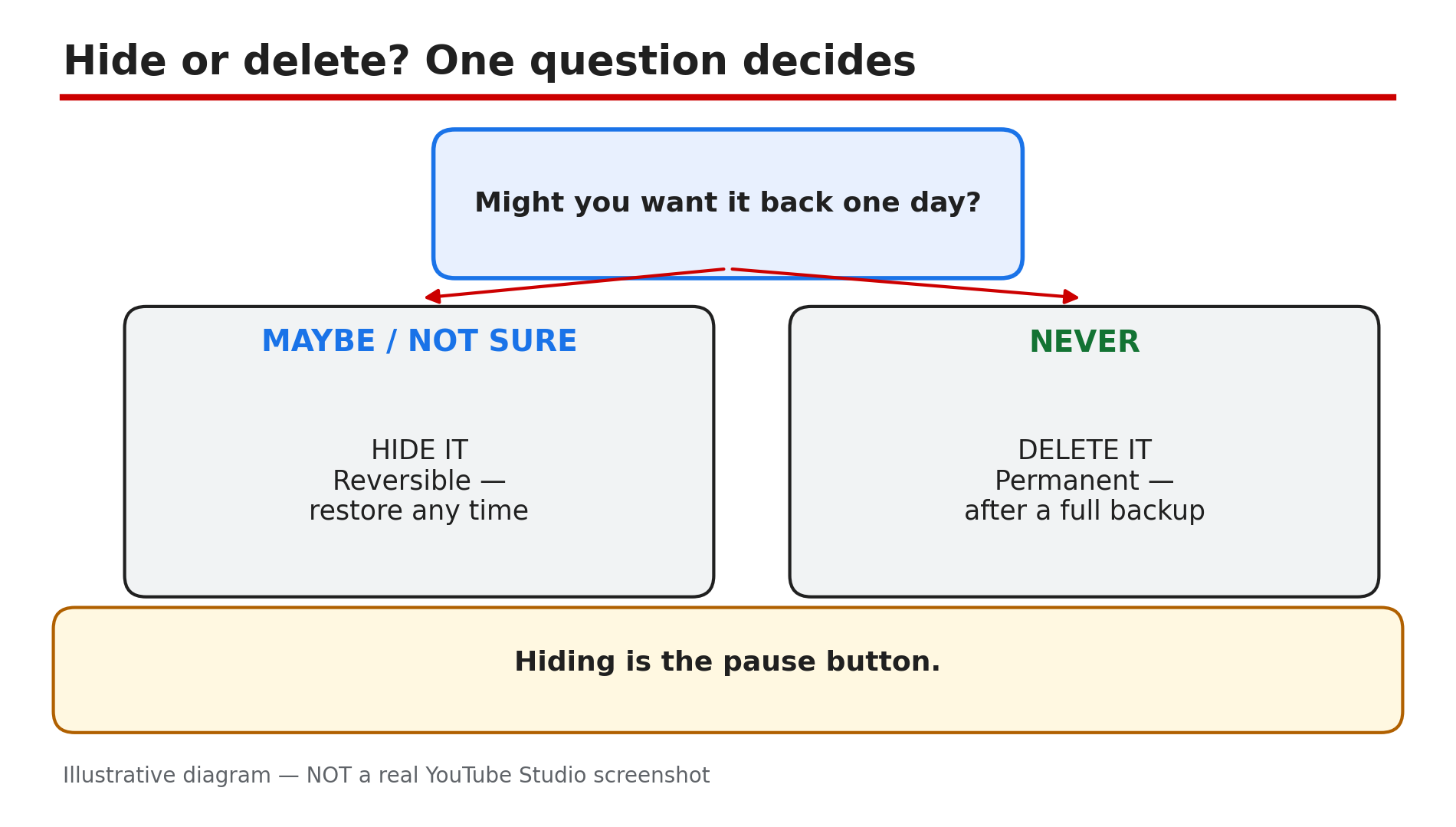
Deleting a YouTube channel is closer to demolishing a house than closing a door: every video, comment, subscriber and playlist tied to it goes too, and a deleted channel cannot simply be brought back. Hiding is the opposite — your channel steps out of public view, everything stays intact, and you can bring it back.
Most creators here are burnt out and want a break, started on the wrong Google account, or clicked something by accident. The right move differs in each case, and the wrong move is permanent. One warning: the menu paths have moved between Studio redesigns, so the steps below follow YouTube’s Help pages as they read on 14 November 2026.
What You Will Learn
- The one question that decides hide versus delete
- How to back up a channel before you touch a setting
- How to hide a channel the reversible way
- How to delete a channel permanently
- Exactly what disappears — and what survives
- How to restore a hidden channel, and why a deleted one has no way back
Step 1 — Decide first: hide or delete — the one question that matters
What to do: Answer one question before you open any settings page: might you ever want this channel back?
How: If the answer is “maybe” or “I don’t know yet”, hide the channel. Hiding is temporary by design — YouTube’s Help page says you can hide your channel and restore it at any time, and that hiding will not delete it. Your channel, videos, playlists and community posts disappear from search and other users, but nothing is destroyed. If the answer is a firm “never”, delete it — but only after Step 2. A hidden channel costs nothing to keep; a deleted one costs everything you built.
Example: A burnt-out creator with 40,000 subscribers hides her channel instead. Six months later she restores it — her videos are still there.
Common mistake: Deleting to “take a break”. Deletion is not a pause button — hiding is.
Illustrative diagram: the one question that decides hide versus delete
Step 2 — Back up everything before you touch a setting
What to do: Download a full copy of the channel first — after deletion there is nothing left to download.
How: Start with Google Takeout: choose YouTube, export your videos, and keep the archive safe. Then save what Takeout does not protect well — original video files, descriptions and titles, thumbnails, and a list of video URLs. Screenshot your Studio dashboard too: subscribers, watch time, top videos. Do this even if you only plan to hide, because a hidden channel you later delete still needs its backup made first.
Example: A creator deletes a channel with 200 videos, then realises his only copy of his first fifty was the upload itself. Takeout after deletion exports nothing.
Common mistake: Assuming YouTube keeps a copy you can ask for later. Once deleted, the Help page says YouTube may have a harder time recovering your account — and no documented restore exists.
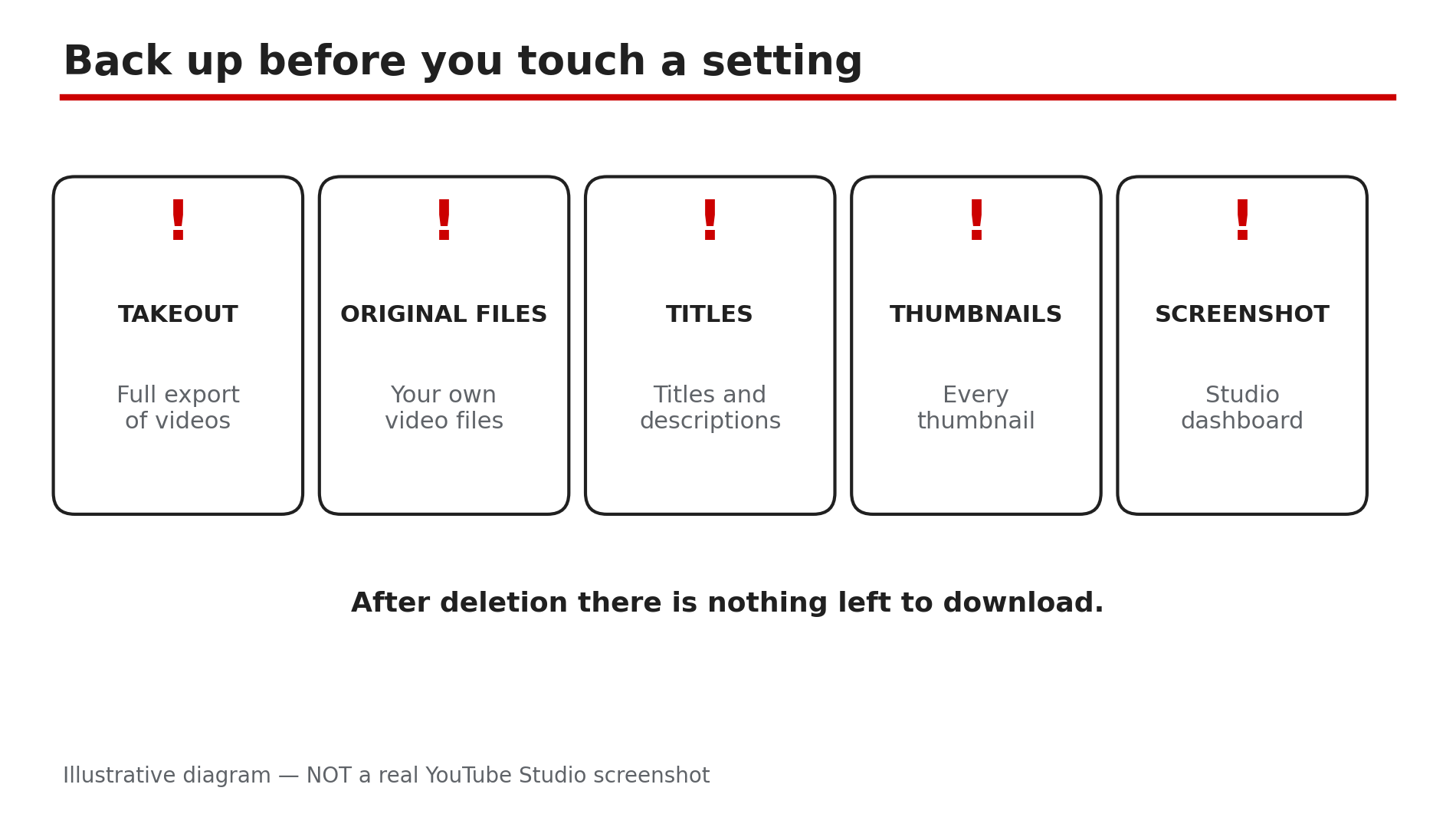
Illustrative diagram: the five things to back up before you touch a setting
Step 3 — Hide your channel the reversible way
What to do: Hide the channel from YouTube’s settings, on the Help page’s current path.
How: Sign in to YouTube, open Settings from the left sidebar, click Advanced Settings, then click Hide your channel and select Hide to confirm. That is the Help page’s path today — it starts on YouTube itself, not in Studio, with no Channel step. Older guides send you through Studio, then Settings, then Channel, then Advanced settings; follow the labels you actually see. While hidden, your channel, videos, playlists and community posts are hidden from search and other users; your name, handle and picture stay visible only to you. You can still watch, like and subscribe privately.
Example: A creator hides his channel during a three-month break. His videos vanish from search, but his watch history and subscriptions keep working, because hiding does not touch his Google account.
Common mistake: Forgetting delegated access: anyone with access loses it while the channel is hidden, and Brand Account delegates must be re-added after restore, as the Help page notes.
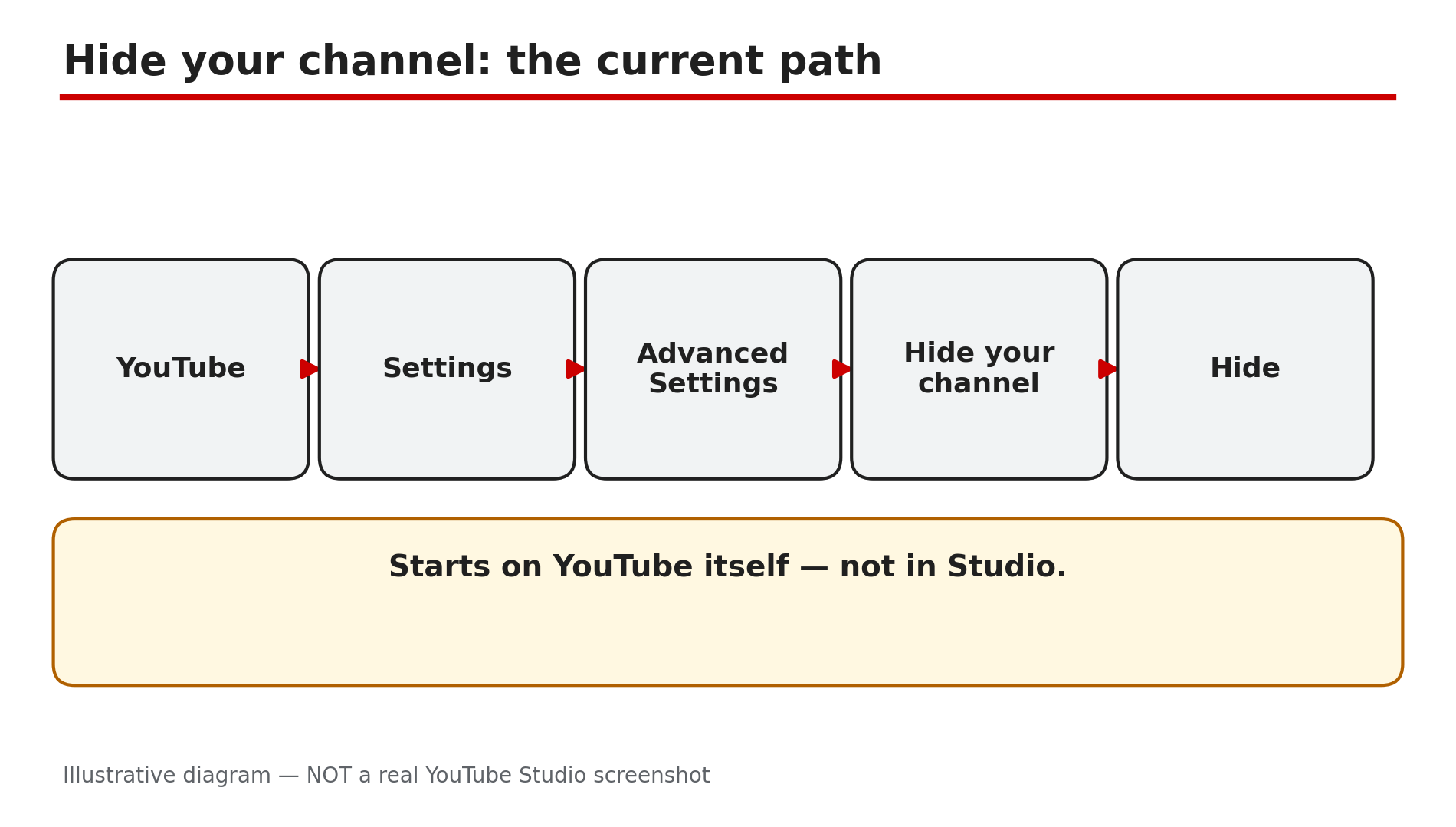
Illustrative diagram: the current path to hide a channel, starting on YouTube itself
Step 4 — Delete your channel permanently — the exact Studio path
What to do: Delete the channel from YouTube Studio — reading every confirmation box first.
How: Sign in to YouTube Studio. From the left sidebar, select Settings, then Channel, then Advanced Settings. At the bottom, select Remove YouTube Content — you may be asked to sign in again to verify your identity. Select “I want to permanently delete my content”, tick the boxes, and select Delete my content — the Help page path, checked live on 14 November 2026. Two things to know: you cannot currently delete a channel on a mobile device, as the Help page states, so use a computer; and deletion may take some time, during which thumbnails can still show briefly.
Example: A creator with two channels deletes the wrong one — both are signed into the same browser. The confirmations show the channel name: reading them is the last chance to catch it.
Common mistake: Rushing the confirmation boxes. They list what will be deleted — read them slowly and check the name and picture match the channel you mean to delete.
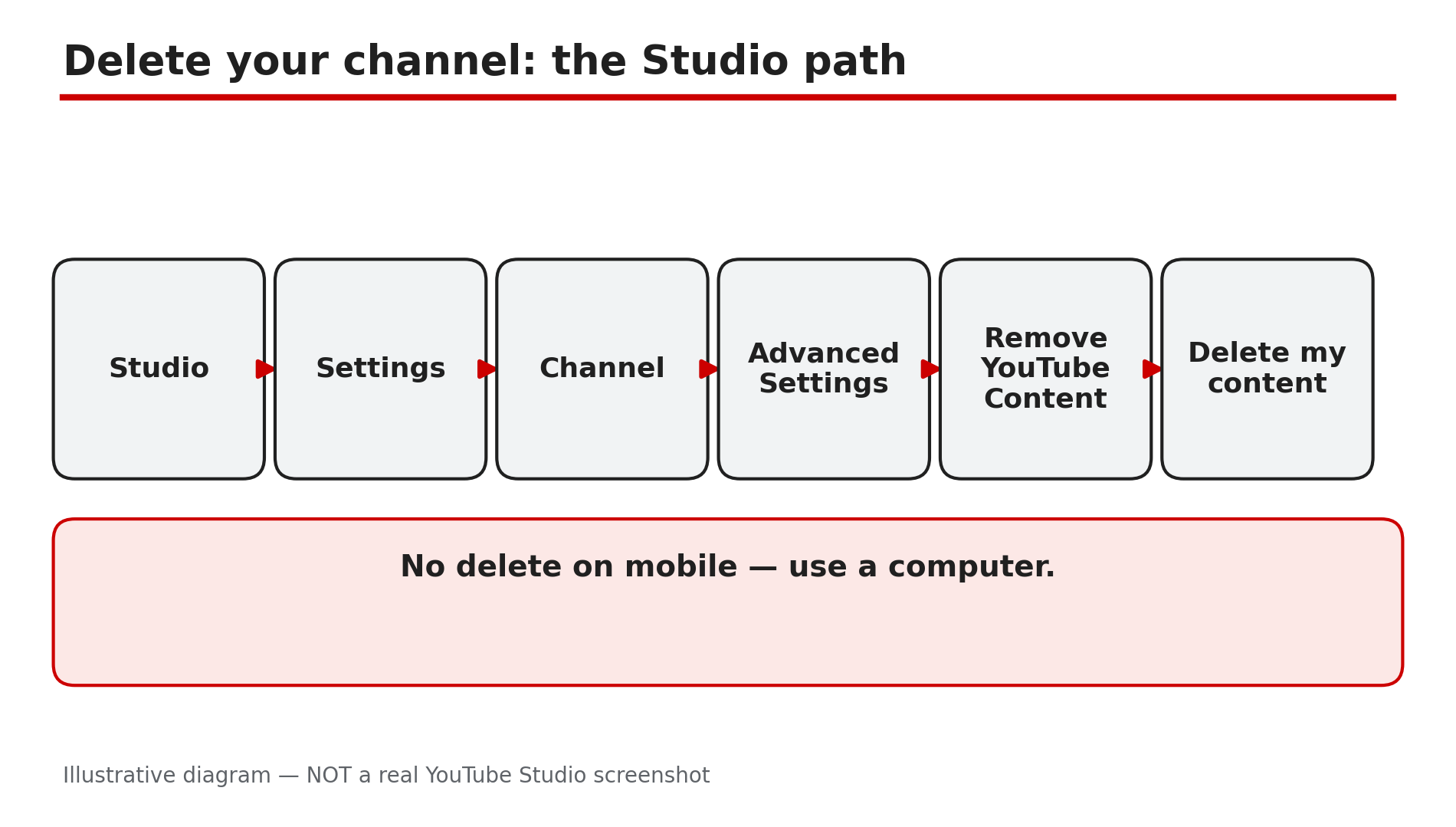
Illustrative diagram: the Studio path to delete a channel permanently
Step 5 — What actually disappears — and what survives
What to do: Know the full price of each choice before you pay it.
How: Deleting removes your videos, comments, messages, playlists and history, as the Help page states. Embedded videos on your website or blog will break, as reported — the video they point to no longer exists. Monetisation ends with the channel too: Partner Program membership and AdSense linkage are tied to it, as reported — confirm in Studio’s Earn tab first. Hiding costs far less: everything becomes private and invisible, but nothing is destroyed. One catch: after restoring, previously public videos come back private — make them public again in Studio. Deleting the channel is not deleting the Google Account: the Help page states these steps delete only your YouTube channel, so Gmail, Drive and Photos stay untouched. As reported, deleting a Brand Account channel removes only that channel.
Example: A creator deletes a channel and then finds her website full of dead embeds and her AdSense link gone. It was all listed in the Help page before she clicked.
Common mistake: Thinking “delete my channel” deletes your Google Account — or deleting the Google Account to remove a channel. The second, as the Help page warns, deletes the channel with everything else in it.
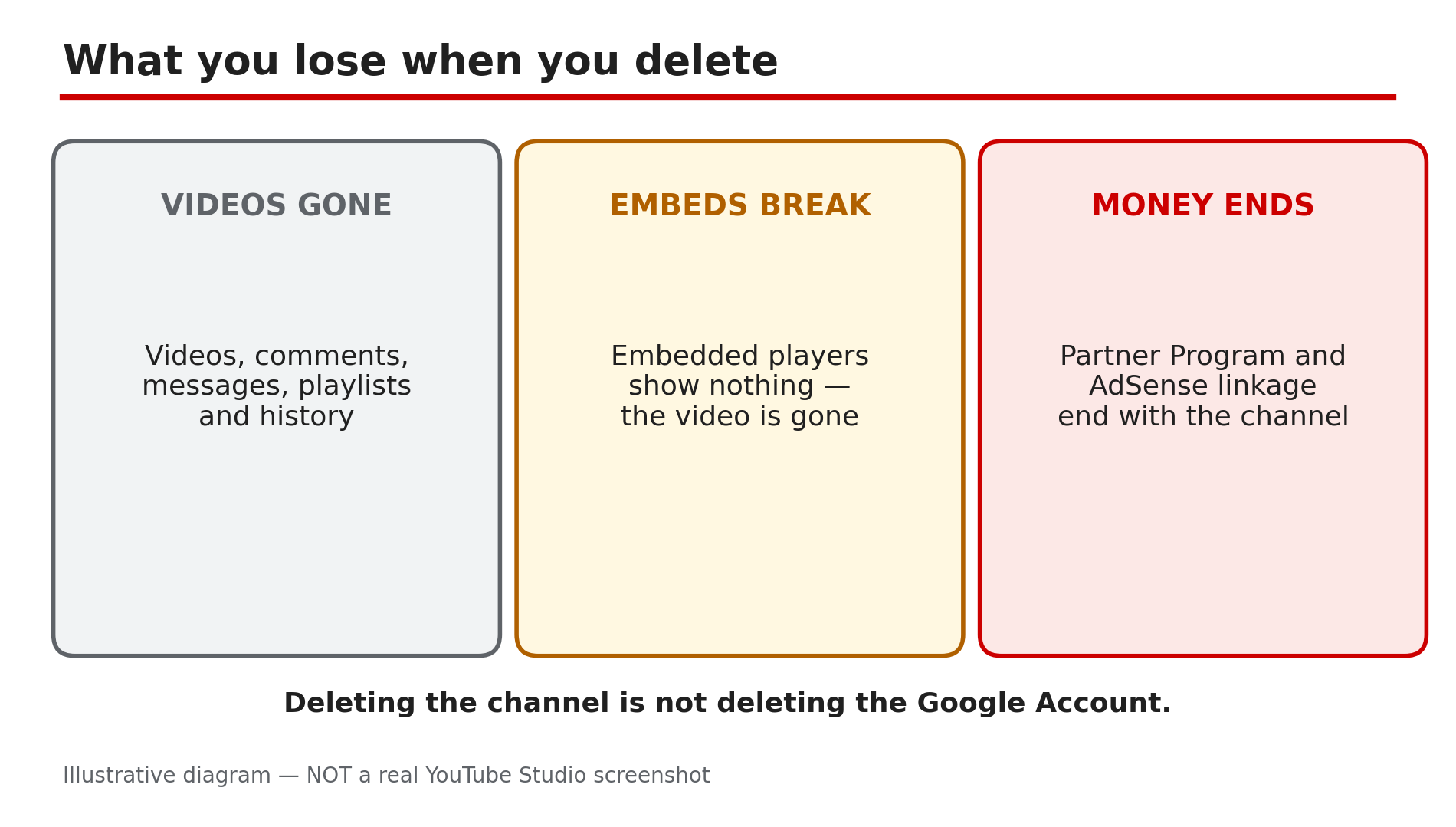
Illustrative diagram: three things you lose when you delete a channel
Step 6 — After the click: restore a hidden channel, or live with a deletion
What to do: If you hid it, restore it when ready. If you deleted it, rebuild from your backup.
How: To restore, sign in to YouTube, open Settings, click Advanced Settings, then click Restore your channel and select Restore — the hiding path in reverse. Your channel, name, handle and picture become visible again, and your playlists return too. But your previously public videos return set to private, so open Studio, go to Content, and set them back to public. If you deleted the channel, there is no documented restore path: the Help page only says YouTube may have a harder time recovering your account, and YouTube’s own support forum says a deleted channel cannot be restored. No recovery workaround is documented — do not trust any video or tool promising one. Re-upload from your Step 2 backup, fix broken embeds, and re-check monetisation in Studio.
Example: A creator restores a hidden channel after a year away and finds all 80 videos set to private. One afternoon in Studio sets them public again in bulk — her subscribers and playlists are still there.
Common mistake: Restoring a hidden channel and assuming the videos are public again. They come back private — until you change them, subscribers see an empty channel.
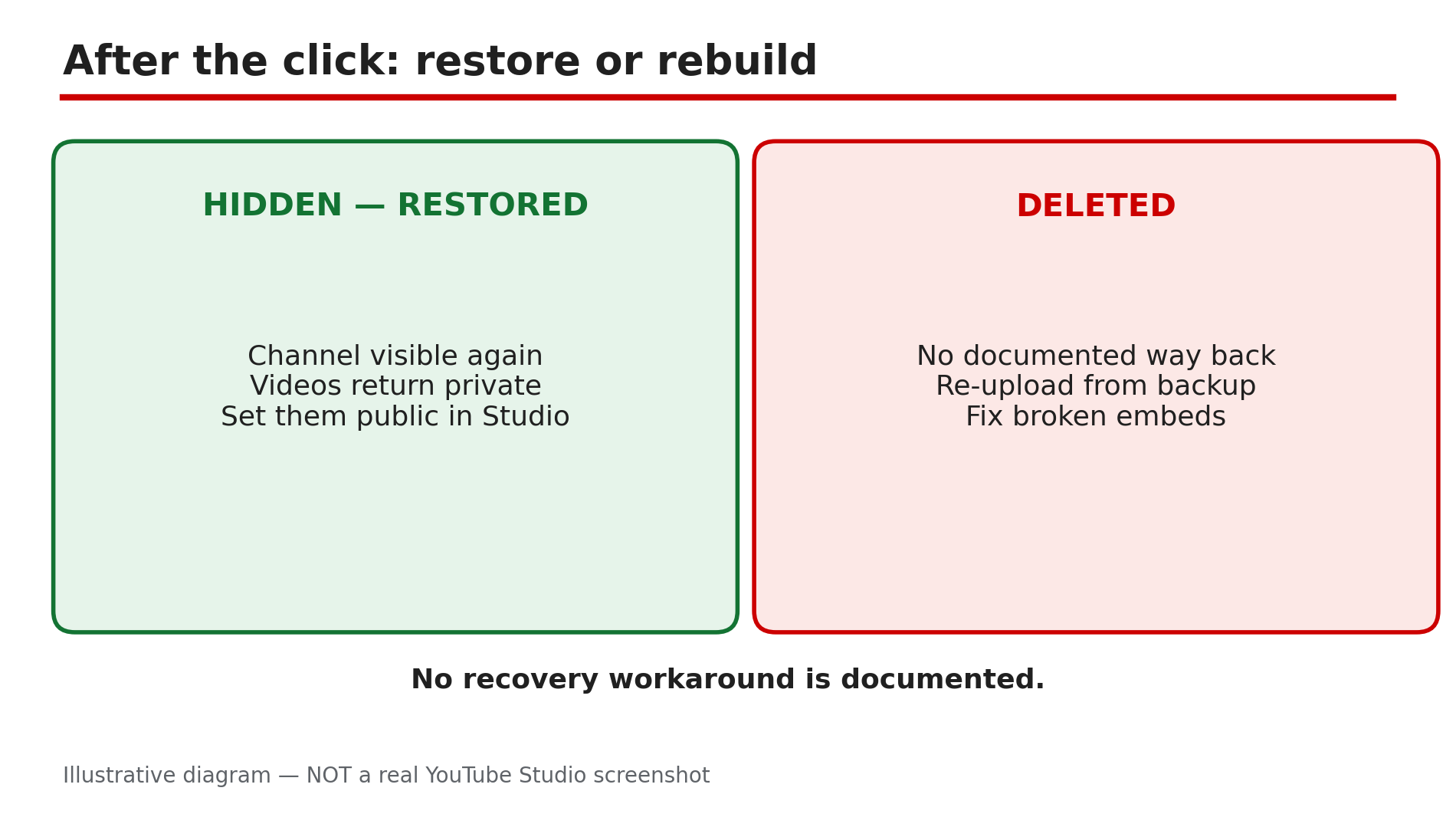
Illustrative diagram: what happens after the click — restore a hidden channel or rebuild a deleted one
Checklist — Before you hide or delete a channel
- ☐ Answered the Step 1 question honestly — hide if there is any doubt
- ☐ Downloaded a full Takeout backup and saved original video files
- ☐ Saved titles, descriptions, thumbnails and video URLs
- ☐ Checked the selected channel — right name and picture on screen
- ☐ Deletion needs a computer, not a mobile device
- ☐ Read every confirmation box before clicking Delete
- ☐ Accepted embeds break and monetisation ends with a deleted channel
- ☐ After restoring, set videos back to public in Studio
FAQs
1. Can I get a deleted YouTube channel back?
No — there is no documented way to restore a channel you deleted yourself. The Help page only says YouTube may have a harder time recovering your account, and YouTube’s own support forum says a deleted channel cannot be restored. Your only safety net is the Step 2 backup.
2. If I hide my channel, do I lose my subscribers?
Hiding makes your channel name, videos, likes, subscriptions and subscribers private, as reported, but nothing is deleted. On restore, previously public videos return set to private — set them public again in Studio.
3. Does deleting my channel delete my Google Account or Gmail?
No. The Help page states these steps delete only your YouTube channel, not the Google Account you sign in with, so Gmail, Drive and Photos stay untouched. But deleting that Google Account deletes the channel too.
4. Can I delete my YouTube channel from my phone?
Not currently. The Help page states you cannot delete a channel on mobile devices, so use a computer and YouTube Studio.
5. What happens to my verification badge if I delete or hide my channel?
The badge belongs to the channel, so deleting the channel removes it — a fresh channel must earn verification again. If your badge disappeared while the channel is alive, that is a different problem: see “YouTube Verification Badge Lost or Removed? What to Do Next” on CreatorPlaybook.
Sources
- YouTube Help — “Hide or restore your YouTube channel” (official Help page, opened live 14 Nov 2026): https://support.google.com/youtube/answer/55759?hl=en
- YouTube Help — “Delete your YouTube channel” (official Help page, opened live 14 Nov 2026): https://support.google.com/youtube/answer/18261435?hl=en
- CreatorPlaybook — “YouTube Verification Badge Lost or Removed? What to Do Next” (internal link, URL given in the task): </blog/youtube-verification-badge-lost-or>