Live Stream Recording Missing After Your Stream Ends? Why the VOD Disappears
 CreatorPlaybook Team
- 12 Nov, 2026
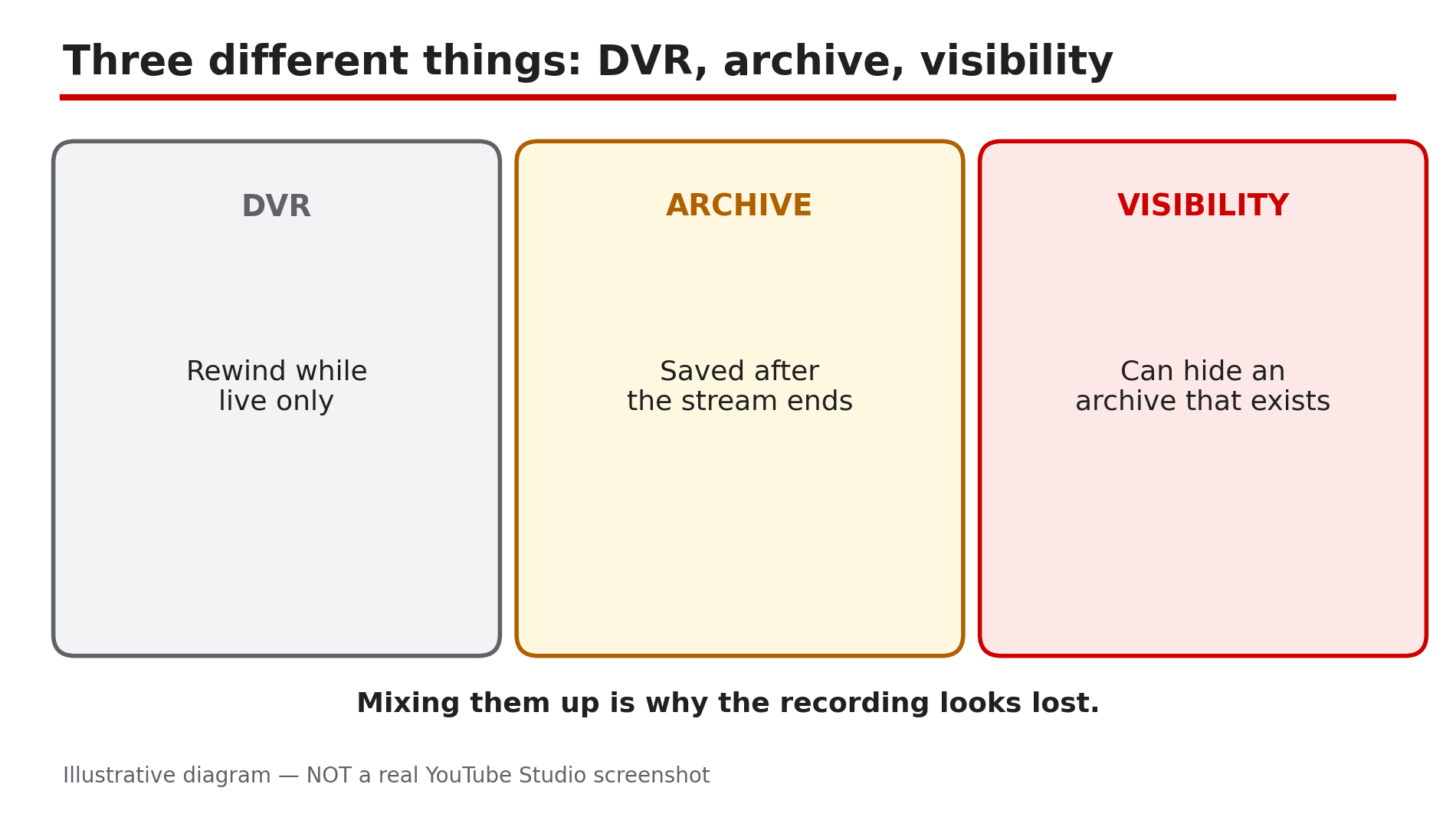
You finish a two-hour livestream, go to your channel to share the recording — and it is not there. No replay, no video on demand, nothing in the Videos tab. Before you assume YouTube deleted it, stop: a missing recording usually has one of a few specific causes, each with a different fix. The key distinction is between three things people mix up: DVR, which only works while you are live; the archive, which YouTube saves after you end; and the visibility setting, which can hide an archive that does exist.
What You Will Learn
- Where to look first: the Live tab in Studio
- Why a private or unlisted setting can hide an existing recording
- The 12-hour archive limit — what it does and does not mean
- Why DVR saves nothing after the stream ends
- How long VOD conversion takes
- How to protect your next stream with a local recording
Step 1 — Check whether the archive exists at all: Studio > Content > Live tab
What to do: Open Studio > Content > Live and look for the ended stream.
How: YouTube’s Help page on archiving live streams says the archive lives under Content > Live in Studio. Sign in to the right account and channel first — a Brand Account stream will not appear under your personal channel. If it is listed, the archive exists — the problem is visibility or processing (Steps 2 and 5). If it is not listed, YouTube did not capture an archive — usually the 12-hour limit in Step 3.
Example: A gaming creator ends a four-hour stream and cannot find the replay. In Studio > Content > Live, the stream is listed as Private — the archive exists, it was just never made public.
Common mistake: Searching the channel page or YouTube search for the replay. Search indexing is separate and can take days, and the channel page only shows public videos — Studio’s Live tab is the only place that tells you whether the archive exists.
Illustrative diagram: DVR, the archive and visibility are three different things.
Step 2 — Check visibility: the replay may exist but be private or unlisted
What to do: Read the archive’s visibility — a private or unlisted replay is invisible to viewers.
How: In Studio > Content > Live, click the details of the ended stream and select Visibility. A replay set to Private can only be seen by you and people you chose; set to Unlisted, anyone with the link can watch it, but it never appears in the Videos tab. Also check whether the stream was set to “Make unlisted after broadcast” — as reported, that option flips the archive to Unlisted automatically when the stream ends, which is why a public stream can vanish the moment it ends.
Example: A creator runs a members-only stream, then wonders why the replay is not on the channel page. The stream settings had “Make unlisted after broadcast” on, so the archive went Unlisted at the end.
Common mistake: Assuming the archive was deleted because it is not on the channel page. A private or unlisted archive is still there and still fixable with one setting change.
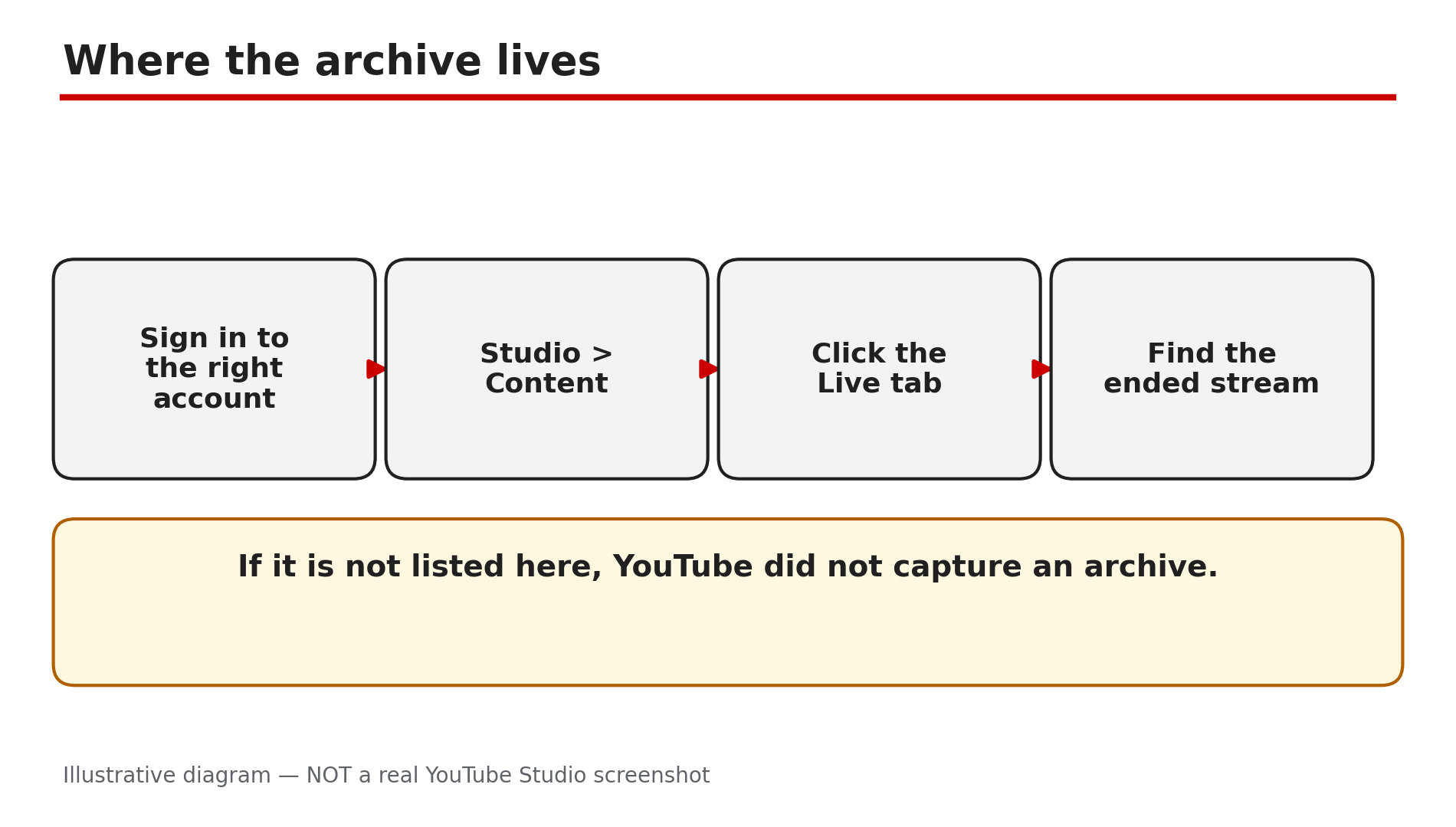
Illustrative mock-up: the four steps to find a live stream archive in YouTube Studio.
Step 3 — Check the 12-hour rule: a stream over 12 hours may not be captured at all
What to do: Check how long the stream ran — YouTube only promises automatic archiving under 12 hours.
How: YouTube’s Help page is explicit: “If your live stream is less than 12 hours, YouTube can automatically archive it for you”, and “If your stream exceeds 12 hours, it may not be captured at all.” Note the wording — “may not be captured” is an archive risk, not proof that YouTube ends a broadcast at 12 hours. No rule says a healthy stream is forcibly stopped at 12 hours — the limit is about what YouTube preserves afterwards. So a 14-hour stream ending with no archive is the documented outcome — restart every 11 hours next time so each part gets its own archive.
Example: A creator runs a 24-hour charity stream. Viewers watch live all day, but when it ends there is no replay — the stream ran far past 12 hours. The local recording from Step 6 is the only copy left.
Common mistake: Treating 12 hours as a hard cutoff for going live. The broadcast can keep running; it is the archive that is at risk.
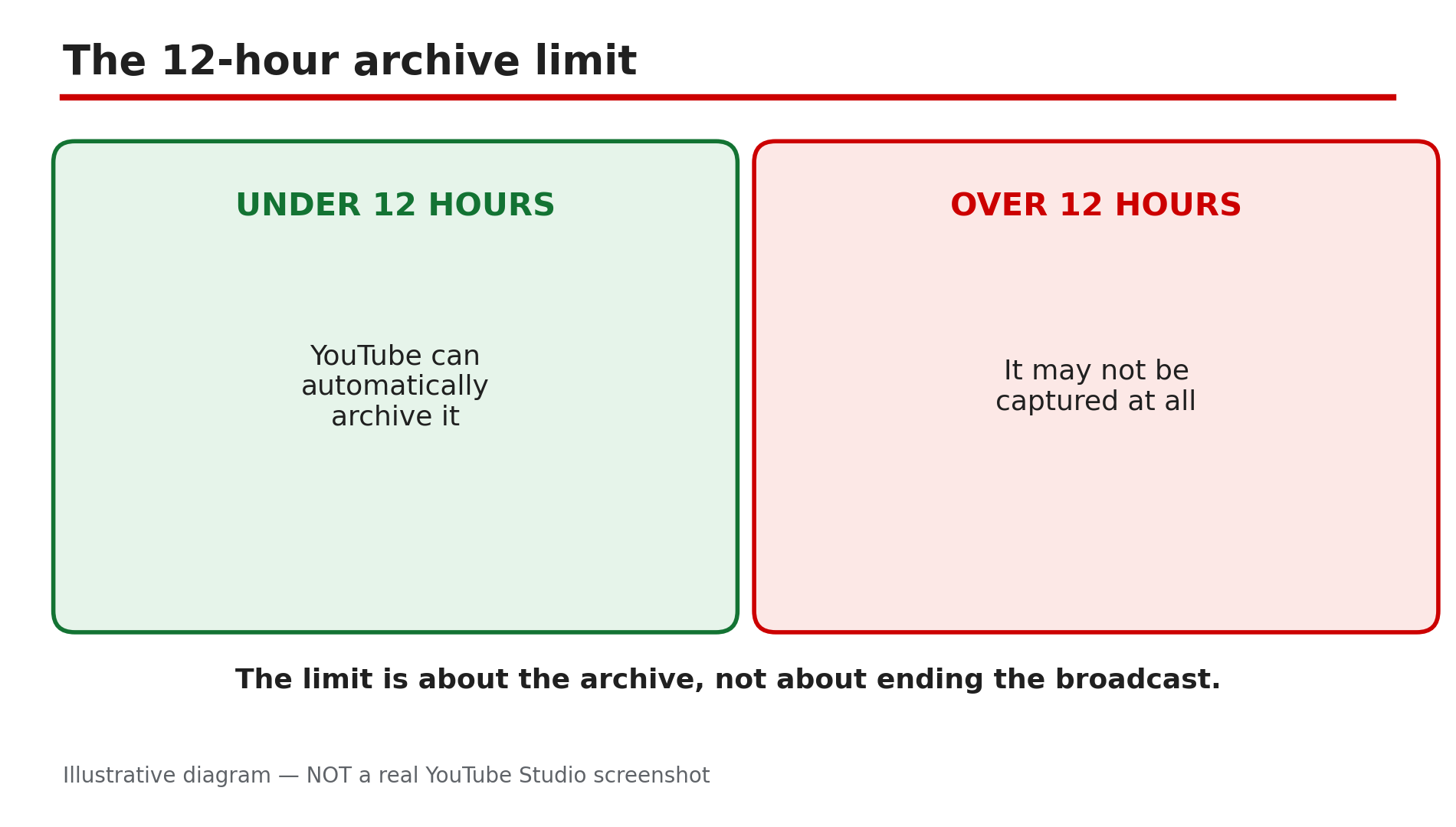
Illustrative diagram: streams under 12 hours can be archived, longer ones may not be captured.
Step 4 — Understand DVR: rewinding while live does not save anything after the end
What to do: Stop relying on DVR as a recording — it only exists while the stream is live.
How: DVR is the pause and rewind bar viewers see during a live stream — it lets them rewind while the broadcast is still running. It is not a recording — when the stream ends, the DVR window closes with it. YouTube also warns DVR may be limited or unavailable for streams longer than 12 hours, so viewers may not be able to rewind to the start. If viewers say they “rewound it yesterday”, they were rewinding the live DVR — there is no DVR left to recover once the archive is missing.
Example: A viewer watches the first hour of a stream, pauses it, and comes back after it ends expecting to resume. The stream is over, the DVR is gone, and without an archive there is nothing to resume.
Common mistake: Telling viewers “you can rewind it later”. You cannot — DVR is live-only. Only the archive, or a local recording you upload yourself, survives the end of the stream.
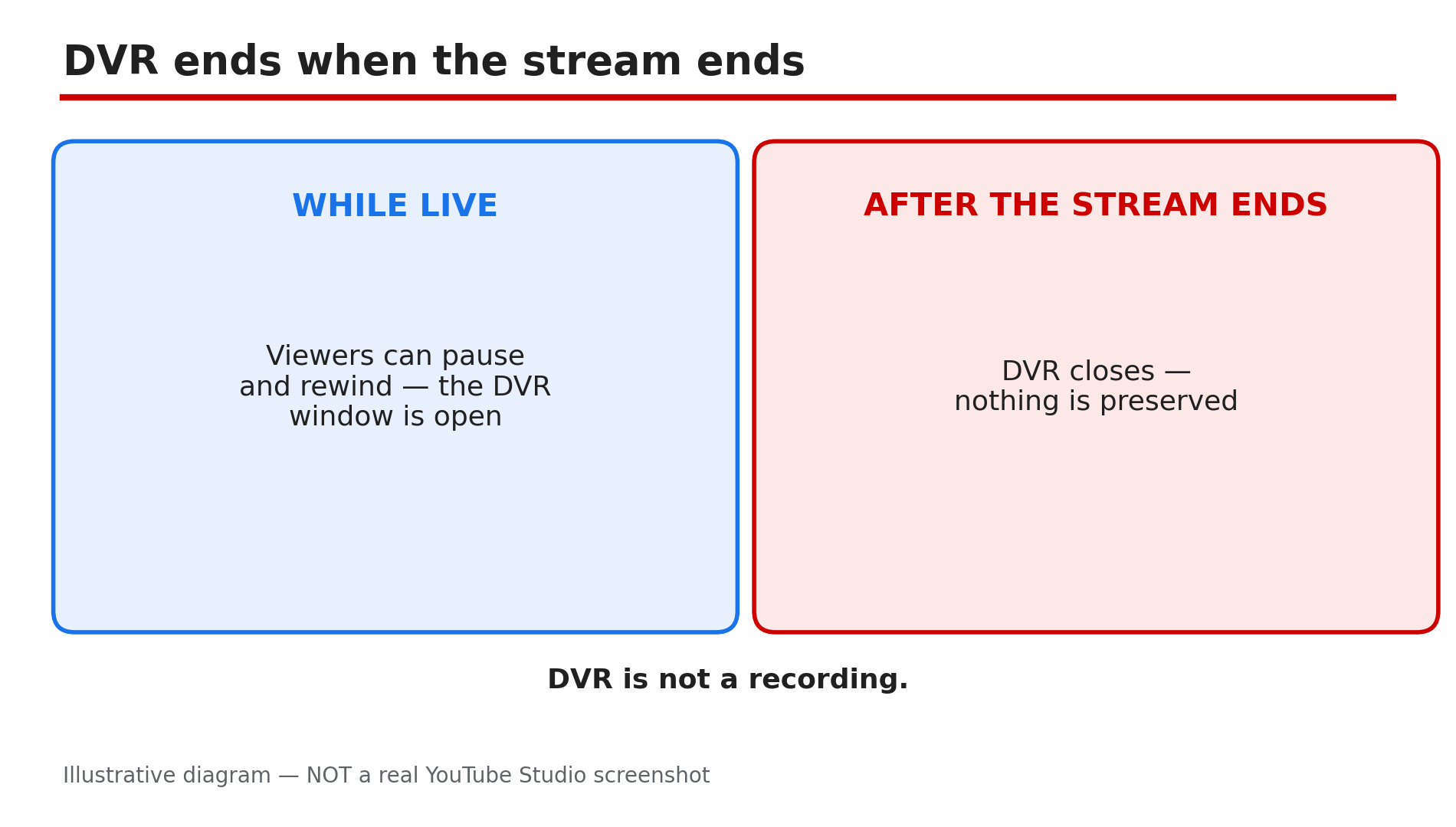
Illustrative diagram: DVR works only while the stream is live.
Step 5 — Wait for conversion: a new replay takes minutes to hours, and appears at 144p first
What to do: Give the archive time to convert before concluding it is missing.
How: After a stream ends, YouTube converts the recording into a video on demand, and as reported that conversion takes minutes to hours depending on the length of the stream. A new broadcast can take 1 to 5 minutes to appear to visitors, as reported. The replay usually appears first at 144p while higher resolutions are still processing. If the stream is listed in Studio > Content > Live but not yet on the channel page, wait, then reload the channel page incognito.
Example: A two-hour livestream ends at 9 pm. At 9:05 the replay is nowhere on the channel. By 10:30 it appears, first at 144p, then in HD — the conversion just took time.
Common mistake: Deleting the archive and re-uploading because it did not appear in five minutes. The archive was still converting, and the re-upload loses the watch link, the live chat replay and the view count.
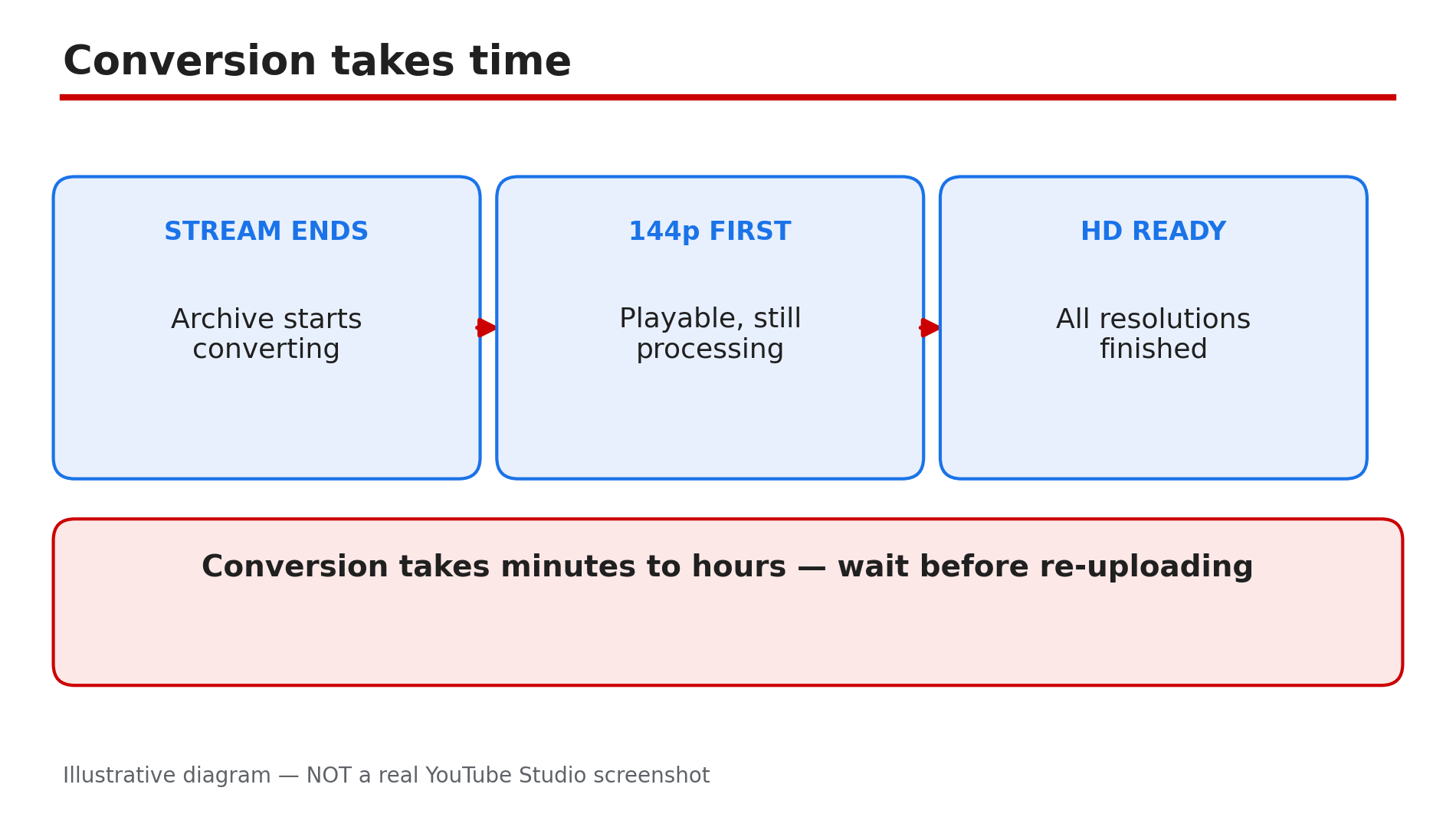
Illustrative diagram: a live stream replay converts after the stream ends, appearing at low quality first.
Step 6 — Protect the next stream: end before 12 hours and keep a local recording
What to do: Change the workflow — record locally and plan the stream length around the archive limit.
How: YouTube’s Help page recommends recording a local archive as a backup — the only reliable protection: set your encoder to record to your own computer while you stream, so you hold a copy whatever YouTube does. A local recording does not force YouTube to create an archive — if no archive was captured, there is no documented way to make YouTube generate one afterwards. With a local file you can upload the recording as a normal video. Also end sessions before 12 hours and check the replay exists before the next stream.
Example: A creator who lost a 13-hour stream’s archive now records locally on every broadcast and restarts every 10 hours. The next 12-hour event ends with three archives, plus a local file for each part.
Common mistake: Assuming a local recording is unnecessary because “YouTube always saves it”. YouTube can archive streams under 12 hours — “can” is not a guarantee — and over 12 hours it may not capture anything at all.
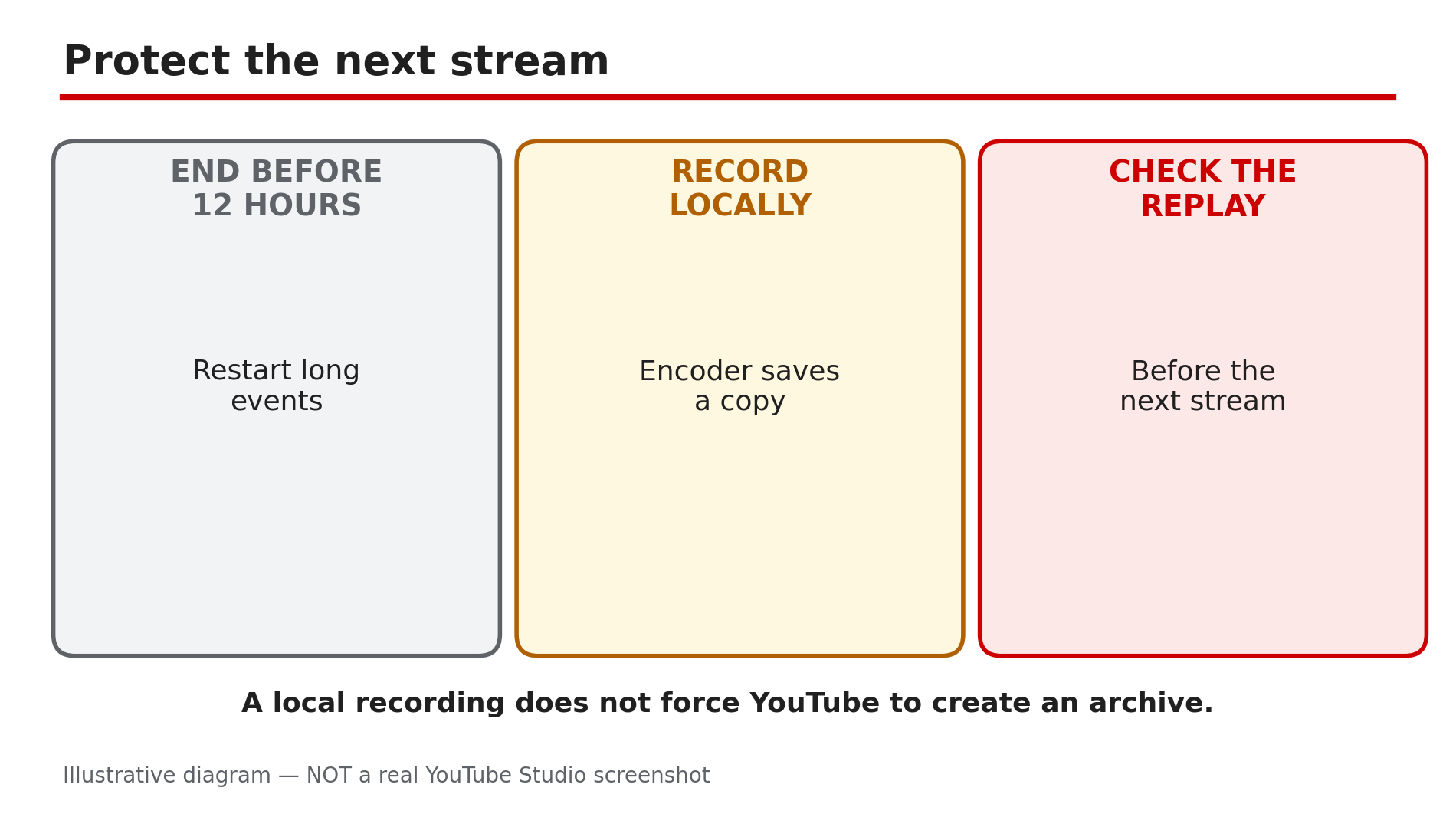
Illustrative diagram: three habits that protect your next live stream recording.
Checklist — Find a missing live stream recording
- ☐ Checked Studio > Content > Live on the right account and channel
- ☐ Read the archive’s visibility — Private or Unlisted hides it
- ☐ Checked whether “Make unlisted after broadcast” was on
- ☐ Checked the stream length against the 12-hour limit
- ☐ Remembered DVR is live-only and saves nothing after the stream
- ☐ Waited for conversion — minutes to hours, first at 144p
- ☐ Reloaded the channel page incognito before concluding it is gone
- ☐ Set up local encoder recording for the next stream
FAQs
1. My stream ended an hour ago and there is no replay — is it gone?
Not necessarily. Check Studio > Content > Live first: if the stream is listed, the archive exists and the problem is visibility or conversion time. If it is not listed, YouTube did not capture it.
2. Can I recover a stream that ran over 12 hours?
There is no documented recovery if YouTube did not capture the archive — a stream over 12 hours “may not be captured at all”. Your only copy is a local encoder recording, if you made one.
3. Why did my replay disappear from the channel page right after the stream ended?
The stream was probably set to “Make unlisted after broadcast”, which flips the archive to Unlisted when the stream ends. Change it to Public in Studio > Content > Live.
4. Viewers could rewind during the stream — why can’t they rewind now?
That was DVR, which only works while the stream is live. When the stream ends, the DVR window closes — only the archive, or a recording you upload yourself, survives.
5. How long does a replay take to appear after a stream ends?
As reported, conversion takes minutes to hours depending on length. The replay usually shows at 144p first.
Sources
- YouTube Help — “Archive live streams” (official page, opened live 12 Nov 2026): https://support.google.com/youtube/answer/6247592?hl=en
- CreatorPlaybook — “New YouTube Video Not Showing on Your Channel Page? 6 Checks That Fix It” (internal link, URL copied from the plan file): </blog/new-youtube-video-not-showing-on-your>
- CreatorPlaybook — “YouTube Live Stream Latency: Normal vs Low vs Ultra-Low — Which One Should You Pick?” (internal link, URL copied from the plan file): </blog/youtube-live-stream-latency-normal-vs>