New YouTube Video Not Showing on Your Channel Page? 6 Checks That Fix It
 CreatorPlaybook Team
- 11 Nov, 2026
You uploaded a video, it plays fine from the direct link — but when you open your own channel page, it is not there. Before you re-upload it or assume YouTube deleted it, stop: in most cases the video exists and is fine, and the reason it is missing is one of a short list of settings. This guide works through those checks in order.
What You Will Learn
- Why private and unlisted videos never appear in the Videos tab
- How long processing takes, and why a new video shows at 144p first
- The difference between your Home tab and your Videos tab
- How to check the video’s real status in YouTube Studio
- Why a strike or a Premiere problem can keep a video hidden
- Why search indexing is separate — and not the same as a missing listing
Step 1 — Check visibility first: private and unlisted videos never appear
What to do: Confirm the video is actually Public, because the other two settings hide it by design.
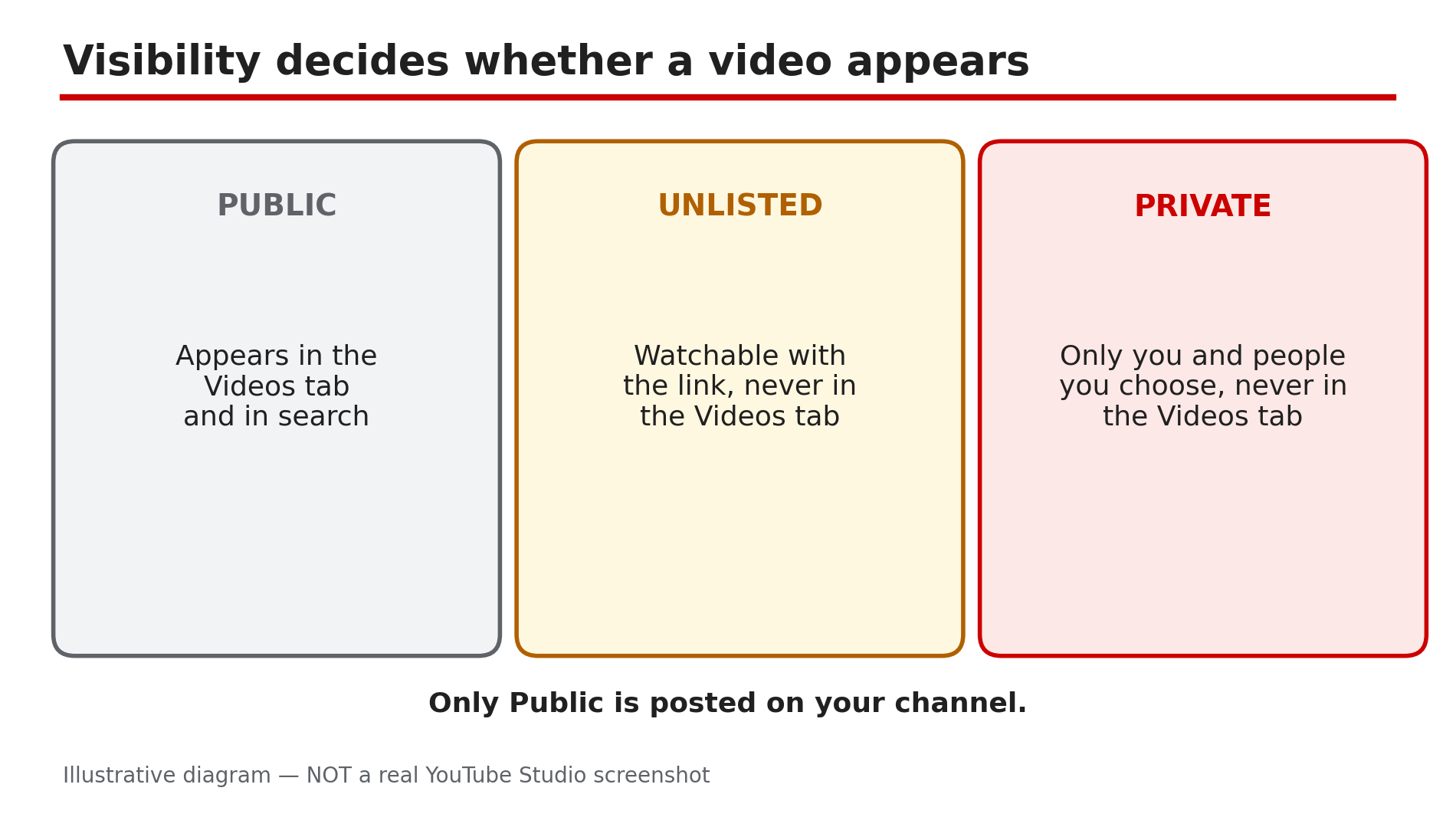
How: YouTube’s Help page on privacy settings is explicit: private videos will not appear in the Videos tab of your channel homepage, and neither will unlisted videos. Only public videos are posted on your channel. In Studio, go to Content and look at the Visibility column. If it says Private, only you and the people you chose can see it. If it says Unlisted, anyone with the link can watch it, but it still will not appear in the Videos tab or in search. Change it to Public and click Save.
Example: A creator uploads a video, shares the link in a WhatsApp group, and gets views — then panics because the video is missing from the channel. The upload default was Unlisted. One click to Public fixes it.
Common mistake: Assuming “Unlisted” means hidden from search but visible on your channel. It means hidden from both — the link is the only way in.
Illustrative diagram: how a video’s visibility setting decides whether it appears on your channel page.
Step 2 — Wait for processing: a new video appears slowly, and at 144p first
What to do: Give YouTube time to finish processing, especially for livestream replays and long videos.
How: YouTube processes the file after it arrives, and the low resolutions appear first — a new video often plays at 144p while the HD versions are still being made. A livestream replay is slower still: after a stream ends, the recording converts into a video on demand, which can take minutes to hours depending on length, and a new broadcast can take 1 to 5 minutes to appear to visitors, as reported. During that window the video may be missing from the channel page even though Studio shows it — wait, then reload in an incognito window.
Example: A two-hour livestream ends at 9 pm. At 9:05 the replay is nowhere on the channel. By 10:30 it appears, first at 144p, then in HD. Nothing was broken — the conversion just took time.
Common mistake: Deleting the video and re-uploading it because it did not appear in five minutes — the re-upload starts processing from zero.
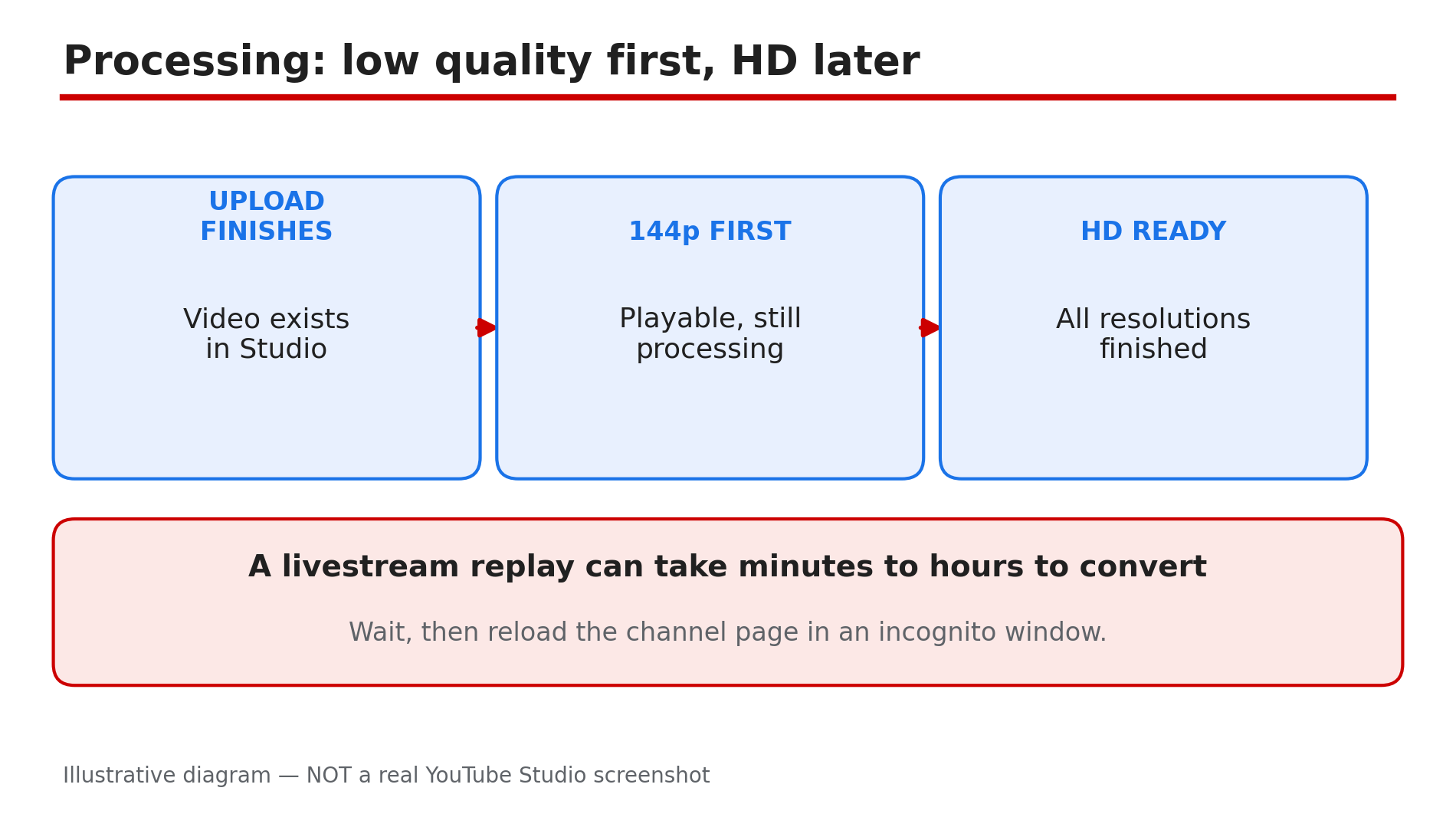
Illustrative diagram: a new video appears at low quality first while higher resolutions are still processing.
Step 3 — Check the right tab: Home shows sections, Videos shows everything
What to do: Look in the Videos tab, not the Home tab, because the two tabs show different things.
How: Your Home tab shows only the sections you set up in Studio — a trailer, popular uploads, playlists. If you never set up a section, or the new video does not fit any of them, Home will not show it. The Videos tab is the full list of your public videos, newest first. So open your channel, click Videos, and scroll. If the video is there, your channel is fine — Home just was not built to show it. To add it, create a section in Studio under Customization and click Publish — see our guide on channel trailers and featured sections.
Example: A creator’s new video is missing from Home but sits at the top of the Videos tab. The channel had only one section — Popular uploads — and a brand-new video with no views did not qualify for it yet.
Common mistake: Judging the channel by the Home tab alone. Home is a curated shop window; Videos is the warehouse.
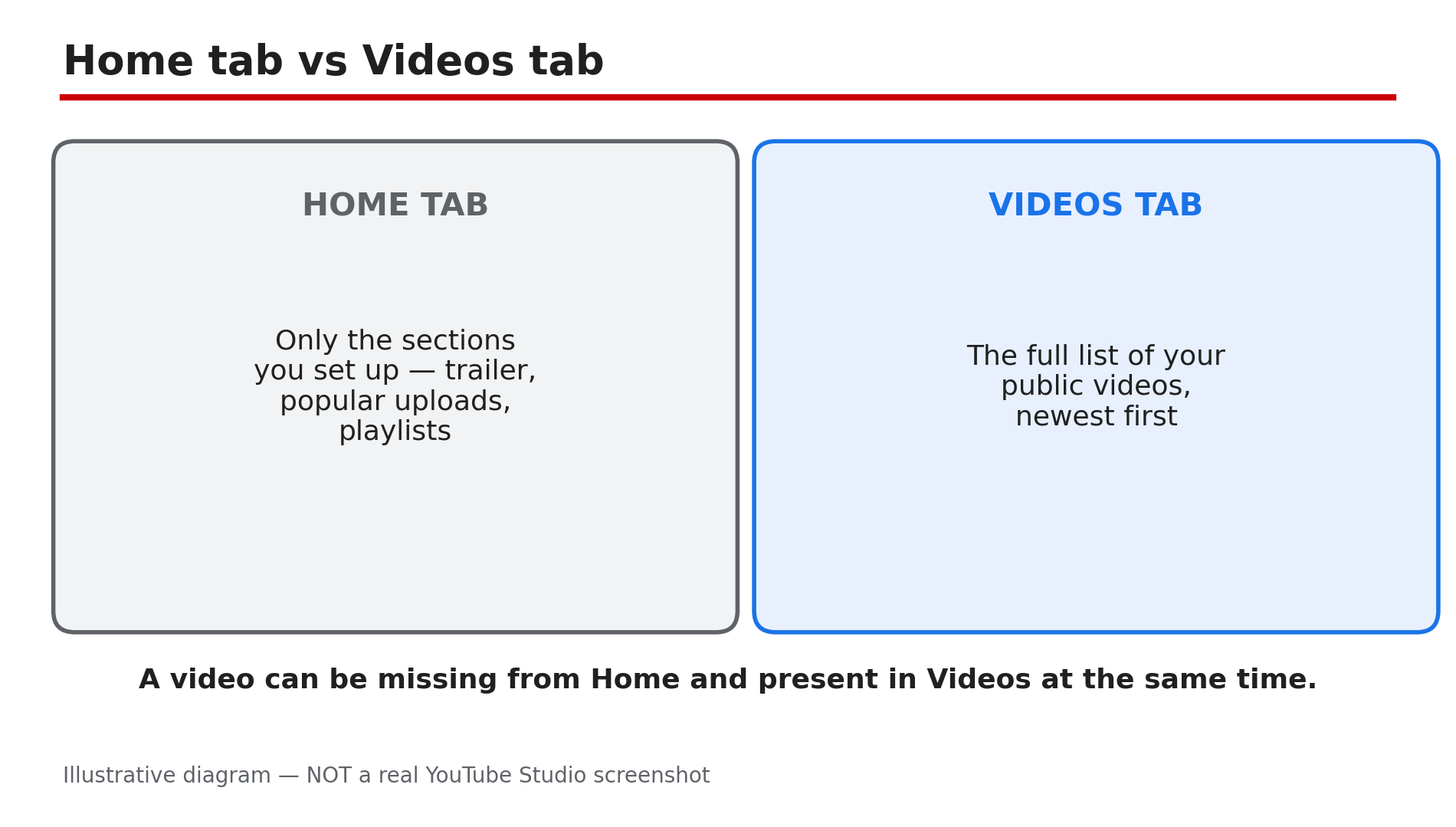
Illustrative diagram: the Home tab shows only the sections you set up, while the Videos tab shows every public video.
Step 4 — Check the video’s real status in YouTube Studio
What to do: Open Studio and read what YouTube actually says about the video, instead of guessing from the channel page.
How: In Studio, go to Content and find the video — for a livestream replay, check the Live tab. Read three things: Visibility, Restrictions, and the processing status. A video with a copyright claim or an age restriction will show it in the Restrictions column, and an age-restricted video is hidden from many viewers. Also check you are signed into the right Google account and the right channel. Finally, open the video’s direct watch-page link while signed out: if it plays, the video exists and the problem is listing, not the video itself.
Example: A creator could not find a video on the channel page, but the watch link played fine. In Studio, the Restrictions column showed an age restriction.
Common mistake: Checking on the uploading account and concluding “it is there for me, so it is there for everyone”. Creators see their own private and unlisted videos; visitors do not.
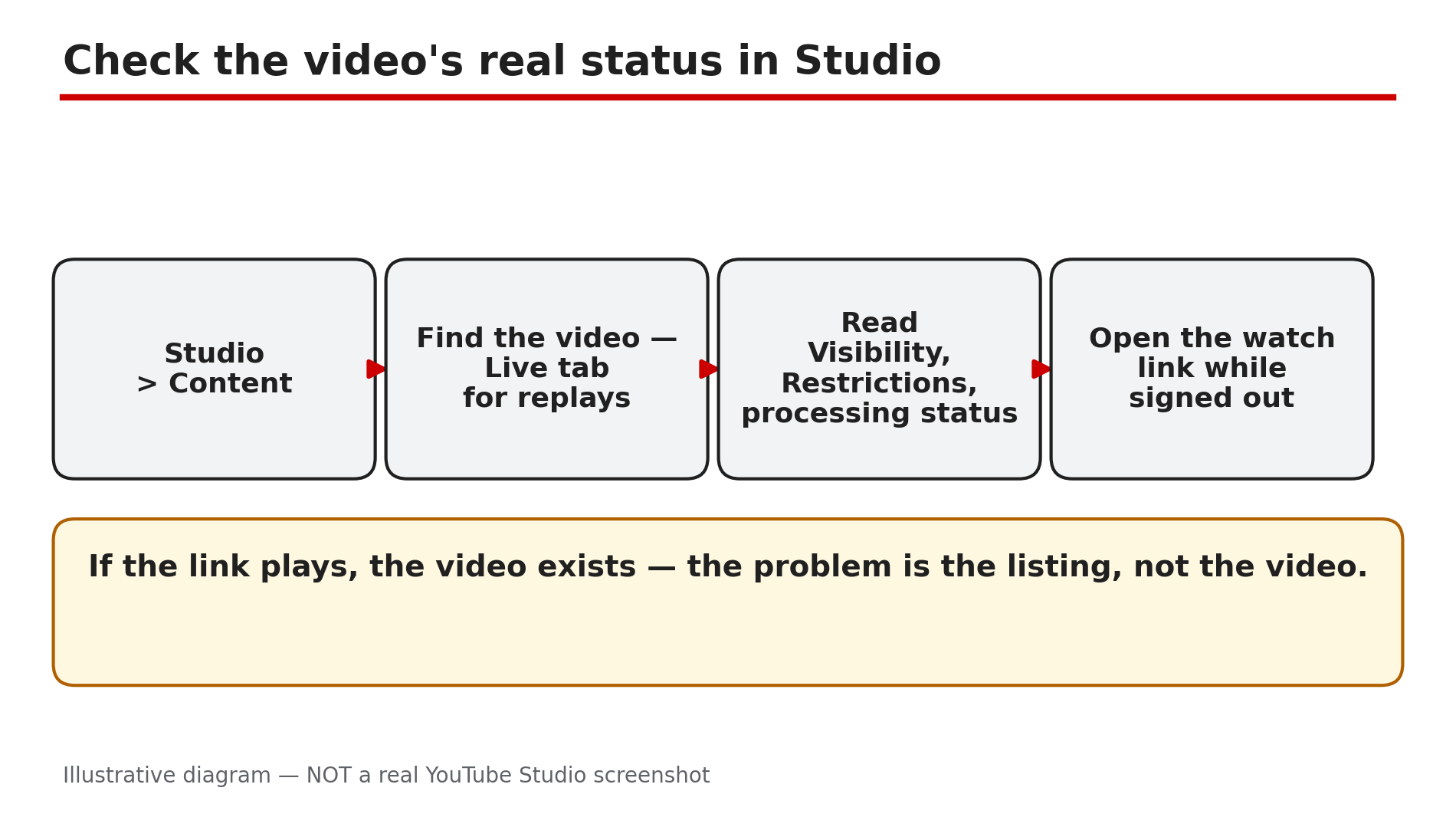
Illustrative mock-up: the four checks to run in YouTube Studio when a video is missing.
Step 5 — Check for a strike or a Premiere problem
What to do: Rule out the two cases where YouTube itself holds a video back: a penalty, or a scheduled Premiere that never fired.
How: A Community Guidelines strike freezes publishing for a week, and YouTube says a scheduled video will not publish during the penalty period — it is set to private instead, and you must reschedule it after the freeze ends. Separately, if the missing video was a Premiere, check that it is still scheduled as a Premiere and has not slipped to private or unlisted — and confirm the date and timezone, because the watch page uses Pacific time. Our guide on scheduled videos and Premieres covers the full diagnosis.
Example: A creator scheduled a Premiere for Saturday and got a strike on Friday. Saturday came and the video never appeared — YouTube had set it to private during the penalty, and it needed rescheduling.
Common mistake: Assuming a Premiere failed because the channel page is empty. Open the watch-page link first: a public watch page can exist before the Premiere starts even when the listing is missing.
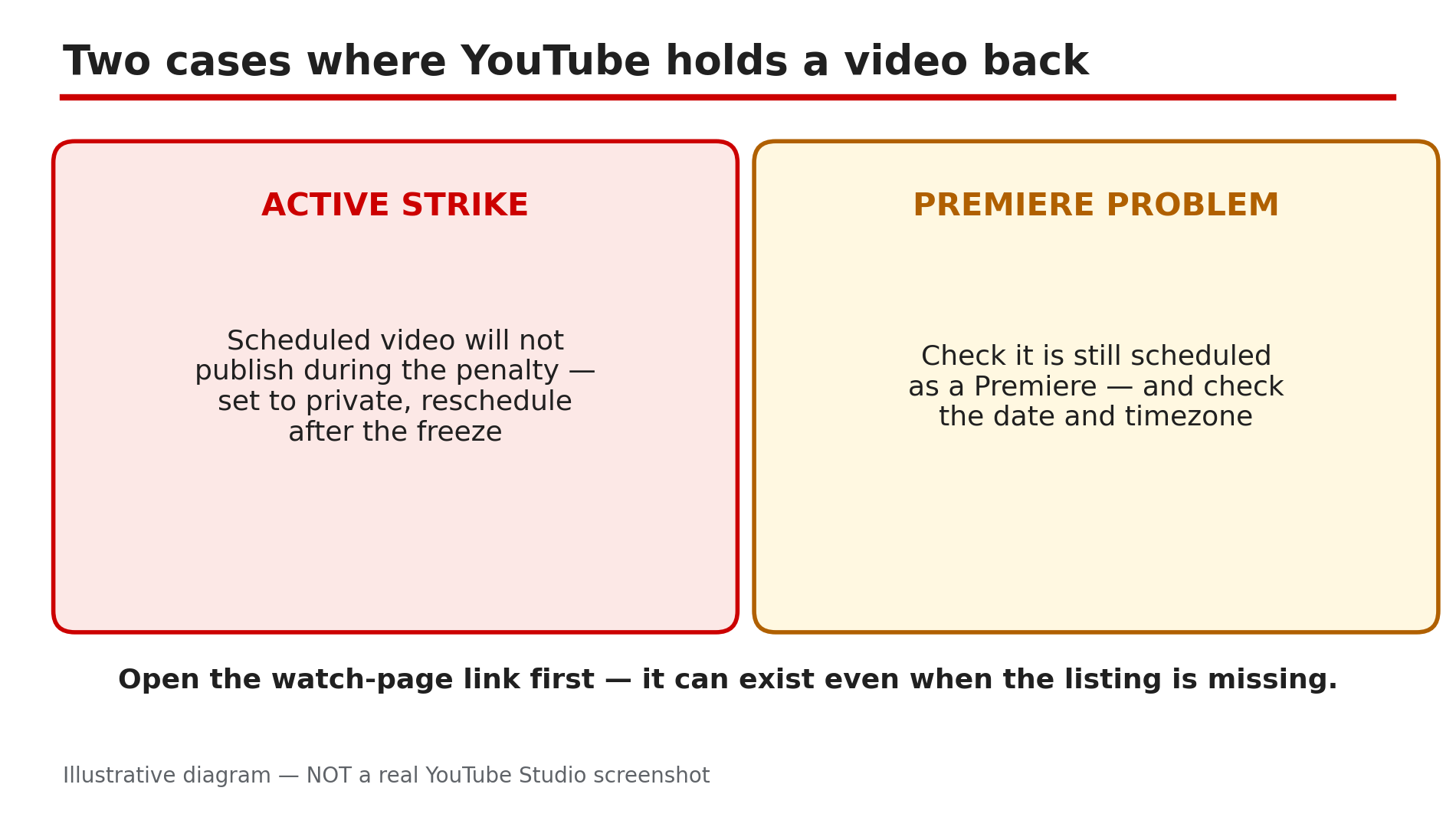
Illustrative diagram: a strike or a Premiere problem can keep a video off the channel page.
Step 6 — Do not confuse the channel listing with search indexing
What to do: Treat “not on my channel page” and “not in search results” as two different problems with two different timelines.
How: Search indexing is separate from the channel listing and can take days. YouTube says a recently uploaded or changed video may take a few days to appear in search results, and recommends searching by the exact video ID to check. So if the video is in the Videos tab but missing from search, that is an indexing delay, not a listing fault — wait, and do not change the title or re-upload, because that restarts the clock. Our guide on videos not showing in search covers that diagnosis in full. If the video is missing from the Videos tab itself, the cause is one of Steps 1 to 5, not indexing.
Example: A video tops the Videos tab an hour after upload, but searching its exact title finds nothing for two days. The listing was fine; search just had not caught up.
Common mistake: Re-uploading a video to “fix” search.
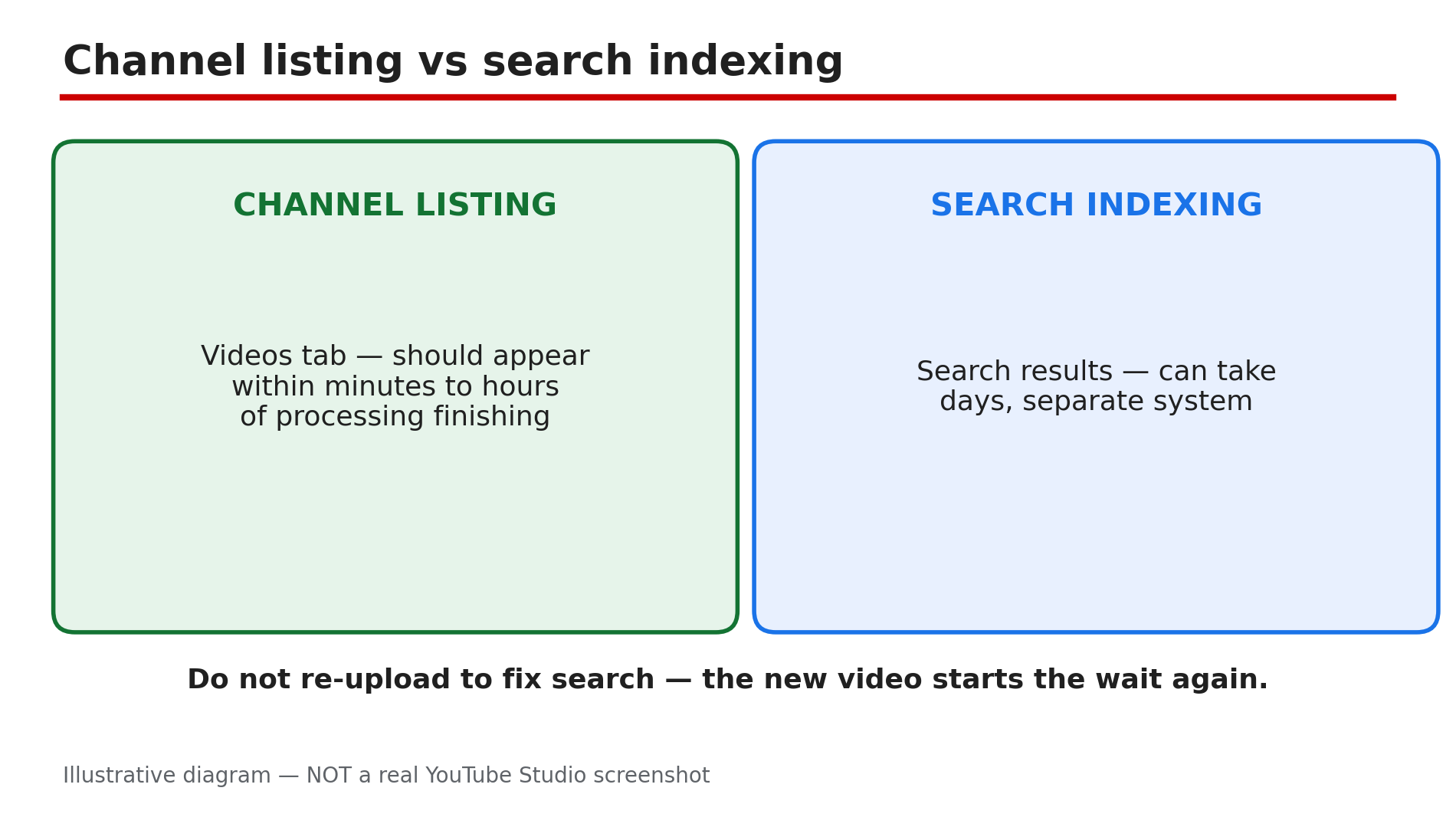
Illustrative diagram: the channel listing and search indexing are two different systems with different timelines.
Checklist — Find a missing video
- ☐ Confirmed the video is Public in Studio, not Private or Unlisted
- ☐ Waited for processing to finish, especially for livestream replays
- ☐ Checked the Videos tab, not just the Home tab
- ☐ Checked Restrictions and processing status in Studio Content
- ☐ Confirmed the right Google account and the right channel
- ☐ Opened the direct watch link while signed out
- ☐ Ruled out an active strike or a Premiere scheduling problem
- ☐ Separated the channel listing from search indexing
FAQs
1. My video is public but still not on my channel page — why?
Check processing first: it may still be converting after a livestream. Then check the Videos tab rather than Home, and open the direct watch link while signed out to confirm the video itself plays.
2. Do unlisted videos appear on the channel page?
No. YouTube’s Help page says unlisted videos will not appear in the Videos tab, and they will not show up in search either — only people with the link can watch them.
3. How long does a livestream replay take to appear?
As reported, conversion takes minutes to hours, and a new broadcast can take 1 to 5 minutes to appear. A long stream takes longer; the video usually appears first at 144p.
4. Will changing the title help the video appear in search?
No — and it can hurt. Search indexing can take days, and editing the title restarts that wait. If the video is in the Videos tab, the listing is fine; give search time.
5. I got a strike — where did my scheduled video go?
YouTube says a scheduled video will not publish during a penalty and is set to private. Check Studio for the strike, wait for the freeze to end, then reschedule.
Sources
- YouTube Help — “Change video privacy settings” (official page, opened live 11 Nov 2026): https://support.google.com/youtube/answer/157177?hl=en
- CreatorPlaybook — “YouTube Channel Not Showing in Search? Why It Happens and How to Fix It” (internal link, live-verified in the blog sitemap 11 Nov 2026): </blog/youtube-channel-not-showing-in-search>
- CreatorPlaybook — “YouTube Scheduled Video or Premiere Not Publishing on Time? What to Check” (internal link, live-verified in the blog sitemap 11 Nov 2026): </blog/youtube-scheduled-video-or-premiere-not>
- CreatorPlaybook — “Channel Trailer and Featured Sections Not Showing? How to Set Up Your Homepage” (internal link, live-verified in the blog sitemap 11 Nov 2026): </blog/channel-trailer-featured-sections-not>