YouTube App Not Opening, Crashing or Black Screen? How to Fix It
 CreatorPlaybook Team
- 09 Nov, 2026
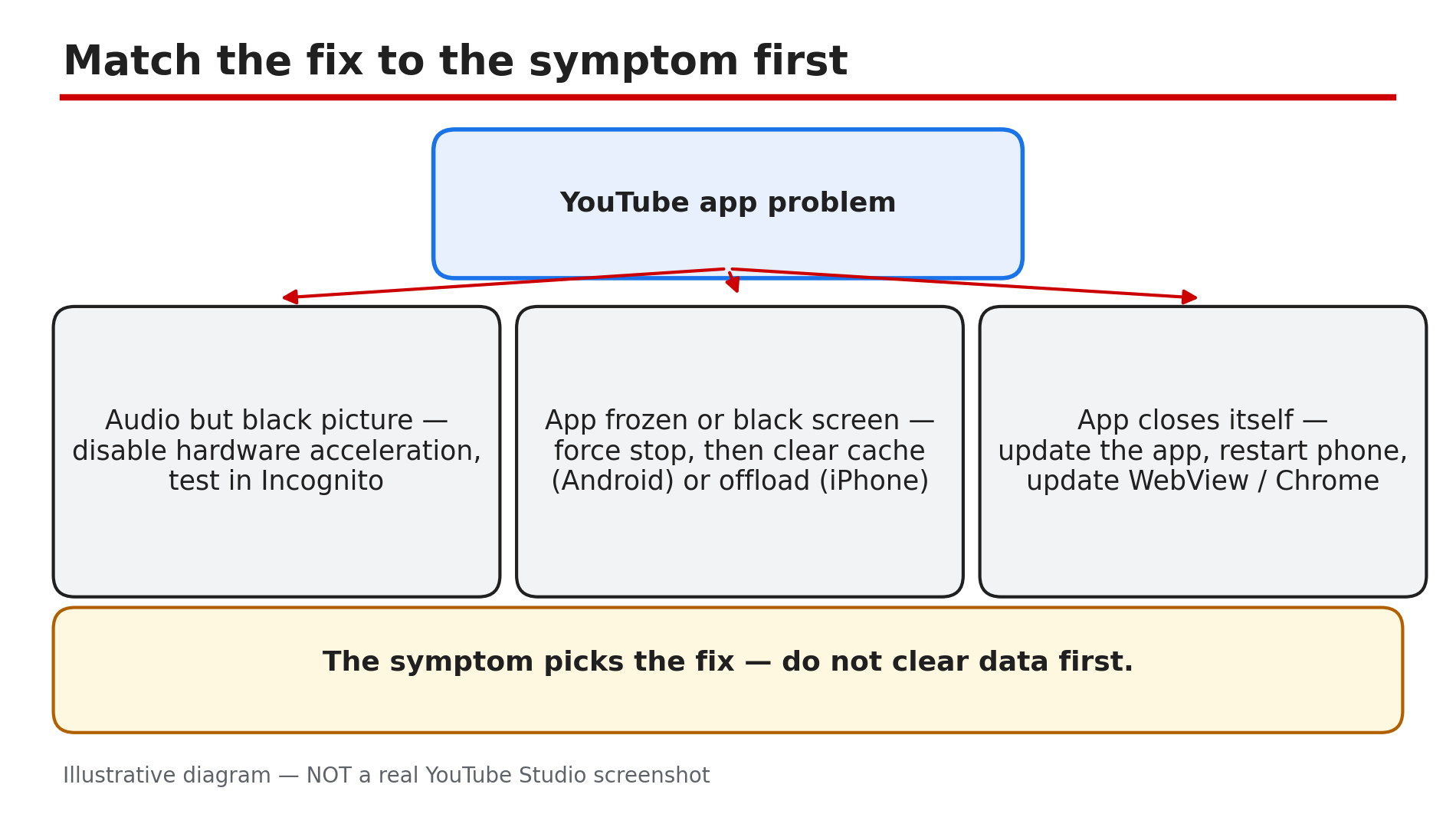
You tap the YouTube app and nothing happens. Or it opens to a black screen, plays sound with no picture, or closes itself after a few seconds. It is the app you open every day — and suddenly it will not behave.
In most cases the fault is not YouTube itself. It is usually a stale app cache, an out-of-date app version, a bad browser setting, or a faulty system update that breaks several apps at once. The fix depends on the symptom — so match it first, then work through the steps in order.
Try the quick fixes first: close and reopen, update the app, restart the phone. Most cases clear up within the first four fixes.
What You Will Learn
- Match the symptom — black screen, crash, will not open — to the right fix
- Quick sequence: close, update, restart, then replay
- Force stop and clear the cache on Android without losing anything
- What to do on iPhone, with no per-app cache clear
- How a faulty WebView update can crash several apps
- When the upload is at fault — and no app fix helps
Step 1 — Read the symptom and test another video and device
What to do: Note exactly what happens first: the app will not open, it opens to a black screen, it plays audio with no picture, or it closes itself. Then test whether the fault follows the video or the device.
How: Open a different video. If one video is black on every device, the upload itself is likely defective — no app fix helps, so watch a different video or tell the creator. If every video fails on one device but works on another, the fault is in that device. If nothing works anywhere, check Step 6 for an outage.
Example: A viewer’s favourite tutorial shows a black screen on her phone, laptop, and TV, while every other video plays fine. The upload itself is defective — she watches the creator’s re-upload instead of reinstalling the app.
Common mistake: Clearing the cache and reinstalling to fix one broken upload, when the video is the problem.
Illustrative diagram: the three symptoms — black picture with audio, frozen or black screen, app closing itself — and the fix each one points to.
Step 2 — Close and reopen the app, then restart your phone
What to do: Start with the two ten-second fixes. A frozen app often clears with a full close, and a phone that has been on for weeks can need a restart.
How: Close the app fully — swipe it away from recent apps, do not just press Home — then reopen it and try the same video. YouTube’s Help page lists closing the app or rebooting the device as a first fix, then replaying the video. If it still freezes, restart the phone. On a smart TV, unplug it, wait 30 seconds, and plug it back in.
Example: A viewer’s app freezes on the loading circle every evening. She swipes it away and reopens it — it loads in seconds.
Common mistake: Pressing Home and reopening the same frozen session — close it fully first.
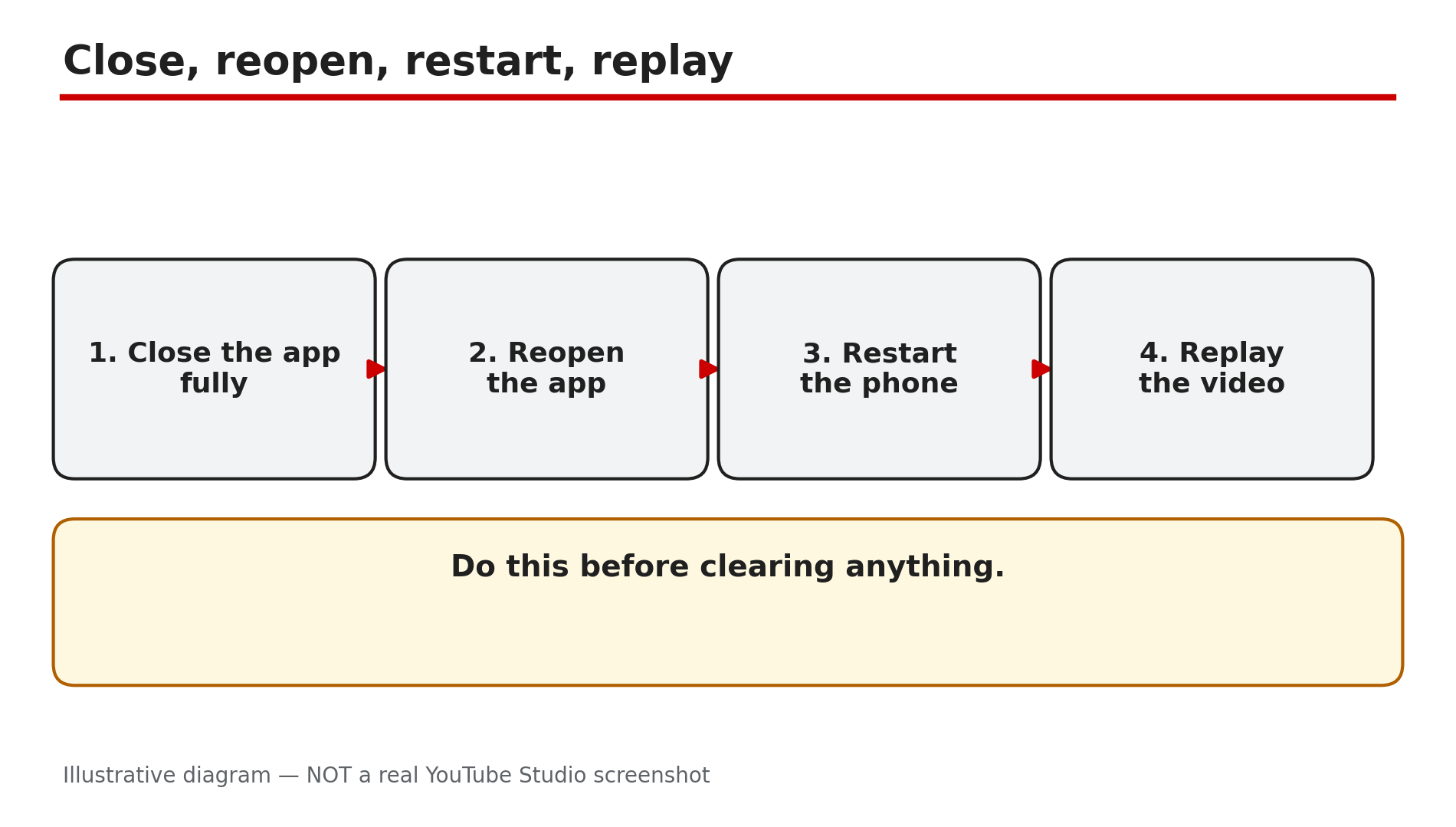
Illustrative diagram: the fix order — close the app fully, reopen it, restart the phone, replay the video.
Step 3 — Update the YouTube app, WebView, and your device software
What to do: Update the app before trying anything deeper. Google pushes server-side changes constantly, and an app build more than a few months old can suddenly stop working.
How: Open the Play Store or App Store, search for YouTube, and tap Update if one is offered. On Android, also update Android System WebView and Chrome: as reported, a faulty WebView update can crash several apps at once, so if YouTube and other apps started crashing the same day, updating WebView is the fix. Then update your device software and restart the phone.
Example: A viewer’s YouTube, Gmail, and banking apps all start crashing the same morning. He updates Android System WebView, and all three work again.
Common mistake: Updating YouTube but leaving a broken WebView in place, then blaming the phone.
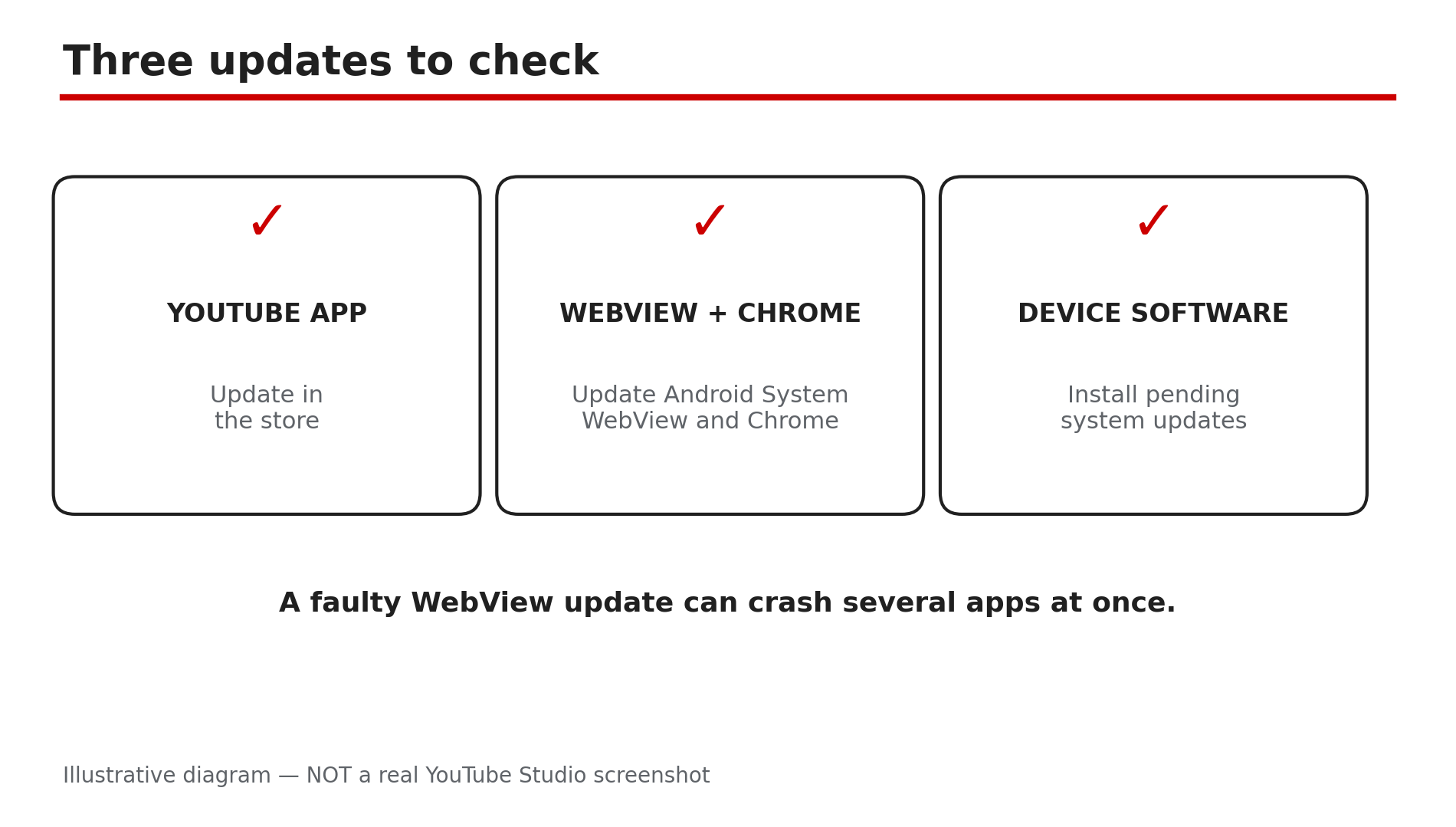
Illustrative diagram: the three updates to check — the YouTube app, Android System WebView and Chrome, and the device software.
Step 4 — Force stop and clear the cache on Android, or offload on iPhone
What to do: If the app still freezes or shows a black screen, clear its temporary data. Corrupted cache is the most common cause of loading issues — and clearing it does not delete your login or downloads.
How: On Android, long-press the YouTube icon, tap App info, then Force stop. Then tap Storage and cache, and tap Clear cache — not Clear data, which signs you out and resets the app. On iPhone there is no per-app cache clear, so offload instead: Settings, General, iPhone Storage, tap YouTube, then Offload App — it keeps your data. As reported, this resolves about nine in ten cases on Android.
Example: A viewer’s app opens to a black screen every time. She force stops it, clears the cache, and reopens it — the feed loads, and she is still signed in.
Common mistake: Tapping Clear data instead of Clear cache, then losing sign-in and settings — or on iPhone, deleting instead of offloading.
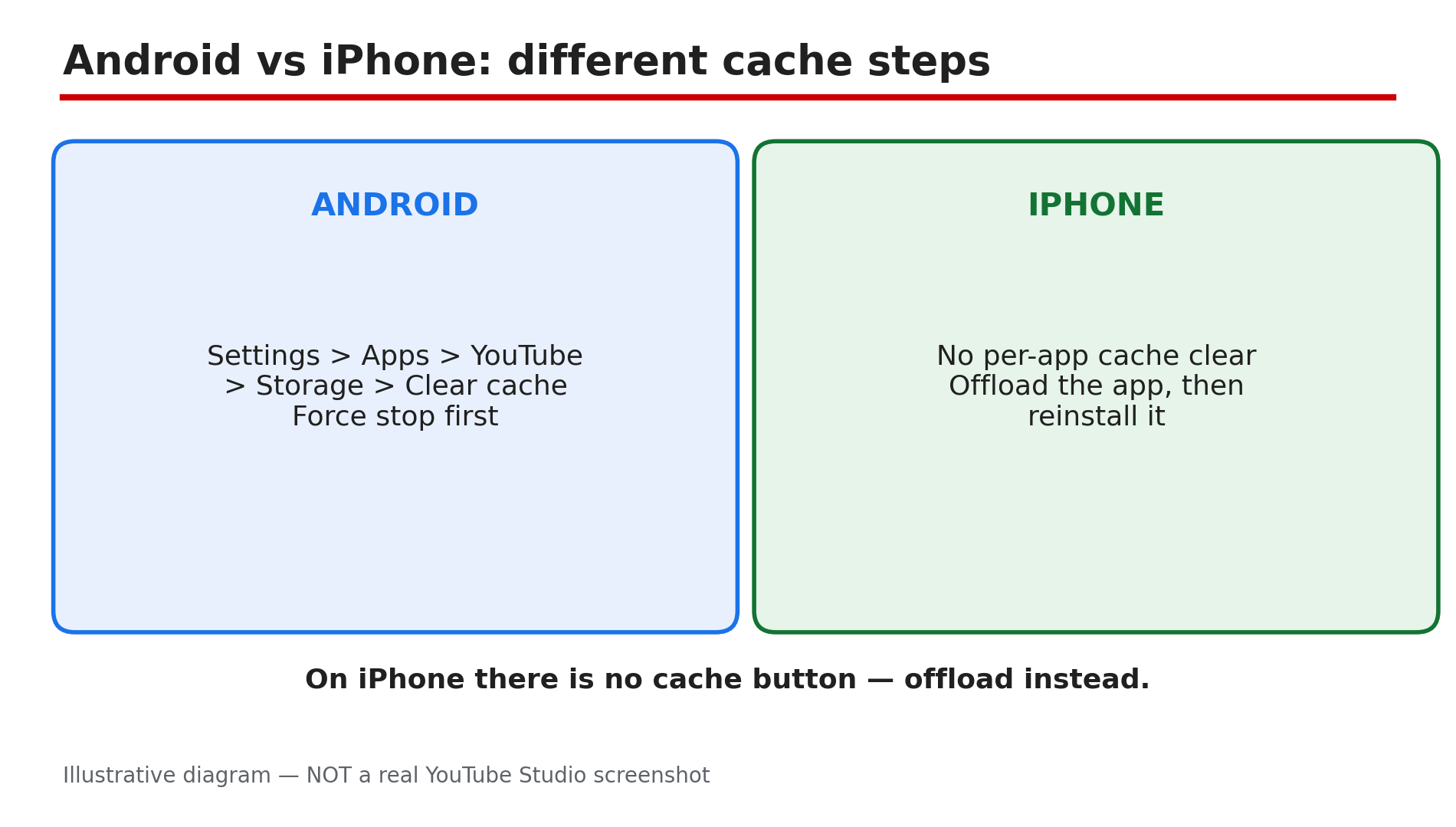
Illustrative diagram: the Android path — force stop, then clear cache — and the iPhone path — offload, then reinstall.
Step 5 — On a browser: disable hardware acceleration and test in Incognito
What to do: If the problem is YouTube in a browser — audio but a black picture, or the page freezing — the cause is usually the browser, not YouTube. Test with extensions off first.
How: Disable hardware acceleration in your browser settings and reload the video — as reported, this fixes audio with a black picture on many computers. Then open YouTube in an Incognito window with extensions disabled: YouTube’s Help page suggests this test for ad-blocking extensions. If the video plays in Incognito, an extension is the culprit — turn them on one at a time until playback breaks, then allow YouTube in that extension or remove it. Also clear the browser cache and cookies for youtube.com.
Example: A viewer hears audio but sees only black in Chrome. In an Incognito window the video plays perfectly. She disables her ad blocker, and the picture comes back.
Common mistake: Reinstalling the phone app when the fault is in the desktop browser, or clearing cookies without knowing your password first.
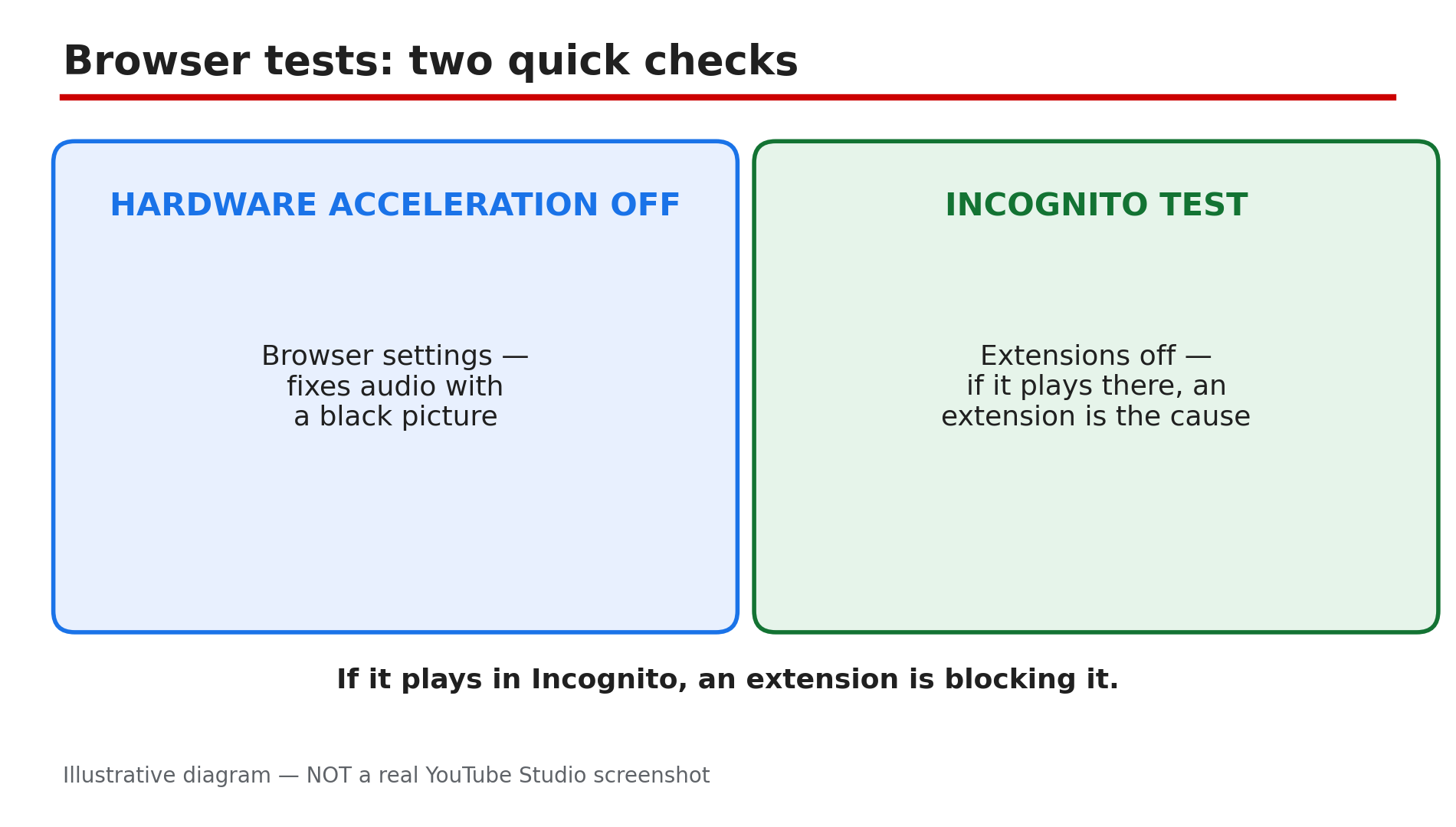
Illustrative diagram: the browser tests — hardware acceleration off, and the Incognito test with extensions disabled.
Step 6 — Reinstall the app, check for an outage, and know when to stop
What to do: If nothing above worked, reinstall the app and check whether YouTube itself is down. If the service is down, no fix on your side will help — wait.
How: Uninstall YouTube, restart the phone, then reinstall it from the official store and sign in again. On most Android phones YouTube is a system app: in the Play Store, tap Uninstall to roll back to the original version, then update it again. Before reinstalling, check Downdetector — as reported, a spike in reports means an outage, and a flat line means the fault is local. If YouTube is down, wait: major outages are usually resolved within an hour. If the app works on mobile data but not Wi-Fi, the fault is your network — restart the router or try another network.
Example: A viewer reinstalls YouTube twice with no change, then checks Downdetector and sees thousands of reports. She waits forty minutes, and YouTube comes back.
Common mistake: Factory-resetting the phone for a YouTube outage, or reinstalling when a short wait would fix it.
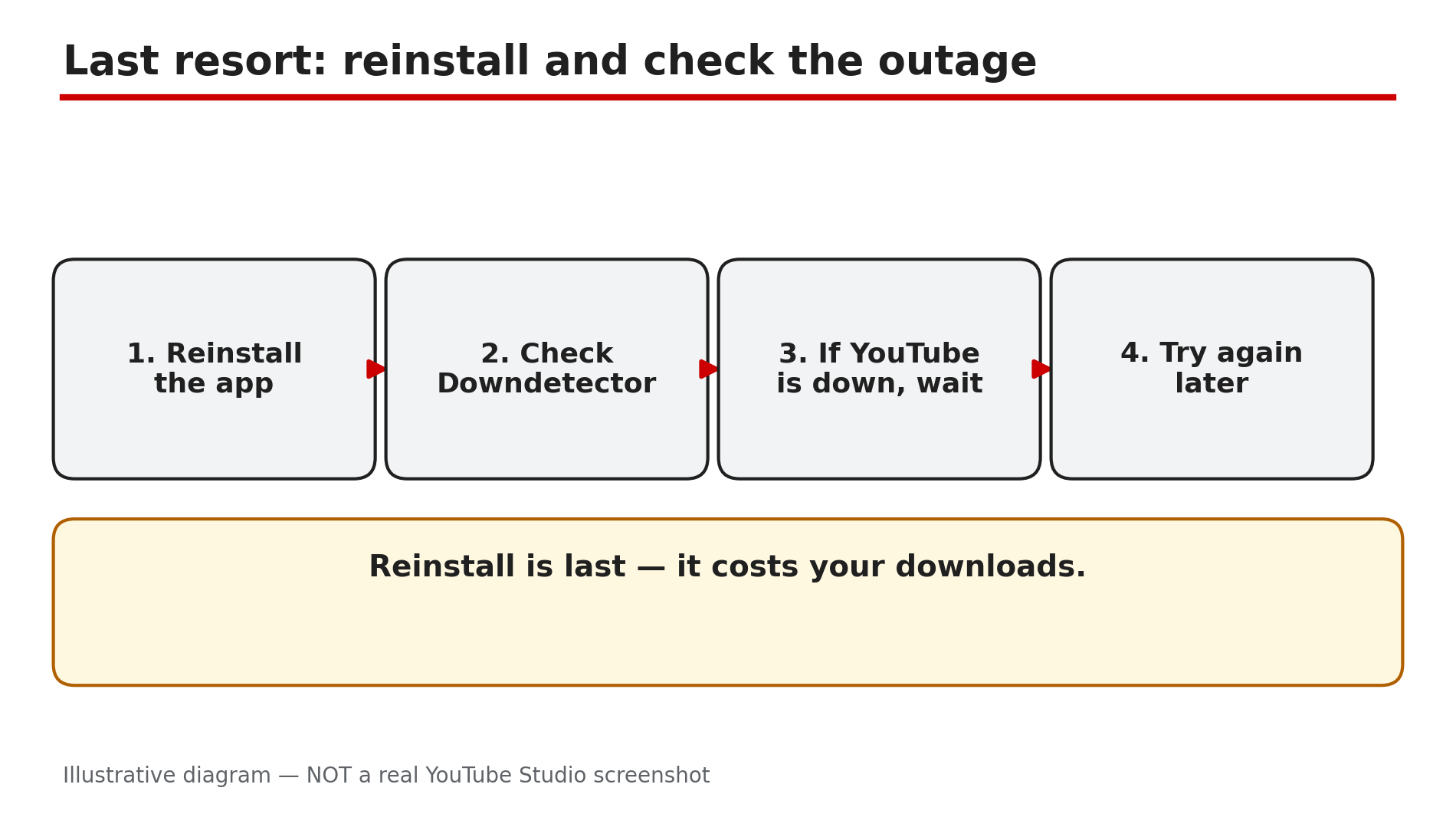
Illustrative diagram: the last-resort order — reinstall the app, check Downdetector for an outage, and wait if YouTube is down.
Checklist — Fix the YouTube app not opening, crashing, or black screen
- ☐ Symptom noted: will not open, black screen, audio only, closes itself
- ☐ Another video tested, and another device tested
- ☐ App closed fully and reopened; phone restarted
- ☐ YouTube app updated to the latest version
- ☐ Android System WebView and Chrome updated
- ☐ Cache cleared on Android, app offloaded on iPhone
- ☐ Browser: hardware acceleration off, Incognito test done
- ☐ Extensions tested one at a time; culprit allowed or removed
- ☐ App reinstalled from the official store
- ☐ Downdetector checked before any factory reset
FAQs
1. Why does the YouTube app keep closing itself?
Usually a corrupted cache or an out-of-date app version. Force stop the app, clear the cache on Android, update YouTube, and restart the phone. Also update Android System WebView and Chrome — a faulty WebView update can crash several apps.
2. Why is there sound but a black picture?
In a browser, disable hardware acceleration and test in Incognito — an extension is often the cause. In the app, force stop and clear the cache. If one video is black on every device, the upload is likely defective.
3. Does clearing the cache delete my login or downloads?
No. On Android, Clear cache removes temporary files only — your login and downloads stay. Do not tap Clear data, which resets the app and signs you out. On iPhone, offload instead of deleting.
4. Why can’t I uninstall YouTube on my Android phone?
Because it is a system app on most Android phones. In the Play Store, tap Uninstall on YouTube to roll back to the original version, then update it again. That is the closest thing to a reinstall.
5. How do I know if YouTube is down or it is just my phone?
Check Downdetector for YouTube and look at the last hour of reports. A spike means an outage — wait, as major outages are usually resolved within an hour. A flat line means the fault is local.
Sources
- YouTube Help — “Troubleshoot YouTube video errors” (official page, opened live 9 Nov 2026): https://support.google.com/youtube/answer/3037019?hl=en
- CreatorPlaybook — “YouTube Studio Not Loading, Blank, or “Something Went Wrong”? How to Fix It” (internal link, opened live 9 Nov 2026): </blog/youtube-studio-not-loading-blank-or>
- CreatorPlaybook — “YouTube Video Stuck at Low Quality? Why 1080p or 4K Is Missing and How to Fix It” (internal link, opened live 9 Nov 2026): </blog/youtube-video-stuck-at-low-quality-why>