Showing Posts From
Youtube help
 CreatorPlaybook Team
- 09 Nov, 2026
YouTube App Not Opening, Crashing or Black Screen? How to Fix It
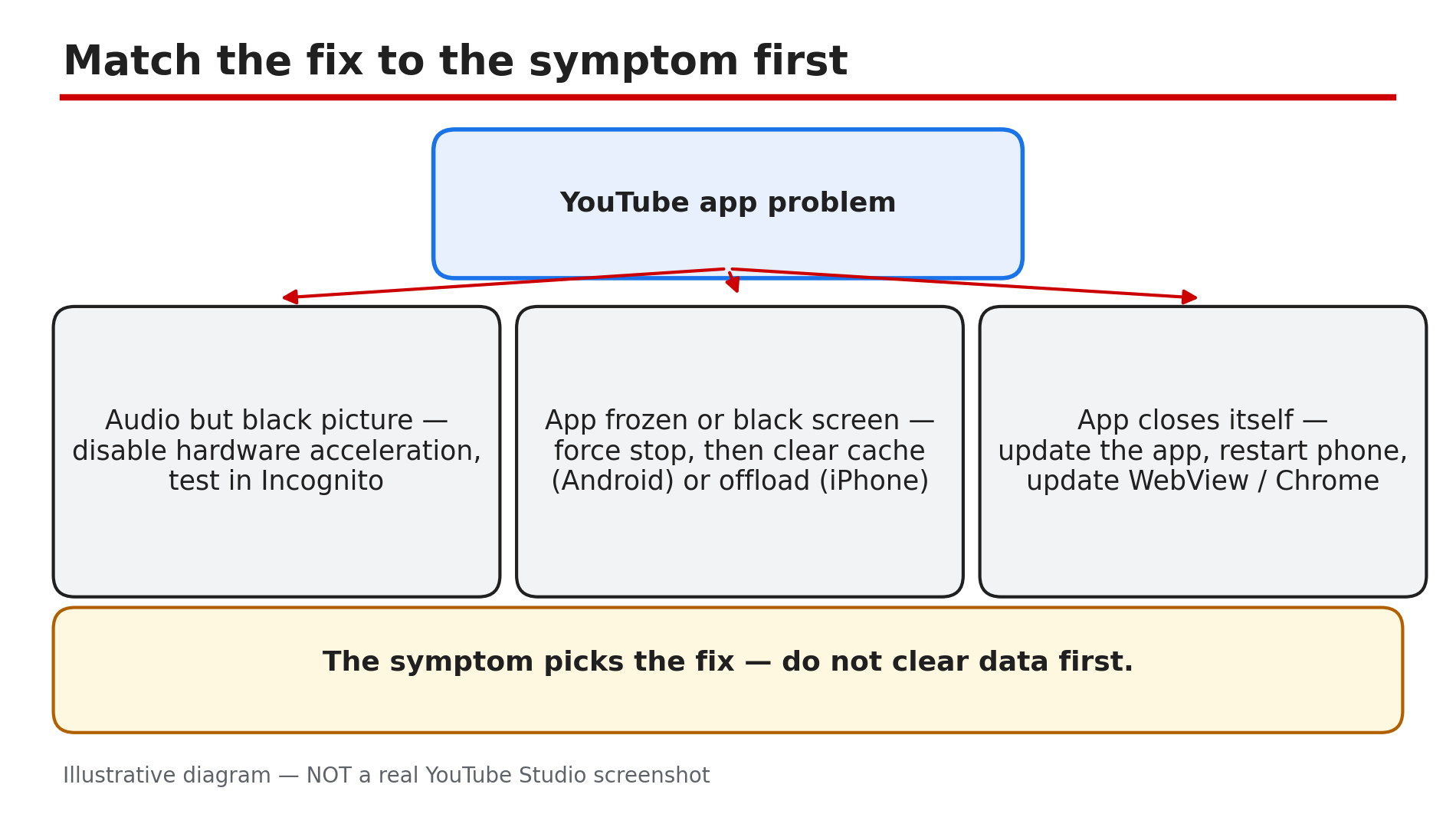
You tap the YouTube app and nothing happens. Or it opens to a black screen, plays sound with no picture, or closes itself after a few seconds. It is the app you open every day — and suddenly it will not behave. In most cases the fault is not YouTube itself. It is usually a stale app cache, an out-of-date app version, a bad browser setting, or a faulty system update that breaks several apps at once. The fix depends on the symptom — so match it first, then work through the steps in order. Try the quick fixes first: close and reopen, update the app, restart the phone. Most cases clear up within the first four fixes. What You Will LearnMatch the symptom — black screen, crash, will not open — to the right fix Quick sequence: close, update, restart, then replay Force stop and clear the cache on Android without losing anything What to do on iPhone, with no per-app cache clear How a faulty WebView update can crash several apps When the upload is at fault — and no app fix helpsStep 1 — Read the symptom and test another video and device What to do: Note exactly what happens first: the app will not open, it opens to a black screen, it plays audio with no picture, or it closes itself. Then test whether the fault follows the video or the device. How: Open a different video. If one video is black on every device, the upload itself is likely defective — no app fix helps, so watch a different video or tell the creator. If every video fails on one device but works on another, the fault is in that device. If nothing works anywhere, check Step 6 for an outage. Example: A viewer's favourite tutorial shows a black screen on her phone, laptop, and TV, while every other video plays fine. The upload itself is defective — she watches the creator's re-upload instead of reinstalling the app. Common mistake: Clearing the cache and reinstalling to fix one broken upload, when the video is the problem.Illustrative diagram: the three symptoms — black picture with audio, frozen or black screen, app closing itself — and the fix each one points to. Step 2 — Close and reopen the app, then restart your phone What to do: Start with the two ten-second fixes. A frozen app often clears with a full close, and a phone that has been on for weeks can need a restart. How: Close the app fully — swipe it away from recent apps, do not just press Home — then reopen it and try the same video. YouTube's Help page lists closing the app or rebooting the device as a first fix, then replaying the video. If it still freezes, restart the phone. On a smart TV, unplug it, wait 30 seconds, and plug it back in. Example: A viewer's app freezes on the loading circle every evening. She swipes it away and reopens it — it loads in seconds. Common mistake: Pressing Home and reopening the same frozen session — close it fully first.Illustrative diagram: the fix order — close the app fully, reopen it, restart the phone, replay the video. Step 3 — Update the YouTube app, WebView, and your device software What to do: Update the app before trying anything deeper. Google pushes server-side changes constantly, and an app build more than a few months old can suddenly stop working. How: Open the Play Store or App Store, search for YouTube, and tap Update if one is offered. On Android, also update Android System WebView and Chrome: as reported, a faulty WebView update can crash several apps at once, so if YouTube and other apps started crashing the same day, updating WebView is the fix. Then update your device software and restart the phone. Example: A viewer's YouTube, Gmail, and banking apps all start crashing the same morning. He updates Android System WebView, and all three work again. Common mistake: Updating YouTube but leaving a broken WebView in place, then blaming the phone.Illustrative diagram: the three updates to check — the YouTube app, Android System WebView and Chrome, and the device software. Step 4 — Force stop and clear the cache on Android, or offload on iPhone What to do: If the app still freezes or shows a black screen, clear its temporary data. Corrupted cache is the most common cause of loading issues — and clearing it does not delete your login or downloads. How: On Android, long-press the YouTube icon, tap App info, then Force stop. Then tap Storage and cache, and tap Clear cache — not Clear data, which signs you out and resets the app. On iPhone there is no per-app cache clear, so offload instead: Settings, General, iPhone Storage, tap YouTube, then Offload App — it keeps your data. As reported, this resolves about nine in ten cases on Android. Example: A viewer's app opens to a black screen every time. She force stops it, clears the cache, and reopens it — the feed loads, and she is still signed in. Common mistake: Tapping Clear data instead of Clear cache, then losing sign-in and settings — or on iPhone, deleting instead of offloading.Illustrative diagram: the Android path — force stop, then clear cache — and the iPhone path — offload, then reinstall. Step 5 — On a browser: disable hardware acceleration and test in Incognito What to do: If the problem is YouTube in a browser — audio but a black picture, or the page freezing — the cause is usually the browser, not YouTube. Test with extensions off first. How: Disable hardware acceleration in your browser settings and reload the video — as reported, this fixes audio with a black picture on many computers. Then open YouTube in an Incognito window with extensions disabled: YouTube's Help page suggests this test for ad-blocking extensions. If the video plays in Incognito, an extension is the culprit — turn them on one at a time until playback breaks, then allow YouTube in that extension or remove it. Also clear the browser cache and cookies for youtube.com. Example: A viewer hears audio but sees only black in Chrome. In an Incognito window the video plays perfectly. She disables her ad blocker, and the picture comes back. Common mistake: Reinstalling the phone app when the fault is in the desktop browser, or clearing cookies without knowing your password first.Illustrative diagram: the browser tests — hardware acceleration off, and the Incognito test with extensions disabled. Step 6 — Reinstall the app, check for an outage, and know when to stop What to do: If nothing above worked, reinstall the app and check whether YouTube itself is down. If the service is down, no fix on your side will help — wait. How: Uninstall YouTube, restart the phone, then reinstall it from the official store and sign in again. On most Android phones YouTube is a system app: in the Play Store, tap Uninstall to roll back to the original version, then update it again. Before reinstalling, check Downdetector — as reported, a spike in reports means an outage, and a flat line means the fault is local. If YouTube is down, wait: major outages are usually resolved within an hour. If the app works on mobile data but not Wi-Fi, the fault is your network — restart the router or try another network. Example: A viewer reinstalls YouTube twice with no change, then checks Downdetector and sees thousands of reports. She waits forty minutes, and YouTube comes back. Common mistake: Factory-resetting the phone for a YouTube outage, or reinstalling when a short wait would fix it.Illustrative diagram: the last-resort order — reinstall the app, check Downdetector for an outage, and wait if YouTube is down. Checklist — Fix the YouTube app not opening, crashing, or black screen☐ Symptom noted: will not open, black screen, audio only, closes itself ☐ Another video tested, and another device tested ☐ App closed fully and reopened; phone restarted ☐ YouTube app updated to the latest version ☐ Android System WebView and Chrome updated ☐ Cache cleared on Android, app offloaded on iPhone ☐ Browser: hardware acceleration off, Incognito test done ☐ Extensions tested one at a time; culprit allowed or removed ☐ App reinstalled from the official store ☐ Downdetector checked before any factory resetFAQs 1. Why does the YouTube app keep closing itself? Usually a corrupted cache or an out-of-date app version. Force stop the app, clear the cache on Android, update YouTube, and restart the phone. Also update Android System WebView and Chrome — a faulty WebView update can crash several apps. 2. Why is there sound but a black picture? In a browser, disable hardware acceleration and test in Incognito — an extension is often the cause. In the app, force stop and clear the cache. If one video is black on every device, the upload is likely defective. 3. Does clearing the cache delete my login or downloads? No. On Android, Clear cache removes temporary files only — your login and downloads stay. Do not tap Clear data, which resets the app and signs you out. On iPhone, offload instead of deleting. 4. Why can't I uninstall YouTube on my Android phone? Because it is a system app on most Android phones. In the Play Store, tap Uninstall on YouTube to roll back to the original version, then update it again. That is the closest thing to a reinstall. 5. How do I know if YouTube is down or it is just my phone? Check Downdetector for YouTube and look at the last hour of reports. A spike means an outage — wait, as major outages are usually resolved within an hour. A flat line means the fault is local. SourcesYouTube Help — "Troubleshoot YouTube video errors" (official page, opened live 9 Nov 2026): https://support.google.com/youtube/answer/3037019?hl=en CreatorPlaybook — "YouTube Studio Not Loading, Blank, or "Something Went Wrong"? How to Fix It" (internal link, opened live 9 Nov 2026): </blog/youtube-studio-not-loading-blank-or> CreatorPlaybook — "YouTube Video Stuck at Low Quality? Why 1080p or 4K Is Missing and How to Fix It" (internal link, opened live 9 Nov 2026): </blog/youtube-video-stuck-at-low-quality-why>
- CreatorPlaybook Team
- 09 Nov, 2026
YouTube Premium Not Working? How to Fix It (Viewer Side)
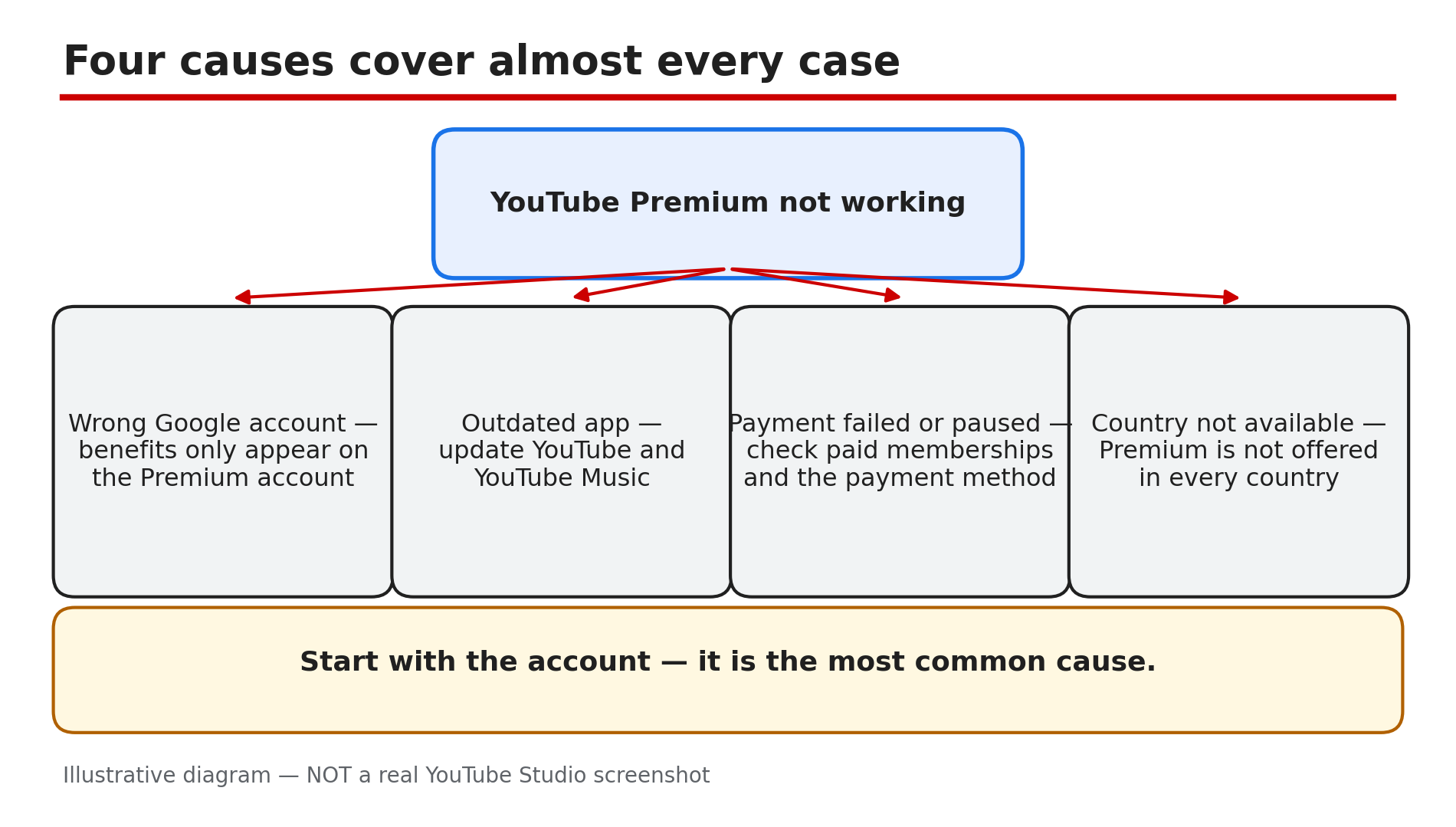
You paid for YouTube Premium, yet the ads are back, the badge is gone, or your downloads will not play. It feels like the subscription vanished overnight, and the first instinct is to pay again or cancel in anger. Do neither yet — in most cases the membership is fine. As reported, most cases come down to one of four things: the wrong Google account, an out-of-date app, a failed payment or paused membership, or a country where Premium is not available. Benefits only appear on the Premium account, on the latest app, with a payment that went through. Work through the steps in order — most fixes take under a minute. What You Will LearnMatch your symptom to the right cause Check you are signed in to the Premium account Why an old app hides Premium benefits Check membership status, billing date, and pauses Fix a declined payment and add a backup method What Premium never removes — and why it is not a faultStep 1 — Match the symptom to the cause before changing anything What to do: Read what you see and match it to the likely cause. Ads point to the wrong account; a missing Premium badge points to a failed payment or a paused membership. How: Ask three questions: did Premium work yesterday and stop today, or has it never worked here? Does it fail on every device or only one? What is missing — ads, downloads, background play, or everything? If everything is missing everywhere, start with Steps 2 and 4; if only background play fails, skip to Step 6. Example: A viewer sees ads on her phone but not her laptop. The laptop uses her Premium account; the phone uses a second account from years ago. One switch fixes it. Common mistake: Reinstalling the app or cancelling before checking the signed-in account — the most common cause of all.Illustrative diagram: the four causes of Premium not working. Step 2 — Confirm you are signed in to the right Google account What to do: Check that the account signed in now is the one that pays for Premium. Benefits only appear on your Premium membership account, so a second account — even your own — sees ads. How: Tap your profile picture at the top right and read the account name and email. If it is not the Premium account, tap Switch account and pick the right one. Check every device separately — phone, laptop, and TV can each use a different account. On a family plan, use the member account, not the family manager's. Example: A family of four shares one TV. One member signs in to his own account, which has no Premium, and reports Premium is broken. Switching the TV back to the member account restores ad-free viewing. Common mistake: Assuming one sign-in covers all devices. Each device keeps its own account, so check them one by one.Illustrative diagram: which account is signed in — the Premium account or the wrong account. Step 3 — Update the YouTube and YouTube Music apps What to do: Update both apps before digging into payments. An old app can lose Premium features even when the membership is active — YouTube's Help pages say to update to the latest version to make sure you have all member benefits. How: Open the Play Store or App Store, search for YouTube, and tap Update if one is offered. Do the same for YouTube Music — offline listening and background play come from the same membership. Then close the app fully and reopen it. If there is no download button, or background play is missing, an old app or the wrong account is the usual reason. Example: A viewer updates her phone and the download button disappears. She checks the Play Store: a YouTube update has waited three weeks. After updating, the button is back. Common mistake: Updating only YouTube and forgetting YouTube Music, then wondering why music downloads fail.Illustrative diagram: updating the YouTube and YouTube Music apps, and restarting after updating. Step 4 — Check your membership status, billing date, and pauses What to do: Open your membership page and read its status: active, paused, or cancelled — and when the next payment is due. How: On a computer, go to youtube.com/paid_memberships; in the app, tap your profile picture, then Purchases and memberships. YouTube's Help page says you will see your next billing date, or an option to unpause if the membership is paused. A paused membership stops all benefits at the end of the billing cycle, so Premium can seem to switch off weeks after someone paused it. Tap to unpause — YouTube says you will be billed at the current price when you resume. Example: A viewer paused Premium on holiday in September and forgot. In October the benefits stop at the end of the billing cycle, and she thinks Premium broke. The page shows Paused; one tap restores it. Common mistake: Checking only the app and missing the membership page, or assuming a pause takes effect the same day — it ends at the billing cycle.Illustrative diagram: the membership page — next billing date, paused or active, payment method — and what to do about each. Step 5 — Fix a declined payment and add a backup payment method What to do: If the membership page shows a payment problem, fix the payment method now. A declined card is a common reason Premium stops, and YouTube gives you a short window to put it right. How: YouTube's Help page says a declined membership brings an email, and you have 3 days to fix it before losing access, while YouTube re-attempts payment. On the membership page, expand the details and click Update payment method. Check the card number, expiry date, and billing address — an expired card or a wrong postcode is the usual cause. YouTube also suggests adding a backup payment method. If the card still fails after 3 days, the membership enters a Paused state for 30 days while YouTube keeps retrying; updating your payment info restores it. Example: A viewer's bank replaces her card after a fraud alert. The old card is declined, she gets the email, and she updates the payment method that evening. Premium never stops. Common mistake: Ignoring YouTube's email for a week, then discovering the membership paused — and paying for a new subscription instead of updating the card.Illustrative diagram: the declined-payment timeline — 3 days to fix it, then a 30-day paused state. Step 6 — Check background play, downloads, travel, and what Premium never removes What to do: If the membership is active but one feature misbehaves, check that feature's own setting — and learn which things Premium was never meant to remove. How: For audio that stops when you lock the phone, open Settings, then Background and Downloads — YouTube lists three options: Always on, Off, or Headphones or external speakers. If it is set to Off, audio stops on lock — set it to Always on. Downloads made before travelling stay available offline for 30 days, as reported — reconnect before then. Travelling where Premium is not available also removes benefits — wait until you are home. A creator's own promotion inside a video is expected: Premium removes ads before and during videos, plus third-party banner and search ads, but not branding built into the video. Example: A viewer locks her phone mid-podcast and the audio stops — background play is set to Off. She switches it to Always on, and the audio keeps playing with the screen locked. Common mistake: Reporting a creator's in-video sponsorship as a Premium failure, or blaming Premium when a download expires after 30 days offline.Illustrative diagram: the three background play settings — Always on, Off, and Headphones or external speakers. Checklist — Fix YouTube Premium not working☐ Symptom matched to a cause before changing anything ☐ Signed in to the Premium account on every device ☐ YouTube app updated to the latest version ☐ YouTube Music app updated too ☐ Membership page checked: active, paused, or cancelled ☐ Next billing date confirmed on youtube.com/paid_memberships ☐ Payment method current, with a backup method added ☐ Background play set to Always on for audio on lock ☐ Downloads reconnected to the internet within 30 days ☐ Creator promotions recognised as expected, not a faultFAQs 1. I paid for Premium but I still see ads. Why? Most often you are signed in to the wrong Google account — benefits only appear on the Premium account. Tap your profile picture, check the account, and switch. Also confirm the membership is active on youtube.com/paid_memberships. 2. I was charged but I have no Premium benefits. What do I do? Check whether the charge is still being processed — YouTube's Help page says a purchase may show as pending before benefits appear. Check Google Pay for the transaction status and confirm the right account; if the charge completed but benefits are missing, contact Support. 3. My Premium stopped weeks after I paused it. Is that normal? Yes. A paused membership stops all benefits at the end of the billing cycle, not on the day you pause it. Open youtube.com/paid_memberships and tap to unpause — YouTube says you will be billed at the current price. 4. Does Premium work when I travel abroad? Only in countries where Premium is available. YouTube says that if you travel where Premium is not available, you will not be able to access your benefits. Downloads made before travelling stay available offline for 30 days, as reported. 5. Why does a video still show a sponsorship if I have Premium? Because Premium removes YouTube's ads, not the creator's own promotion. Branding built into the video itself stays for everyone, including Premium members. SourcesYouTube Help — "Fix YouTube Premium & YouTube Music Premium billing issues" (official page, opened live 9 Nov 2026): https://support.google.com/youtube/answer/9972274 CreatorPlaybook — "YouTube Premium Revenue Explained: How You Earn From Premium Viewers" (internal link, opened live 9 Nov 2026): </blog/youtube-premium-revenue-explained-how>
- CreatorPlaybook Team
- 09 Nov, 2026
Video Language Wrong or Auto Captions Never Appear? Fix the Language Setting
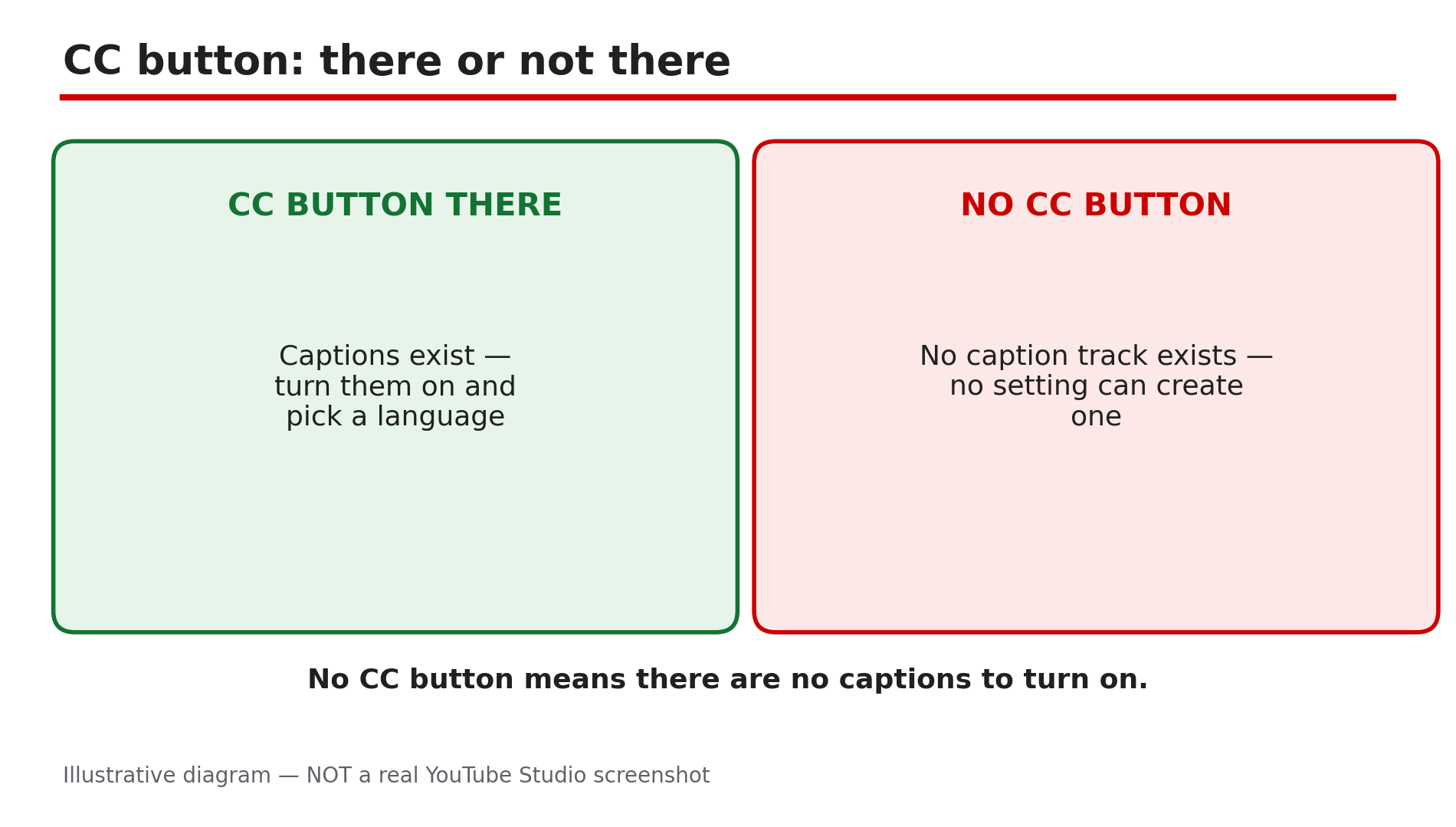
You upload a video, wait a day, and no captions appear. Or captions appear — in Korean, on an English video. Or a viewer writes that your video is suddenly playing in a language you never recorded. In most cases one setting is behind it: the video language, left blank or set wrong in Studio. YouTube will not generate automatic captions without an explicit video language set on that video. The language field is small and easy to miss, and a blank field is the most common cause of missing captions. The same setting decides which language the captions are made in — so a wrong setting gives you captions in the wrong language. Work through the steps in order: check the language field, fix it per video, set the default for future uploads, then check the viewer side. Defaults fix the next upload only — never the videos you already published. What You Will LearnWhy automatic captions never appear How to find the blank video-language field in Studio How to fix the language on one video and save it Why upload defaults do not fix existing videos Why wrong-language captions mean a wrong setting The viewer-side setting behind unexpected dubbed audioStep 1 — Check whether the video has captions at all What to do: Look for the CC button before you change any setting — no setting can create a caption track that does not exist. How: Open the video on a computer and look at the bottom right of the player for the CC button; on a phone, tap the video once, then look for the CC icon. If there is no CC button, YouTube says captions are not available for that video — no caption file was uploaded and none were generated. If the CC button is there, captions exist and the problem is the language or the viewer setting, not a missing track. Example: A viewer complains a tutorial has no subtitles. The creator opens the video and finds no CC button — the video language was never set, so no captions were ever made. Common mistake: Telling a viewer to turn on captions in settings when the video has no caption track — settings can only show a track that exists.Illustrative diagram: a video with a CC button and one without, and what each case means. Step 2 — Find the blank video-language field in Studio What to do: Open the video in Studio and find the language field. A blank field is the tell — the most common cause of captions that never appear. How: Sign in to YouTube Studio on a computer, go to Content, and click the video's title or thumbnail. Scroll down and click SHOW MORE. Under "Language and captions certification", look at the video language field. If it is blank, that is your answer: YouTube will not generate automatic captions without an explicit video language set. Example: A creator checks five old videos and finds three with blank language fields. Those three are the ones with no captions — the other two, with English set, have captions. Common mistake: Checking the channel settings and assuming the language is set, when the field that matters is the one on the individual video.Illustrative mock-up: the Studio path to the video-language field — Content, video, Details, SHOW MORE, Language. Step 3 — Set the language on the video and save What to do: Set the video language to the language actually spoken in the video, then save. This is the fix itself — everything else in this guide is checking. How: In Studio, go to Content, open the video, scroll down, click SHOW MORE, and under "Language and captions certification" choose the intended language of your video, its title and description. Then click SAVE at the top of the page — these are YouTube's Help page steps. Give it a few hours: automatic captions are generated after the video finishes processing, not alongside it. Changing the language affects future translated subtitles; your published and draft subtitles and closed captions will not be affected. Example: A creator sets English on an old tutorial whose language field was blank. Captions appear within a few hours, and the video shows a CC button. Common mistake: Choosing the language and closing the tab without clicking SAVE. Without saving, nothing changes — and the field stays blank.Illustrative diagram: the fix sequence — set the video language, click SAVE, wait a few hours, check for the CC button. Step 4 — Set the upload default, and fix old videos one by one What to do: Set the default language once for future uploads — then fix every existing video by hand, because the default does not touch them. How: In Studio, go to Settings, then Upload defaults, and set the video language there, so every future browser upload inherits it. Then open each old video in Studio and set its language as in Step 3, saving each one. Defaults apply only to future uploads — they do not fix existing videos. Work through your most-watched videos first — those are the ones viewers are opening. Example: A creator sets the default language to English, then checks an old video and finds its field blank. She sets it to English and saves — the default alone would never have fixed it. Common mistake: Setting the language on the channel and assuming old videos are fixed. Defaults help the next upload only.Illustrative diagram: upload defaults fixing future uploads only, and old videos needing a per-video fix. Step 5 — Fix wrong-language captions at the same setting What to do: When automatic captions appear in the wrong language, trace them to the same setting — a wrong setting gives you the wrong language. How: YouTube's Help page says automatic captions will be in the video's default language only, as reported. So if an English video has Korean captions, check the video language and the upload default: one is set to Korean, or was left blank. Also check Auto-translate: it translates from a caption track that already exists, and it can persist across videos, as reported — so if subtitles suddenly appear in the wrong language on every video, check it was not left on. Fix it as in Step 3, then check the track. Example: A viewer opens an English tutorial and sees only Korean captions. The creator checks Studio and finds the video language set to Korean. She sets it to English and saves, and the captions come back in English. Common mistake: Re-uploading the video to fix the captions. The same audio with the same wrong setting gives YouTube the same problem — and the original loses its URL and views.Illustrative diagram: why captions are in the wrong language — wrong video language, wrong default language, or auto-translate left on. Step 6 — Check the viewer side: preferred languages and the audio track What to do: If the creator side is right and a viewer still hears the wrong language, check the viewer side — player, languages, and audio track. How: As reported, a February 2026 update added a Language, then Preferred Languages setting in the YouTube app that controls the auto-dubbing language. A viewer hearing an unexpected language can open that setting and uncheck the languages they do not want, or switch the audio track per video. On a computer, click the Settings gear, then the audio track option, and pick the original language. Captions are text on screen, dubs are spoken audio — if subtitles are right but the audio is wrong, the dub is the missing piece, not the caption file. Example: A German viewer reports hearing English on a video with a German dub. The creator checks player settings and finds the German track listed — the viewer had not switched. Common mistake: Confusing missing captions with missing audio tracks. If subtitles are present but the audio is wrong, fix the audio track.Illustrative diagram: the viewer side — the app Preferred Languages setting, and switching the audio track per video. Checklist — Fix the video language and captions☐ Checked if the video has a CC button at all ☐ Found the video-language field in Studio ☐ Set the language actually spoken in the video ☐ Clicked SAVE at the top of the page ☐ Waited a few hours for automatic captions to appear ☐ Set the upload default language for future uploads ☐ Fixed each old video by hand in Studio ☐ Checked Auto-translate was not left on ☐ Checked the viewer's Preferred Languages and audio track ☐ Did not re-upload the video to fix captionsFAQs 1. Why do my videos have no automatic captions? Usually the video language was never set. YouTube will not generate automatic captions without an explicit video language on that video — set it in Studio, save, and wait a few hours. 2. Why are my automatic captions in the wrong language? Automatic captions are made in the video's default language only, as reported. Check the video language and the upload default — one is set wrong, or Auto-translate was left on. 3. Will setting the upload default fix my old videos? No. Defaults apply only to future uploads. Fix each existing video in Studio, one by one, and save. 4. How long do automatic captions take to appear? They are generated after the video finishes processing, not alongside it. Give it a few hours after setting the language before calling it broken. 5. A viewer hears the wrong language, but the captions are right — what is wrong? That is the audio track, not the captions. As reported, the app's Preferred Languages setting controls the auto-dubbing language — the viewer can uncheck languages there, or switch the audio track. SourcesYouTube Help — "Change the language of your uploaded video" (official page, opened live 9 Nov 2026): https://support.google.com/youtube/answer/6304325?hl=en CreatorPlaybook — "YouTube Captions Not Showing or Wrong? How to Fix Subtitles on Any Video" (internal link, opened live 9 Nov 2026): </blog/youtube-captions-not-showing-or-wrong> CreatorPlaybook — "YouTube Multi-Language Audio Tracks Not Showing? How Dubs and Translated Titles Work" (internal link, opened live 9 Nov 2026): </blog/youtube-multi-language-audio-tracks-not>
- CreatorPlaybook Team
- 09 Nov, 2026
Memberships, Super Thanks or Super Chat Not Showing? Why the Perks Are Missing
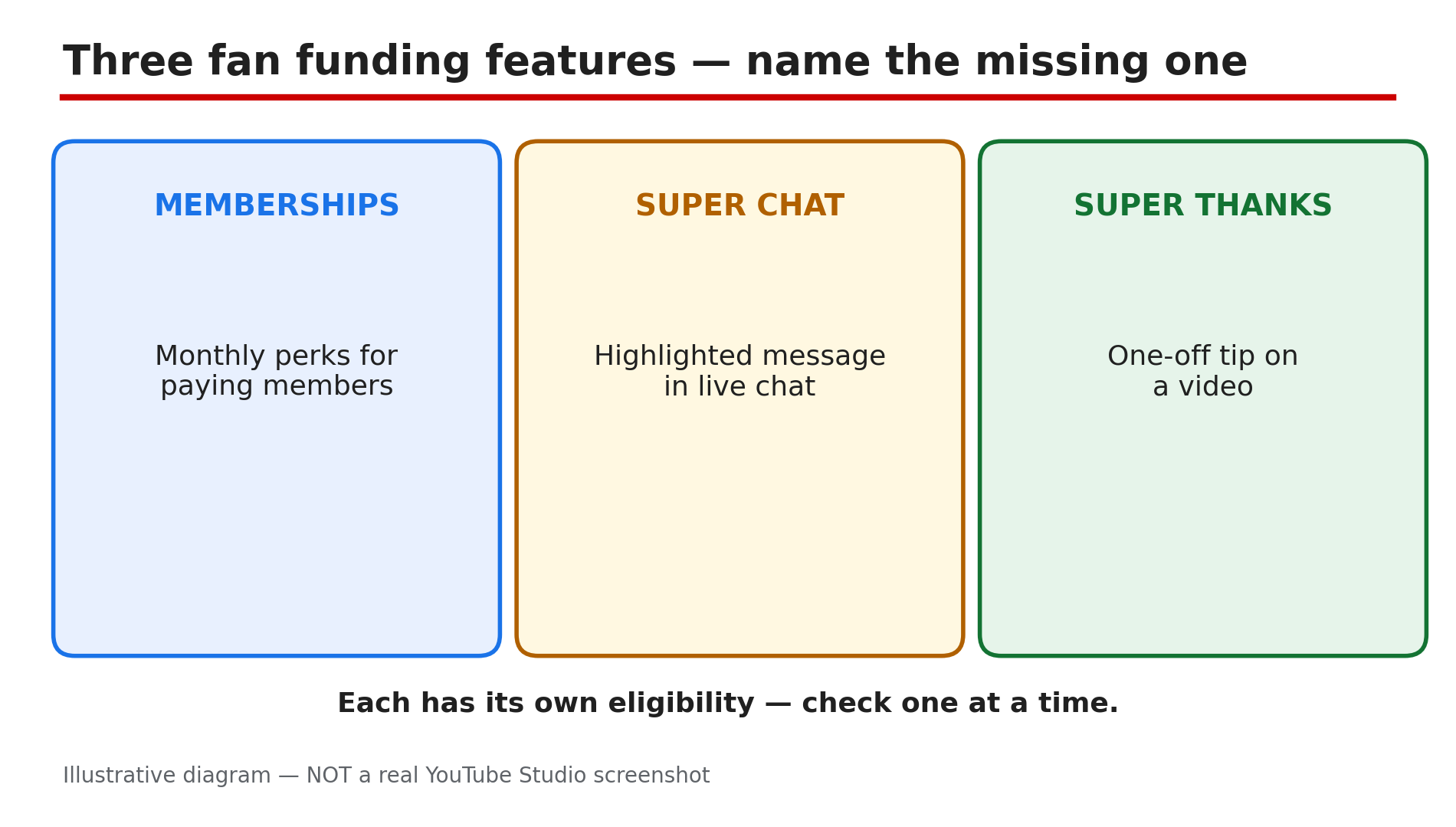
You open the Earn tab, look for the Join button, the Thanks button, or the Super Chat option — and it is not there. Or your viewers tell you they cannot find it, even though you switched it on. In most cases one gate is closed: the Partner Program tier, the country list, the Commerce Product Module, or a paused state. Fan funding is three different features with three different rules. Memberships are a monthly subscription with perks. Super Chat highlights a paid message during a live stream. Super Thanks is a one-time tip on an uploaded video or Short. Each one has its own eligibility — so check them one at a time. Work through the steps in order: name the missing feature, then check the numbers, the country, the module, and the state of the channel. Do not announce a feature in a video until you have seen it yourself, as a viewer would. What You Will LearnHow memberships, Super Chat, and Super Thanks differ The Partner Program numbers each feature needs Why the country list matters more than the subscriber count How to accept the Commerce Product Module Why a feature can sit under review for a day or two What paused mode does to members, and how to fix itStep 1 — Name the one feature that is missing What to do: Pick one feature and check only that one. Each has a separate card in the Earn tab, with separate requirements — a fix for one does not unlock another. How: Open YouTube Studio on a computer and go to Earn. Find the card for the missing feature and read what it says: eligible, under review, or not available. Write the exact words down. A missing card and a card that says "not eligible" are two different problems. Example: A creator wants memberships but keeps checking the Super Thanks card. Once she looks at the memberships card, she sees it is still under review. Common mistake: Treating every missing button as the same problem. A Super Chat problem is not a memberships problem, and fixing the wrong one changes nothing.Illustrative diagram: the three fan funding features side by side — memberships, Super Chat, Super Thanks. Step 2 — Check the Partner Program numbers first What to do: Check whether your channel meets the entry tier of the Partner Program. Fan funding opens at the lower tier, not the ad-revenue tier. How: YouTube's Help page lists the minimums for channel memberships: 500 subscribers, 3 public uploads in the last 90 days, and either 3,000 qualified watch hours on long-form videos in the last 365 days or 3 million qualified Shorts views in the last 90 days, plus age 18 or older. Super Chat and Super Thanks sit on the same entry tier. Check each number on your own Earn tab, because eligibility is per channel. YouTube has announced Partner Program changes from 1 February 2027, so confirm the current numbers in Studio. Example: A cooking channel has 620 subscribers and 3,400 watch hours but only 2 uploads in 90 days. One more public video clears the gap. Common mistake: Comparing your channel with a friend's. Eligibility is per channel and per country.Illustrative diagram: the four memberships eligibility gates. Step 3 — Check the country list, not just the numbers What to do: Check whether the feature is open where your channel is based. This is the gate most creators miss — the numbers can be perfect and the feature still hidden. How: Fan funding is YPP-gated and country-gated separately from the Partner Program. As reported, the Partner Program is open in 138 places, but Super Chat and Super Thanks are open in 99 locations and memberships in 100. India is on all three lists; Pakistan is on none, as checked on 24 October 2026, so no agency can unlock it there. Changing the channel country setting does not help, as reported. Open the Help page in Sources and find your country on the list. Example: A creator in Pakistan meets every number but sees no Super Chat card. The country list explains it: the feature is not open there. Common mistake: Paying an agency that promises to unlock Super Chat where YouTube does not offer it. No agency can add a country to YouTube's list.Illustrative diagram: three country lists side by side — YPP in 138 places, Super Chat and Super Thanks in 99, memberships in 100. Step 4 — Accept the Commerce Product Module What to do: Accept the Commerce Product Module in the Earn tab. Without it, the fan funding cards stay hidden even when every number is met. How: Sign in to YouTube Studio on a computer and select Earn in the left menu. Click Get started for the Commerce Product Module and read the terms before accepting. YouTube's Help page lists accepting the module as a requirement for memberships, Super Chat, and Super Thanks. Once accepted, the Supers and Memberships cards should appear. Creators who signed the older Addendum before 2023 are reported not to need the new module — confirm in Studio. Example: A gaming creator joined the Partner Program but skipped the module step. Her Earn tab showed no Supers card until she accepted it. Common mistake: Accepting the Watch Page ads module and assuming fan funding is covered. Each module is separate, and fan funding needs its own.Illustrative diagram: the path to accept the Commerce Product Module in Studio. Step 5 — Wait for review, then check the per-video switches What to do: After YPP acceptance, give eligibility review its time — then check the switches on each feature and each video. A feature can be on for the channel and off for one video. How: After YPP acceptance, eligibility review can take up to 2 days, as reported. New membership levels and perks sit under review for about 1 day before showing, as reported — do not announce them until they appear. Then check the per-video rules: Super Chat needs live chat on for that stream. Super Thanks can be off on a specific video, so check the video itself. Supers do not work on age-restricted, unlisted, private, or Made for Kids videos, as reported. Example: A creator turns on memberships and announces a new perk the same day. Viewers cannot see it — it is still under review, and it appears the next day. Common mistake: Announcing a perk or a Super Chat stream before the review finishes, then telling viewers to look for a button that is not there.Illustrative diagram: the review wait after YPP acceptance — up to 2 days, about 1 day for new levels and perks. Step 6 — Fix paused mode, and know the 120-day limit What to do: If memberships are paused, find the cause and fix it — then turn the feature on again. Do not leave a channel paused for months, because there is a hard limit. How: Paused mode follows a termination, a monetisation breach, losing monetisation, or a Made for Kids setting, as reported. Fix the cause first — the strike, the breach, or the audience setting — then turn memberships on again. If a channel stays paused for 120 days, members are removed and refunded and must rejoin, as reported, so do not wait. While paused, the Join button is gone and no new members can join. Example: A channel loses monetisation and its memberships pause. The creator fixes the breach, reapplies, gets monetisation back, and turns memberships on again within a week — no members are lost. Common mistake: Turning memberships back on without fixing the cause, then watching them pause again — or leaving the channel paused until all members are removed and refunded.Illustrative diagram: the paused-mode causes — termination, monetisation breach, losing monetisation, Made for Kids — and the 120-day limit. Checklist — Why a fan funding perk is missing☐ Named the one missing feature ☐ Read the exact words on that feature's Earn tab card ☐ Checked 500 subscribers, 3 uploads, watch hours or Shorts views ☐ Confirmed age 18 or older on the channel ☐ Checked the feature's country list on the Help page ☐ Accepted the Commerce Product Module in the Earn tab ☐ Waited up to 2 days for review after YPP acceptance ☐ Checked live chat for Super Chat, and the video for Super Thanks ☐ Fixed any paused-mode cause, then turned it on again ☐ Tested as a viewer before announcingFAQs 1. Do I need 1,000 subscribers for memberships, Super Chat, or Super Thanks? No, as reported. Fan funding opens at the 500-subscriber entry tier, while ad revenue needs 1,000 subscribers. Check your own Earn tab. 2. Why can my viewers not see Super Chat during my live stream? Check three things: Super Chat is on in Earn, then Supers; live chat is on for that stream; and your country is on the list. Super Chat works only on live streams and Premieres. 3. Why is the Thanks button missing on my videos? Super Thanks needs its own toggle in Earn, then Supers, and it does not appear on age-restricted, unlisted, private, or Made for Kids videos, as reported. Check the toggle and the audience setting. 4. How long do new membership levels and perks take to show? About 1 day under review, as reported. Do not announce a new level or perk until it appears — viewers cannot join what is not there yet. 5. What happens if my memberships stay paused for 120 days? As reported, members are removed and refunded and must rejoin. Fix the cause of the pause — a strike, a breach, or the audience setting — and turn memberships on again before the limit. SourcesYouTube Help — "How to earn money on YouTube" (official page, opened live 9 Nov 2026): https://support.google.com/youtube/answer/72857?hl=en CreatorPlaybook — "Fan Funding on YouTube: How to Set Up Super Chat, Super Thanks and Memberships" (internal link, opened live 9 Nov 2026): </blog/fan-funding-on-youtube-how-to-set-up> CreatorPlaybook — "Earn Tab Features Missing? Super Thanks, Memberships and Shopping Not Showing" (internal link, opened live 9 Nov 2026): </blog/earn-tab-features-missing-super-thanks>
- CreatorPlaybook Team
- 09 Nov, 2026
Brand Account Channel Missing or Can't Switch? How to Find It and Switch Back
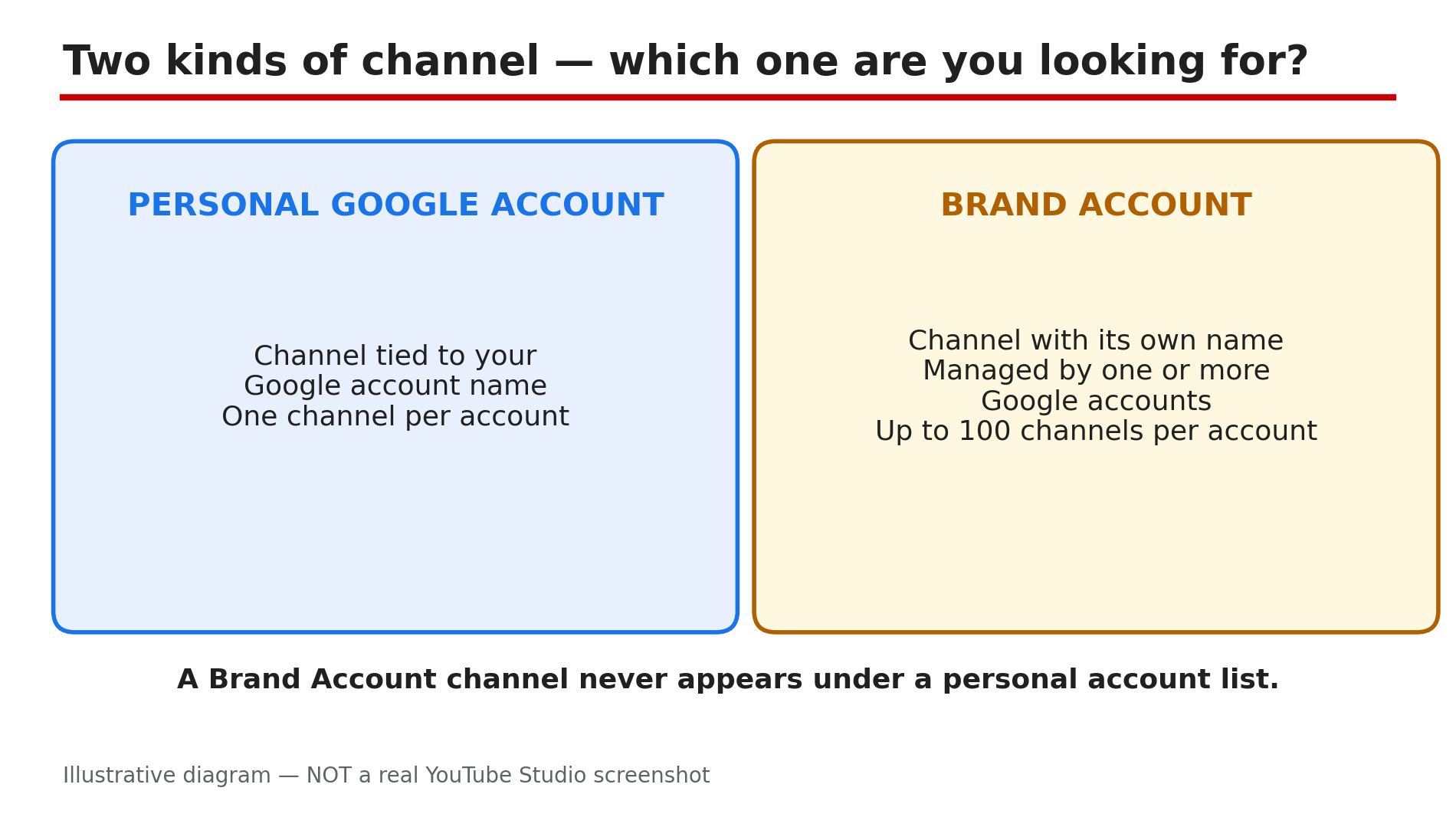
You open YouTube, click your profile picture, and the channel you want is not in the list. Or you click it and nothing happens — you stay on the wrong channel. In most cases it has not gone anywhere: you are signed in to the wrong Google Account, or the Google Account you are using is not a manager of the Brand Account that owns the channel. One Google Account can manage up to 100 channels, and channels with a different name from your Google Account are usually linked to a Brand Account. The list shows only the channels the signed-in Google Account can manage, so a channel under a different account, or a Brand Account you do not manage, does not appear. Work through the steps in order: confirm the account, switch the official way, then check the manager list. Only if every step fails should you think the channel is gone — and never click a delete or replace option while you are looking for it. What You Will LearnWhy a channel can disappear from the switch list How to confirm which Google Account you are signed in to The official way to switch between channels What to do when a channel you have permission for does not show Why a Brand Account channel hides, and how to fix it The delete and replace option never to pick by accidentStep 1 — Confirm which Google Account you are signed in to What to do: Check the signed-in Google Account first — a channel under another Google Account will never appear in your switch list. How: Click your profile picture in the top right corner of youtube.com and read the name and email shown. If it is not the account that owns or manages the missing channel, sign out and sign in with the right Google Account, then check the list again. On a phone, check the same thing in the YouTube app. Example: A creator manages two channels, one under her personal Gmail and one under a work Gmail. Signed in to the personal account, her work channel is missing — she switches accounts and it appears. Common mistake: Assuming the channel was deleted, when the browser is simply signed in to a different Google Account.Illustrative diagram: the two kinds of channel — a personal Google Account channel and a Brand Account channel with its own name. Step 2 — Switch channels the official way What to do: Use YouTube's own switcher. It lists every channel the signed-in Google Account manages, including Brand Account channels. How: On a computer, click your profile picture in the top right corner of youtube.com, then Switch account, then the channel you want. Check the name and icon in the top right corner after every switch — YouTube's Help page says that is how you confirm which channel you are using. If you choose a Brand Account with no channel yet, YouTube offers to create one — skip it unless you mean to start a new channel. Example: A creator with three channels clicks Switch account and sees all three listed by name and icon. She picks the Brand Account channel, and the right name and icon show in the top right corner. Common mistake: Clicking the Google Account email address in the list instead of the channel name. The email entry opens YouTube as a viewer with no channel, which looks like the channel has gone.Illustrative diagram: the switch path — profile picture, Switch account, pick the channel, check the name and icon. Step 3 — If a channel you have permission for does not show, switch in Studio What to do: When a channel you should be able to use is missing from the switch list, try switching inside YouTube Studio on a computer instead. How: Go to studio.youtube.com and sign in with that account. YouTube's Help page gives this as the direct answer for a channel you have permission to access that does not show in the list: switch channels in Studio. If Studio also shows only one channel, the problem is not the switcher — re-check the Google Account in Step 1. Example: A creator manages a friend's channel but it never appears on youtube.com. She opens studio.youtube.com, switches there, and the channel loads — then it shows in the switch list as well. Common mistake: Repeating the same switch on youtube.com and concluding the channel is gone, when the Studio switcher is the route YouTube itself points to.Illustrative diagram: switching in Studio on a computer when the channel is not in the YouTube switch list. Step 4 — Check the Brand Account manager list What to do: If the missing channel is linked to a Brand Account and still does not show, check whether the signed-in Google Account is listed as a manager of that Brand Account. How: YouTube's Help page states it plainly: if your channel is not showing, the Google Account you are signed in to is not listed as a manager of that channel's Brand Account. The owner must add your Google Account as a manager. Ask the owner, or check from an account that already manages the Brand Account, and confirm your email is listed. Until it is, no switcher will show you the channel. Example: A team channel is owned by a Brand Account. A new editor signs in with her own Gmail and the channel is missing. The owner adds her Gmail as a manager, and the channel appears. Common mistake: Asking YouTube support to restore a channel that is not lost, when the fix is a manager invitation from the Brand Account owner.Illustrative diagram: the Brand Account manager list — your account is either on it or it is not. Step 5 — Never pick a delete or replace option while searching What to do: While hunting for a missing channel, do not click anything that mentions deleting a channel or replacing one. A wrong click can do the damage you feared. How: As reported, a September 2026 Community case shows a channel disappearing after the owner chose "Delete channel and replace" during a Brand Account move — a reported case, not a general rule, but take the warning seriously. If a settings screen offers to delete the channel and replace it, stop and read every word before you click. Unsure? Close the screen and ask the Brand Account owner first. Example: A creator moving a channel between Brand Accounts sees a "Delete channel and replace" option and assumes it is a normal step. As reported, the channel disappeared. Common mistake: Clicking through a delete or replace prompt as if it were a confirmation of the move.Illustrative diagram: the safe choice versus the delete or replace option. Step 6 — If it is still missing, check hiding, deletion, and the account itself What to do: If the account, the switcher, and the manager list are all right, check whether the channel was hidden or deleted — and whether the Google Account itself still exists. How: Search YouTube for the channel name while signed out. If the channel page loads, the channel exists and the problem is still access, so go back to Step 4. If the page is gone, check Studio's channel settings for a hidden channel, and ask whether a manager deleted it. Also check the Google Account was not deleted or disabled — a deleted account takes its channels with it. If it was deleted by mistake, the Help page on deleting a channel explains the limited recovery window, so act quickly. Example: A creator cannot find her old channel. A signed-out search finds nothing, and a co-manager admits it was hidden during a cleanup. Unhiding it in Studio brings it back. Common mistake: Creating a new channel with the same name, then finding the old one was only hidden — now two channels share one name.Illustrative diagram: the six-step fix order for a missing channel. Checklist — Find a missing Brand Account channel☐ Signed-in Google Account owns or manages the channel ☐ Switched via profile picture, then Switch account ☐ Name and icon top right confirm the right channel ☐ Tried switching in Studio at studio.youtube.com ☐ Google Account is a Brand Account manager ☐ Did not click any delete or replace option ☐ Searched signed out to check the channel still exists ☐ Checked if the channel was hidden in Studio ☐ Checked the Google Account was not deleted or disabled ☐ Did not create a duplicate channelFAQs 1. How many channels can one Google Account manage? Up to 100, according to YouTube's Help page. Channels with a different name from your Google Account are usually linked to a Brand Account. 2. Why does my channel not appear in the Switch account list? Usually you are signed in to the wrong Google Account, or the signed-in account is not a manager of the channel's Brand Account. Check the account, then the manager list. 3. The channel is missing on YouTube but I have permission — what now? YouTube's Help page says to switch channels in Studio at studio.youtube.com — try that first. 4. Can a channel be recovered after choosing "Delete channel and replace"? As reported, a September 2026 Community case shows a channel disappearing after that choice. Do not pick a delete or replace option unless you mean it, and check the Help page on deleting a channel for a recovery window. 5. Should I recreate the channel with the same name to unhide it? That is community advice, not official Help, as reported. Check first whether the channel is only hidden or the manager list is wrong — recreating it can leave two channels with one name. SourcesYouTube Help — "Switch between channels on a Google Account" (official page, opened live 9 Nov 2026): https://support.google.com/youtube/answer/3046356?hl=en&co=GENIE.Platform=Desktop CreatorPlaybook — "YouTube Handle Taken or Channel Name Wrong? How to Change Your Name and Handle" (internal link, opened live 9 Nov 2026): </blog/youtube-handle-taken-or-channel-name> CreatorPlaybook — "YouTube Channel Name Change: What Happens to Search, URL and Verification" (internal link, opened live 9 Nov 2026): </blog/youtube-channel-name-change-what>