YouTube Monetization Rejected? How to Fix Reused Content and Appeal the Right Way
 CreatorPlaybook Team
- 28 Oct, 2026
A monetization rejection feels final, but it is a decision about your channel’s content measured against YouTube’s monetization policies — not a ban on your channel, and not a judgment on every video you will ever make. The way back is orderly: read the exact reason, clean up the content that caused it, and then appeal or reapply the right way, with original work to show.
This guide works through six steps in order. Do them in order: the reason decides what to fix, the Earn tab shows whether you can appeal and by when, and the clean-up has to happen before you appeal — not after.
What You Will Learn
- How to read the exact rejection reason word-for-word — reused content, inauthentic content, or another policy.
- Where to find your status, the appeal or reapply option, and the exact deadline in the Studio Earn tab.
- How to clean up before you appeal: remove or unlist template and borrowed clips, and publish original videos.
- How to make an appeal video that shows your original work and explains how your videos were made.
- Which reapply waiting window applies to your case, and how to use the wait to rebuild.
Step 1 — Read the Exact Reason Word-for-Word
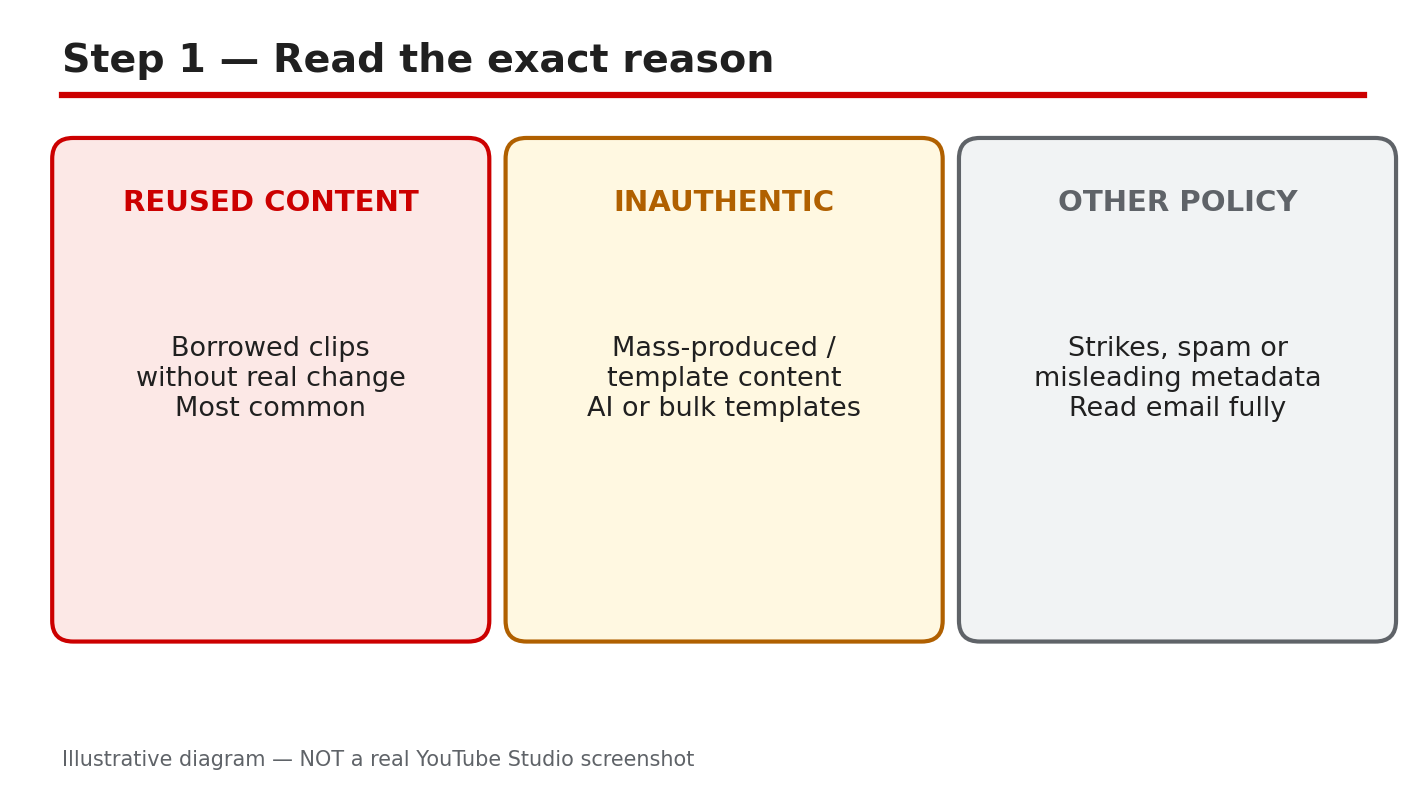
What to do. Open the rejection email YouTube sent and the notice in YouTube Studio, and read the reason exactly as written. Copy the words down. The reason is usually “reused content” or “inauthentic content,” but it can name another policy instead — and each reason points at a different fix. Do not guess from the subject line or from what happened to another creator. Note that YouTube renamed its “repetitious content” policy to “inauthentic content” in July 2025; the reused-content policy itself did not change.
Studio menu path. Your rejection email, then YouTube Studio > Earn tab > read the status and reason shown for your channel.
Example. An email says the channel was rejected for “reused content.” The creator lists the videos that are re-uploaded clips with no added commentary — those are the videos to deal with in Step 3, not the original videos.
Common mistake. Appealing with a general message such as “please monetize my channel” without naming the reason or fixing anything. Reviewers decide against the policy named in the rejection, so a general plea gives them nothing new to review.
Diagram 1: The exact rejection reason — reused content, inauthentic content, or another policy — read word-for-word before you act. Illustrative diagram/mock-up, NOT a real YouTube Studio screenshot.
Quick Checklist
- Read the exact rejection reason word-for-word.
- Check the Earn tab: status, appeal or reapply option, and exact deadline.
- Clean up before appealing: remove or unlist violating videos, and publish original videos.
- Make an appeal video that shows your original work, explains how your videos were made, and stays calm and factual.
- If the appeal fails, use only your case’s reapply window — 30 days after a first rejection, 90 days if it is not your first rejected application or you previously re-applied — and check the exact window in the Earn tab.
- Rebuild with original videos on a schedule, then reapply when the window opens.
Frequently Asked Questions
What does “reused content” mean? YouTube’s monetization policies require content to be original and authentic. Reused content means videos taken from elsewhere with little or nothing original added. In July 2025, YouTube renamed the “repetitious content” policy to “inauthentic content”; the reused-content policy itself did not change.
How long do I have to appeal? Appeal within 21 days where the Earn tab offers an appeal. Check the exact deadline shown in the Earn tab for your channel.
What if my appeal fails? Use the reapply window for your case: 30 days after a first rejection, or 90 days if it is not your first rejected application or you previously re-applied. Check the exact window in the Earn tab, and use the wait to publish original videos.
Should I delete all my videos? No. Remove or unlist only the videos that break the policy named in the rejection, and add original videos that show your own work.
Will I be monetized again if I reapply? There is no guarantee. Reapplying after the clean-up gives YouTube new original content to review; the decision is YouTube’s.
Sources — Check It Yourself
- YouTube channel monetization policies
- YouTube Partner Program overview & eligibility
- My channel was rejected for monetization FAQs
- Manage restrictions on your content
- Get started with YouTube Analytics
No official video is embedded in this post: no official YouTube Creators or Creator Insider video matching this exact monetization-appeal topic was verified, so none was embedded rather than guessing at a link. All diagrams in this post are illustrative diagrams/mock-ups, NOT real YouTube Studio screenshots.
Step 6 — Follow a Rebuild-Then-Reapply Plan
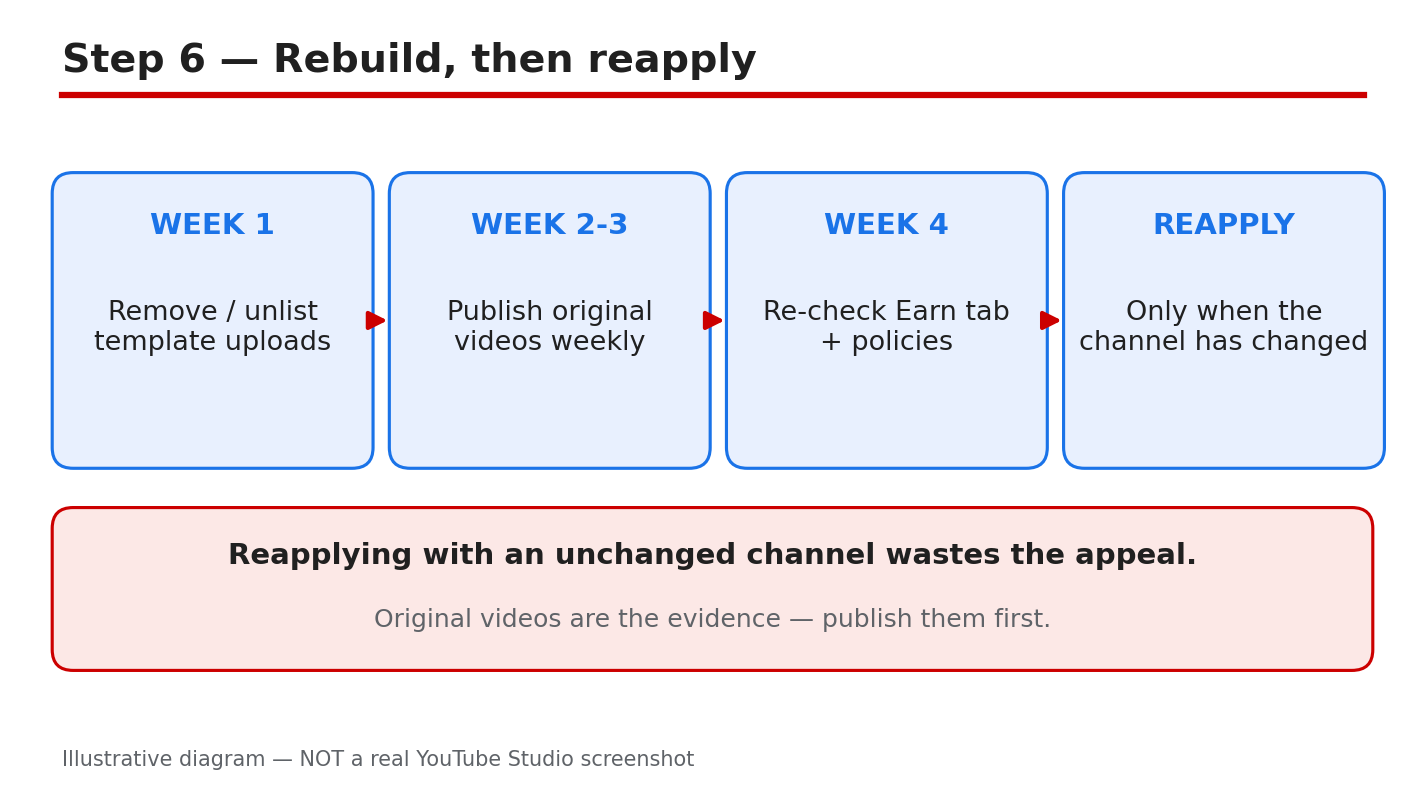
What to do. Work in order over several weeks. First, finish the clean-up from Step 3. Then publish original videos on a regular schedule — videos you made yourself, showing your own work. Before each video goes up, check it against the monetization policies linked in the Sources section: is it original, and does it add something of your own? When your reapply window from Step 5 opens, check the Earn tab, confirm the channel shows original work, and only then reapply.
Studio menu path. YouTube Studio > Content (publish original videos on a schedule) > Earn tab (check status and reapply when the window opens).
Example. A creator publishes one original video a week for a month, reviews each one against the monetization policies, checks the Earn tab when the 30-day window opens, and reapplies only when the channel clearly shows original work.
Common mistake. Reapplying on the first day the window opens with the same reused clips still public, or publishing nothing new during the wait. The window alone does not change the decision — the channel’s content does.
Diagram 6: Rebuild-then-reapply plan — publish original videos over several weeks, then reapply when the window opens. Illustrative diagram/mock-up, NOT a real YouTube Studio screenshot.
Step 5 — If the Appeal Fails, Use the Reapply Window for Your Case
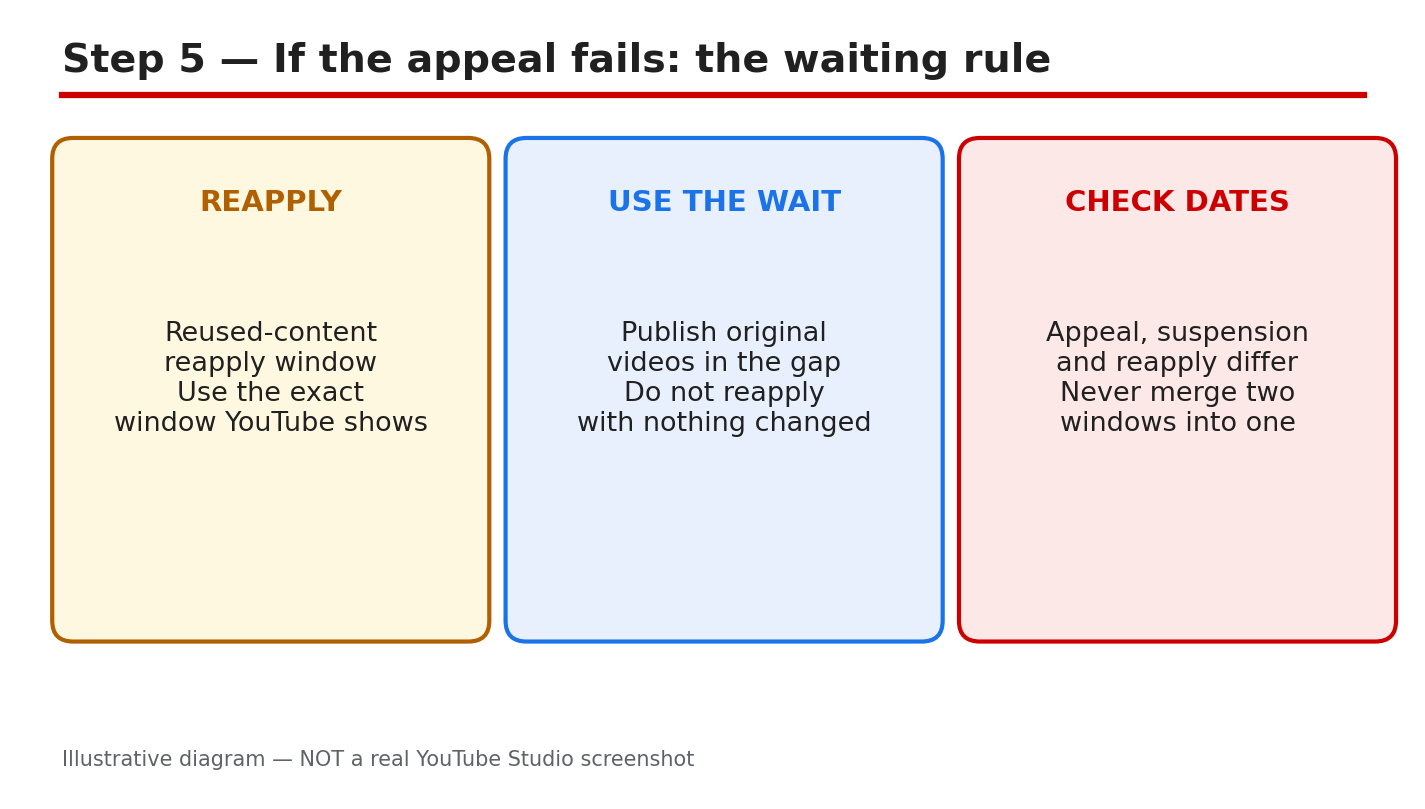
What to do. Do not re-appeal the same way with the same channel. Read what the Earn tab shows for your case, and use only the reapply window that applies to you. YouTube’s official guidance says: if this was your first application rejected, you can re-apply after a 30-day period; if it is not your first application to be rejected, or you have previously re-applied, you can try again after a 90-day period. Check the exact window and date in the Earn tab for your channel — that date is the one that counts. Use the waiting time to publish original videos, so the next review sees new original content.
Studio menu path. YouTube Studio > Earn tab > status and reapply option > the exact reapply date shown for your channel.
Example. A creator whose first application was rejected sees a 30-day window, spends the wait publishing original videos, and reapplies only after that window opens. A creator on a second rejection sees a 90-day window instead — the two cases are not the same number.
Common mistake. Merging the two windows into one number — for example, telling every creator to wait 30 days — or reapplying immediately with the same reused clips still public. Both waste the next review.
Diagram 5: Reapply waiting rule — the 30-day and 90-day windows are separate cases; use only the window the Earn tab shows for your channel. Illustrative diagram/mock-up, NOT a real YouTube Studio screenshot.
Step 4 — Make an Appeal Video That Shows Your Original Work
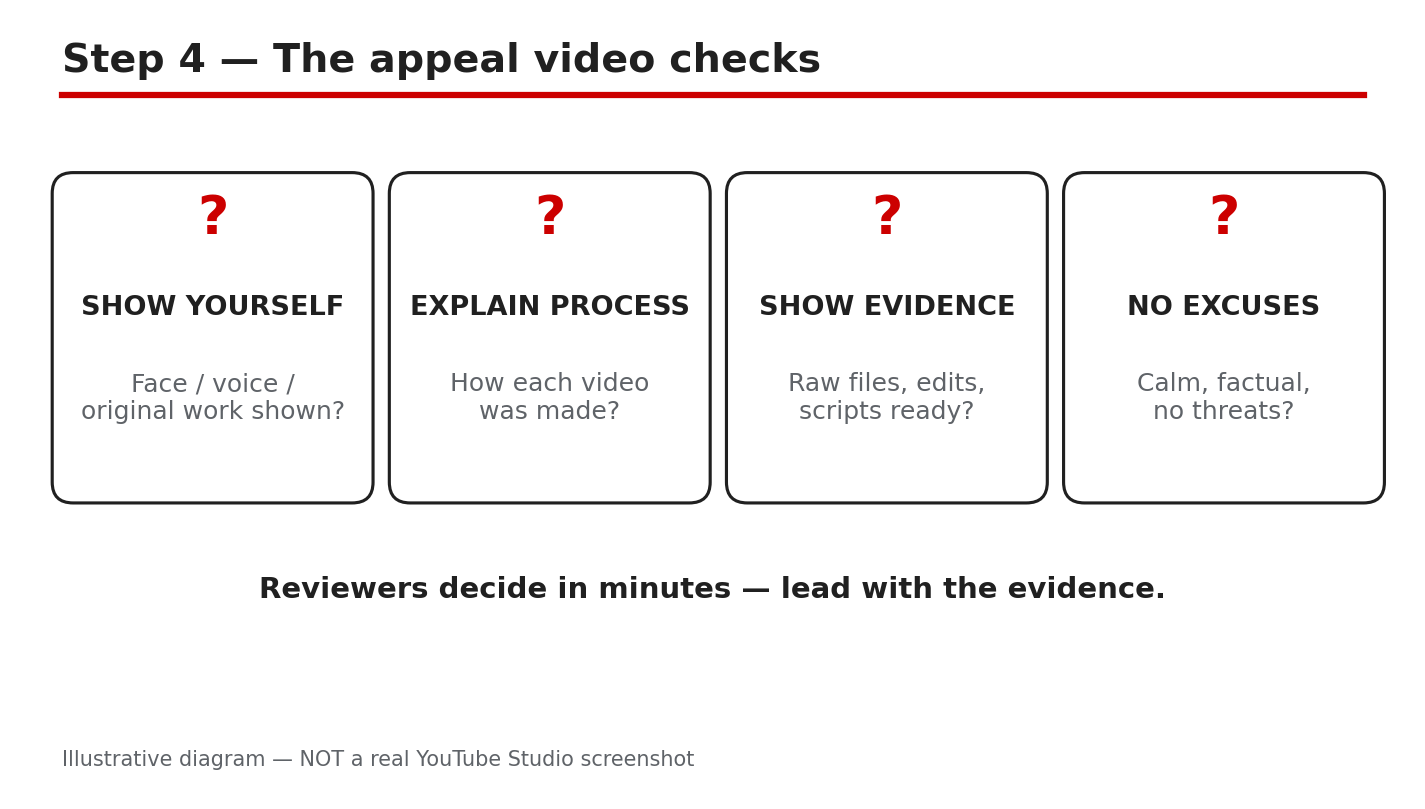
What to do. If the Earn tab offers an appeal, record a video that shows your original work and explains how your videos are made. Show yourself on camera, show your editing process or raw files, and explain in plain words what you create and how. Answer exactly what the appeal screen asks for, and keep the tone calm and factual. Upload or link the video exactly as the appeal screen instructs.
Studio menu path. YouTube Studio > Earn tab > appeal option > follow the appeal screen’s instructions for the appeal video.
Example. A creator records a short video showing their editing timeline, the raw clips they filmed, and themselves explaining how each video is made — then submits it through the appeal screen.
Common mistake. Sending an angry video with no evidence, or a long video that never shows the work itself. Reviewers need to see the original work, not hear a complaint about the decision.
Diagram 4: Appeal video checklist — show your original work, explain how your videos were made, and include evidence. Illustrative diagram/mock-up, NOT a real YouTube Studio screenshot.
Step 3 — Clean Up Before You Appeal
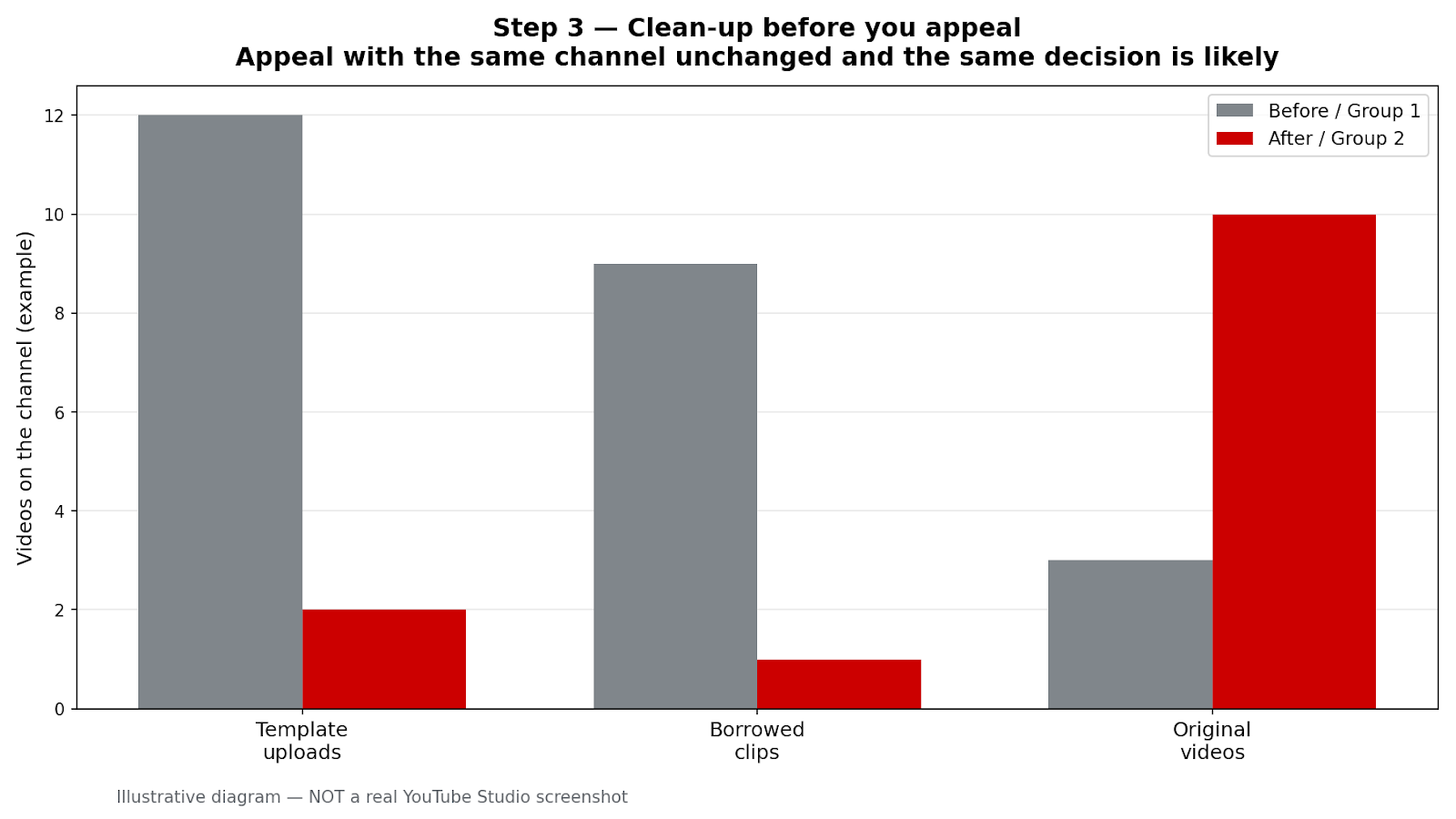
What to do. Do the clean-up before you send any appeal. Go through your channel and remove or unlist the videos that match the reason in Step 1: template compilations, re-uploaded clips with nothing original added, and any other videos that break the policy named in the rejection. Then publish new, original videos that show your own work — your own recording, commentary, editing, or teaching. Appeal only after the channel itself shows the fix, because reviewers look at the channel as it is when they review it.
Studio menu path. YouTube Studio > Content > select the videos > Visibility: Unlisted, or remove the video; then Content > Upload to publish original videos.
Example. A channel rejected for reused content unlists five template compilation videos and publishes three original videos — the creator on camera, explaining each topic in their own words — before appealing.
Common mistake. Appealing first and promising to clean up later, or leaving the violating videos public while appealing. The review is based on what the channel shows at review time, so an unchanged channel gives the reviewer the same answer.
Diagram 3: Clean up before appealing — remove or unlist template and borrowed clips, and publish original videos first. The counts in the diagram are illustrative examples, not a required number. Illustrative diagram/mock-up, NOT a real YouTube Studio screenshot.
Step 2 — Check the Earn Tab: Status, Appeal Option, and Deadline
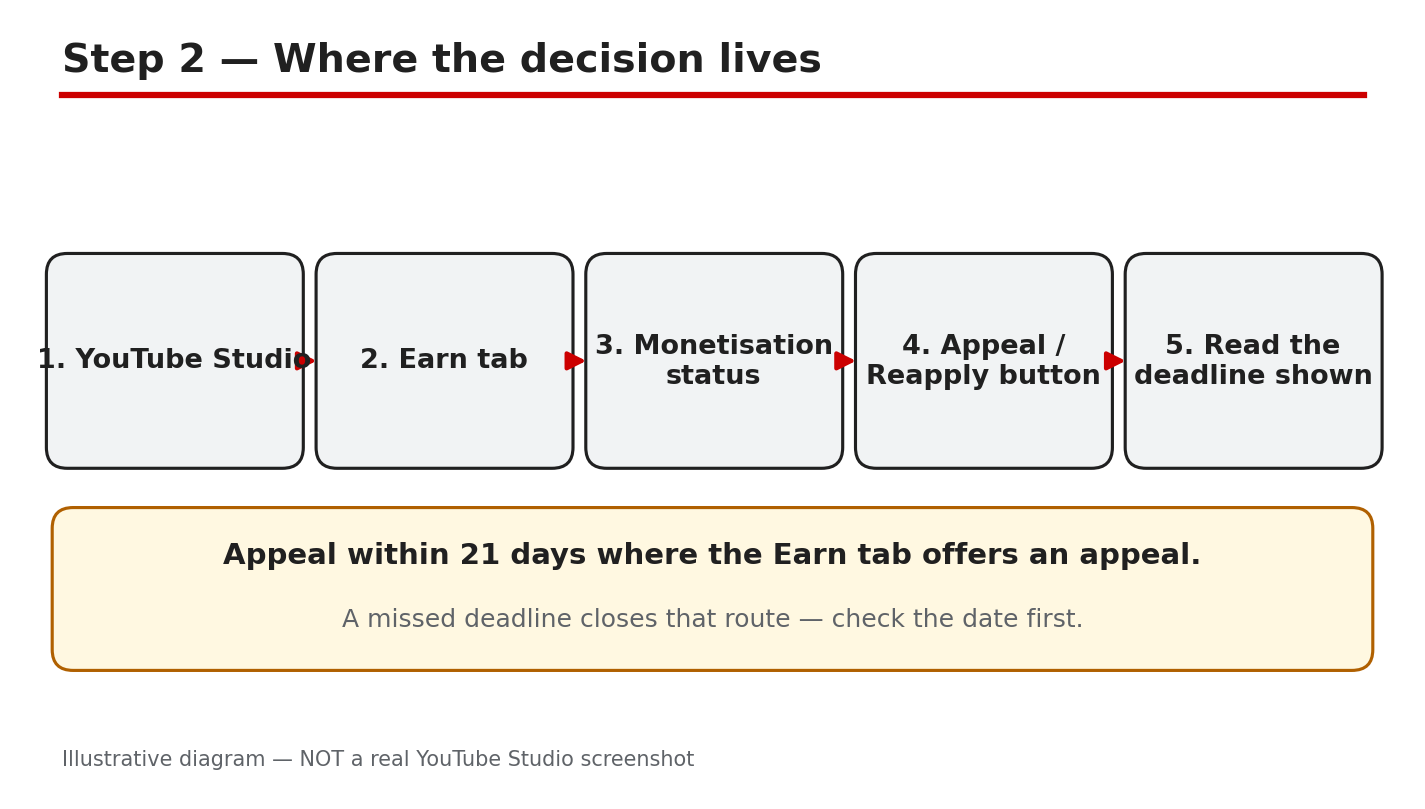
What to do. Open YouTube Studio and go to the Earn tab. Read three things: the monetization status shown for your channel, whether an appeal or reapply option is offered, and the exact deadline shown. Write the deadline down with the date. If an appeal is offered, you can normally appeal within 21 days of the decision — but the date shown in the Earn tab for your channel is the one that counts, so follow that date, not a date you read elsewhere.
Studio menu path. YouTube Studio > Earn tab > monetization status > appeal or reapply option and the deadline shown.
Example. The Earn tab shows the channel as not approved, with an appeal button and a deadline 21 days out. The creator notes the date, finishes the clean-up in Step 3, and appeals with five days to spare.
Common mistake. Missing the deadline because the appeal was left until later, or hunting for an appeal form when the Earn tab offers no appeal. If no appeal is offered, use the reapply route in Step 5 instead of looking for a hidden appeal form.
Diagram 2: The Earn tab — status, appeal or reapply option, and the exact deadline shown. Appeal within 21 days where the Earn tab offers an appeal. Illustrative diagram/mock-up, NOT a real YouTube Studio screenshot.