YouTube Shorts Custom Thumbnail Not Showing? How to Fix It
 CreatorPlaybook Team
- 08 Nov, 2026
You uploaded a custom thumbnail for your Short and saved it — but the Short still shows an auto-picked frame. Or there is no upload button at all, only a message saying you cannot change the thumbnail for now. In most cases it is not a bug: wrong place, wrong eligibility, wrong device, or a file that breaks the rules.
Custom Shorts thumbnails are new. As reported, YouTube began rolling them out on 25 July 2026 to Partner Program members, in Studio on a computer only. Before that, a Short’s thumbnail was always a frame from the video — and for many creators it still is.
Work through the steps in order and confirm each one in Studio — in minutes you will know if the thumbnail is missing, delayed, or never uploaded.
What You Will Learn
- Where a Shorts thumbnail appears — and where it never will
- Whether your channel is eligible
- Why the upload option is desktop Studio only
- The file size, format, and ratio rules
- How to upload, save, and check the thumbnail
- The frame workaround while you wait
Step 1 — Check where you are looking first
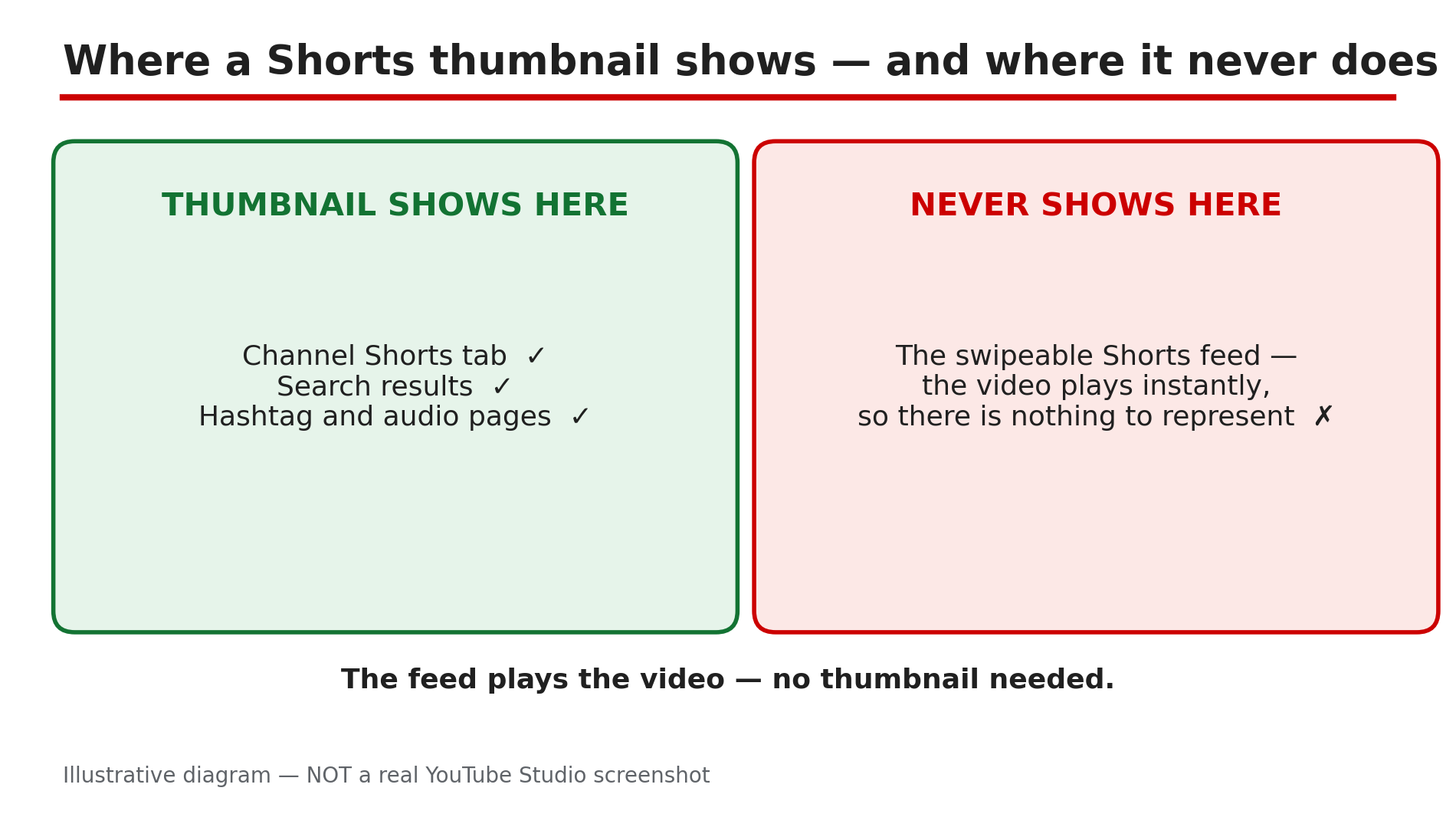
What to do: Check the right surface before changing anything. A Shorts thumbnail never appears in the swipeable Shorts feed, because the video starts playing the moment it appears. Check your Shorts tab, search results, or a hashtag page instead.
How: Open your channel in an incognito window and open the Shorts tab, so you see what a visitor sees. Then search for the Short’s title. YouTube’s Help page says the thumbnail appears in search results, hashtag and audio pivot pages, and your channel page. If the custom image shows there, it worked.
Example: A creator uploads a custom thumbnail, checks the Shorts feed, and sees the old frame. She checks her Shorts tab in an incognito window instead — the new thumbnail is there.
Common mistake: Judging the thumbnail from the Shorts feed alone, and re-uploading when the first upload worked.
Illustrative diagram: the surfaces where a Shorts thumbnail appears, and the one surface where it never will.
Step 2 — Confirm your channel is eligible — YPP and the rollout
What to do: Check whether your channel can use custom Shorts thumbnails. As reported, the rollout began on 25 July 2026 for Partner Program members only. If you are not in YPP, or it has not reached you, there is no setting to switch on.
How: Open the Earn tab in Studio to check Partner Program membership. Then read the message Studio shows: if it says “For now, you can’t change the thumbnail on your Short”, the feature has not reached your account yet. There is no toggle to turn it on — check again after a few days.
Example: A creator outside YPP hunts through Studio for a thumbnail switch. The Earn tab shows she is not in the Partner Program — so she waits and uses the Step 6 workaround.
Common mistake: Paying for a tool that promises to unlock it. No tool can add a feature YouTube has not rolled out to your channel.
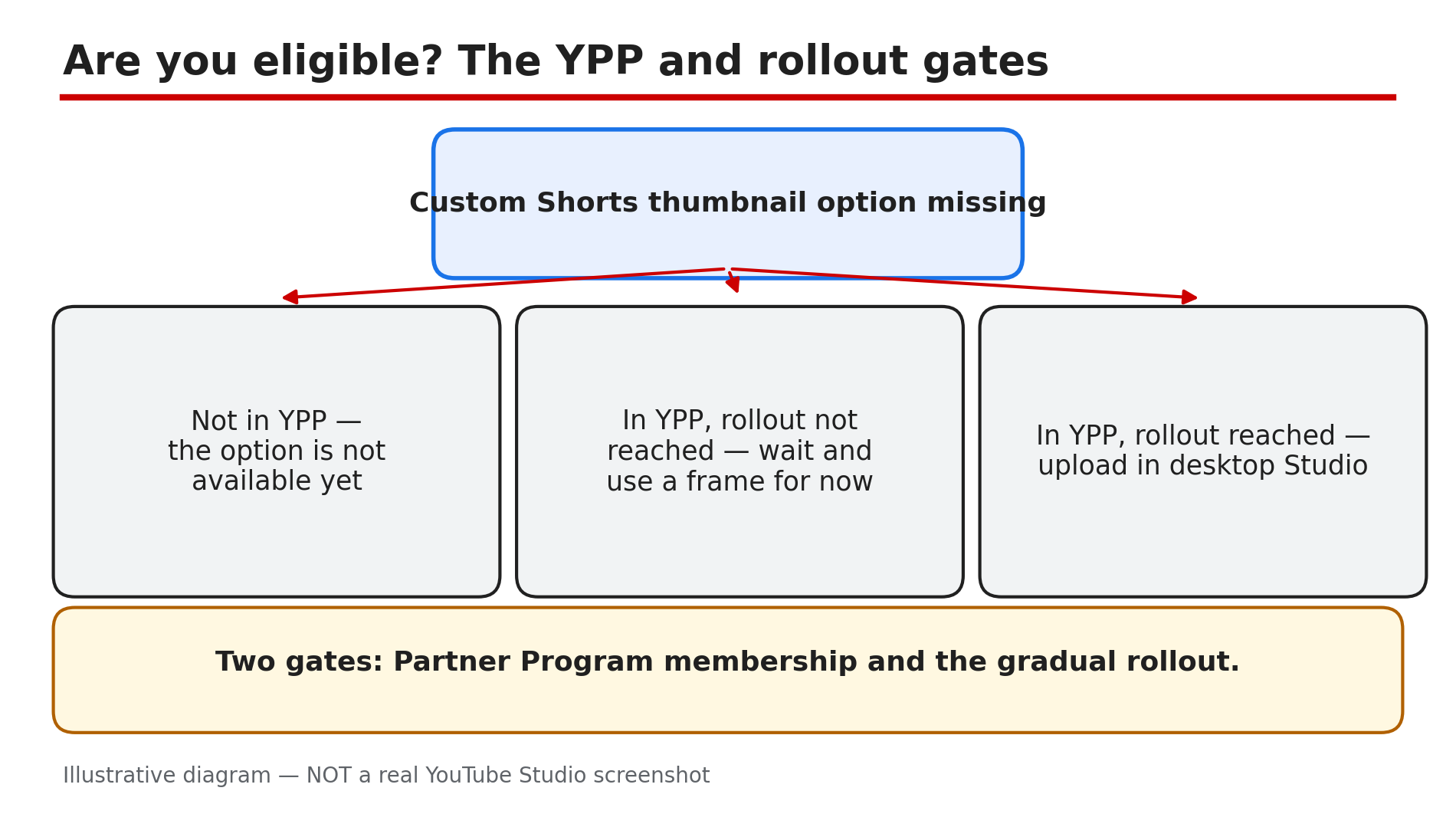
Illustrative diagram: the two eligibility gates for custom Shorts thumbnails — Partner Program membership and the gradual rollout.
Step 3 — Switch to YouTube Studio on a computer
What to do: Do this step on a computer, in a desktop browser. Custom Shorts thumbnails can only be added in YouTube Studio on a computer — not from the mobile app, and not through a scheduler. On a phone, you can only pick a frame.
How: On your computer, sign in to Studio, open Content, and select Shorts. Open the Short, click Upload file below “Thumbnail”, choose the image, and click SAVE. As reported, schedulers do not support custom Shorts thumbnails — upload in Studio itself. On mobile, the YouTube app offers only a frame picker.
Example: A creator tries for a week to add a custom thumbnail from the Studio app and finds only frame choices. On her laptop, the Upload file button is right there.
Common mistake: Re-installing the mobile app when the feature is desktop-only by design.
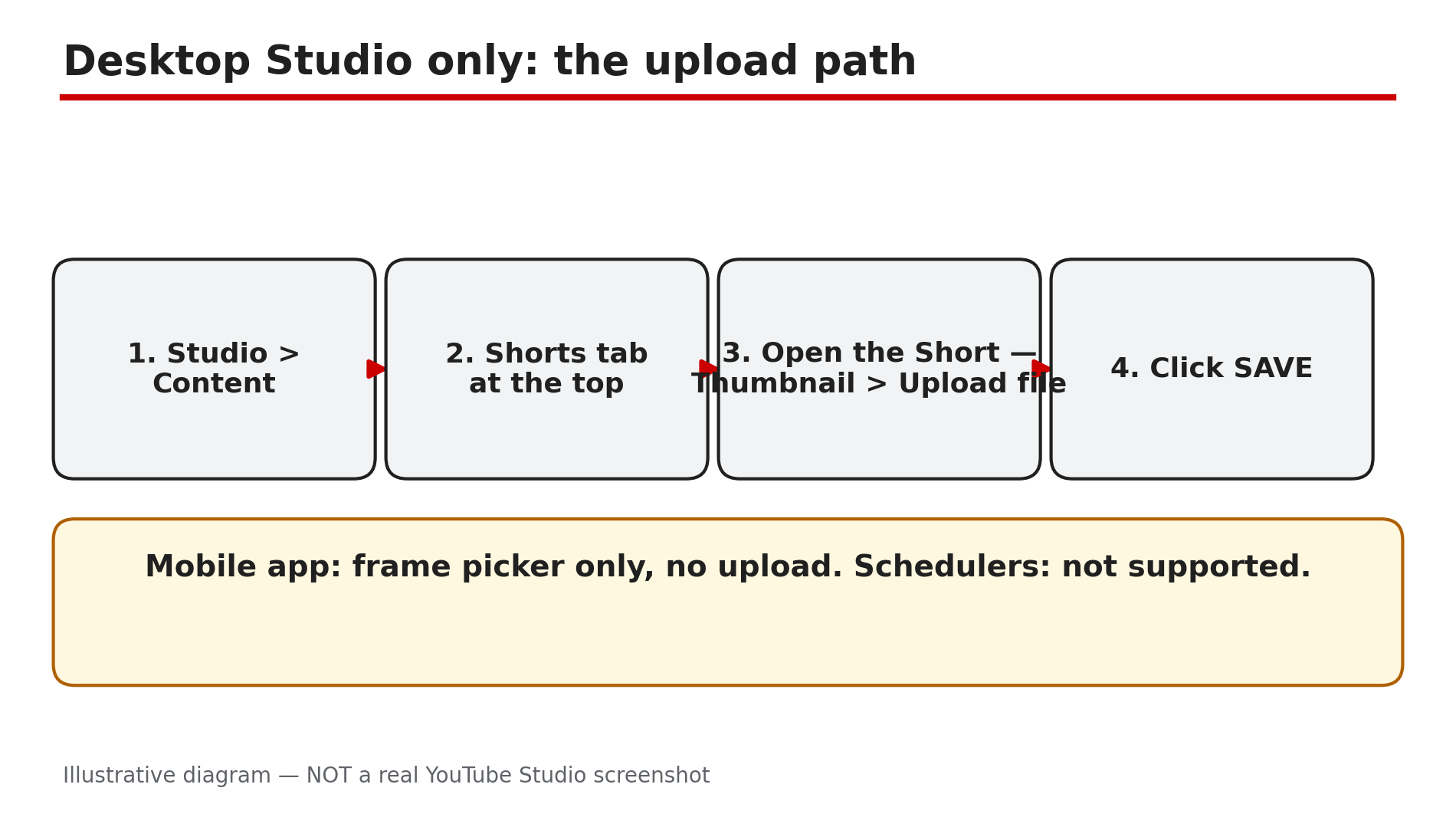
Illustrative mock-up: the desktop Studio path to upload a custom Shorts thumbnail, and the routes that do not offer it.
Step 4 — Verify your account and check the file against the rules
What to do: Confirm your account is verified, then check the file against YouTube’s rules. A file that breaks them can fail silently.
How: In Studio, go to Settings, then Channel, then Feature eligibility, and confirm phone verification is done — YouTube’s Help page states verification is required. Then check the file: 2160 by 3840 pixels, 9:16, minimum 640 pixels tall, JPG or PNG, under 50 MB on desktop. Check the image against the Community Guidelines too: misleading, sexual, hateful, violent, or harmful content can get a thumbnail rejected, and a strike can follow. A daily limit also applies — “Daily custom thumbnail limit reached” means wait 24 hours.
Example: A creator exports a 16:9 image for a vertical Short. Nothing changes. She exports a 2160 by 3840, 9:16 JPG under 50 MB, and the upload works first try.
Common mistake: Using a long-form 16:9 file for a Short, or assuming an upload worked with no error shown.
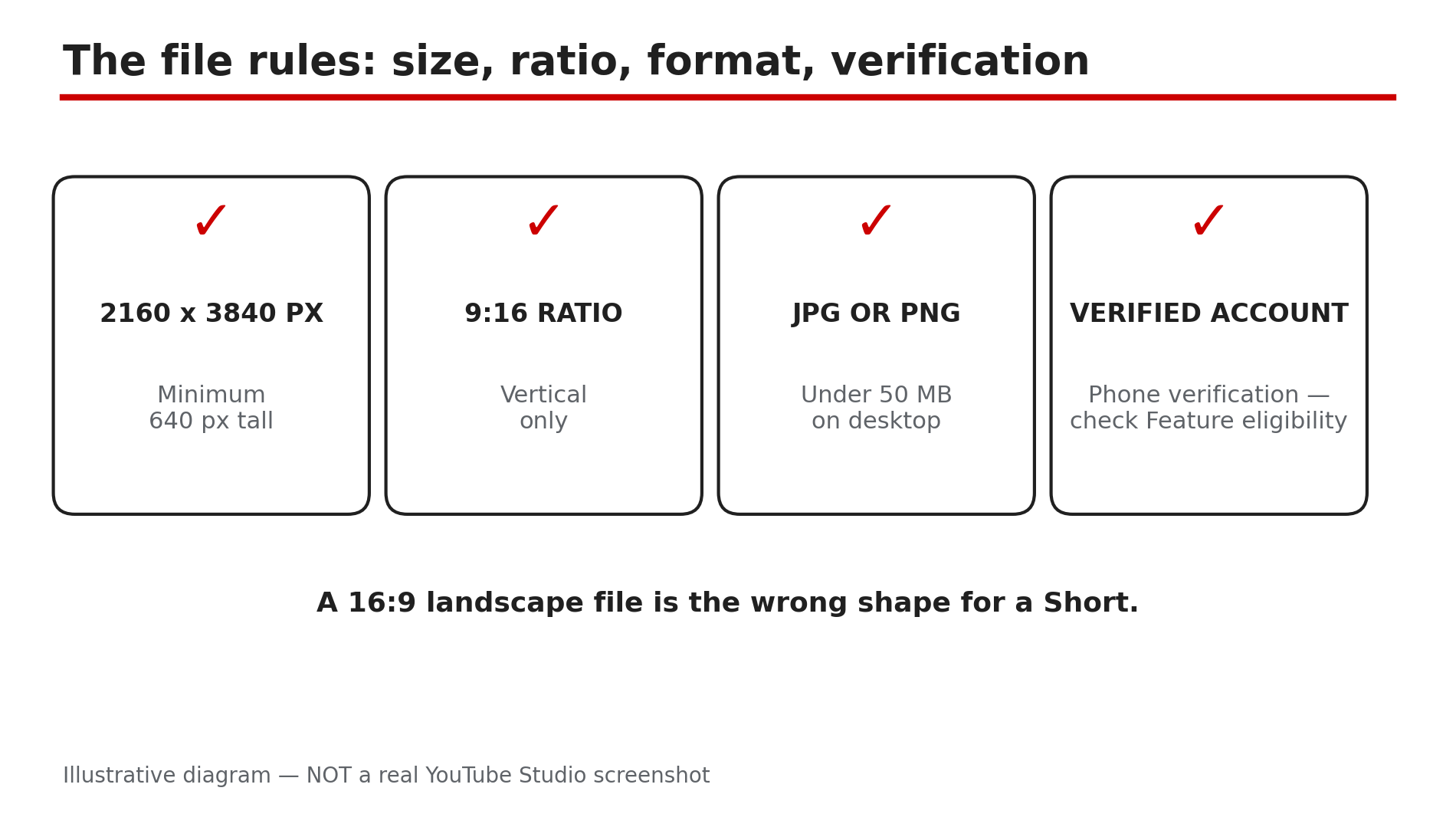
Illustrative diagram: the four file rules a Shorts thumbnail must meet before upload.
Step 5 — Upload, save, and wait for the change to appear
What to do: Upload in desktop Studio, click SAVE, and give the change time to appear. YouTube’s Help page notes thumbnail changes may take time, so a missing thumbnail minutes after saving is often just processing.
How: Open Content, then Shorts, open the Short, click Upload file below Thumbnail, choose the file, and click SAVE. Then wait and check in an incognito window: the Shorts tab and a search result, not the feed. If the old frame still shows, reopen the Short and check the custom image is still selected; if not, upload again. One quirk: a 16:9 thumbnail on a vertical video becomes an auto 4:5 image on Home, Explore, and Subscriptions instead.
Example: A creator saves a new thumbnail and checks the feed five minutes later — old frame. She waits, checks her Shorts tab in incognito, and it is showing.
Common mistake: Re-uploading the same image five times, or deleting the Short — a new upload loses views and comments.
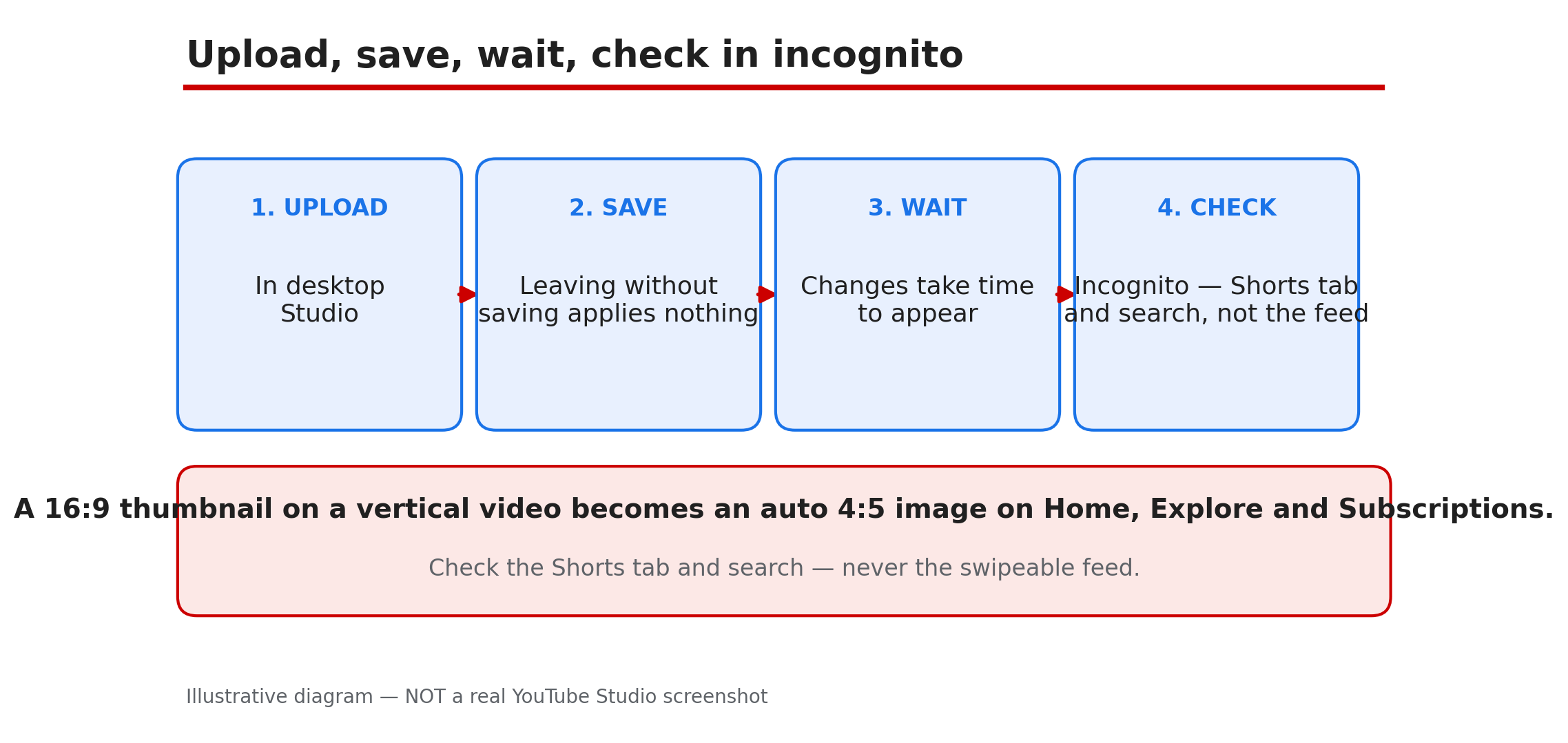
Illustrative diagram: the upload, save, wait and check sequence for a new Shorts thumbnail.
Step 6 — Use the frame workaround, and know what does NOT work for Shorts
What to do: If the upload option has not reached your channel, use the frame method that works for everyone today. Test and Compare does not work on Shorts.
How: Make the first second of the Short a clean, bold frame — big readable text, one clear subject — because the frame you pick becomes the thumbnail on your channel page, in search, and on hashtag pages. On mobile, open the YouTube app and pick the best frame; that is the only choice on mobile, and it works on every channel. Keep one style across your Shorts so viewers recognise them.
Example: A creator not yet in YPP opens every Short with a one-second title card: three big words on a plain background. She picks that frame, and her Shorts tab looks consistent while she waits.
Common mistake: Waiting for a Test and Compare result on a Short, or re-uploading the video just to change the frame.
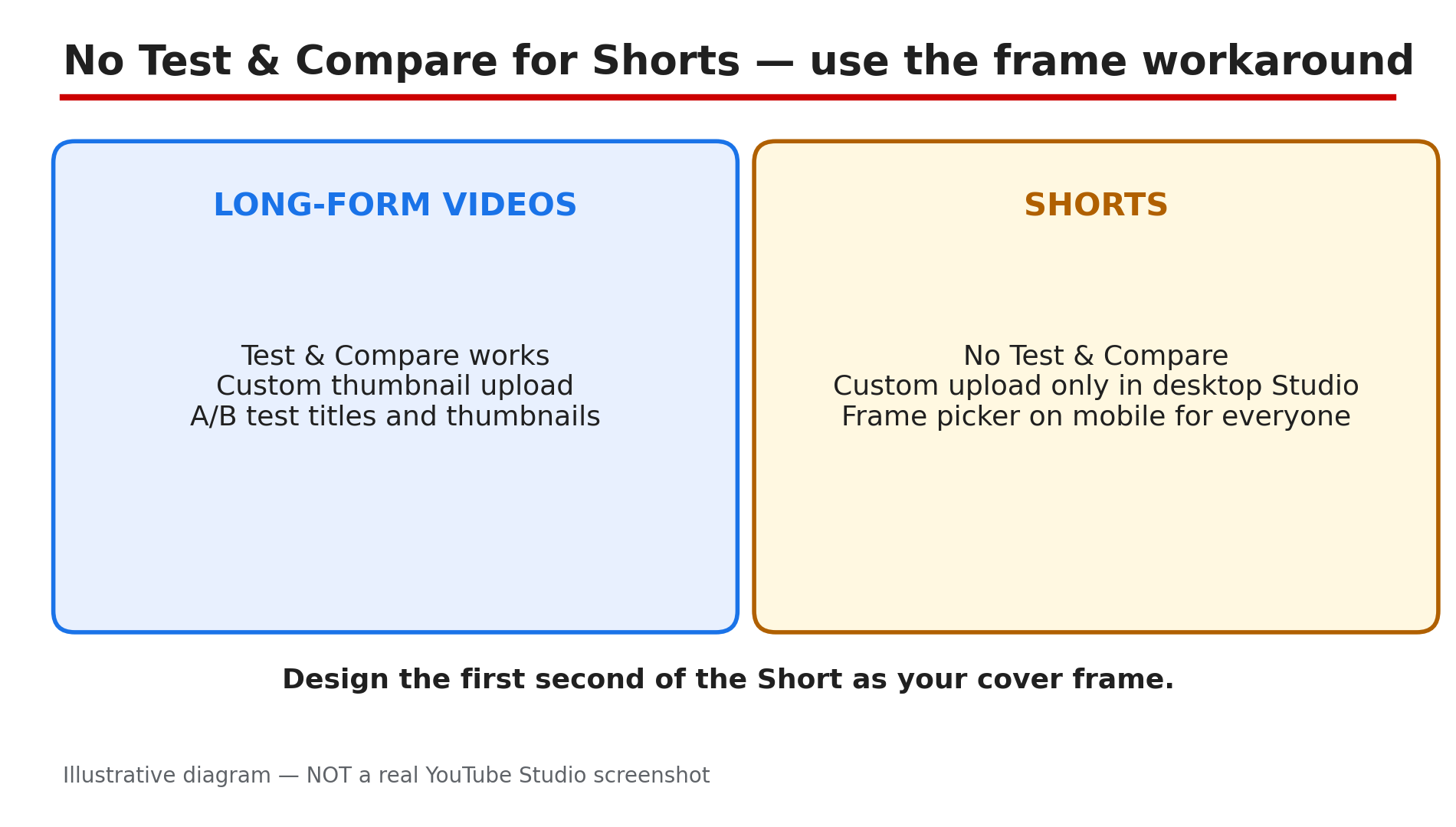
Illustrative diagram: what works for long-form thumbnails but not for Shorts, and the frame workaround that works for everyone.
Checklist — Fix a Shorts custom thumbnail not showing
- ☐ Checked the Shorts tab and search, not the Shorts feed
- ☐ YPP status confirmed in the Earn tab
- ☐ “Can’t change the thumbnail” read as a rollout wait
- ☐ Studio on a computer, not the mobile app or a scheduler
- ☐ Account verified (phone), checked in Feature eligibility
- ☐ File is 2160x3840, 9:16, JPG or PNG, under 50 MB
- ☐ Image follows the Community Guidelines
- ☐ Uploaded via Upload file, then SAVE clicked
- ☐ Waited, then checked in an incognito window
- ☐ Frame workaround in place while waiting
FAQs
1. Why can’t I change my Shorts thumbnail at all?
As reported, the rollout began on 25 July 2026 for Partner Program members, in Studio on a computer only. If you are not in YPP, or it has not reached you, Studio says the thumbnail cannot be changed for now. Check the Earn tab and use the Step 6 workaround.
2. Where does a Shorts thumbnail actually show?
On your Shorts tab, in search results, and on hashtag and audio pages. Never in the swipeable Shorts feed — check the Shorts tab in incognito.
3. Can I upload a custom Shorts thumbnail from my phone?
No. YouTube’s Help page states they can only be added in Studio on a computer, with a verified account. On a phone, you can only pick a frame.
4. What size should a Shorts thumbnail be?
2160 by 3840 pixels at 9:16, minimum 640 pixels tall, JPG or PNG, under 50 MB on desktop. A 16:9 thumbnail on a vertical video becomes an auto 4:5 image on Home, Explore, and Subscriptions.
5. Can I A/B test Shorts thumbnails?
No — Test and Compare is long-form only. Pick the strongest frame, keep one style, and compare click-through in Analytics.
Sources
- YouTube Help — “Add custom thumbnails on YouTube” (official page, opened live 8 Nov 2026): https://support.google.com/youtube/answer/72431?hl=en-GB&co=GENIE.Platform%3DDesktop
- CreatorPlaybook — “YouTube Custom Thumbnail Rejected or Not Showing? How to Fix It” (internal link, opened live 8 Nov 2026): </blog/youtube-custom-thumbnail-rejected-or>
- CreatorPlaybook — “YouTube Studio Not Loading, Blank, or “Something Went Wrong”? How to Fix It” (internal link, opened live 8 Nov 2026): </blog/youtube-studio-not-loading-blank-or>