Showing Posts From
Youtube troubleshooting
 CreatorPlaybook Team
- 10 Nov, 2026
YouTube Studio Analytics Missing or Delayed? What the Lag Really Means
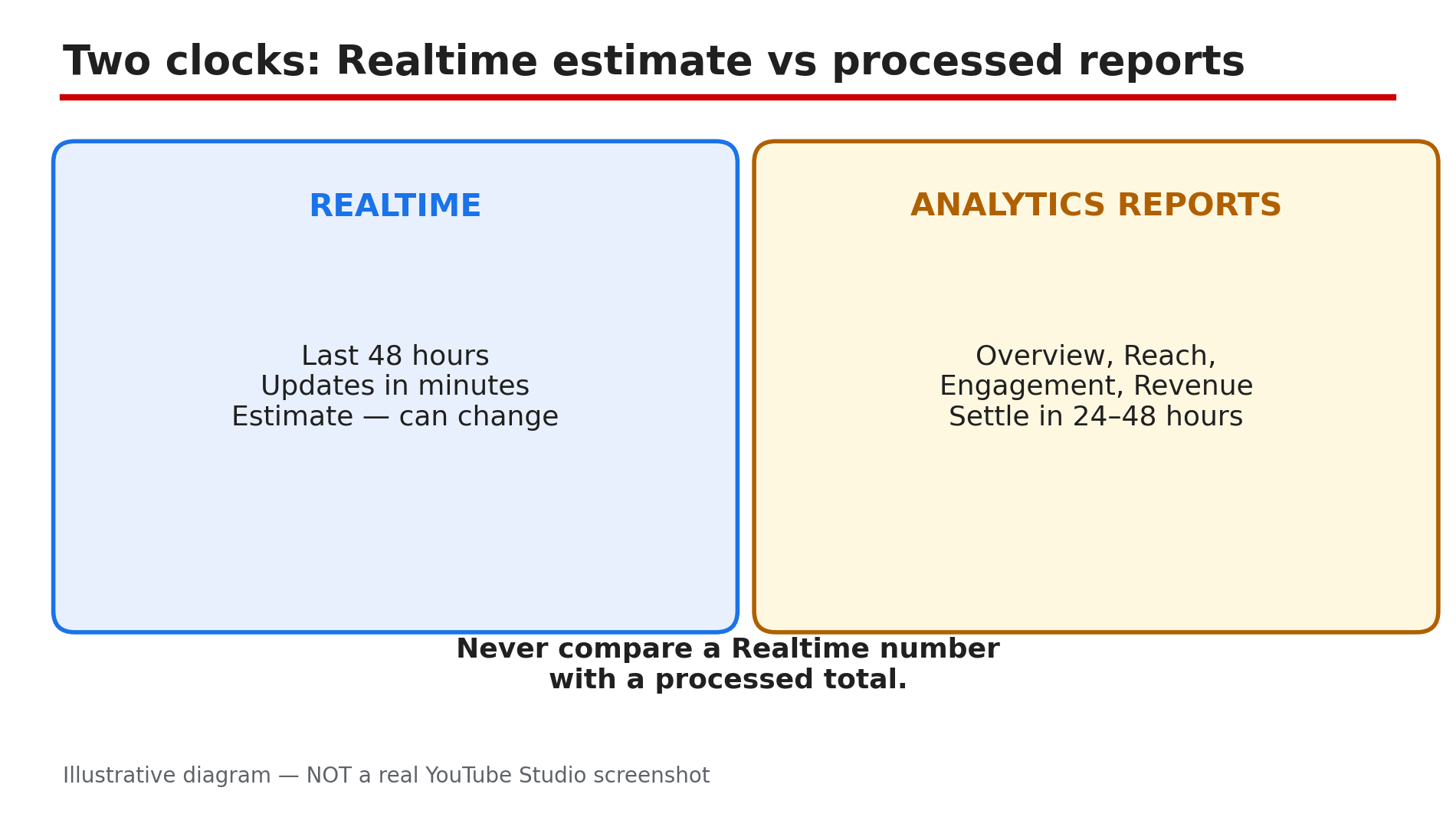
You uploaded a video two days ago, the views are clearly coming in, and Studio Analytics still shows nothing — or a number that has not moved since yesterday. In most cases nothing is broken: YouTube Studio runs on two different clocks, and confusing them is the most common reason creators think their data is missing. The Realtime report is a live estimate of roughly the last 48 hours, while the full Analytics reports take time to process — most metrics settle within 24 to 48 hours, as reported, and YouTube's Help pages confirm a delay of about two days for estimated earnings data. What You Will LearnWhy Realtime and Analytics reports show different numbers — and both can be right How long each report normally takes to fill in Why revenue and membership figures look missing when they are only unfinished The two-minute checks: date range, channel, and report type When to wait, and when a gap means something is actually wrongStep 1 — Learn the two clocks: Realtime estimate vs Analytics reports What to do: Before judging any number, find out which clock you are looking at — Realtime or a processed report. How: Open YouTube Studio and go to Analytics. The Realtime card shows activity from roughly the last 48 hours and updates within minutes — but it is an estimate, not a final count. The Overview, Reach, Engagement, Audience, and Revenue tabs are processed reports that take time to settle: most metrics land within 24 to 48 hours, some stretching to 72 hours. So a video with 500 views in Realtime and zero in Reach is not broken — the processed report has not caught up yet. Compare numbers only within the same report. Example: A creator sees 1,200 views in Realtime on day one and nothing in Reach. On day three Reach shows 1,180 — the 20-view difference is invalid playbacks removed during validation. Common mistake: Refreshing Analytics every hour and concluding the data is stuck — the reports update on YouTube's timetable, not yours.Illustrative diagram: YouTube Studio's two clocks — the fast Realtime estimate and the slower processed reports. Step 2 — Check the date range and the right channel first What to do: Rule out the two most embarrassing causes — the wrong date range and the wrong channel — before assuming data is missing. How: In Analytics, look at the date range at the top of the page. If it ends yesterday, today's views are not in it — extend the range, or switch to Realtime. Then check the channel: tap your profile picture in Studio and confirm you are on the right channel, especially if you manage a Brand Account with several channels. Analytics is per channel, so data for one channel never appears on another. Example: A creator with two channels panics that a new video has zero views, then realises he is looking at his second channel's Analytics. Common mistake: Comparing Realtime views with a channel-level report for a different date range — the numbers will never match.Illustrative mock-up: the two checks that take two minutes and explain most 'missing' Analytics. Step 3 — Understand the revenue clock: estimated vs finalised What to do: If the Revenue tab looks empty or wrong, check whether you are looking at an estimate or a finalised figure — they arrive weeks apart. How: YouTube's Help pages state Analytics has a data delay of about two days for estimated earnings, and estimates do not reflect invalid-activity adjustments in real time — so revenue for the last two days is often blank or low. Finalised earnings are different again: they appear once your payments are added to AdSense for YouTube, typically between the 7th and 12th of the following month. A January figure that looks small on 3 February is not missing — it is not finalised yet. Example: A creator checks her January revenue on 5 February and finds it far below her estimate. By 12 February the finalised figure appears — the gap was invalid traffic removed during finalisation. Common mistake: Treating an estimated revenue figure as money owed — only the finalised number pays out.Illustrative diagram: the revenue timeline from estimated earnings to finalised earnings. Step 4 — Give retention and key moments time to process What to do: If the retention graph is blank or the key moments are missing, check the video's age, length, and view count before calling it a fault. How: Retention data typically takes one to two days to process, as reported, so a graph for a video uploaded this morning is often empty. Key moments — the Intro, Top moments, Spikes, and Dips labels — need a video at least 60 seconds long with at least 100 views, as reported. A 40-second Short or a video with 30 views will never show key moments, and that is by design. Check the Engagement tab after 48 hours. Example: A creator uploads a 90-second video, gets 80 views on day one, and finds no key moments. On day three, past 100 views, the labels appear. Common mistake: Re-editing a video to "fix" a retention graph that only needed another day — the re-upload resets the clock.Illustrative diagram: the three conditions a video must meet before its retention graph and key moments appear. Step 5 — Check membership earnings the right way What to do: If membership earnings look missing from the Revenue tab, check the date range and whether you are comparing an estimate with a finalised figure. How: Membership earnings are reported to go missing most often for two boring reasons. First, the date range is wrong: revenue is counted in the month the member was charged, not the month they joined. Second, creators compare the Revenue tab's estimate with finalised AdSense earnings — two different numbers for different dates. Open the Revenue tab, set the date range to the full month, and look at the memberships row. If members are still being charged and the row is empty after a full month, check that memberships is still switched on in Studio under Earn — a paused feature stops new charges, as reported. Example: A creator sees zero membership earnings for January, then realises her members were charged on 1 February — the figure belonged to February. Common mistake: Assuming a memberships outage because the Revenue tab is empty for the current month — the month is never complete until it ends.Illustrative diagram: membership earnings count in the month the member is charged, not the month they joined. Step 6 — Know when to wait and when to act What to do: Apply a simple rule: under 48 hours, wait; over a week with no movement, act. How: If a number has not moved in under 48 hours, that is normal processing lag, as reported — wait two full days. If nothing has moved for more than a week while your videos are clearly getting views, check YouTube's Known Issues page and try Analytics on a desktop browser, since some reports are not available on mobile. If the gap persists past a week on desktop, with the right channel and date range, use Studio's Send feedback to report it. Example: A channel's views freeze for three days across every video. On day four the numbers jump back — a platform-wide delay, not a channel problem. Common mistake: Deleting and re-uploading a video because its Analytics look empty on day one — you lose the original's history and restart the clock.Illustrative diagram: a decision tree for deciding whether missing Analytics data needs waiting or action. Checklist — Fix YouTube Studio Analytics missing or delayed data☐ Identified whether the number is Realtime or a processed report ☐ Waited 48 hours before judging a new video's reports ☐ Checked the date range includes the days in question ☐ Confirmed the right channel and the right report level ☐ Understood estimated revenue lags about two days ☐ Waited until the 7th to 12th of the next month for finalised earnings ☐ Gave retention one to two days, and key moments 60 seconds plus 100 views ☐ Checked membership earnings against the charging month, not the join month ☐ Tried Analytics on a desktop browser if mobile shows nothing ☐ Checked YouTube's Known Issues page if nothing moves for a weekFAQs 1. How long does YouTube Analytics normally take to update? Realtime updates within minutes as an estimate of the last 48 hours. Most processed metrics settle within 24 to 48 hours, as reported, with some stretching to 72 hours. Estimated earnings carry a delay of about two days, according to YouTube's Help pages. 2. Why does Realtime show views but my Reach tab shows zero? Because they are different clocks. Realtime is a fast estimate; the Reach tab is a processed report that has not caught up yet. Compare numbers only within the same report, and wait 48 hours before worrying. 3. Why did my view count go down in Analytics? Because YouTube validates playbacks while counting and removes invalid ones, as reported. A count that drops slightly is the system working correctly — see our guide on Realtime views stuck. 4. My revenue for this month is blank. Is monetisation off? Probably not. Estimated earnings lag about two days, and finalised earnings appear only between the 7th and 12th of the following month, according to YouTube's Help page. 5. My retention graph is empty two days after uploading. What should I do? First check the video is at least 60 seconds long with 100 or more views, as reported — key moments need both. If it is longer and well past 100 views after 48 hours, try a desktop browser. SourcesYouTube Help — "Get started with YouTube Analytics" (official page, opened live 10 Nov 2026): https://support.google.com/youtubecreatorstudio/answer/9002587?hl=en&co=GENIE.Platform%3DiOS CreatorPlaybook — "YouTube Realtime Views Stuck? Why the Count Freezes and When to Wait" (internal link, live-verified published post): </blog/youtube-realtime-views-stuck-why> CreatorPlaybook — "How to Read Your YouTube Retention Graph and Fix Drop-Offs" (internal link, live-verified published post): </blog/how-to-read-your-youtube-retention>
- CreatorPlaybook Team
- 10 Nov, 2026
Locked Out of Your YouTube Channel? How to Recover It
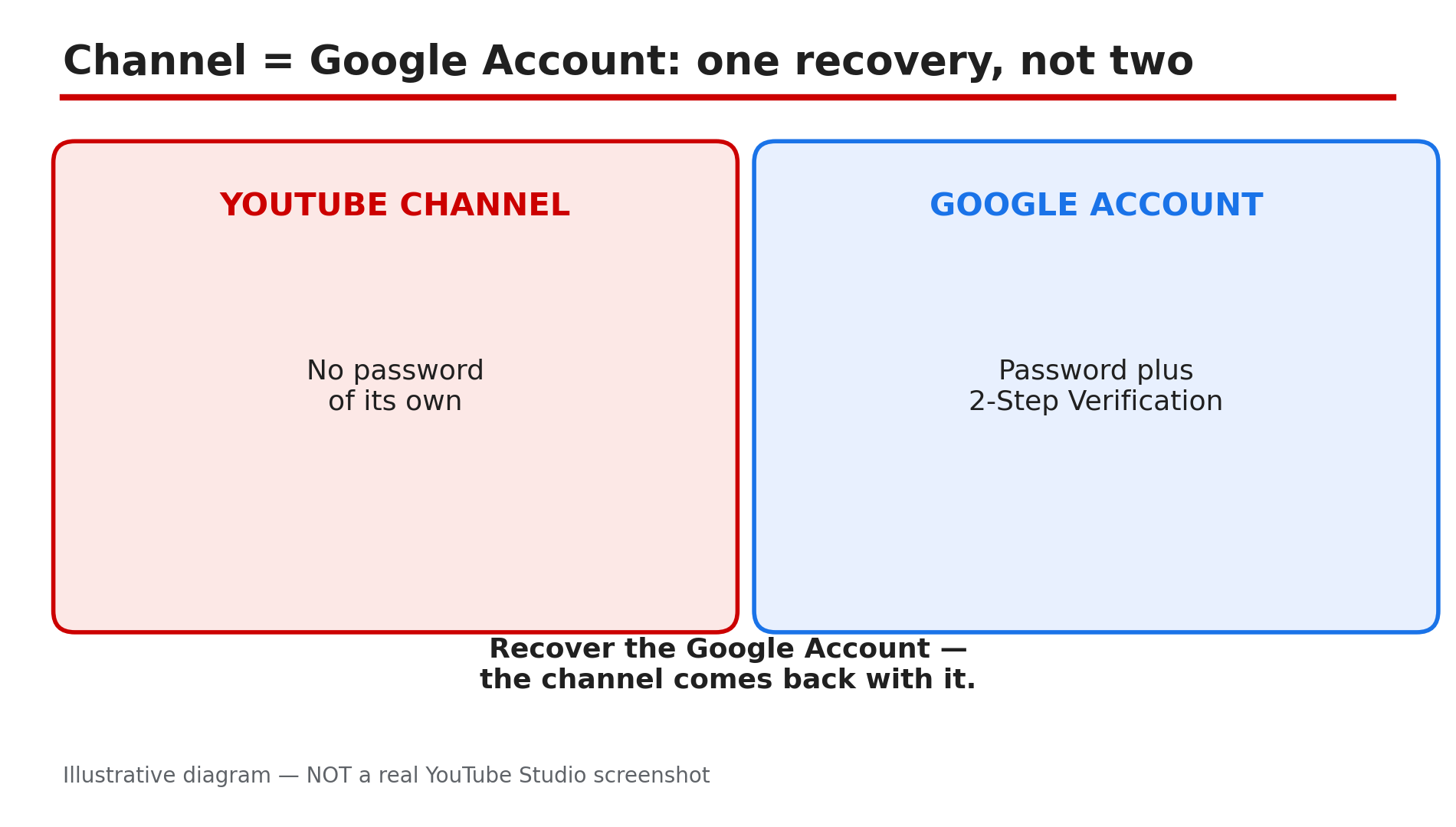
Your phone is gone, and with it went the second step that unlocks your YouTube channel. You know your password, but YouTube keeps asking for a code you can no longer receive. The way back is narrower than most creators expect: a YouTube channel is the Google Account behind it, so recovery means recovering the Google Account — there is no separate YouTube password to reset, as reported. Google's Help page lays out the order: use another second step if you have one, and if you do not, go through Google Account Recovery, which Google says can take 3 to 5 business days to verify it is really you. What You Will LearnWhy a lost phone locks the channel, and why recovery starts with Google, not YouTube How to sign the lost phone out and change your password first How to get in with another second step — backup codes, prompts, or a security key How Google Account Recovery works when no second step is left How to set up backup options so this never happens againStep 1 — Understand what you are recovering: the Google Account, not YouTube What to do: Stop looking for a YouTube recovery form — your channel is your Google Account, and that account is what you must recover. How: A YouTube channel has no password of its own. You sign in to YouTube with a Google Account, and 2-Step Verification protects that account — so every recovery step happens in your Google Account, not in YouTube Studio, as reported. Anyone who promises to "recover your YouTube channel" for a fee is almost certainly a scam: Google's own recovery is free, and it is the only route. Example: A creator with 40,000 subscribers loses his phone, recovers his Google Account, and his channel is simply there when he signs back in. Common mistake: Paying a "recovery service" that asks for your password — they cannot recover anything Google cannot.Illustrative diagram: a YouTube channel is the Google Account behind it, so recovery starts with Google. Step 2 — Sign out the lost phone and change your password What to do: Before anything else, cut the lost phone off from your account and change the password from a device you still control. How: On another signed-in device, open your Google Account, go to Security, then "Your devices", and sign out of the lost phone. Google's Help page recommends exactly this: sign out of the lost or stolen phone, then change your Google Account password. Do this first — a phone that is still signed in can receive Google prompts and codes, so changing the password alone is not enough. Example: A viewer loses her phone in a taxi, signs out of it from her laptop within the hour, and changes her password — nobody can open her channel from it. Common mistake: Changing the password but leaving the lost phone signed in — the finder can still approve prompts from it.Illustrative diagram: the first two moves after losing a phone — sign it out, then change the password. Step 3 — Sign in with another second step if you have one What to do: Try every other second step you set up before you had the problem — one of them is the fastest way back in. How: Google's Help page lists the second steps that can replace a lost phone: verification codes, Google prompts on another device, backup codes, a backup security key, or a trusted computer. Sign in with your password, choose "Try another way", and pick the option you have. Backup codes are the most common lifesaver: the ten 8-digit codes Google gave you when you turned on 2-Step Verification, each usable once. If you saved them in a password manager or on paper, use one now — then remove the lost phone and add your new phone. Example: A creator finds his printed backup codes in a drawer, signs in with one, and adds his new phone — all within ten minutes. Common mistake: Assuming an old backup code is useless — codes do not expire until used or replaced.Illustrative diagram: the five second steps that can replace a lost phone at sign-in. Step 4 — Use Google Account Recovery if no second step is left What to do: If you have no other second step, go through Google Account Recovery and be ready to wait. How: Go to Google Account Recovery and follow the steps. Google's Help page is clear about the wait: because 2-Step Verification is an extra check that you own the account, it can take 3 to 5 business days for Google to make sure it is you. You will be asked questions to confirm ownership, and to enter an email address or phone number where you can be reached, then a code sent there. Answer from a device and location you have used before. Do not start a second attempt while the first is running — it can slow the process down. Example: A creator with no backup codes starts recovery on a Monday from his home computer and gets access back on Thursday — then sets up backup codes the same day. Common mistake: Starting over with different answers after a day — inconsistent answers make Google less sure it is you.Illustrative diagram: the Google Account Recovery timeline when no second step is left. Step 5 — Avoid the traps: Google Voice codes and Advanced Protection What to do: Do not use Google Voice to receive verification codes, and know the special rule if your account has Advanced Protection. How: Google's Help page warns against using Google Voice for verification codes: if you sign out of the Voice app, you might need a code to get back in — but it is sent to your Google Voice, which you cannot open, so you are locked out of both. Use a real mobile number or an authenticator app instead. Separately, if you added Advanced Protection, you can only use a backup security key — no codes, no prompts — and without one you must recover your account. Check today whether you have a second key stored somewhere safe. Example: A creator used Google Voice for codes for years. After a phone reset, the codes went to a Voice app he could not open — and he waited out a full account recovery. Common mistake: Enrolling in Advanced Protection with one key and no backup — one lost key means a long recovery.Illustrative diagram: two traps that turn a lost phone into a much longer lockout. Step 6 — Set up backup options so a lost phone never locks you out again What to do: Once you are back in, spend ten minutes setting up the safety net you wish you had. How: In your Google Account, go to Security, then 2-Step Verification, and do three things. First, generate backup codes and store them off your phone — a password manager, or paper in a drawer. Second, add a recovery email and a second phone number, and keep them current after every number change. Third, register a second device for Google prompts, or add a backup security key. Check these once a year, and again the day you change your number — a recovery phone you no longer own is no recovery at all. Example: A creator who once waited four days for recovery now keeps backup codes in her password manager and a second phone number on file — when she lost her phone again, she was back in within minutes. Common mistake: Storing backup codes only on the phone they are meant to replace — a backup on the lost device is no backup.Illustrative diagram: the three backup options that stop a lost phone from ever locking you out again. Checklist — Recover a YouTube channel locked by a lost phone☐ Accepted that recovery means recovering the Google Account, not YouTube ☐ Signed the lost phone out of the Google Account ☐ Changed the Google Account password from a trusted device ☐ Tried another second step: backup codes, prompts, security key, trusted computer ☐ Used Google Account Recovery if no second step was available ☐ Allowed 3 to 5 business days for Google to verify identity ☐ Did not use Google Voice for verification codes ☐ Checked Advanced Protection rules if they apply ☐ Generated backup codes and stored them off the phone ☐ Added a recovery email and a second phone numberFAQs 1. I know my password but lost my phone. Why can't I sign in to YouTube? Because 2-Step Verification needs both the password and a second step. Without the phone, you need another second step — backup codes, a prompt on another device, or a security key — or Google Account Recovery. 2. How long does Google Account Recovery take without a second step? Google says it can take 3 to 5 business days to verify it is you. Answer from a familiar device and location, and do not start a second attempt while the first is running. 3. Where do I find my backup codes? In your Google Account, under Security, then 2-Step Verification, then Show codes. If you never saved them, generate a new set now — and store them off your phone. 4. Can I recover my channel if it was hacked instead of locked out? That is a different problem — see our guide on a hacked or terminated channel for the recovery and appeal route. 5. Is it safe to use Google Voice for verification codes? No, as Google's Help page warns. If you sign out of the Voice app, the code you need goes to the Voice number you cannot reach. SourcesGoogle Account Help — "Fix common issues with 2-Step Verification" (official page, opened live 10 Nov 2026): https://support.google.com/accounts/answer/185834 CreatorPlaybook — "YouTube Temporary Feature Pause for Hacked Accounts" (internal link, live-verified published post): </blog/youtube-temporary-feature-pause-for> CreatorPlaybook — "YouTube Verification Badge Lost or Removed? How to Get It Back" (internal link, live-verified published post): </blog/youtube-verification-badge-lost-or>
- CreatorPlaybook Team
- 10 Nov, 2026
YouTube Downloads Disappeared? Why Offline Videos Vanish
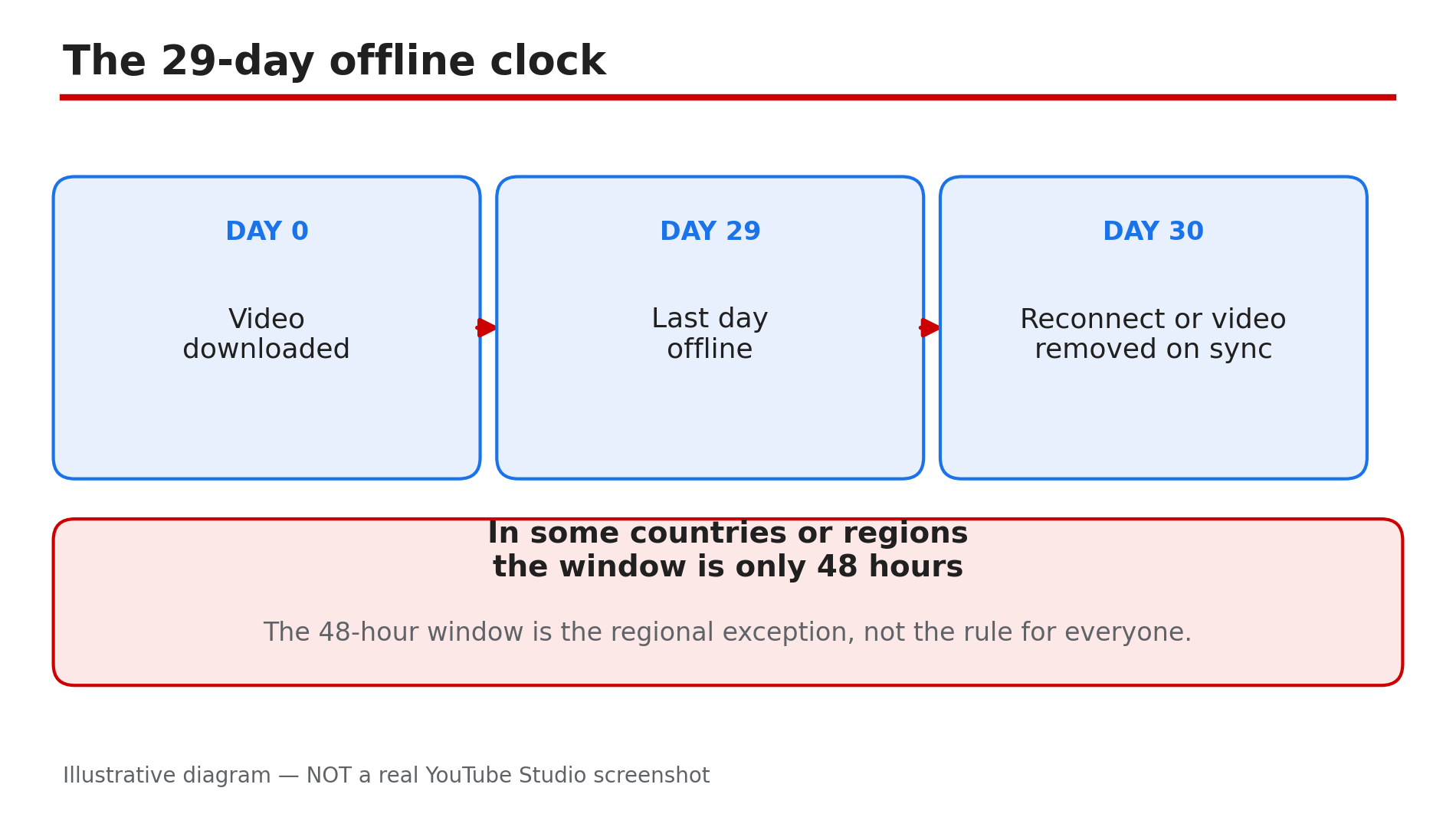
You downloaded a dozen videos for a flight, opened the YouTube app at the airport, and the Downloads list is empty. Nothing was deleted by hand, and the videos still exist on YouTube. What happened is almost always one of a small set of rules doing exactly what they were designed to do: YouTube's Help page says downloaded videos can be played offline for up to 29 days, after which you must reconnect so the app can check for changes — and any video no longer available for offline playback is removed on the next sync. Downloads also live only inside the YouTube app, only on the same Premium account, and only on the device that downloaded them. What You Will LearnWhy downloads expire after 29 days offline — and the 48-hour exception How to tell a wrong-account problem from a real disappearance Why a deleted or private video vanishes from Downloads on sync How downloads work per device, not per account How to rebuild your offline library and stop it vanishing againStep 1 — Check the 29-day offline rule first What to do: Work out whether your downloads simply expired, because that is the most common cause and it needs no fix — only a reconnect. How: YouTube's Help page states that downloaded videos can be played offline for up to 29 days, after which you must reconnect so the app can check for changes to the video or its availability — and any video no longer available is removed on the next sync. So connect to Wi-Fi, open the app, wait a few minutes for the sync, and check the Downloads list again. In some countries or regions the window is only 48 hours — the regional exception, not the universal rule — but the cure is the same: reconnect regularly. Example: A traveller downloads videos for a three-week trip, spends a month without opening YouTube on Wi-Fi, and finds the list empty. Reconnecting restores the downloads that are still available. Common mistake: Re-downloading everything one by one before reconnecting — the sync may restore most of your list on its own once the app checks in.Illustrative diagram: the 29-day offline window for YouTube Premium downloads and what happens when it runs out. Step 2 — Confirm you are on the right account with Premium still active What to do: Check that you are signed in to the same Google Account that downloaded the videos, and that Premium is still active on it. How: Tap your profile picture and check the account name and the Premium badge. YouTube's Help page says you must be signed in to your Premium account to download videos, and videos can be played while signed in with the same account. If Premium lapsed — a failed payment, a paused membership, or a plan that ended — the downloads go away, as reported. Check youtube.com/paid_memberships for the next billing date and whether the membership is paused. Example: A family shares one tablet, and a child signed in to a different Google Account. The parent's downloads are still there — attached to the other account. Common mistake: Checking Downloads on a second phone and concluding the videos are gone — downloads are per device, not per account, as Step 5 explains.Illustrative diagram: downloads only appear on the same account and the same device that made them. Step 3 — Check whether the video itself is gone What to do: Search for the missing video on YouTube, because a video the uploader deleted or made private disappears from Downloads on the next sync. How: Search for the video's title and open its watch page. If it plays normally, the video is fine and your problem is elsewhere. If it is gone, private, or shows "Video unavailable", that is why it vanished: YouTube removes it from your device on the next sync when it is no longer available for offline playback. No setting brings back a video YouTube no longer offers offline. Example: A student downloads a lecture series, and the lecturer later makes half of it private. On the next sync, exactly those videos disappear while the public ones stay. Common mistake: Assuming YouTube deleted your downloads by mistake — in most cases the uploader changed the video, and the sync is working as designed.Illustrative diagram: how a sync removes videos that are no longer available for offline playback. Step 4 — Check storage and download settings What to do: Rule out a full phone and a download setting that stopped new downloads from sticking. How: Check your phone's free storage first: if the device ran out of space, downloads can fail silently. Free up space and try one video again. Then check download quality: tap your profile picture, then Settings, then Background and downloads, then Download quality. YouTube's Help page notes higher-quality videos may take longer to show in the downloads section, so a large 1080p download on a slow connection may look missing when it is simply still finishing. Also check downloads are not set to Wi-Fi only while you are on mobile data. Example: A viewer downloads ten long videos at 1080p on hotel Wi-Fi and finds only three in the list the next morning — the rest were still downloading when he closed the app. Common mistake: Closing the app or switching it off mid-download — downloads pause when the app is killed, and a half-finished download does not appear in the list.Illustrative mock-up: three settings and storage checks that explain downloads that never appear. Step 5 — Re-download properly, on the same device What to do: Download the missing videos again the right way, on the device you will actually watch them on. How: Downloads live inside the YouTube app — encrypted files, not standalone videos in your gallery or Downloads folder, as reported — so you cannot copy them from one phone to another. On the device you will travel with, open the video's watch page, tap Download, and wait for the icon to turn black, which YouTube's Help page says means the download is complete. Then find it in your library under the Downloaded filter and tap it once to confirm it plays with Wi-Fi off. Example: A commuter downloads a podcast episode on her phone, then looks for it on her tablet. It is not there, because downloads are per device — she downloads it on the tablet too. Common mistake: Downloading on one device and expecting the video on another — that is not how YouTube downloads work, and no sync setting changes it.Illustrative diagram: the three steps to re-download a video properly on the device you will watch it on. Step 6 — Stop it happening again before your next trip What to do: Build a small pre-trip routine so your offline library survives the journey. How: Two days before travelling, open the app on Wi-Fi and check the Downloads list while you still have time to fix it. Re-download anything missing, and confirm each video plays with Wi-Fi off. Keep Premium active and your payment method up to date — a failed payment while you are away can end the downloads, as reported. And remember the 29-day rule: on a trip longer than a month, connect to Wi-Fi once so the app can refresh the offline window. Example: A frequent flyer now checks Downloads the night before every flight, and has not lost a single video since — every problem is caught while he still has Wi-Fi. Common mistake: Downloading videos a month before a trip and never opening the app again until the airport — the 29-day clock runs from the last sync, not from the download date.Illustrative diagram: a pre-trip routine that keeps your offline library intact. Checklist — Fix YouTube downloads that disappeared☐ Reconnected to Wi-Fi and let the app sync for a few minutes ☐ Confirmed the 29-day offline window had not expired ☐ Signed in to the same Google Account that made the downloads ☐ Checked Premium is still active and not paused ☐ Searched for the missing video to see if it was deleted or made private ☐ Checked phone storage and download quality settings ☐ Re-downloaded on the same device and waited for the icon to turn black ☐ Tested playback with Wi-Fi switched off ☐ Set a pre-trip Downloads check for the next journeyFAQs 1. How long can I watch a downloaded video without internet? YouTube's Help page says up to 29 days, after which you must reconnect so the app can check the video's availability. In some countries or regions the window is only 48 hours — that is the regional exception, not the rule for everyone. 2. Why did my downloads disappear when Premium expired? Because downloads are a Premium benefit tied to your Premium account, as reported. If the membership lapses or is paused, the downloads go away, and renewing Premium does not restore removed videos — download them again. 3. Can I move my YouTube downloads to another phone? No. Downloads are stored inside the YouTube app on the device that downloaded them, not as standalone files, as reported — download the video again on the second device. 4. A video I downloaded was deleted by its uploader. Can I keep my copy? No. When the app next syncs, a video that is no longer available for offline playback is removed from your device. Only the uploader can restore it. 5. My Downloads list is empty but Premium is active. What should I check first? Reconnect to Wi-Fi and wait for a sync, then check you are signed in to the right account — see our guide on YouTube Premium not working for the full account and payment checks. SourcesYouTube Help — "Watch videos offline with YouTube Premium" (official page, opened live 10 Nov 2026): https://support.google.com/youtube/answer/11977233?hl=en-GB&co=GENIE.Platform%3DiOS CreatorPlaybook — "YouTube Premium Not Working? How to Fix It" (internal link, live-verified published post): </blog/youtube-premium-not-working-how-to-fix> CreatorPlaybook — "YouTube Premium Revenue Explained: How Creators Get Paid" (internal link, live-verified published post): </blog/youtube-premium-revenue-explained-how>
- CreatorPlaybook Team
- 10 Nov, 2026
YouTube Shorts Not Loading or Stuck Buffering? How to Fix It
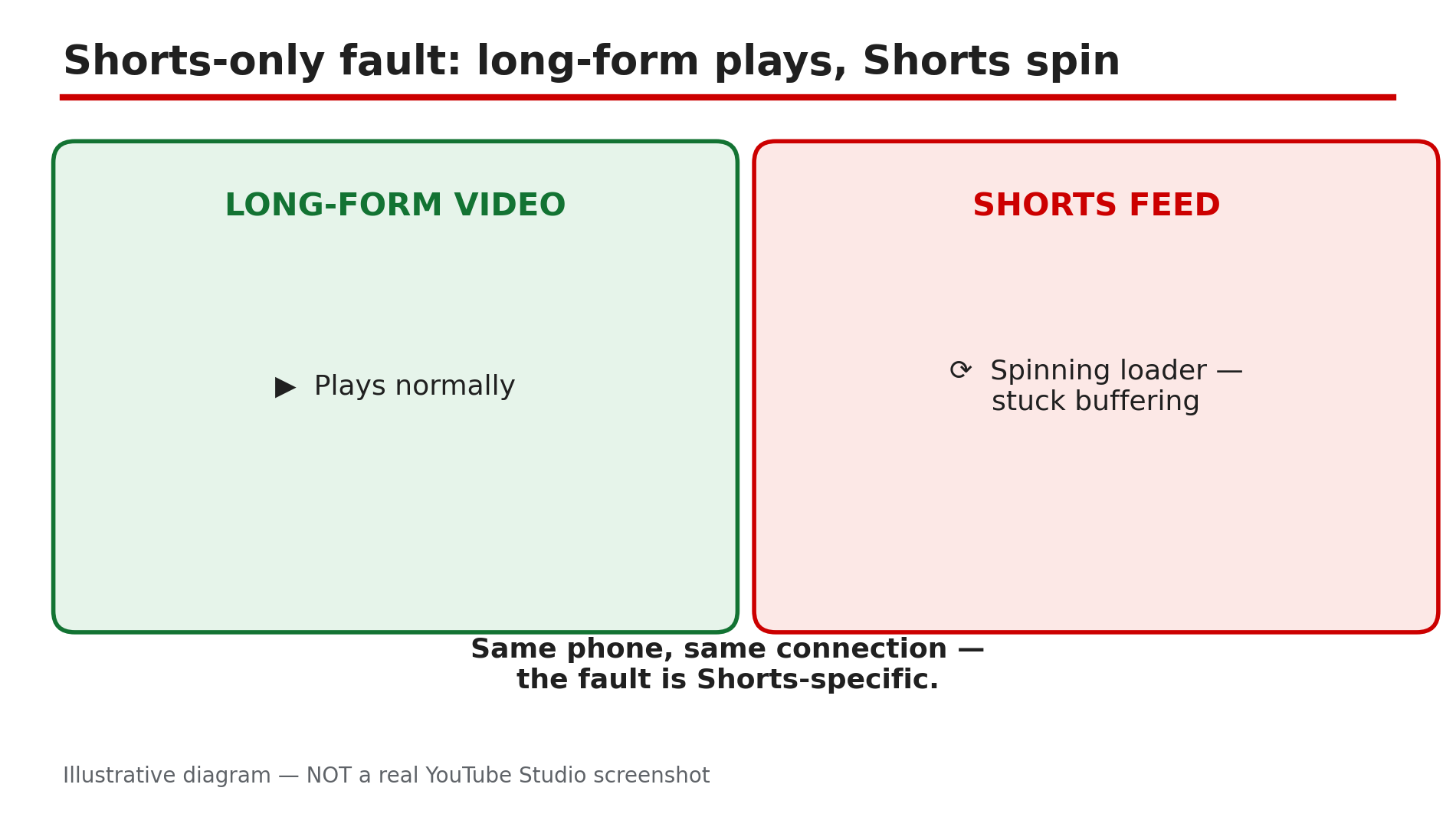
You tap the Shorts tab and get a spinning circle that never stops. The thumbnails may load, the first frame may flash, and then nothing moves. Yet when you go back to a normal video, it plays perfectly. That contrast is the most useful clue you have. Shorts and long-form videos do not fail in the same way: Shorts preload aggressively, swiping from one clip to the next, so a slow or restricted connection stalls the whole feed while a single long video still buffers happily, as reported in guides on this problem. A stale cache entry can also wedge the Shorts tab while search and long-form keep working. This guide walks you through the diagnosis in order — prove it is Shorts-only, fix the connection, clear the wedge, and know when the problem is a bad app update rather than your phone. What You Will LearnHow to prove the fault is Shorts-only and not your connection How to reconnect cleanly by switching networks How to clear the YouTube cache that wedges the Shorts tab Why Data Saver and battery restrictions hit Shorts hardest When an app update is the cause — and when to simply waitStep 1 — Prove it is a Shorts-only fault before changing anything What to do: Confirm that normal videos play while Shorts do not, because that single test decides which fixes are worth trying. How: Open a regular long-form video and let it play for thirty seconds, then go back to the Shorts tab and swipe through five Shorts. If long-form plays and Shorts do not, the fault is Shorts-specific, as reported, and the steps below apply. If long-form videos also fail, you have a general playback problem instead. Example: A viewer finds her favourite channel's new video plays fine, but every Short in the feed spins forever. That contrast tells her the connection is alive and the Shorts feed itself is stuck. Common mistake: Reinstalling the app as a first step — you lose your downloads and settings for a problem a cache clear usually fixes in a minute.Illustrative diagram: a long-form video plays while the Shorts feed stays stuck on a loading spinner. Step 2 — Switch networks to reconnect cleanly What to do: Test the Shorts feed on a different connection, because Shorts preload so aggressively that a weak or throttled connection stalls them first. How: If you are on Wi-Fi, switch to mobile data and try the Shorts tab again. If you are on mobile data, switch to Wi-Fi. You can also toggle airplane mode on for ten seconds and off again to force a fresh connection, as reported in guides on this problem. Shorts need a steady stream of small, fast loads as you swipe, so a connection that copes with one long video can still fail on Shorts. Example: A commuter finds Shorts freeze on the train's Wi-Fi but play instantly on mobile data — the Wi-Fi is throttling video. Common mistake: Blaming the phone when the network is at fault — always test a second network before touching any setting.Illustrative diagram: testing the Shorts feed on a second network to find out whether the connection is at fault. Step 3 — Force stop the app and clear the YouTube cache What to do: Clear the stale Shorts cache entry that can wedge the tab, without deleting your downloads or your login. How: On Android, go to Settings, then Apps, then YouTube, then Storage, and tap Clear cache — not Clear data, which signs you out and deletes downloads. Then force stop the app, reopen it, and try the Shorts tab again, as reported. On iPhone there is no per-app cache clear, so offload the app instead: Settings, then General, then iPhone Storage, then YouTube, then Offload App. Offloading keeps your data while replacing the app itself. Example: A creator's Shorts feed froze every morning after the first swipe. Clearing the YouTube cache once fixed it, and the feed has worked since. Common mistake: Tapping Clear data instead of Clear cache on Android — that wipes your downloads and signs you out, and it is not needed for a Shorts loading fault.Illustrative mock-up: the Android settings path to clear the YouTube cache without touching downloads. Step 4 — Turn off Data Saver and battery restrictions What to do: Check the two settings that quietly throttle Shorts: Data Saver inside YouTube, and battery optimisation on your phone. How: In the YouTube app, tap your profile picture, then Settings, then Data saving, and turn Data Saver off for a test, as reported in guides on this problem. Data Saver limits how much video YouTube preloads, and Shorts — which preload the next clip before you swipe — are hit hardest. Then check battery settings: on Android, go to Settings, then Apps, then YouTube, then Battery, and make sure the app is not set to Restricted — a restricted app cannot fetch the next Short, so every swipe stalls. Example: A student on a small data plan finds Shorts buffer endlessly with Data Saver on, but play smoothly the moment he turns it off on Wi-Fi. Common mistake: Turning Data Saver back on and forgetting it — then blaming YouTube a week later when Shorts stall again on the same setting.Illustrative diagram: how Data Saver and battery restrictions slow down the Shorts feed. Step 5 — Update the app and re-sign in What to do: Rule out a bad app build and a stale signed-in session, in that order. How: Open your app store and check for a YouTube update — install it if one is waiting, then restart your phone before testing again, as reported. A faulty build can break Shorts first while long-form keeps working. If the feed is still stuck, sign out and sign back in to the same account: an empty personalised feed is sometimes a session problem, not a network one. Example: A viewer's Shorts stopped loading the day after an app update. The next update, released three days later, fixed the feed without him changing anything else. Common mistake: Updating the app and testing immediately without restarting the phone — the old version can keep running in the background until the device restarts.Illustrative diagram: the three steps that rule out a bad app build or a stale signed-in session. Step 6 — Know when the problem is YouTube's, and wait it out What to do: If every fix above fails on every network and every device, check for a wider outage and stop troubleshooting your phone. How: Try the Shorts tab on a second device, or in a desktop browser at youtube.com/shorts. If Shorts fail everywhere, check a service-status site such as Downdetector for YouTube reports, as reported. A fault that began right after an app update is likely the build itself — the fix is the next update, and no cache clearing will help. Example: A household finds Shorts frozen on two phones and a tablet at the same time. Downdetector shows a spike of YouTube reports, and the feed recovers by itself within the hour. Common mistake: Factory-resetting the phone for a YouTube-side fault — an extreme step that never fixes a server or app-build problem.Illustrative diagram: a decision tree for telling a YouTube-side Shorts outage from a fault on one device. Checklist — Fix YouTube Shorts not loading or stuck buffering☐ Confirmed long-form videos play while Shorts do not ☐ Tested the Shorts feed on a second network (Wi-Fi and mobile data) ☐ Toggled airplane mode to force a fresh connection ☐ Cleared the YouTube cache on Android, or offloaded the app on iPhone ☐ Turned off Data Saver inside YouTube ☐ Checked battery restrictions are not throttling the YouTube app ☐ Updated the YouTube app and restarted the phone ☐ Signed out and back in if the personalised feed stays empty ☐ Checked a second device and an outage report before resetting anythingFAQs 1. Why do Shorts buffer while normal YouTube videos play fine? Because Shorts preload aggressively as you swipe, so a slow, restricted, or throttled connection stalls the feed while a single long-form video still buffers, as reported. A stale Shorts cache entry can also wedge the tab while everything else works. 2. Will clearing the YouTube cache delete my downloads? No — Clear cache on Android removes temporary files only and keeps your login and downloads. Clear data is the option that signs you out and deletes downloads, so tap the right one. 3. Does Data Saver really affect Shorts more than long videos? Yes, as reported — Shorts depend on preloading the next clip before you swipe, and Data Saver limits preloading. 4. Shorts stopped loading right after an app update. Is my phone broken? Almost certainly not — a bad app build can break Shorts first while long-form keeps working, as reported. Wait for the next update. 5. Should I reinstall YouTube if Shorts will not load? Only after the steps above. Reinstalling is a last resort: clear the cache, switch networks, turn off Data Saver, and update the app first — see our guide on the YouTube app crashing or showing a black screen for the full app-repair order. SourcesYouTube Help — "Troubleshoot YouTube video errors" (official page, opened live 10 Nov 2026): https://support.google.com/youtube/answer/3037019?hl=en CreatorPlaybook — "YouTube Video Stuck at Low Quality? Why 1080p or 4K Is Missing" (internal link, live-verified published post): </blog/youtube-video-stuck-at-low-quality-why> CreatorPlaybook — "YouTube App Not Opening, Crashing, or Black Screen? How to Fix It" (internal link, live-verified published post): </blog/youtube-app-not-opening-crashing-or>
- CreatorPlaybook Team
- 08 Nov, 2026
YouTube Playlist Videos Unavailable or Missing? How to Fix It
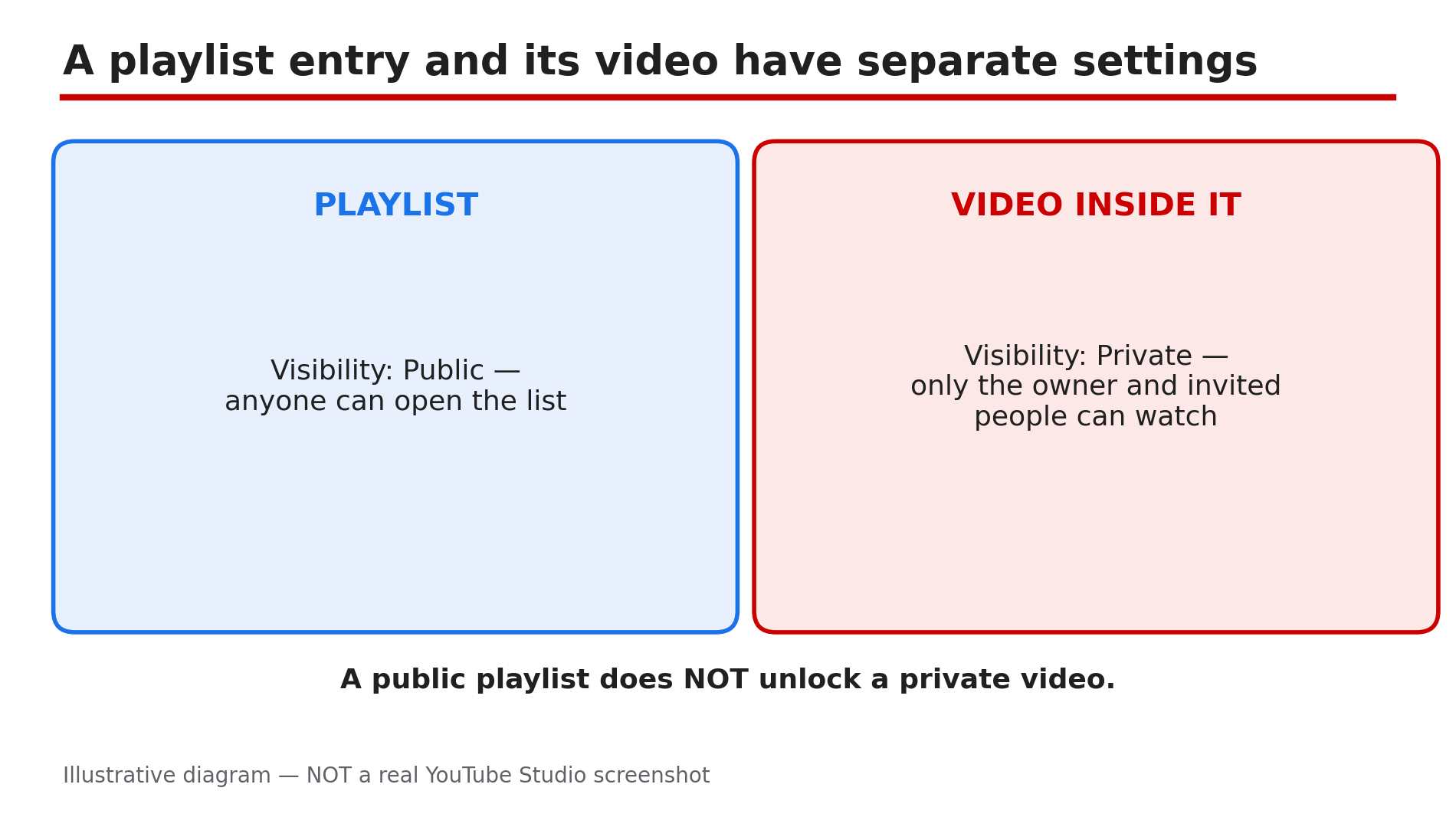
You open a playlist you built with care, and some entries are greyed out. The thumbnail is gone, the title reads "Private video" or "Deleted video", and tapping it does nothing. In most cases the playlist itself is fine. The problem is with the individual video inside it. A playlist entry and the video it points to have separate access conditions, as reported in guides on this problem: the video's owner may have made it private, deleted it, or had it removed, while the entry stays behind as a grey placeholder. This guide shows you how to read the greyed-out entries, reveal the hidden ones, and clean the playlist up. Owners can fix their playlists; viewers can only do so much — there is no legitimate way to watch someone else's private video. What You Will LearnWhy a playlist entry goes grey or disappears How to reveal hidden unavailable videos in your own playlist How to tell a private video from a deleted or removed one What owners can fix, and what only the uploader can fix How to keep a playlist clean so it does not break againStep 1 — Read the greyed-out entry before touching anything What to do: Read exactly what each broken entry says — "Private video", "Deleted video", or "Video unavailable" — before removing or replacing anything. How: Open the playlist on a computer and scroll through it slowly. A greyed-out entry usually keeps a label that names the cause: "Private video" means the uploader changed its visibility to private, while "Deleted video" means the uploader removed it or YouTube removed it. Note what each broken entry says. Example: A teacher finds three grey entries in her revision playlist: two "Private video" and one "Deleted video". The private ones might come back; the deleted one is gone for good. Common mistake: Deleting every grey entry at once — you may throw away a video that only needs its uploader to flip it back to public.Illustrative diagram: a playlist and the video inside it have separate visibility settings. Step 2 — Turn on "Show unavailable videos" to see what is hidden What to do: If entries seem missing rather than greyed out, switch on "Show unavailable videos" so the hidden entries appear. How: Open the playlist, click the three-dot menu next to the playlist title, and choose "Show unavailable videos", as reported in guides on this problem. Greyed-out deleted and private entries should now appear, marked as unavailable. On some devices the option appears only on a computer. Once the hidden entries are visible, remove them one by one. Example: A creator's 40-video playlist shows only 37 entries. He turns on "Show unavailable videos" and three grey entries appear — two private, one deleted. Common mistake: Assuming the playlist lost videos because of a YouTube bug, when the entries were simply hidden by default and the fix is one menu option.Illustrative mock-up: three greyed-out playlist entries and what each label means. Step 3 — Work out which cause applies to each entry What to do: Match each broken entry to its cause — private, unlisted, deleted, removed by YouTube, or blocked — because each one needs a different response. How: Start with the label from Step 1. A "Private video" entry means only the owner and invited people can watch it, as reported. An unlisted video may still appear in a public playlist, so an unlisted entry that plays is not broken. A "Deleted video" entry means the uploader deleted it. A removed video was taken down by YouTube, as reported, for a Community Guidelines, copyright, or trademark reason. Embedding disabled or an age restriction can also block playback in an embedded playlist even when the video plays on its watch page. A territorial copyright block can also hide a video in some countries only. Example: A music playlist has one entry that plays on its own watch page but not inside the embedded playlist on a website. Its embedding is disabled — so watch it on YouTube instead of deleting it. Common mistake: Treating every grey entry as deleted — a private video can return, and an embedding block is a playback limit, not a missing video.Illustrative diagram: turning on Show unavailable videos reveals hidden dead entries in a playlist. Step 4 — Fix it as the playlist owner: remove, replace, or ask What to do: Remove entries that are gone for good, replace them with working copies, and ask the uploader about private entries you still want. How: For a deleted or removed entry, hover over it and choose Remove — but only after Step 3 confirms the cause. Then search YouTube for the same video — uploaders often re-upload it — and add the working copy in the same position. For a private entry, contact the uploader and ask them to change the video back to public or unlisted; only the uploader can restore access. If the video is yours, change its visibility back in YouTube Studio and confirm the change took effect. Example: A creator finds a deleted tutorial in his playlist, searches, and finds the same creator re-uploaded it under a new title. He removes the dead entry and adds the new upload in the same spot. Common mistake: Leaving dead entries in place for months — viewers hit grey entries, stop watching, and the playlist's watch time falls.Illustrative diagram: a decision tree that matches each broken playlist entry to its cause. Step 5 — Fix it as a viewer: know what you can and cannot do What to do: Try the simple checks first, then accept that only the uploader can restore a private or deleted video. How: First, open the video's own watch page: if it plays there but not in the playlist, the problem is embedding or an age restriction. Next, check you are signed in to the right account — a private video shared with one account will not play on another. If the entry is private or deleted, no setting or extension restores it: as reported, there is no legitimate workaround to watch someone else's private video. Leave a polite comment asking the owner to replace the entry. Example: A viewer finds a private video in a workout playlist, confirms it is private, and comments asking the owner to replace it. A week later the owner swaps in a public re-upload. Common mistake: Installing a downloader or "unblocker" extension that promises to play private videos — it cannot, and it risks your account and your device.Illustrative diagram: the three owner fixes for a broken playlist entry — remove, replace, or ask the uploader. Step 6 — Stop it happening again: playlist hygiene What to do: Build a small routine so dead entries never pile up: check playlists monthly and keep a note of irreplaceable videos. How: Once a month, open each public playlist on a computer, turn on "Show unavailable videos", and remove dead entries the same day. Prefer videos from channels that keep their content public and stable. Note the title and channel of any video you cannot afford to lose, so you can find a replacement if it disappears. Example: A study-channel owner checks her playlists on the first Sunday of every month and removes dead entries the same day. Common mistake: Treating a playlist as finished once published — videos change visibility or get deleted all the time.Illustrative diagram: a monthly routine for checking playlists and removing dead entries. Checklist — Fix YouTube playlist videos unavailable or missing☐ Read each grey entry's label ☐ Turned on "Show unavailable videos" to reveal hidden entries ☐ Matched each entry to its cause ☐ Removed dead entries; replaced with working copies where possible ☐ Asked the uploader about private entries ☐ Checked playback on the video's own watch page ☐ Confirmed the right signed-in account as a viewer ☐ Monthly playlist check scheduledFAQs 1. Why does a video in my playlist say "Private video" when the playlist is public? Because the playlist and the video have separate visibility settings: only the video's owner and invited people can watch a private video, as reported. Only the uploader can change it back. 2. What does "Show unavailable videos" do? It reveals the greyed-out deleted and private entries YouTube hides by default, as reported, so you can see which entries are broken and remove or replace them. Find it in the playlist's three-dot menu. 3. A video plays on its own page but not in my playlist. Is it deleted? No. If it plays on its watch page, it is not deleted. The likely cause is embedding disabled or an age restriction blocking playback in the embedded playlist, as reported. Watch it on YouTube itself. 4. Can I watch a private video in someone else's playlist somehow? No. There is no legitimate workaround: only the uploader can restore access to a private video. Ask the owner to replace the entry with a public version. 5. How is this different from a video blocked in some countries? A country block hides a video only where the rights do not apply, while a private or deleted video is unavailable everywhere — see our guide on the "Video unavailable" message for what each error means. SourcesYouTube Help — "Create and manage playlists" (official page, opened live 8 Nov 2026): https://support.google.com/youtube/answer/57792?hl=en-GB&co=GENIE.Platform=Desktop CreatorPlaybook — "YouTube 'Video Unavailable' — What Each Message Means and How to Fix It" (internal link, live-verified published post): </blog/youtube-video-unavailable-what-each>
- CreatorPlaybook Team
- 08 Nov, 2026
YouTube Community Posts Tab Not Showing? How to Fix It
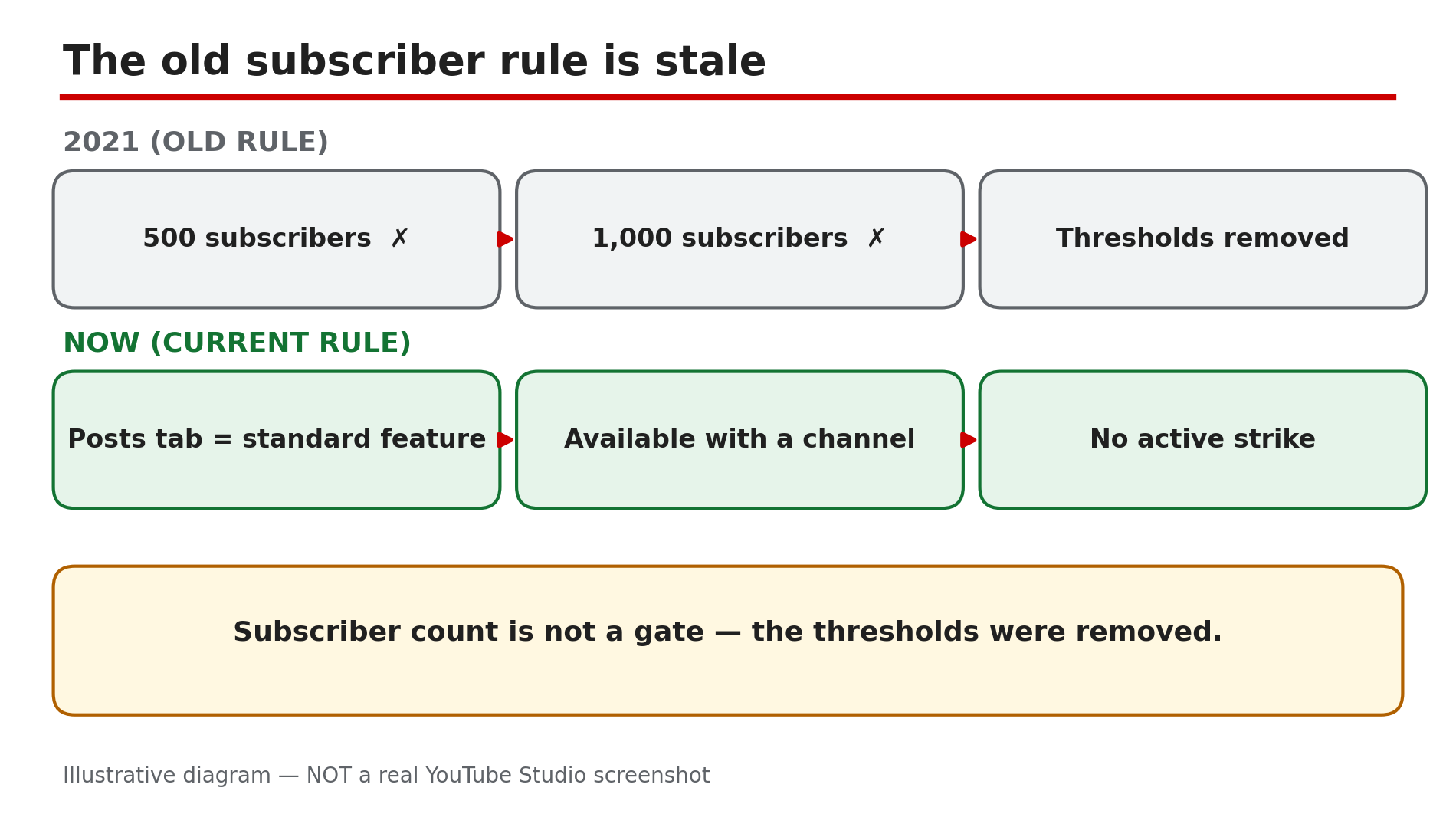
You open your channel page and the Posts tab is not there — no polls, no text updates, no way to reach subscribers. A friend says you need 500 subscribers; an old blog post says 1,000. So you wait, grow, and check again — and the tab is still missing. Those subscriber numbers are stale. As reported in YouTube's current feature-access documentation, the Posts tab is a standard feature for any channel with no active Community Guidelines strike. The 500- and 1,000-subscriber requirements were 2021 thresholds, since removed. If the tab is missing, one of those gates is blocking it. Work through them in order. What You Will LearnWhy the 500/1,000-subscriber rule no longer applies How to check feature eligibility How a strike, Made for Kids, or a supervised account hides the tab Why phone verification changes your daily limit, not the tab How to post first and make the tab appearStep 1 — Forget the subscriber number: check the current rule What to do: Stop waiting for 500 or 1,000 subscribers — check what YouTube's current rules actually say. How: Open Studio on a computer and go to Settings → Channel → Feature eligibility. YouTube's Help page lists the Posts tab as a standard feature, available with a channel that has no active Community Guidelines strikes — no subscriber count appears in that list. If it shows as enabled, your channel already has it. Example: A creator with 87 subscribers spends three months chasing 500. She opens Feature eligibility and sees the Posts tab already listed — her real problem was a Made for Kids setting (Step 3). Common mistake: Trusting old guides over the current Help page. As reported, a YouTube Community forum reply on 18 October 2026 still told a Hindi user they needed "500+ subscribers" — outdated community advice, not the Help page.Illustrative diagram: the 500 and 1,000-subscriber thresholds were removed — the Posts tab is now a standard feature. Step 2 — Check for an active Community Guidelines strike What to do: Check whether an active strike is removing your standard features. How: In Studio, go to Settings → Channel → Feature eligibility and look for a warning that features are restricted. Also check your channel's email for the strike notice — it is easy to miss. As reported, a strike removes standard features while active, and strikes generally expire after 90 days — confirm the dates in Studio. Example: A creator gets a strike, and the next morning the Posts tab is gone. He assumes YouTube removed the feature for small channels — in fact the strike removed it, and the tab returned when the strike expired. Common mistake: Assuming the tab is gone forever. A strike is temporary — but while it is active, no amount of posting or verifying will bring the tab back.Illustrative mock-up: the four clicks in Studio that show whether the Posts tab is enabled for your channel. Step 3 — Check Made for Kids and supervised-account settings What to do: Check whether your channel is set to Made for Kids, or your account is supervised. How: In Studio, go to Settings → Channel → Advanced settings and read the audience setting. As reported, when a channel is set to Made for Kids, the Posts tab is visible only to the owner — viewers cannot see it, and you cannot publish posts. Change the setting only if your content genuinely is not made for kids. Also check whether your account is supervised — a parent or guardian must change those settings. Example: A creator sets his audience to Made for Kids during setup, thinking it is the safe choice. He can see the tab himself — but his viewers never can. Common mistake: Checking only your own view. The tab can be visible to you and invisible to everyone else — always check your channel page in an incognito window, signed out.Illustrative diagram: the four real gates that can hide the Posts tab, with subscriber count left out. Step 4 — Check your location and that you are looking at the right channel What to do: Confirm posts are available where you live, and you are on the right channel. How: As reported, Community posts are not currently available in Germany — if you are based there, the tab will not appear whatever you do; that is a regional restriction, not a fault with your channel. If you run more than one channel, use the switcher to confirm you are on the right one. Then look in the right place — on desktop the tab sits in the tab row on your channel page. Example: A creator in Germany follows every fix online and nothing works — the tab is simply not offered there at present, as reported. Common mistake: Hunting through Studio menus for a "Posts tab" switch. There is no switch — the tab appears on your channel page when your channel is eligible.Illustrative diagram: the Posts tab can be visible to the owner and invisible to viewers — check signed out. Step 5 — Verify your phone number to raise the daily limit, not to unlock the tab What to do: Verify your phone number — it changes your daily post limit, not the tab. How: In Studio, go to Settings → Channel → Feature eligibility , then under Intermediate features click Verify phone number and enter the code YouTube sends by text or call. As reported, the Posts tab carries a "limited daily limit" without verification and a "higher daily limit" once verified. Verification does not create the tab — it only lets you post more often. Hit the limit and you must wait 24 hours. Example: A creator verifies her number and the tab still does not appear, so she concludes verification "did not work". It worked fine — her tab was hidden by a Made for Kids setting. Verification was never the lock. Common mistake: Treating verification as the fix for a missing tab. Work through Steps 2 to 4 first; verify afterwards, so you can post often once the tab is back.Illustrative diagram: phone verification raises the daily post limit — it does not unlock the Posts tab. Step 6 — Create your first post in Studio only, then check your channel page What to do: Create your first Community post in Studio on a computer, then check your public channel page. How: In Studio, click Create → Create post. Publish a text post, an image post, or a poll — polls need at least two options. As reported, there is no Data API endpoint for Community posts, so no third-party tool can schedule them; scheduling is Studio-only, so double-check the timezone field. Then open your channel page in an incognito window, signed out. As reported, the tab may only appear after your first post is published — so publishing one post is itself the final step. Example: A creator checks his channel page every day for a tab that never appears. He publishes one text post in Studio and refreshes — the Posts tab is there, with his post inside it. Common mistake: Waiting for the tab to appear before posting anything. The order is the other way round: post first, then the tab shows up.Illustrative diagram: creating your first post in Studio is the final step that makes the Posts tab appear. Checklist — Fix the missing Community Posts tab☐ Feature eligibility checked — Posts tab standard ☐ Old 500/1,000-subscriber rule ignored ☐ No active Community Guidelines strike ☐ Channel audience not set to Made for Kids ☐ Account not supervised ☐ Not based in Germany ☐ Right channel checked, signed out in incognito ☐ Phone verified for a higher daily limit ☐ First post created in Studio; tab confirmed on channel pageFAQs 1. Do I need 500 or 1,000 subscribers for the Community Posts tab? No — not any more. As reported, the Posts tab is a standard feature for any channel with no active Community Guidelines strikes. The 500- and 1,000-subscriber numbers were 2021 thresholds, since removed. 2. I have 2,000 subscribers and still no Posts tab. Why? Because subscriber count was never the gate. Check the real gates: an active strike (Step 2), Made for Kids (Step 3), a supervised account (Step 3), or Germany (Step 4) — and confirm the right channel, checked signed out. 3. Does verifying my phone number unlock the Posts tab? No. Phone verification raises your daily post limit — it does not create the tab. If the tab is missing, the cause is a gate in Steps 2 to 4. Verify anyway once the tab is back. 4. Can I schedule Community posts with a third-party tool? No, as reported. There is no Data API endpoint for Community posts, so no third-party tool can schedule them — scheduling is Studio-only, on a computer. 5. How is this different from growing engagement with Community posts and polls? That guide is about what to post once the tab works. This post is the diagnosis for when the tab itself is missing — fix the tab first, then use the engagement guide. SourcesYouTube Help — "Learn about feature access for YouTube Creators" (official page, opened live 8 Nov 2026): https://support.google.com/youtube/answer/9890437?hl=en CreatorPlaybook — "Made for Kids on YouTube: Revenue, Limits & What Creators Must Know" (internal link, live-verified published post): </blog/made-for-kids-on-youtube-revenue-limits> CreatorPlaybook — "Community Guidelines Strike vs Channel Termination: What's the Difference?" (internal link, live-verified published post): </blog/community-guidelines-strike-vs>
- CreatorPlaybook Team
- 08 Nov, 2026
YouTube Video or Shorts Not Showing in Your Subscriptions Feed? How to Fix It
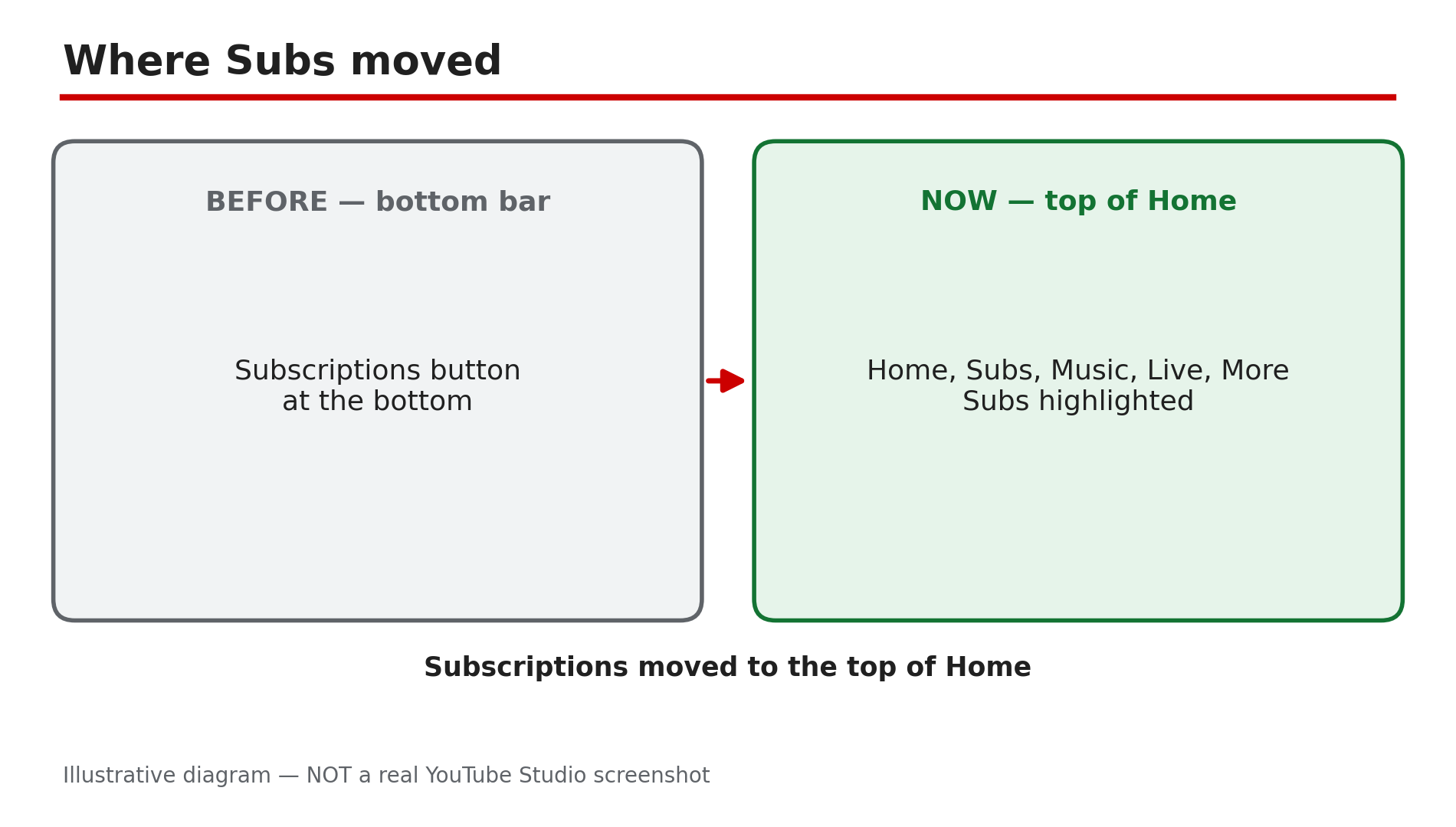
You know a channel uploaded a new video, but your Subscriptions feed hides it. Or the feed shows a video from three days ago at the top while today's upload is nowhere. Shorts seem to vanish, appearing hours later, if at all. This problem usually has more than one cause: your feed may be sorted by what YouTube thinks you want to watch rather than by upload time, the Subscriptions button has moved, and Shorts can take time to appear. Add a wrong account, and a video can be invisible even though nothing is broken. Work through the steps in order. What You Will LearnWhere the Subscriptions feed moved in the new app layout Why the feed is not in upload order, and how the Latest filter fixes it How to confirm the right account and subscription Why Shorts can be delayed How the feed differs from notificationsStep 1 — Find where Subs moved in the new app layout What to do: In the mobile app, open Home and tap "Subs" in the top bar — the button no longer sits at the bottom. How: As reported in October 2026, YouTube moved Subscriptions from the bottom bar to the top of the Home tab. Tap Home at the bottom left, then Subs in the row at the top — second after Home. If the top row is hidden, scroll back to the top or pull down. On a computer, click Subscriptions in the left-hand guide. Example: A viewer updates the app and panics because the Subscriptions tab has vanished. She taps Home, then Subs, and all her channels are still there — only the button moved. Common mistake: Reinstalling the app, or assuming you were unsubscribed, when the feed simply moved.Illustrative mock-up: Subscriptions moved from the bottom bar to the top of the Home tab as Subs. Step 2 — Confirm the right account and that you are still subscribed What to do: Check you are signed in to the account holding the subscriptions, and that the channel is still subscribed. How: Tap your profile picture and read the account name — many people have a personal and a brand account, and subscriptions live on one of them only. Then open the Subs feed and tap All. If the channel is missing, open its page: if the button says Subscribe, you were unsubscribed at some point — tap it again. YouTube's Help page confirms new videos from a subscribed channel show up in your Subscriptions feed. Example: A viewer cannot find any video from a small creator he follows — in the channel list the creator is gone, unsubscribed by accident. One tap brings the videos back. Common mistake: Checking the feed on a second account, or assuming the channel stopped uploading, without checking the list.Illustrative diagram: the same feed in ranked order and in Latest order, showing how a new video can be buried. Step 3 — Switch to the Latest filter and train the feed What to do: Use the Latest filter so the newest uploads appear first, and engage with the channels you want. How: Your Subscriptions feed is not chronological by default. YouTube ranks it by predicted interest — watch history and engagement — so a newer upload from a channel you rarely watch can surface days late, while an older video sits at the top. Use the Latest filter to sort by upload time instead, and engage with the channel — watch its videos to the end, like and comment. As reported, older filters may be missing in the new layout. Example: A creator uploads every morning at 8, but a viewer only sees the videos two days later. Switching to Latest shows today's video at the top — never missing, only ranked low. Common mistake: Treating the default feed order as upload order, and concluding a video was never delivered when it is ranked low.Illustrative mock-up: checking the signed-in account and the full subscription list before any other fix. Step 4 — Give Shorts time, and check the Shorts requirements What to do: If a Short is missing, wait before assuming a fault, and check the upload qualifies as a Short. How: As reported in YouTube's Help Community in October 2026, Shorts can take time to appear in search and in the feed after upload — check again after an hour or two. Also check the basics: a Short must be vertical and under 3 minutes — a horizontal video, or one longer than 3 minutes, is a regular video and will not appear in the Shorts shelf. Confirm in Studio that it is processed and Public. Example: A viewer checks the Subs feed five minutes after a creator posts a Short and finds nothing. An hour later it is at the top — a processing delay. Common mistake: Re-uploading the Short, which duplicates it and splits the views, instead of waiting.Illustrative diagram: the delay between a Short being uploaded and appearing in the Subscriptions feed. Step 5 — Remember the feed is not notifications, and check the bell What to do: Do not confuse a quiet feed with missing notifications — two different systems. Set the bell to All for an alert on every upload. How: YouTube's Help page explains the difference: the feed shows recent uploads, while notifications are alerts about new videos, which by default only cover highlights. For an alert on every upload, tap the bell on the channel page and choose All. No notifications come from channels set as made for kids. If the bell is the problem, read our separate guide on subscribers not getting notifications, linked below. Example: A viewer expects an alert for every upload and thinks the feed is broken. The feed is fine — the bell was set to Personalised, so only highlights arrived, and the video was in the feed all along. Common mistake: Toggling the bell, or unsubscribing and re-subscribing, when only the notification setting was wrong — and re-subscribing resets your notification settings, as YouTube's Help page confirms.Illustrative diagram: how the Subscriptions feed and notifications differ, and why the bell setting matters. Step 6 — Update the app, and check for a reported bug before blaming your account What to do: Update the app, restart it, and check whether other viewers report the same problem. How: Install any pending YouTube update, then close the app and reopen it — an outdated app can show the old layout or a stale feed. Custom feeds are also rolling out — as reported, up to 3 free or 8 with Premium — but YouTube's Help page confirms they are English-only in the US. One more check, as reported by third-party outlets and not officially confirmed: some iOS users reported a feed-scroll bug in app versions 20.50.6 to 20.50.9 on iOS 26.2 and 26.3 beta. If that matches your app, update it or wait for a fix. If a video is still missing, open the channel's Videos tab — if it is there, your account is fine and the feed has not surfaced it yet. Example: A viewer on iOS finds the feed freezing halfway down. After updating, it scrolls normally — the subscriptions were never the problem. Common mistake: Deleting the app, or unsubscribing from dozens of channels, when a simple update would have fixed the feed.Illustrative diagram: the six steps in order for a video or Short missing from the Subscriptions feed. Checklist — Fix videos or Shorts missing from your Subscriptions feed☐ Found Subs at the top of Home ☐ Right account signed in ☐ Channel still subscribed ☐ Latest filter used ☐ Engaged with the channel ☐ Shorts given time; vertical, under 3 min ☐ Upload Public in Studio ☐ Bell set to All ☐ App updated and restarted ☐ Channel Videos tab checkedFAQs 1. Why is my feed not in order of upload time? Because YouTube ranks the feed by predicted interest — watch history and engagement — not upload time. A newer video from a channel you rarely watch can sit below older videos. Use Latest to see uploads in time order. 2. Where did the Subscriptions tab go in the YouTube app? As reported in October 2026, it moved: Subscriptions is now called Subs at the top of the Home tab, not the bottom bar. Tap Home, then Subs — nothing was deleted. 3. Why does a Short take so long to appear in my feed? As reported in YouTube's Help Community, Shorts can take time to appear in search and in the feed while processing finishes. Wait an hour or two, and confirm in Studio it is vertical, under 3 minutes, and Public. 4. Is a missing video in my feed the same as not getting notifications? No. The feed shows recent uploads; notifications are separate alerts, and by default you only get highlights. If the bell is your problem, see our notifications guide, linked below. 5. A channel's videos never appear in my feed, even after waiting. What now? Check you are subscribed, on the right account, and using Latest. Then open the channel's Videos tab — if the video is there, your account is fine. If the channel is missing from your list, subscribe again. SourcesYouTube Help — "Subscribe to YouTube channels" (official page, opened live 8 Nov 2026): https://support.google.com/youtube/answer/4489286?hl=en CreatorPlaybook — "Video Not in Suggested or Recommended? How to Fix It" (internal link, live-verified): </blog/video-not-in-suggested-or-recommended> CreatorPlaybook — "Subscribers Not Getting Notifications? How to Fix It" (internal link, live-verified): </blog/subscribers-not-getting-notifications>
- CreatorPlaybook Team
- 08 Nov, 2026
YouTube Shorts Custom Thumbnail Not Showing? How to Fix It
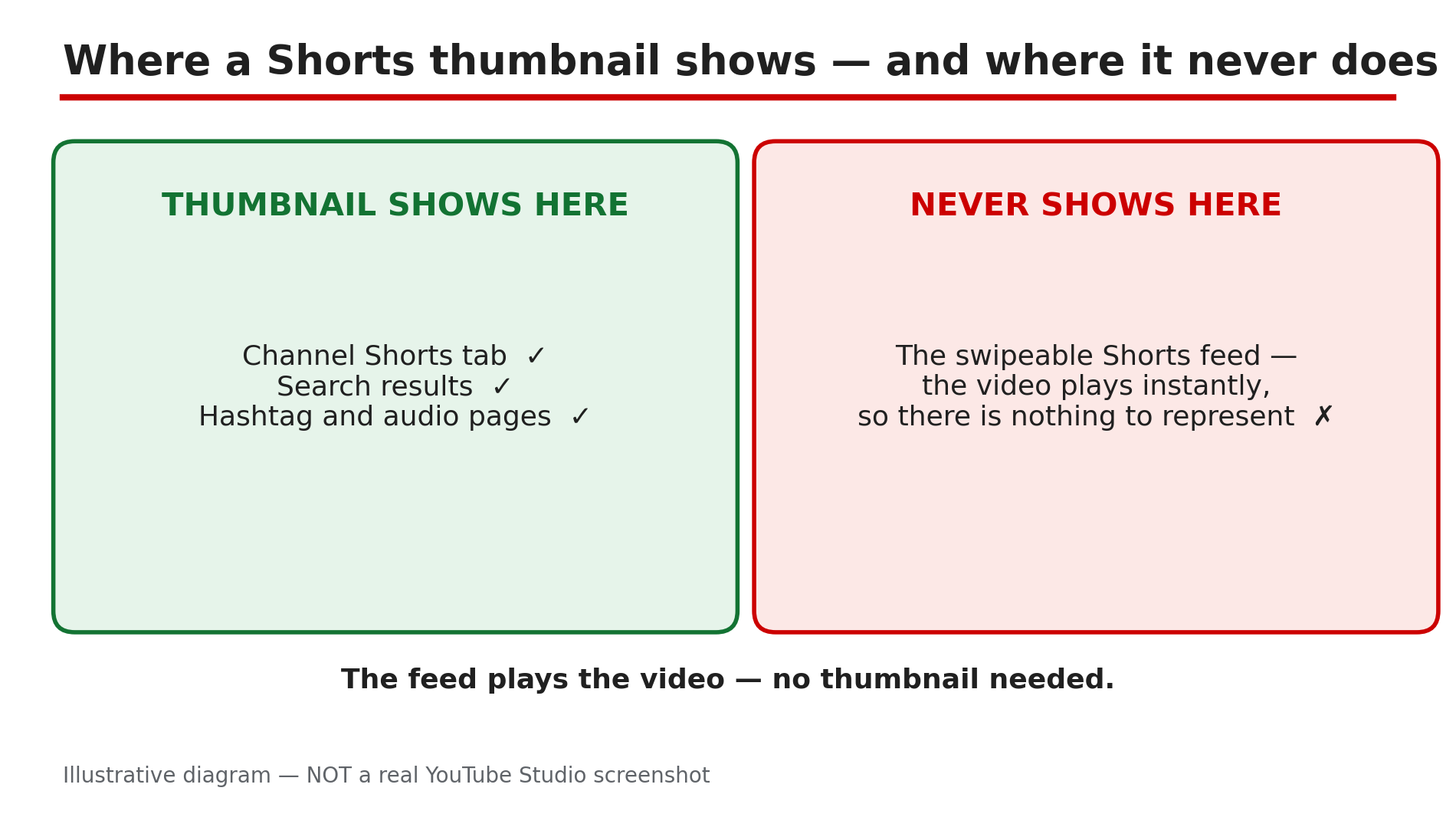
You uploaded a custom thumbnail for your Short and saved it — but the Short still shows an auto-picked frame. Or there is no upload button at all, only a message saying you cannot change the thumbnail for now. In most cases it is not a bug: wrong place, wrong eligibility, wrong device, or a file that breaks the rules. Custom Shorts thumbnails are new. As reported, YouTube began rolling them out on 25 July 2026 to Partner Program members, in Studio on a computer only. Before that, a Short's thumbnail was always a frame from the video — and for many creators it still is. Work through the steps in order and confirm each one in Studio — in minutes you will know if the thumbnail is missing, delayed, or never uploaded. What You Will LearnWhere a Shorts thumbnail appears — and where it never will Whether your channel is eligible Why the upload option is desktop Studio only The file size, format, and ratio rules How to upload, save, and check the thumbnail The frame workaround while you waitStep 1 — Check where you are looking first What to do: Check the right surface before changing anything. A Shorts thumbnail never appears in the swipeable Shorts feed, because the video starts playing the moment it appears. Check your Shorts tab, search results, or a hashtag page instead. How: Open your channel in an incognito window and open the Shorts tab, so you see what a visitor sees. Then search for the Short's title. YouTube's Help page says the thumbnail appears in search results, hashtag and audio pivot pages, and your channel page. If the custom image shows there, it worked. Example: A creator uploads a custom thumbnail, checks the Shorts feed, and sees the old frame. She checks her Shorts tab in an incognito window instead — the new thumbnail is there. Common mistake: Judging the thumbnail from the Shorts feed alone, and re-uploading when the first upload worked.Illustrative diagram: the surfaces where a Shorts thumbnail appears, and the one surface where it never will. Step 2 — Confirm your channel is eligible — YPP and the rollout What to do: Check whether your channel can use custom Shorts thumbnails. As reported, the rollout began on 25 July 2026 for Partner Program members only. If you are not in YPP, or it has not reached you, there is no setting to switch on. How: Open the Earn tab in Studio to check Partner Program membership. Then read the message Studio shows: if it says "For now, you can't change the thumbnail on your Short", the feature has not reached your account yet. There is no toggle to turn it on — check again after a few days. Example: A creator outside YPP hunts through Studio for a thumbnail switch. The Earn tab shows she is not in the Partner Program — so she waits and uses the Step 6 workaround. Common mistake: Paying for a tool that promises to unlock it. No tool can add a feature YouTube has not rolled out to your channel.Illustrative diagram: the two eligibility gates for custom Shorts thumbnails — Partner Program membership and the gradual rollout. Step 3 — Switch to YouTube Studio on a computer What to do: Do this step on a computer, in a desktop browser. Custom Shorts thumbnails can only be added in YouTube Studio on a computer — not from the mobile app, and not through a scheduler. On a phone, you can only pick a frame. How: On your computer, sign in to Studio, open Content, and select Shorts. Open the Short, click Upload file below "Thumbnail", choose the image, and click SAVE. As reported, schedulers do not support custom Shorts thumbnails — upload in Studio itself. On mobile, the YouTube app offers only a frame picker. Example: A creator tries for a week to add a custom thumbnail from the Studio app and finds only frame choices. On her laptop, the Upload file button is right there. Common mistake: Re-installing the mobile app when the feature is desktop-only by design.Illustrative mock-up: the desktop Studio path to upload a custom Shorts thumbnail, and the routes that do not offer it. Step 4 — Verify your account and check the file against the rules What to do: Confirm your account is verified, then check the file against YouTube's rules. A file that breaks them can fail silently. How: In Studio, go to Settings, then Channel, then Feature eligibility, and confirm phone verification is done — YouTube's Help page states verification is required. Then check the file: 2160 by 3840 pixels, 9:16, minimum 640 pixels tall, JPG or PNG, under 50 MB on desktop. Check the image against the Community Guidelines too: misleading, sexual, hateful, violent, or harmful content can get a thumbnail rejected, and a strike can follow. A daily limit also applies — "Daily custom thumbnail limit reached" means wait 24 hours. Example: A creator exports a 16:9 image for a vertical Short. Nothing changes. She exports a 2160 by 3840, 9:16 JPG under 50 MB, and the upload works first try. Common mistake: Using a long-form 16:9 file for a Short, or assuming an upload worked with no error shown.Illustrative diagram: the four file rules a Shorts thumbnail must meet before upload. Step 5 — Upload, save, and wait for the change to appear What to do: Upload in desktop Studio, click SAVE, and give the change time to appear. YouTube's Help page notes thumbnail changes may take time, so a missing thumbnail minutes after saving is often just processing. How: Open Content, then Shorts, open the Short, click Upload file below Thumbnail, choose the file, and click SAVE. Then wait and check in an incognito window: the Shorts tab and a search result, not the feed. If the old frame still shows, reopen the Short and check the custom image is still selected; if not, upload again. One quirk: a 16:9 thumbnail on a vertical video becomes an auto 4:5 image on Home, Explore, and Subscriptions instead. Example: A creator saves a new thumbnail and checks the feed five minutes later — old frame. She waits, checks her Shorts tab in incognito, and it is showing. Common mistake: Re-uploading the same image five times, or deleting the Short — a new upload loses views and comments.Illustrative diagram: the upload, save, wait and check sequence for a new Shorts thumbnail. Step 6 — Use the frame workaround, and know what does NOT work for Shorts What to do: If the upload option has not reached your channel, use the frame method that works for everyone today. Test and Compare does not work on Shorts. How: Make the first second of the Short a clean, bold frame — big readable text, one clear subject — because the frame you pick becomes the thumbnail on your channel page, in search, and on hashtag pages. On mobile, open the YouTube app and pick the best frame; that is the only choice on mobile, and it works on every channel. Keep one style across your Shorts so viewers recognise them. Example: A creator not yet in YPP opens every Short with a one-second title card: three big words on a plain background. She picks that frame, and her Shorts tab looks consistent while she waits. Common mistake: Waiting for a Test and Compare result on a Short, or re-uploading the video just to change the frame.Illustrative diagram: what works for long-form thumbnails but not for Shorts, and the frame workaround that works for everyone. Checklist — Fix a Shorts custom thumbnail not showing☐ Checked the Shorts tab and search, not the Shorts feed ☐ YPP status confirmed in the Earn tab ☐ "Can't change the thumbnail" read as a rollout wait ☐ Studio on a computer, not the mobile app or a scheduler ☐ Account verified (phone), checked in Feature eligibility ☐ File is 2160x3840, 9:16, JPG or PNG, under 50 MB ☐ Image follows the Community Guidelines ☐ Uploaded via Upload file, then SAVE clicked ☐ Waited, then checked in an incognito window ☐ Frame workaround in place while waitingFAQs 1. Why can't I change my Shorts thumbnail at all? As reported, the rollout began on 25 July 2026 for Partner Program members, in Studio on a computer only. If you are not in YPP, or it has not reached you, Studio says the thumbnail cannot be changed for now. Check the Earn tab and use the Step 6 workaround. 2. Where does a Shorts thumbnail actually show? On your Shorts tab, in search results, and on hashtag and audio pages. Never in the swipeable Shorts feed — check the Shorts tab in incognito. 3. Can I upload a custom Shorts thumbnail from my phone? No. YouTube's Help page states they can only be added in Studio on a computer, with a verified account. On a phone, you can only pick a frame. 4. What size should a Shorts thumbnail be? 2160 by 3840 pixels at 9:16, minimum 640 pixels tall, JPG or PNG, under 50 MB on desktop. A 16:9 thumbnail on a vertical video becomes an auto 4:5 image on Home, Explore, and Subscriptions. 5. Can I A/B test Shorts thumbnails? No — Test and Compare is long-form only. Pick the strongest frame, keep one style, and compare click-through in Analytics. SourcesYouTube Help — "Add custom thumbnails on YouTube" (official page, opened live 8 Nov 2026): https://support.google.com/youtube/answer/72431?hl=en-GB&co=GENIE.Platform%3DDesktop CreatorPlaybook — "YouTube Custom Thumbnail Rejected or Not Showing? How to Fix It" (internal link, opened live 8 Nov 2026): </blog/youtube-custom-thumbnail-rejected-or> CreatorPlaybook — "YouTube Studio Not Loading, Blank, or "Something Went Wrong"? How to Fix It" (internal link, opened live 8 Nov 2026): </blog/youtube-studio-not-loading-blank-or>
- CreatorPlaybook Team
- 07 Nov, 2026
YouTube Studio Not Loading, Blank, or "Something Went Wrong"? How to Fix It
You click to open YouTube Studio and nothing happens. The page stays blank, the spinner turns forever, or a message says "Something went wrong. Refresh or try again later." Your videos are due, and your channel's control room is locked shut. In most cases this is not a strike or a deleted account. It is usually a browser or sign-in problem: the wrong account, an outdated browser, a corrupted cache, a blocking extension, or a changed DNS setting. There is no dedicated Help page called "Studio not loading", so this guide uses YouTube's video-errors causes, which apply to Studio in the same browser. Work through the steps in order, testing Studio after each change. What You Will LearnHow to read the symptom: blank page, spinner, or error How to check your account and channel How to restart, update, and clean your browser How to find a blocking extension Which Studio features are desktop-only, not a bugStep 1 — Refresh and read the exact symptom What to do: Refresh and note exactly what you see — a blank page, a spinner, or "Something went wrong" — before changing anything. How: Press refresh once and wait a minute. If the error message appears, click the Reload option in it, as YouTube's Help page suggests. Then open youtube.com in a new tab: if ordinary videos play but Studio does not, the fault is with Studio, not your connection. If nothing loads, check your connection and whether other creators report an outage. Example: A creator's Studio shows a blank screen every morning, but the watch page plays normally — so the fault is specific to Studio, pointing her to Steps 3 to 5, not her router. Common mistake: Assuming the channel was deleted or hacked — a blank page almost never means that.Illustrative diagram: the three ways Studio fails to load, and the shared fix order. Step 2 — Confirm the right account and channel What to do: Check you are signed in to the Google account that owns the channel, and the switcher shows the right channel. How: Click your profile picture at the top right and read the account name. If you have more than one channel or a brand account, open the channel switcher and pick the right channel — Studio shows the selected channel's data, so the wrong one can look like missing videos or an empty dashboard. If you are signed out, sign in again with the account that owns the channel. Example: A creator with two channels opens Studio and sees no videos. She is signed in to her personal account, not the brand account that owns the channel. One switch brings all her videos back. Common mistake: Creating a new channel by accident while signing in — check the switcher first.Illustrative mock-up: checking the signed-in account and the channel switcher before any browser fix. Step 3 — Restart your browser and device, then update the browser What to do: Close the browser completely, restart your device, and update to the latest version of a compatible browser. How: Close every browser window, then reopen it and try Studio again. If that fails, restart your computer or phone; YouTube's Help page lists restarting the device as a fix. Then check for a browser update: YouTube recommends the latest version of Chrome, Firefox, or Safari. If you use the Studio app, update the app and your device's software too. Example: A creator's Studio stops loading after a browser update is left half-installed. He restarts his laptop, the update finishes, and Studio opens normally. Common mistake: Updating the YouTube app while the real problem is the outdated desktop browser you use for Studio.Illustrative diagram: the order for browser fixes — restart first, update second, clear cache and cookies third. Step 4 — Clear the cache and cookies, then sign in again What to do: Clear your browser's cache and cookies for YouTube, then sign in to Studio again. How: YouTube's Help page lists clearing the cache and cookies as a fix for "Something went wrong", because corrupted cache or cookies can stop pages loading. In your browser settings, clear cached images and files and cookies for youtube.com and studio.youtube.com only. Then reopen the browser and sign in again. Before clearing cookies, make sure you know your Google password: clearing cookies signs you out of many sites. Example: A creator sees "Something went wrong" on Studio every day for a week. She clears the cache and cookies, signs in again, and Studio loads in seconds. Common mistake: Clearing only the cache, or clearing everything without knowing your password first.Illustrative diagram: comparing Studio in a normal window and an incognito window to find a blocking extension. Step 5 — Test in incognito with extensions off, and check ad blockers and DNS What to do: Open Studio in an incognito window with all extensions disabled. If it works there, an extension — often an ad blocker — is the problem. How: Open an incognito window with extensions switched off, sign in, and open Studio — the exact test YouTube's Help page suggests for ad-blocking extensions. If Studio loads, turn extensions on one at a time in your normal window until Studio breaks again — that is the culprit. Add Studio to that extension's allowed list, or turn off ad blocking for youtube.com. Also check your DNS settings: YouTube says to confirm you are using your preferred DNS servers and no third-party app has changed them. If you installed a VPN or privacy app recently, turn it off briefly and refresh Studio. Example: A creator installs a new ad blocker and Studio goes blank the same evening. In an incognito window with extensions off, Studio works. She whitelists studio.youtube.com, and Studio works in her normal window again. Common mistake: Turning the ad blocker off everywhere instead of allowing just YouTube.Illustrative diagram: three tests that show whether the fault is local or with your channel. Step 6 — Try another browser or network — and know what is NOT a bug What to do: Try Studio in a different browser, network, or device. If it works elsewhere, the fault is with the first one — not your channel. How: Open Studio in a second browser, such as Firefox if you normally use Chrome, or try your phone's hotspot instead of home Wi-Fi. If Studio still fails everywhere, use the Help icon on any YouTube page to search the Help Center. One thing is not a bug at all: some Studio features only work on a computer. As reported in YouTube's Help pages, custom Shorts thumbnails can only be added in YouTube Studio on a computer, and your account must be verified. End screens, cards, and bulk editing are desktop-only too. If an option is missing on the mobile app, switch to a computer first. Example: A creator cannot find the custom thumbnail option for a Short on her phone. On her laptop the same afternoon, the option is there — the phone app does not offer it, by design. Common mistake: Reinstalling browsers before trying a second browser — a two-minute test that would have shown the fault was local. And reporting a missing mobile feature as a bug, when it is desktop-only.Illustrative diagram: Studio features that only work on a computer, so a missing option on mobile is not a fault. Checklist — Fix YouTube Studio not loading☐ Refreshed; symptom noted (blank, spinner, error) ☐ Ordinary videos play, or connection fault noted ☐ Right account and channel ☐ Browser closed, device restarted, updated ☐ Cache and cookies cleared; signed in again ☐ Incognito test done; Studio whitelisted ☐ DNS checked; VPN tested off ☐ Second browser, network, or device tried ☐ Desktop-only features checked on computerFAQs 1. Is Studio not loading a strike or a problem with my channel? No, not usually. A blank page or "Something went wrong" is most often a browser or sign-in problem — the wrong account, an outdated browser, corrupted cache, or a blocking extension. Check the steps above, and confirm in Studio once it opens. 2. Studio works on my phone but not on my computer. Why? Because the fault is in the computer's browser, not your channel. Work through Steps 3 to 5 on the computer: restart, update, clear cache and cookies, and test in incognito. 3. I cleared my cookies and now I am signed out of everything. Is that normal? Yes. Clearing cookies signs you out of many sites — which is why this guide says to know your password first. Sign back in, then open Studio again. 4. Why can't I add a custom Shorts thumbnail on my phone? Because it is desktop-only by design, as reported in YouTube's Help pages: custom Shorts thumbnails can only be added in YouTube Studio on a computer, and your account must be verified. 5. How is this different from a video stuck on uploading or processing? A stuck upload means Studio opens fine but a video will not finish uploading or converting. Here Studio itself will not open, so you cannot reach the upload page. Fix Studio first. SourcesYouTube Help — "Troubleshoot YouTube video errors" (official page, opened live 7 Nov 2026): https://support.google.com/youtube/answer/3037019?hl=en CreatorPlaybook — "YouTube Video Stuck on Uploading or Processing? How to Fix It" (internal link, opened live 7 Nov 2026): </blog/youtube-video-stuck-uploading-or> CreatorPlaybook — "YouTube 'Processing Abandoned'? Why the Video Could Not Be Processed and How to Fix It" (internal link, opened live 7 Nov 2026): </blog/youtube-processing-abandoned-why-video>